
Self-assessments are non-graded learning activities that learners can use to check their knowledge, reflect on what they've learned, or share open-ended responses. You can use exam-type questions for knowledge checks and feedback, or form-type questions for open-ended input and data collection.
This guide covers how to create a self-assessment, add questions, configure feedback and review options, customize the assessment, and review submissions.
Create a self-assessment
1. Navigate to the Course Outline tab of your course.
2. Click on Add Activity under a course section.
3. Choose Self-Assessment and select one of the following options:
Start from Scratch – Create a blank self-assessment.
Test Your Knowledge – Add closed-ended questions with instant feedback and no scoring.
Express Yourself & Get Feedback – Include open-ended assignment types (Text, File, Video, Audio) for students to express themselves.
Reflection/Diaries Templates – Let learners write journals and reflect. If you want to know more about Reflection journals, visit this article.
4. Click Save or Save & Edit to begin configuring the Self-Assessment.

Choose how to build your self-assessment
After creating the activity, you can add questions manually, use the AI Assistant, or import questions.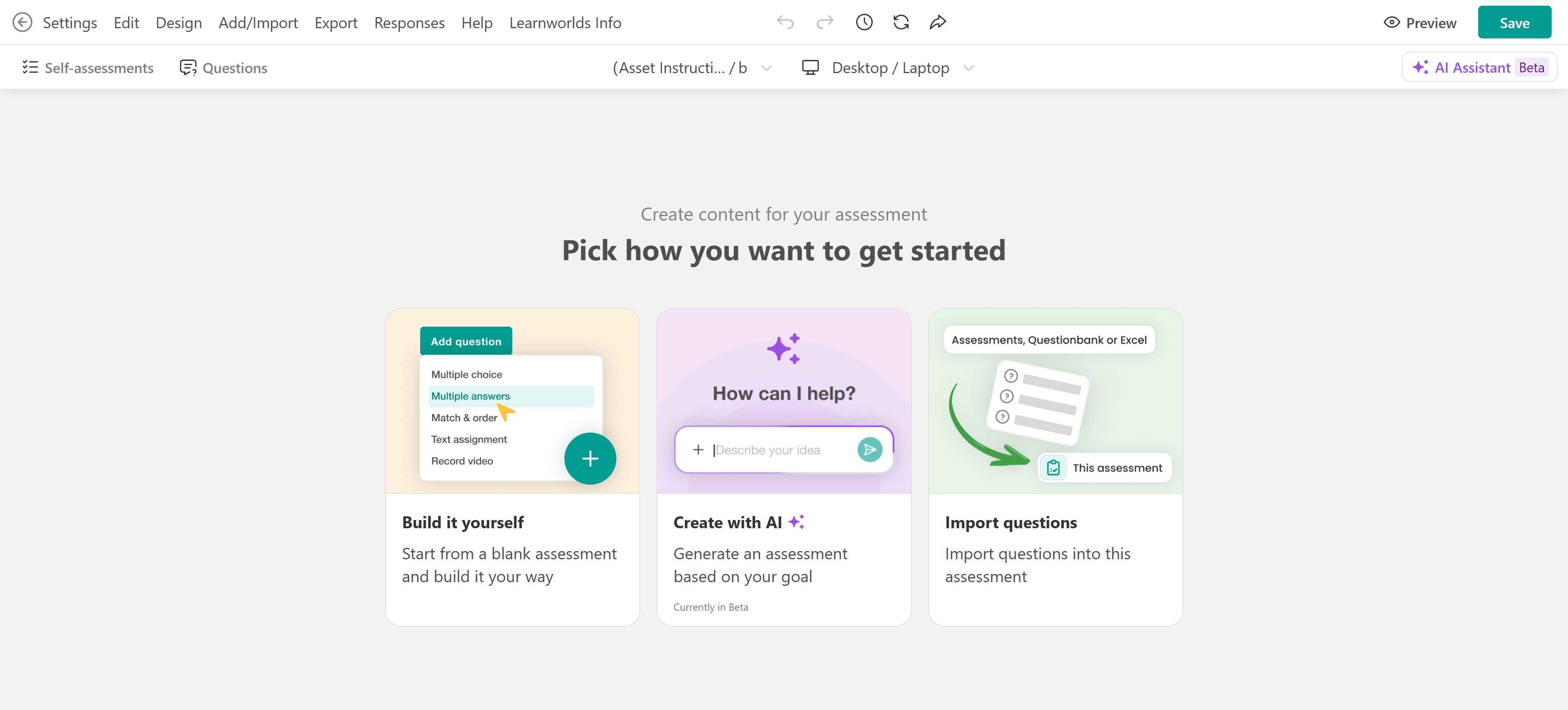
A self-assessment can include a starting screen, one or more question sections, and an ending screen.
Starting screen
The starting screen is optional. Use it to introduce the activity, explain what learners should do, or provide instructions before they begin.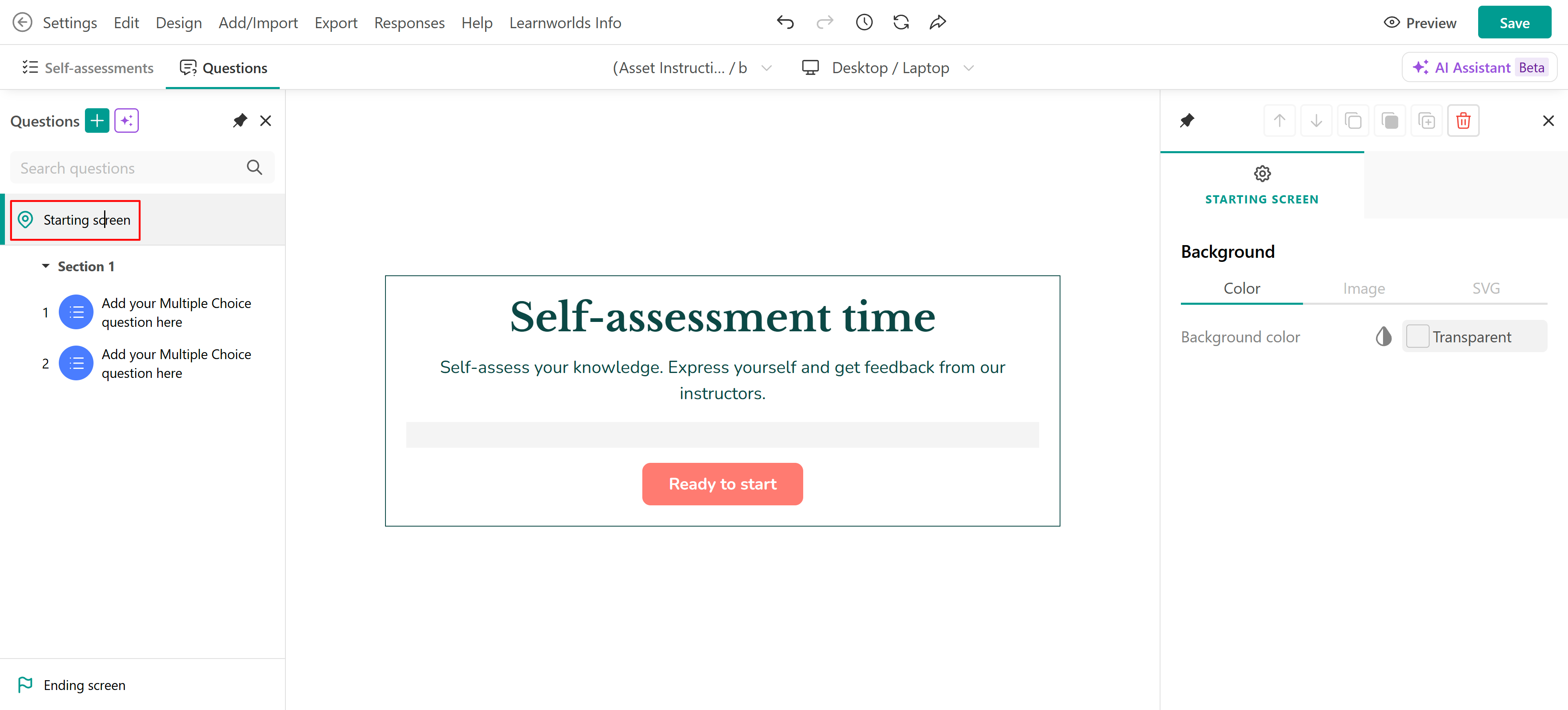
Use the starting screen to provide clear instructions before learners begin, especially when the activity includes unusual question types, time limits, file uploads, or other interactions that learners need to understand in advance.
Sections and questions
For a short self-assessment, one section may be enough. For a longer activity, use multiple sections to group related questions.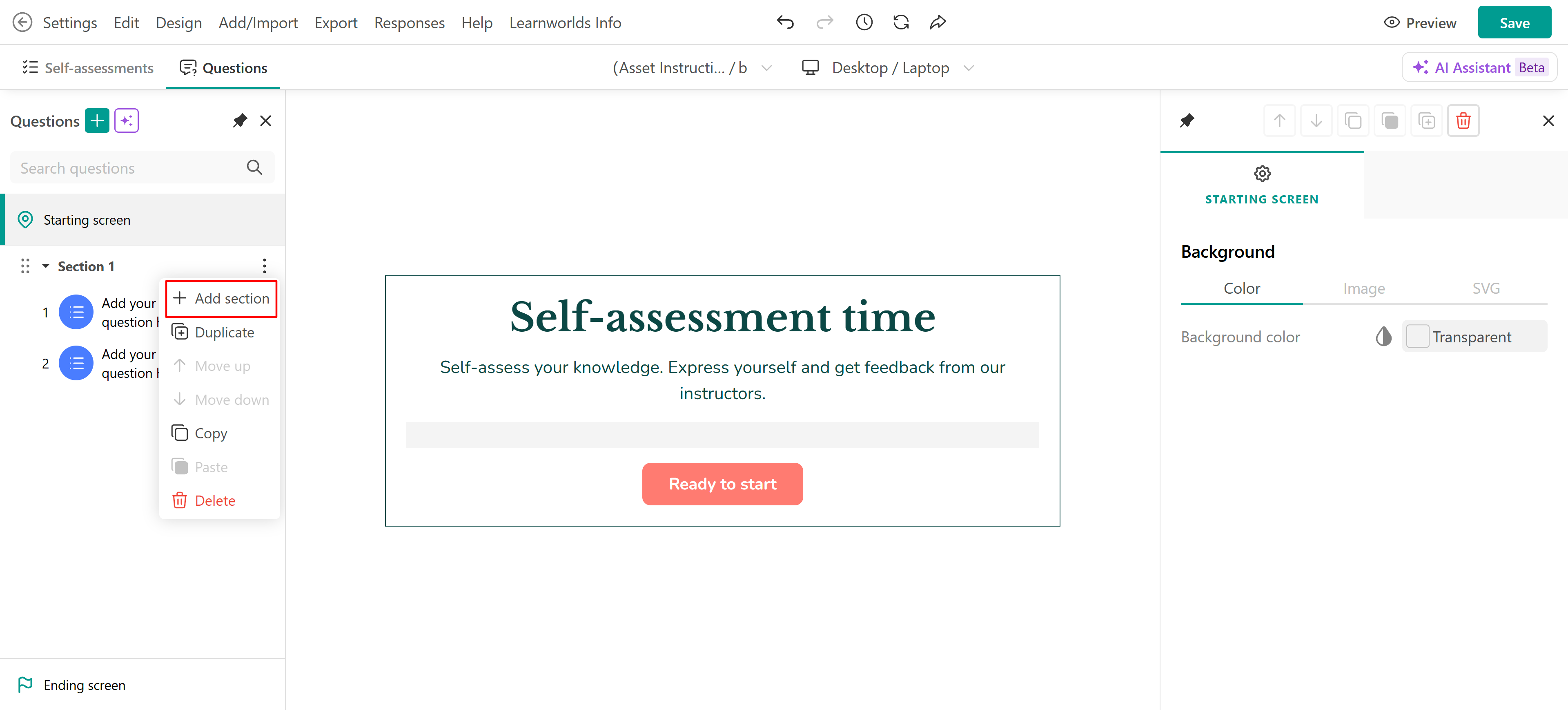 If you are creating your assessment manually, to add a section, open the three-dot menu for the current section and select Add section. You can rename a section from its section properties.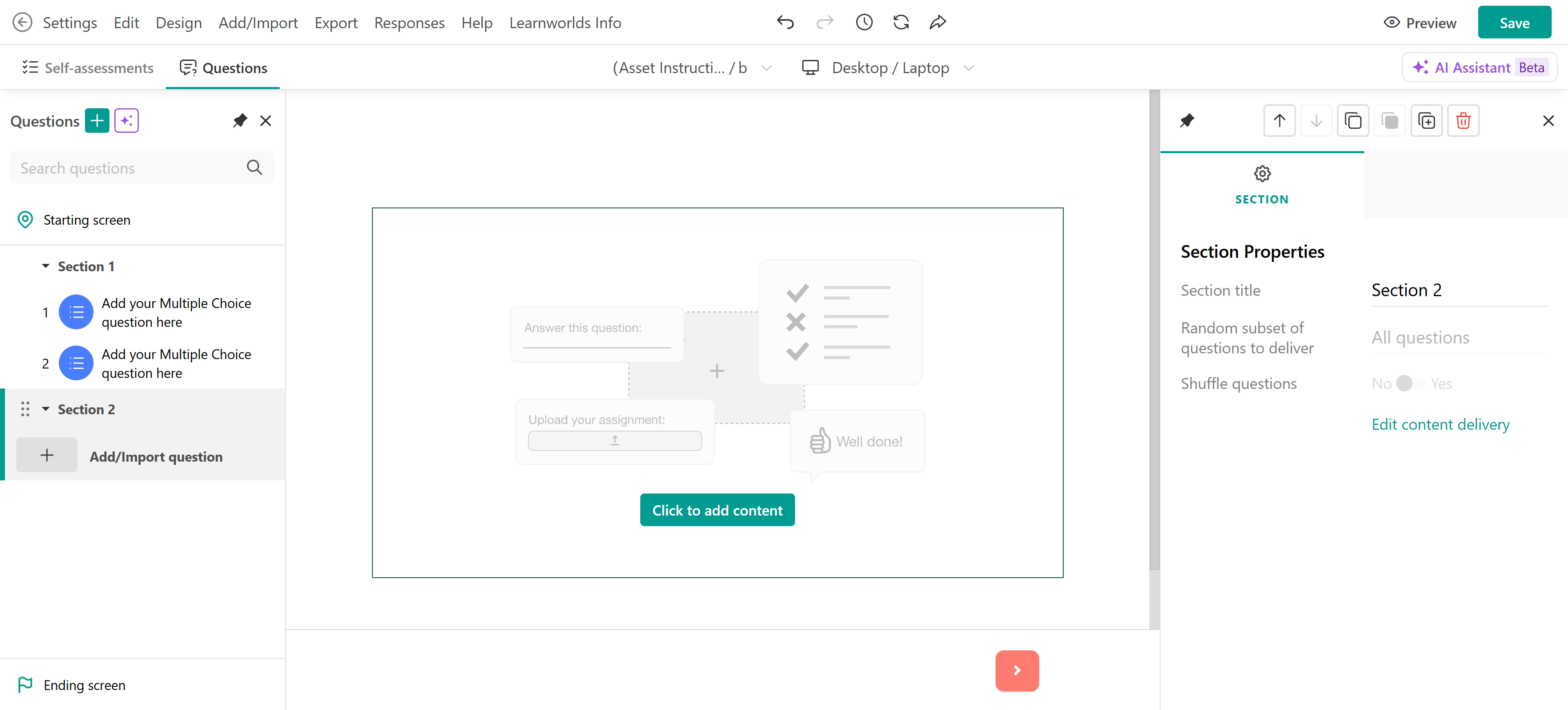
Add questions
Build your self-assessment by adding questions manually or using the AI Assistant.
- Select the + icon or Add/Import → New question to add questions manually. You can find out more about it in this article.
- Use the AI Assistant to help write or edit questions.
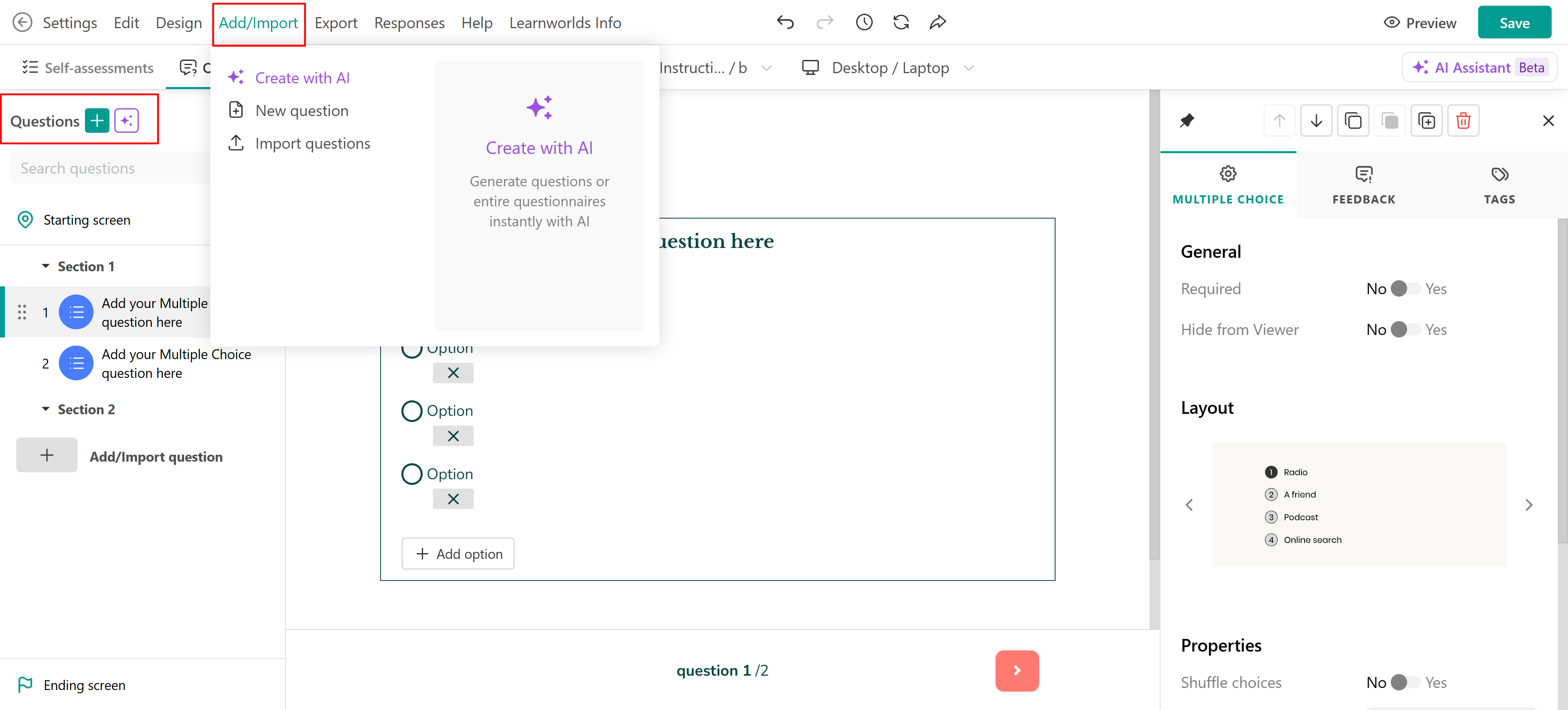 Self-assessments support two question groups:
- Exam questions, with scoring turned off, for knowledge checks with correct or incorrect answers and feedback
- Form questions for open-ended input or data collection
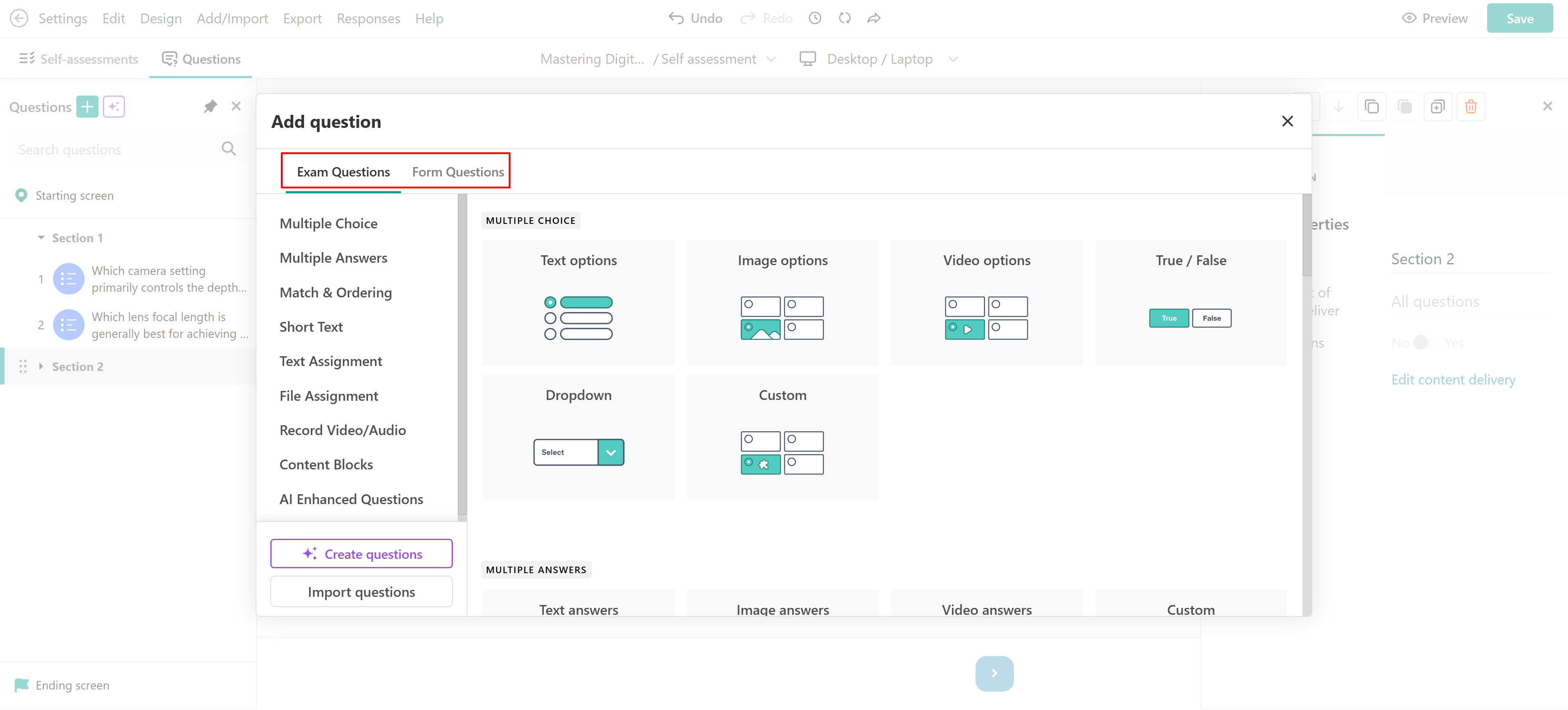
 Use form questions for open-ended responses that do not need manual review. Assignment-style exam questions, such as text, file, video, or audio submissions, are sent to the Review Center.
Configure feedback
For exam-type questions, you can add feedback that learners see based on their answers. Select a question and open the Feedback tab. From there, you can turn feedback on or off, choose the feedback type, and use the AI Feedback Assistant where available.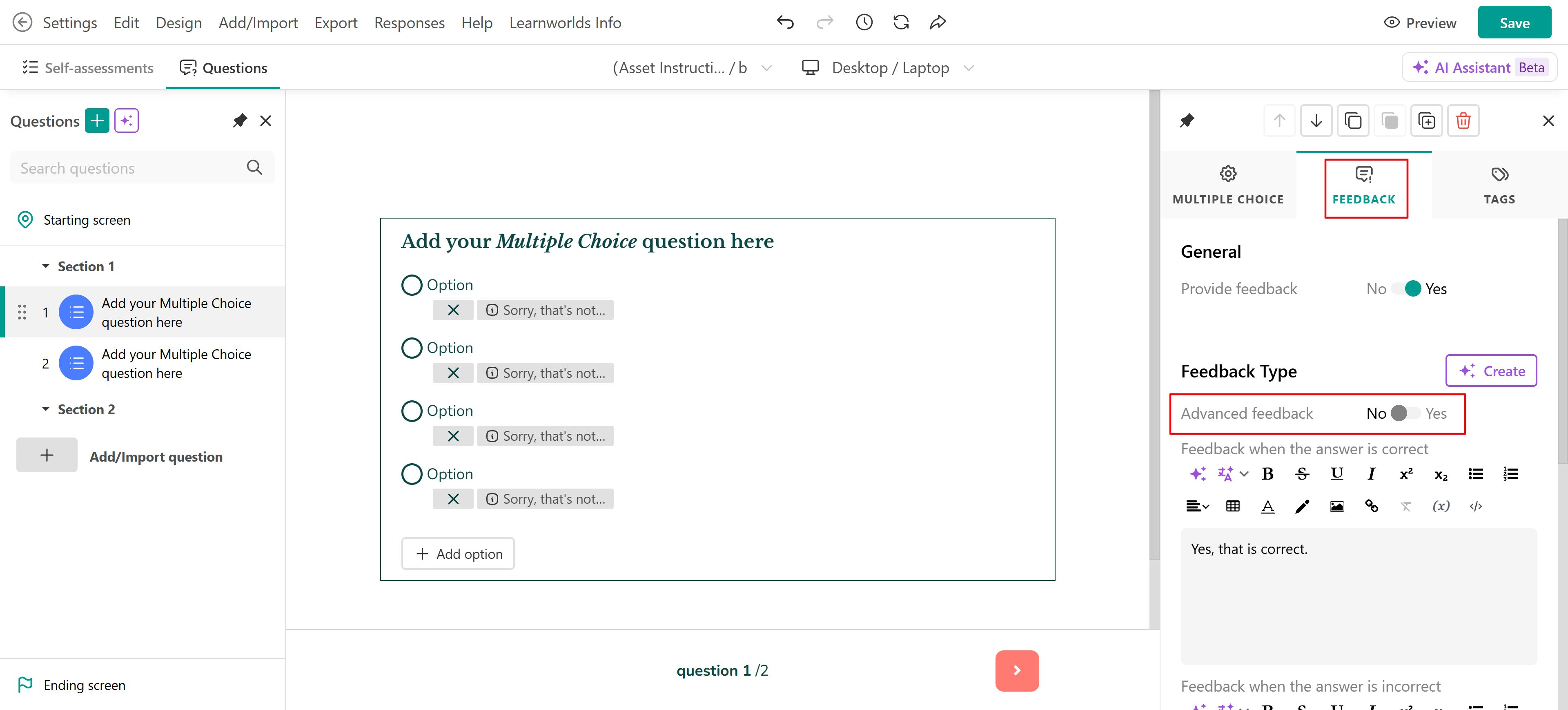
Advanced feedback lets you set feedback for individual answer choices. Basic feedback uses one response for correct answers and another for incorrect answers.
- The Feedback tab is not available to File/Video/Audio Assignments since manual review and grading are required.
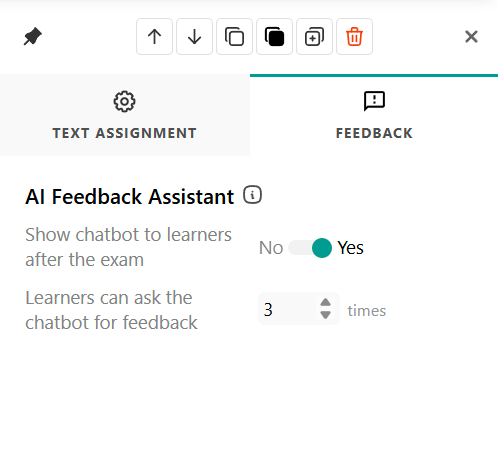
- For Text assignment questions, only the AI Feedback Assistant option is available.
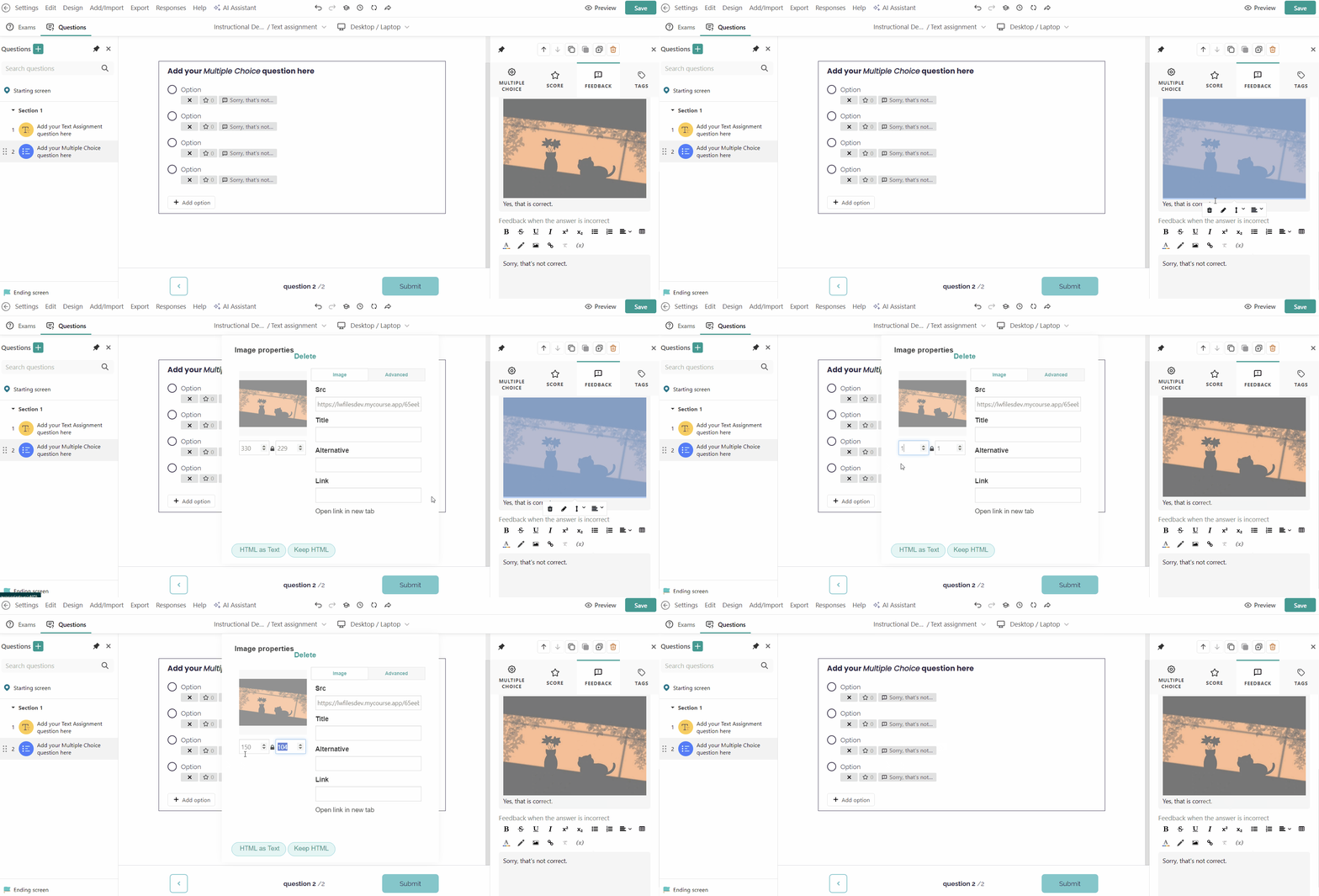
- If you choose to add an image to your Feedback, make sure to change the image's dimensions as follows:
- In order to use the AI Feedback Assistant, make sure to visit Settings → Feedback and enable the respective option.
- Keep feedback clear and directly connected to the learner's response. Avoid using color alone to indicate whether an answer is correct or incorrect, and make sure important feedback is available in text.
Adding tags
For supported questions, you can add tags to users based on the responses they submit. Tags enhance personalization and improve question relevance. They also help in tracking performance and providing targeted feedback.
To set up the tags option:
- Go to the Tags tab.
- Type the tag to the users who give specific responses and press Enter to save.
 The Tag tab is not available for Text/File/Video/Audio Assignments.
Configuring self assessment settings and design
After adding your questions, open Settings to configure how the self-assessment works for learners.
- Grade & Attempts: Grading & scores are not relevant in self-assessments. However, exam questions are still available, and correctness and feedback are relevant.
- Timer: Apply a time limit on your assessment.
- Randomize: Choose whether to shuffle the questions’ order.
- Feedback: Choose whether to offer a feedback report to the student.
- Manual Feedback: If manual feedback is enabled, assessments with closed-ended questions will be reviewed via the Review Center. Students will see a Pending Feedback message and receive a notification once feedback is posted.
- Ending Screen: Customize your ending screen.
- Auto recovery: Allow students to navigate away and return to the assessment within a time window without losing their answers. For Self-assessments, the user does not fail when they don’t come back within the auto recovery period; the answers are deleted, and they must re-attempt it.
- Learner tools: Show a sidebar presenting all available questions concisely.
- After submission: Enable a submission confirmation pop-up and tag users after submission.
- Navigation: Configure how users will navigate through the assessment questions.
- Language: Change the language of the UI text.
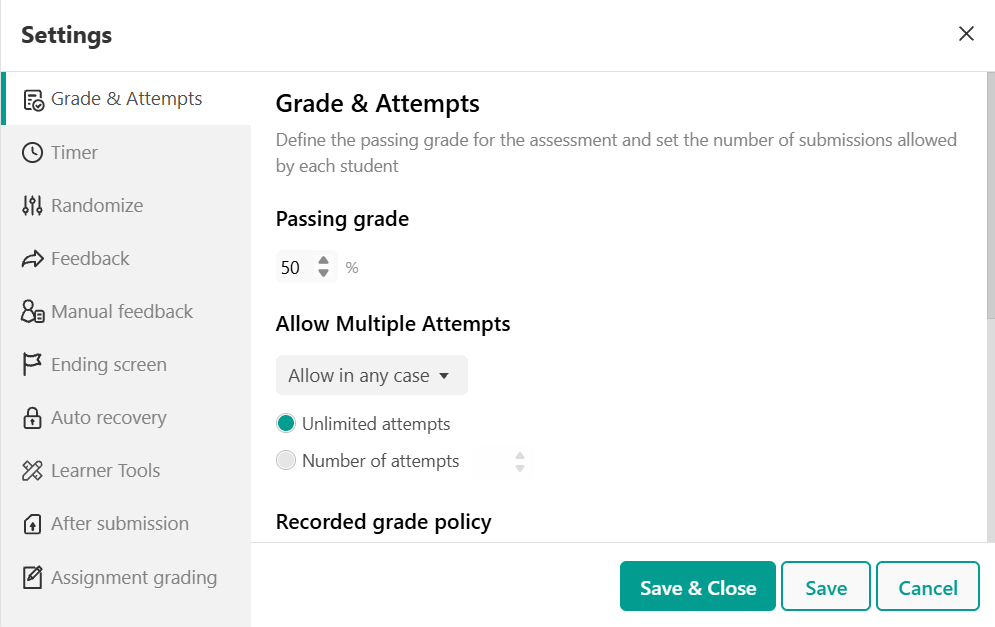
Find more information here.
When configuring your self-assessment, review settings that may affect accessibility. If completing the assessment within a specific time is not part of the learning objective, consider allowing additional time or removing the time limit. Keep navigation predictable, provide instructions before unfamiliar interactions, and make sure learners have enough time to read and complete each question.Customize the assessment design
You will also need to customize your assessment design. With the Assessment Builder, you can fully customize the design and appearance of your assessments to align with your academy’s & course’s theme and enhance the user experience, with options like changing colors, typography, navigation, and assessment viewer. Find out more on how to design your assessments here.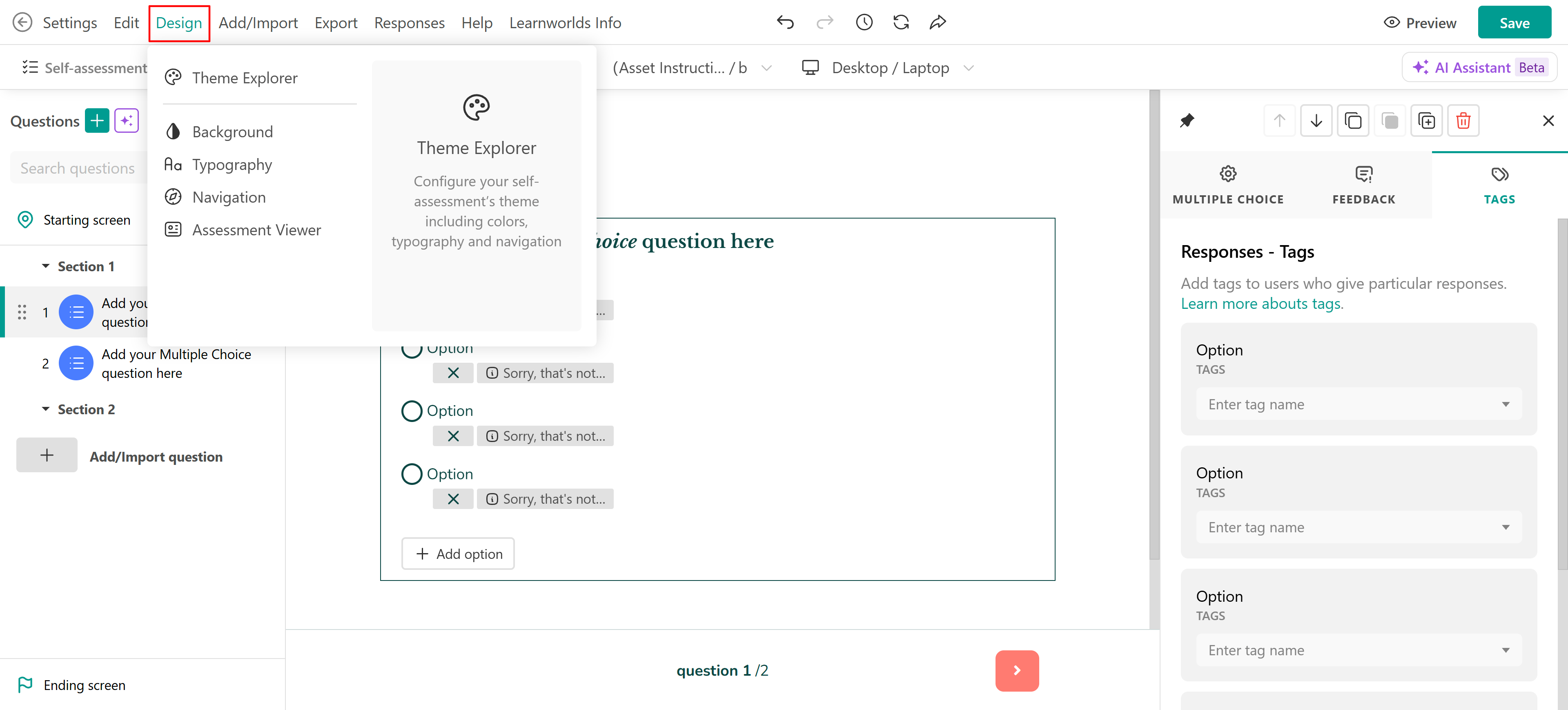
Manual feedback setting
Self-assessments do not require grading by default, but you can choose to enable Manual Feedback to allow instructors/admins to review responses in the Review Center.
To enable Manual Feedback:
Open the Self-Assessment.
Go to Settings.
Toggle Manual Feedback ON.
Once enabled, all responses (including form questions) are stored in the Review Center, where instructors can provide feedback. Learners will see a Pending Review screen and receive a notification when feedback is available.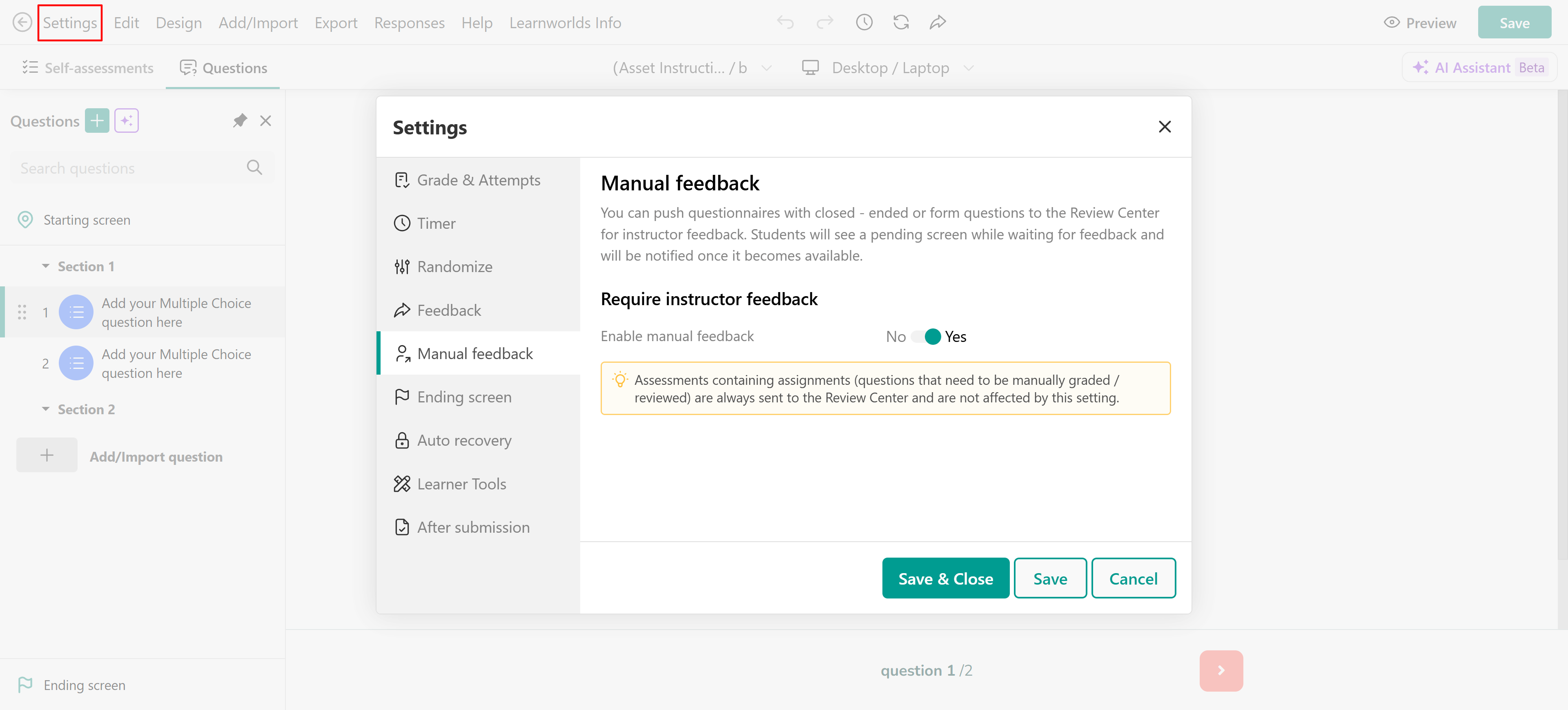
No matter what settings you choose, assignment questions (like text, file, videos, or audio recordings) will always go to the Review Center. This happens even if you don’t ask to give manual feedback.Ending screen
After a learner submits a self-assessment, the ending screen reflects the submission status. The learner can see a Completed screen when the assessment is complete, or a Pending screen when the submission is waiting for review. A submission can be pending because Manual feedback is on or because the assessment contains an assignment question that requires review.
You can click on the assessment container in the ending screen to customize each screen.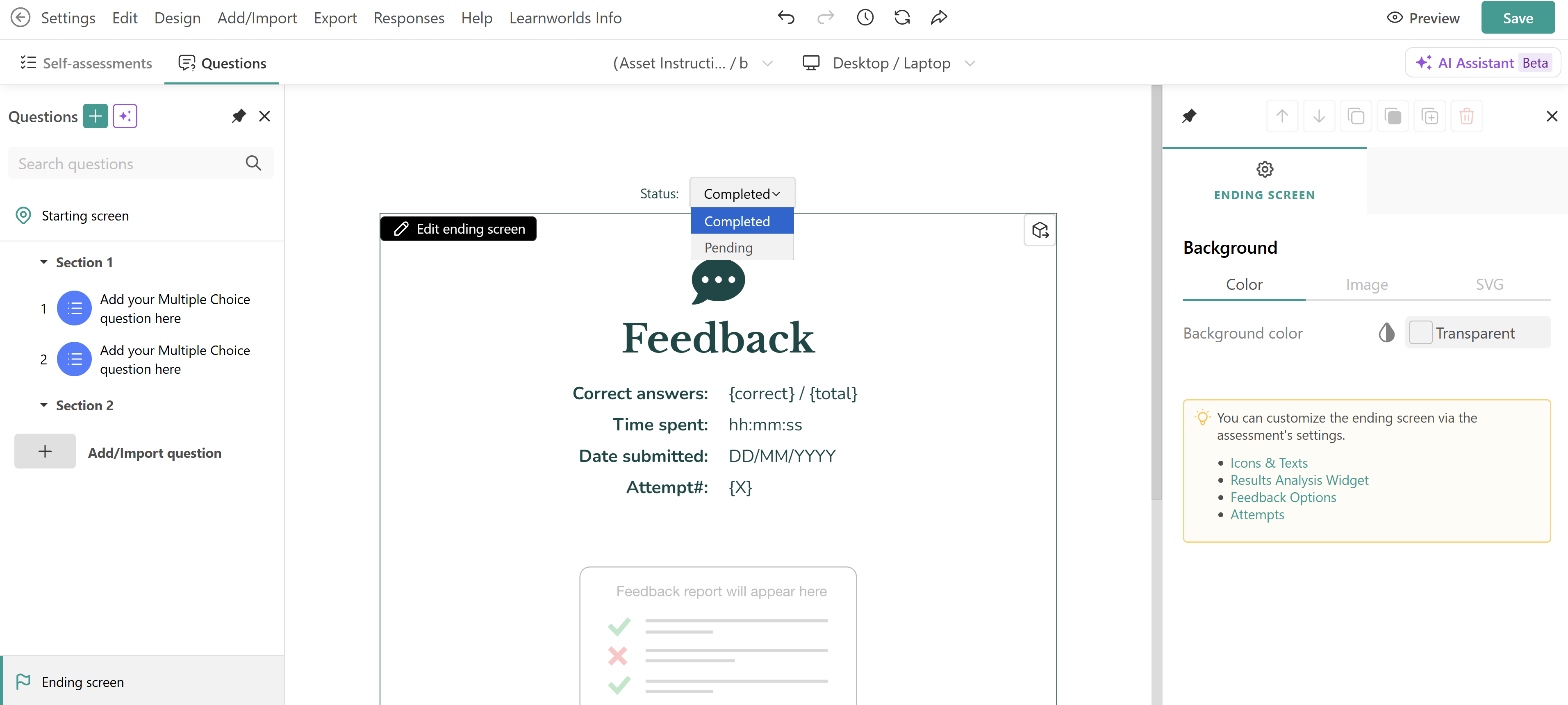
To alter the ending screen's text, you will need to click on the Assessment container. The Design form will be opened, and then you can select the Assessment Viewer tab and change the text. Alternatively, you can go to the Language option from Settings.
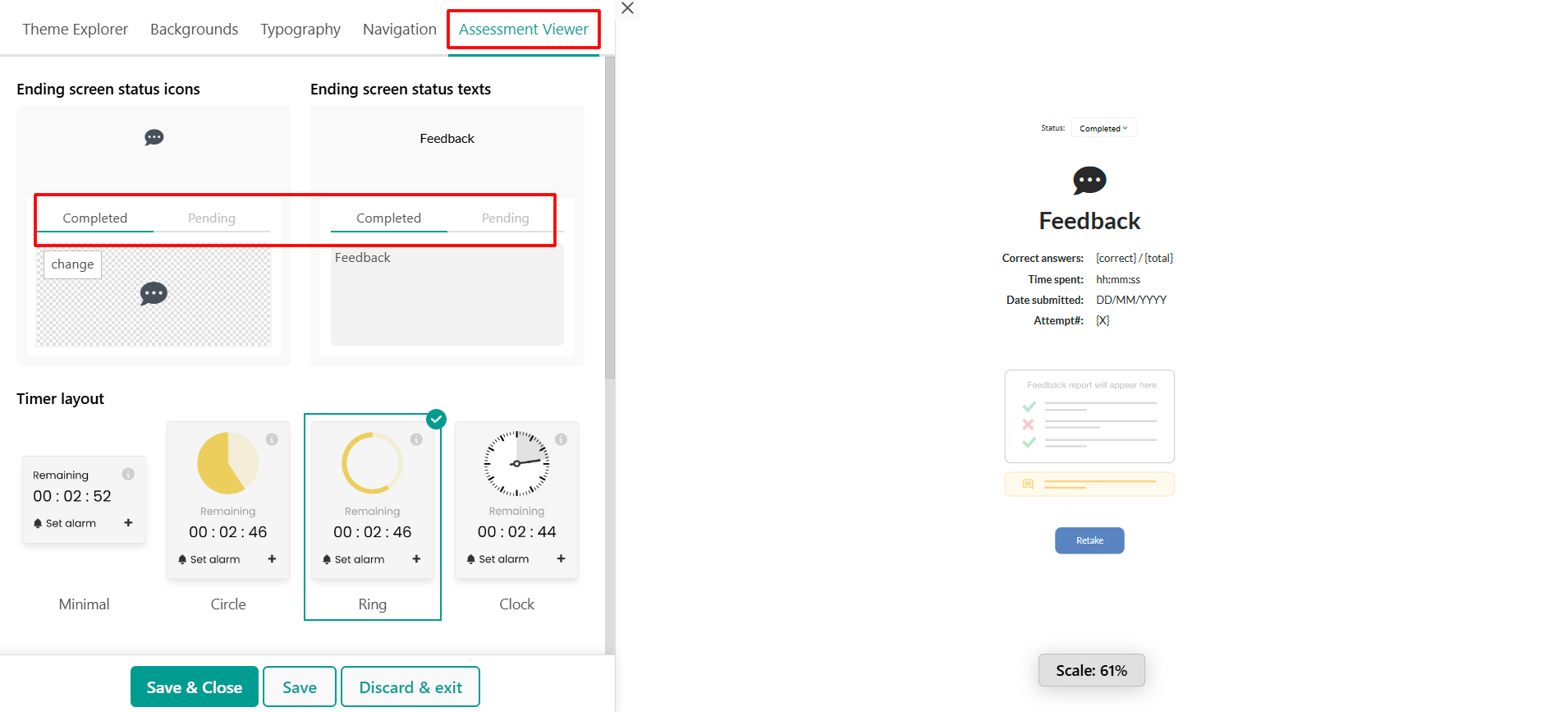
LearnWorlds allows admins to customize the widgets displayed on this screen, ensuring learners receive relevant feedback and insights. To configure the ending screen, go to Settings → Ending Screen and choose what to include. You can add:
- Message: A thank-you or confirmation note.
- Feedback Summary: If enabled, shows predefined feedback.
- Review Center Status: Shows "Pending Review" if feedback is awaited.
- Download Option: Users can download their responses.
- Retake Option: Allows learners to retry the assessment (if enabled).
Review submissions and provide feedback
When a self-assessment is sent for review:
1. Go to Review Center from the Admin Dashboard.
2. Select the self-assessment.
3. Open the Unreviewed tab.
4. Select a learner submission.
5. Add your feedback, then select Submit feedback.
You can find more in the respective article.
- The Undo/Redo option can be used within the editing mode of the type of questions and not for the assessment settings, design, responses, etc.
- The Undo/Redo option can also be utilized after saving a Page or Assessment/Form if you do not leave the page you are editing.