
LearnWorlds allows you to create videos with AI directly within your school. Instead of recording and editing a video from scratch, you can describe what you want to create, generate a video script, and customize the presenter and voice before producing your video. To use this feature, you must first connect your own Synthesia or HeyGen account to LearnWorlds.
Use AI video creation when building an entire course with AI, from a video learning activity, or directly from your Video library.
In this guide, you'll learn how to create videos with AI, refine your video script, select or create avatars and voices, and generate videos for your courses.
When creating a course with AI
When using Create course with AI, you can include video learning activities in your course outline and generate their content as part of the AI course creation process.
Once you've reviewed the generated outline, select Continue to planning or Generate sections without planning to let AI generate the actual content along with the other learning activities.
From a video learning activity
You can create a video with AI directly within an existing course.
- Navigate to Courses & Programs and open your course.
- Go to Contents → Course outline.
- Add a Video learning activity or select an existing one.
- Open the activity's Settings.
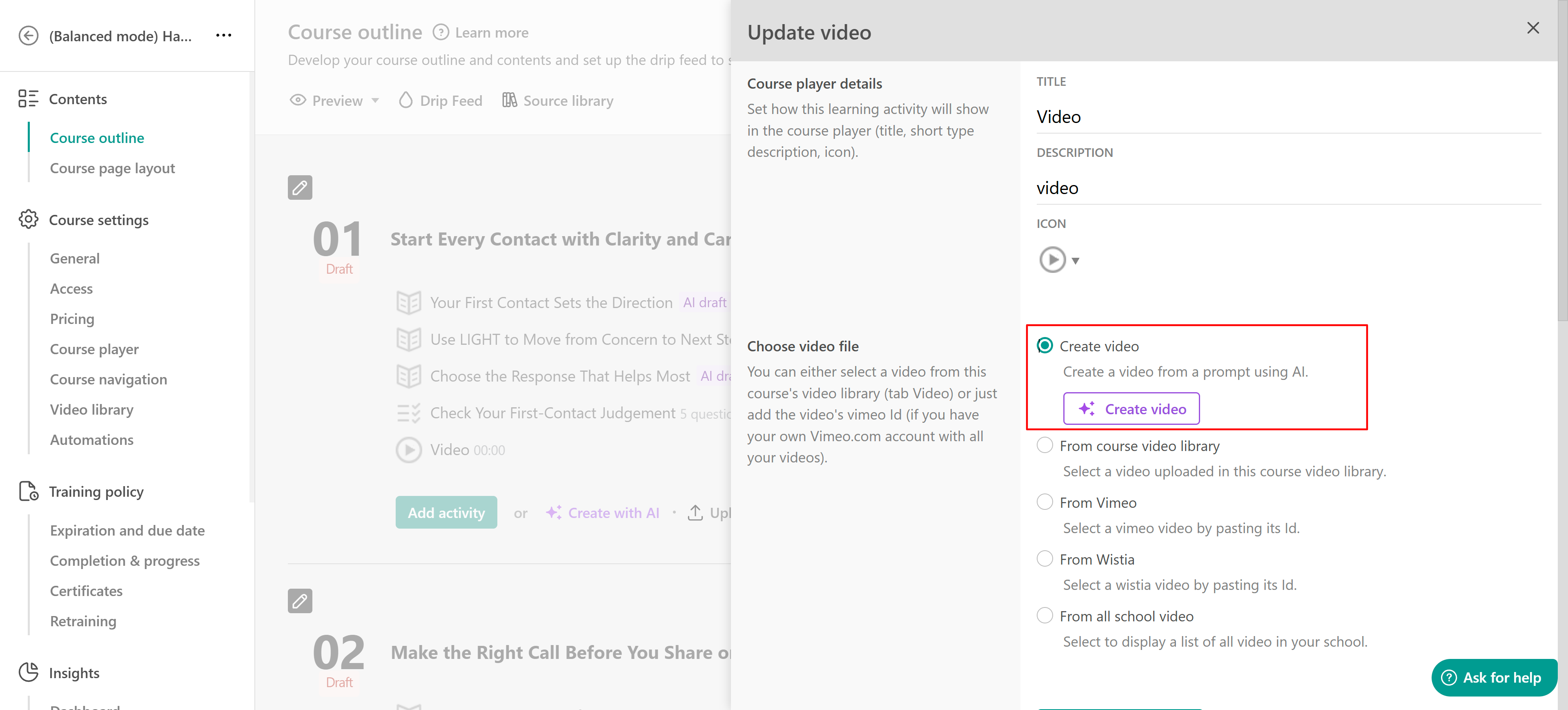
- Under Choose video file, click Create video to open the AI creation interface.
Alternatively, hover over an existing video learning activity in your course outline and click Create.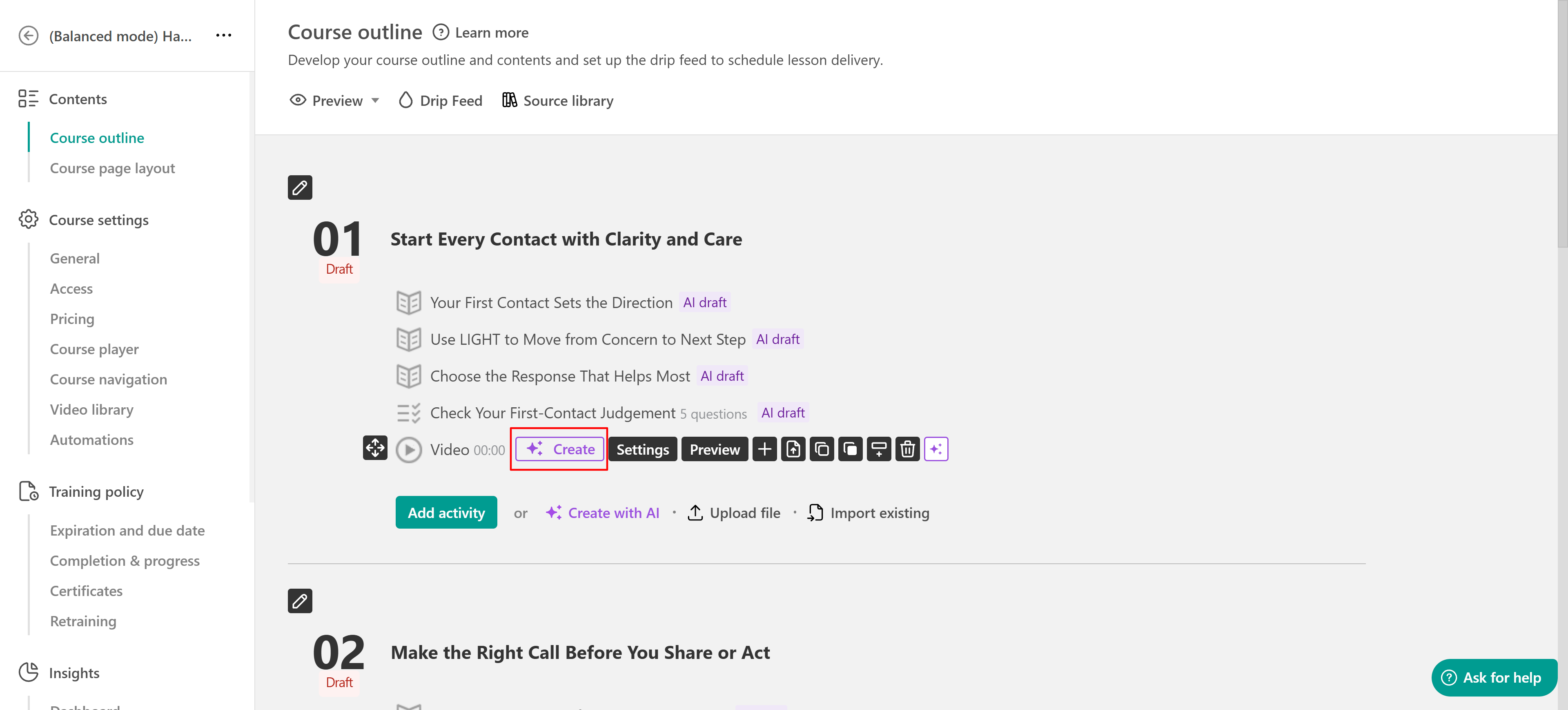
From the Video library
You can also create videos with AI directly from your school's Video library, without first opening a specific learning activity.
- Open the Video library.
- Click Add video.
- On the Pick how you want to get started screen, select Create with AI.
- Enter your video idea to begin the AI creation process.
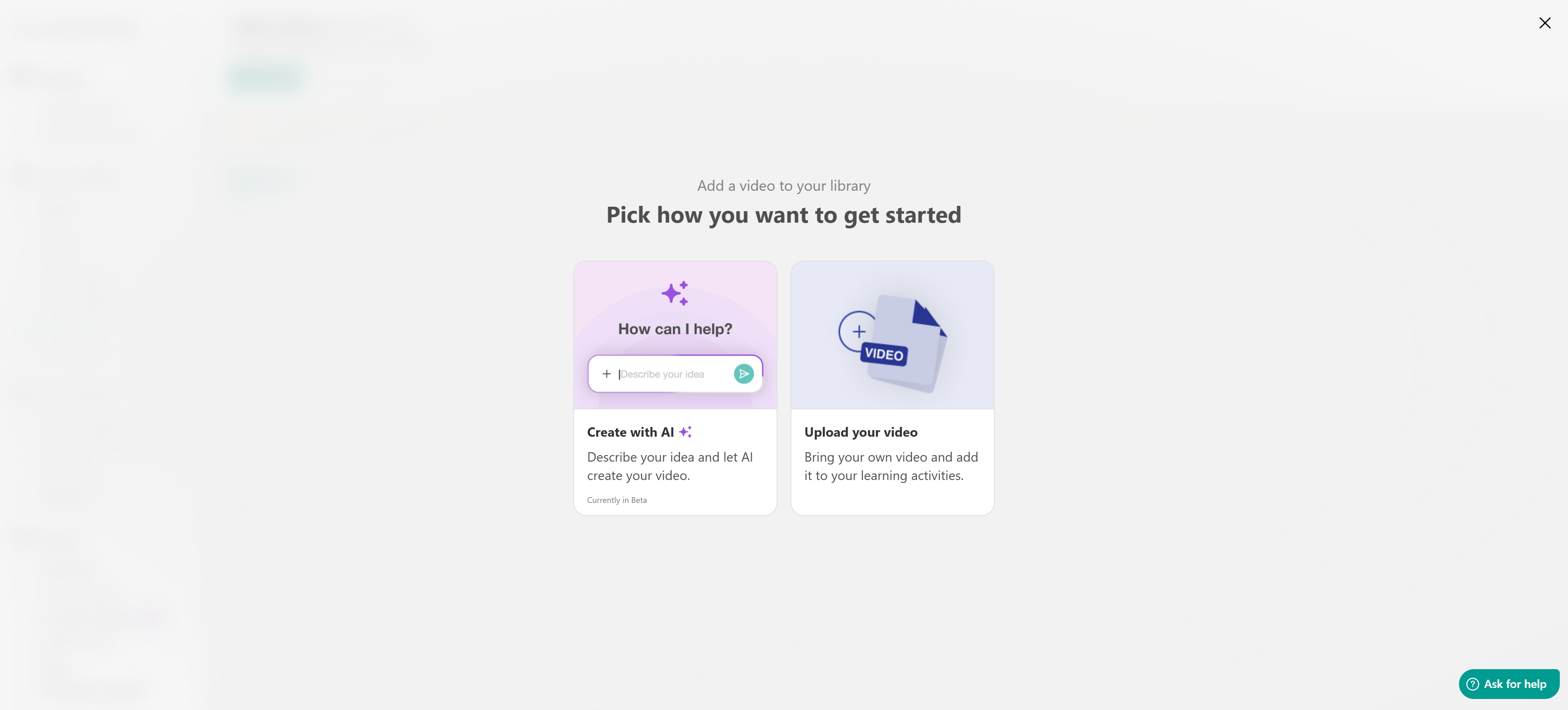
Alternatively, select Upload your video to add an existing video instead of generating one with AI.
Regardless of where you start, the AI video creation process allows you to describe your video, review its script, and customize its presentation before generating the final result.
Describe the video you want to create
When the AI creation interface opens, you'll see the Describe the video you want to create prompt area.
Enter a description of the video you want AI to generate. Include information about the topic, intended audience, learning objectives, and the type of explanation you want to provide.
For example: Create a two-minute instructional video explaining how to identify workplace safety hazards. Use simple language, a friendly tone, and practical examples suitable for new employees.
Provide additional instructions and resources
To help AI generate content that matches your needs, enhance your prompt using the available options:
- Attach files: Upload reference materials that AI can use when creating the video.
- Paste text: Add existing content, such as a lesson, explanation, or draft script.
- Give guidance: Define additional parameters to guide AI generation.
- Add reference: Reference an existing course or learning program.
You can also click the microphone icon to dictate your prompt instead of typing it. Once your instructions are ready, submit your prompt to generate the initial video script.
Review and customize your video script
After submitting your prompt, AI generates a video script based on your instructions. The video creation workspace includes two main areas:
- Video script: Displays the generated script, which you can review and edit directly.
- AI conversation panel: Allows you to continue interacting with AI to refine the generated content.
The AI conversation panel also provides a summary of the proposed video, including its content, approximate duration, and tone of voice.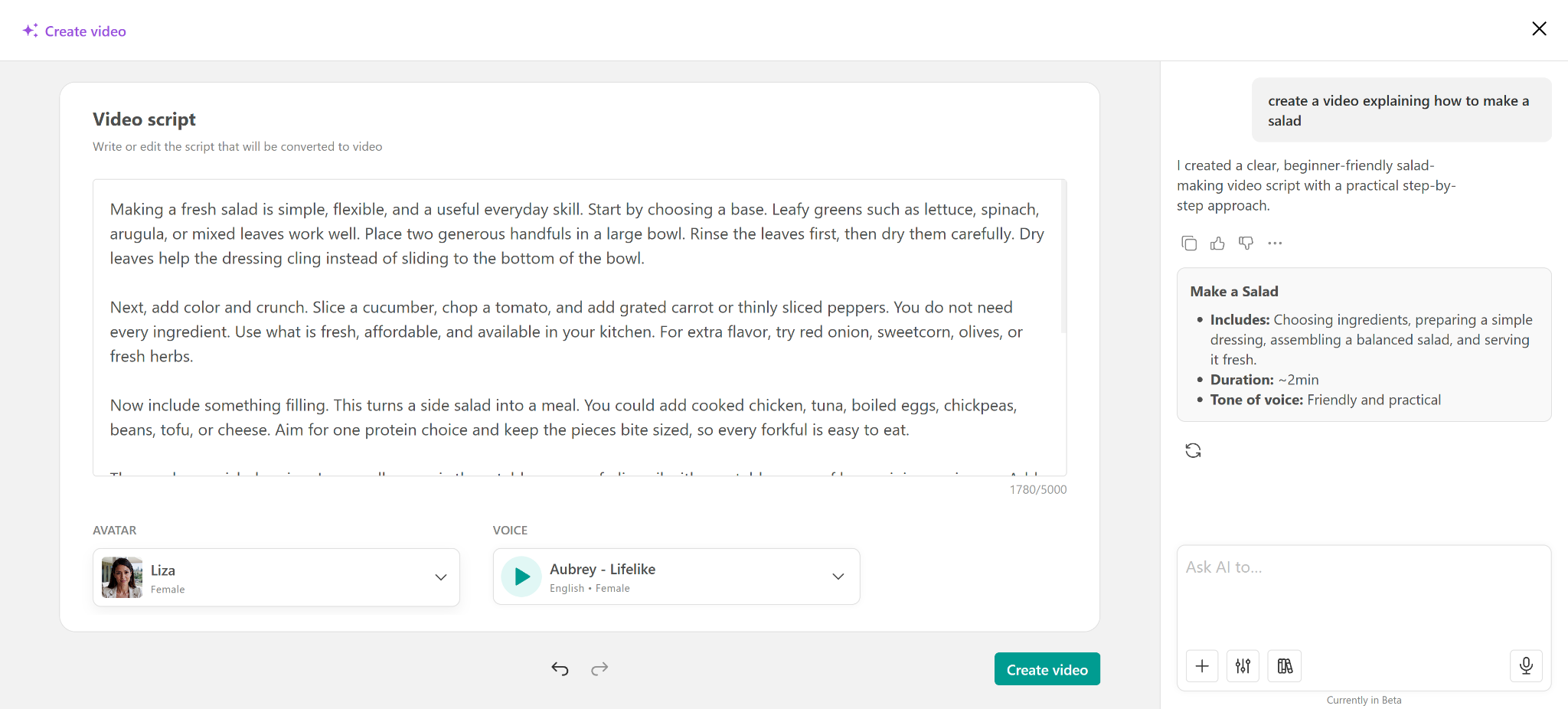
Edit your script
Review the generated script to ensure the information is accurate, relevant, and appropriate for your learners. You can edit the text directly in the Video script area or use the AI conversation panel to request changes.
For example, ask AI to:
- Simplify the language for beginners.
- Make the explanation more conversational.
- Add practical examples.
- Shorten or expand the script.
- Adjust the tone of voice.
- Focus on specific learning objectives.
For example, enter: Make the script more engaging and include a real-world example after each key concept.
AI will help you refine the script based on your instructions. Continue editing until you're satisfied with the content.
Choose an avatar for your video
Once your script is ready, select the avatar that will present your video. Under Avatar, open the dropdown menu to browse the available options and choose your preferred presenter.
Create your own avatar
You can create a custom avatar using a photo. Open the Avatar dropdown and select the option to create your own avatar.
In the Create your own avatar window, enter a name for your avatar.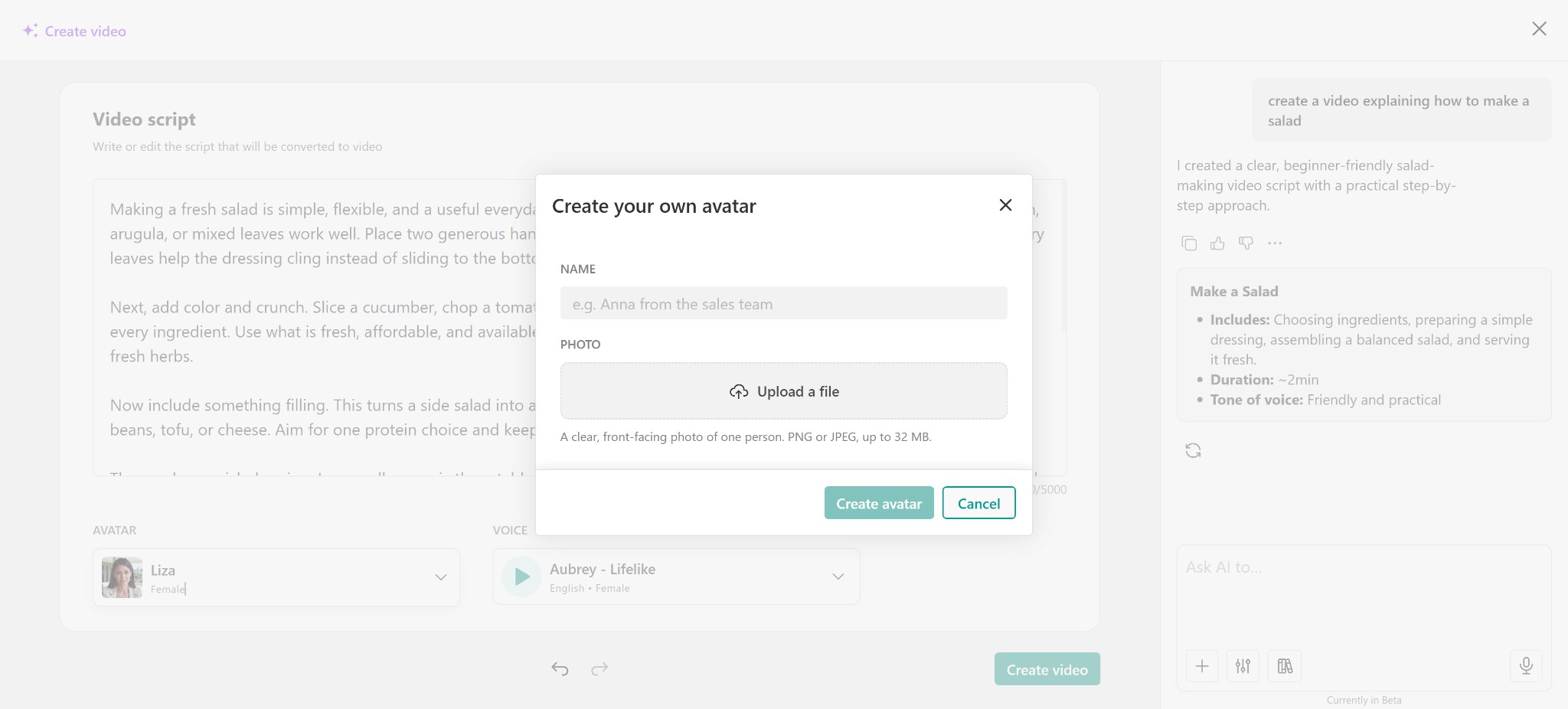
Under Photo, click Upload a file. Upload a clear, front-facing photo of one person.
Click Create avatar.

- The uploaded image must be in PNG or JPEG format and can be up to 32 MB.
- Only upload photos that you have permission to use for creating an AI avatar.
Choose a voice for your video
Under Voice, select the voice that will narrate your video. Open the dropdown menu to browse the available voices. Each option includes information about the voice's language, characteristics, or speaking style.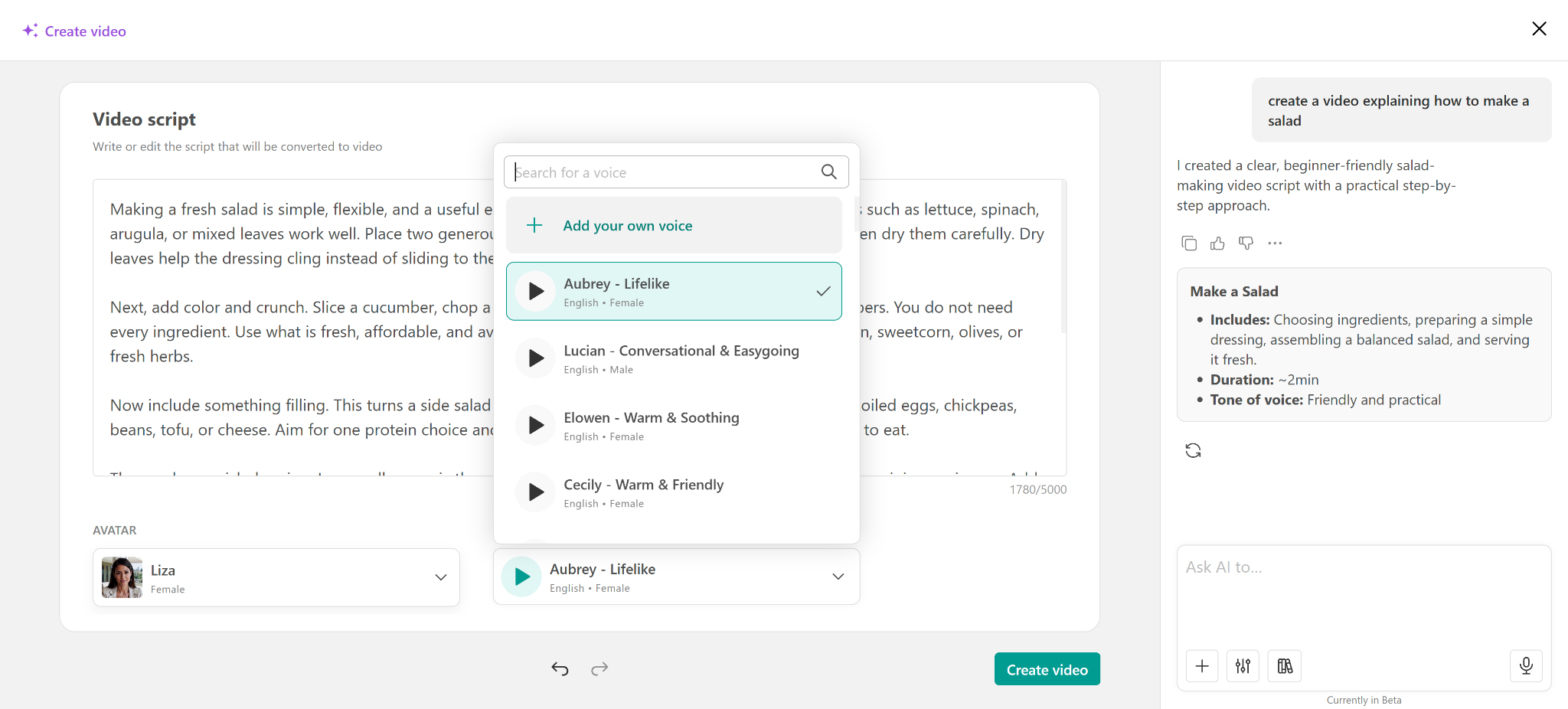
Click the play icon next to a voice to listen to a preview before selecting it. Choose a voice that matches your video's language, audience, and intended tone.
Create your own voice
You can create a custom voice using a recording.
- Open the Voice dropdown.
- Click Add your own voice.
- In the Create your own voice window, enter a name.
- Under Voice sample, choose one of the following options:
- Record voice sample: Record your voice directly.
- Upload a file: Upload an existing voice recording.
- Click Create voice.
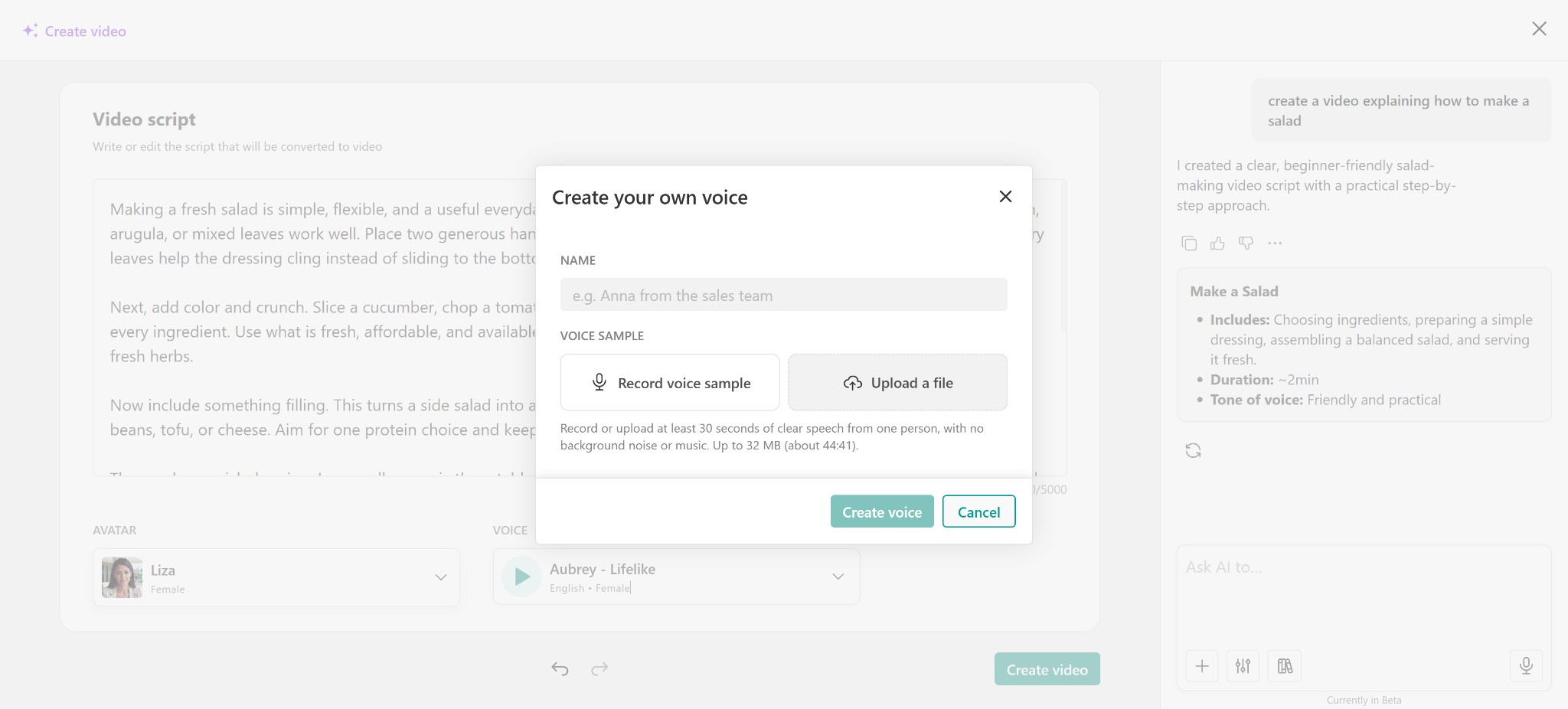
- Your recording must contain at least 30 seconds of clear speech from one person, without background noise or music.
- The recording can be up to 32 MB.
- Make sure you have the necessary permission from the speaker before using their voice to create an AI-generated voice.
Generate your AI video
Once you've reviewed your script and selected your avatar and voice, you're ready to generate your video.
- Review the Video script to ensure the content is accurate and complete.
- Confirm that you've selected the appropriate Avatar.
- Check your Voice selection and listen to its preview if needed.
- Click Create video to start generating your video.
Tips for creating effective AI videos
To get better results when creating videos with AI, consider the following recommendations:
- Be specific in your prompt: Clearly describe the topic, target audience, learning objectives, and expected outcome.
- Provide reference materials: Attach relevant documents or reference existing course content to help AI generate more focused explanations.
- Keep your script learner-friendly: Use clear language, logical explanations, and practical examples.
- Choose an appropriate avatar and voice: Select presentation options that match your audience and the purpose of your video.
- Review AI-generated content: Always check the script for accuracy, clarity, and relevance before generating the final video.
AI video creation can help you produce instructional videos more efficiently while giving you control over the script, presenter, and narration.