
LearnWorlds allows you to offer sample sections within a course so learners can preview selected content before purchasing access to the full course.
By setting a section's access status to Sample, learners can explore its learning activities without purchasing the course. When they try to access content that requires enrollment, they are prompted to purchase the course.
This is a great tactic to keep your audience involved and tempt them to buy your course to get access to its full content.
Set up sample sections in a course
To offer sample content, first create a course with a paid pricing option, then choose which sections will be available as samples.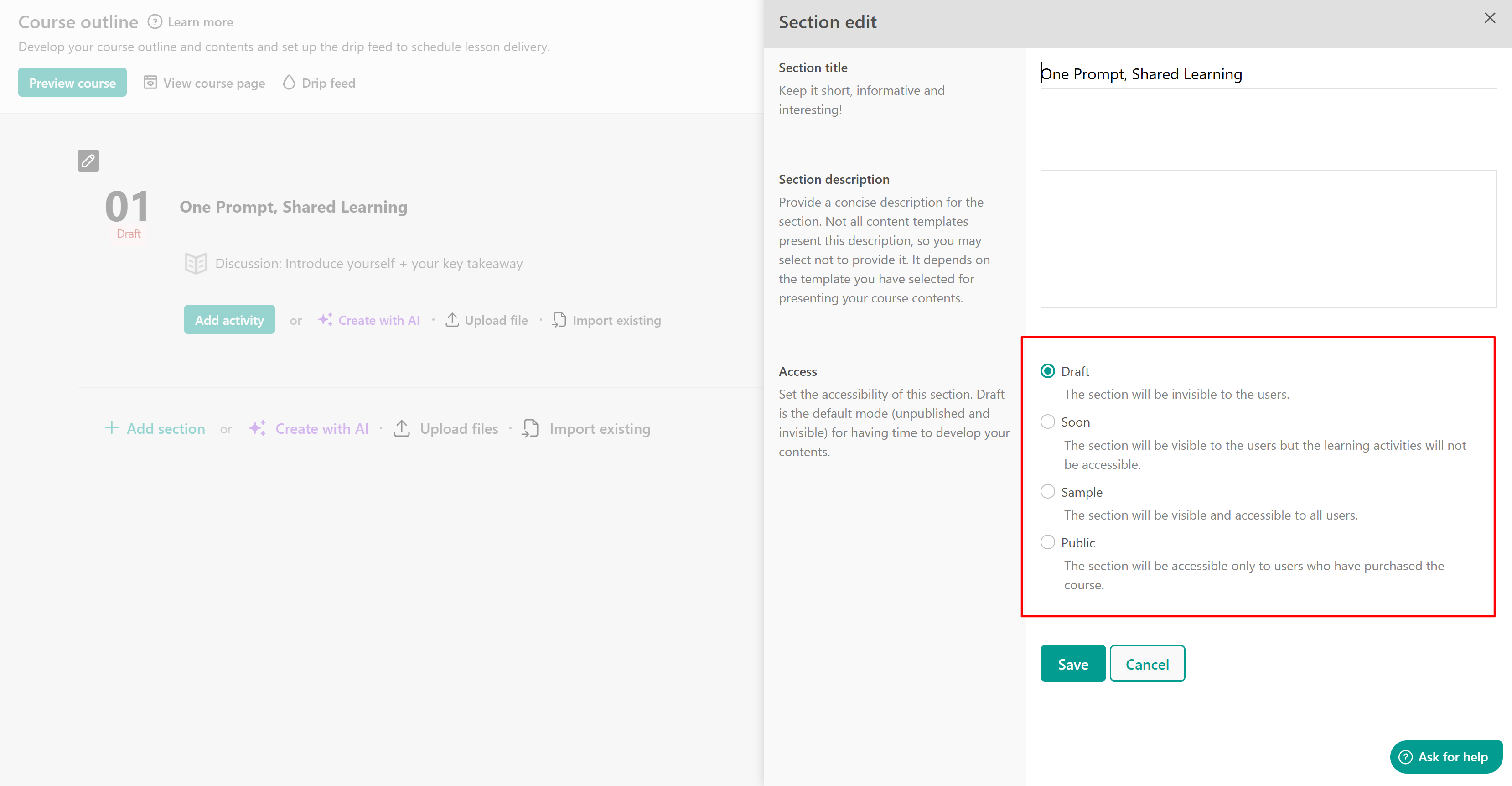
- Create a course.
- Open Contents → Course outline.
- Find the section you want to offer as a sample and select Edit.
- Under Access, select Sample and click Save.
Repeat these steps for any additional sections you want learners to preview.
Available section access statuses
| Status | Description |
|---|---|
| Draft | The section is hidden from users. |
| Soon | The section is visible, but its learning activities are not accessible. |
| Sample | The section is visible and accessible to all users, including those who haven't purchased the course. |
| Public | The section is accessible only to users who have purchased the course. |
Course access status and section access status are configured separately. Setting a course to Public does not automatically make all its sections available as samples.
Give learners access to sample sections
Learners must be signed in to access sample sections. If they are not signed in, they will be prompted to log in or create an account.
By default, the Automatic Enroll button directs learners to the checkout page for the selected pricing option, even when a course contains sample sections.
To help learners find your sample content, you can provide an alternative entry point using one of the following methods:
- Course Contents section: Display the course structure on the course page, allowing learners to select sample activities.
- Direct activity links: Share a link to a specific sample activity.
- Custom button: Add a button that directs learners to a sample section.
- Course cards: Configure course cards to open the Course Player for users who are not enrolled.
Display sample sections through Course Contents
Adding a Course Contents section to your course page allows visitors to view the course structure and identify the content available for preview. To set it up:
- Open your course and navigate to Course page layout.
- Select Edit course layout.
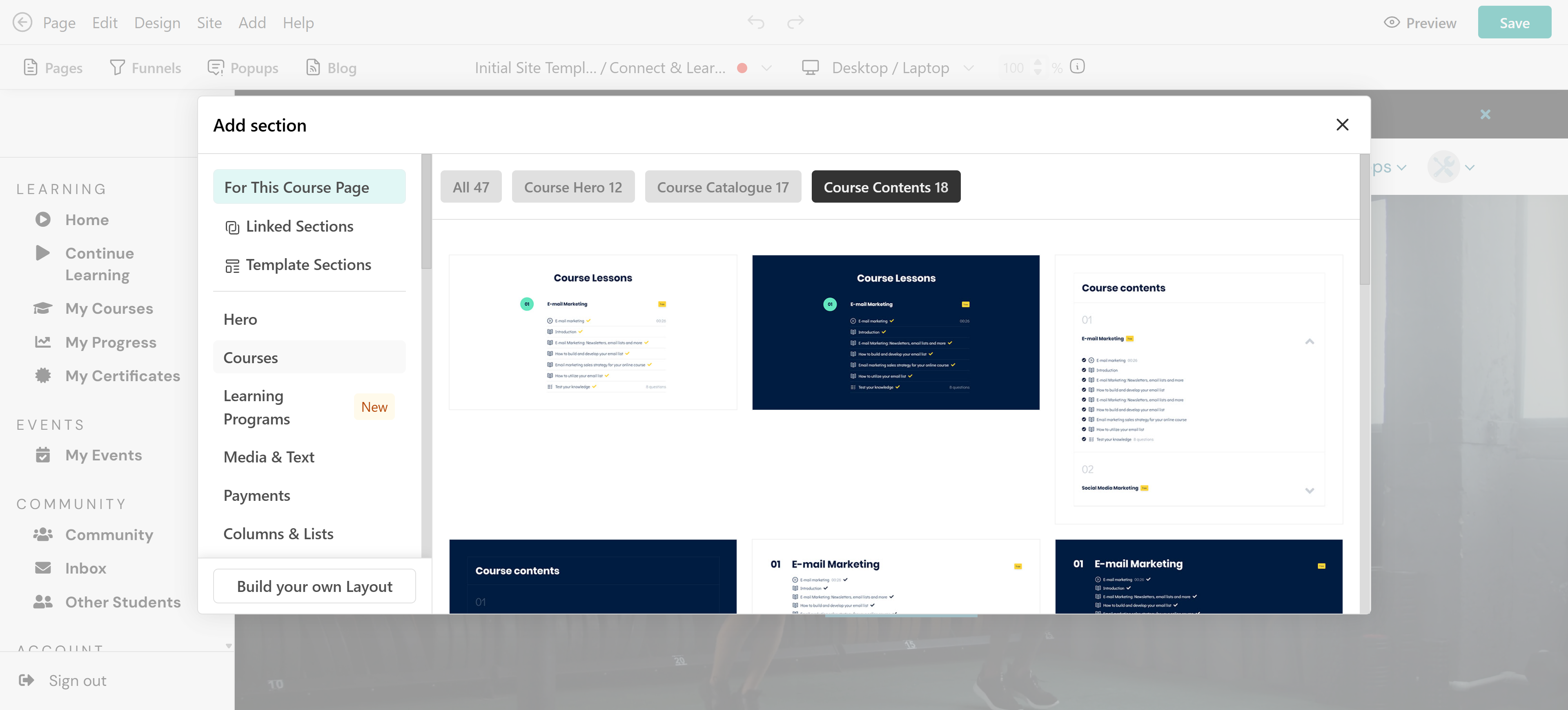
- Click + Add Section.
- Select Course Contents.
- Save your changes.
Once added, visitors can see the course structure. Sections configured as samples are identified with a Sample label, allowing learners to recognize the content they can preview.
When learners select a sample activity, they are directed to the Course Player. If they attempt to access content that requires enrollment, they are prompted to purchase the course. Learn more about customizing your course page
Share direct links to sample activities
You can direct learners to a specific sample activity through an email, landing page, or button. To share a direct link:
- Open your course as an admin.
- Navigate to the sample activity you want to share.
- Copy its URL from your browser.
- Share the link with your learners.
You can also create a button on your website and configure it to redirect to the sample activity. For example, use a button labeled Preview this course.
 Learners must be signed in to access the activity. If they are not signed in, they will be prompted to log in first.
Add a custom button to your course page
A custom button provides a direct way for learners to start previewing your course. To configure it:
- Open your course page in the Site Builder.
- Add or select a Button element.
- Enter a label, such as Start Free Preview.
- Set the button action to redirect users to a specific course section.
- Select the sample section you want learners to access.
- Save your changes.
You can place this button in the hero section of your course page, where learners can easily find it.
The hero section includes an Automatic Enroll button by default. You can keep this button for purchases and add a separate preview button, or customize the layout based on your preferred learner experience.
Make sure your Site Navigation settings allow non-enrolled users to access the course page and sample content.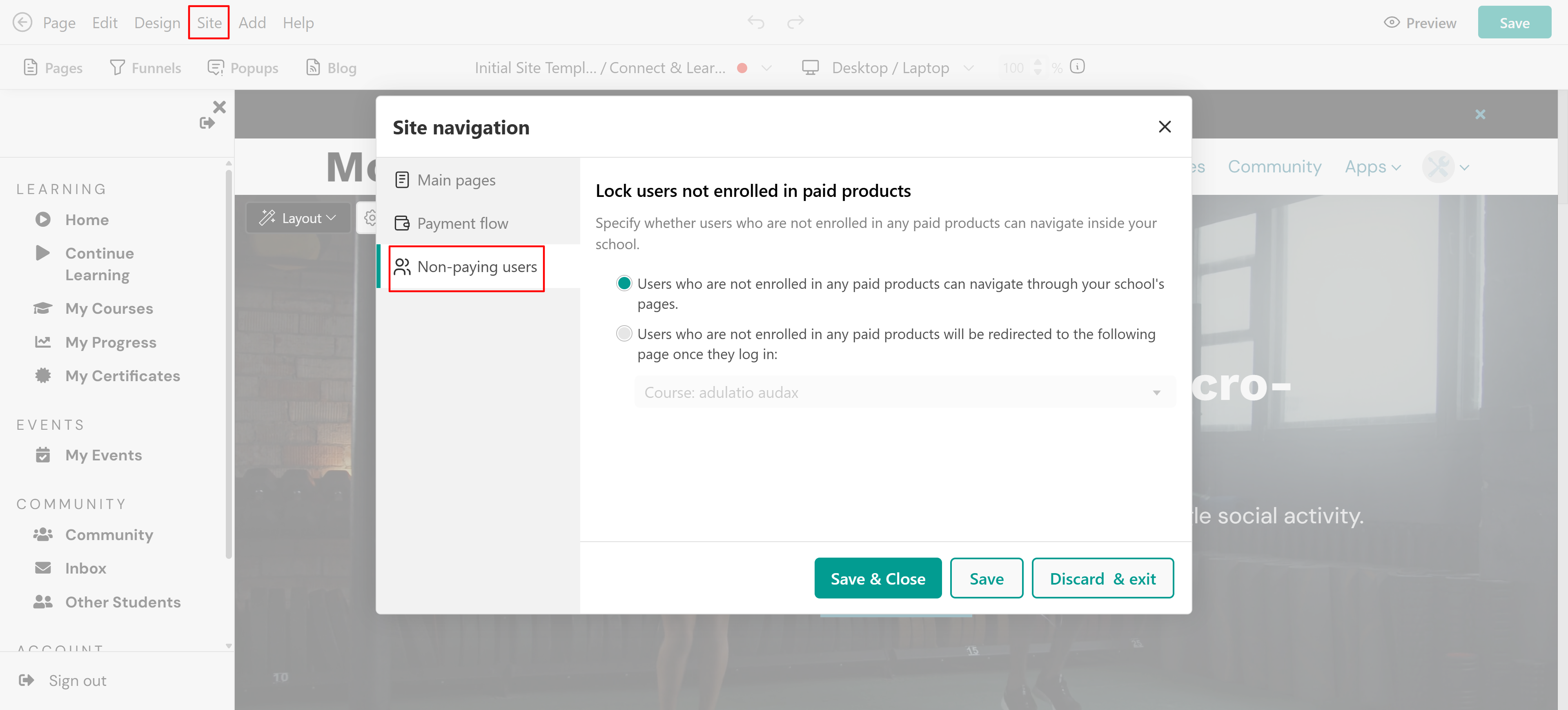
Give access to sample sections through course cards
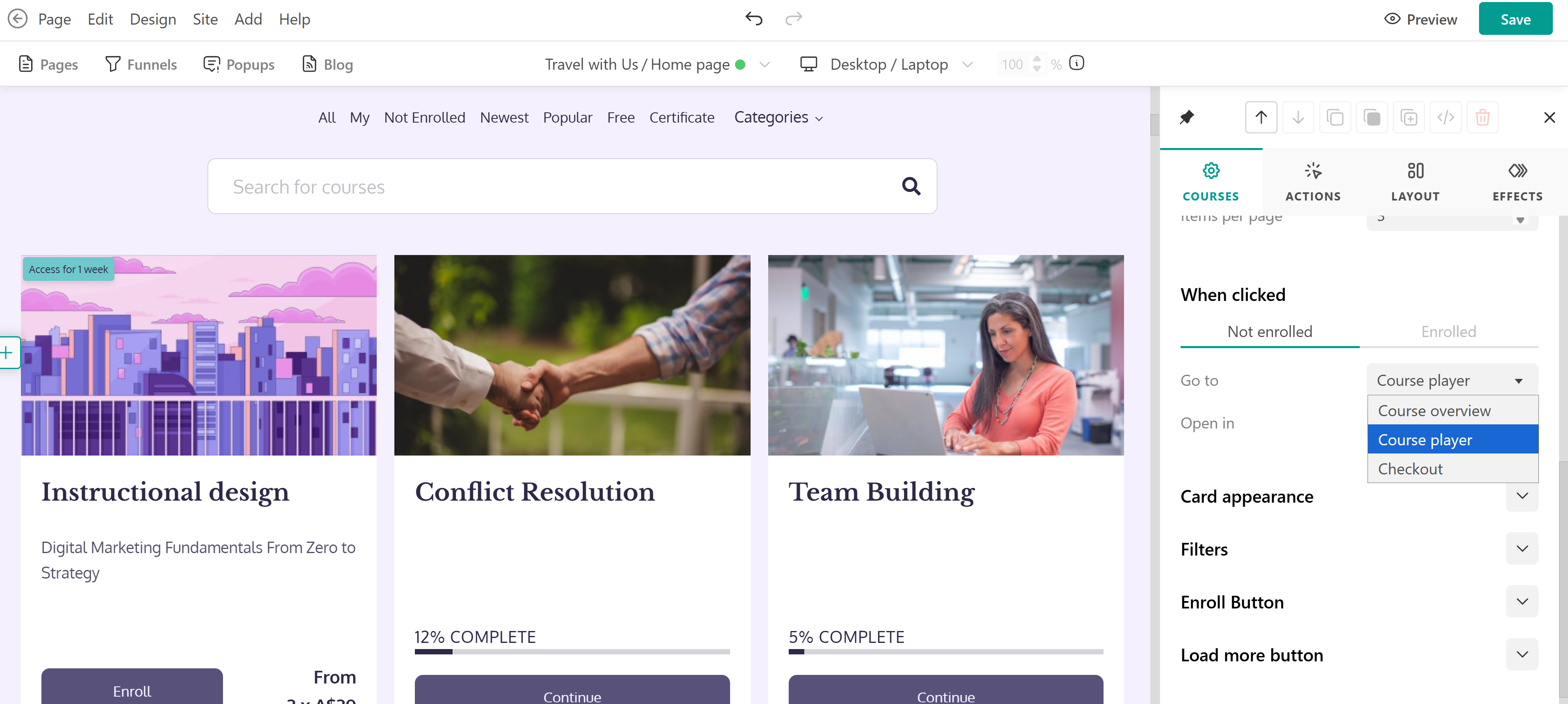
You can also configure course cards to direct learners to the Course Player instead of the course page. To set this up:
- Open the relevant page in the Site Builder.
- Select Edit cards.
- Under When clicked → Not enrolled, select Go to course player.
- Save your changes.
When learners click the course card, they are directed to the Course Player, where they can access the available sample sections.
If they attempt to open content that requires enrollment, they are prompted to purchase the course.
What happens when learners preview a course?
When a learner opens a sample section:
- They can access the learning activities included in that section without purchasing the course.
- Sections that require enrollment remain restricted.
- If they attempt to access restricted content, they are prompted to purchase the course.
- After purchasing, they receive access according to the course's pricing and access settings.
User analytics and progress can be tracked after the user progresses to the paid content, thus after purchasing the course.