
Bulk unenrollment lets you remove multiple users from one or more courses or learning programs at the same time. This is useful when access has ended, users were enrolled by mistake, or you need to update enrollments for a larger group.
You can unenroll users in two ways: upload an Excel file from the All Users page, or unenroll selected users directly from a product . Use the Excel option when you need to remove many users or unenroll users from different products in one action.
1. Navigate to Users → All Users.
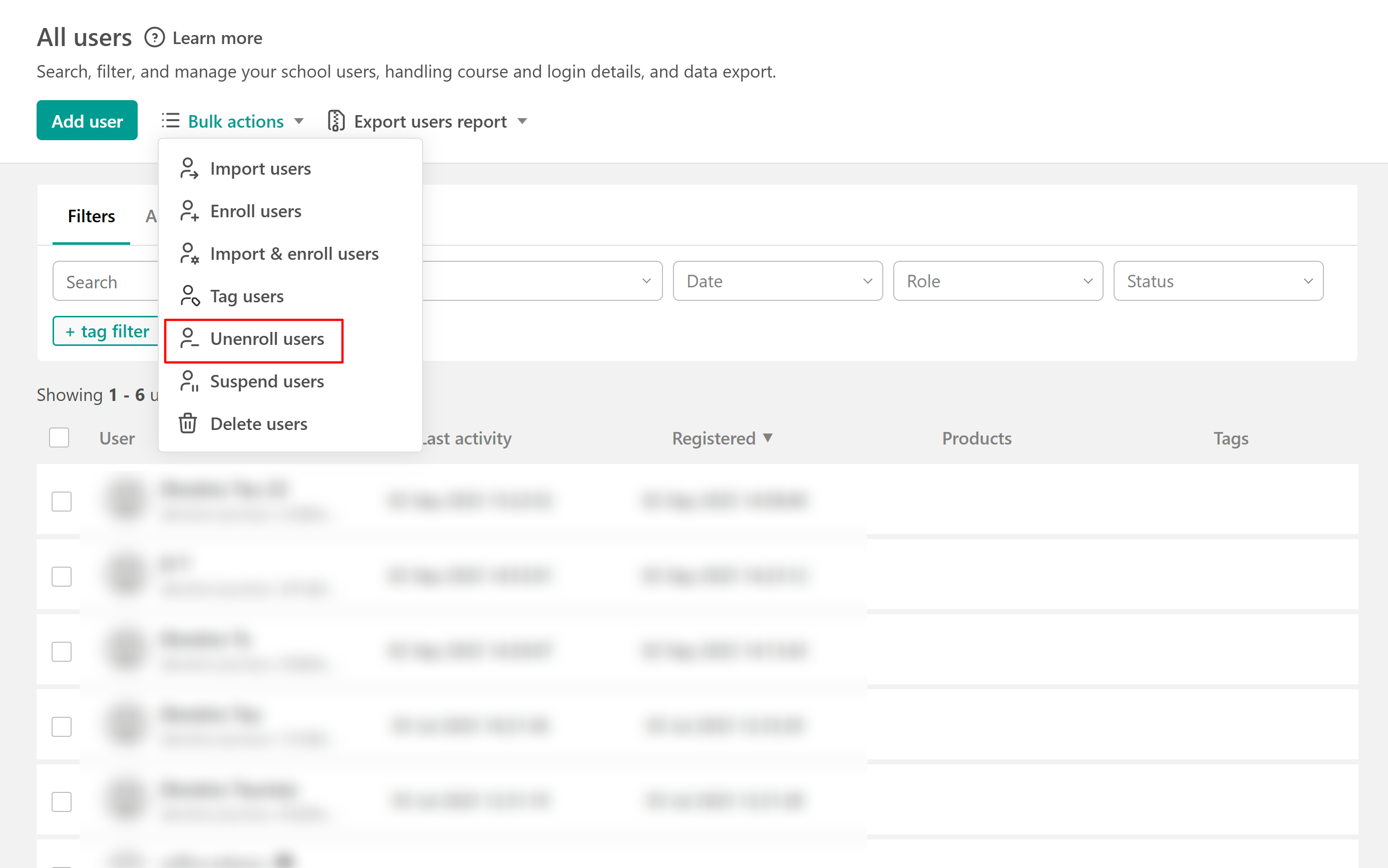
2. Hover over Bulk actions, and click on Unenroll users.
3. Prepare your .xls or .xlsx file. Each Bulk action option offers a template Excel file. You will need to:
- Download the XLS file template
- Add the data
- Re-upload it.
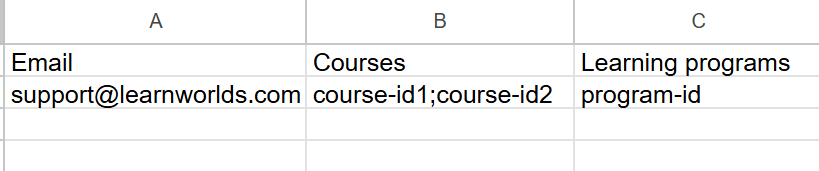
The template file contains 3 columns: Email, Courses, and Learning programs. In the Courses and learning programs column, add the product's ID. See how to find products' IDs here.
 If you wish to unenroll your users from multiple products, add the semicolon (;) between the products.
Here is an example of how the file should be:
4. Add a Name for Users Actions log to identify the progress of your Bulk action.
5. Click on Unenroll users.

Alternatively, you can select the product you wish to unenroll users from, select all users, and unenroll. 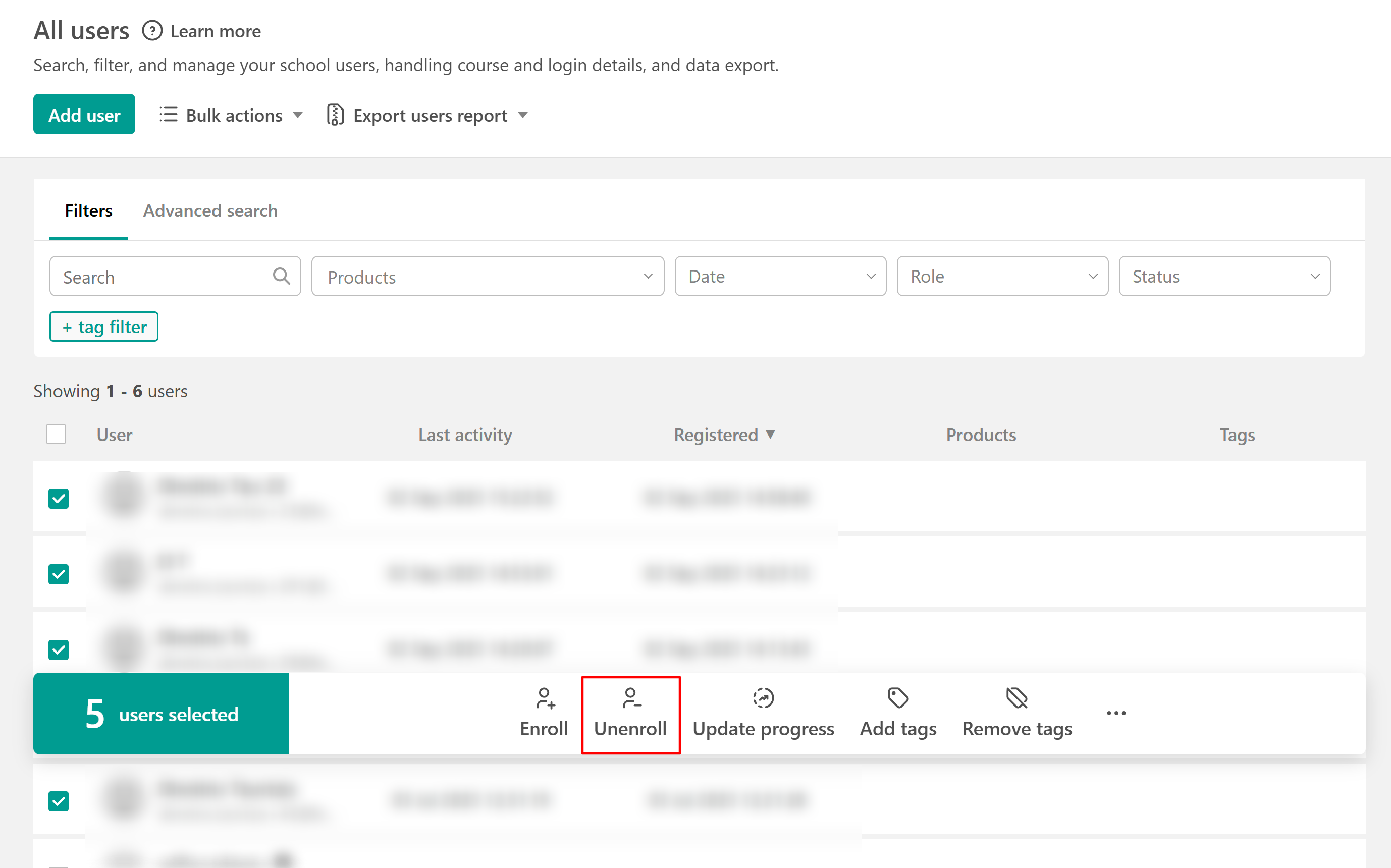
- To find the record of your Bulk actions, navigate to Report → Activity logs → Users actions. You can find more about the User's Action Log here.
- A bulk file can include up to 10.000 rows. If you need to add more users, make sure to use separate files.
- When downloading the default template, it's important not to make any changes to the Headers row. The titles should remain the same and not be reordered, renamed, or added. Otherwise, the upload will not be completed.
- Make sure to clear the format when copy-pasting information in your Excel file, such as links in the emails or rich formatting on font styles. Otherwise, the import will not be completed.