
If you are using automatic or hybrid product recommendations in your school, you can add a recommendations section to your website pages to promote relevant courses and learning programs.
This helps learners discover additional content while browsing your website and encourages further engagement and purchases.
Add a recommendations section
- Go to Website → Design → Edit website and choose which page you want to edit.
- Click Add section.
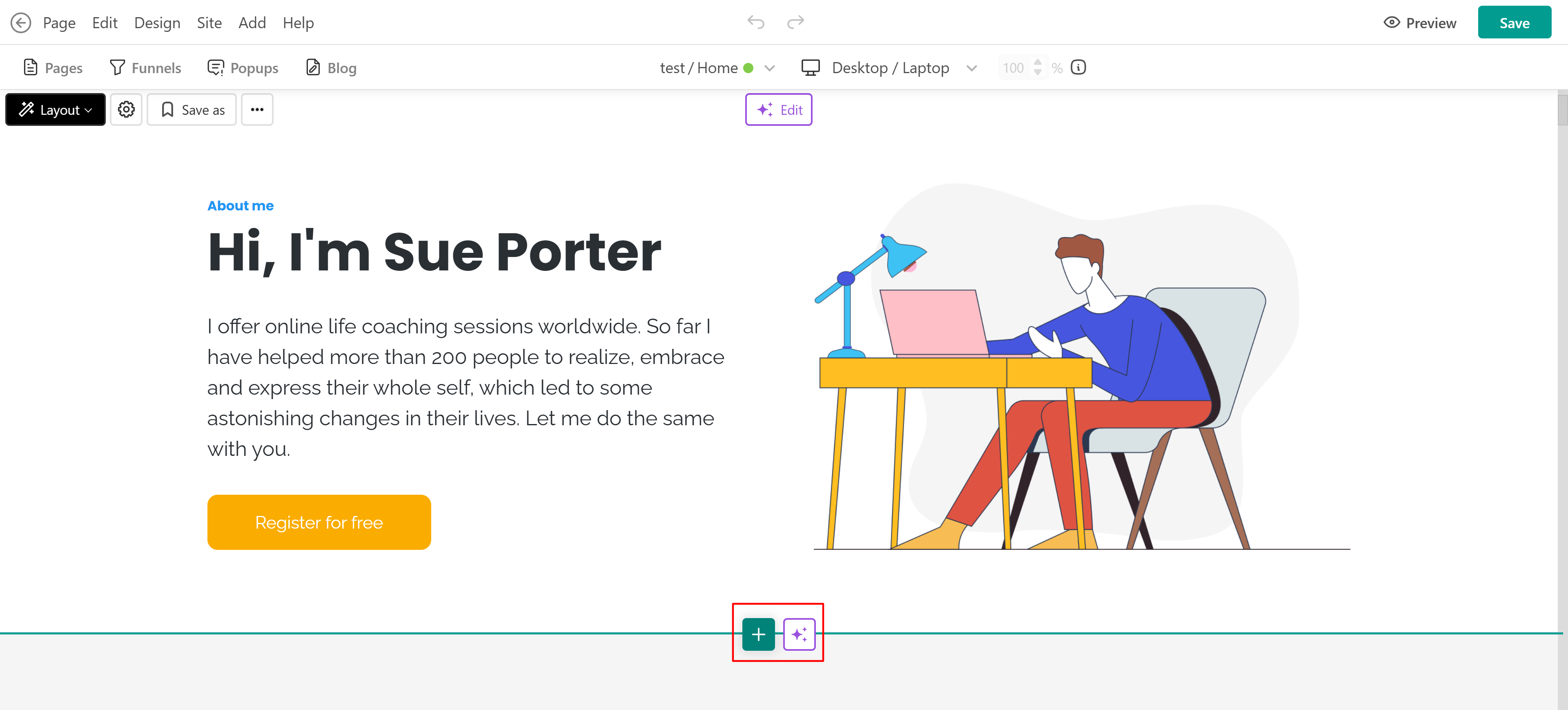
- Select Recommendations.
- Choose one of the available templates or select Fill with AI.
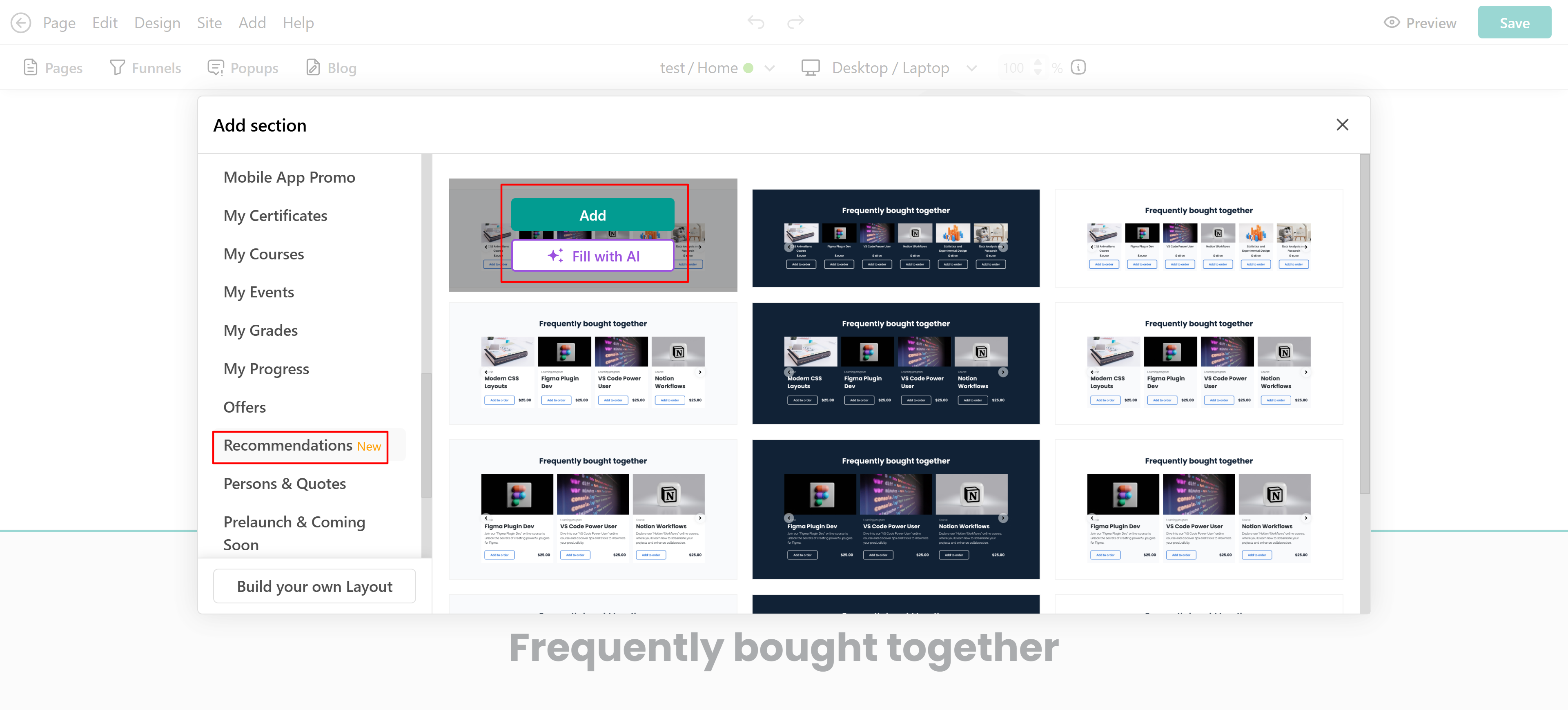
- The recommendations section will then be added to your page.
Customize the recommendations section
Select the recommendations section and click Edit cards. From the right-side panel, you can configure the section settings.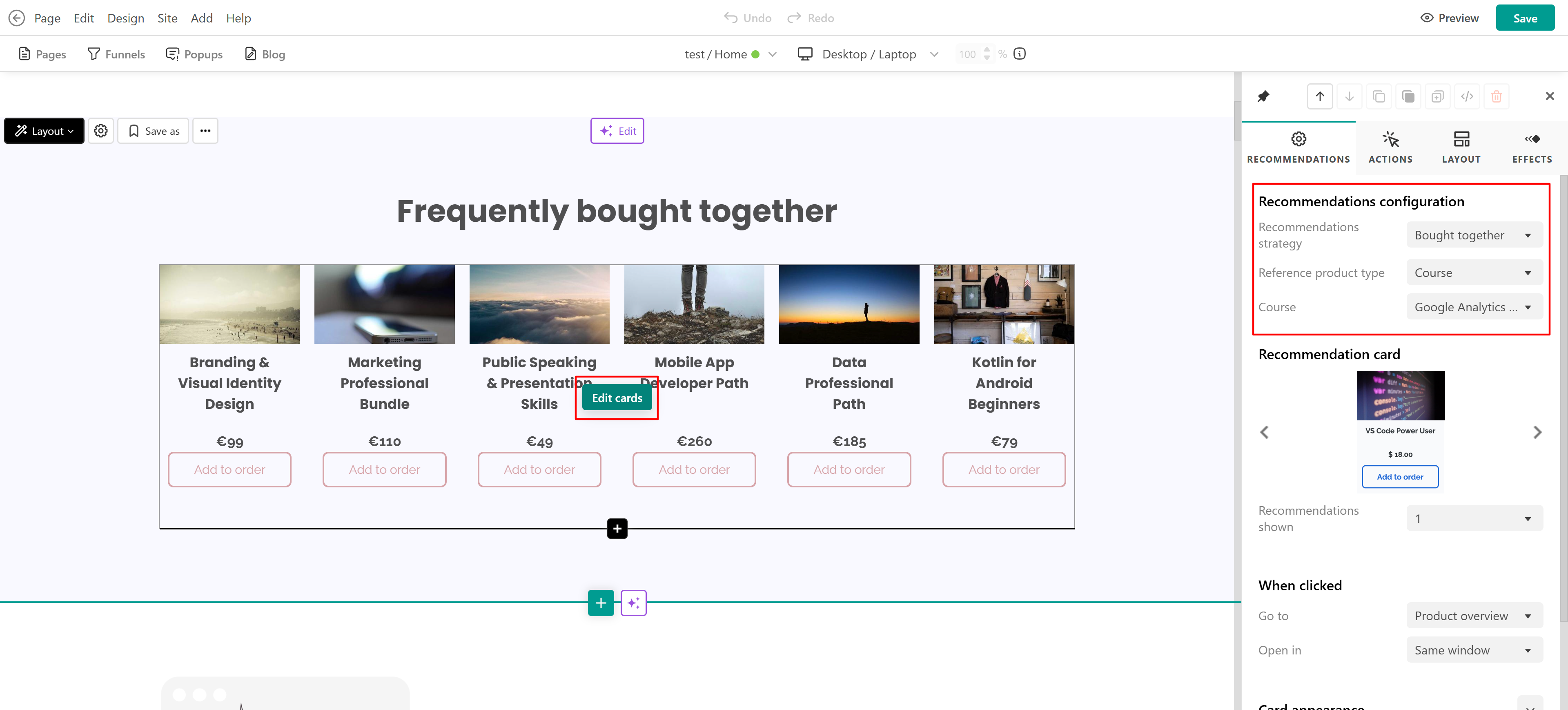
1. Select which recommendation strategy will power the section. The dropdown menu displays all strategies created under the Settings tab.
 To view existing strategies or create new ones, go to E-commerce → Recommendations → Automatic/ Hybrid → Settings
2. Choose the product type that will be used as the recommendation reference:
- Courses
- Learning programs
3. Select a specific product. For strategies such as:
- Bought together
- Learners also bought
- Similar products
the selected product acts as the reference point for recommendations. For example, if you select:
- Strategy: Similar products
- Product type: Course
- Product: Photography Masterclass
the system will automatically display courses from your school that are similar, e.g. Lenses 101 and How to use analog cameras.
The Popularity strategy works differently. Instead of using a reference product, it automatically displays the most popular products based on purchase activity.Popularity is calculated using only self-purchases, helping provide more accurate recommendations based on actual learner buying behavior rather than manual enrollments or admin-assigned access.
This ensures that recommended products better reflect what learners are actively purchasing.
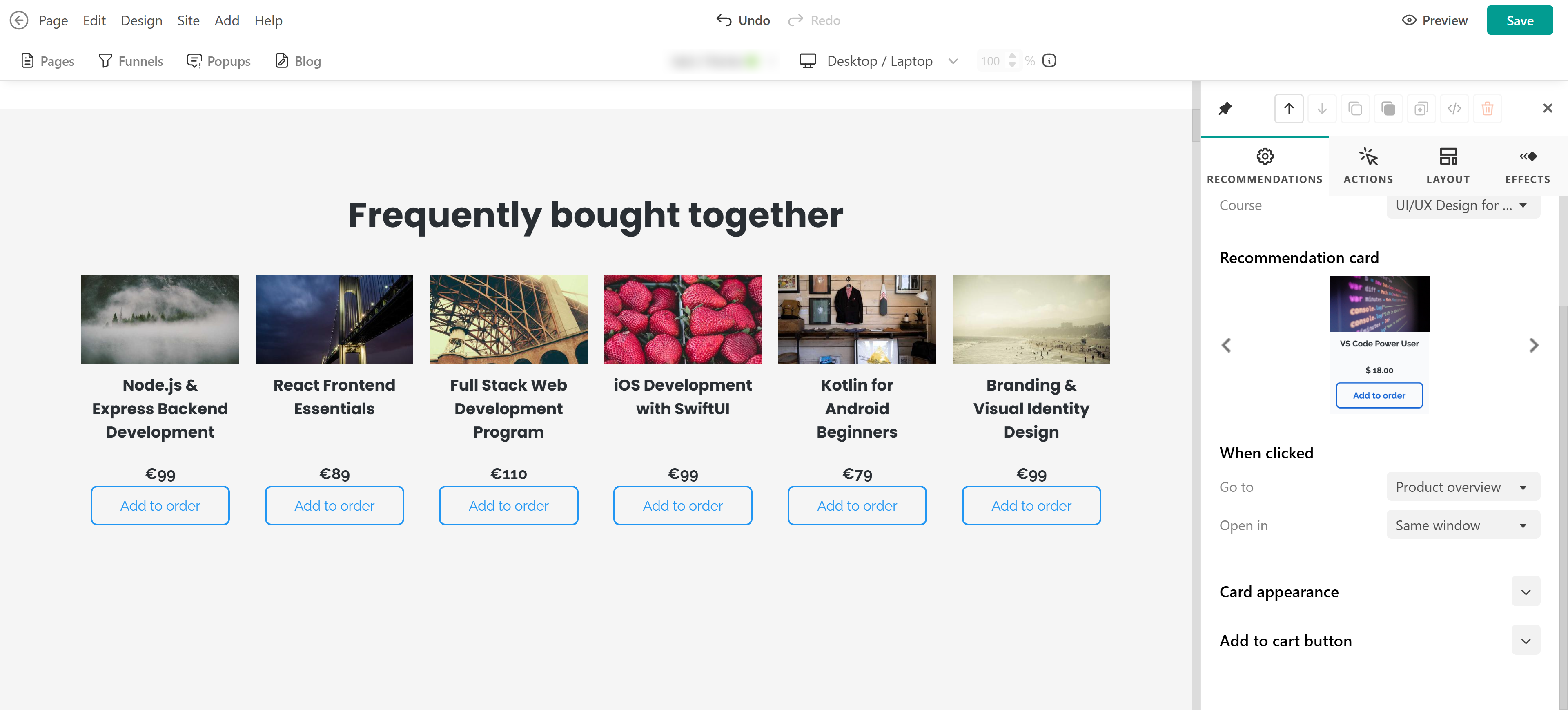
You can customize:
- Card's layout
- When clicked
- Card appearance
- Add to cart button
- Automatic and Hybrid recommendations are available on Learning Center plans and above.
- The Recommendations section supports up to 8 products.
- Only products with a one-time price can be displayed.
- The recommendations section cannot be used with order bumps.
Tips for better results
To improve product discovery and engagement, place the Recommendations section in high-visibility areas such as:
- Homepage
- Course pages
- Sales pages
Using recommendations strategically throughout your website can help learners discover more relevant content and encourage additional purchases.