
Off-platform payments let you accept payments that learners complete outside LearnWorlds, such as bank transfers, while keeping the order and transaction management process in your school.
When a learner chooses an off-platform payment method at checkout, LearnWorlds creates the order and shows the payment instructions you configured. The transaction remains pending until the payment is verified and marked as paid.
How off-platform payments work
An off-platform payment is completed outside LearnWorlds and then reconciled with the order in your school. The payment flow is:
- The learner selects the off-platform payment method at checkout.
- LearnWorlds creates the order with a Payment Pending status.
- The learner receives the payment instructions and completes the payment outside LearnWorlds.
- The learner can confirm in their account page that they completed the payment.
- You verify that the payment has been received.
- You mark the transaction as paid in LearnWorlds.
- LearnWorlds sends a notification email to the learner and grants access to the purchased product
 Marking that the payment has been completed from the learner's side does not confirm the payment or grant access. The payment must still be verified and reconciled.
Set up an off-platform payment method
Navigate to Settings → Financial → Payment gateway → Off-platform payments and enable the payment method.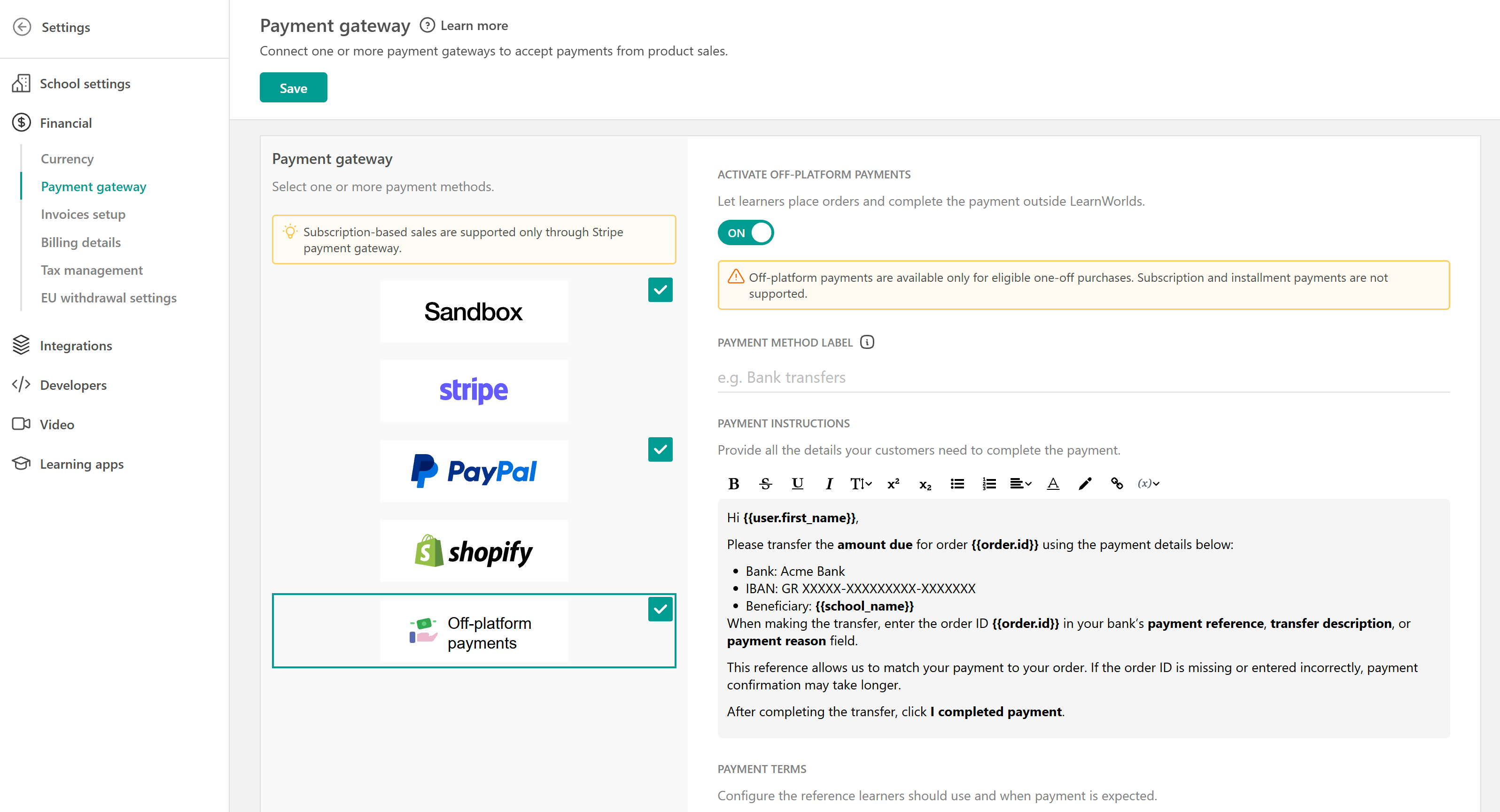
Configure the following settings:
- Payment method label: Enter the name learners will see when selecting the payment method at checkout, eg Bank Transfer
- Payment instructions: Add all the information learners need to complete the payment outside LearnWorlds. For a bank transfer, this could include the bank name, IBAN, beneficiary, amount, and instructions for adding the payment reference
- Expected payment window: Set the number of days learners have to complete the payment
- Payment reference: Select the reference learners should include with their payment so you can match it to the correct order
You can use variables in your payment instructions to automatically display information related to the learner and their order.
Once enabled, the off-platform payment method becomes available at checkout for eligible one-off purchases.
Off-platform payments are available only for eligible one-off purchases. Subscriptions and installment payments are not supported.What learners see at checkout
When off-platform payments are available, learners can select to pay outside of the platform. A message explains that the payment will be completed outside LearnWorlds and what happens after the order is placed.
After selecting the off-platform payment method, the learner selects Place order. LearnWorlds then creates the order with a pending payment status and provides the details needed to complete the payment outside the platform.
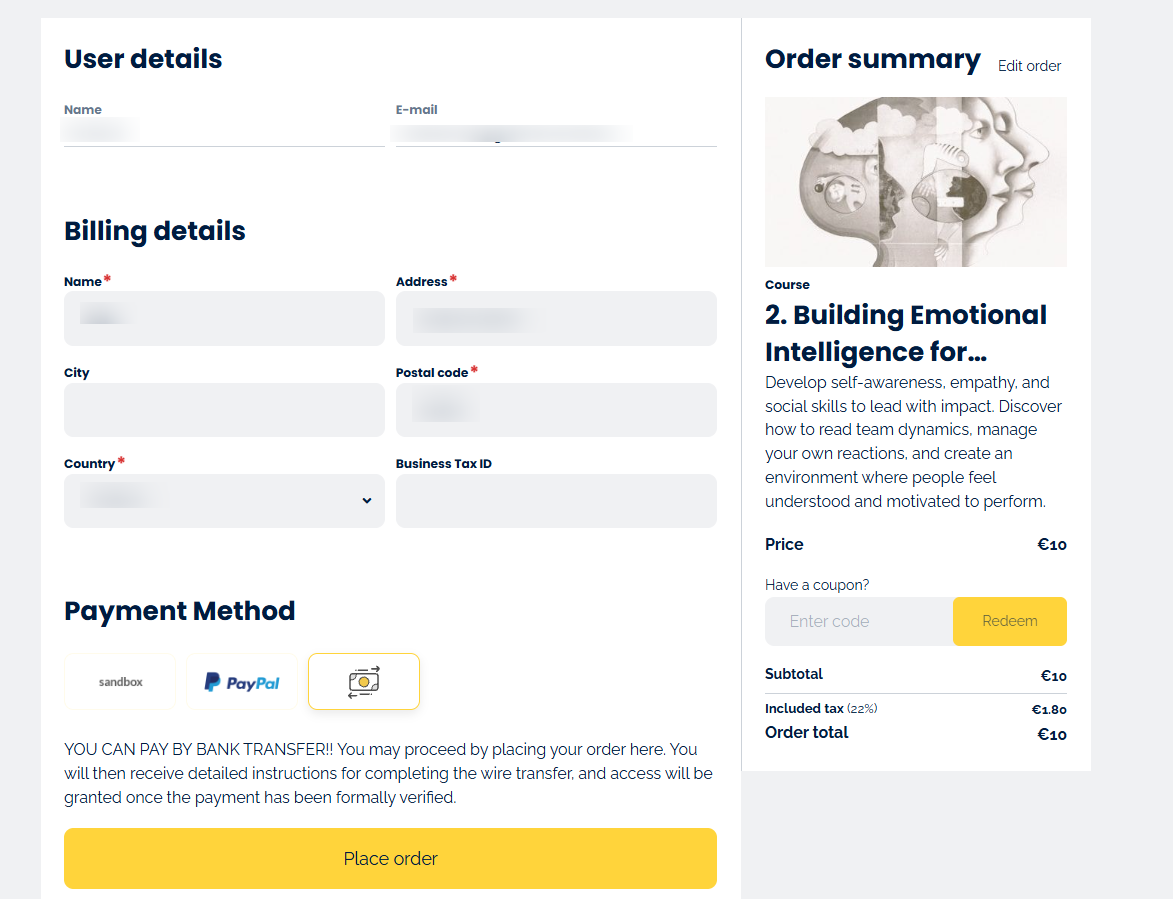
The text shown can be edited from the Site language of your school.The learner is shown the information needed to complete the payment, including:
- Amount to pay
- Order summary
- Payment instructions
- Payment deadline
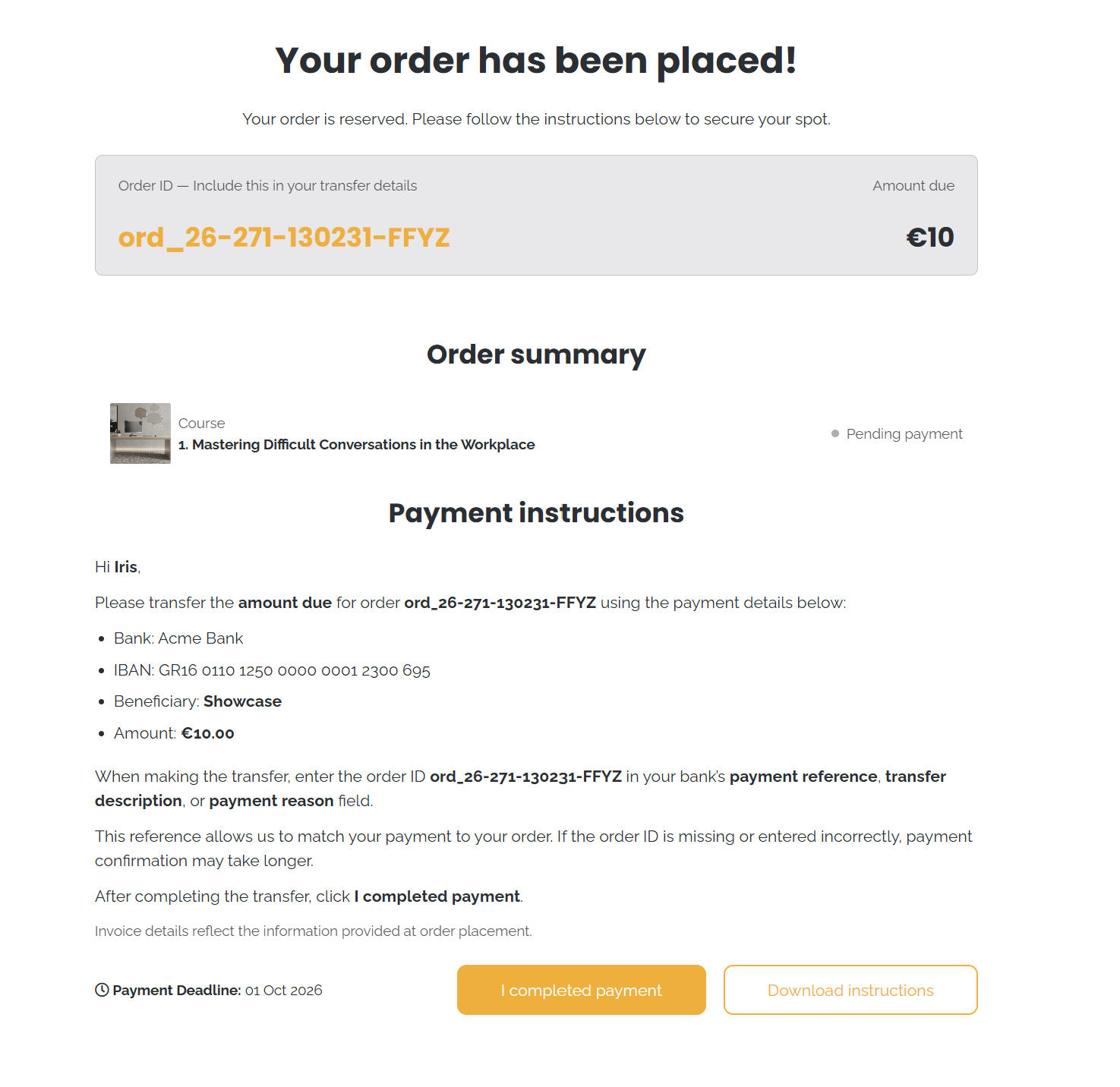
The learner also receives the payment instructions through the off-platform payment notification and can then complete the payment outside LearnWorlds.
Access to the purchased product is granted after the school verifies the payment and marks the transaction as paid.
Manage pending off-platform payments as a learner
Learners can review outstanding payments from the Pending payment area of their account page. From there, they can reopen the payment instructions to review the payment details and select Confirm payment after completing the payment outside LearnWorlds.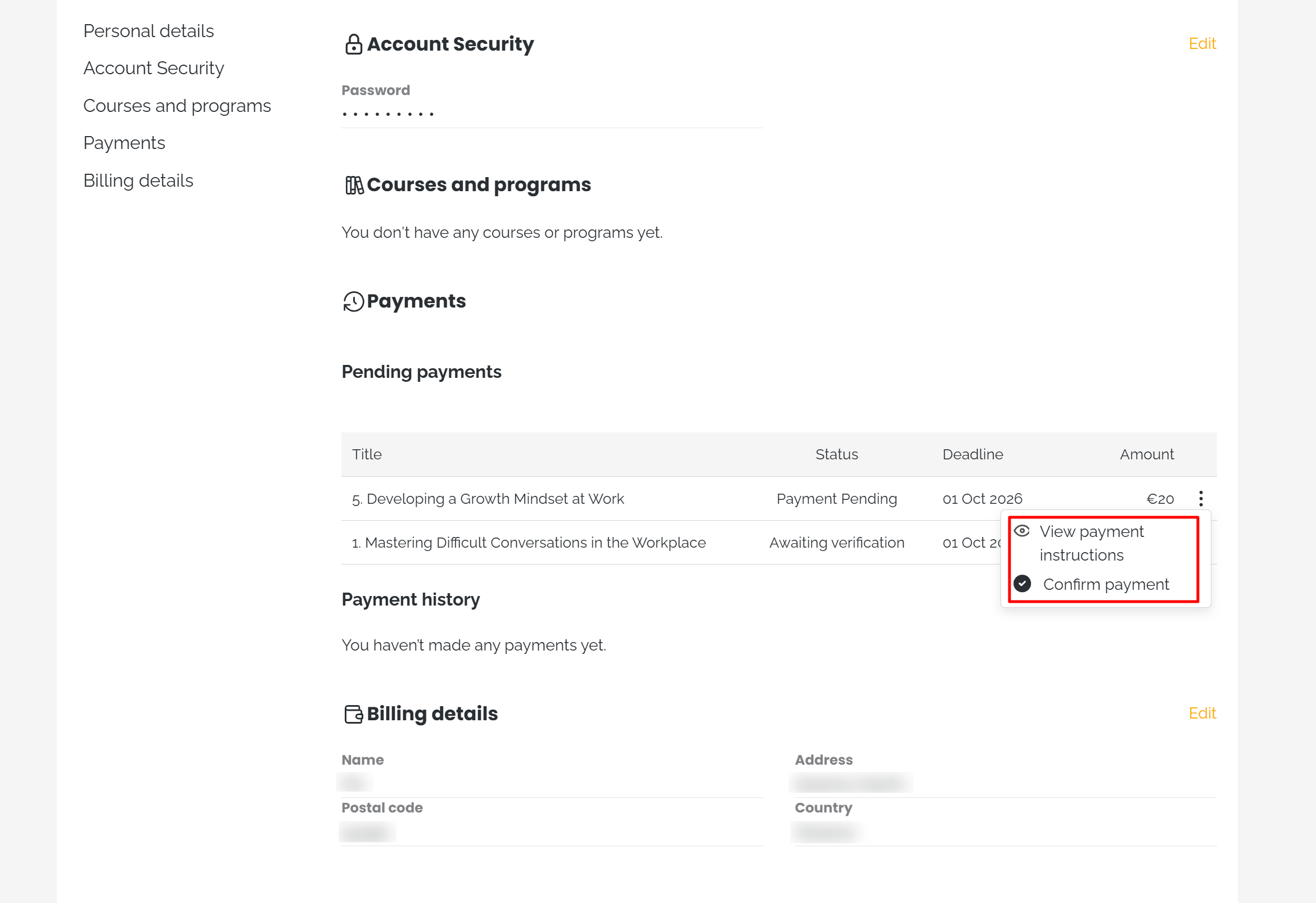
Learners can select Confirm payment from either:
- The after-purchase screen
- The Pending payment area of their account page
After the learner confirms the payment, an admin notification is sent so the payment can be verified.
Confirming a payment does not mark the transaction as paid or grant access to the purchased product. An admin must verify that the payment was received and mark the transaction as paid.Review off-platform payments
To review transactions across your school as an admin, navigate to E-commerce → Transactions. Use the available filters to find transactions based on their payment method or status. To review the transactions of a specific user:
1. Navigate to Users → All users
2. Select the user
3. Open the Transactions tab
4. Locate the off-platform transaction
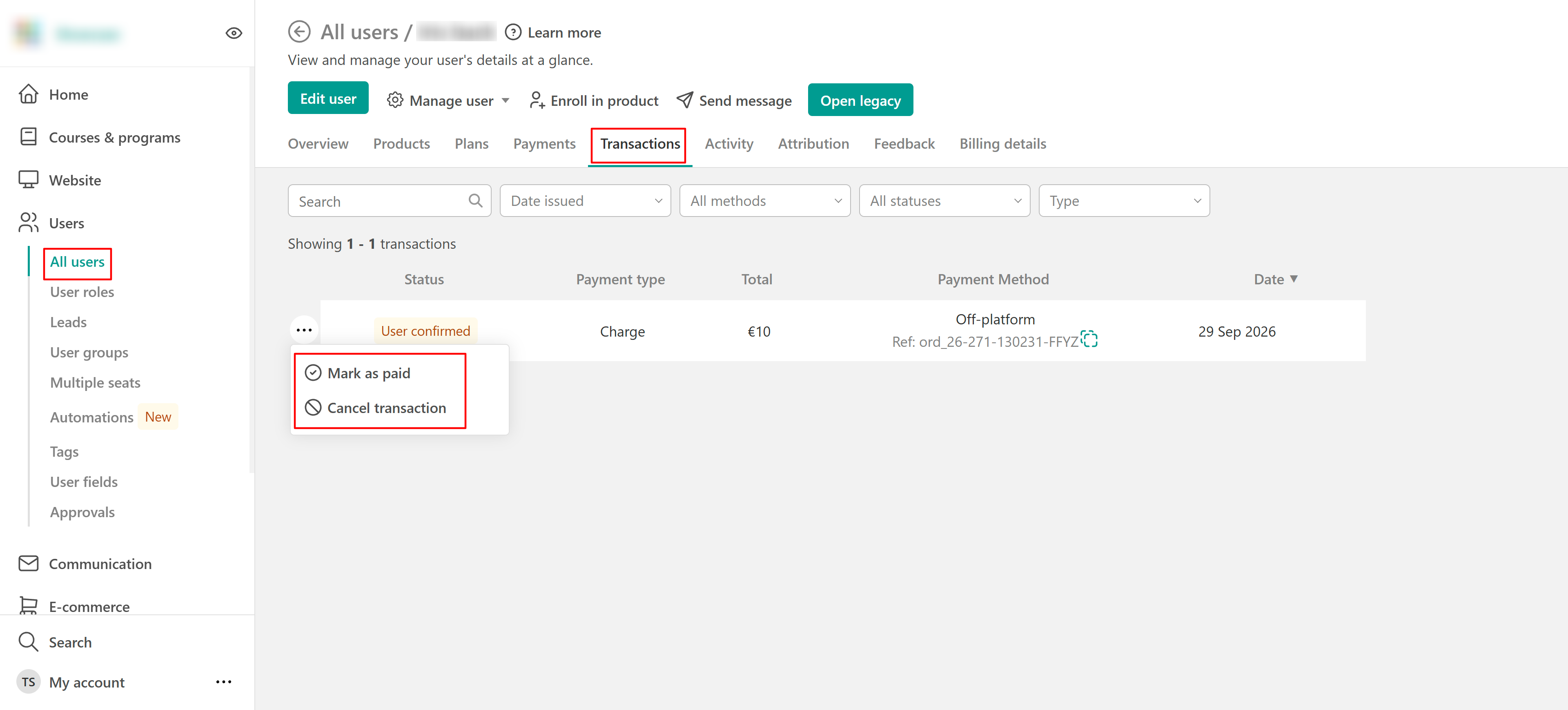
From the transaction's options menu, you can select:
- Mark as paid to confirm that you've received the payment
- Cancel transaction if the payment will not be completed
Mark an off-platform payment as paid
Once you've verified that the payment was received, locate the transaction either from Transactions or from the user's tab and select Mark as paid.
- Navigate to E-commerce → Transactions
- Open the relevant transaction
- Select Mark as Paid
- Confirm the action
- Confirm the payment
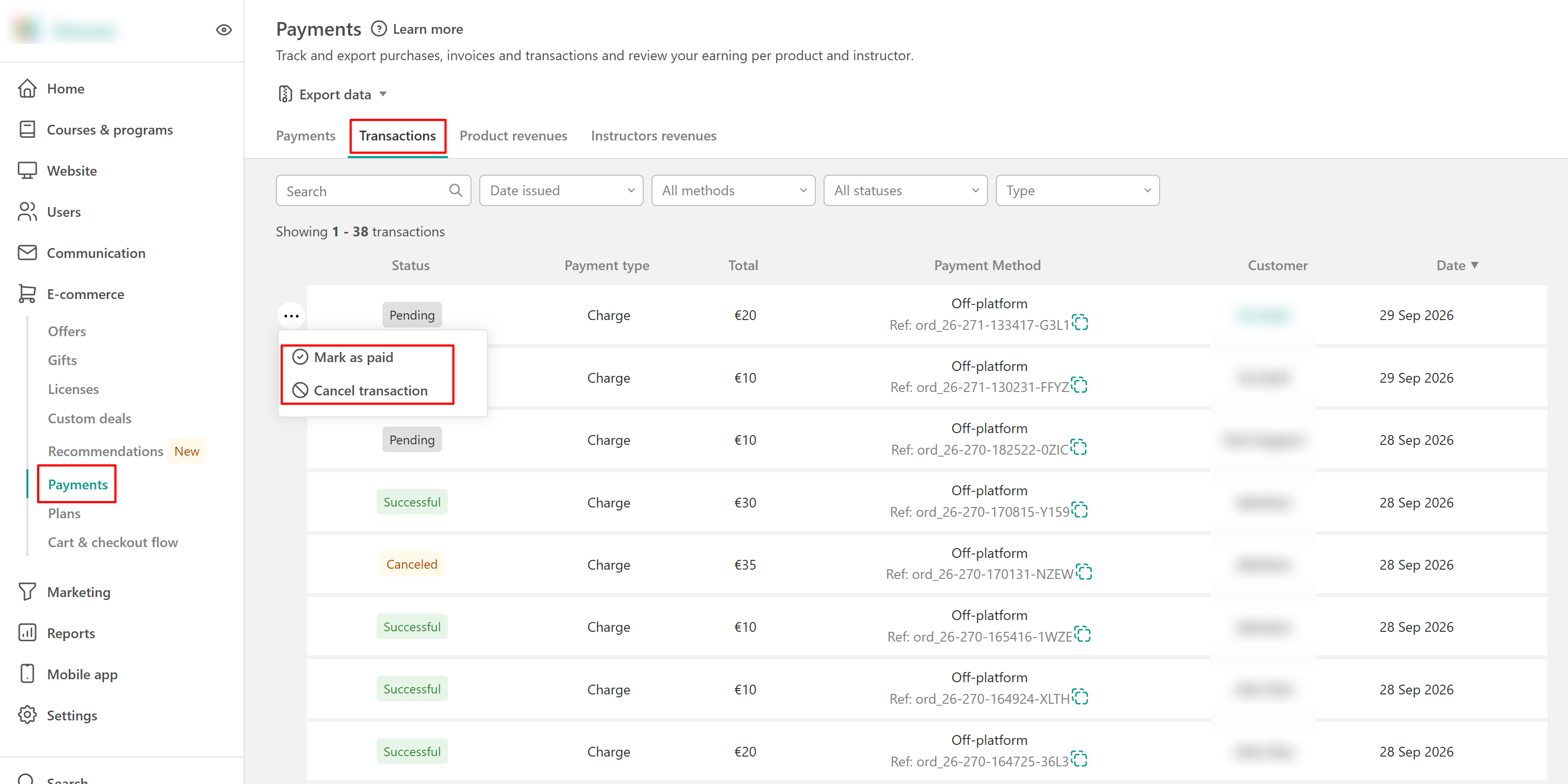
After you confirm the action, the transaction is marked as paid and the learner is granted access to the purchased product.
Marking a transaction as paid is irreversible.Once confirmed:
- The invoice is sent to the learner
- The learner receives a payment confirmation
Cancel an off-platform transaction
If the payment will not be completed, locate the transaction and select Cancel transaction. When an off-platform order is canceled before payment is confirmed, the learner is informed that the order was canceled and access will not be granted.
They can place a new order if they still want to purchase the product
Off-platform payment statuses
The transaction status helps you understand where an off-platform payment is in the payment process:
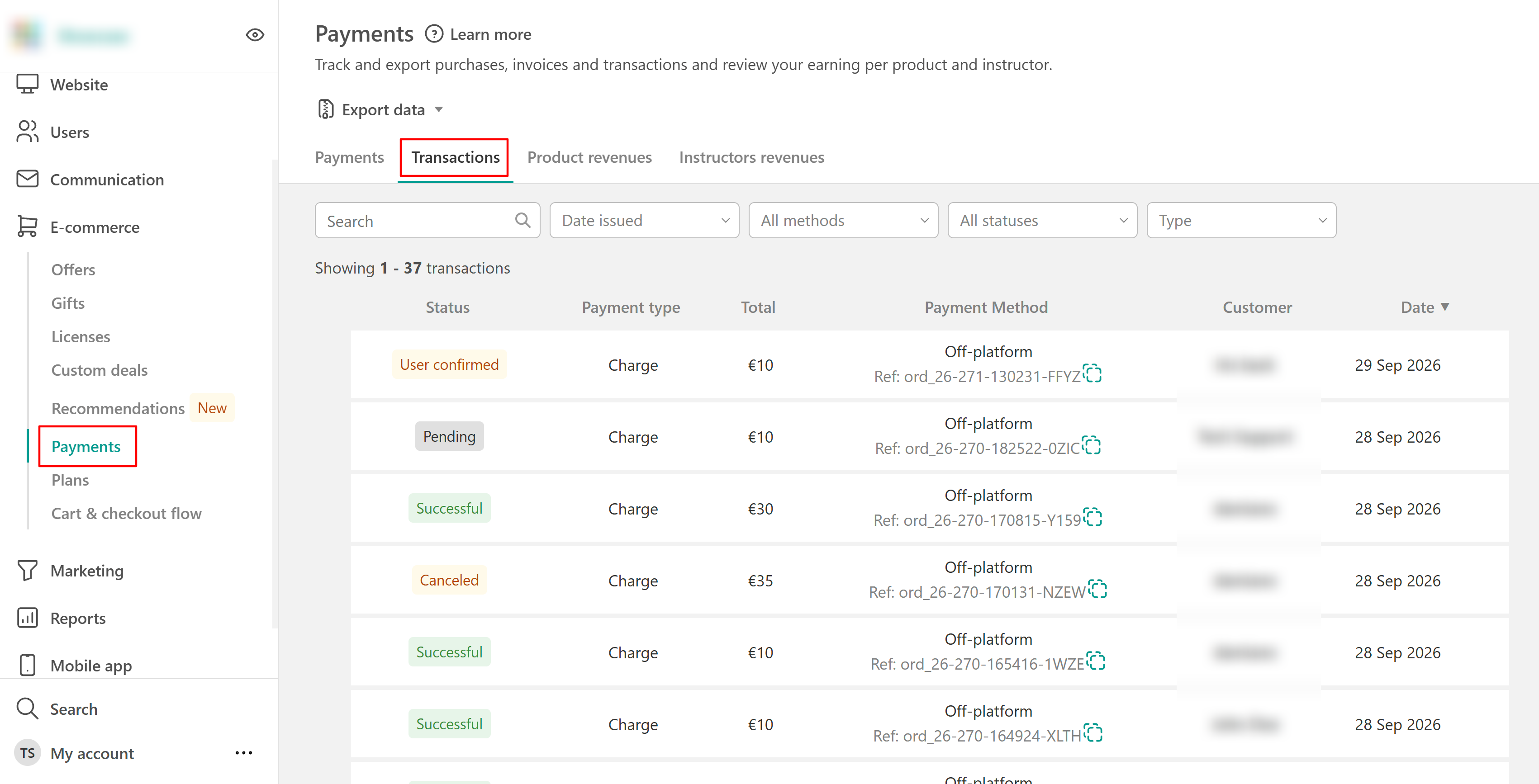
- Pending payment: An off-platform order has been created, but the payment has not been confirmed
- User confirmed: The learner has indicated that they completed the payment. The school still needs to verify it
- Paid: The payment has been verified and the transaction has been marked as paid
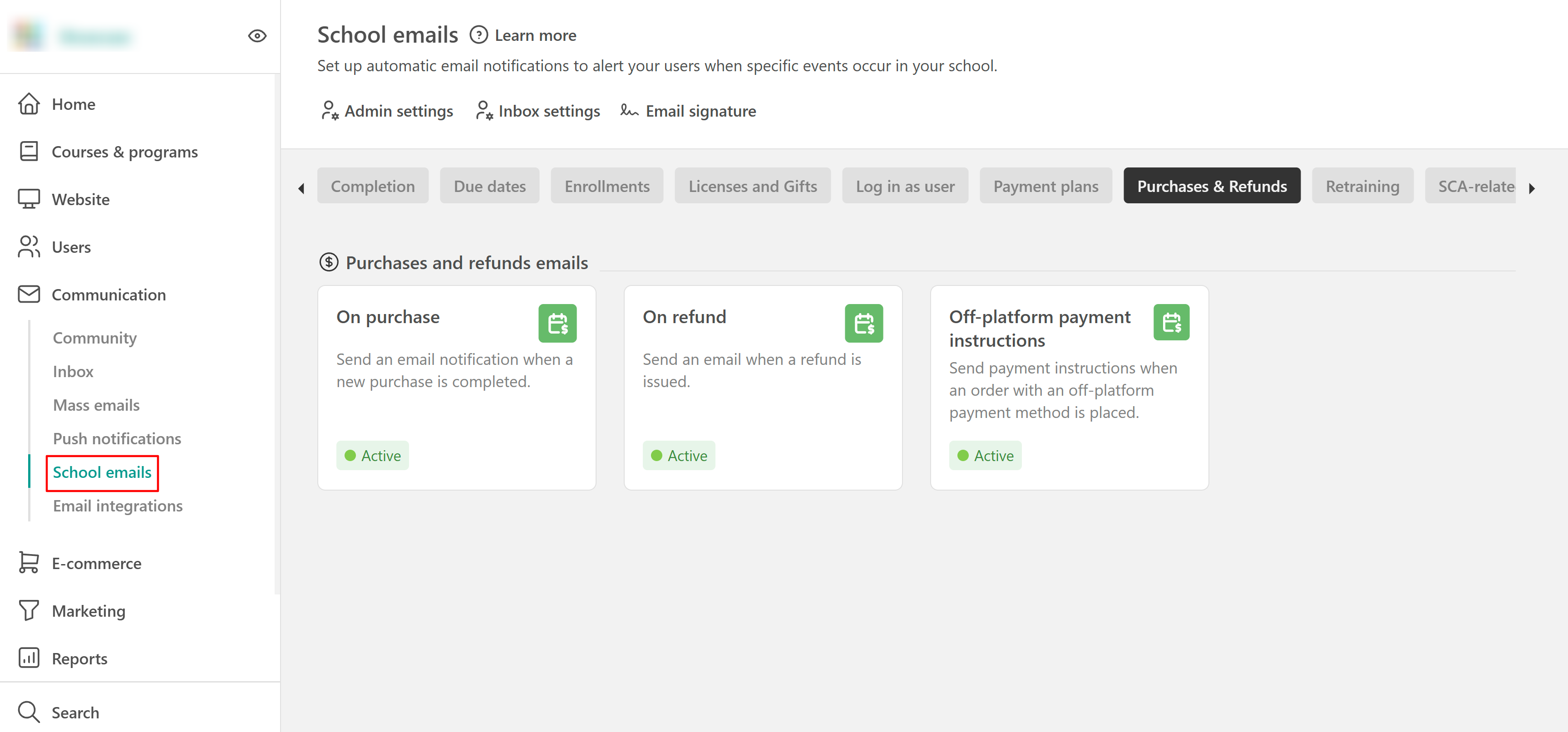
Off-platform payment notifications
LearnWorlds provides notifications for different stages of an off-platform payment.
- After checkout, the learner receives the payment instructions needed to complete the payment.
- When a learner indicates that they've completed the payment, admins are notified so they can verify it.
- After the payment is marked as paid, the learner receives confirmation (on enrollment email) and access to the purchased product.
- If an unpaid order is canceled, the learner receives a message informing them that the order was canceled and that they can place a new order if they still want to make the purchase.
Important notes
- Selecting I have completed the payment does not verify the payment or grant product access
- Verify that you've received the payment before selecting Mark as Paid
- Payment reconciliation can be performed manually or through an external system using the supported API
- Automatic refunds through bank transfers are not supported