
QR codes can be linked to your external website, school pages, or proprietary apps, allowing users to instantly access specific actions after scanning them. These actions can include opening a payment page or accessing a payment page with an applied coupon, or completing a marketing form or survey.
In this article, you will learn how to create and use QR codes in your LearnWorlds school.
Create QR code
1. Find and copy the page or product URL or checkout URL. Of course, you can use any URL of your choice, such as a link to the user's profile page (e.g., {myschoolexample}.com/profile) to prompt them to enter their personal information, or the account page (e.g., {myschoolexample}.com/account) to add their billing info.
2. Use a free service like the QR Code Generator.
3. Paste the URL to generate the QR code image and download it in a supported image format, such as .png or .jpeg.
 Find a list of suggested free QR code generators here.
Embed QR code
1. Navigate to Website → Design → Edit Website.
2. Choose any page to edit from the Page Manager.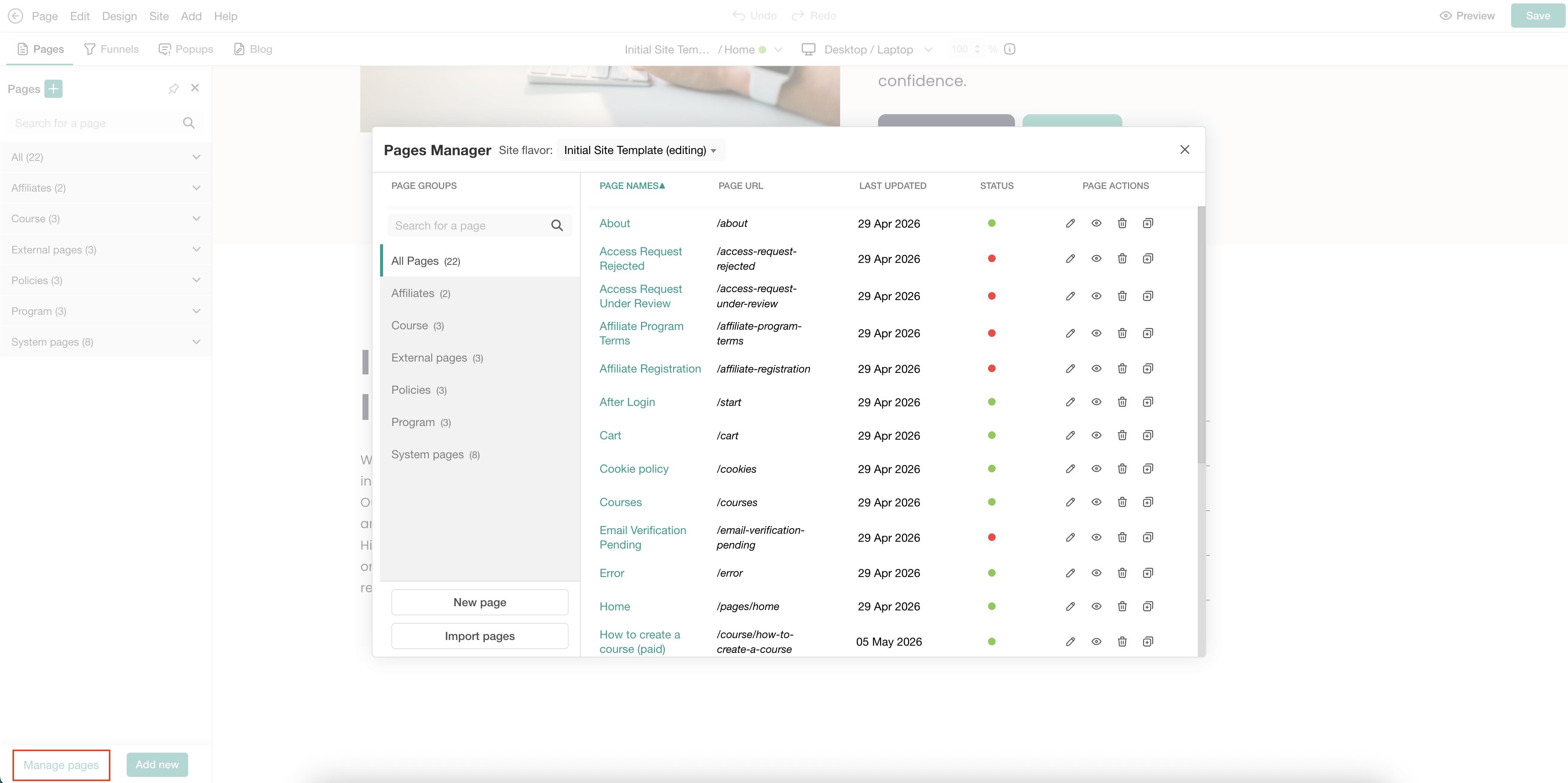
3. Click the (+) icon to add a widget, then select an Image widget.
4. Upload the QR code as an image widget.

For more information on how to further customize sections using the sideform, click here.