
LearnWorlds AI Agents are AI-powered learning assistants that help learners understand course content, answer questions, and receive personalized guidance directly within the Course Player.
Create AI Agents to support learners across your school, customize how they communicate, control which courses and learners they can assist, and define how they handle assessments or transfer conversations to a human.
In this article, you will learn how to create, configure, activate, and manage AI Agents in your LearnWorlds school.
What can you use AI Agents for?
Depending on your learners' needs, you can create different types of AI Agents, such as:
- Study guide: Helps learners review course materials, summarize content, and prepare for assessments
- Learning coach: Encourages critical thinking and guides learners through challenging concepts
- Course assistant: Answers questions about course content and helps learners find relevant learning materials
- Training assistant: Supports employees during training and directs them to an instructor when additional help is needed

- Each AI Agent can have its own identity, instructions, knowledge settings, teaching approach, and availability.
- You can create multiple agents with different settings to provide the appropriate support across your courses and learning programs.
- AI Agents are available as an add-on for schools on the Learning Center plan. If you're interested in adding AI Agents to your school, contact your Customer Success Manager (CSM) for more information.
Create an AI Agent
To create a new AI Agent:
1. Navigate to Agents from your school's main navigation menu.
2. Click Create agent.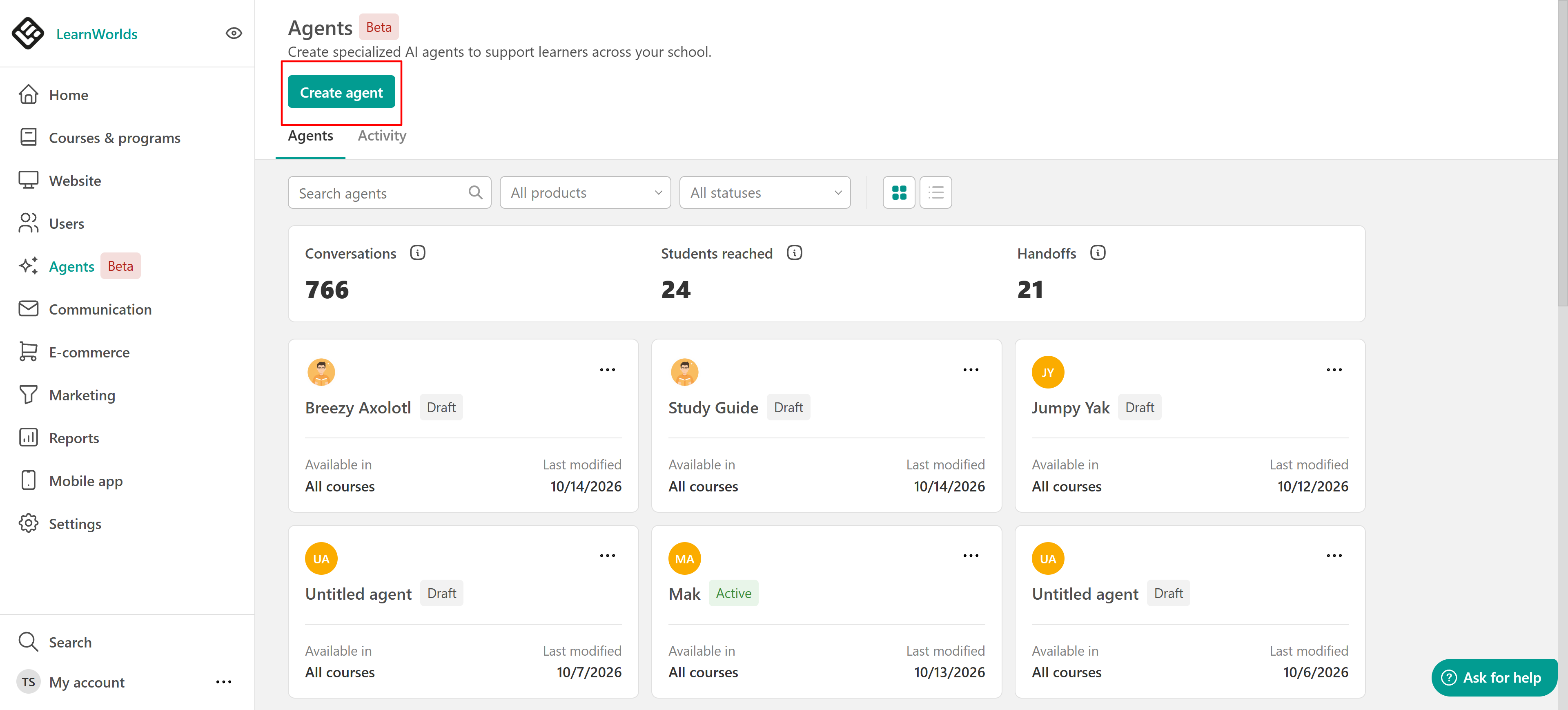
3. Choose how you want to get started:
- Build it yourself: Create your agent from scratch and configure its settings step by step.
- Create agent with AI: Describe the agent you want to create. AI will generate a set of settings based on your prompt, which you can review and customize.
Customize your agent's identity and appearance
Once your agent is created, you will be taken to its configuration page, where you can customize its appearance, behavior, knowledge, and availability.
You can preview your agent and save your changes as you configure it.
Customize your agent's identity and appearance
Under Identity, configure how your AI Agent looks and how learners interact with it.
Set up the basic identity of your agent by configuring its:
- Name: Enter a name that helps learners identify the agent, such as Study Guide or Learning Coach.
- Avatar: Choose an avatar to represent your agent.
- Color: Select a color for the agent's appearance.
- Status: Keep the agent in Draft while configuring it, or change it to Public when it is ready for learners.
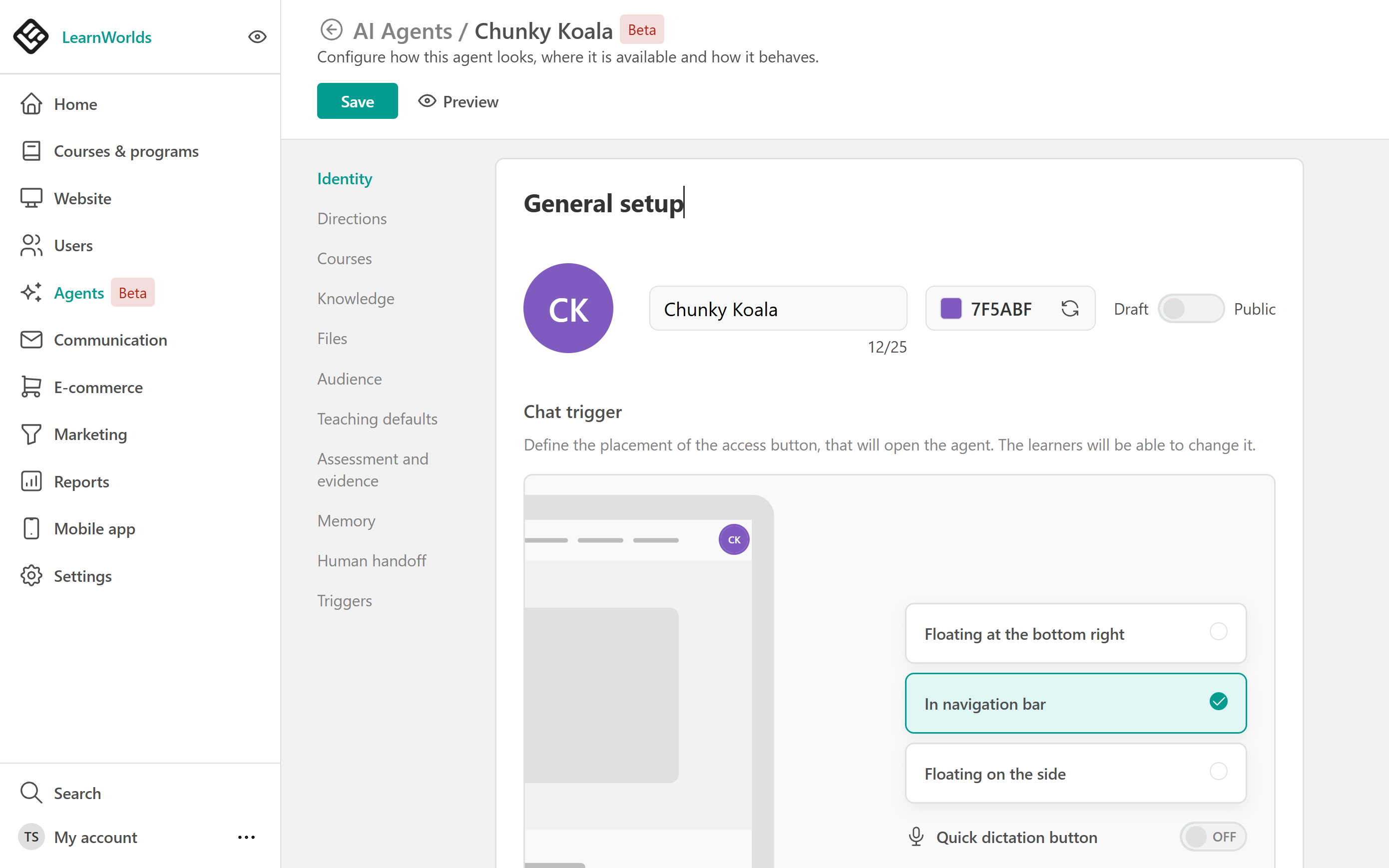
Choose where the button that opens the AI Agent appears in the Course Player. Available options include:
- Floating at the bottom right: Displays the access button at the bottom-right corner.
- In navigation bar: Places the access button in the Course Player's navigation bar.
- Floating on the side: Displays the access button along the side of the Course Player.
You can also enable Quick dictation button when dictation is allowed for your agent.
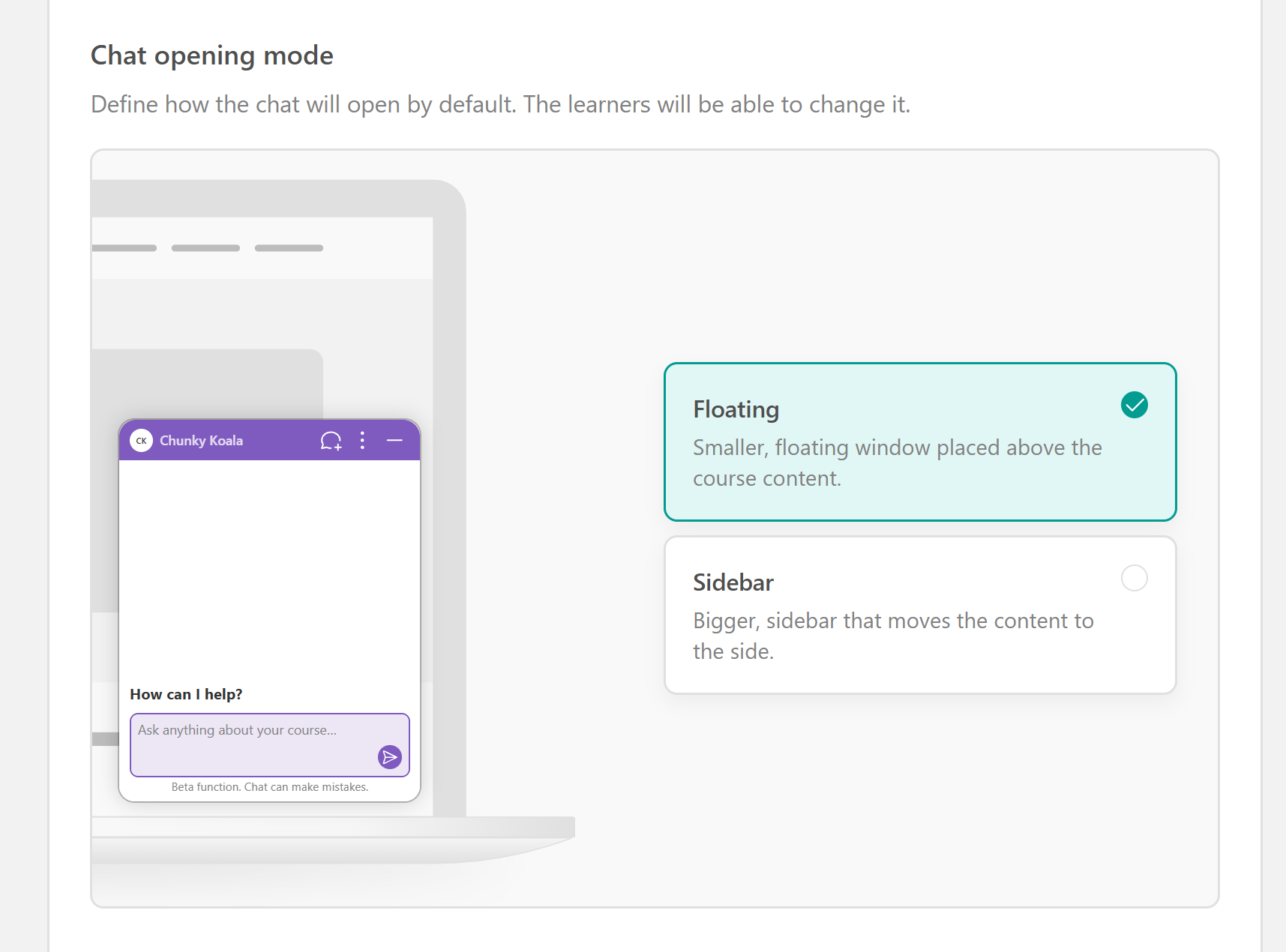
Chat opening mode
Choose how the conversation window opens when a learner selects the agent.
- Floating: Opens a smaller chat window over the course content.
- Sidebar: Opens a larger panel that moves the course content to the side.
Chat input and usage
Configure how learners can communicate with the agent.
- Allow dictation: Enable this option to allow learners to use voice dictation when communicating with the agent. Dictation may consume additional credits.
- Limit learner messages: Enable this option to define the maximum number of messages a learner can send per month.
Details
Personalize the agent's communication style.
- Custom greeting: Write the welcome message learners see when opening the agent.
- Tone of voice: Select how the agent should communicate.
- Starter prompts: Add two or three suggested questions learners can select to start a conversation.
For example, you could add starter prompts such as Can you explain this concept?, Help me review this section, or Can you give me an example?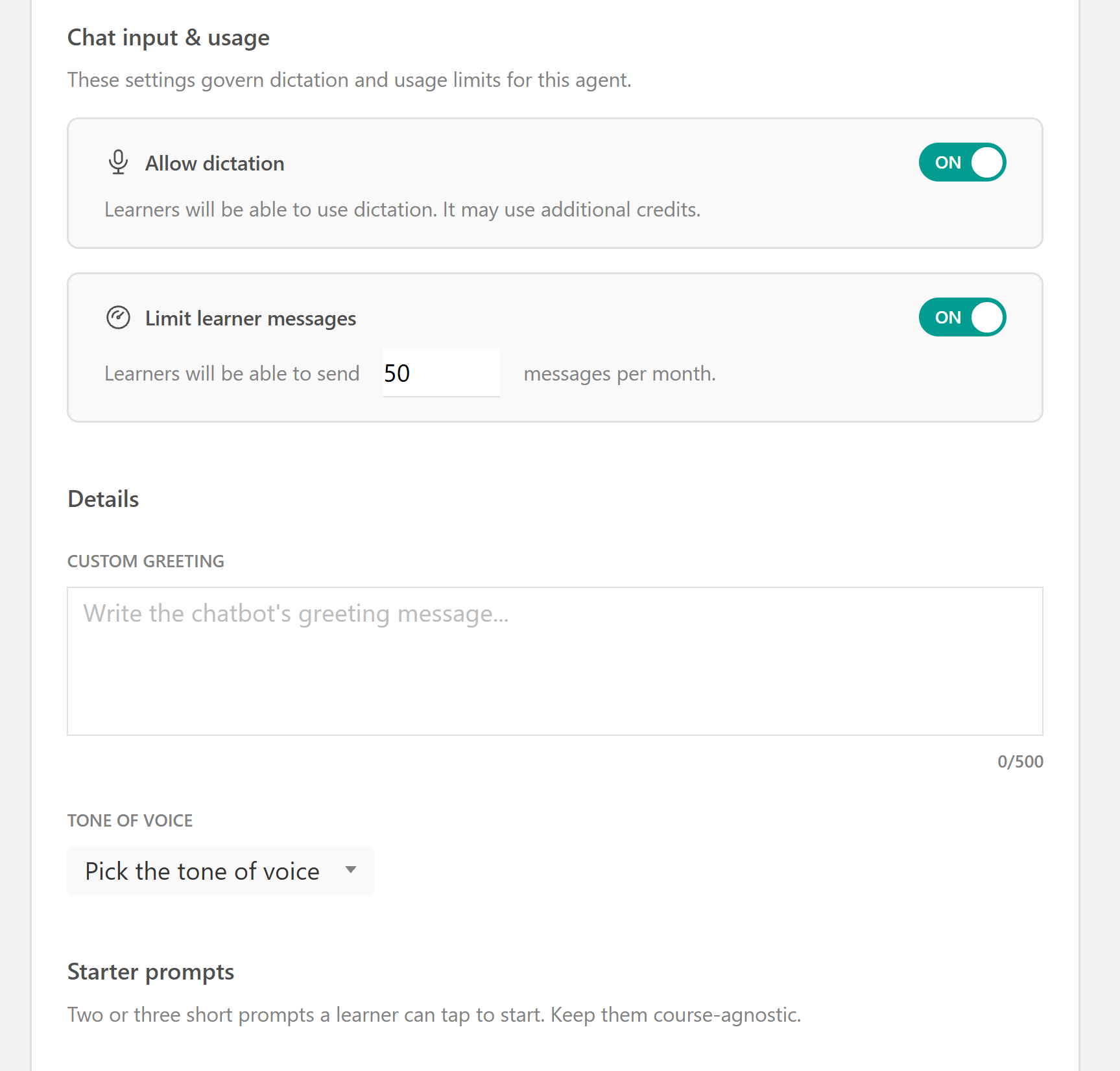
Define your agent's behavior
Under Directions, provide instructions that determine how your AI Agent should behave, what it should focus on, and what it should avoid. Enter your instructions in the Directions field.
For example, you can instruct the agent to:
- Explain complex concepts using simple language.
- Encourage learners to think independently before providing an explanation.
- Use practical examples relevant to your subject.
- Maintain a professional and supportive tone.
- Avoid discussing topics unrelated to the training material.
These directions build on your school's existing AI Context, including its goals, language, audience, brand personality, and tone of voice.
When there is a conflict, the agent's specific directions take precedence over its general behavior settings.Choose where your agent is available
Under Courses, define which courses and learning programs your AI Agent can support. You can choose between:
- All courses: Make the agent available across all courses in your school.
- Specific courses and learning programs: Select the courses or learning programs where the agent should be available. When you select a learning program, the agent is available in the courses included in that program.
- Make the agent available in free sections.
Under Free sections, enable Available in free sections if you want learners who are not enrolled in a course to interact with the agent while previewing its free sections.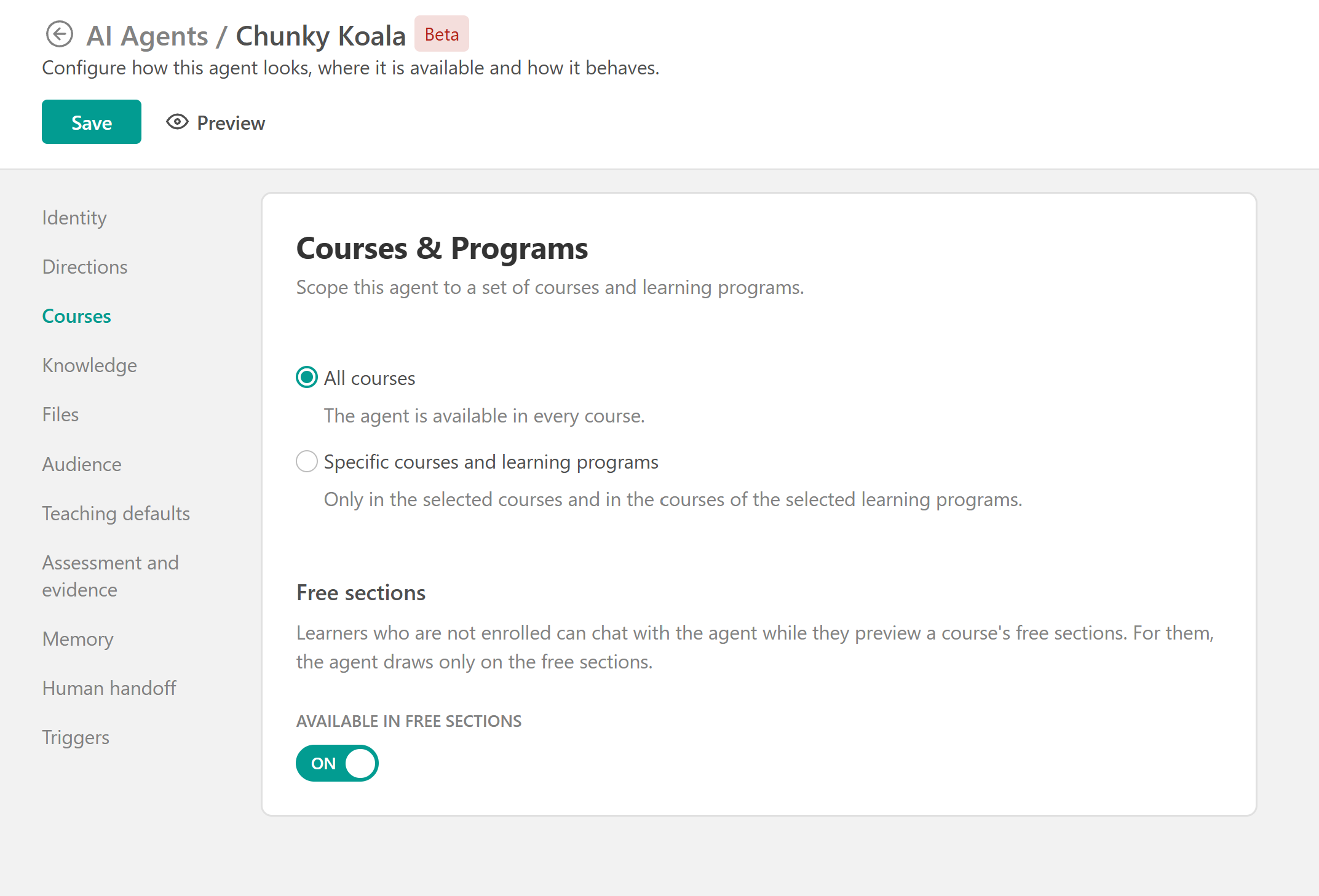
For these learners, the agent uses only the content available in the free sections. This allows prospective learners to receive assistance while exploring your course without providing access to restricted learning materials.
Configure your agent's knowledge
Under Knowledge, define how your AI Agent uses learning materials to answer questions and what it should do when it cannot provide an answer.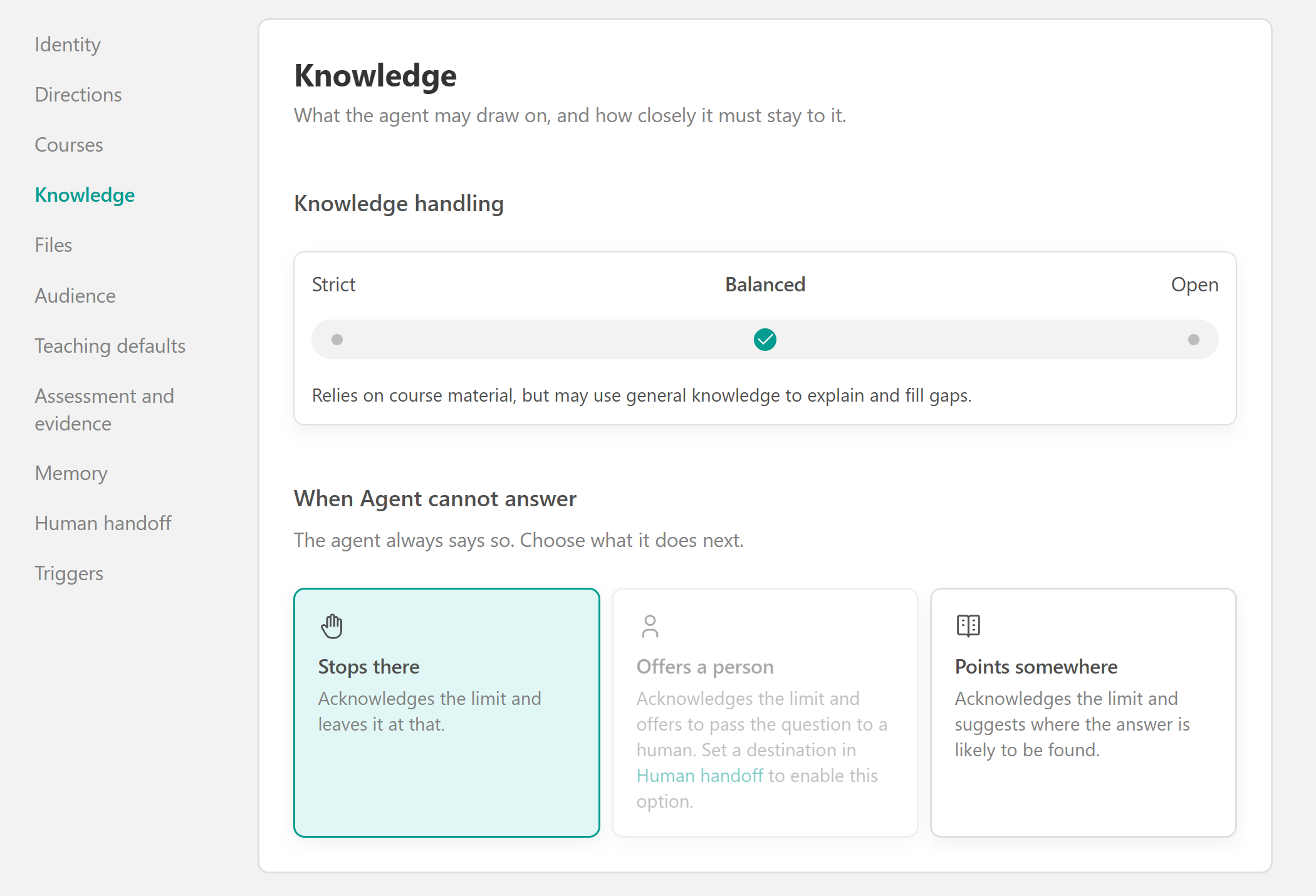
AI Agents can also read video transcripts to understand the content of video learning activities and use that information to answer learners' questions. This allows learners to ask questions about video content without having to search through the video themselves.Knowledge handling
Choose how closely the agent should rely on the available course material.
| Strict | Keeps responses closely aligned with the available learning material and avoids adding unsupported information. |
| Balanced | Relies on course material but can use general knowledge to explain concepts and fill gaps. |
| Open | Allows the agent greater flexibility to expand on the available material and provide additional explanations. |
Choose Strict when the agent should remain closely aligned with the learning material, or Balanced when learners may benefit from additional explanations.When the agent cannot answer
Choose how the agent responds when it cannot answer a learner's question.
- Stops there: Acknowledges that it cannot provide an answer and ends its response.
- Offers a person: Acknowledges the limitation and offers to transfer the conversation to a human. This option requires a destination to be configured under Human handoff.
- Points somewhere: Acknowledges the limitation and suggests where the learner may find the information.
These settings help you define how learners receive support when the agent cannot resolve their questions.
Configure the agent's files
The Files section is available in the agent's configuration menu for managing its file-based resources. The exact file-upload, selection, and management steps should be added once the Files tab's behavior is confirmed.
Define your agent's audience
Under Audience, specify which learners can interact with your AI Agent. By default, leaving the audience settings empty makes the agent available to everyone within its configured course scope. To restrict access:
1. Navigate to Audience.
2. Click Add filter.
3. Select the learner attribute and condition you want to use.
4. Enter the corresponding value.
5. Add additional conditions using the available AND/OR options, if needed.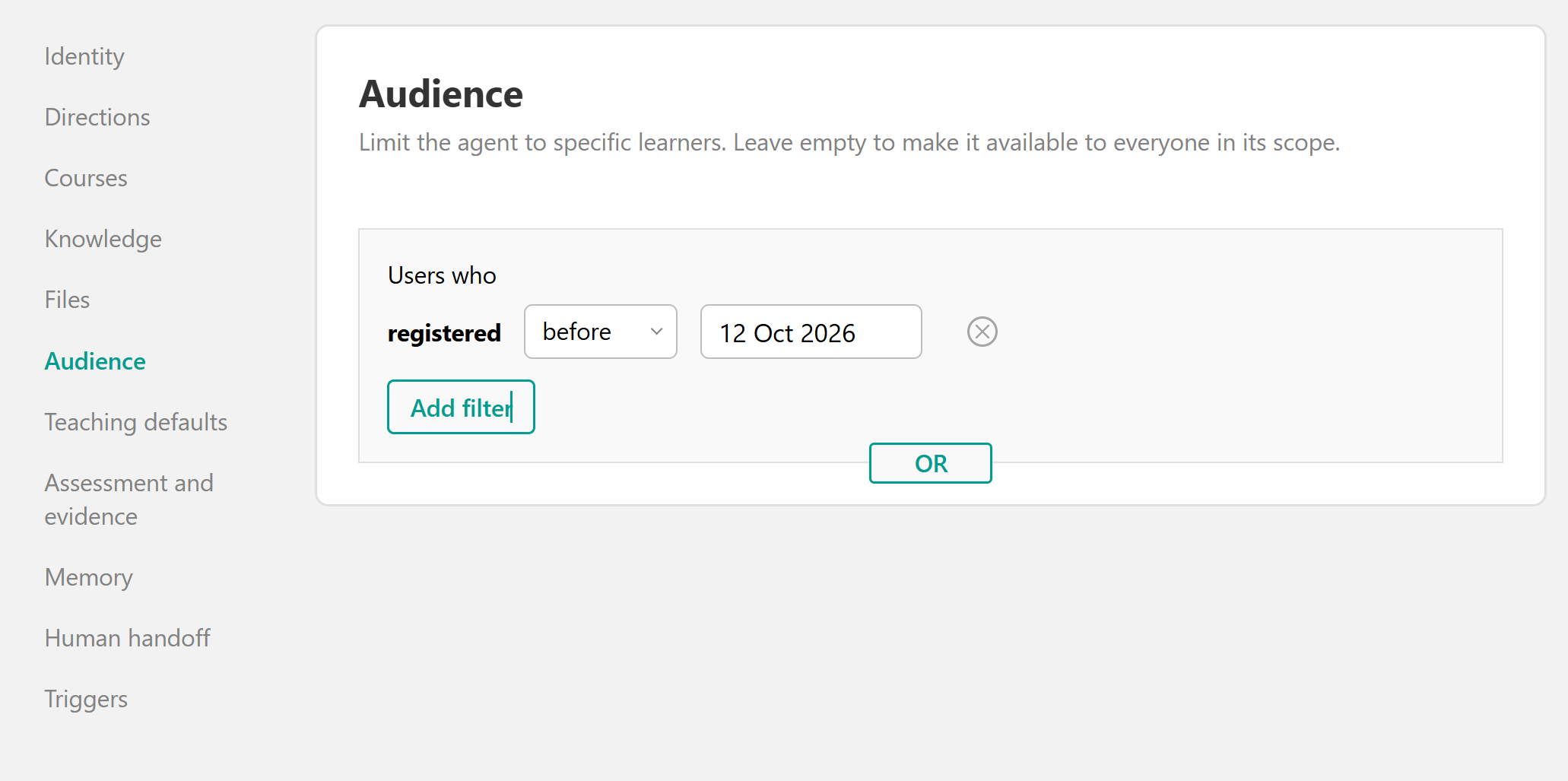
For example, you could configure an agent to support only learners who match specific user profile criteria.
Audience filters work alongside the course availability settings. Learners must meet the configured audience conditions and have access to the relevant course.Customize your agent's teaching approach
Under Teaching defaults, define how the AI Agent guides learners and structures its responses. Select one of the available teaching approaches.
| Adaptive | The learner's prompt determines the response approach. |
Guide first | Asks learners what they think before providing answers. |
| Balanced | Provides a short answer followed by a question to check understanding. |
Answer first | Provides direct answers with worked examples. |
For example, Guide first may be useful for courses that emphasize critical thinking, while Answer firstmay be more suitable for learners who need immediate explanations.Add custom teaching instructions
Under Custom teaching instructions, enter additional directions in the Teaching directions field. These instructions work alongside your selected teaching approach.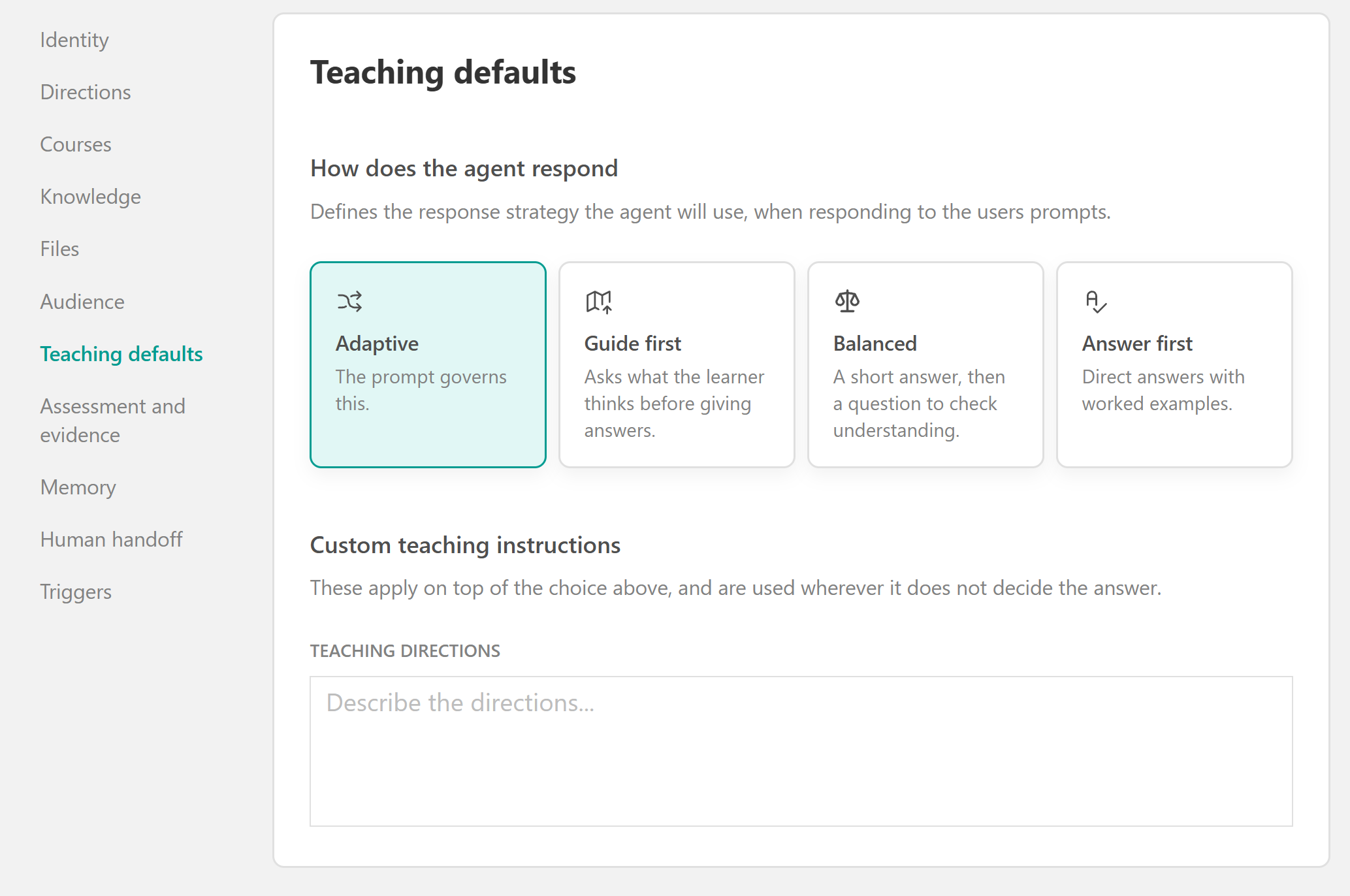
For example, you can instruct the agent to use real-world scenarios, provide short explanations, or ask learners to reflect on what they have learned.
Configure AI assistance during assessments
Under Assessment and evidence, control how your AI Agent behaves when learners are taking exams. The agent does not present its own judgment as an official grade. Choose one of the following options:
- Off: The agent is unavailable while an exam attempt is open.
- Helps learner think: The agent can rephrase questions or check understanding but does not reveal whether an answer is correct.
- Fully available: Learners can ask the agent questions during an exam, including questions about the answers.
For assessments where learners should demonstrate their knowledge independently, select Off or Helps learner think, depending on the level of assistance you want to allow.
These settings do not expand learners' access to course content. The agent can only use material learners are permitted to access.Enable learner memory
Under Memory, choose whether the agent can remember information about individual learners across conversations.
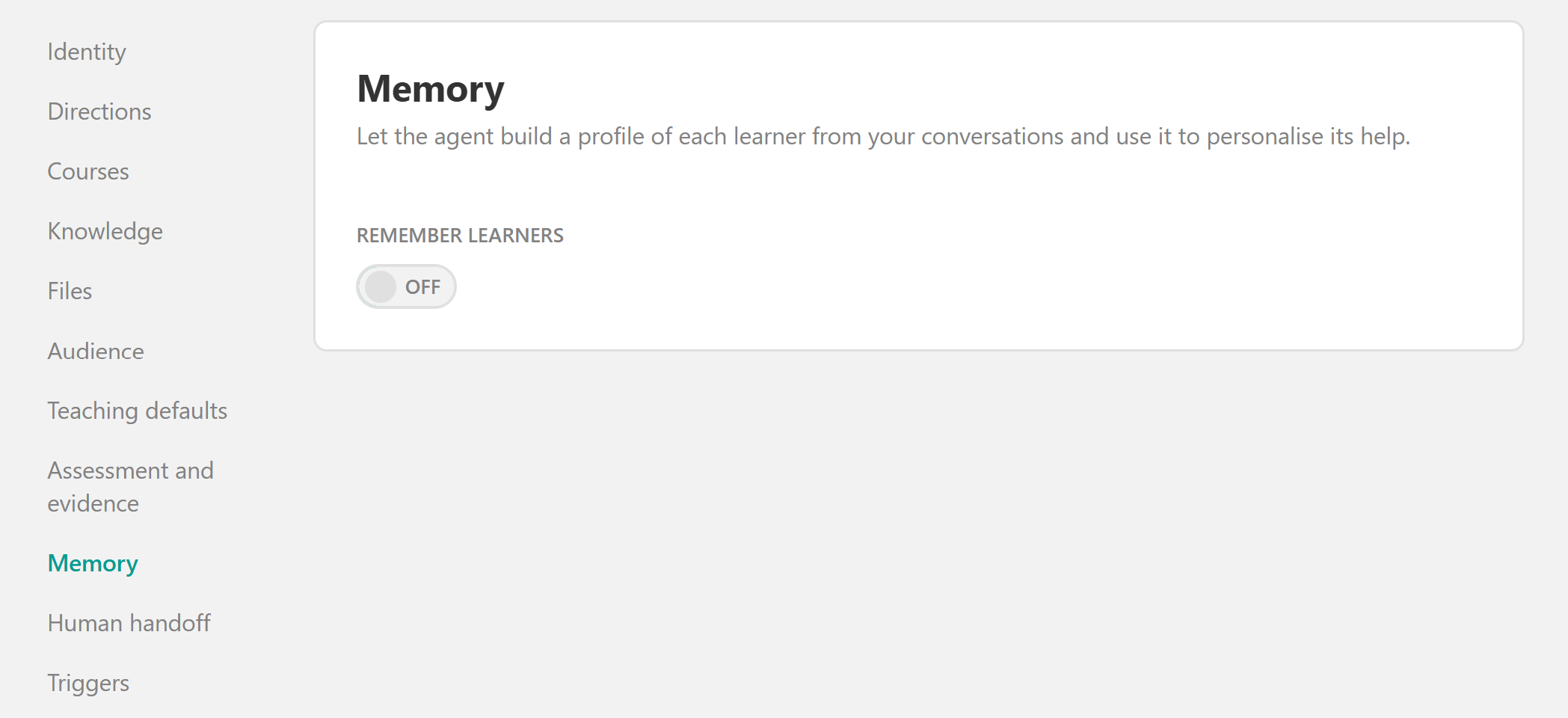 Enable Remember learners to allow the agent to build a profile based on previous conversations and use that information to personalize future assistance.
For example, an agent may use information learned during earlier interactions to adapt how it explains concepts or supports a learner.
Leave this option disabled if you do not want the agent to use learner memory for personalization.Set up human handoff
Under Human handoff, configure when an AI Agent should transfer a conversation to a school staff member. This is useful when learners need additional assistance that the AI Agent cannot provide.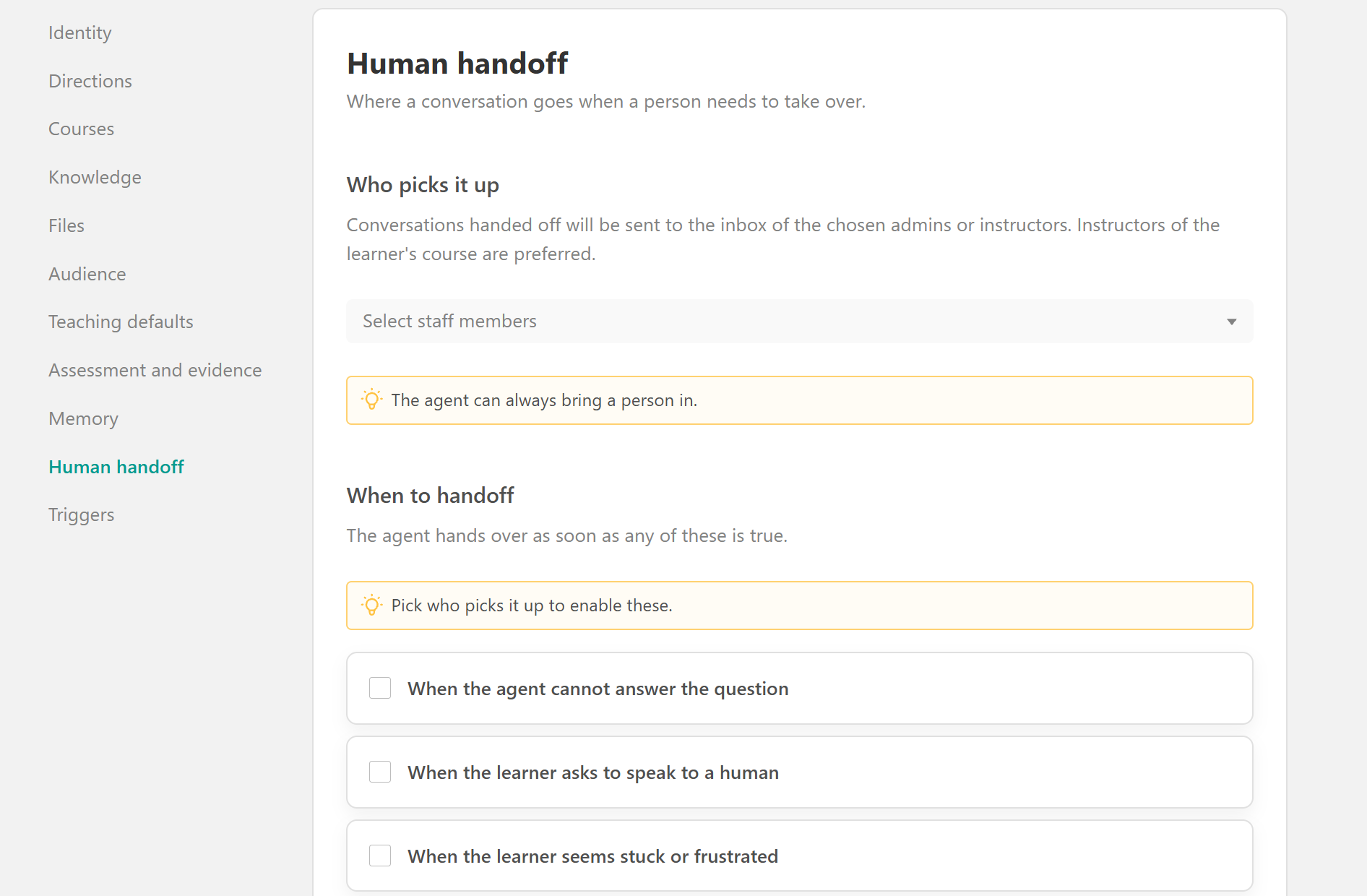
Under Who picks it up, select the admins or instructors who should receive transferred conversations. Handoffs are sent to the selected staff members' inboxes, with instructors from the learner's course preferred.
Under When to handoff, select the conditions that should trigger a transfer. Available conditions include:
- When the agent cannot answer the question.
- When the learner asks to speak to a human.
- When the learner seems stuck or frustrated.
- When the question is about billing or account access.
- Custom condition: Define an additional situation in which a handoff should occur.
You can select multiple conditions based on the support experience you want to provide.
Configure proactive agent triggers
Under Triggers, choose whether your AI Agent should initiate conversations when specific learning events occur. Available triggers include:
- First course visit: The agent reaches out when a learner opens the Course Player for the first time.
- Course completion: The agent reaches out when a learner completes a course.
- Certificate issued: The agent reaches out when a learner earns a certificate.
For example, you can enable First course visit to welcome learners and introduce the available support, or Course completion to encourage them to reflect on what they have learned.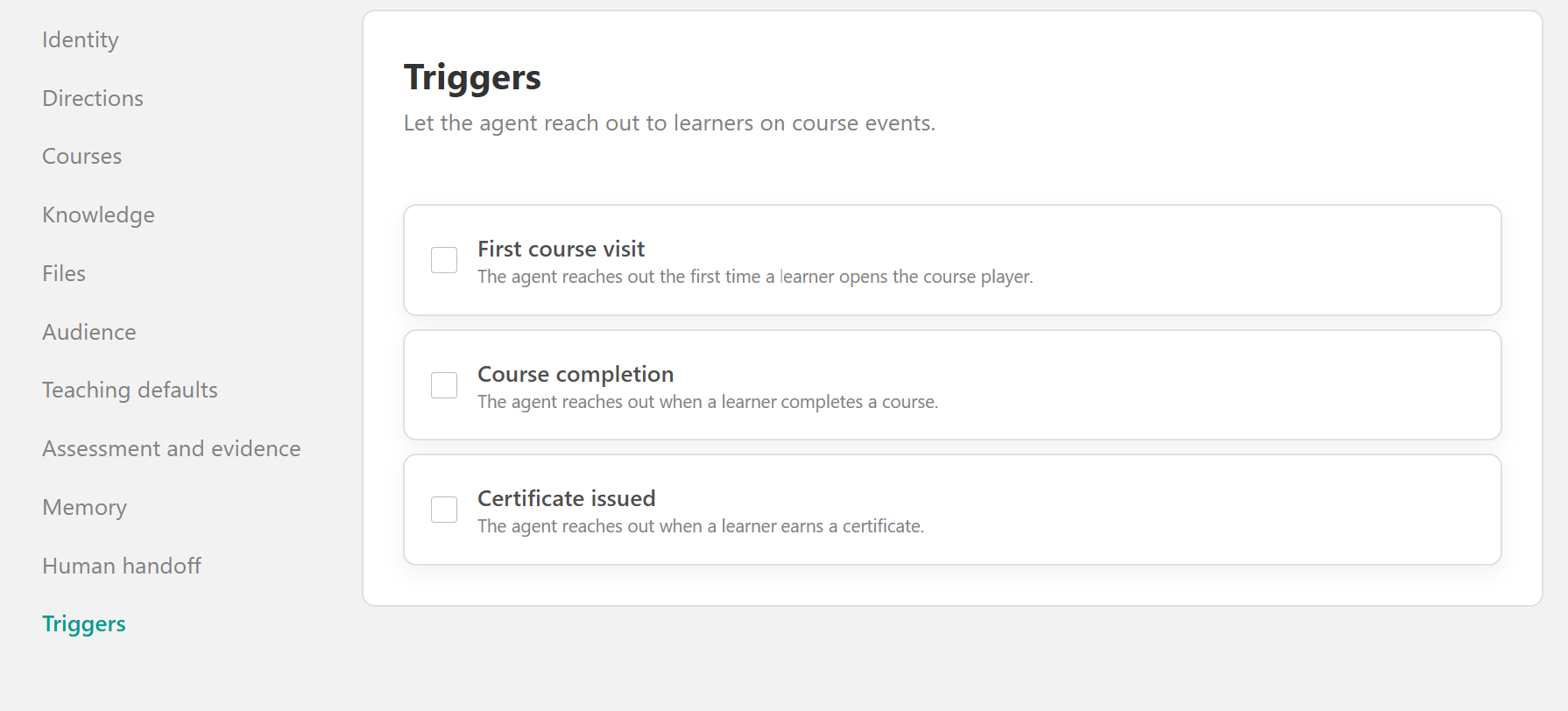
Preview, save, and activate your AI Agent
Once you have configured your agent, review its settings and test how it responds before making it available to learners.
1. Click Save to save your changes.
2. Select Preview to test the agent's behavior and communication style.
3. Review its responses, teaching approach, and available knowledge.
4. Return to the configuration page and make any necessary adjustments.
5. Under Identity, change the agent's status from Draft to Public when it is ready.
6. Click Save to apply your changes.
Your agent is now ready to support eligible learners within its configured course and audience scope.
How learners interact with AI Agents
Once an AI Agent is active, eligible learners can access it directly from the Course Player, depending on the courses and audience you have selected.
Learners can open the agent using its access button, which appears in the location you configured. The conversation opens in a floating chat window or sidebar, where learners can ask questions, use suggested starter prompts, or communicate through voice dictation if enabled.
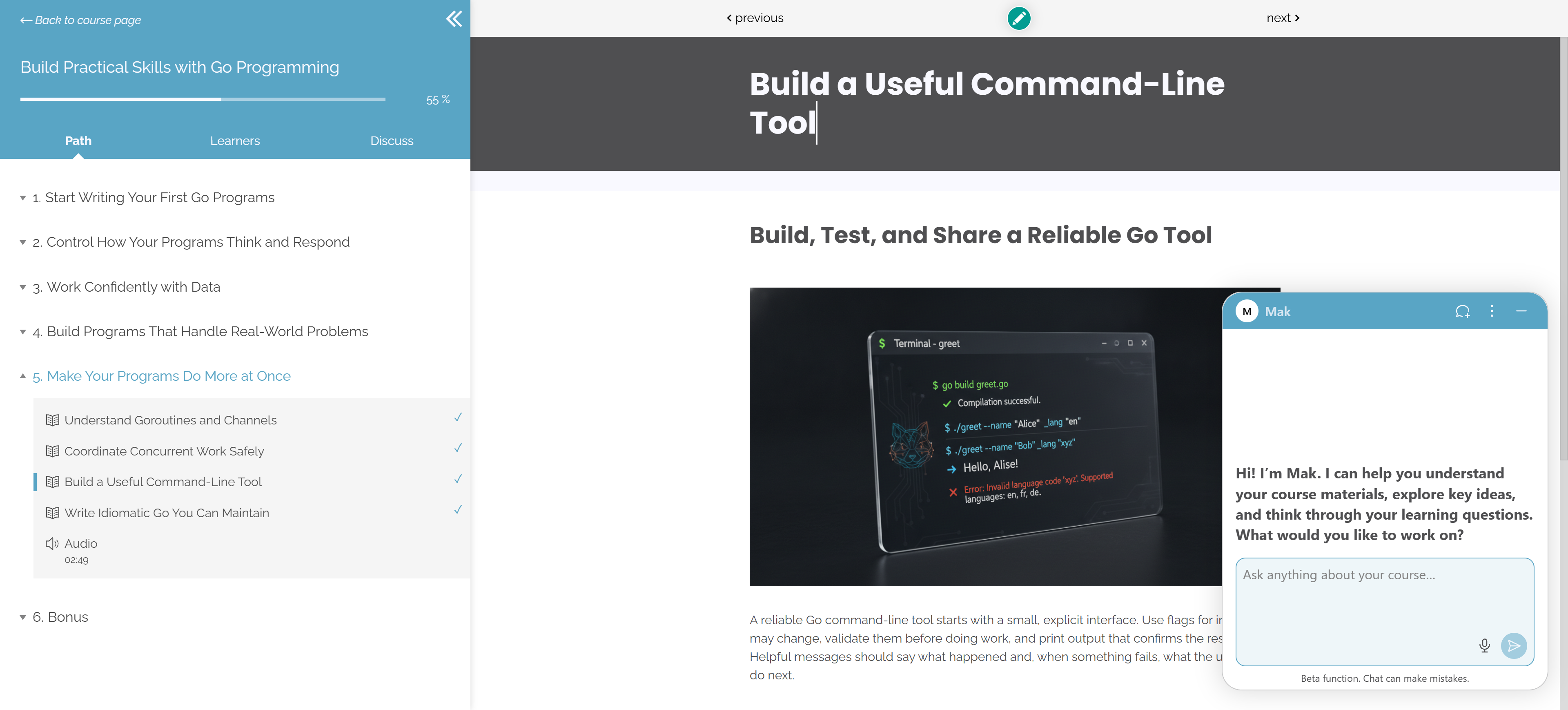 The agent responds according to its configured knowledge settings, teaching approach, and instructions. Depending on your configuration, it can also remember previous conversations, offer human assistance, or initiate conversations when specific learning events occur.
Manage your AI Agents and monitor activity
Navigate to Agents from your school's main navigation menu to manage your existing agents and monitor how learners interact with them.
The management page includes two tabs: Agents and Activity.
Under Agents, you can view your existing AI Agents in a grid or list, search for agents by name, and filter them by product or status. You can also check each agent's status, availability, and last modification date, or access additional management options from its menu.
The Agents dashboard provides an overview of how learners interact with your AI Agents through the following metrics:
- Conversations: The number of conversations with AI Agents
- Students reached: The number of learners who have interacted with AI Agents
- Handoffs: The number of conversations transferred to admins or instructors
You can also open the Activity tab to review agent activity and identify areas where you may need to adjust your agents' configuration.
FAQs
- Can I create more than one AI Agent?
Yes. You can create multiple AI Agents and configure each one with different instructions, teaching approaches, and availability settings.
- Can I make an AI Agent available only in specific courses?
Yes. Under Courses, select Specific courses and learning programs and choose where the agent should be available.
- Can I restrict an AI Agent to specific learners?
Yes. Use Audience filters to define which learners can interact with the agent.
- Can AI Agents help learners during exams?
Yes. Under Assessment and evidence, you can disable the agent during exams, allow it to provide guidance without revealing whether answers are correct, or make it fully available.
- Can an AI Agent transfer a conversation to an instructor?
Yes. Under Human handoff, select the staff members who should receive conversations and define the conditions that trigger a transfer.
- Can an AI Agent initiate a conversation automatically?
Yes. Under Triggers, you can configure the agent to reach out to learners after specific events, including their first course visit, course completion, or certificate issuance.
- Can I test an AI Agent before making it available to learners?
Yes. Keep the agent in Draft, use Preview to test its behavior, and change its status to Public when it is ready.