A public URL is the direct link users can use to access a course or learning program, or other page in your school. Public URLs can be shared with learners, added to marketing campaigns, used in buttons, emails, social media posts, and more.
In this article, you will learn how to find the public URL of products and pages in LearnWorlds.
Page URL
1. Navigate on Website → Design → Edit Website.
2. Choose any page from the Page Manager.
3. Once on the desired page, click on Page → Page Properties.
4. Click on Copy URL to copy the URL to your clipboard.
Alternatively, once on the desired page, hover over the page's top toolbar and click on Copy URL.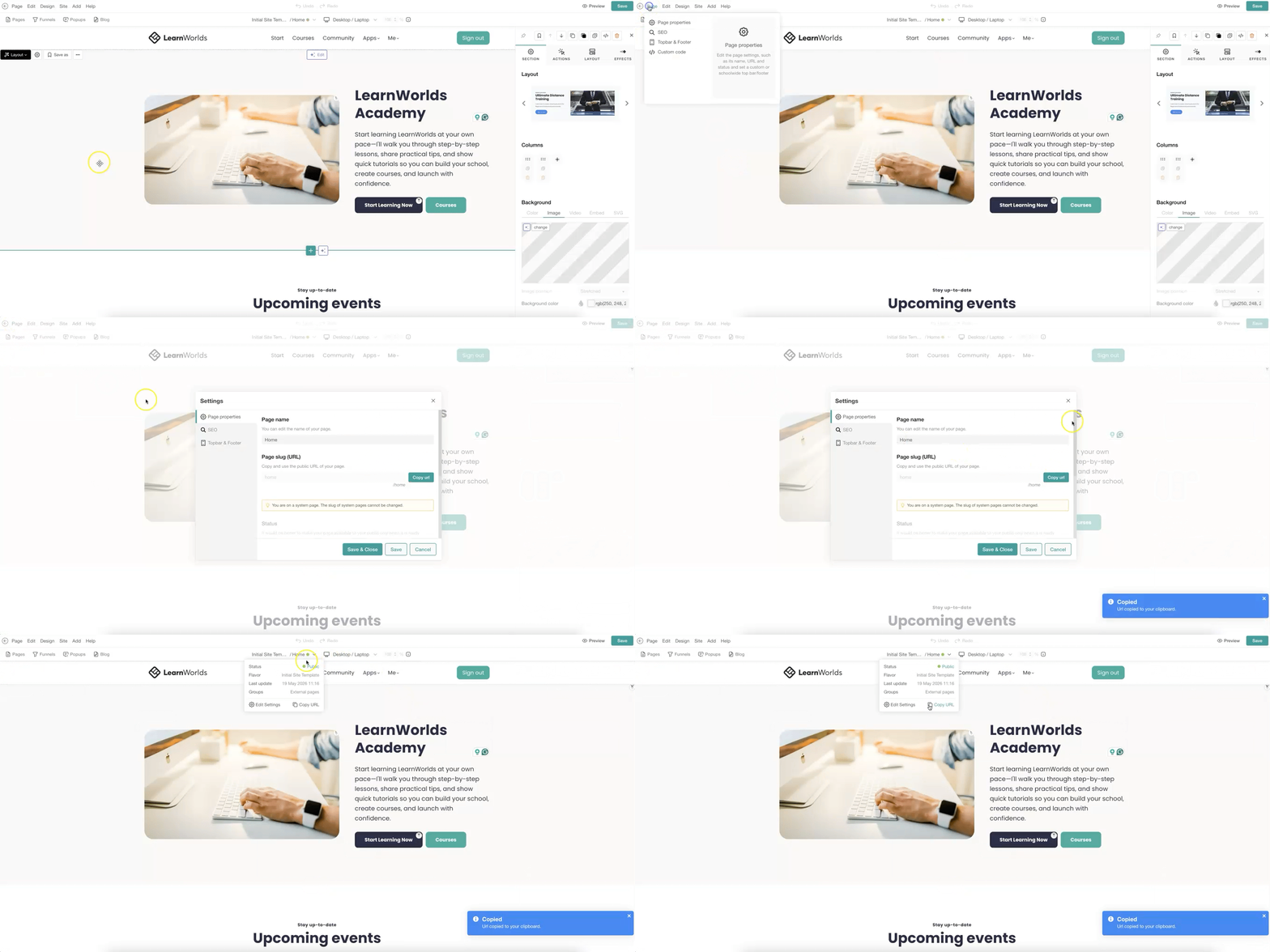
Product URL
1. Navigate to Courses & Programs.
2. Click on the product (course or learning program).
3. Navigate to Access.
4. Click on Copy URL to copy the URL to your clipboard.
Alternatively, hover over the desired product, and use the (···) icon to select the Copy URL option.
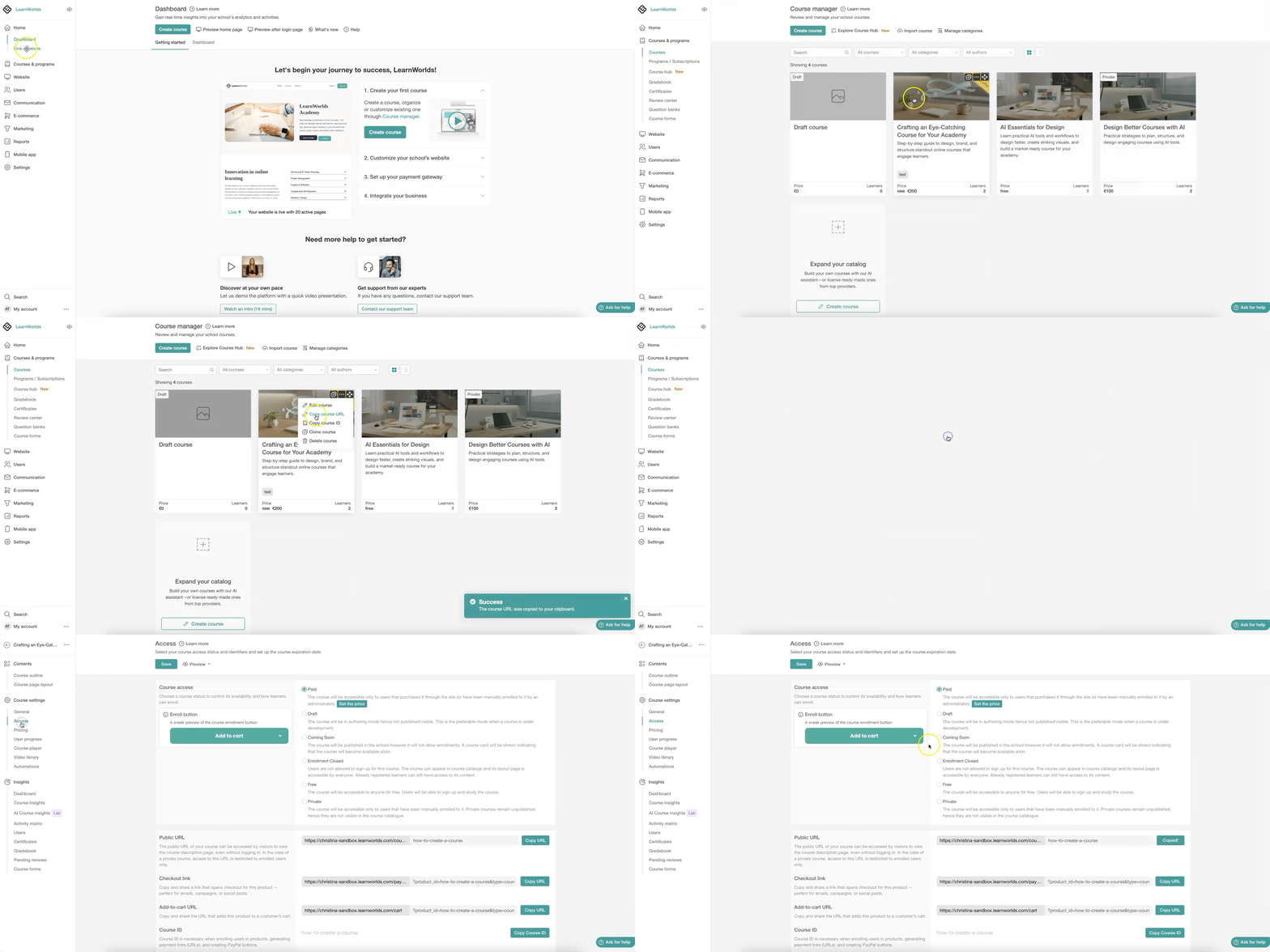
- For courses, free or single fee learning programs, you can copy the direct public URL, checkout link, or add-to-cart link for the product. For subscription based learning programs, the add-to-cart link option is not available, as subscription products are purchased individually to allow learners to review the subscription details before completing the purchase.
- The course page of private courses is accessible only to enrolled users. For more information about selling or granting access to private courses, click here.
Funnel URL
1. Navigate on Website → Design → Edit Website.
2. Click on Funnels.
3. Click on the funnel's name, use the (···) icon, and select Funnel properties.
4. Click on Copy URL to copy the URL to your clipboard.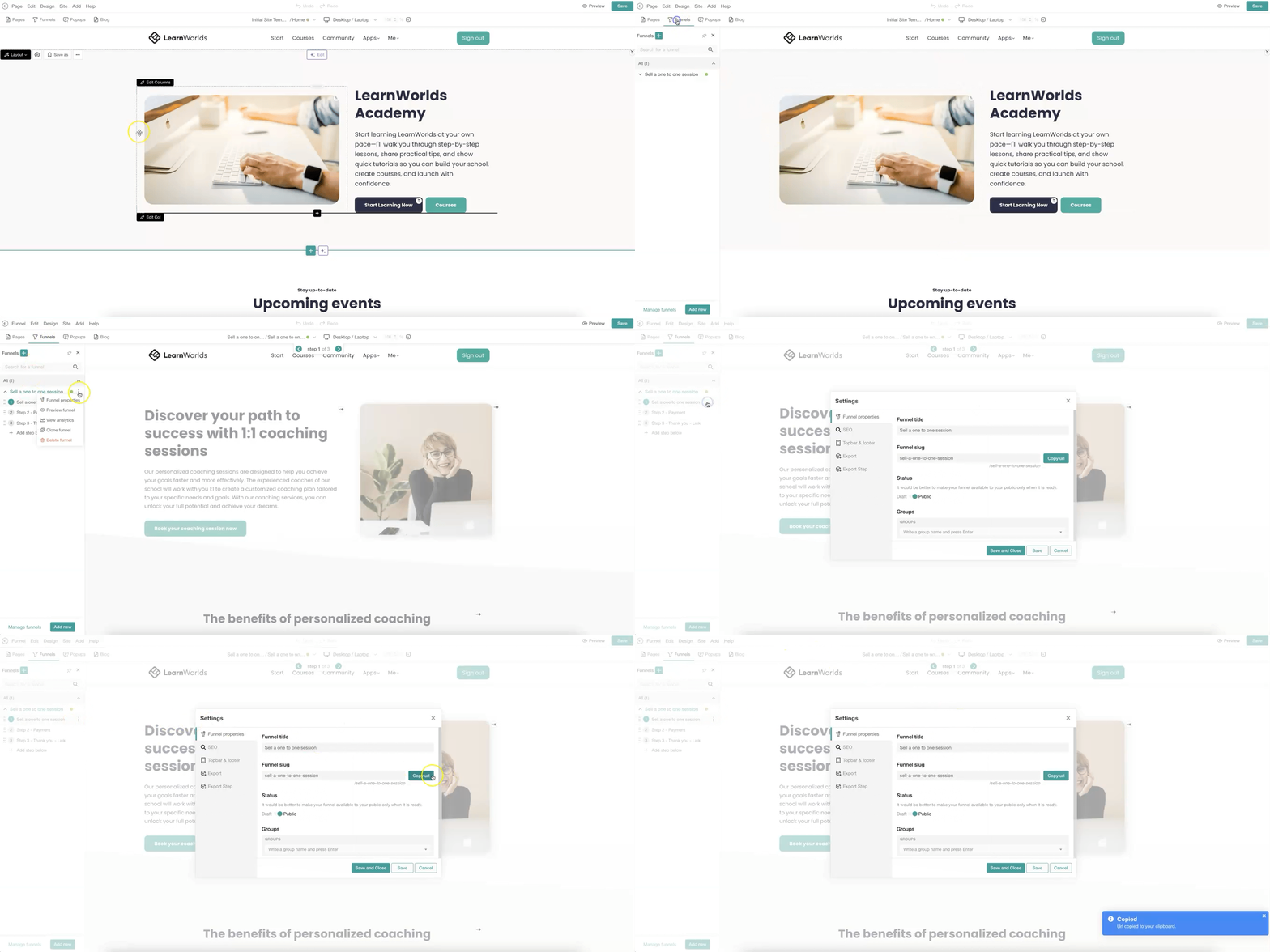
 All steps within a funnel share a common URL structure. The funnel functionality automatically tracks users’ progress, redirects them to their latest completed step, and prevents access to steps ahead of their current progress to ensure a structured flow.
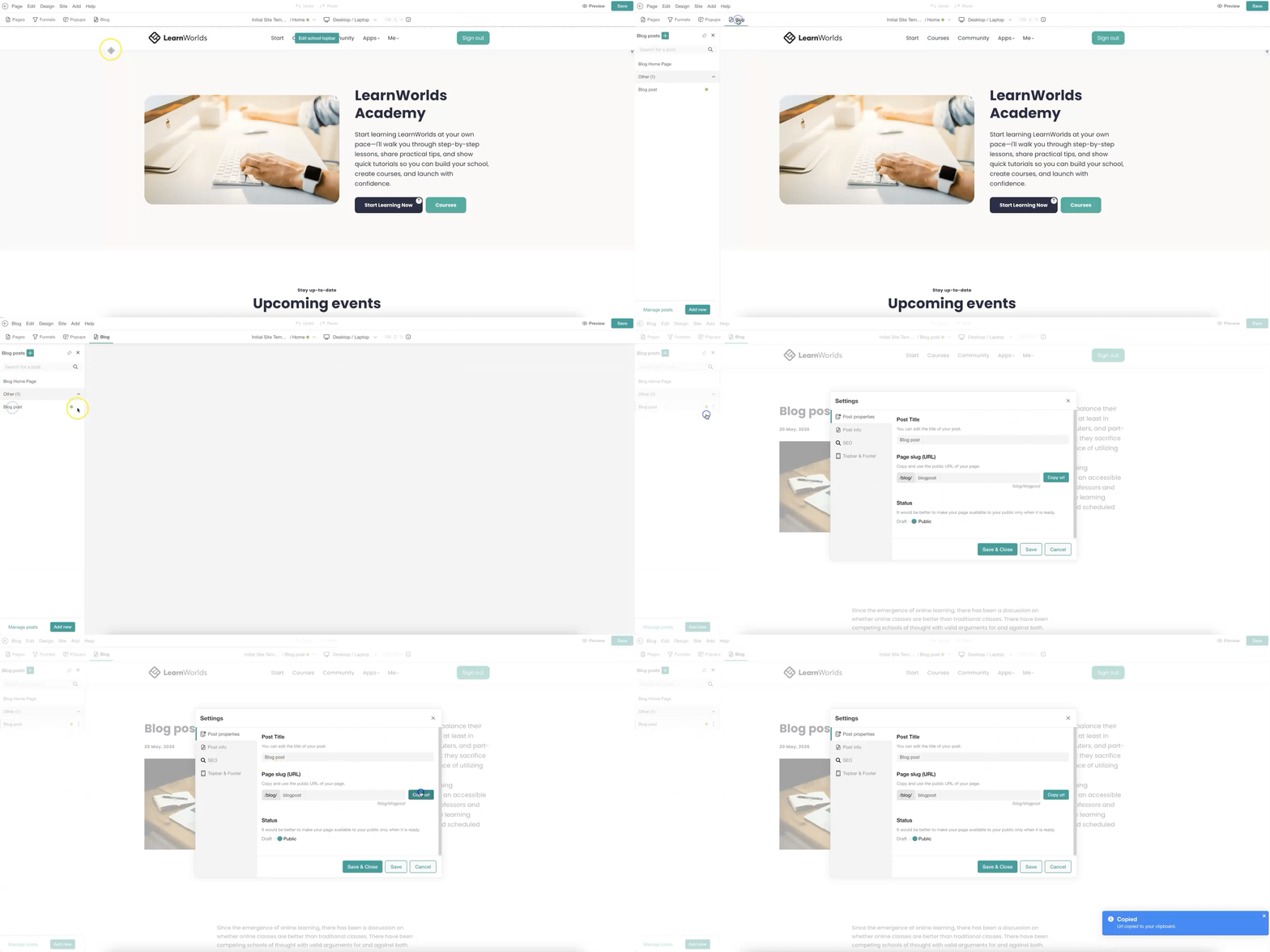
Blog post URL
1. Navigate on Website → Design → Edit Website.
2. Click on Blog.
3. Click on the blog post's name, use the (···) icon, and select Post properties.
4. Click on Copy URL to copy the URL to your clipboard.