
Mobile inbox brings your school’s messaging experience to your branded mobile app, allowing learners, instructors, and admins to stay connected while using the app.
Depending on your school’s inbox settings, learners can message admins, instructors, or other learners within the same academy. Users can also view existing conversations, reply to messages, participate in group conversations, and receive push notifications for new messages.
 Mobile inbox is available on iOS and Android starting with mobile app version 4.9.0.
In this article, we will see how to configure messaging permissions, add the inbox to your mobile app, and use the Inbox to start, view, and manage conversations.
Configure your inbox settings
Mobile inbox follows your school’s existing Inbox settings, which determine who users are allowed to message. To review or update these settings:
1. Go to Settings → School Settings → Community access.
2. Scroll to Inbox settings.
3. Choose who your users are allowed to message.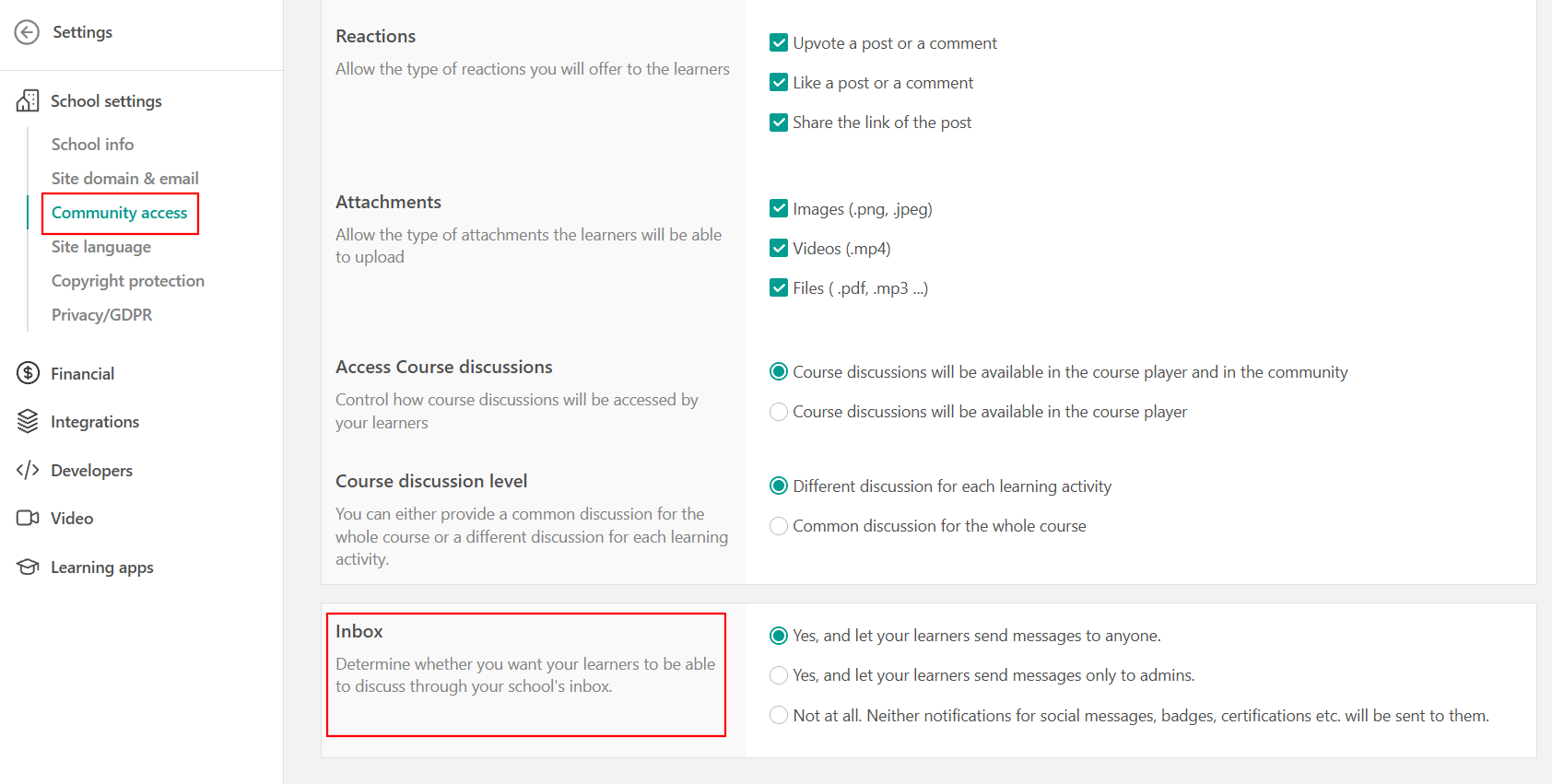
Depending on your configuration:
- All learners: Learners can search for and start conversations with other permitted learners and admins.
- Admins only: Learners can start new conversations only with admins. Existing conversations remain available.
- Disabled: Messaging through the Inbox is not available.
Mobile inbox supports messaging only between users in the same academy. Messaging between different academies through School Sync is not supported.Add the inbox to your mobile app
An inbox screen is automatically available in your mobile app editor. You can decide where users can access it from within your app. To add the inbox to your bottom tab bar:
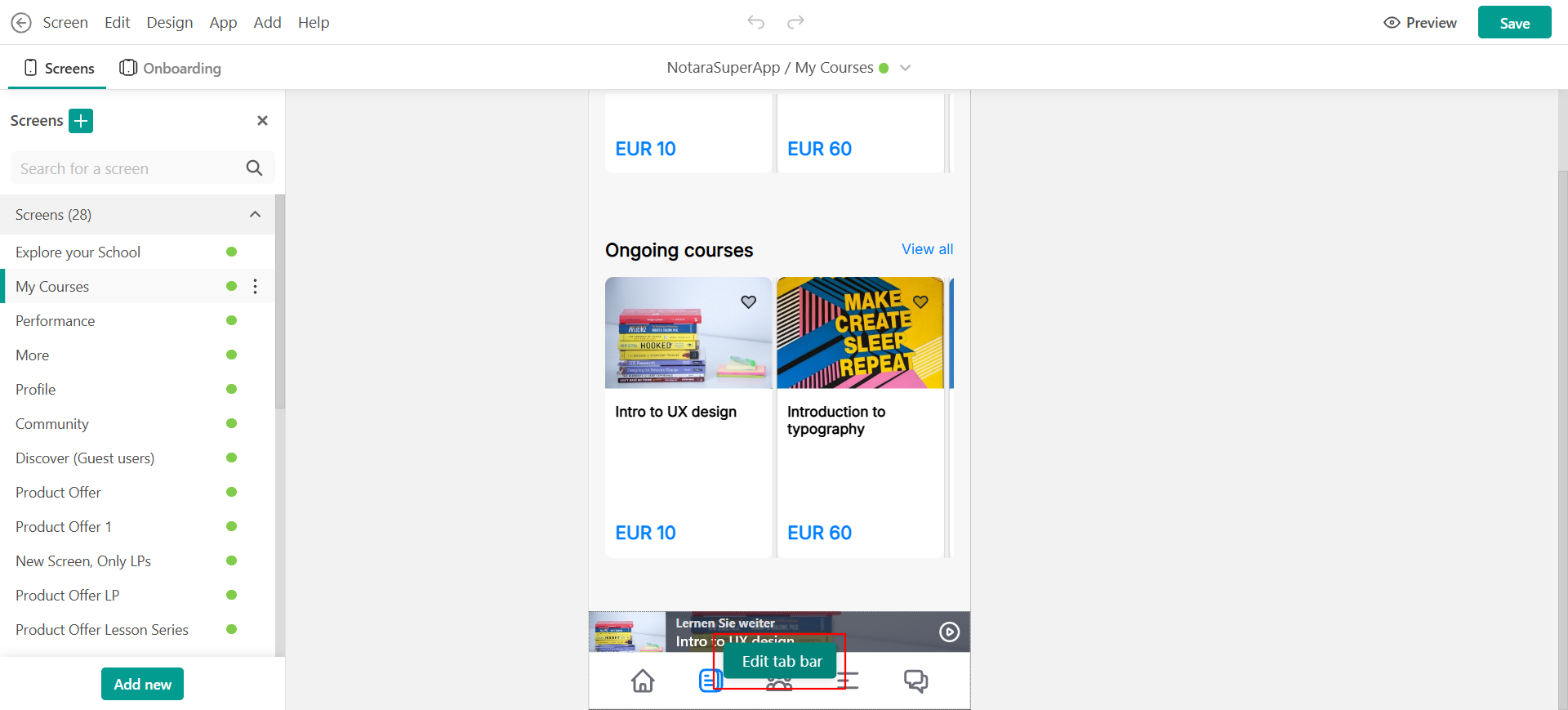
- Go to Mobile app → Design → Edit.
- Select the bottom tab bar.
- Click Edit tab bar.
- Add the Inbox screen as a link.
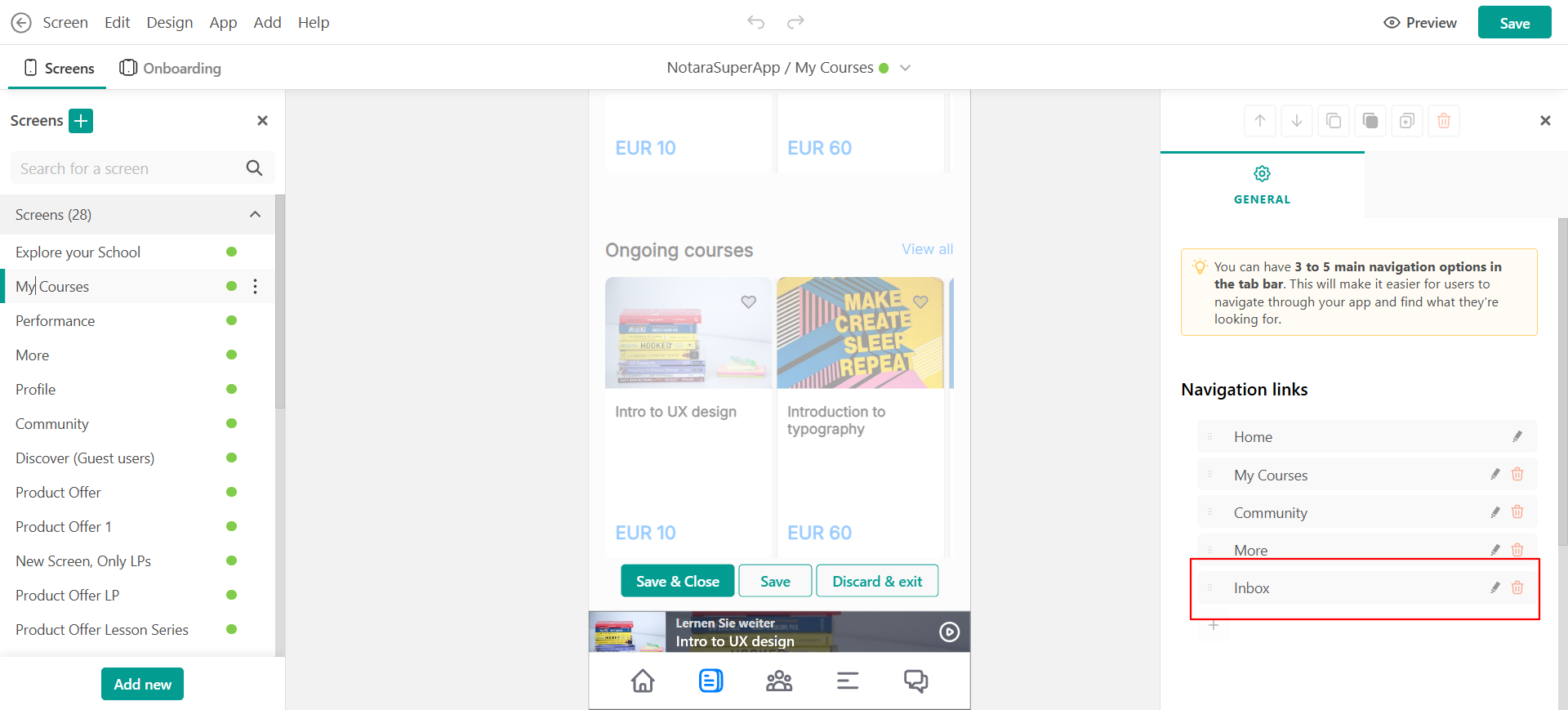
- Save your changes.
You can also link to the inbox from a button or menu on another mobile app screen.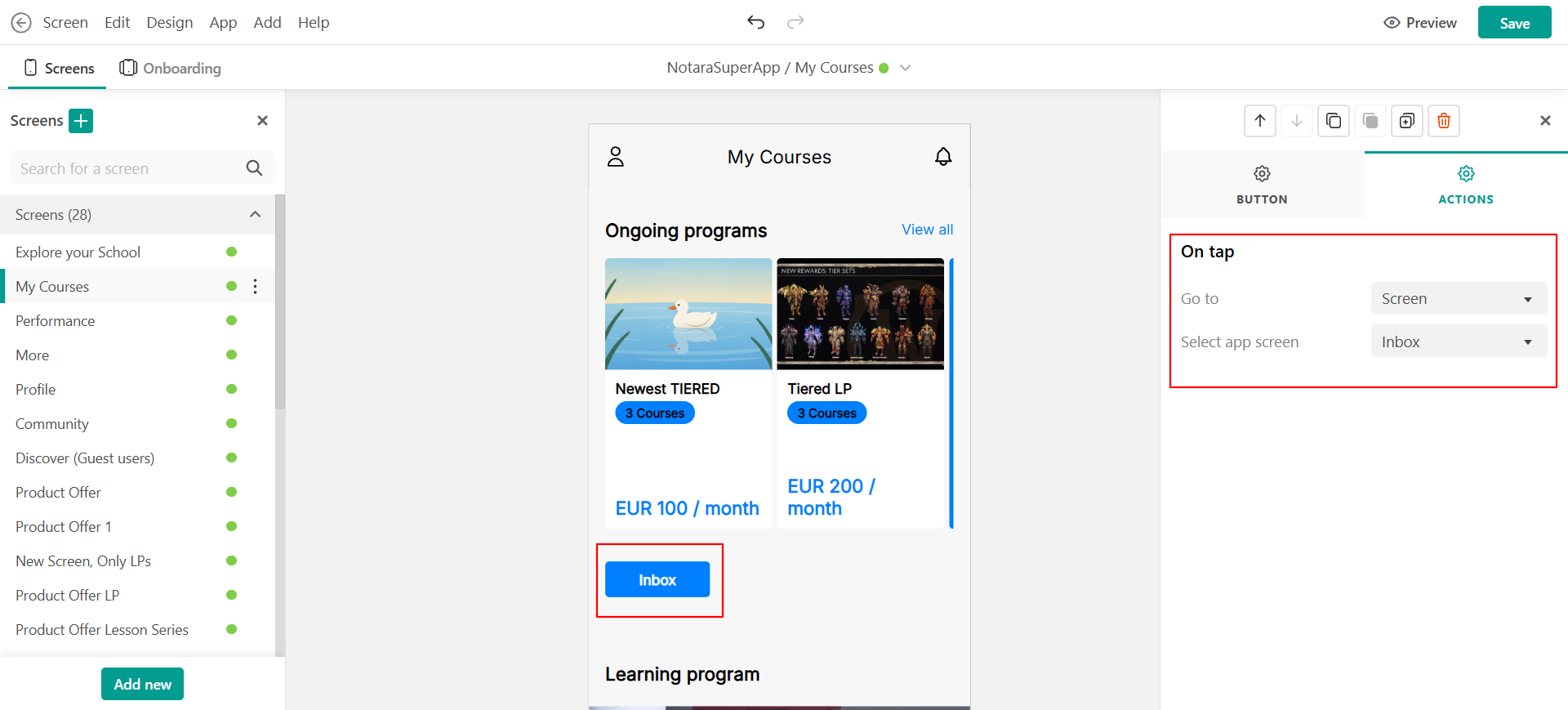
View your inbox as a learner
To view your conversations:
- Open the Inbox from its configured location in the mobile app.
- Browse your existing conversations.
- Tap a conversation to open it.
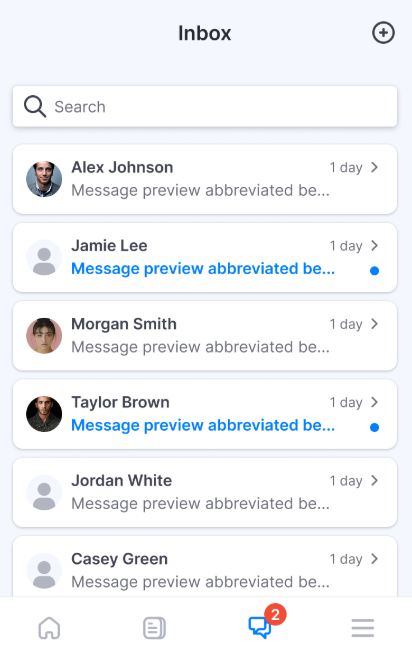
Each conversation can display information such as the participant’s name and avatar, a preview of the latest message, the message timestamp, and its unread status.
The inbox supports:
- Individual conversations
- Group conversations
- System messages
Unread indicators help users identify conversations with new messages.
Start a new conversation
To start a conversation:
- Open the Inbox.
- Tap New conversation.
- Search for the person you want to message.
- Select the recipient.
- Enter your message.
- Tap Send.
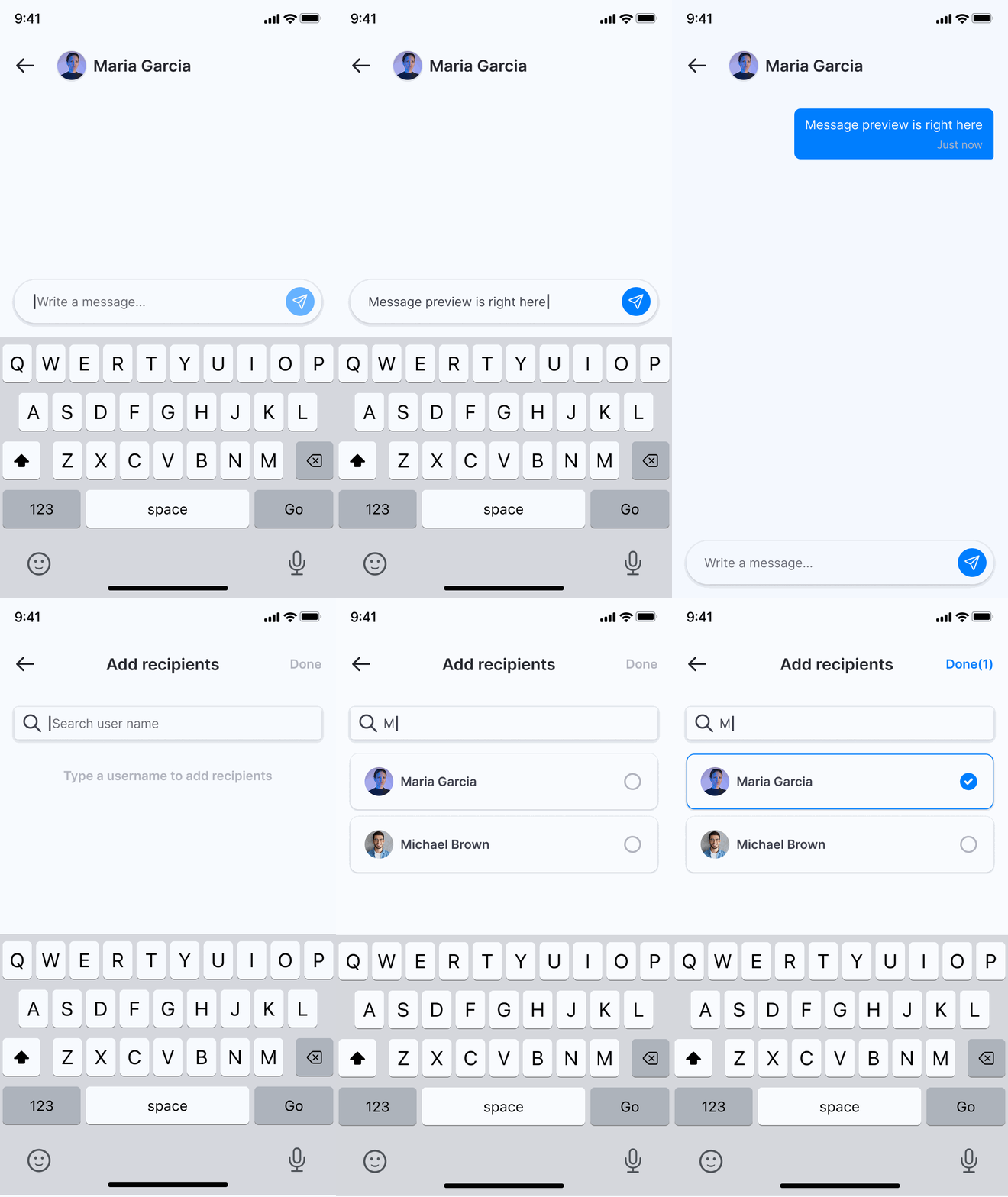
The users available in the recipient search depend on your school’s inbox settings. For example, if messaging is restricted to admins, learners will only be able to start new conversations with admins.
Read and reply to messages
To reply to an existing conversation:
- Open the Inbox.
- Select the conversation you want to view.
- Enter your reply in the message field.
- Tap Send.
- Mobile Inbox supports text messages and emojis.
- Admins and instructors can also open existing conversations and reply directly from the mobile app.
View group conversations
Group conversations appear alongside your other conversations in the Inbox. Tap a group conversation to open it and view the messages and participants.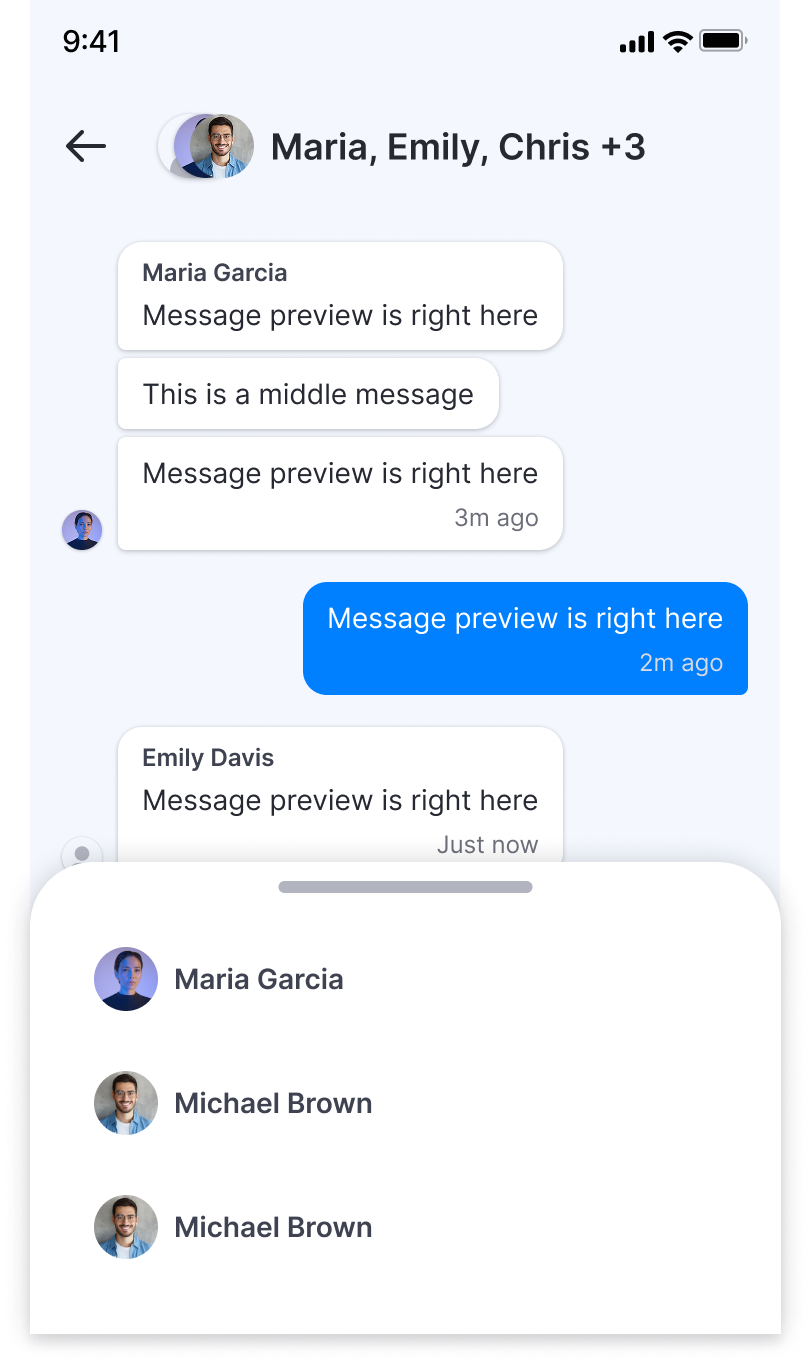
View system messages
System messages also appear in the inbox and are visually distinct from regular conversations between users.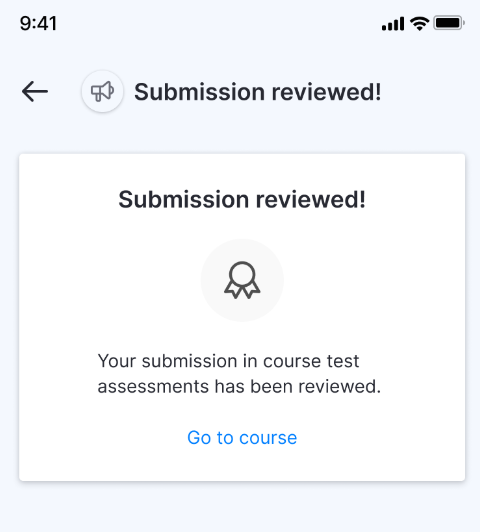
Delete a conversation
To remove a conversation from your Inbox:
- Open the Inbox.
- Swipe the conversation to reveal the Delete option.
- Tap Delete.
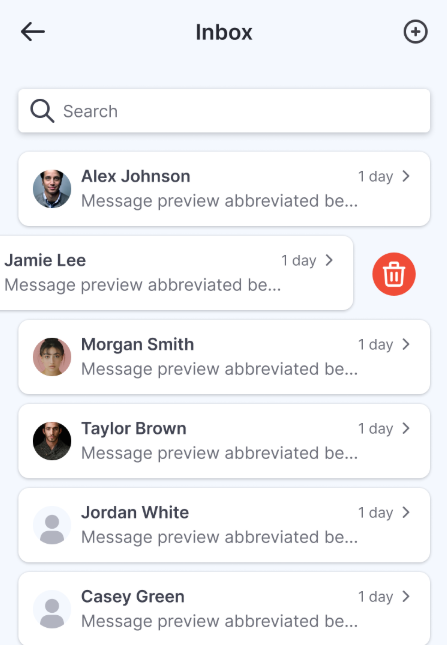
Deleting a conversation removes it only from your inbox. The conversation remains available to the other participants.Open a conversation from a push notification
Users can receive push notifications when a new message arrives. Tapping the notification opens the corresponding conversation directly in the mobile app.
Manage inbox notifications
Learners can manage inbox notifications directly from the mobile app settings. To update notification preferences:
- Open the mobile app and go to Settings.
- Under Push notifications, use the available toggles to:
- Turn Push Notifications on or off for the app.
- Turn inbox message notifications on or off .
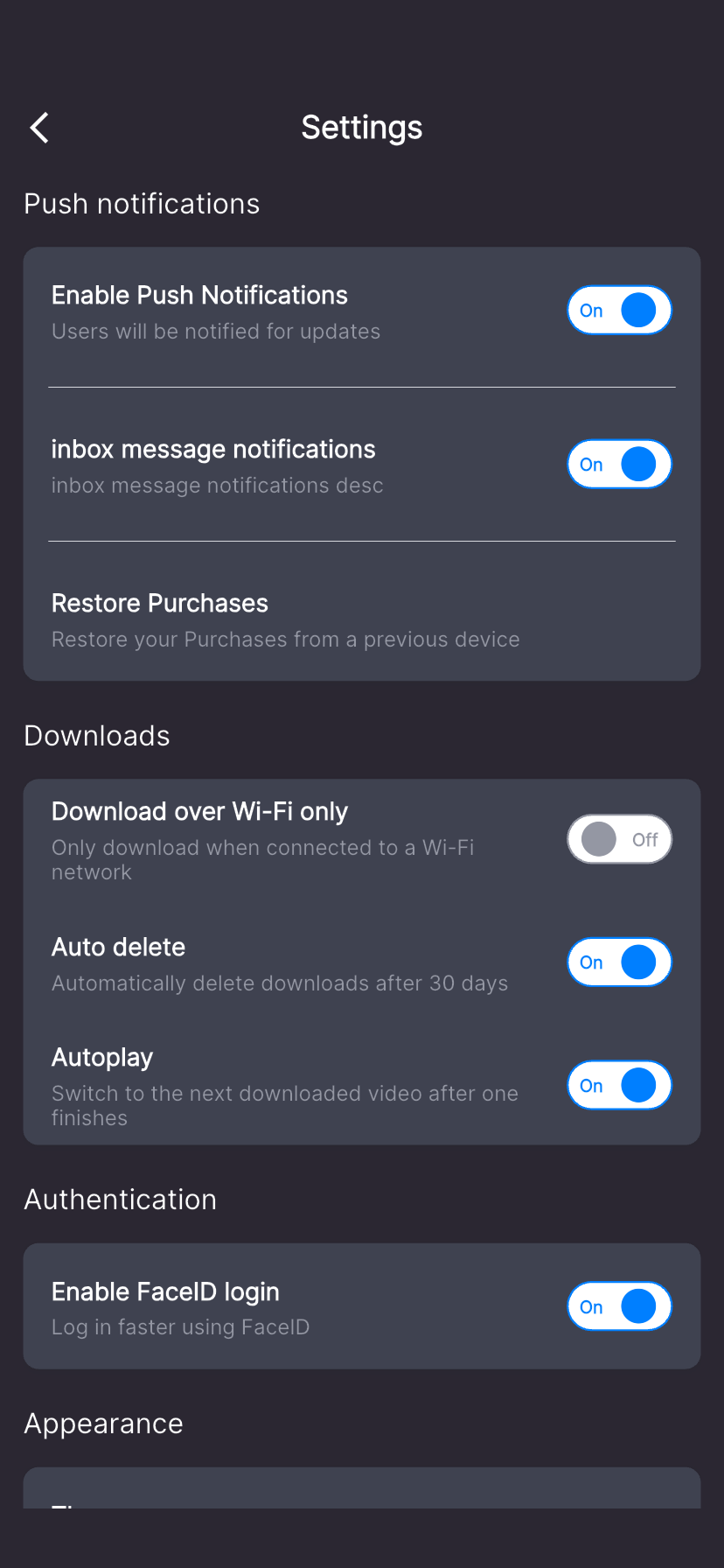
If push notifications are disabled at the app level, learners will not receive inbox push notifications even if Inbox message notifications is enabled.Tips for using mobile inbox
Make the inbox easy to access if messaging is an important part of your mobile learning experience. For example, you can add it to the bottom tab bar for persistent access or link to it from another screen when you prefer a less prominent placement.
You can also adjust your Inbox settings according to how you want users to communicate. If learners should contact only your team, restrict messaging to admins. If peer communication is part of your learning experience, allow learners to message other permitted learners.
Mobile Inbox limitations
Mobile Inbox currently supports the core messaging experience. The following are not supported:
- File or image attachments
- Voice messages
- Message reactions
- Advanced admin messaging tools, such as assignment, tagging, or SLA management
- Contextual messaging actions, such as Ask instructor from within a course
- Guaranteed real-time message delivery
- Messaging between users in different academies through School Sync
FAQs
- Can learners message other learners?
Yes, if your school’s Inbox settings allow learner-to-learner messaging. If messaging is restricted to admins, learners can start new conversations only with admins.
- Can admins and instructors reply from the mobile app?
Yes. Admins and instructors can open existing conversations and send replies through Mobile Inbox.
- Can users send images or files?
No. File and image attachments are not currently supported.
- Can users send emojis?
Yes. Mobile Inbox supports text messages and emojis.
- What happens when a user deletes a conversation?
The conversation is removed only from that user’s Inbox. It remains available to the other participants.
- Can users receive notifications for new messages?
Yes. New messages can trigger push notifications. Tapping the notification opens the corresponding conversation.
- Does the Inbox need to appear in the bottom tab bar?
No. You can also link to the Inbox from a button or menu on another mobile app screen.
- Does Mobile Inbox work across School Sync academies?
No. Messaging is limited to permitted users within the current academy.