
LearnWorlds provides flexible options for managing and customizing your product access and navigation settings. You can control how users access your products, update public URL settings, configure expiration rules, and personalize the post-purchase experience.
In this article, you will learn how to edit and customize access settings for courses and learning programs.
Edit product access
For courses, you can choose or update the access type to Free, Paid, Private, Draft, or Coming Soon.
For learning programs, you can choose or update the access type to Draft, Public, or Private.
For more information about the available product access statuses, click here.
1. Navigate to Courses & Programs.
2. Click on the product you want to update (course or learning program).
3. Navigate to Access.
4. Select the preferred course or learning program access.
4. Click on Save.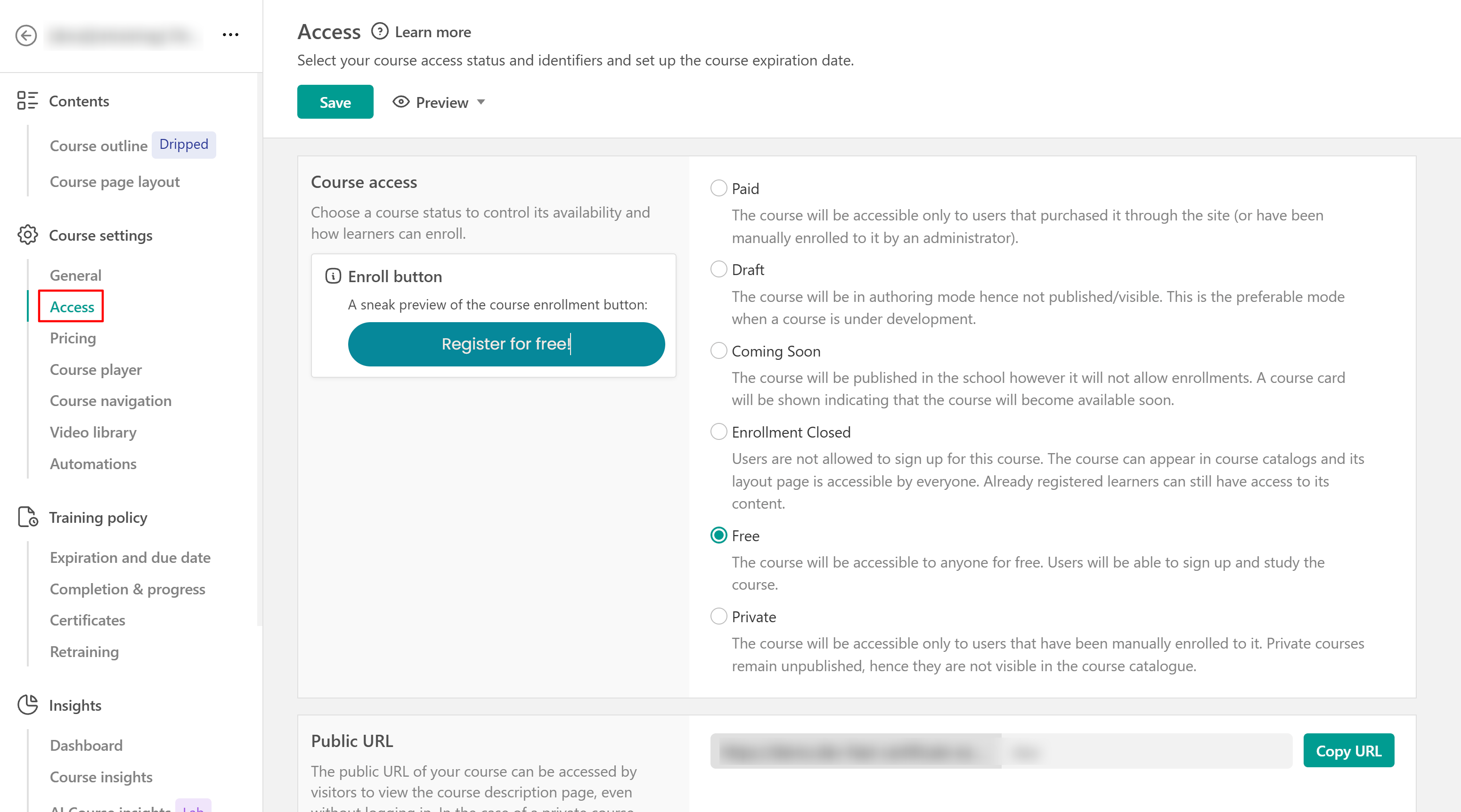
Find public URLs and product IDs
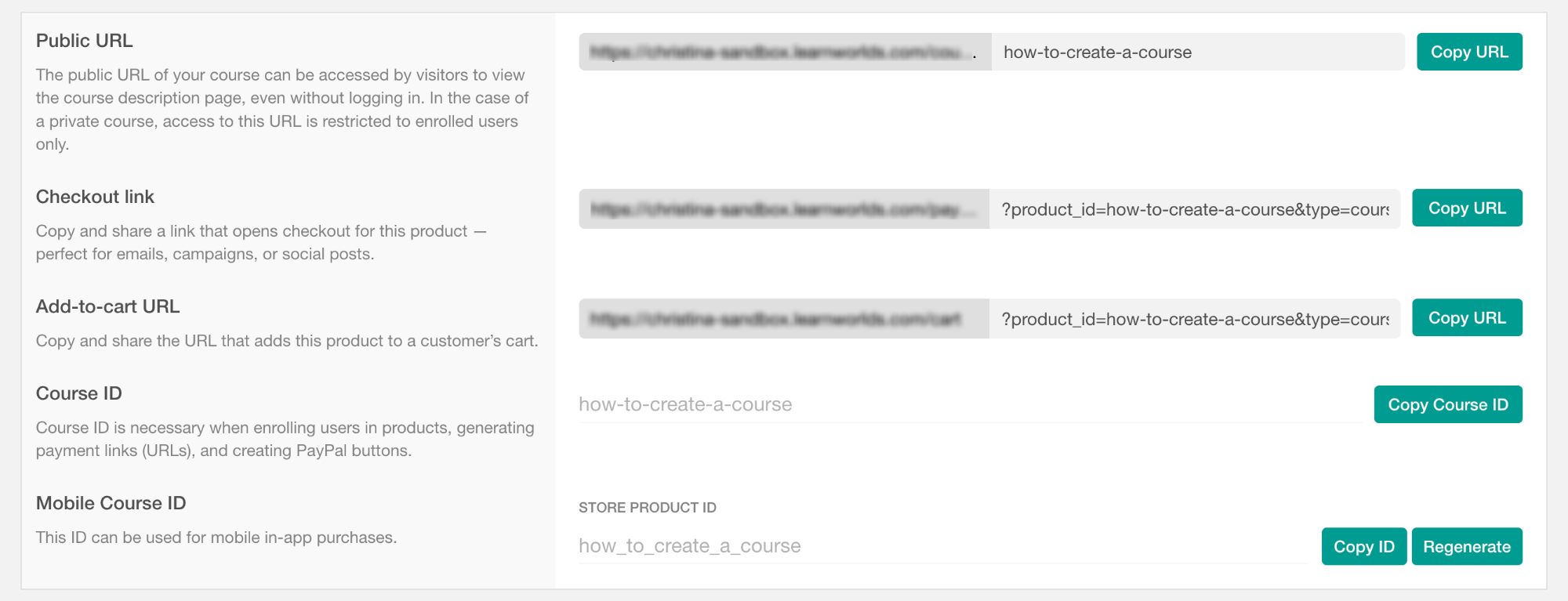
You can find and copy the public URL, the Checkout link, the Add-to-cart URL, the Product ID, and the Mobile ID.
You can also change the public product URL. Check all the steps about how to change the product slug here.
Configure purchase navigation
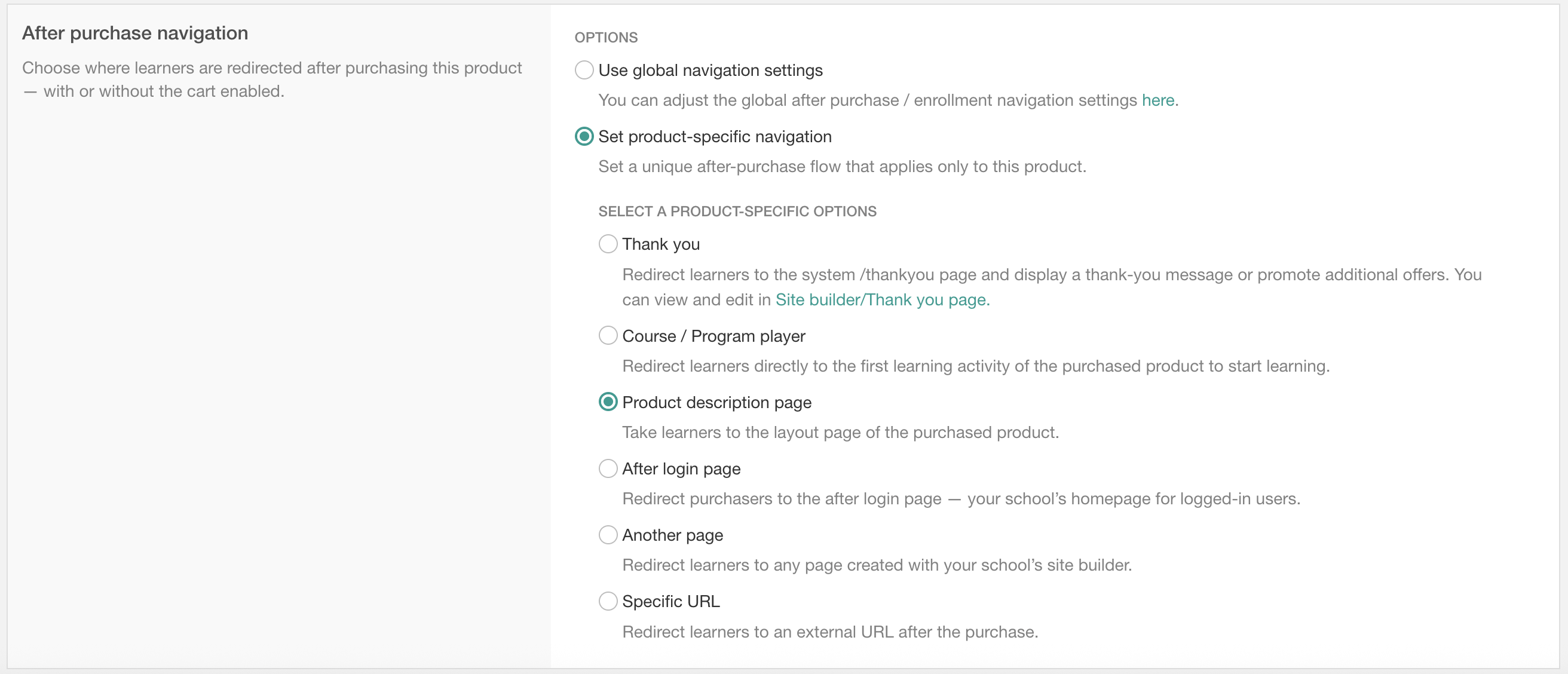
After a user enrolls in a product, you can choose where they will be redirected next. You can either use the global after-purchase navigation settings configured for your school or set up product-specific navigation. Find more information about the after-purchase navigation here.
 If Shopify is used for payments, the after-purchase navigation may differ.