
The Thank You page is the final step users see after purchasing one of your products. Beyond confirming a successful purchase, it provides an opportunity to enhance engagement by thanking learners, guiding them to their purchased product, explaining the next steps, directing them to other areas of your school, or promoting additional offers and discounts.
In this article, you will learn how to customize the Thank You page to create a more engaging post-purchase experience.
 Each LearnWorlds school includes a prebuilt Thank You page. The page can be customized globally for all products on all plans, or individually for specific products on the Pro Trainer plan or higher.
Customize Thank You page
1. Navigate to Website → Design → Edit Website.
2. Search for the Thank you page to edit in the Page Manager.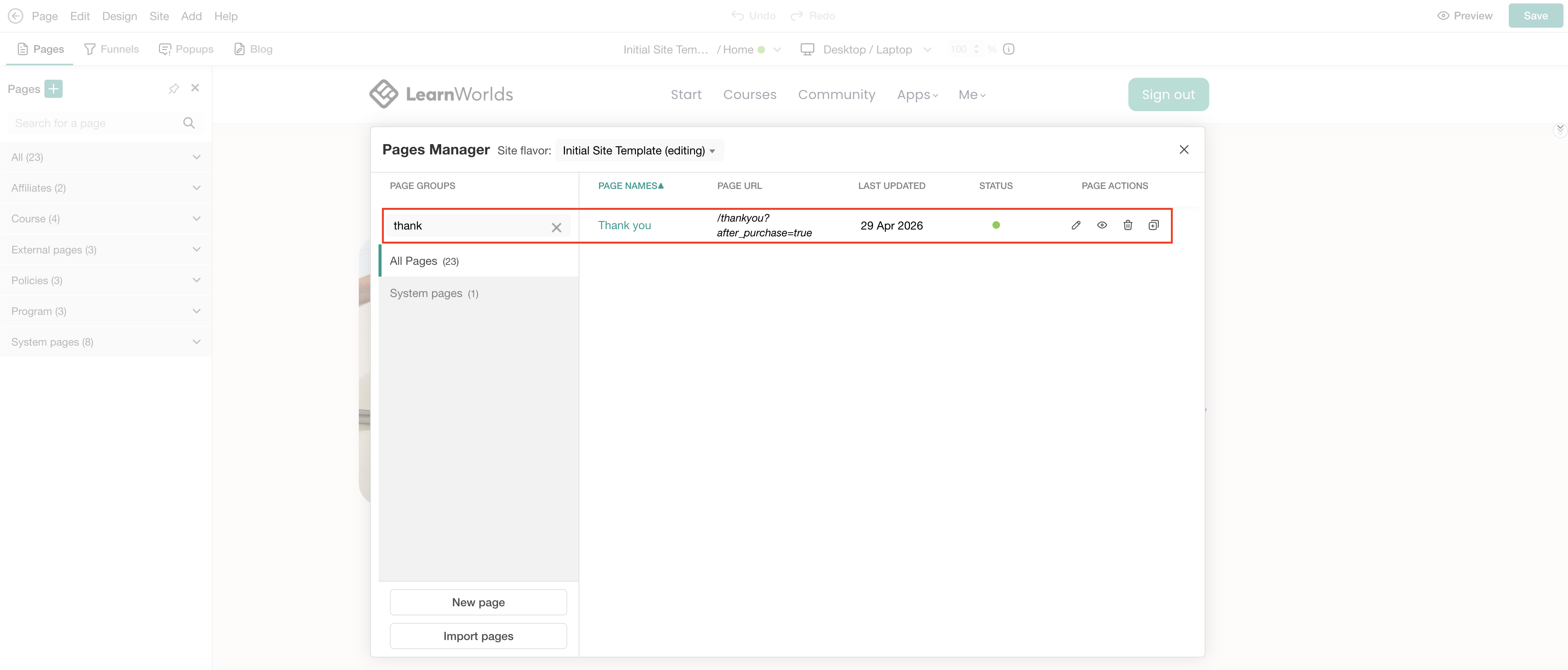 3. By default, the page includes a Thank You section from the Payment category. The Start Learning button(s) redirect users to the Course or Learning Program Player of the purchased product(s). You can further customize the page by adding any sections or widgets of your choice.
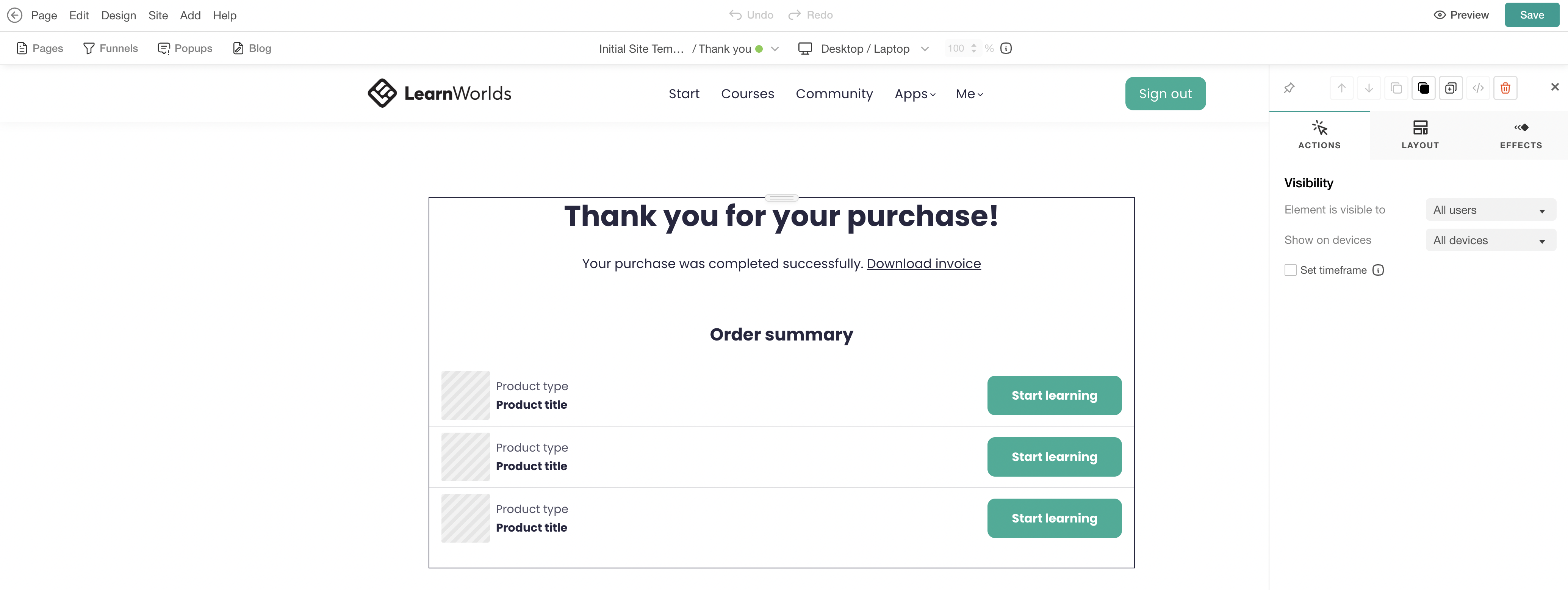
We recommend you keep the Thank You page design simple to ensure smooth and easy user navigation.Promote and upsell products
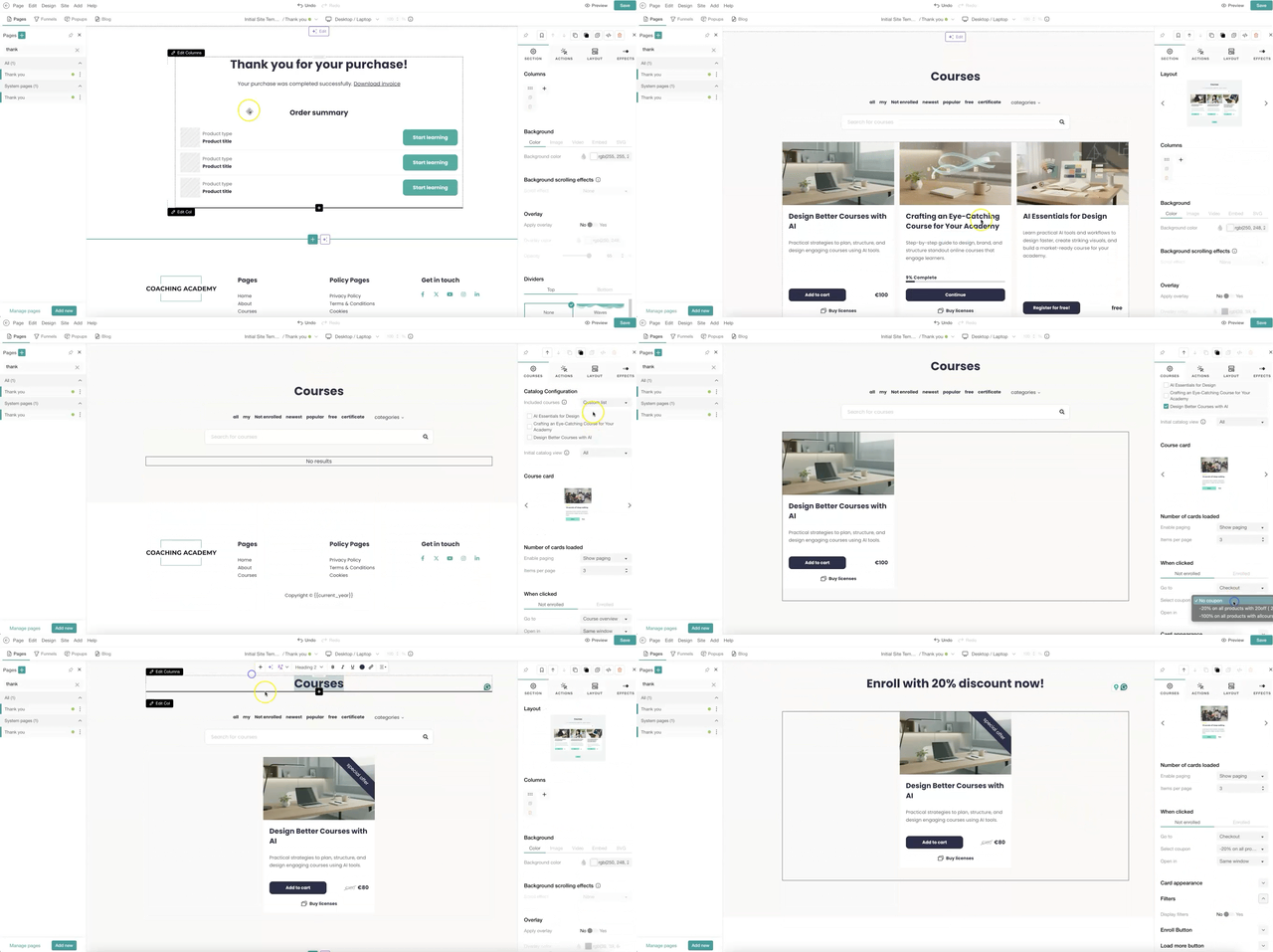
Το promote and upsell other products, with or without a discount, add a Course Catalogue section and configure its settings to match your needs. You can also automatically apply a coupon to the section to promote specific products in your school. To avoid displaying these offers to users already enrolled in certain products, use tags to customize the section’s visibility and create a more personalized experience.
Create multiple Thank You pages
1. Create a new page or clone the Thank you page.
2. Navigate to each Course settings → Access.
3. Select Set product-specific navigation and choose the page you created as a custom Thank you page.
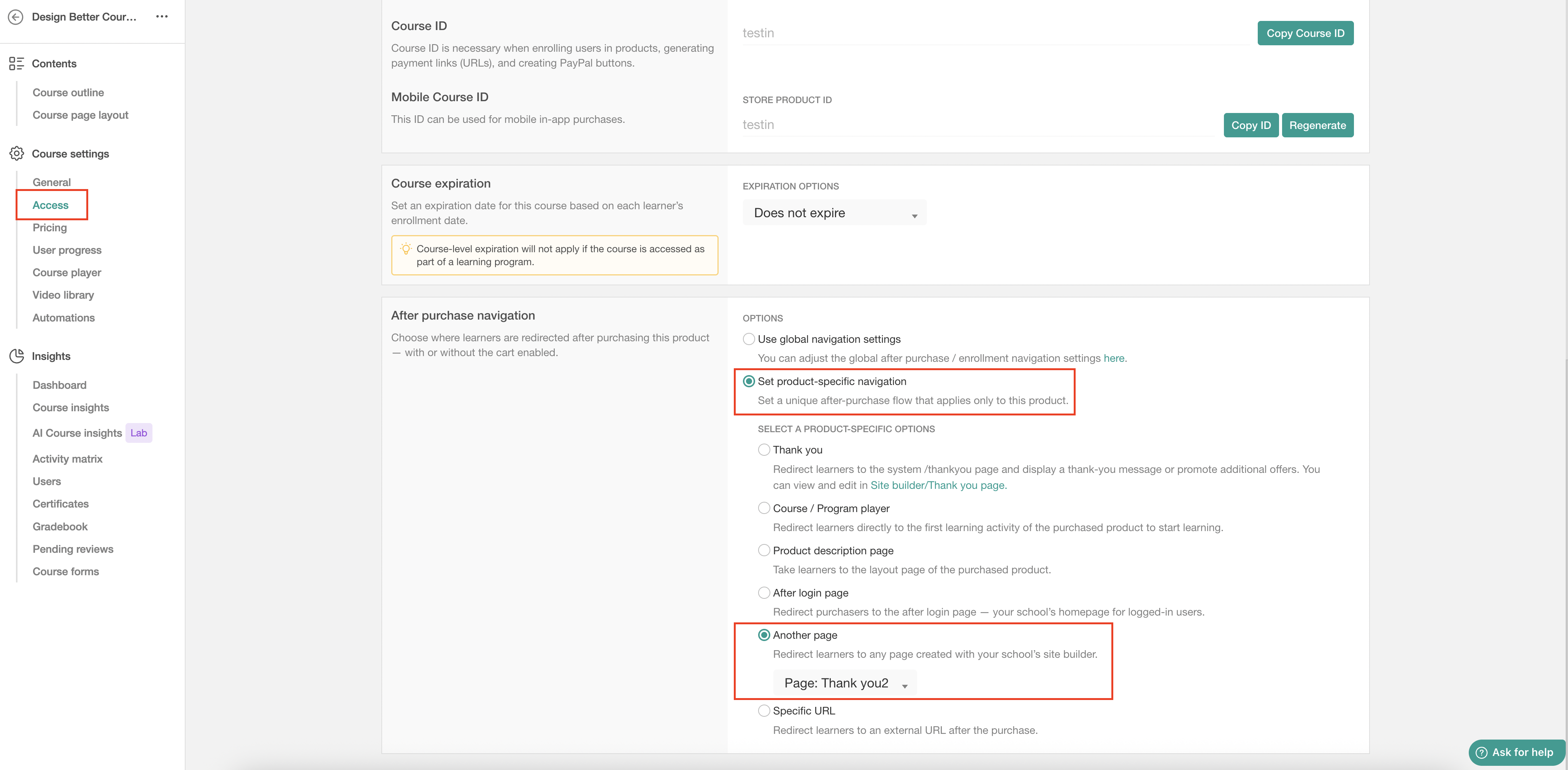
- Global after-purchase settings can be configured under E-commerce → Cart & Checkout → After Purchase. If product-specific navigation is configured within a course’s settings, it will override the global after-purchase settings. For more information about after-purchase navigation, click here.
- For more information on how to further customize sections using the sideform, click here.