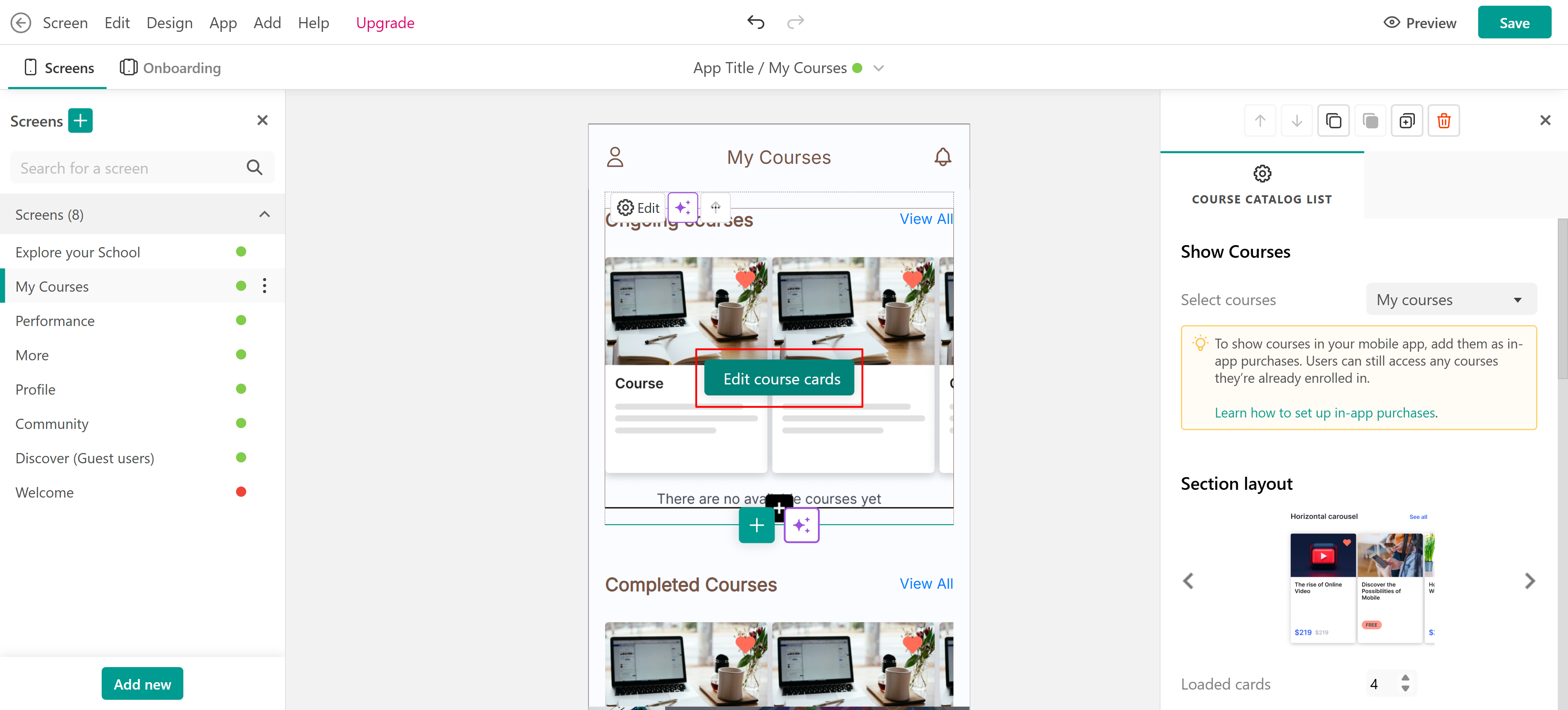
In today's digital age, integrating AI into web development has revolutionized creating and enhancing web pages. AI offers tools to improve functionality, aesthetics, and user experience for your school and has the potential to personalize online learning, improve engagement, and streamline tasks.
Incorporating AI into your LearnWorlds platform enhances the quality and engagement of your online content and transforms the entire learning experience for both educators and learners.
In this article, we will go through how you can utilize AI in your LearnWorlds school's pages to create captivating pages by generating high-quality, relevant text content quickly, using our AI assistant.
Create pages with AI
When creating a new page, you can either build it manually or use AI to assist you.
1. To get started, navigate to the Site Builder and click the + (plus) icon or the Add New button. 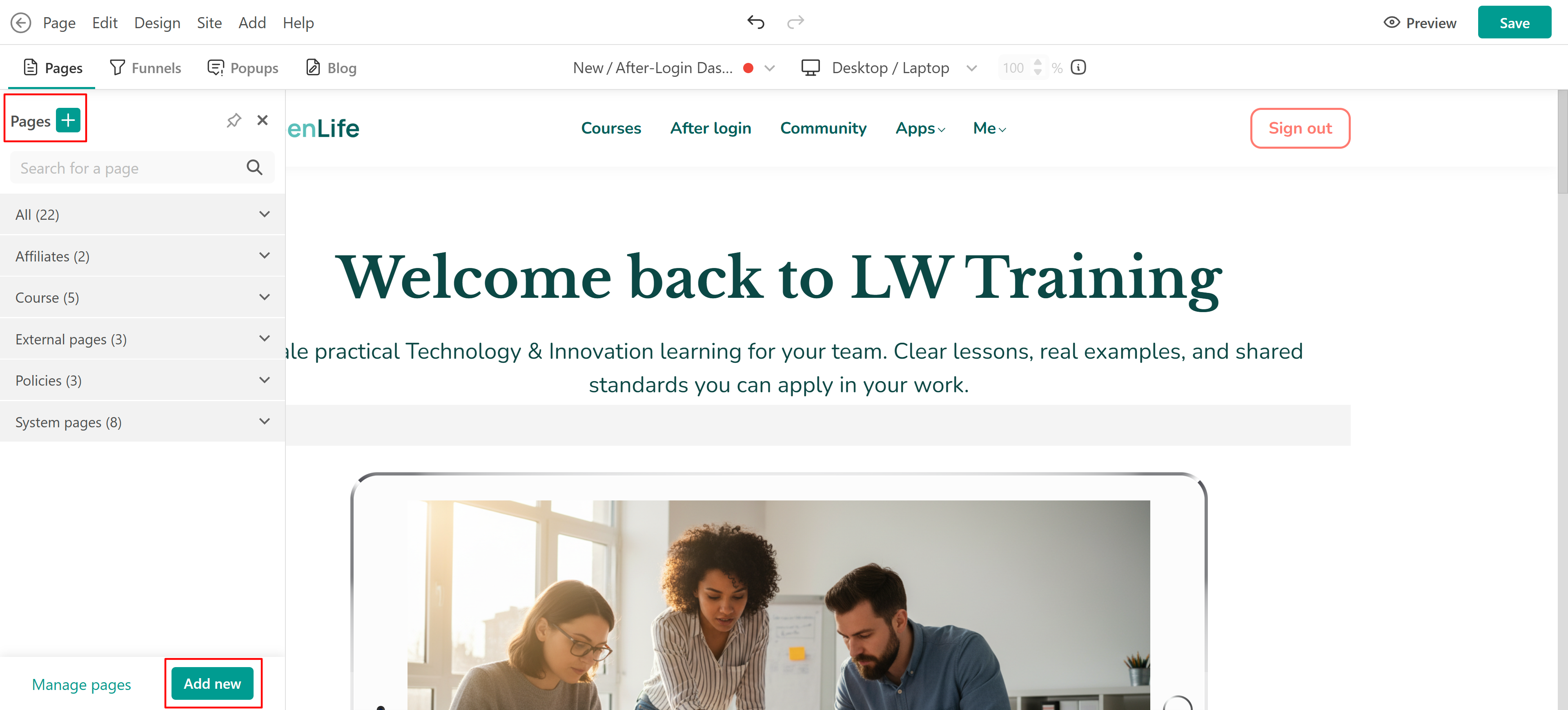 2. Then select Generate with AI.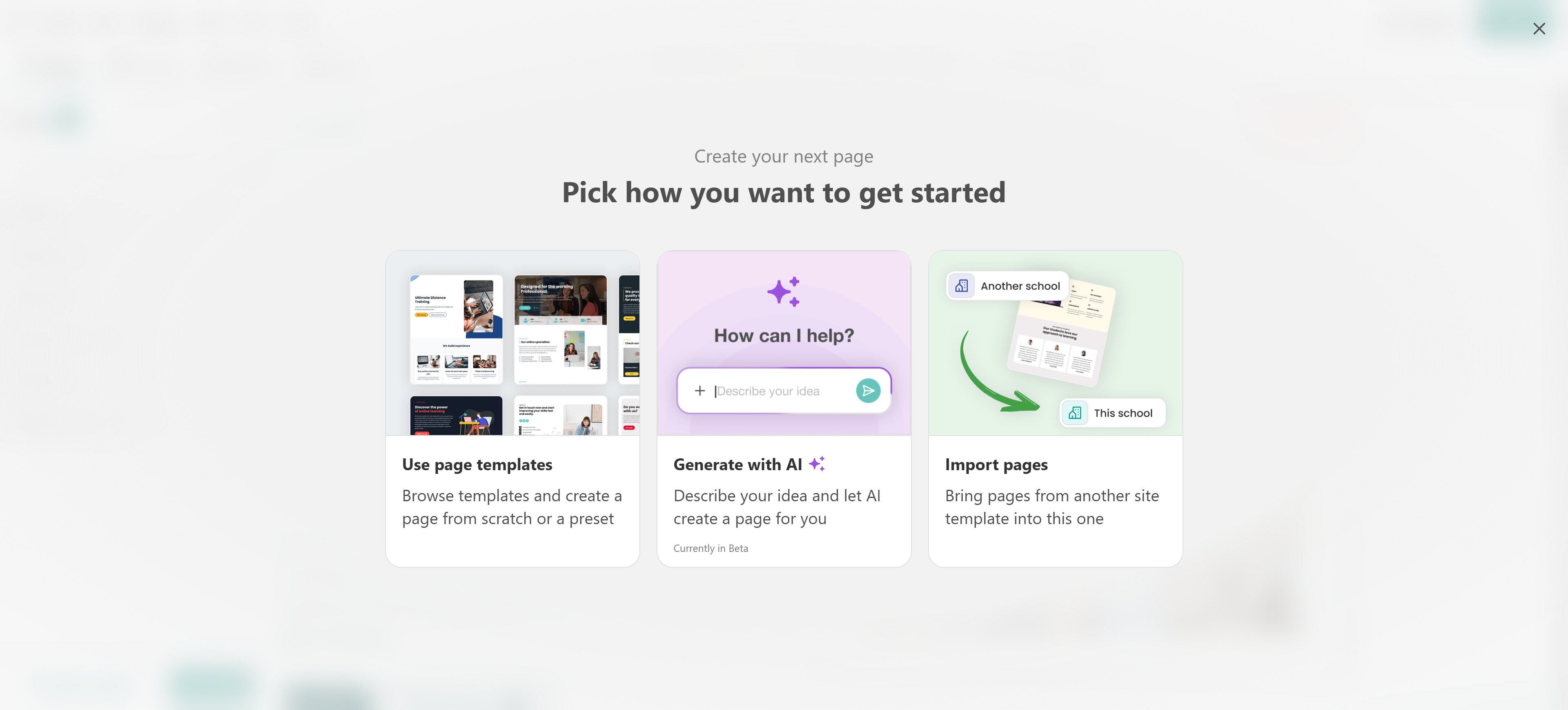
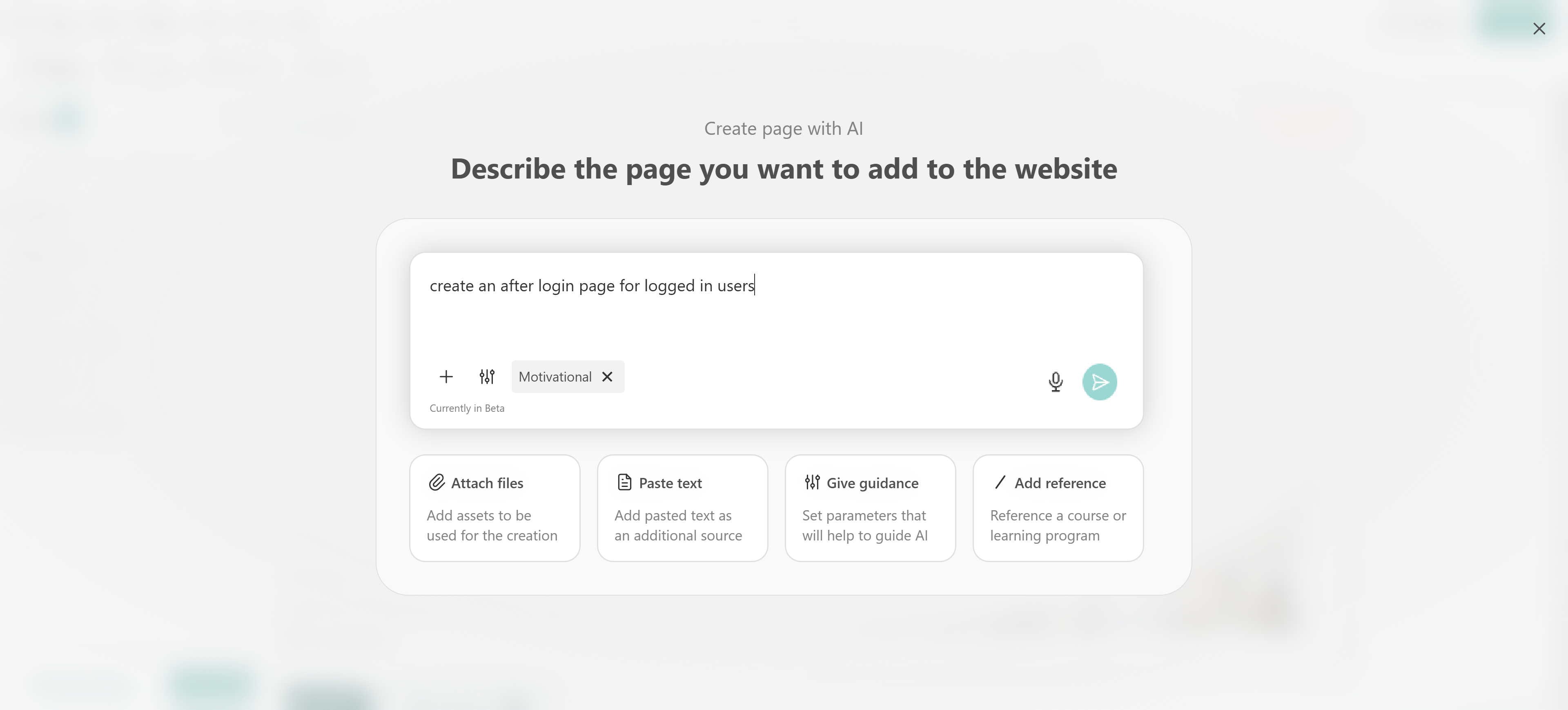
3. A chat box will appear where you can describe what your page should include. You can define:
- The purpose of the page (e.g., landing page, blog, thank-you page)
- The sections you want to include
- The number or type of sections
You can also enhance your prompt by:
- Attaching related files
- Pasting text
- Adding guidance through parameters (e.g., page type)
- Referencing existing content
4. AI will generate a page outline (structure) for you. At this stage, you can:
- Rearrange sections
- Delete sections
- Change section types (e.g., from “Benefits” to “FAQ”)
- Edit text directly in the editor
- Modify layouts
- Make changes manually from the left panel
- Or continue chatting with AI to refine the result
5. If needed, submit additional prompts to adjust the page until it fits your needs. Once you’re satisfied, click Confirm and proceed.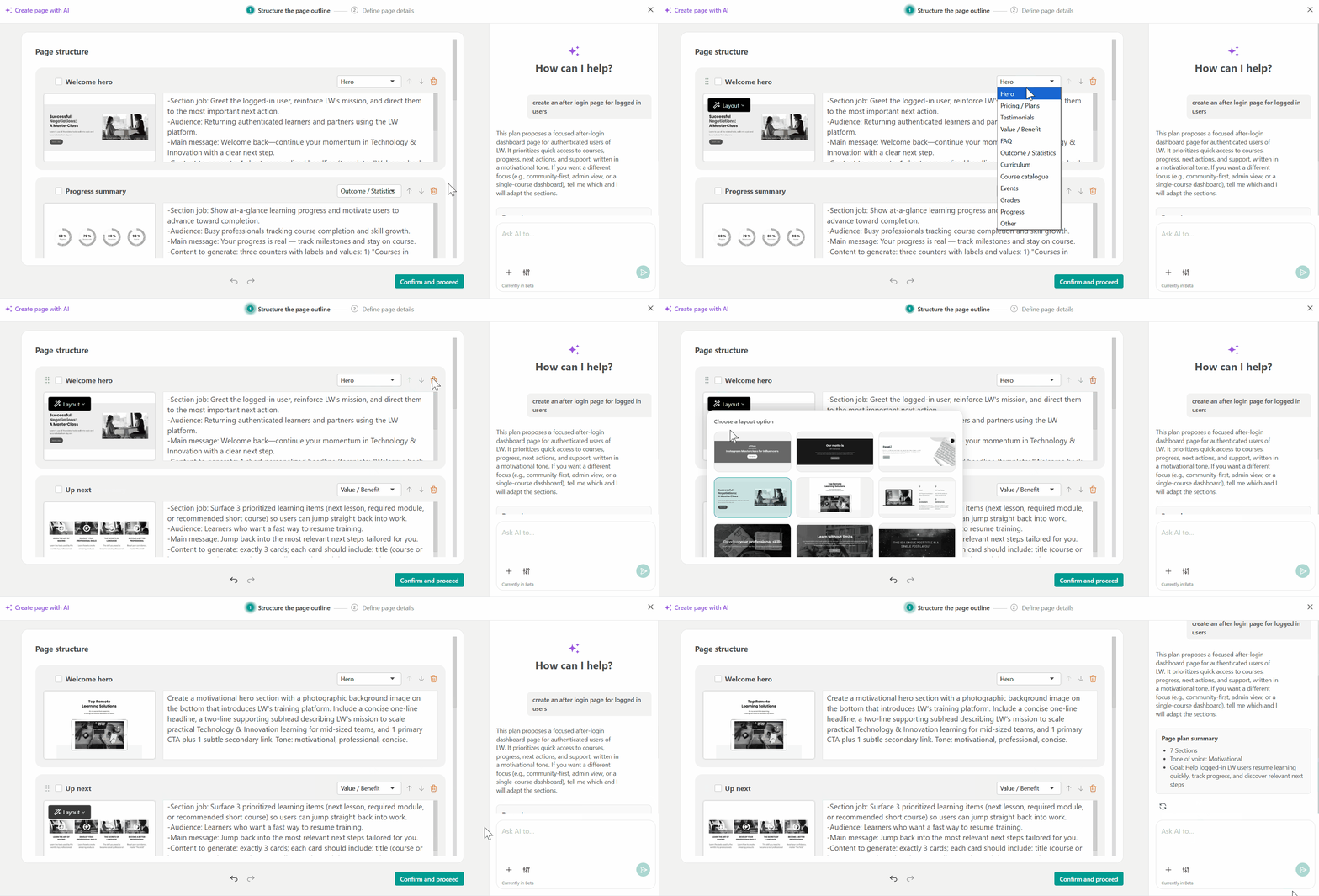
6. Before finalizing, review and update your page settings:
- Page name
- URL
- Status
- SEO details (title, description, keywords)
An image will be generated automatically based on your page description. You can further refine it using AI. To update the image:
- Hover over the page
- Click Choose image to upload manually, or
- Click Edit image to generate a new one with AI
The generated image will be saved in your Image Library and can be reused elsewhere.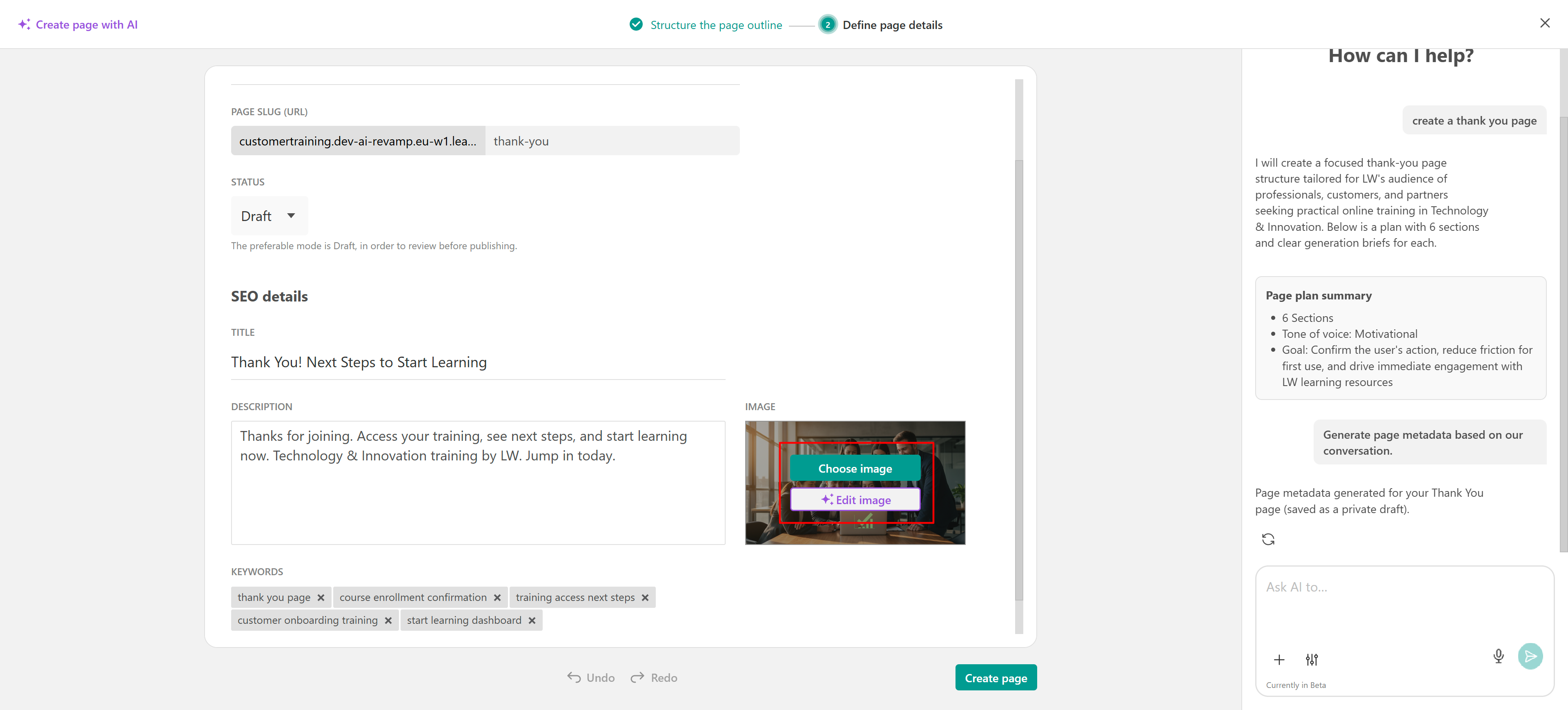
7. Once everything is ready, click Create Page to publish it.
Edit existing sections with AI
Another option is to edit existing sections using AI. While in the Site Builder, locate the Edit (AI) button on the section you want to update. Click it to open the chat box.
Describe what you’d like to change, and AI will generate the updated content for you.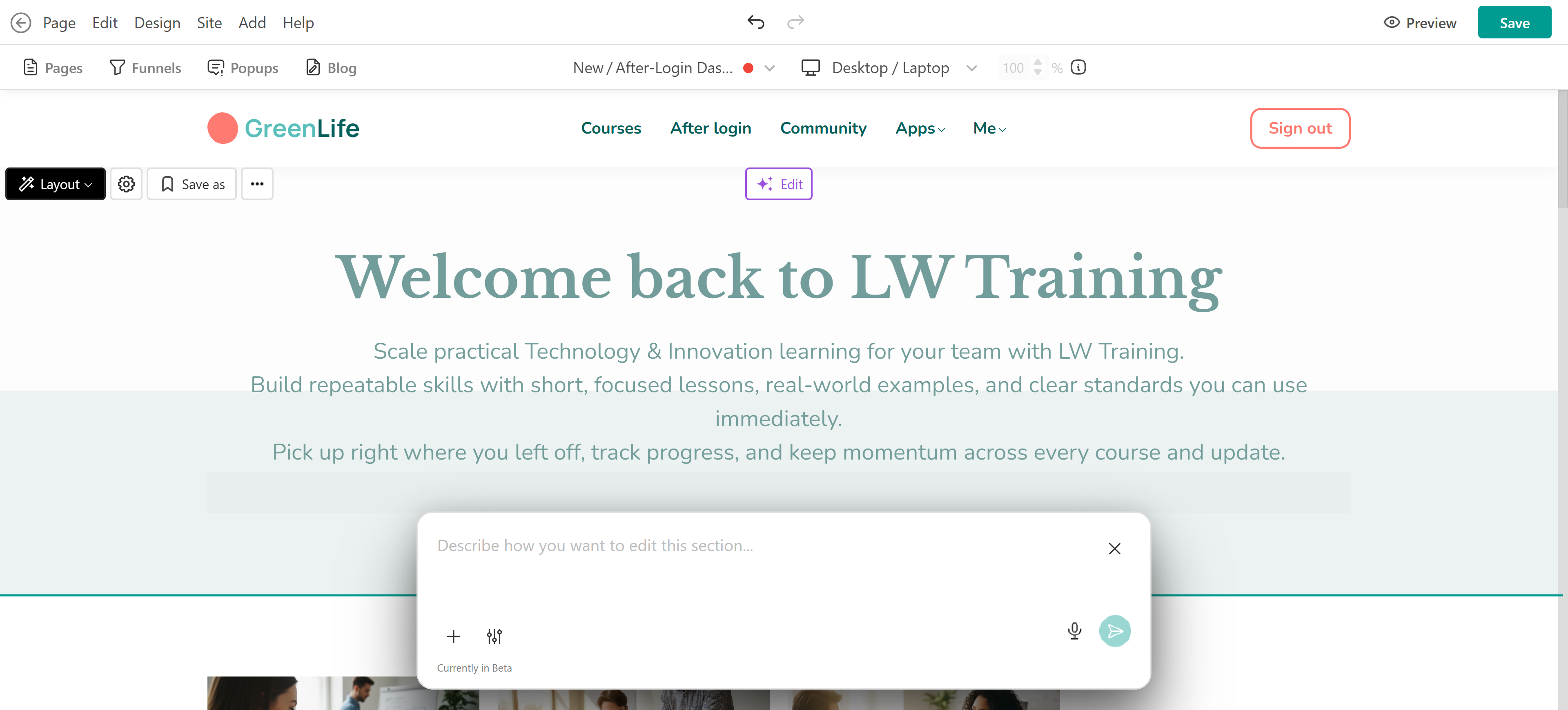
Add new sections with AI
In some cases, you may want to add individual sections to your pages using AI. When adding a new section, click the + (plus) icon, and you’ll see the AI button next to it.
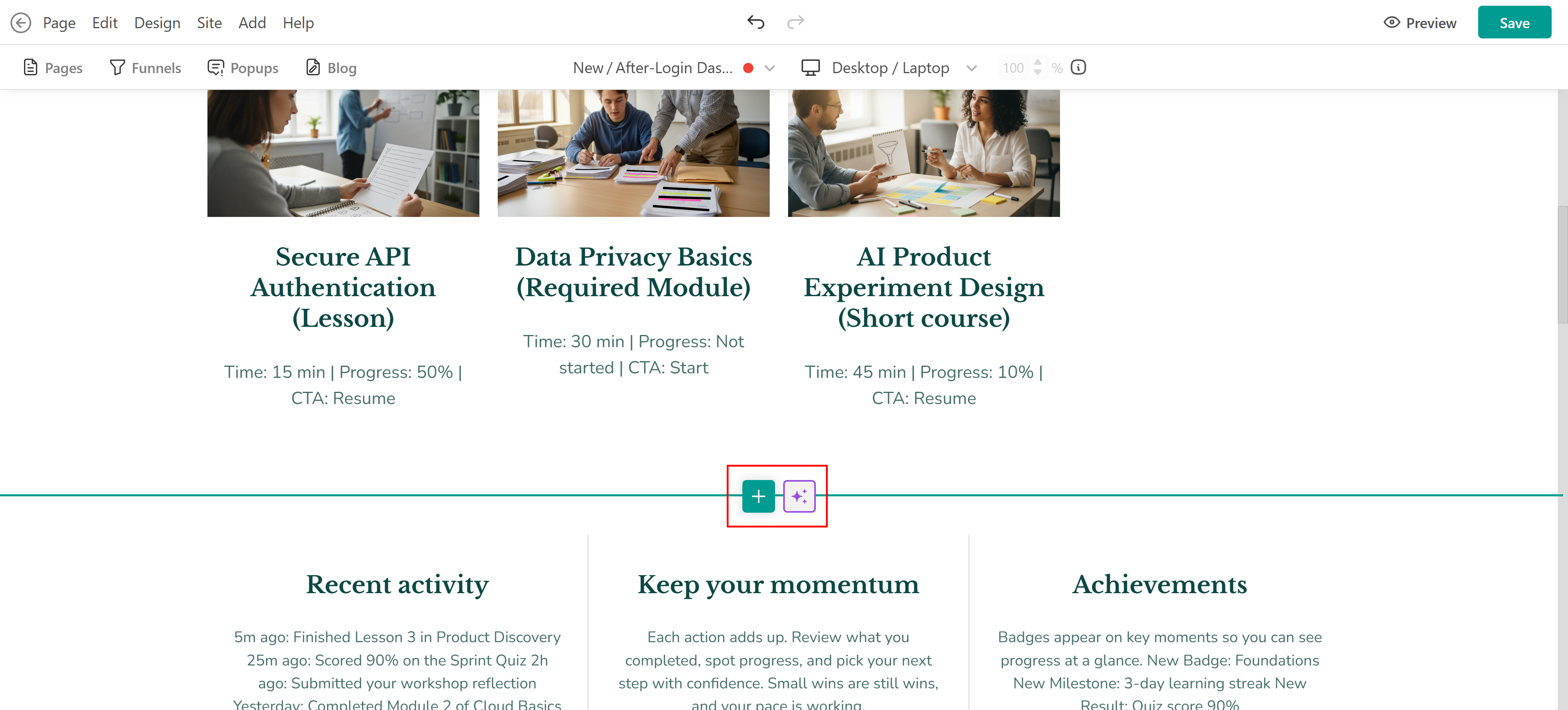
Once you click it, a chat box will appear where you can describe the section you want to create. To get better results, you can use parameters to guide AI, for example, defining the page type or tone of voice.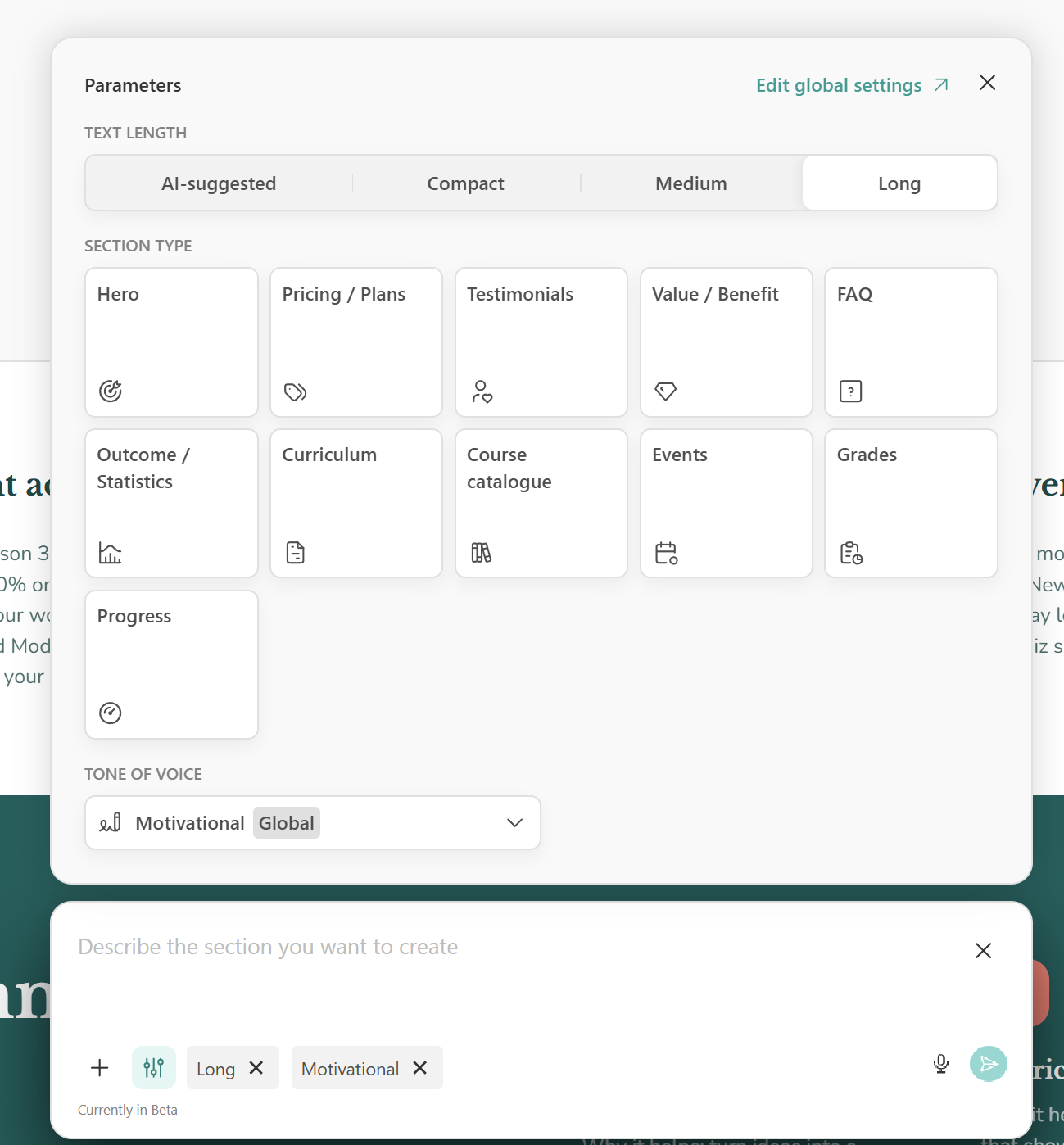
If you choose to add a section manually by clicking the + (plus) icon, you’ll see all available section types and can select the one you prefer. After selecting a section, you also have the option to click Fill with AI.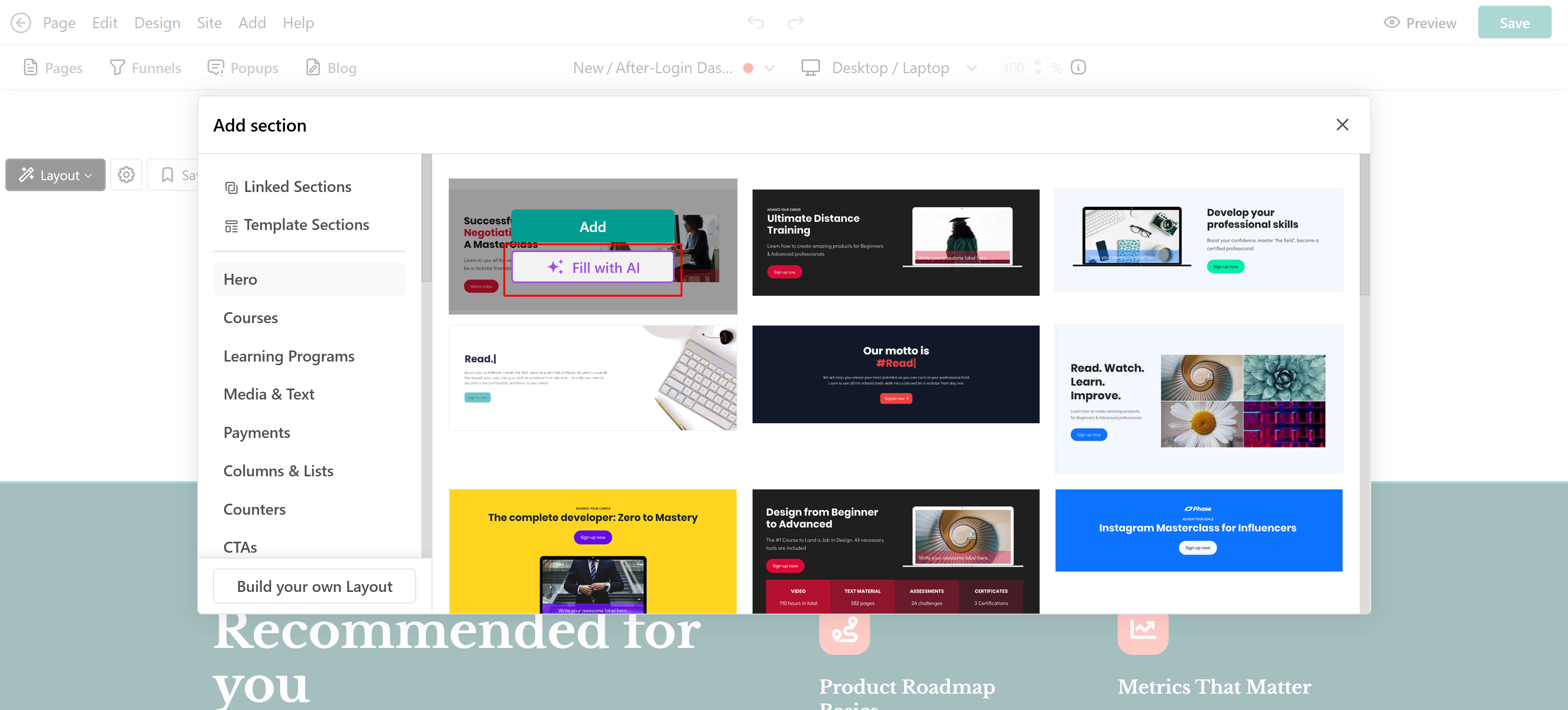
With this option:
- The chat box opens automatically
- The section type is already predefined based on your selection
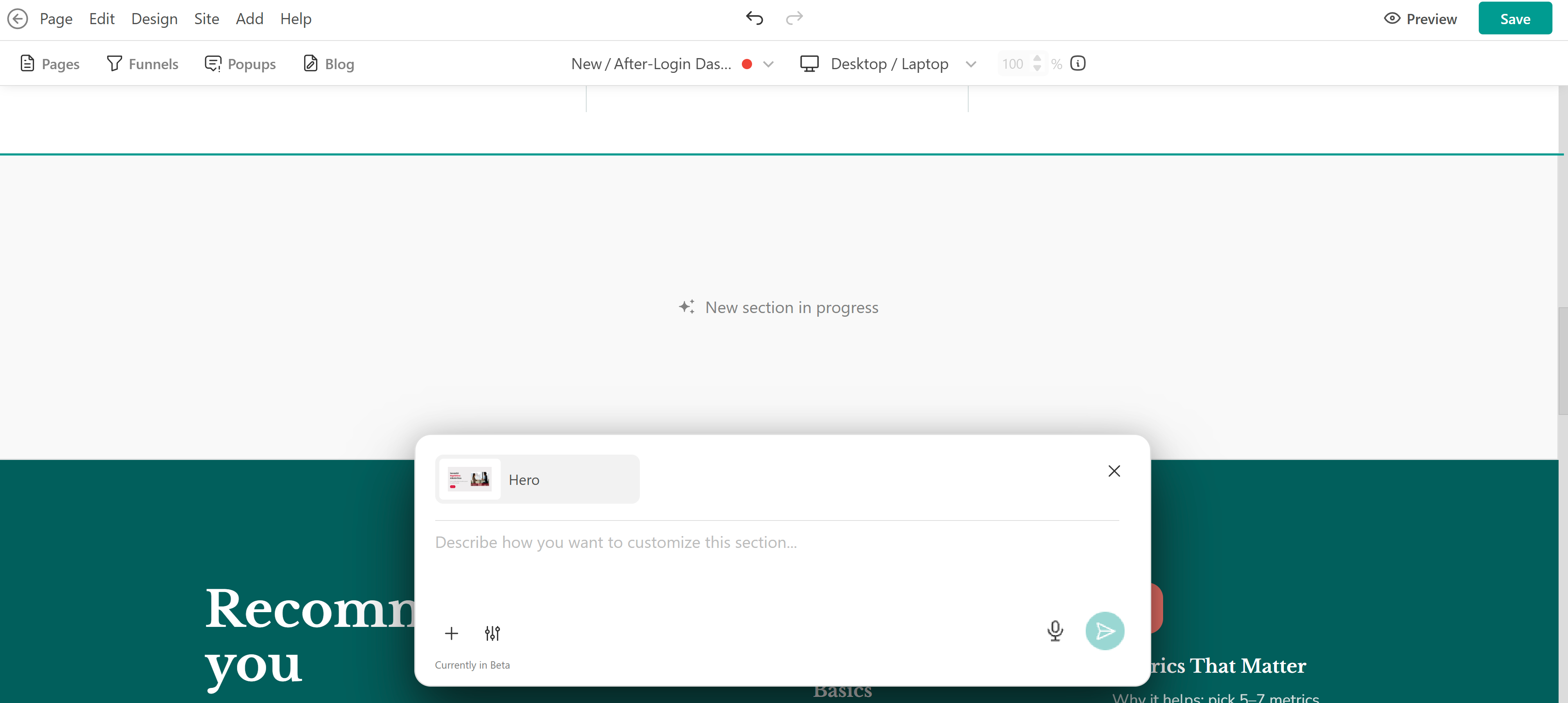
Simply describe what content you want to include, and AI will generate it directly inside the section.
AI for text transformation
You can use AI to quickly improve any text on your page. Select the text you want to edit, open the AI chat box, and describe the changes you’d like to make, whether it’s refining the wording, adjusting the length, changing the tone, or translating it.
AI will generate an updated version for you.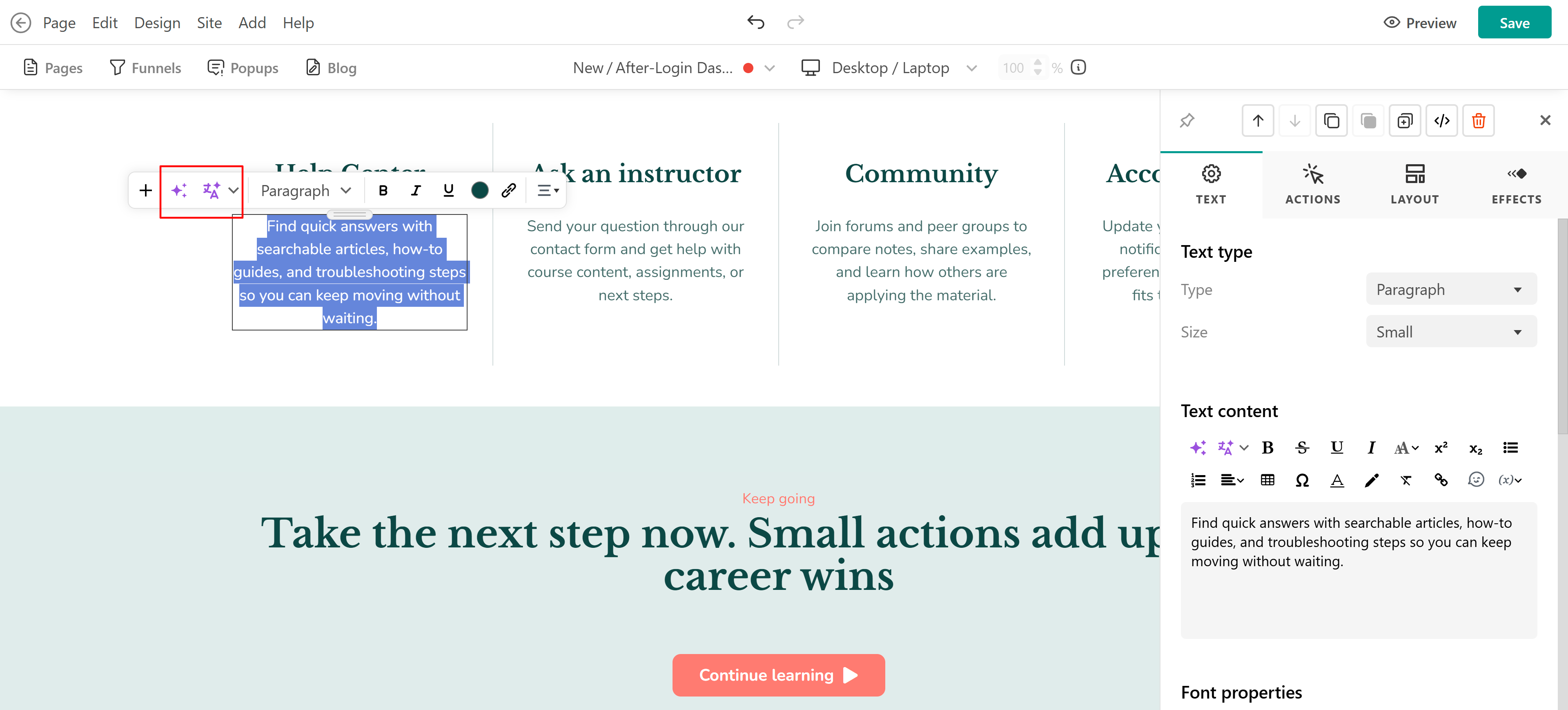
Mobile app builder
Besides creating pages in the Website Builder, you can also use AI to build screens for your mobile app. The process is similar: you can create new screens from scratch, refine text and images, generate sections, or edit existing content with AI. Learn how to build and customize your mobile app screens here.