
LearnWorlds provides AI-powered tools to help you create, edit, and manage exams, self-assessments, and forms. Generate questions from scratch, improve existing content, make multiple changes at once, and configure assessment settings using natural-language instructions.
Whether you're building a new assessment or updating an existing one, the AI Assistant helps streamline the authoring process without having to edit every question or setting individually.
In this guide, you'll learn how to generate assessment questions with AI, use the AI Assistant to edit content and settings, and refine individual questions.
Create assessment questions with AI
When creating a new exam or self-assessment, start by generating questions with AI instead of building them manually.
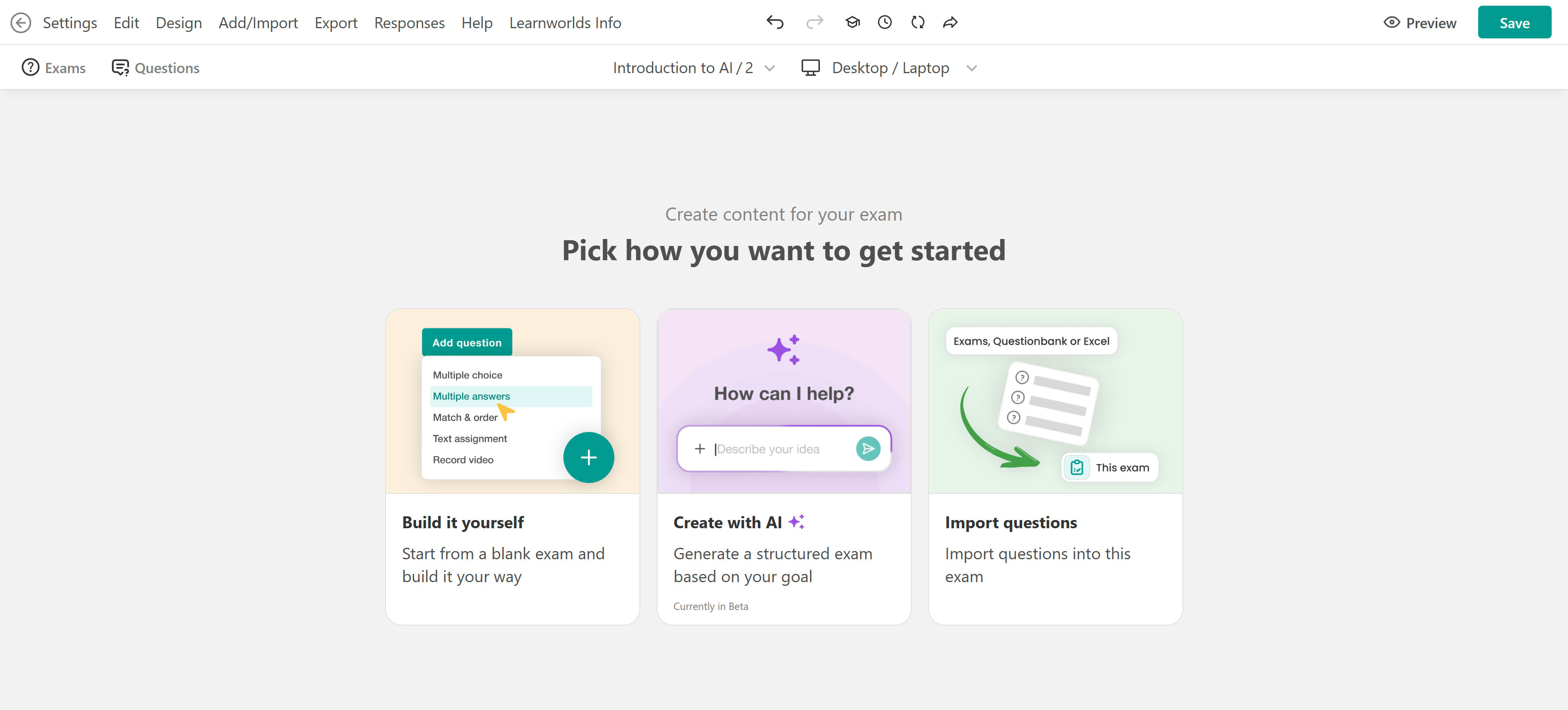
In the AI chatbox, describe the assessment you want to create. Include details such as the topic, target audience, learning objectives, question types, difficulty level, and preferred feedback style.
For example: Create a beginner-friendly knowledge check about workplace safety, including five multiple-choice questions, three true/false questions, and feedback explaining the correct answers.
To provide additional context, attach reference files, paste text, or reference existing course content. Alternatively, click the microphone icon to dictate your instructions. Click the Send icon to generate your questions
AI automatically adds the generated questions to your assessment. Review the questions, answers, and feedback to ensure they are accurate and aligned with your learning objectives.
Create and edit assessments with the AI Assistant
The AI Assistant is available directly within the Assessment Builder for exams, self-assessments, and forms. It helps you generate additional content, improve existing questions, and update assessment settings through natural-language conversations.
Unlike editing questions individually, the AI Assistant supports bulk editing, allowing you to request multiple changes through a single prompt.
To get started, open your assessment in the Assessment Builder and click AI Assistant in the upper-right corner. A chat panel opens where you can describe what you'd like to create or change.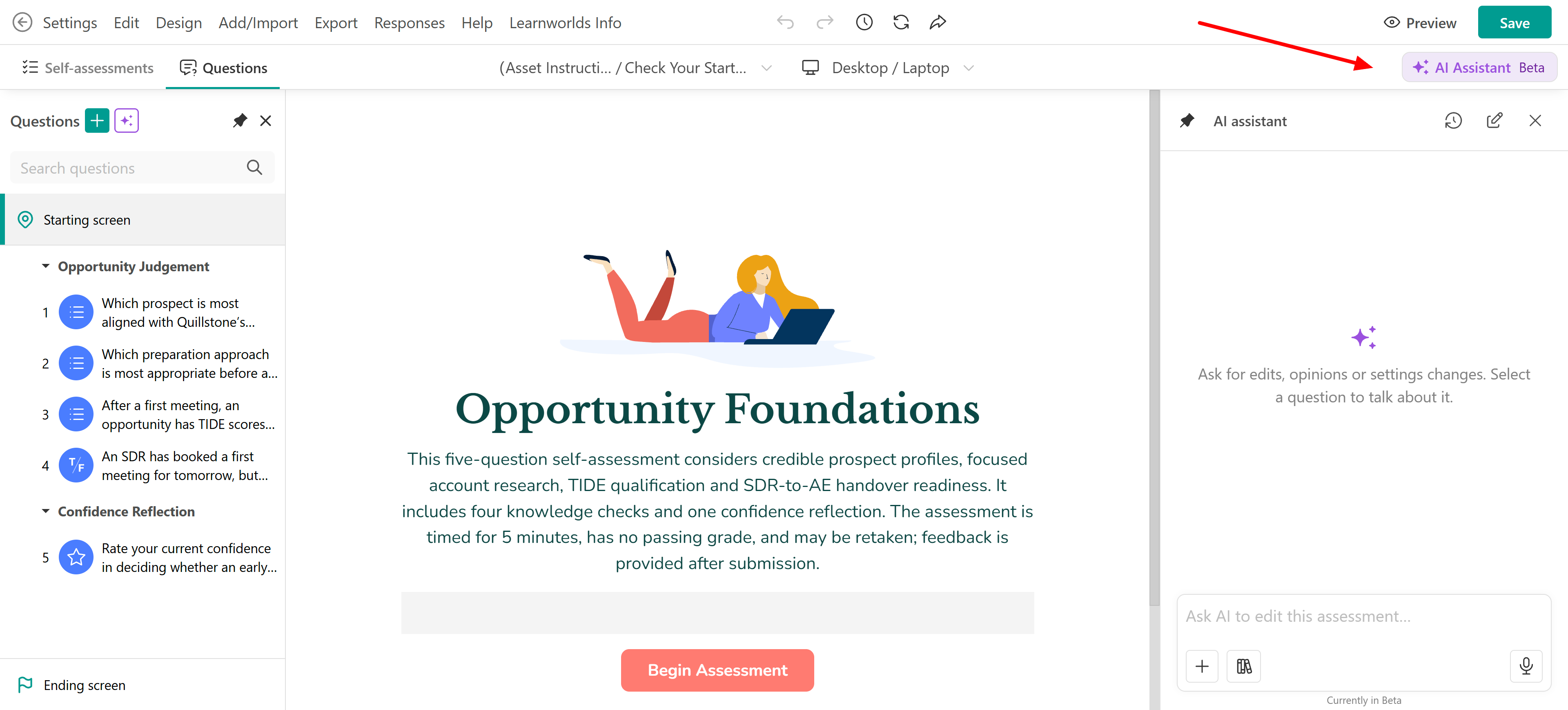
Generate and refine assessment content
Use the AI Assistant to add questions, improve existing content, or adjust the structure of your assessment. For example, ask AI to:
- Generate additional questions on a specific topic.
- Simplify the wording of multiple questions.
- Adjust the difficulty level of existing questions.
- Rewrite answer choices to make them clearer.
- Add or reorganize questions within sections.
- Update feedback for multiple questions.
Enter your instructions in the chatbox and submit your request. For more targeted changes, select the relevant content in your assessment before asking AI to modify it.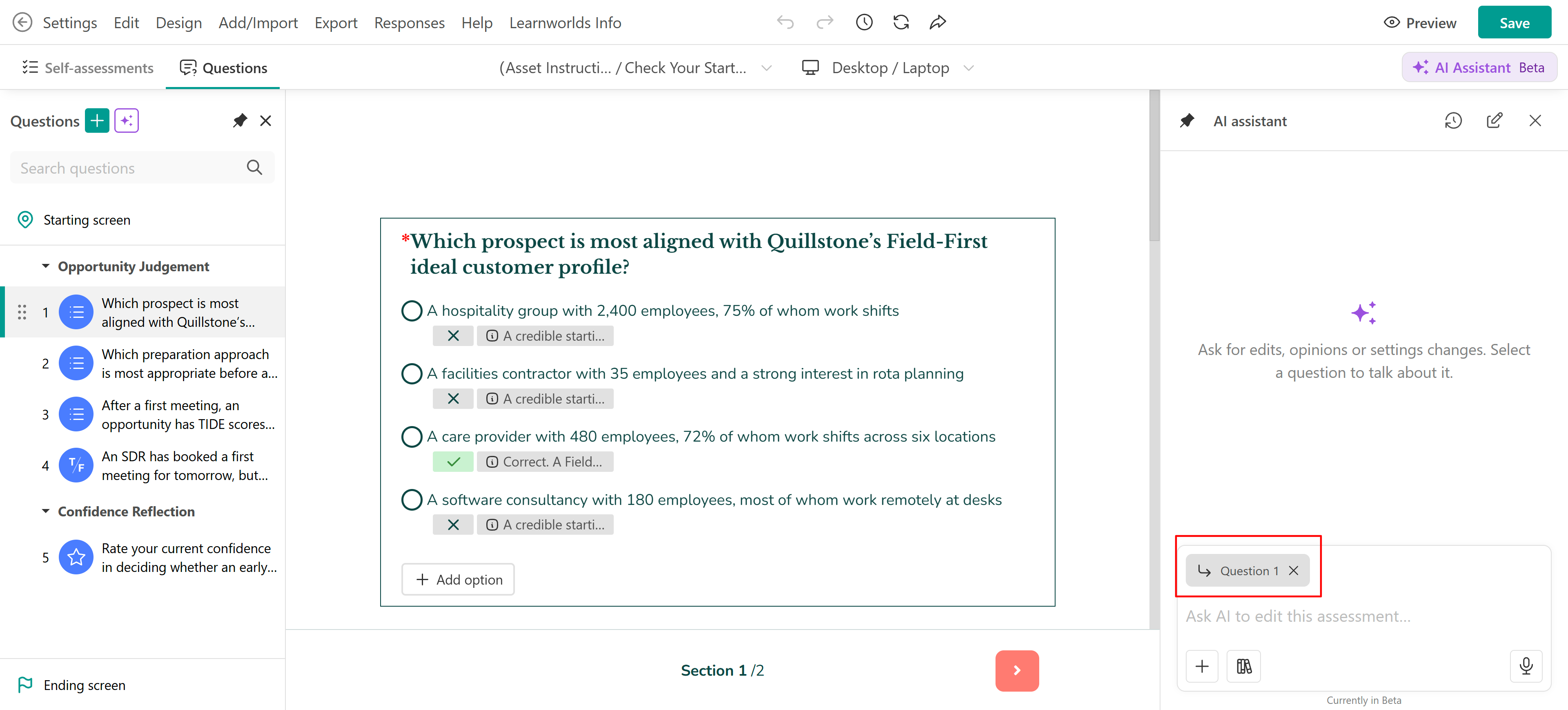
Update assessment settings with AI
In addition to creating and editing questions, the AI Assistant helps configure how your assessment works. Instead of navigating through individual settings, describe the changes you want to make directly in the chat. For example:
- Set the exam's passing grade to 70% and allow two attempts.
- Add a 20-minute time limit and randomize the question order.
- Enable feedback and show learners the correct answers after submission.
- Make the form questions required and update the message displayed after submission.
The AI Assistant can apply multiple supported changes through a single request. Review the updated settings to ensure they match your assessment requirements.
Review and manage AI changes
After the AI Assistant makes changes, review the results and the summary of actions performed in the conversation panel. If you want to undo an AI-generated change, click Restore previous version to return to the earlier version of your content.
The AI Assistant also keeps a history of your conversations, allowing you to revisit previous requests and results. Click the conversation history icon to open an existing conversation, select Add new conversation to start a new interaction, or delete conversations you no longer need.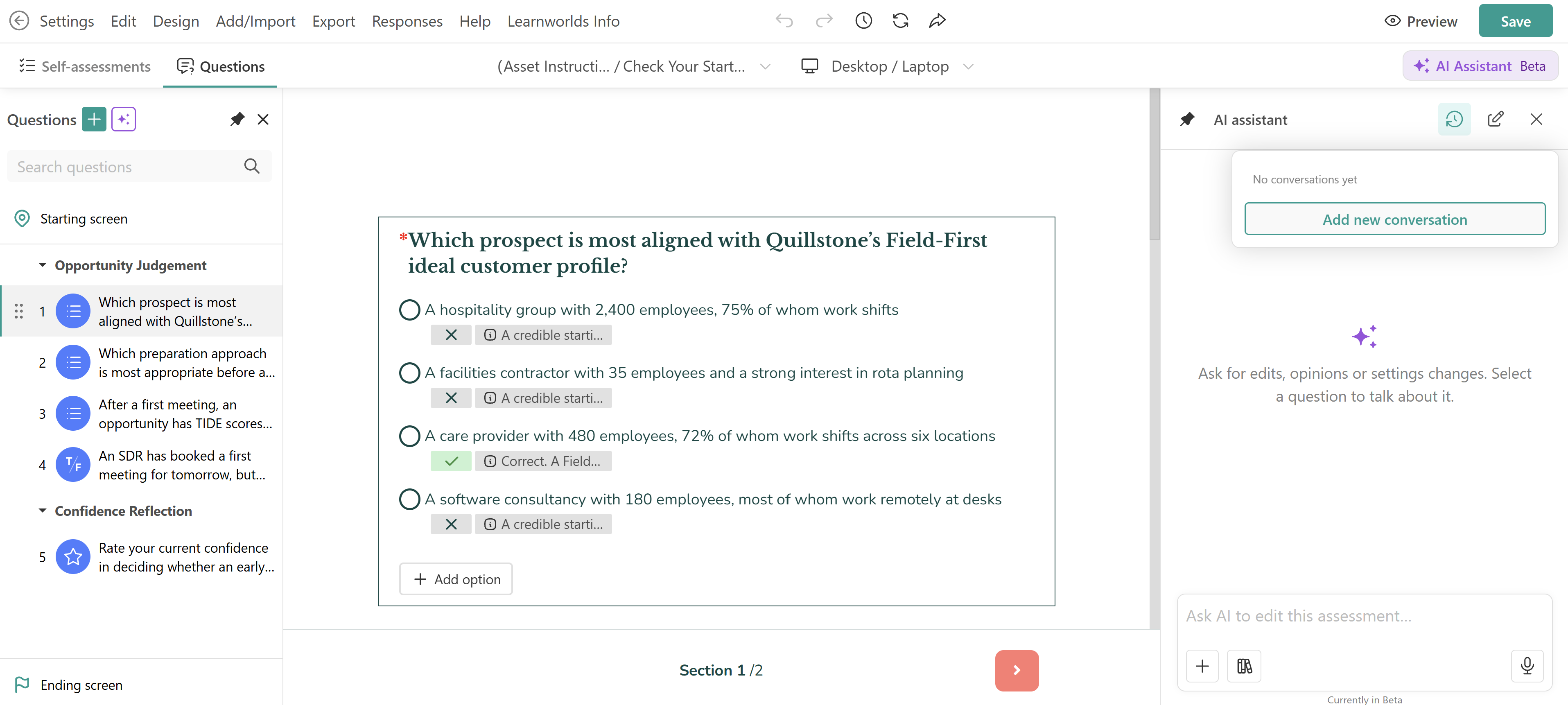
Edit individual questions with AI
For more targeted changes, use Edit with AI to modify a specific question without requesting changes to the entire assessment.
Inside the assessment builder locate the question you want to modify and click Edit with AI.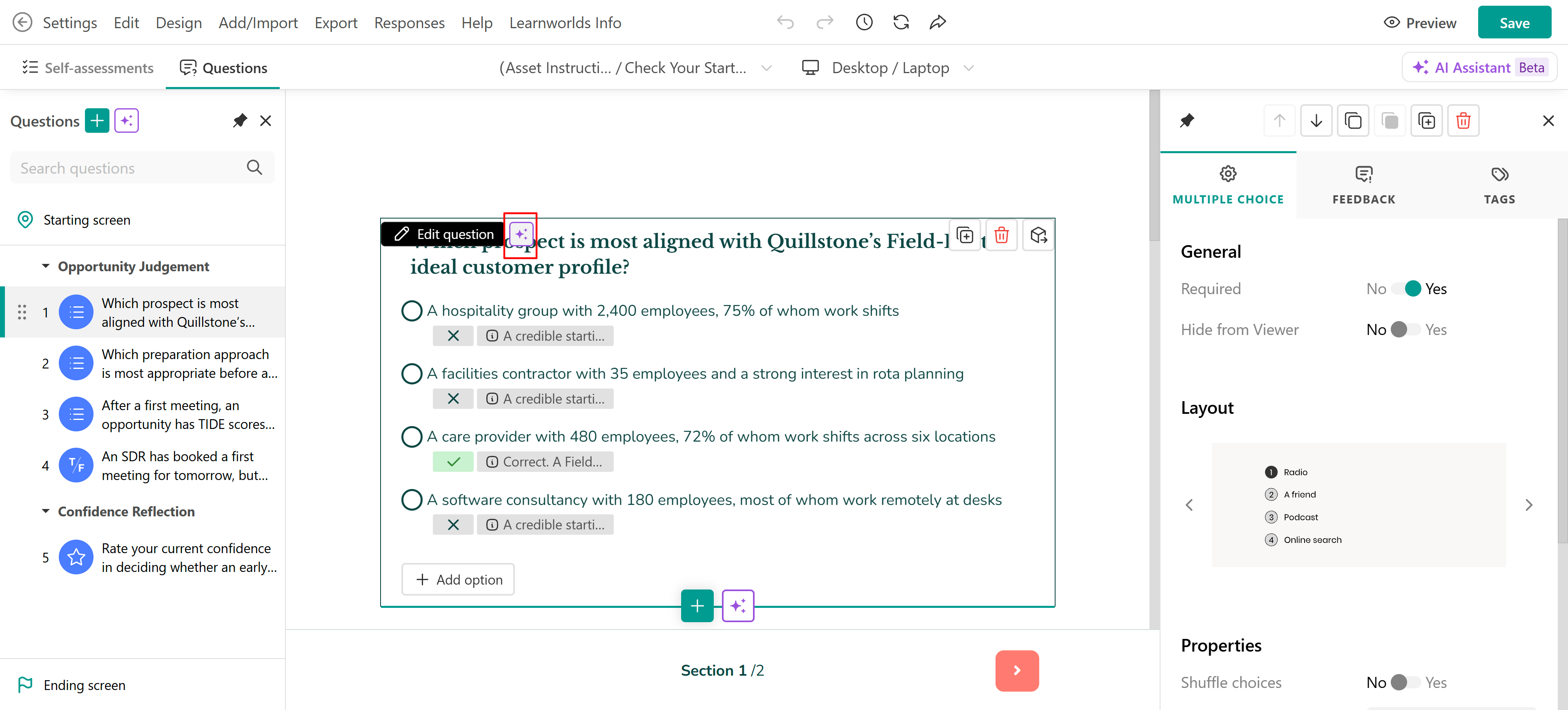
In the AI chatbox, describe the changes you want to make.
For example, ask AI to change the question type, adjust its difficulty, improve the wording, or update question-specific settings such as feedback.
AI may ask for clarification or confirmation before applying the requested changes. Review the results to ensure they meet your requirements.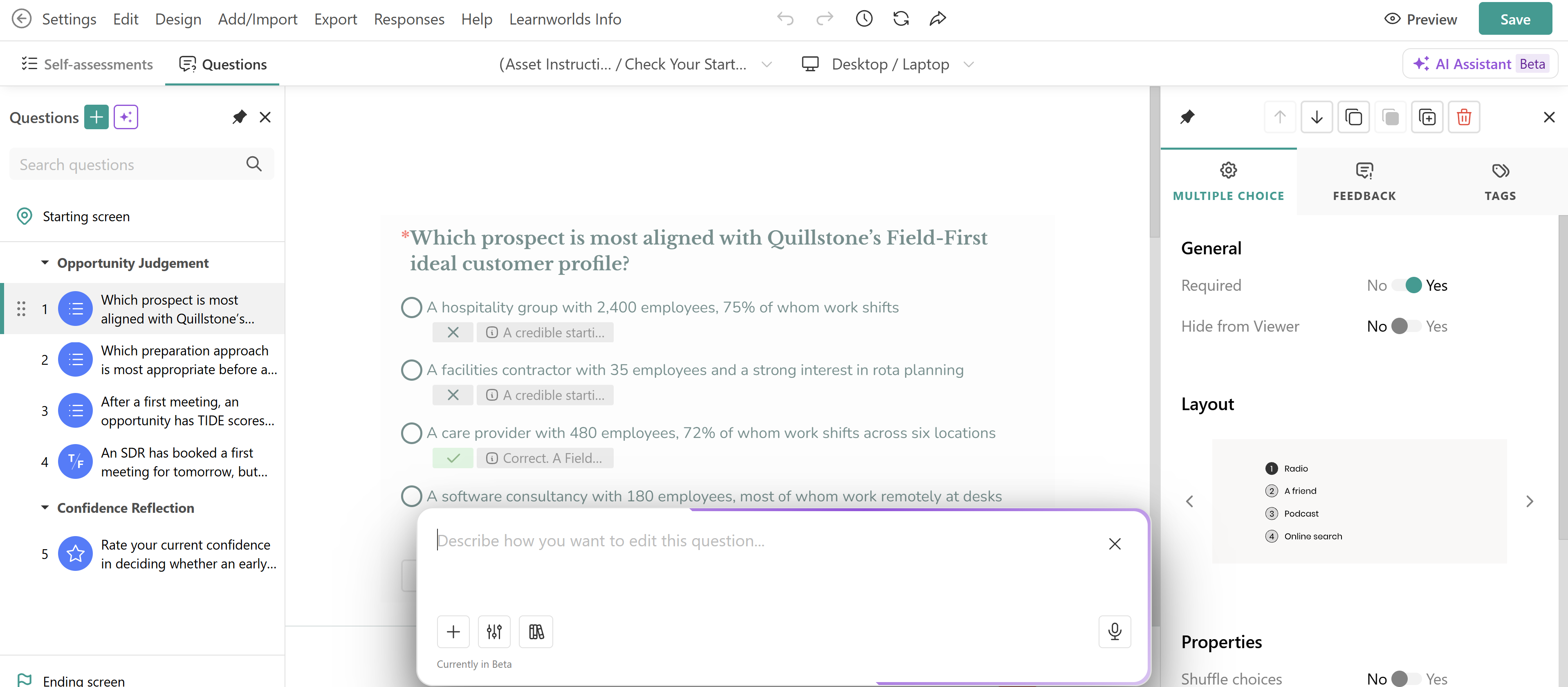
Improve assessment text with AI
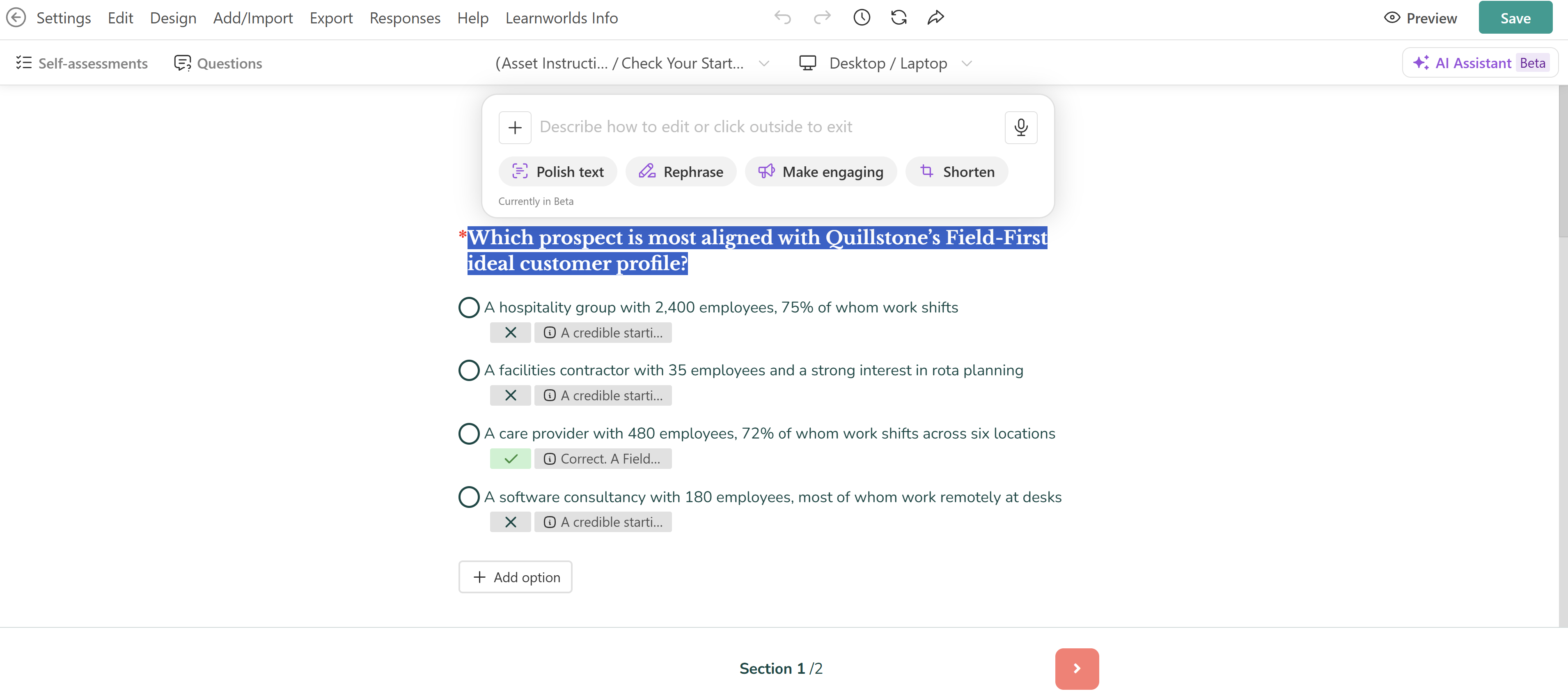
When editing question text, use the available AI writing tools to improve clarity, adjust the tone, or refine the content. Available actions include:
- Polish or rewrite: Improve wording, grammar, and readability.
- Shorten or expand: Adjust the length and level of detail.
- Summarize: Condense longer explanations.
- Change tone: Adapt the writing style to your audience.
- Translate: Translate text into another language.
- Analyze style: Review the writing style, voice, and tone.
- Make it catchy, powerful, or compelling: Adjust the language to create a stronger impact.
Review AI-generated assessment content
AI-generated content should always be reviewed before making the assessment available to learners.
Check that questions are accurate, answer choices are appropriate, and feedback provides useful explanations. For graded assessments, verify the correct answers, scoring, passing requirements, and other relevant settings.
When using reference materials, confirm that the generated content reflects the intended information and does not introduce unsupported details. Avoid sharing sensitive or unnecessary personal information in AI prompts.
AI helps streamline assessment creation and editing, while the final content and configuration remain under your control.