
LearnWorlds provides EU withdrawal tools to help schools selling digital courses to EU consumers manage withdrawal requests and collect checkout consent when learners receive immediate access to digital content.
With these tools, you can configure withdrawal handling for your courses, allow eligible learners to submit withdrawal requests online, and manage requests directly from your school's payment records.
 EU withdrawal tools support the requirements introduced by Directive (EU) 2023/2673. Your school is responsible for determining whether the right of withdrawal applies to its products. Consult your legal advisor if you need guidance.
Understand the available withdrawal options
Before enabling the feature, it's important to understand how withdrawal handling works.
Depending on the type of digital content you sell and when learners receive access, you can choose one of three options for each course.
| Option | When to use it | What happens |
|---|---|---|
| Require checkout consent | The course provides immediate access, and the right of withdrawal can be excluded. | Learners must explicitly agree at checkout that they will lose their right of withdrawal once access begins. |
| Allow withdrawal requests | The course is eligible for withdrawal. | Learners can submit a withdrawal request within 14 days of purchase. |
| Not applicable | The withdrawal rules do not apply to the course. | No withdrawal-related controls are displayed to learners. |
For example, if learners receive immediate access to a course after purchasing it, you may choose Require checkout consent. If the course is eligible for withdrawal, select Allow withdrawal requests so learners can submit a request from their account.
LearnWorlds does not automatically determine which option applies to your course.Enable EU withdrawal tools for your school
To start using the feature, first enable EU withdrawal tools in your school's financial settings.
- Navigate to Settings → Financial → EU withdrawal settings.
- Enable EU withdrawal tools.
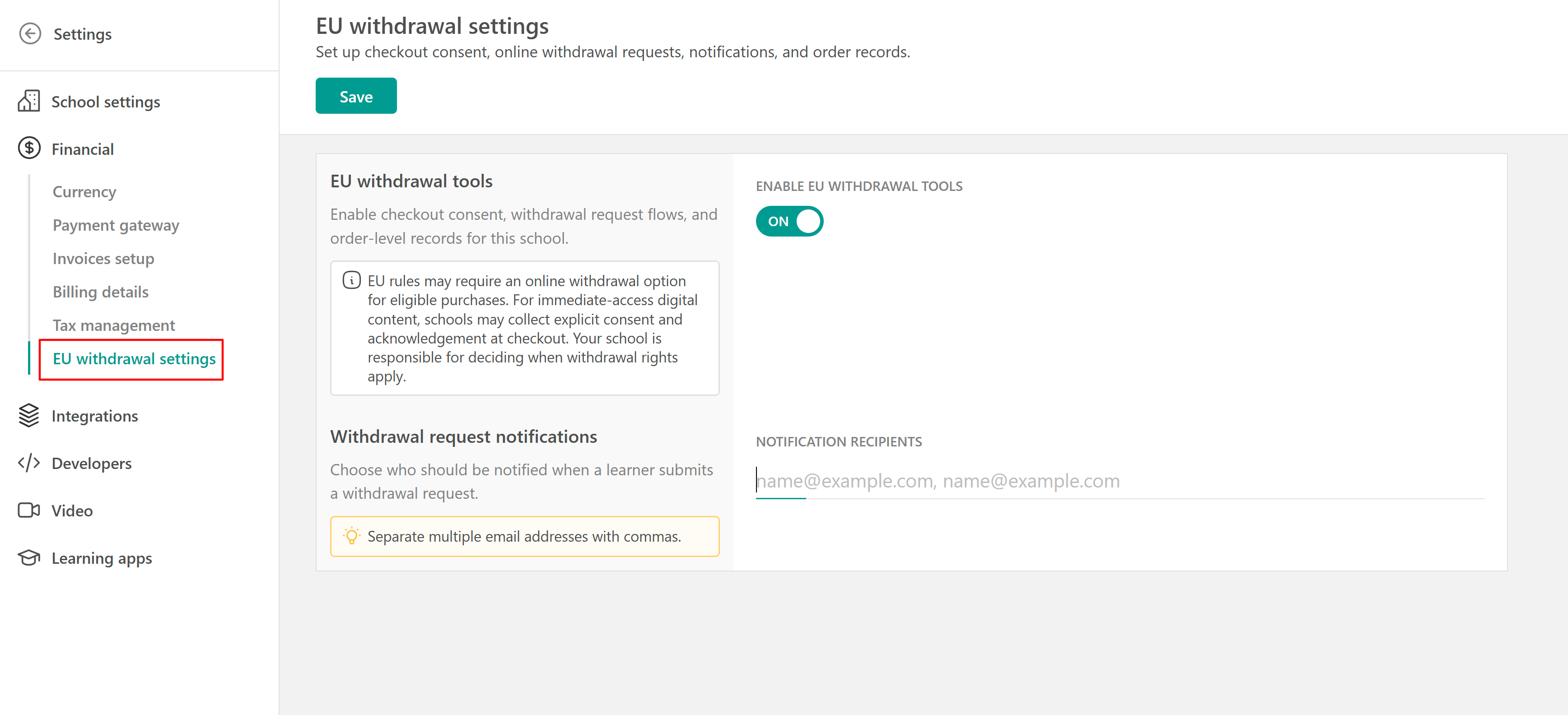
- Under Notification recipients, enter the email addresses of the people who should receive notifications when learners submit withdrawal requests. You can include administrators or other staff members.
- Select Save.
Once enabled, you can configure withdrawal handling for your courses.
EU withdrawal tools are disabled by default. When disabled, your existing checkout and payment management experience remains unchanged.Configure withdrawal handling for a course
After enabling EU withdrawal tools, specify how withdrawal requests should be handled for each course.
- Navigate to Courses & Programs and open the course you want to configure.
- Open General settings.
- Locate the EU withdrawal handling section.
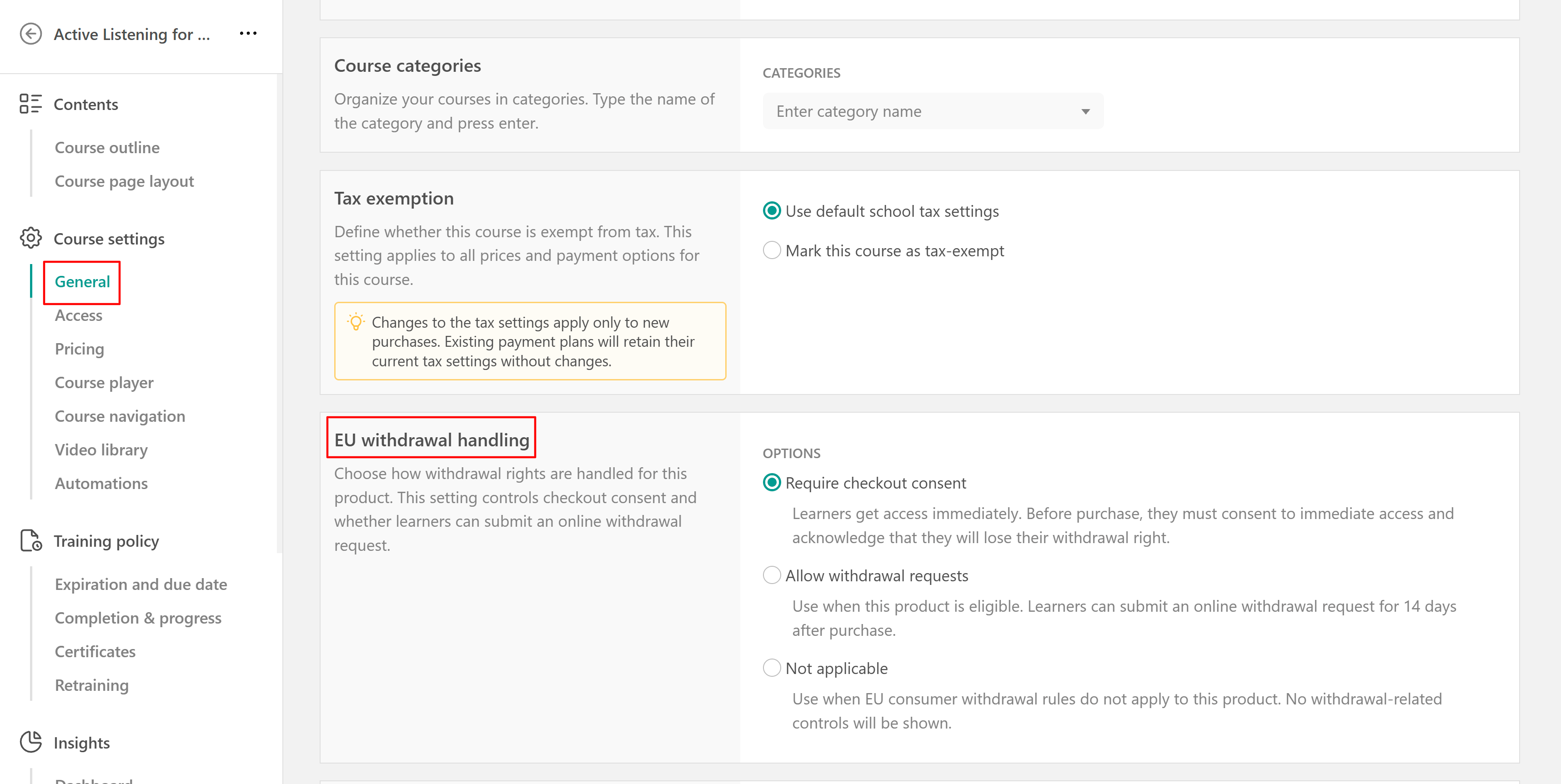
- Select one of the available options:
- Require checkout consent: Learners must acknowledge the loss of their withdrawal right before purchasing immediate-access content.
- Allow withdrawal requests: Learners can request withdrawal within the applicable 14-day period.
- Not applicable: The withdrawal functionality does not apply to this course.
- Save your changes.
The selected option determines what learners see during checkout and in their payment history.
What learners see at checkout
The checkout experience depends on the withdrawal settings of the courses being purchased.
- Courses requiring checkout consent
When a learner purchases a course configured with Require checkout consent, an additional checkbox appears on the checkout page.
The learner must explicitly acknowledge that they will lose their right of withdrawal once access to the digital content begins.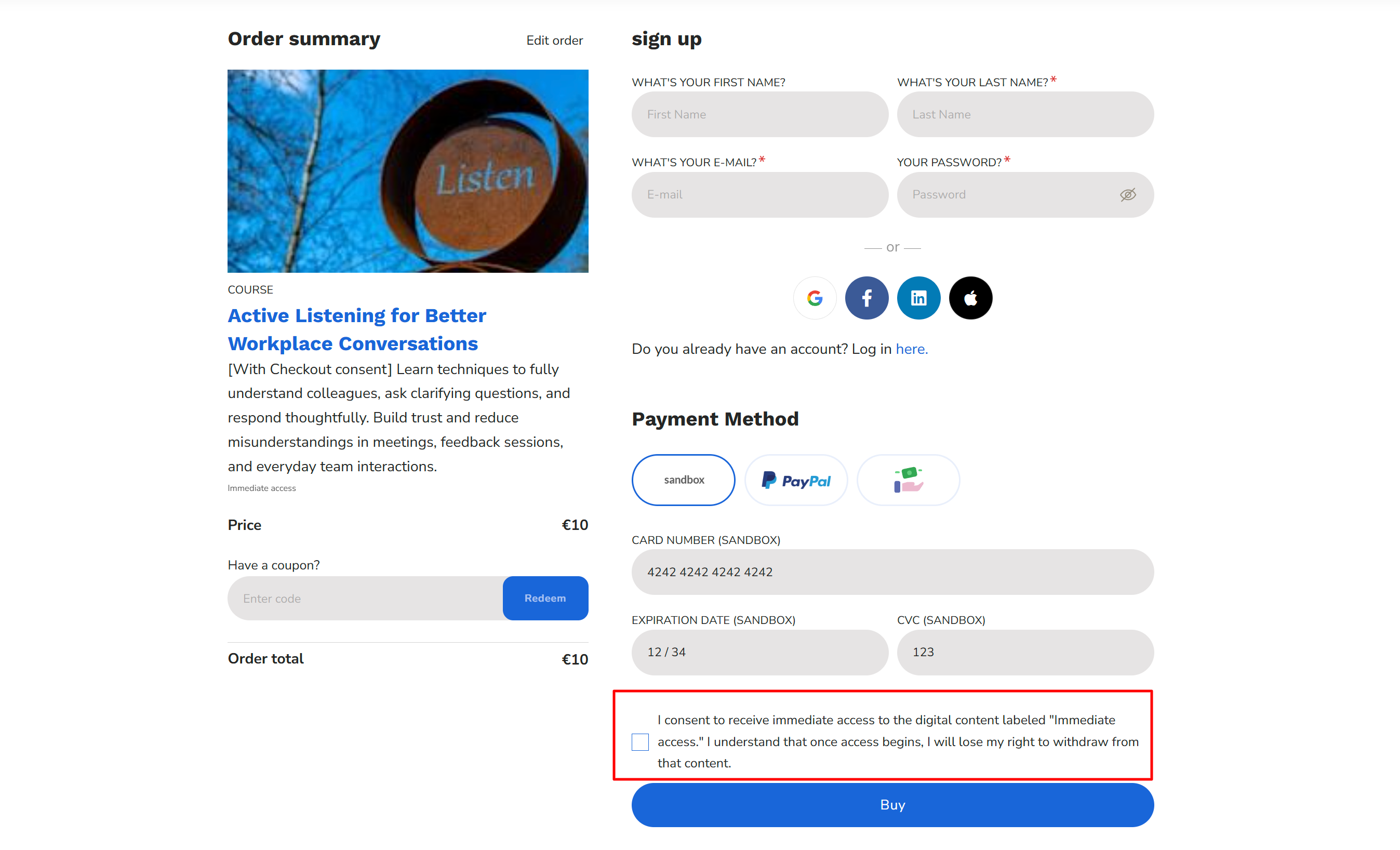
The checkbox is unchecked by default and must be selected before the learner can complete the purchase. If the learner does not accept the condition, the purchase cannot proceed.
- Courses allowing withdrawal requests
When a learner purchases a course configured with Allow withdrawal requests, no additional withdrawal consent checkbox is required.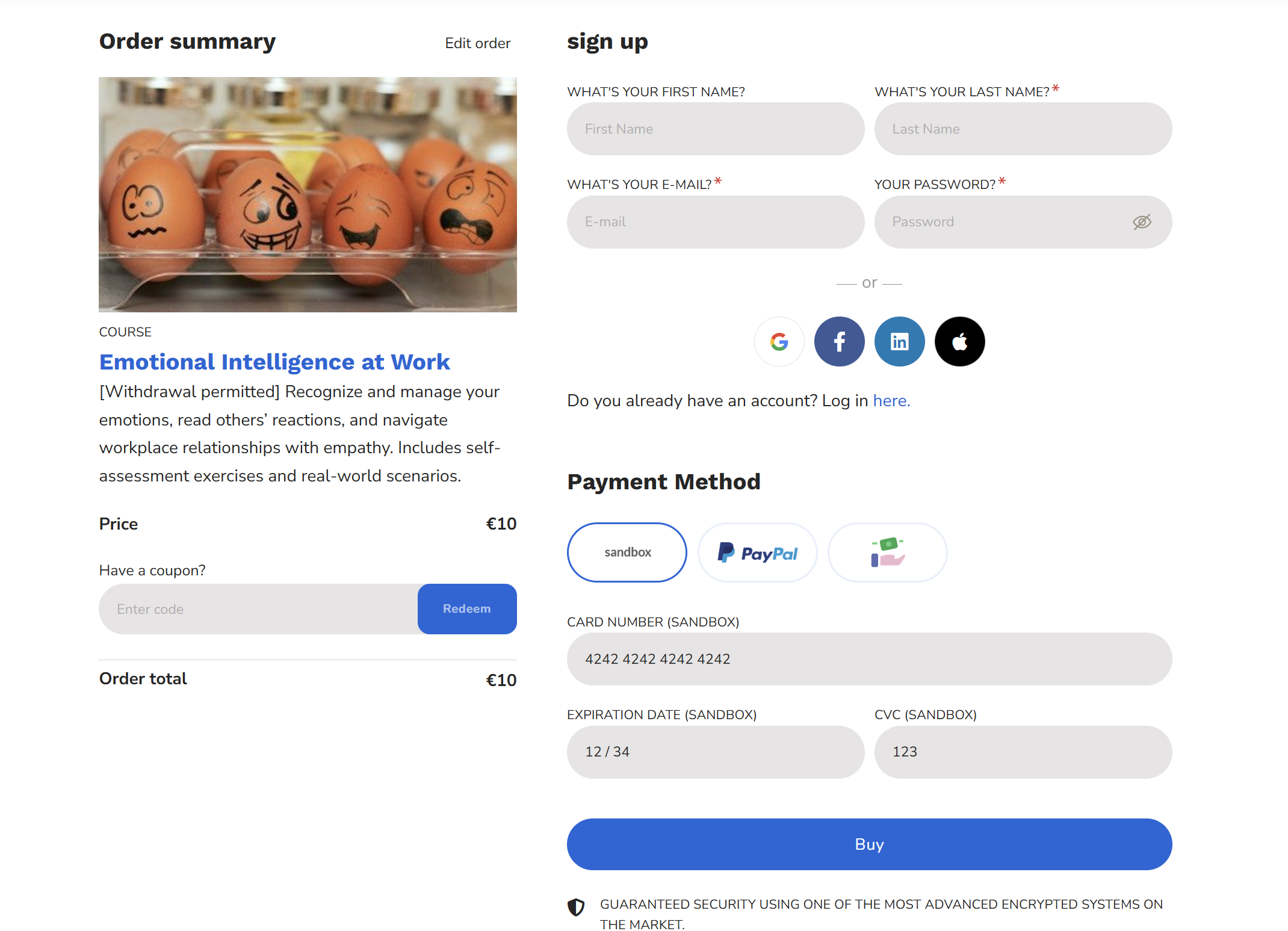
The learner can complete the purchase as usual and request withdrawal afterward, within the applicable period.
- Purchases containing multiple courses
If a cart contains both immediate-access courses requiring consent and courses eligible for withdrawal, the consent checkbox appears at checkout.
The consent applies only to the courses identified as immediate-access content. Other eligible courses retain their withdrawal rights.
How learners request a withdrawal
For eligible purchases, learners can submit a withdrawal request directly from their account.
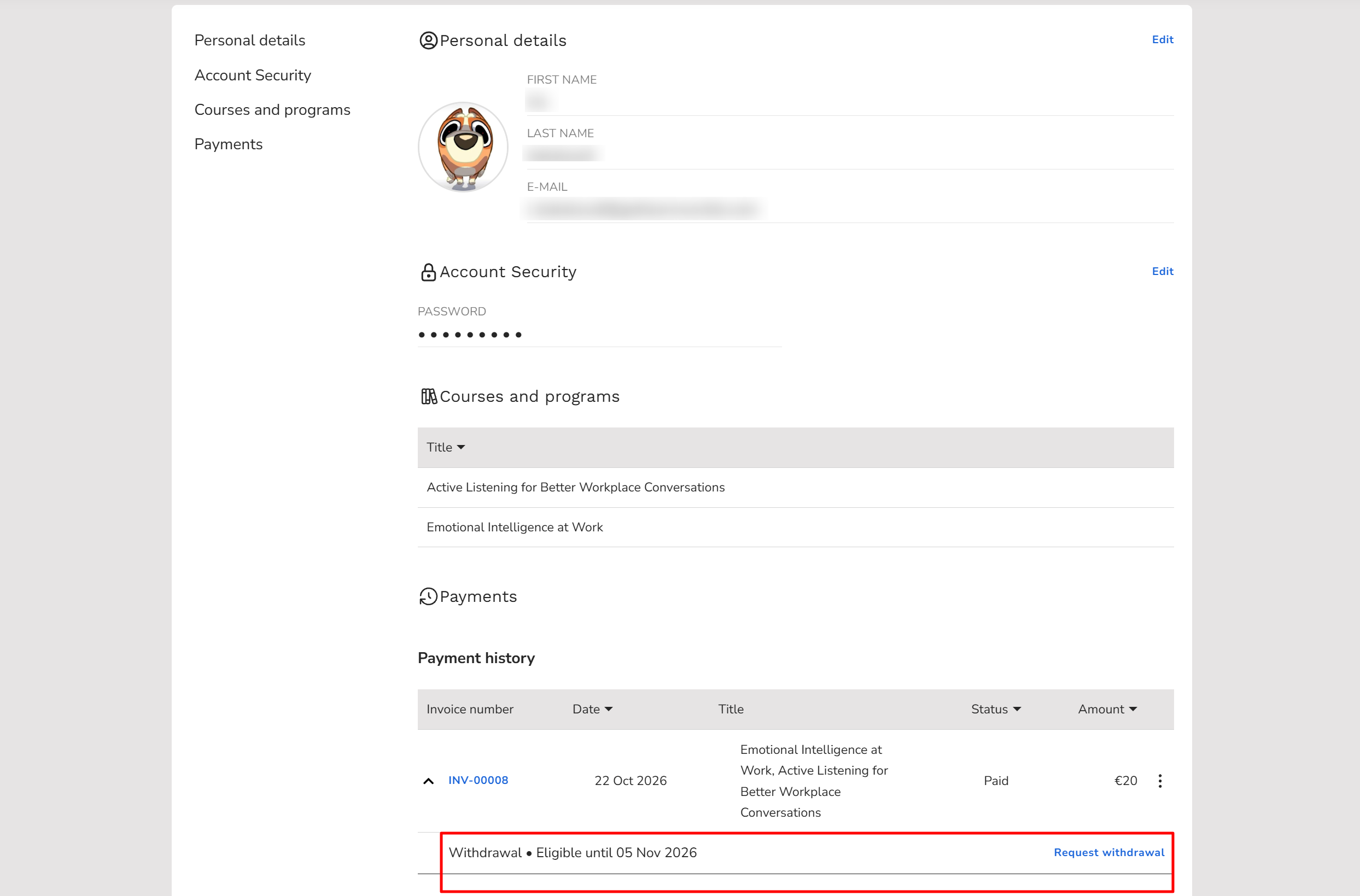
- Navigate to Account → Payments → Payments history.
- Locate the eligible purchase. The withdrawal section displays Eligible until [date].
- Select Request withdrawal.
- Review the purchase details, including the products, purchase date, and withdrawal deadline.
- Select the acknowledgement checkbox to confirm the request details.
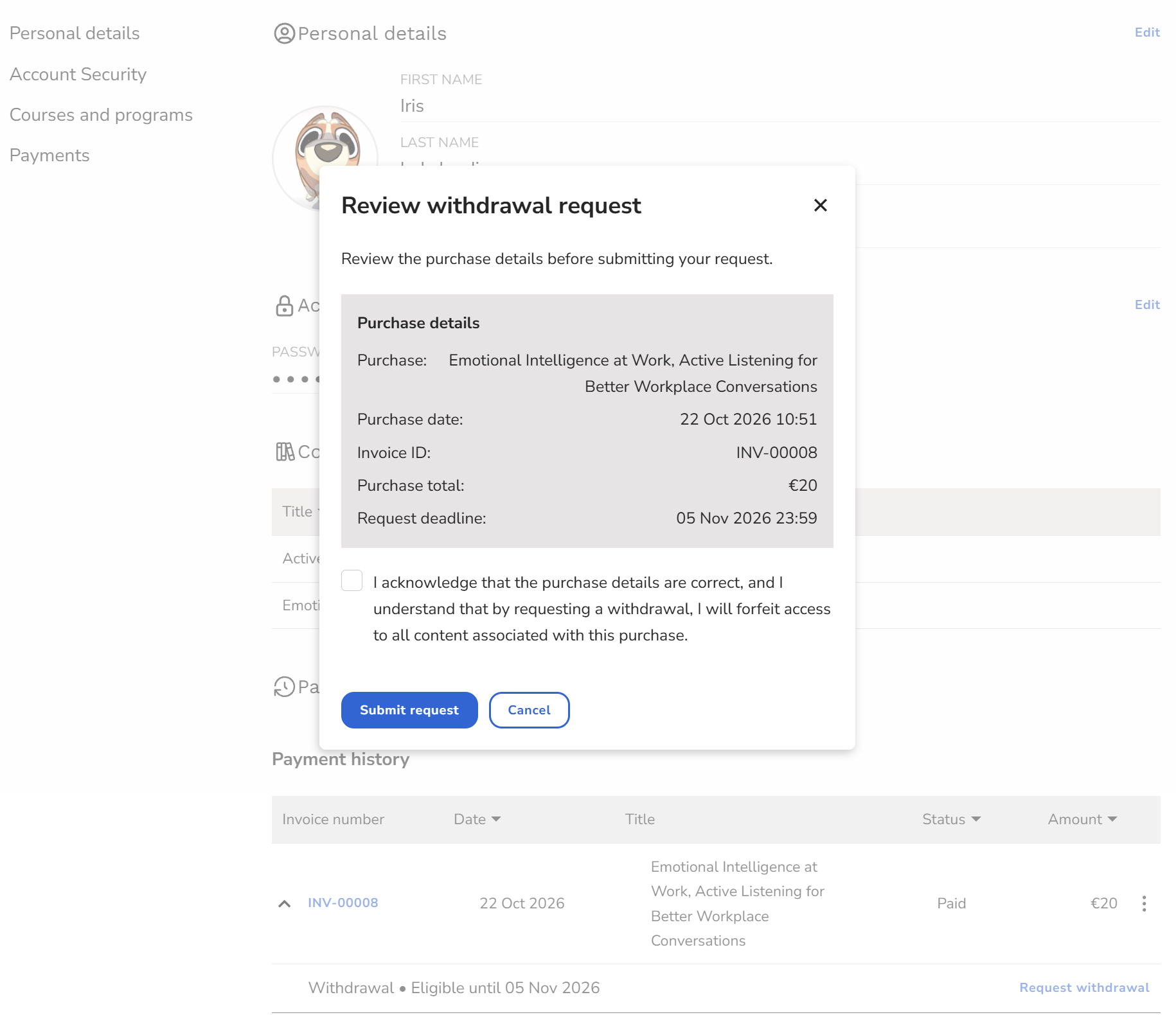
- Select Submit request.
Once submitted:
- The learner receives an email confirming the withdrawal request.
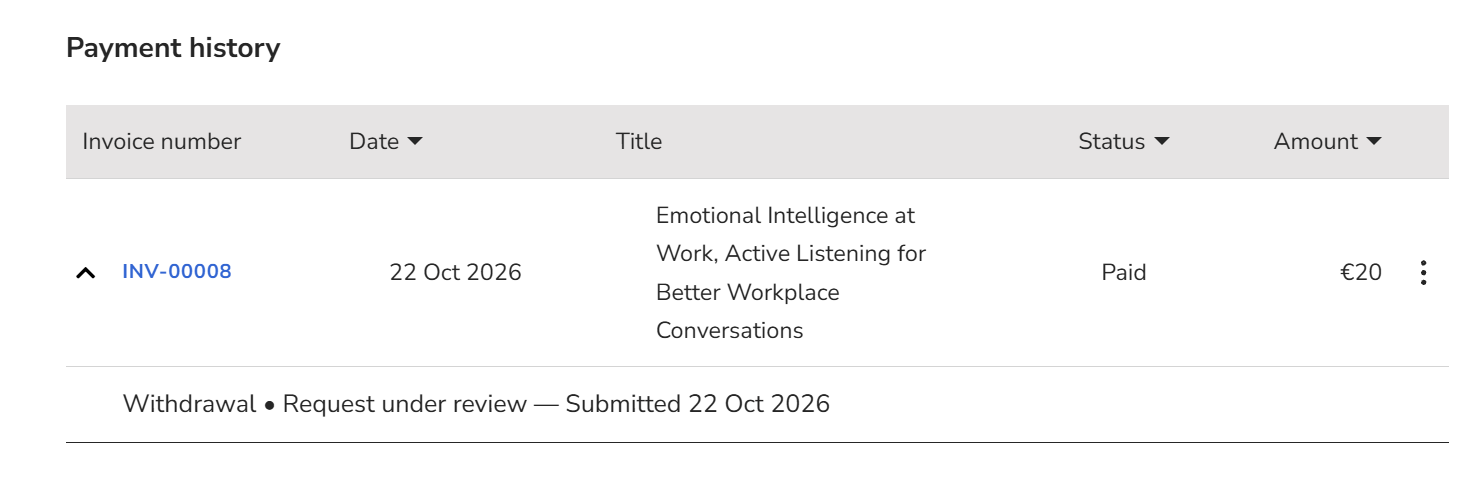
- The withdrawal status changes to Request under review.
- The notification recipients configured in your school settings receive an email about the request.
- The request becomes available for review in the school's payment management area.
Learners can return to their payment history to check the status of their request.
The withdrawal request option is available to the learner for 14 days from the purchase date. After this period, the request link is no longer displayed.Review and manage withdrawal requests
When a learner submits a withdrawal request, you can review and manage it from your school's payment records.
- Navigate to E-commerce → Payments.
- Locate payments with a pending withdrawal request. These payments display a Withdrawal status indicator.
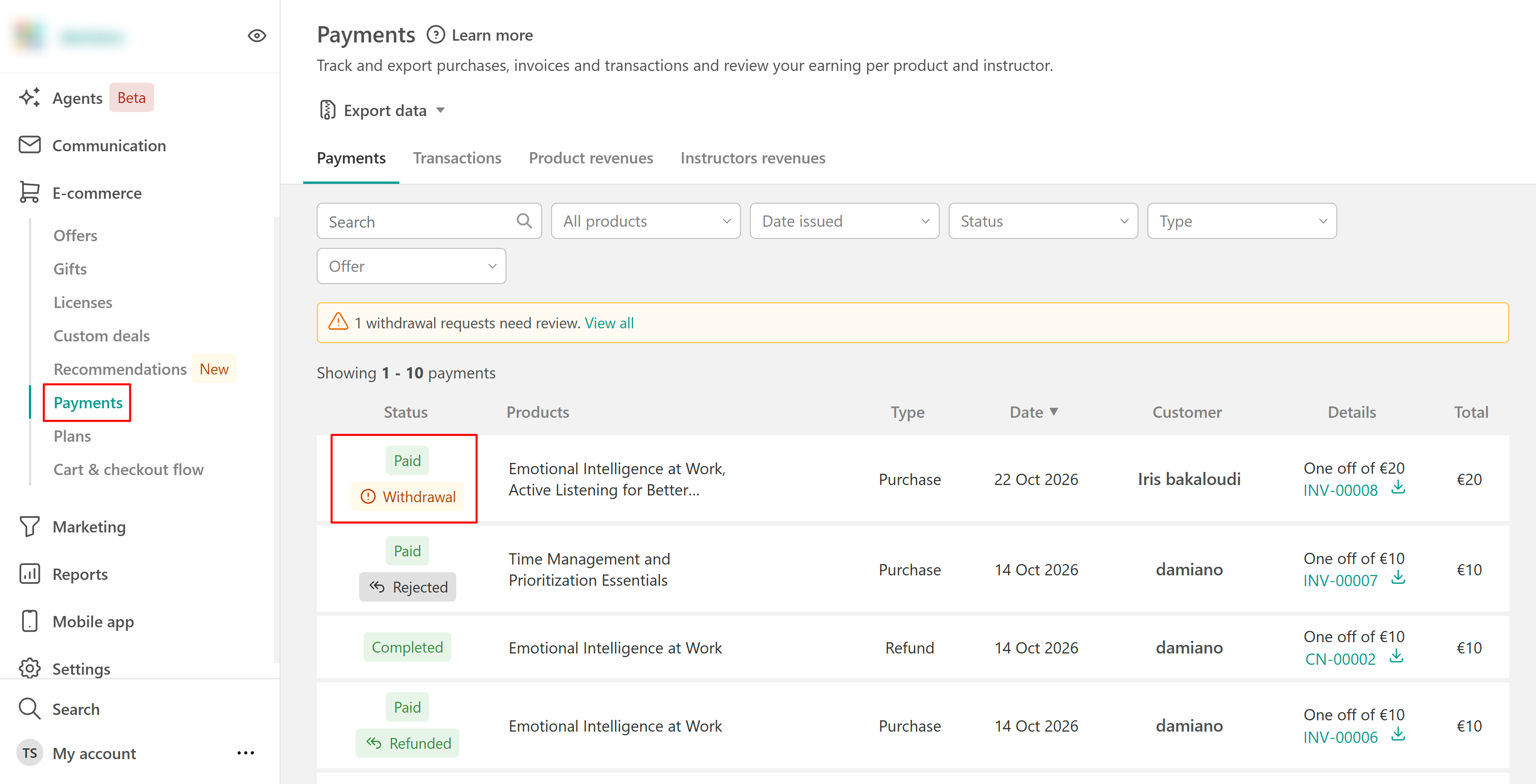
- Use the withdrawal notification banner to view pending requests, or select Withdrawal requested from the status filter.
- Open the relevant payment and select Review withdrawal.
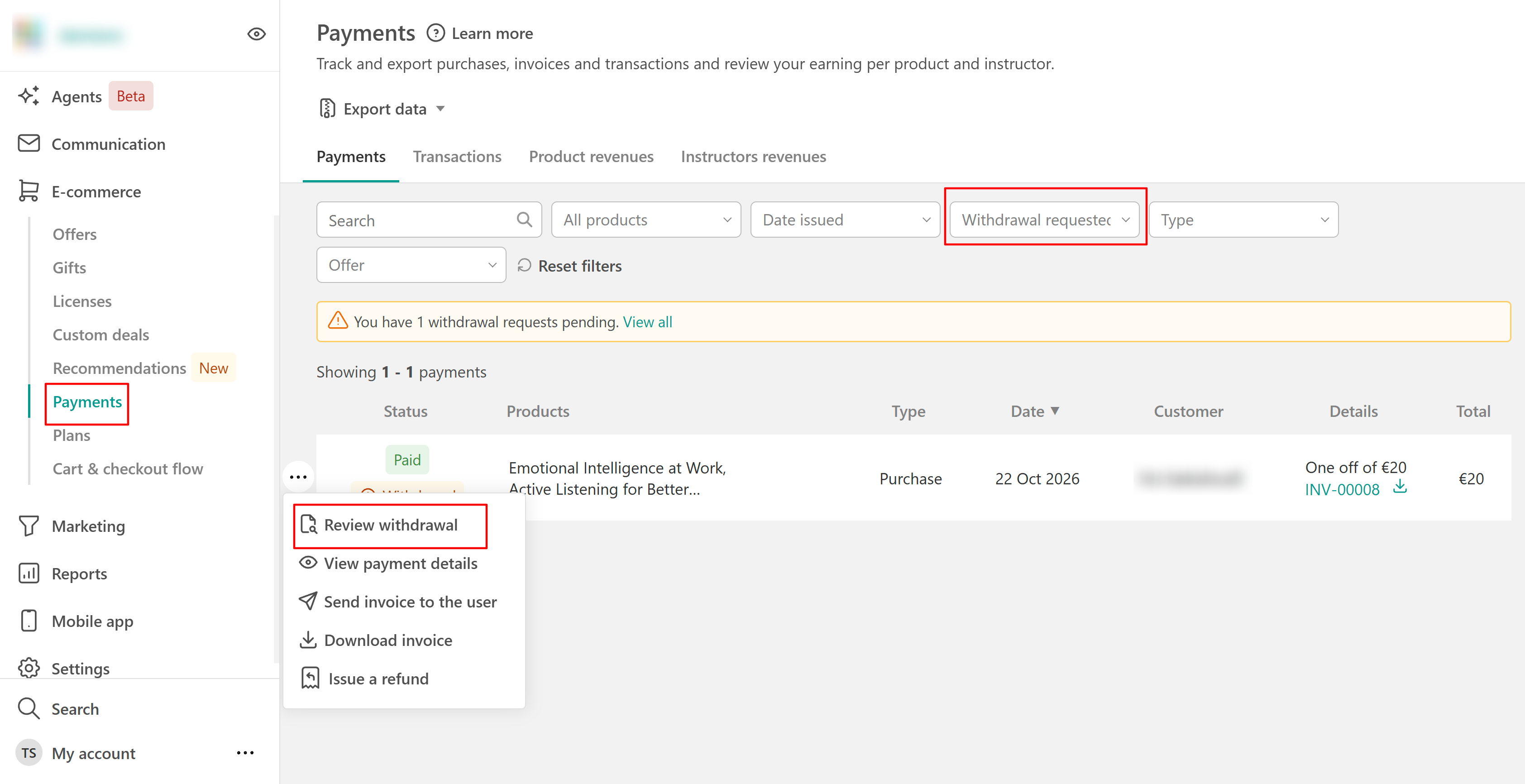
The withdrawal details include information about the purchase, learner, submission date, and products covered by the request.
Resolve a withdrawal request
After reviewing the request, select one of the available actions.
- Approve: Accept the withdrawal request and process or record the refund. Access to the refunded content is revoked when the refund is completed.
- Reject: Decline the request and provide a reason. The learner can review the rejection reason from their account and retains access to the content.
- Resolved externally: Record a withdrawal request that has already been handled outside LearnWorlds, such as through a manual refund or offline agreement.
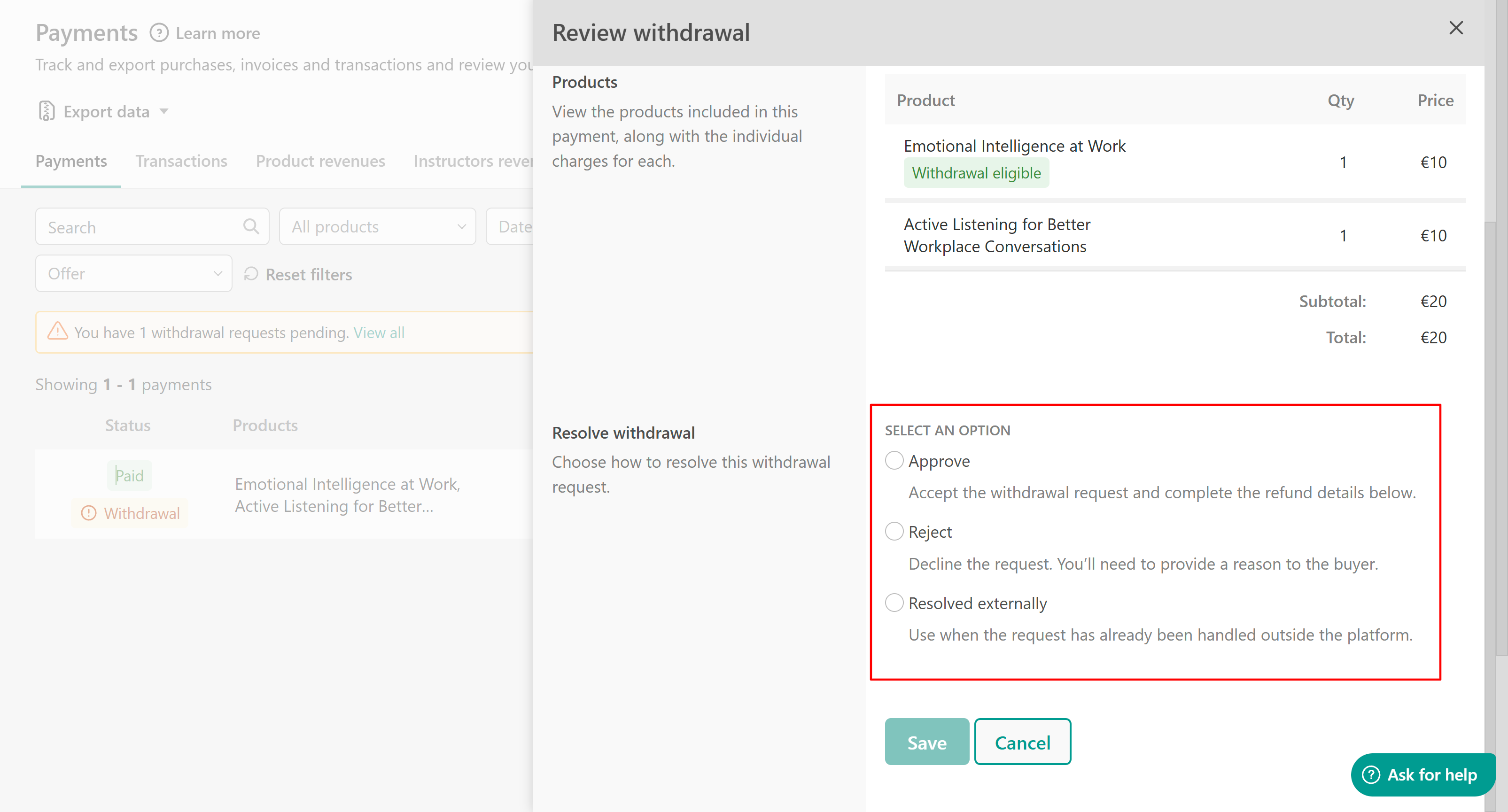 Approve a request
- Select Approve.
- Choose the refund method, either the original payment method or a manual refund.
- Add internal notes if needed.
- Confirm the action.
Once the refund is successfully completed, the payment record is updated, the refund is recorded, and access to the refunded content is revoked.
Reject a request
- Select Reject.
- Enter an explanation in Notes on rejection.
- Confirm the action.
The learner can view the rejected request and select Review rejection reason from their payment history.
Mark a request as resolved externally
If you've already handled the request outside LearnWorlds, select Resolved externally and add internal notes describing how the request was handled.
This allows you to keep a record of the resolution alongside the original payment.
Monitor withdrawal statuses
You can track the status of each withdrawal request from the payment details. Learners can also review the relevant status in their payment history.
| Status | Meaning |
|---|---|
| Eligible | The purchase is within the withdrawal period, and the learner can submit a request. |
| Waived | The learner accepted the checkout consent for immediate-access content. |
| Expired | The withdrawal period has ended without a request. |
| Requested | The learner submitted a withdrawal request that is awaiting review. |
| Refunded | The request was approved, and the refund was recorded. |
| Rejected | The administrator rejected the request. |
| Resolved externally | The request was handled outside LearnWorlds. |
| Not applicable | The withdrawal rules do not apply to the purchase. |
Review withdrawal activity and records
LearnWorlds records withdrawal-related actions to help you track how each request was handled. These records include checkout consent, withdrawal submissions, administrator decisions, refund outcomes, and access changes.
To review withdrawal activity, open your school's Activity log and use the dedicated withdrawal-related filter.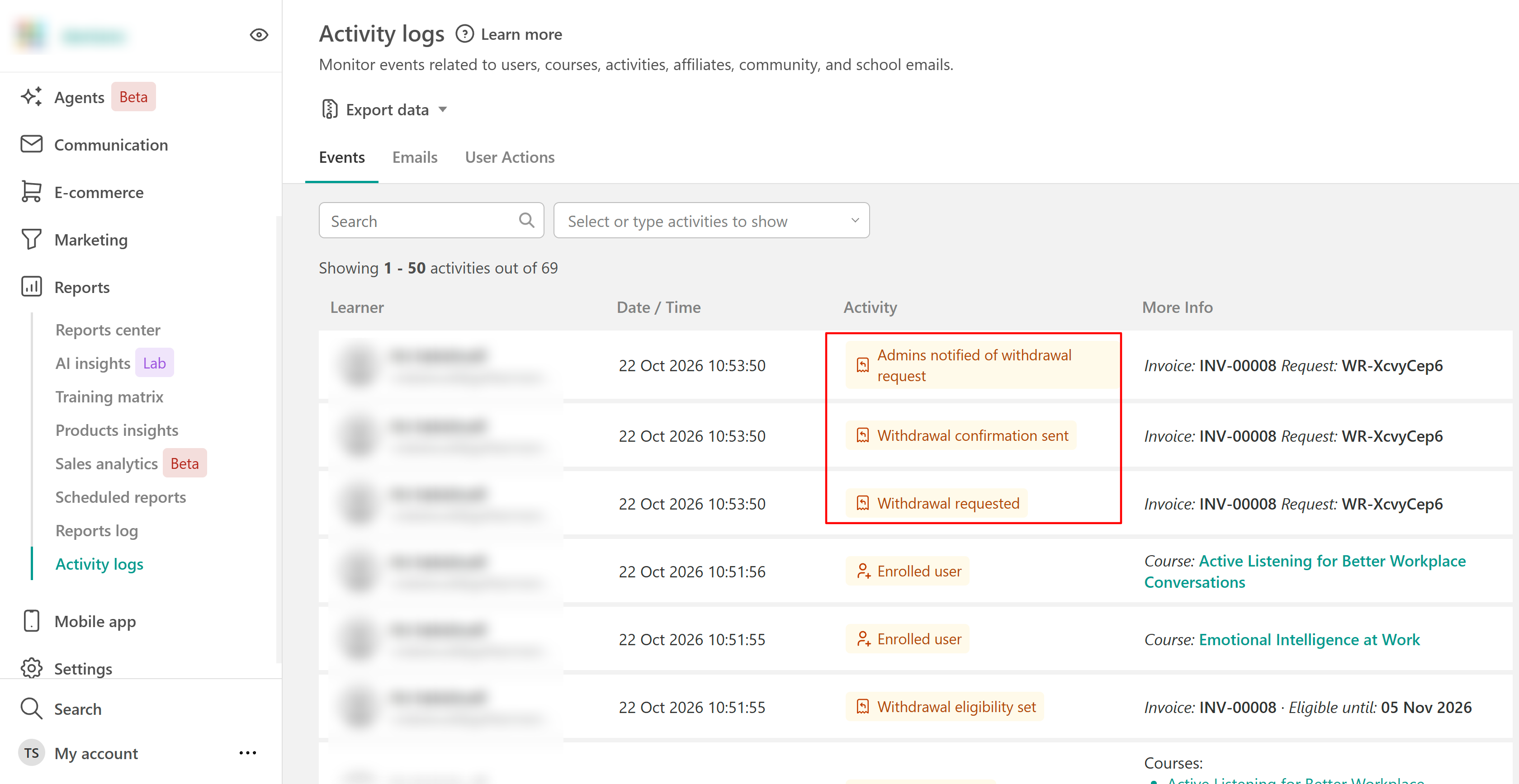
You can also open the relevant payment details to review the request history and its final outcome.
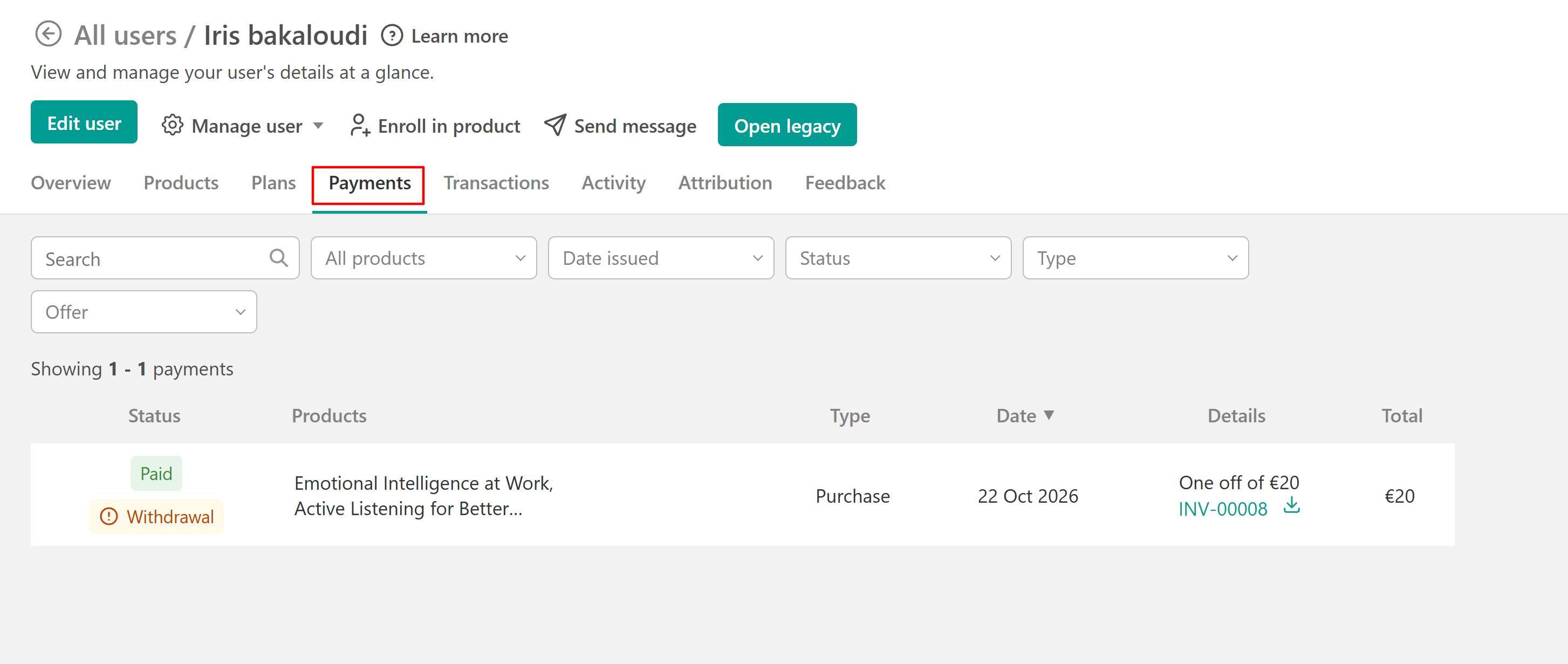
These records help you maintain a history of withdrawal-related actions for administrative and auditing purposes.
Important notes
- Withdrawal period: Eligible learners can submit requests within 14 days of purchase.
- Business purchases: The consumer withdrawal right does not apply to purchases identified as business purchases.
- Refunds and access: Approving a request and completing the refund revokes access to the refunded content. Rejecting a request does not affect access.
- Failed actions: If a refund or access revocation fails, the event is recorded, and the administrator may need to complete the action manually.