
The Profile page is the learner’s personal identity page inside your school. It allows learners to view their own information and, when permitted, access other learners’ profiles, functioning primarily as a social profile page. This feature brings value by helping create a more social and personalized learning experience, allowing users to showcase their activity, achievements, and presence within your school.
For administrators, the editable Profile page provides flexibility to control what information appears, how it looks, and which sections learners can access, while also acting as a channel for inspiration among learners.
Here are some ways schools can use the learner profile page:
- Show learner identity information, such as name, avatar, and role in the school.
- Display learning achievements, including completed courses and certificates.
- Highlight community activity, such as the learner’s latest posts.
- Allow learners to showcase their learning journey, including programs and courses they participate in.
- Enable peer discovery, where learners can view other users’ profiles and interact through community features.
In this article, we will learn how to access, customize, and enable the learner profile page in your LearnWorlds school.
Enable or disable the profile page
To activate the profile page, navigate to Settings → Learning Apps → Apps Configurator, navigate to the Profile app, and toggle the setting ON to enable it or OFF to disable it.
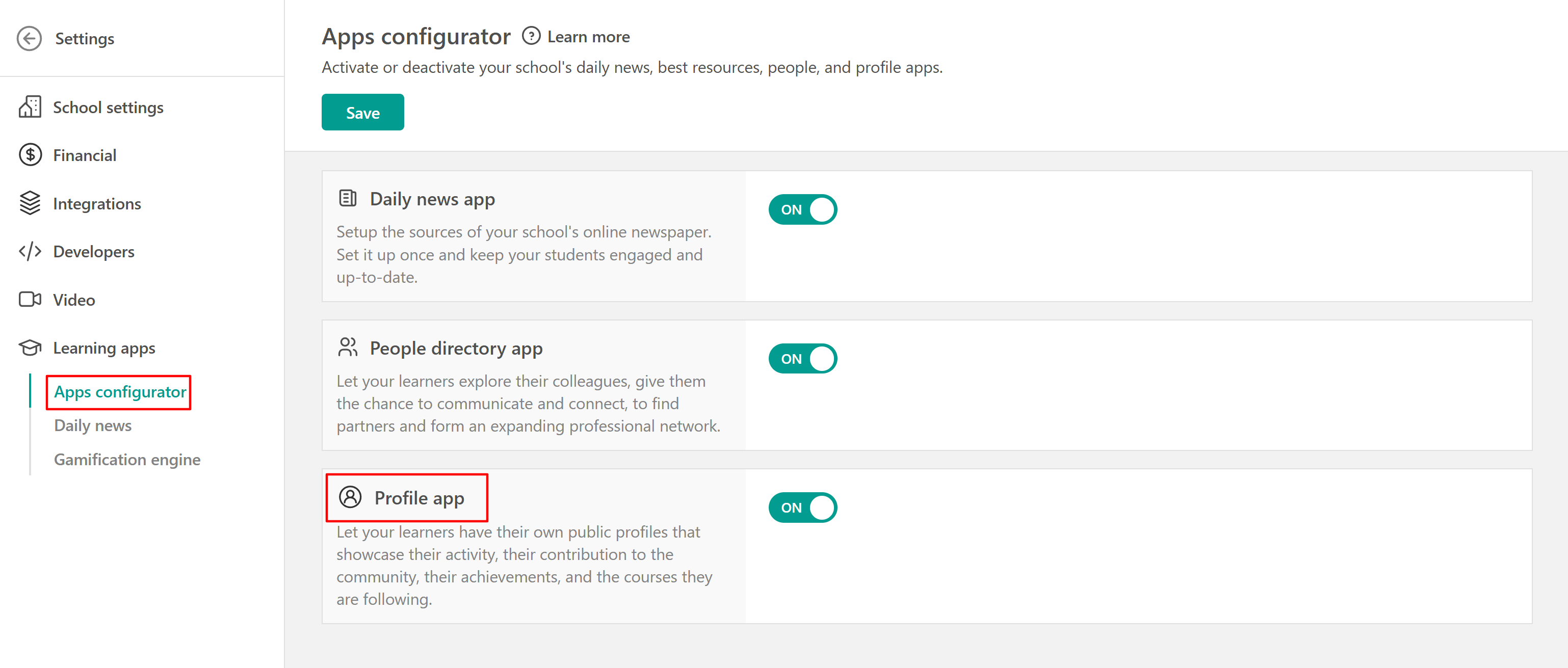
Profile page options
To access the profile page, navigate to Website → Design, click on Edit website, and select the profile page under the System pages.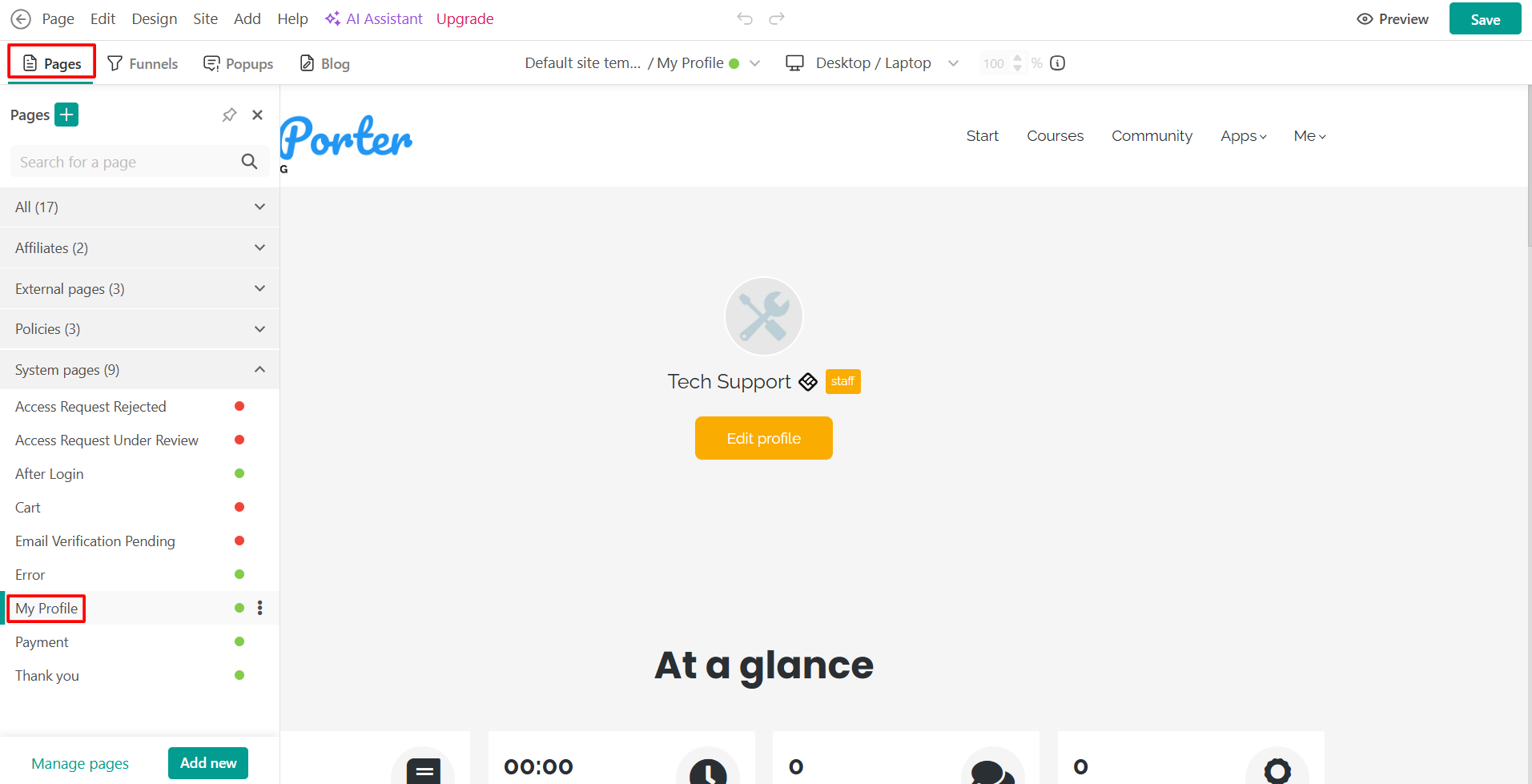

As a system page, My Profile comes with a default layout. However, you can customize it using any available sections to turn it into a learner hub or any other section available. You can explore additional sections, such as Courses, Progress, Grades, Certificates, and Events, that display learner data and help create a more structured and organized learning experience in this article.
When accessing the My Profile page, you will see the following sections available for customization:
User Info
The User Info section displays the learner’s identity card and provides a quick overview of who the learner is within your school.
This section always displays the learner’s display name when it is enabled. You can also choose to include additional fields such as the learner’s avatar, badge, role label, email address, and a call-to-action button. If a learner has not uploaded an avatar image, the system automatically displays a placeholder image instead.
When learners view their own profile, they can access the Edit option, which redirects them to My Account to update their personal information. When another learner views the profile, the page becomes read-only, and certain actions may be limited depending on your configuration.
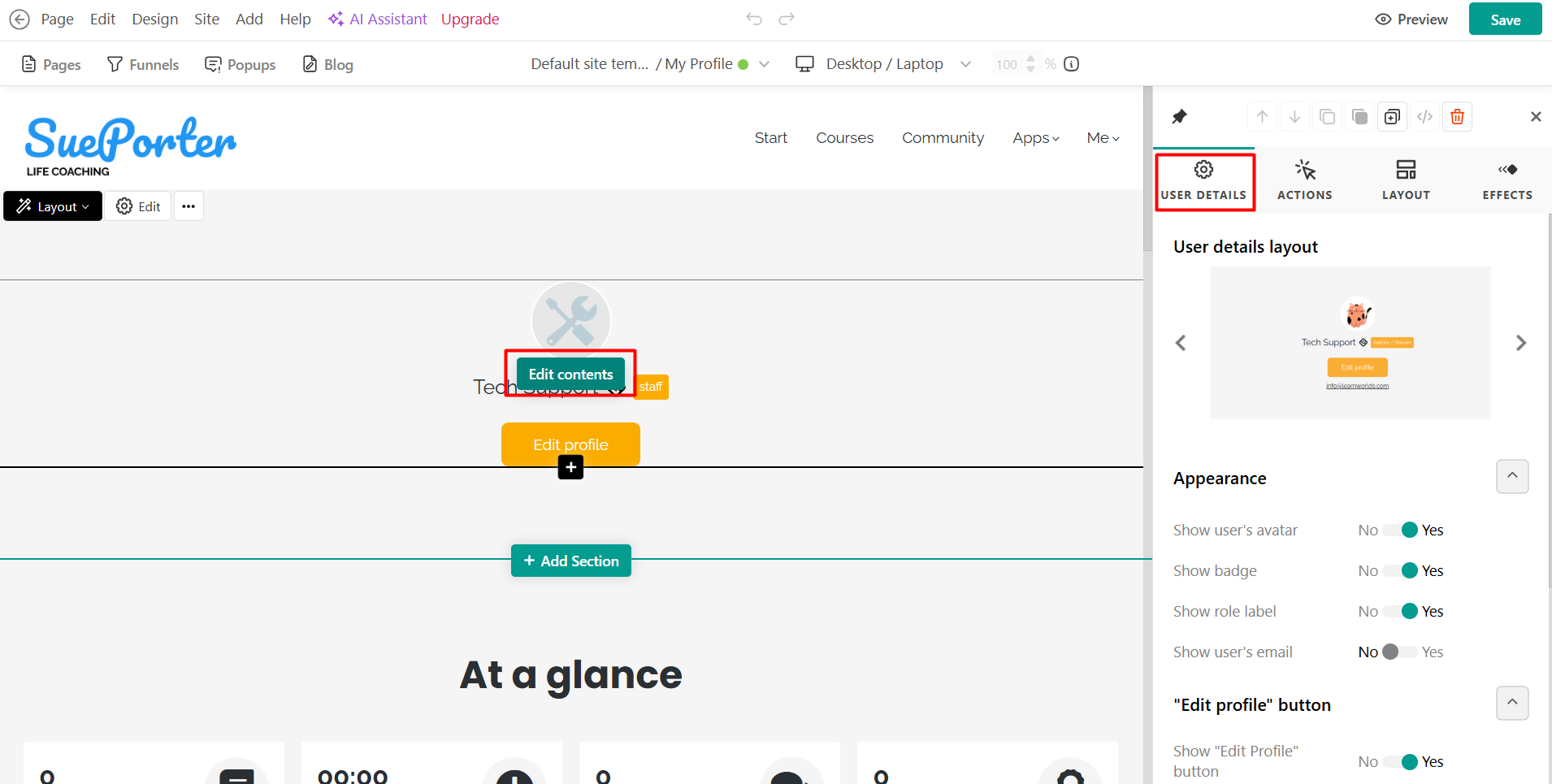
Click on Edit content and select the section layout, appearance (show avatar, badge, role label, and user's email), and edit the profile button, under the User details.
Profile Stats
The Profile Stats section shows a summary of the learner’s activity inside your school through a set of counters. By default, the following statistics are displayed:
- Courses
- Hours
- Posts
- Certificates
Click on Edit stats to show or hide specific counters, choose an icon, and define the icon color and background color to match your school’s design.
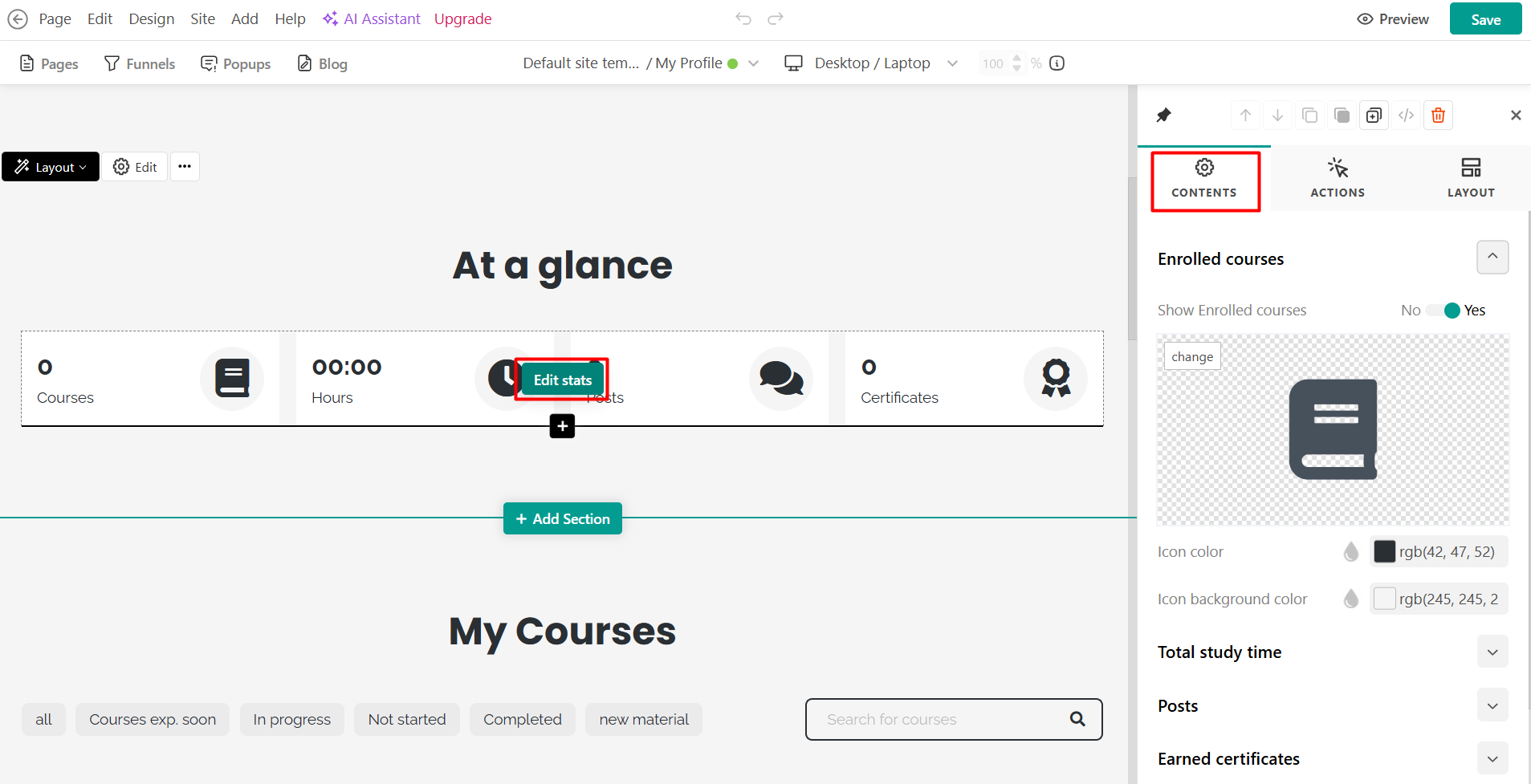
By clicking on the section and navigating to Actions, you can also enable the option to hide the entire section when all counters are zero, keeping the page clean and relevant for learners who have not yet generated activity.
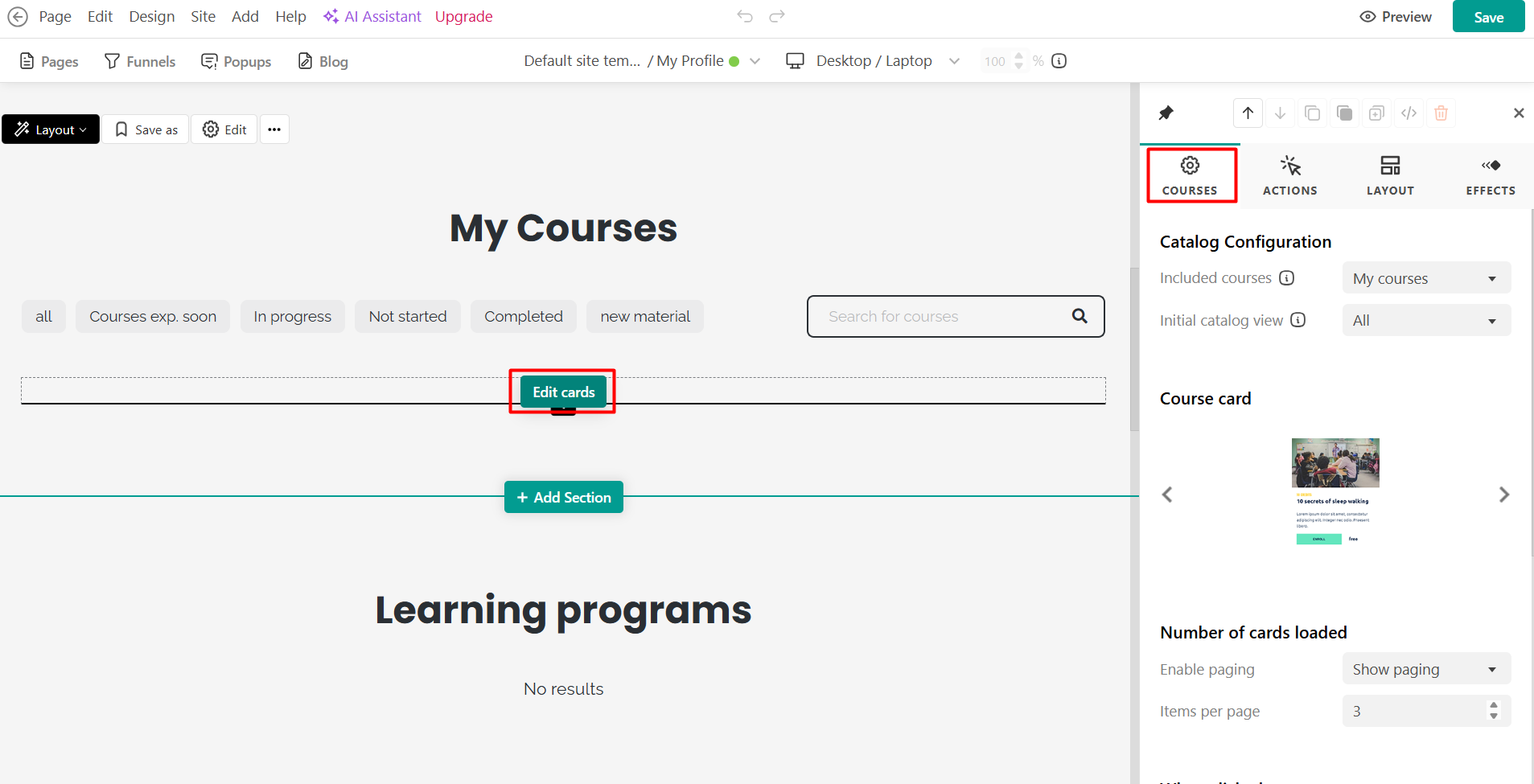
Courses
The Courses section displays the courses associated with the learner. When learners view their own profile, they will see their courses as usual, including their enrollment information and course progress.
When another learner views the profile, the courses displayed belong to the profile owner, but some information is simplified. In this case, the progress bar and price information are hidden, and the call-to-action button changes to View course.
Options:
- Click Edit cards to choose the courses included (in catalog search) and initial options (appear as default), select the cards layout and appearance, edit the number of cards loaded, options when clicked, and the continue button.
- Choose the filters you wish to showcase between:
- All
- Courses that will be expiring soon
- In progress
- Not started
- Completed
- New material (drip feed courses)
- Search term
- To control whether the section appears when there is no data for a user, click on the section Actions and toggle Empty section visibility.
Learning Programs
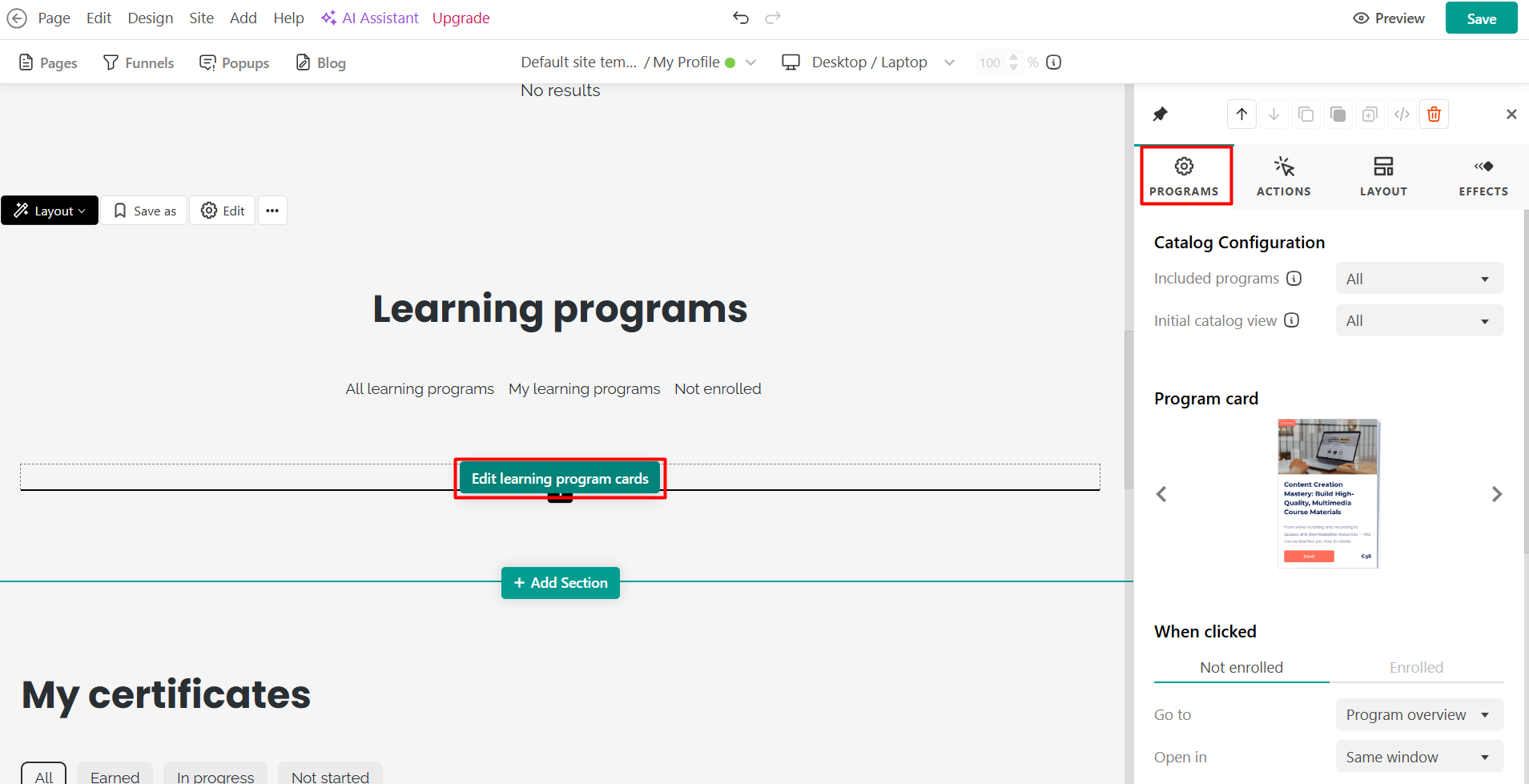
The Learning Programs section displays the programs that the learner is enrolled in. When learners view their own profile, they can see their programs along with their progress and related details.
When another learner views the profile, the programs still appear, but with limited information. In this case, elements such as the progress bar, price, and subscription tags are hidden, and the call-to-action changes to View program.
Options:
- Click Edit learning program cards to choose the courses included (in catalog search) and initial options (appear as default), select the cards layout and appearance, edit the number of cards loaded, options when clicked for not enrolled and enrolled users, and the enroll button.
- Choose the filters you wish to showcase between:
- All
- My programs
- Not enrolled
- To control whether the section appears when there is no data for a user, click on the section Actions and toggle Empty section visibility.
Certificates
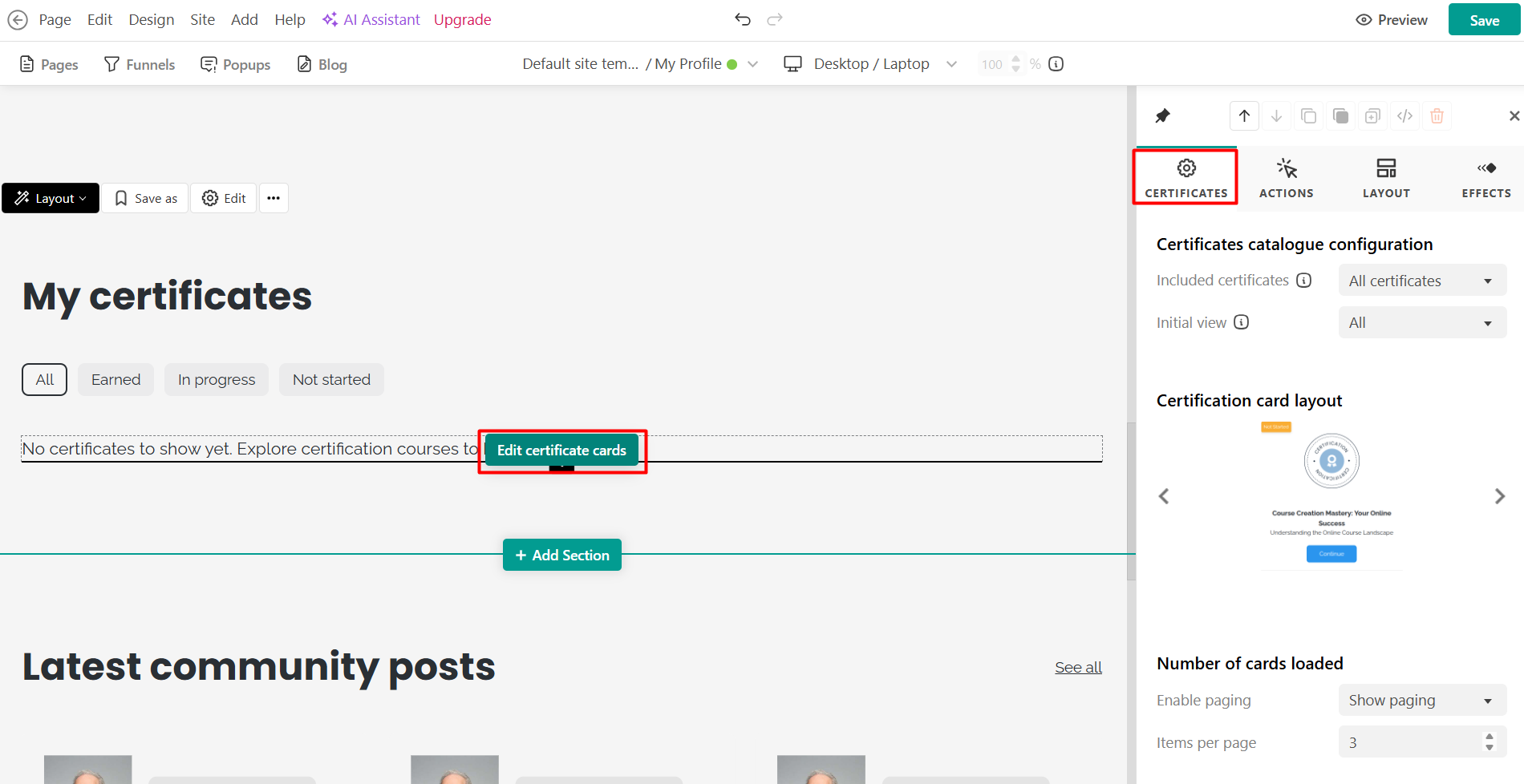
The Certificates section displays certificates that the learner has earned from completed courses. When learners access their own profile, they can interact with their certificates normally, including options to download or share them.
When another learner views the profile, these options are removed. Instead, selecting a certificate will redirect users to the related course page, and the call-to-action will display View course.
Options:
- To control whether the section appears when there is no data for a user, click on the section Actions and toggle Empty section visibility.
- Click on Edit certificate cards to configure the:
- The included certificate view and initial view
- Certificate card layout, appearance, and image.
- Number of cards loaded
- Select the display filter (all earned, in progress, and not started yet)
- Customize the card and load more buttons.
- Share actions (allow to share to Facebook, X, and LinkedIn).
Community posts
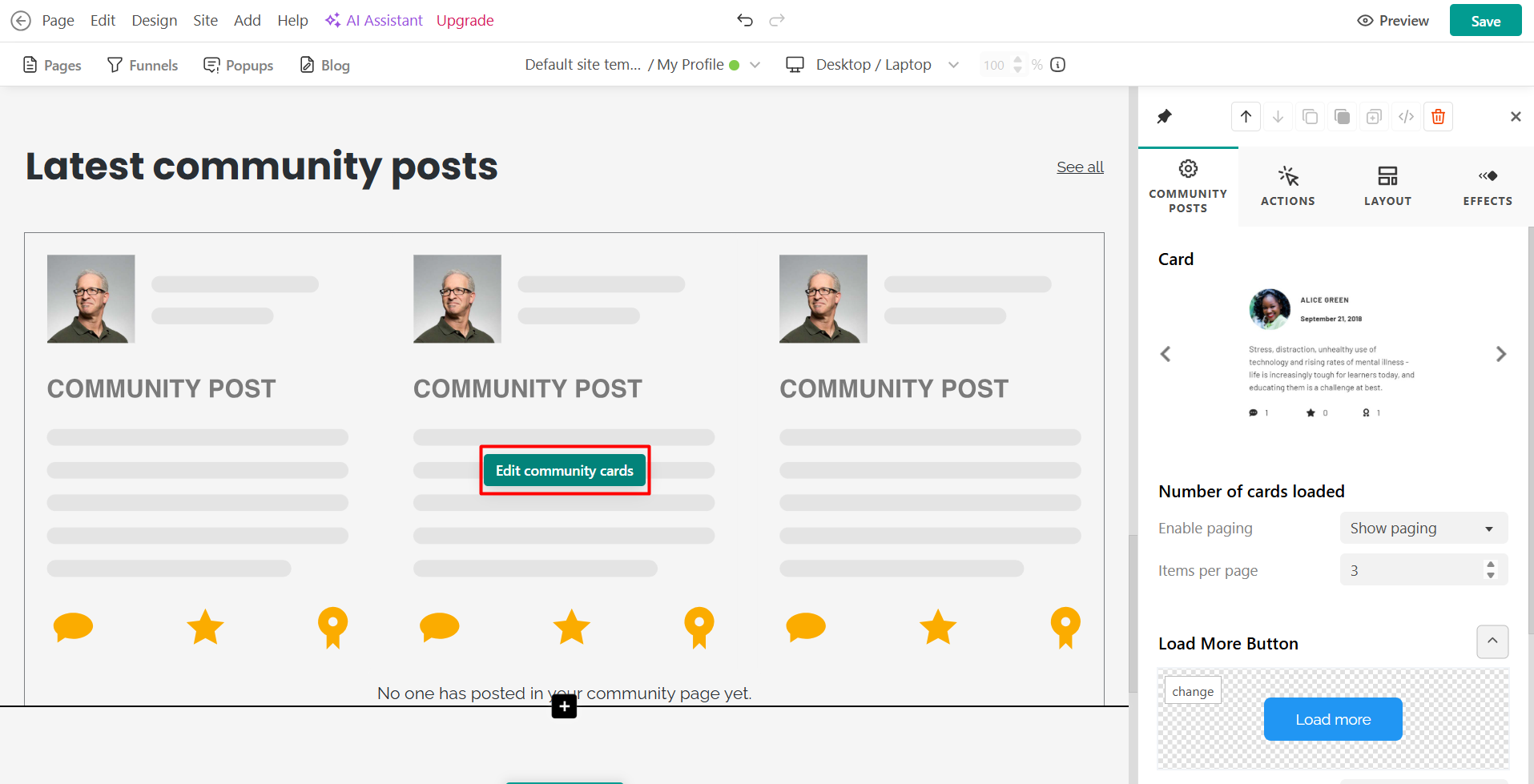
The Community posts section displays the learner’s most recent activity in your school’s community.
This section shows posts created by the profile owner, sorted by the most recently modified. It helps highlight the learner’s participation and engagement within discussions.
Depending on your community settings, visitors to the profile page may still be able to like, comment, or share posts, unless these interactions are restricted by broader community rules.
Click on Edit community cards to customize the layout, number of cards loaded, and the load more button.
Sections categorized under “My Profile” in the library are the only ones that can display other learners’ data, and they are exclusively available for use on the Profile page. Any additional sections added will display only the logged-in learner’s information or generic content.
Profile page learner view and make accessible
The Profile page can be accessed directly through its system URL or through your site's navigation once it is added there. When a learner opens the page:
- Self-view: Learners see their own information and can edit profile details through My Account.
- Other learner view: Learners can view another user’s profile in read-only mode, with limited actions available.
The page automatically loads information related to the profile owner, ensuring the correct learner data is displayed.
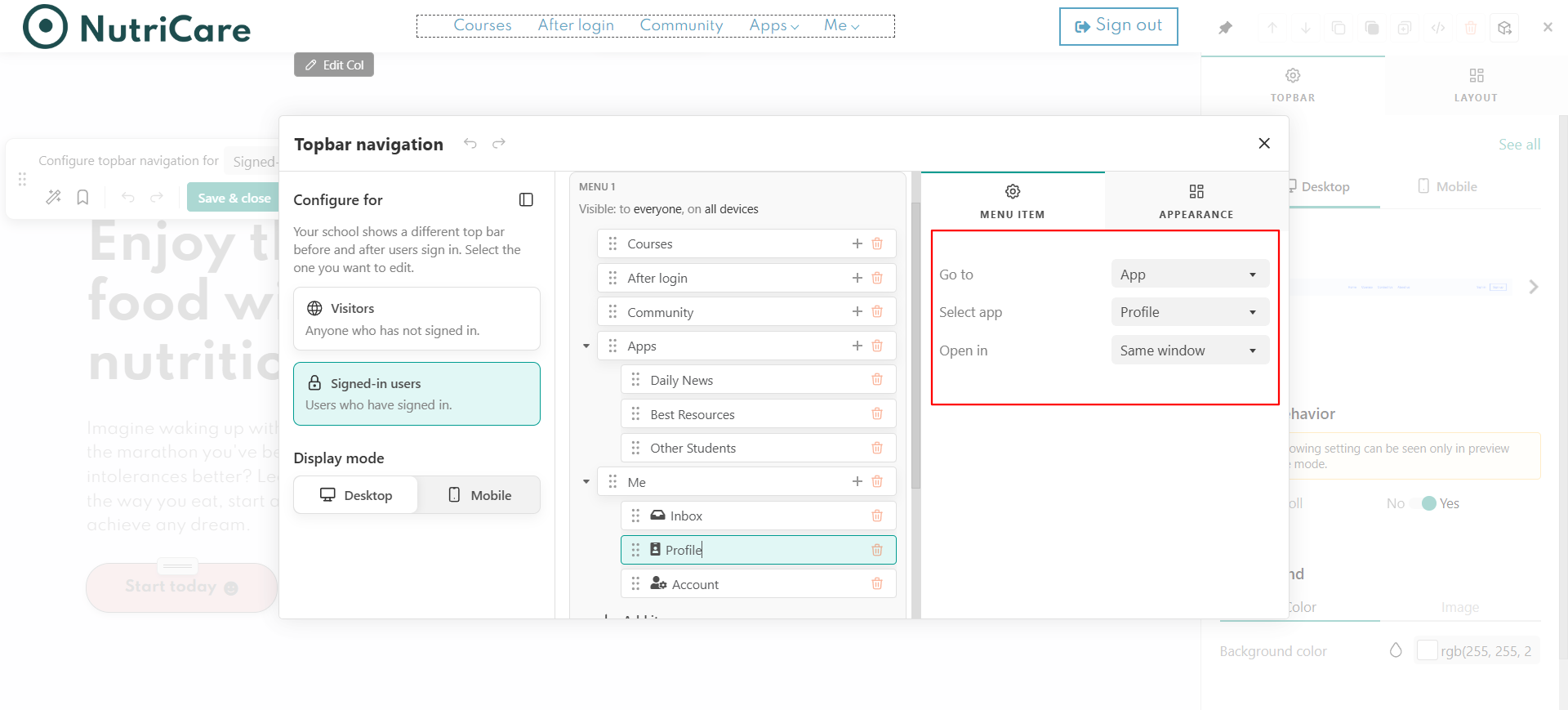
To add the Profile page as an option at the topbar, click on the topbar navigation menu and click edit menu:
- Use one of the pre-ready After login topbar links.
- Create a new link by following the steps here. Make sure to choose the Apps → Profile as an on-click option.
Migrate to the new editable profile page
If you cannot see or edit the My Profile page, it means your school is currently using the older version. You will need to enable the new version manually. To do this:
1. Navigate to Settings → Learning apps → Apps configurator.
2. Enable the Profile page (if not already enabled).
3. Click on Enable new version.
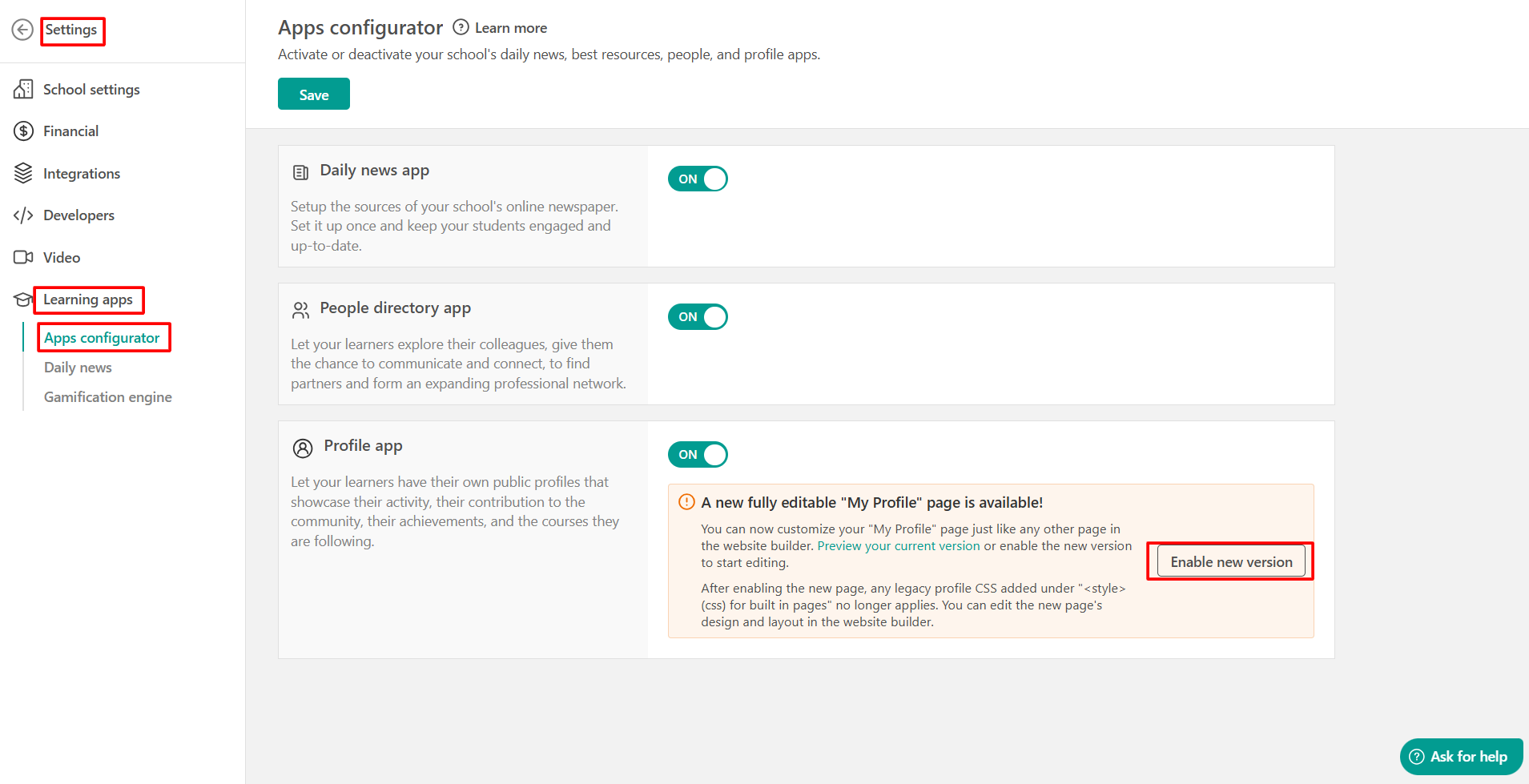
After enabling the new page, any legacy profile CSS added under "<style> (css) for built-in pages" no longer applies. You can edit the new page's design and layout in the website builder.