
In LearnWorlds, you can specify whether users can sign in/up to your school through their Social Media accounts. Social Login makes it much easier for your potential students to Sign up for your school, as it minimizes the obstacles of creating new usernames and passwords, allowing them at the same time to use their existing social media accounts.
In this article, we will learn how to activate the Social Logins and also how to white-label the process so that the learners see your brand when they select to sign up with their social media account and are redirected to authorize access to their account.
To activate the Social logins:
1. Go to Website settings → Authentication → Social.
2. You can add all the available options or just a couple of them and re-order the way that they appear in your Sign in/up form.
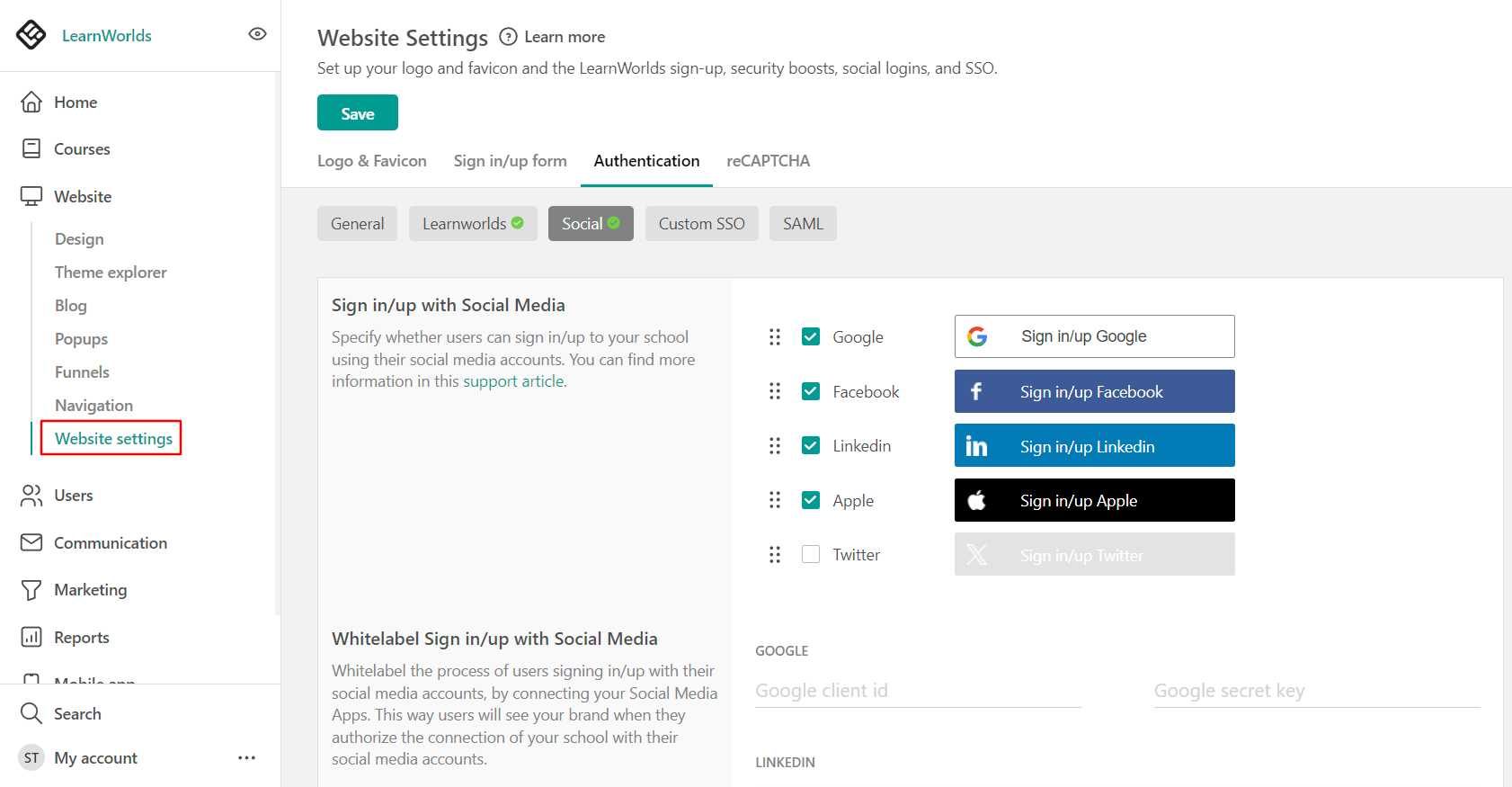
 By default Google, Facebook, and LinkedIn Social logins are enabled. You can navigate to the Social tab to enable/disable your selected Social login or even change the order in which they appear.
Where will users be redirected when Signing Up through a Social Login?
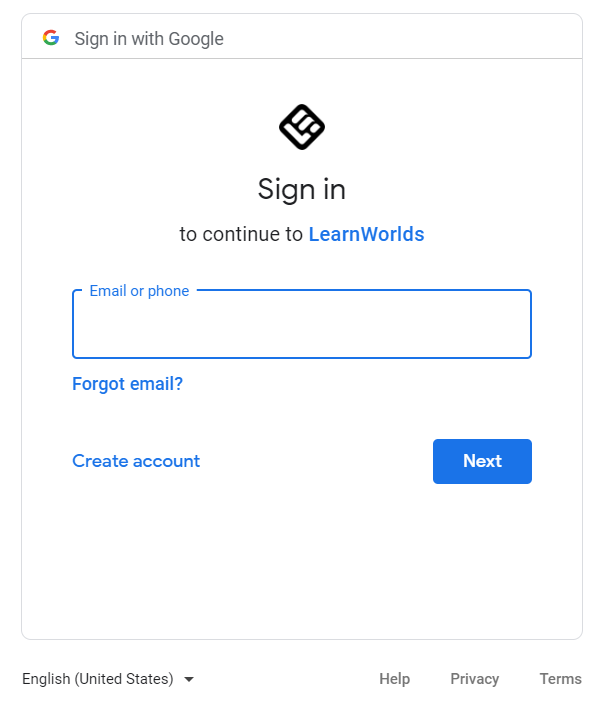
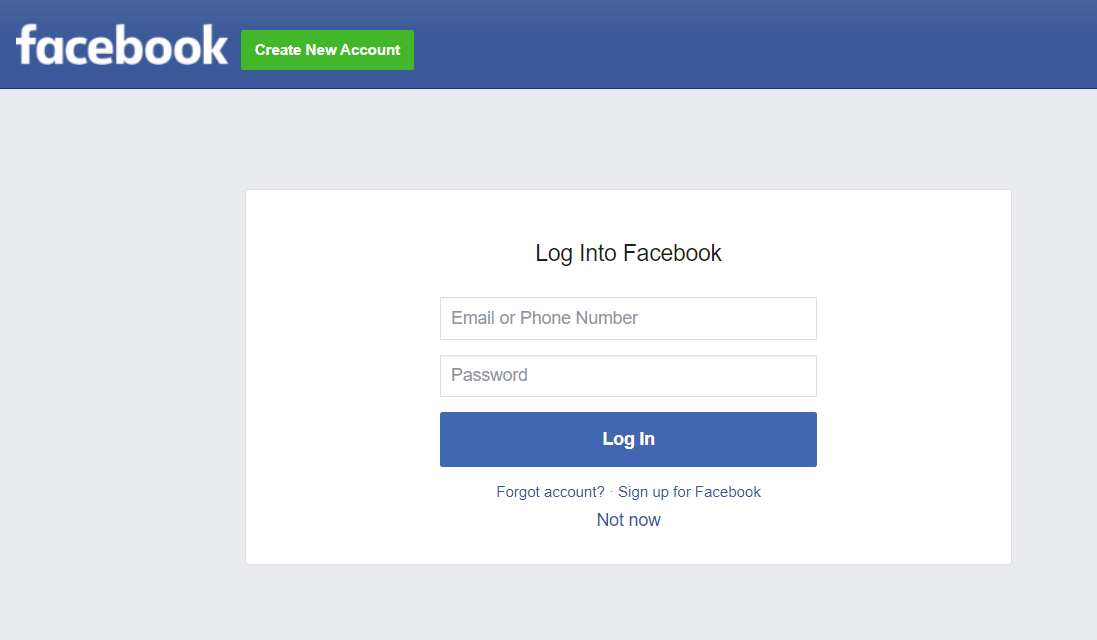
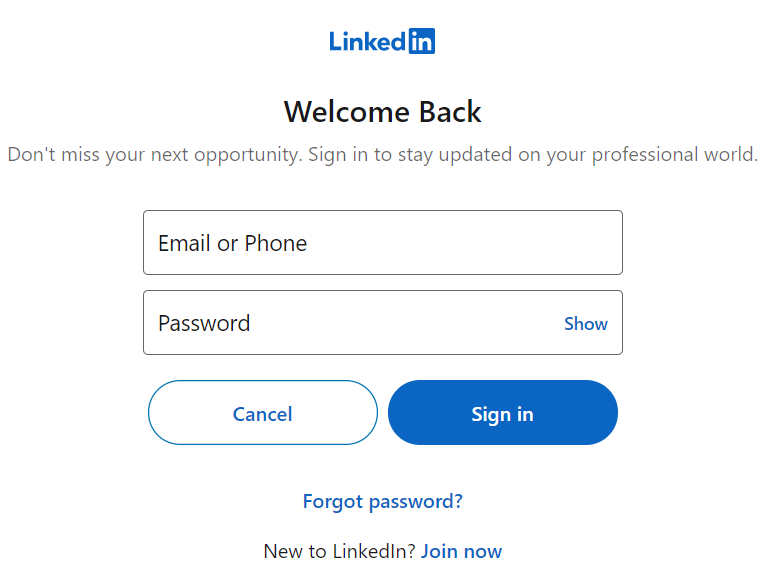
Apple
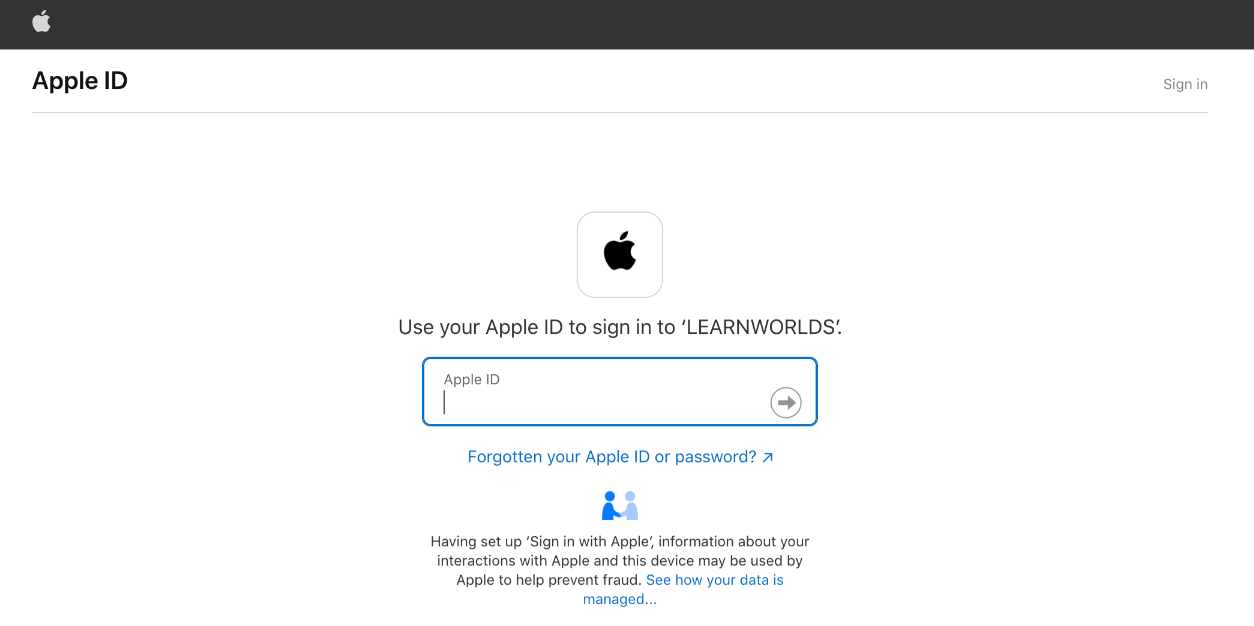
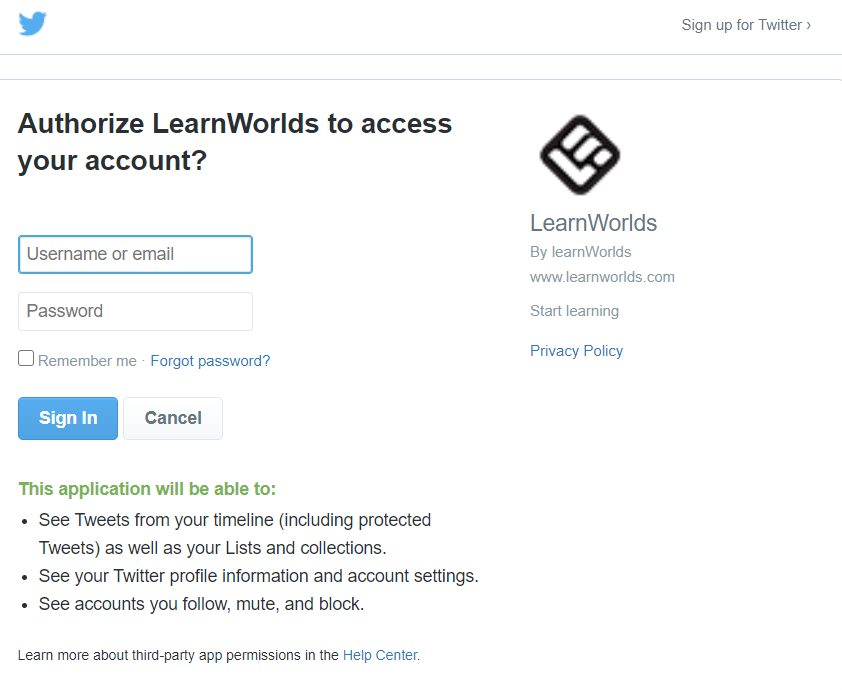
Whitelabel your Social Logins
White-labeling your school and completely removing any mention of the LearnWorlds brand (e.g. no logo LearnWorlds on the Social Logins). You can find more information on how to white-label your Social logins below (available on the Learning Center plan or higher):
- Google Social login
- Facebook Social login
- LinkedIn Social login
- Apple Social login
- Twitter Social login
After the user’s successful sign-up, an account is automatically created, and the system is updated regarding the type of this account. To verify this, navigate to your User Management page and see the icon on your user's Avatar.
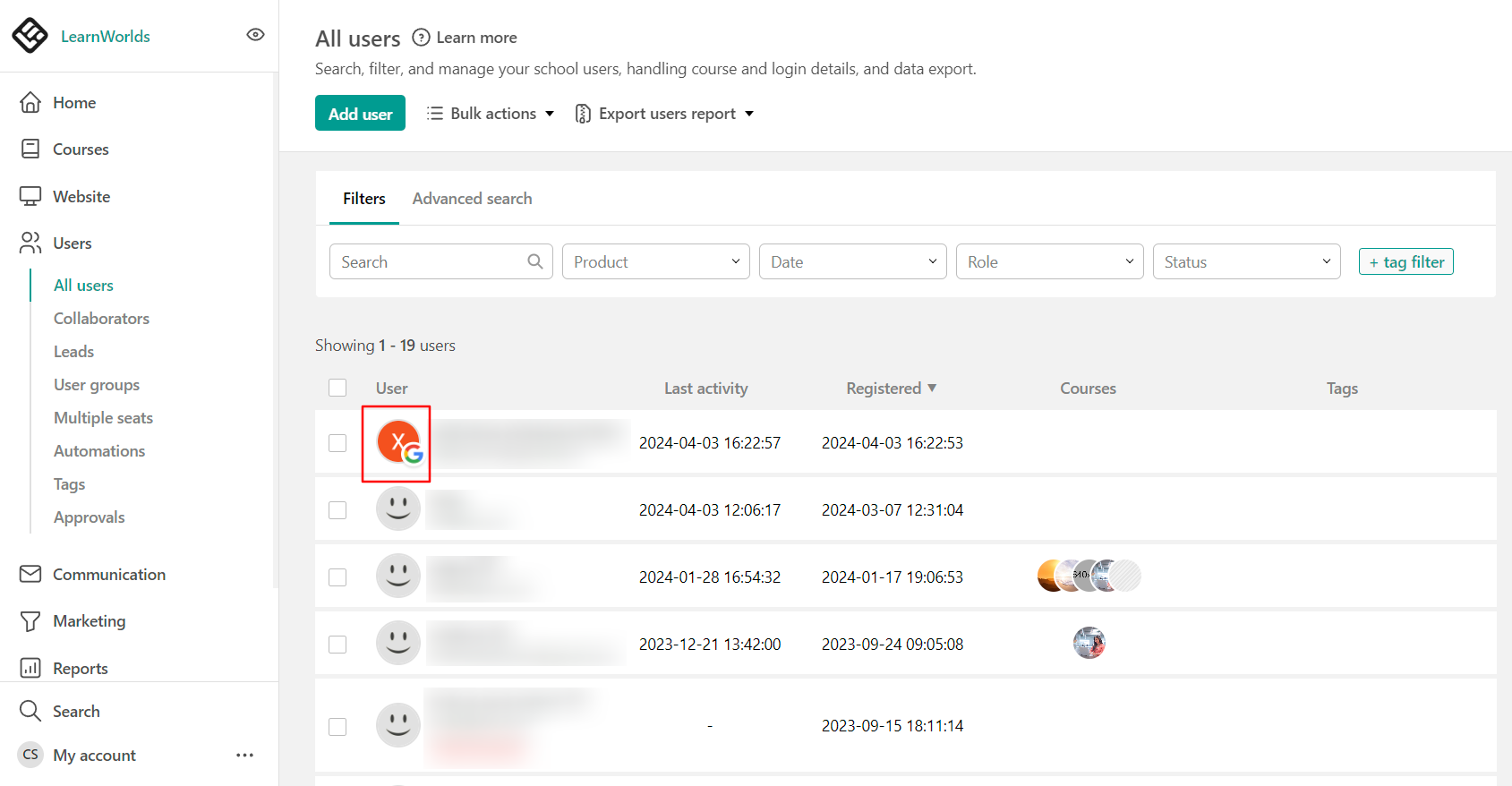
Once a user signs up using the social media of his choice, in order to log in they have to use the same social login.
-If you have chosen to allow users to sign up only via buying a product first, the social sign-ups on the payment page and in your login form will not function (thusly giving the message "Registration prohibited"). In this case, if signing up via social logins is an essential feature for your school, then the only workaround would be to enable the setting "Anyone can Sign-up".