
Celebrate your learners’ achievements with professional certificates! LearnWorlds gives you two powerful options: use a default certificate template or upload a custom-designed PDF that aligns with your branding. If you're aiming for speed and simplicity, the default template has you covered. But if you want full creative control and stronger brand alignment, going custom is the way to go.
Custom templates are created using external tools like PDF editors. These PDFs can include dynamic fields, such as the learner’s name, course title, and completion date, to personalize each certificate. Additionally, you can choose to integrate with Credly or Accredible to create and manage your certificates with their tools.
Before we continue, please check how the default certificate would look.

If this doesn't fit your needs, follow the steps in this article to craft a certificate activity complete with a custom template. Below, find a detailed guide on how to create and use your custom templates.
Set your school's default certificate template
You can choose the certificate template that will be used by default across your school. To configure your default certificate:
- Navigate to Courses & programs → Certificates → Setup.
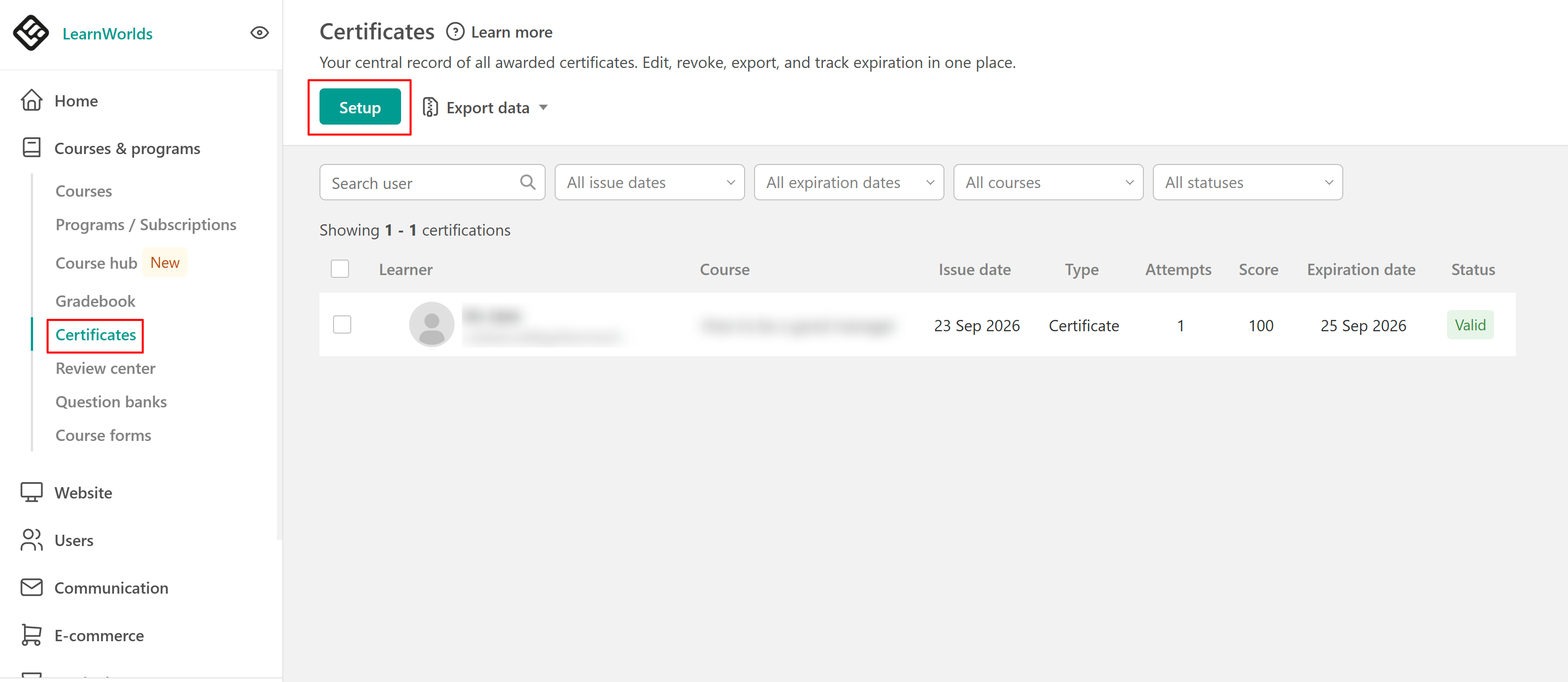
- Under Set your school's default certificate template, choose one of the following:
- Use the ready-made certificate template: Use the standard LearnWorlds certificate template.
- Upload your own certificate template: Upload a custom PDF designed for your school. - If you upload your own certificate, make sure your PDF contains the appropriate certificate fields and PDF keys. You can find all supported fields in the List of available default PDF keys section below.
- Click Save.
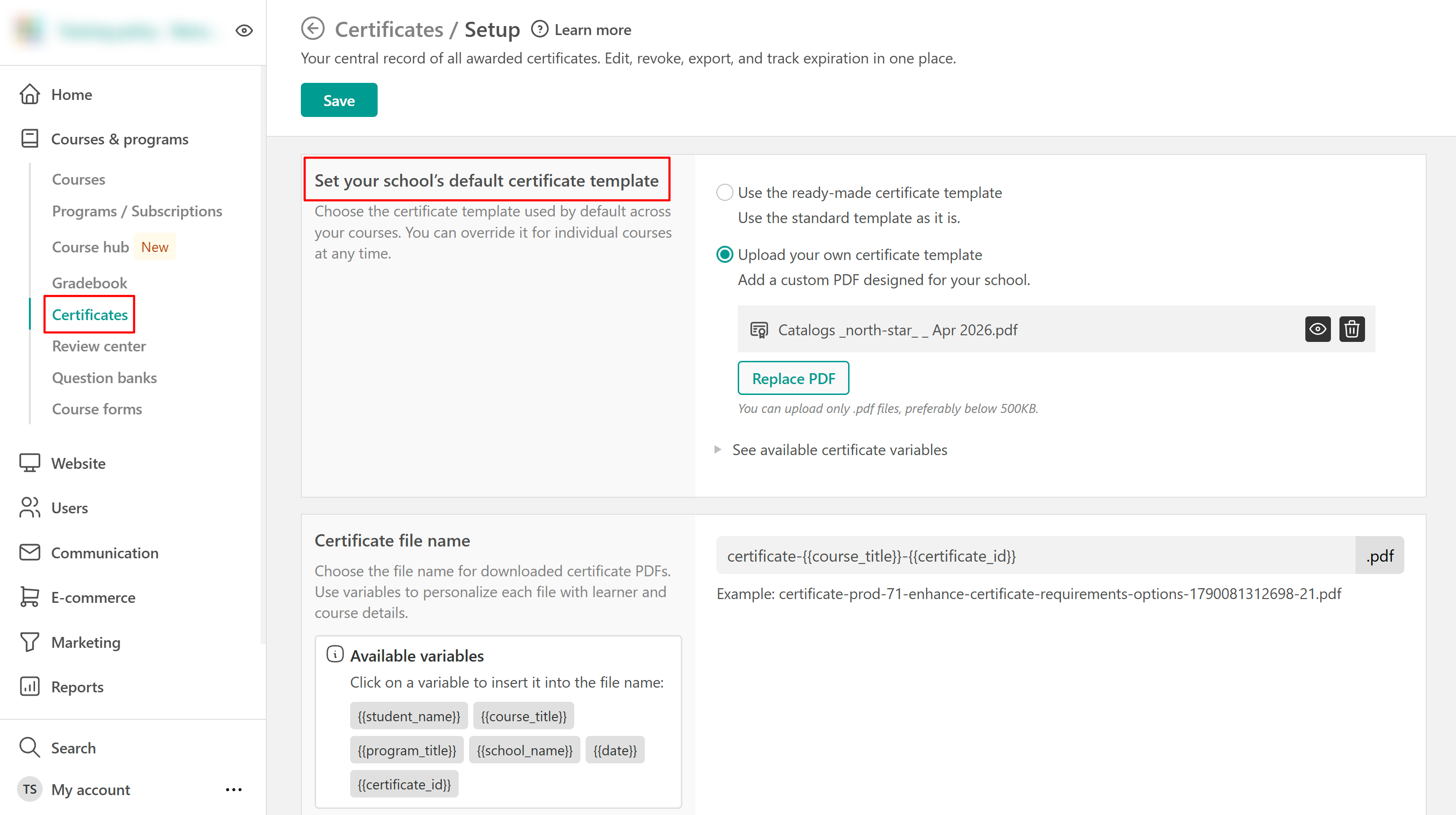
The selected template becomes the default certificate template for your school.
 You can override the school-wide default for an individual certificate activity without changing the template used by your other certificates. Open the certificate activity and, under Certification template, select Custom certificate instead of Default certificate, then upload the PDF you want to use. The custom template will apply only to that certificate activity.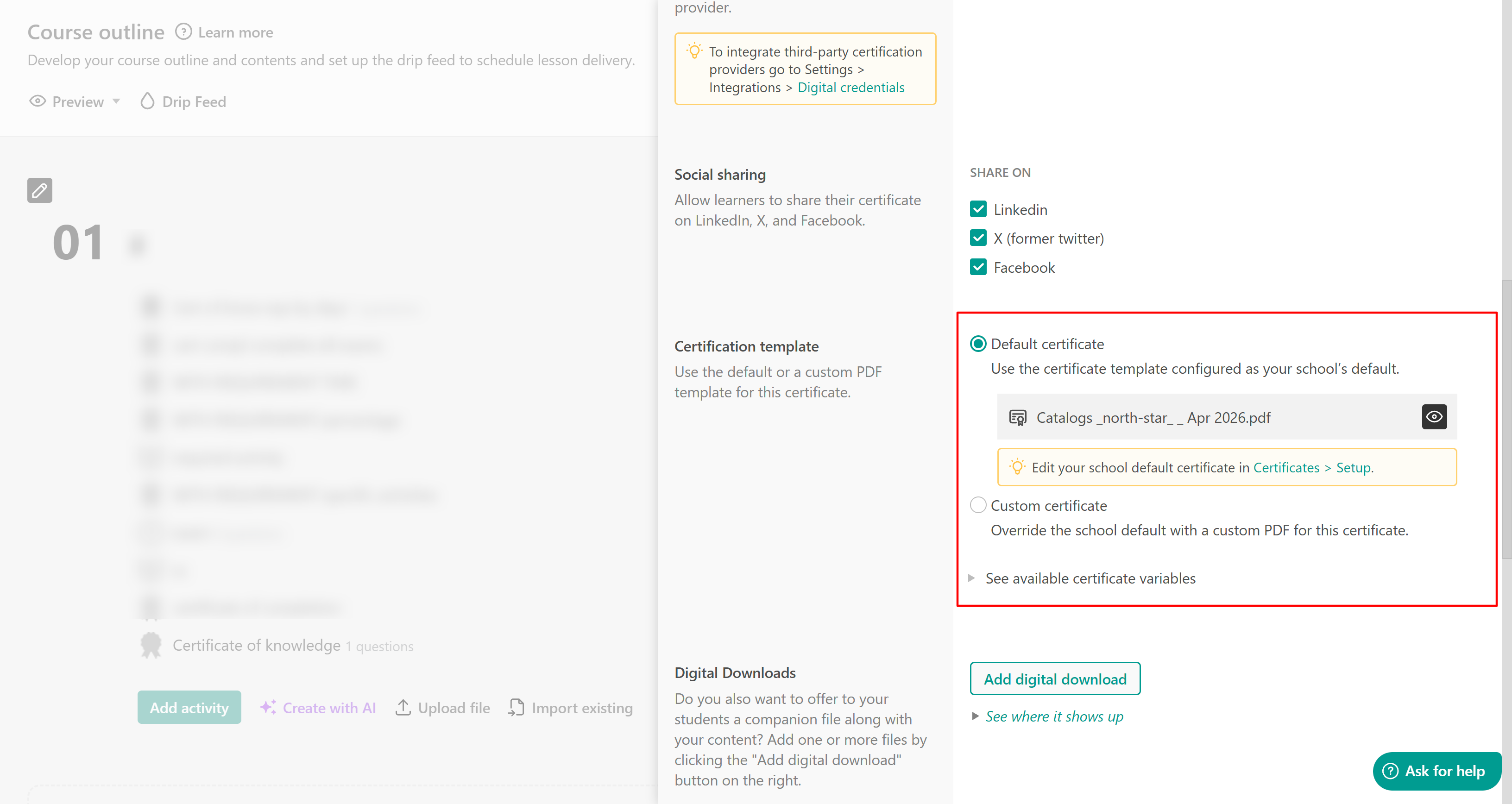
Customize the certificate PDF file name
Another available setting is to customize the file name for downloaded certificate PDFs. To configure the file name:
1. Navigate to Courses & programs → Certificates → Setup.
2. Locate Certificate file name.
3. Enter the text and variables you want to use in the file name.
4. Click Save.
There is a list of variables you can use to customize the file name. For example:
certificate-{{course_title}}-{{certificate_id}}
When a certificate is downloaded, LearnWorlds replaces the variables with the corresponding information and generates the PDF file name.
Create the certificate activity
After configuring your general certificate settings, it’s time to create your certificate activity.
1. Navigate to the course outline of the course where you want to add the certificate.
2. Select Add activity under the relevant course section.
3. Choose either certificate of knowledge or certificate of completion.
4. Enter a name for the certificate activity.
5. Select Save and Edit. If you have already created the activity, hover over it and select Edit certificate.
Configure the certificate candidate details
The Certificate candidate details screen is the form learners complete before claiming their certificate.
Add the fields you want learners to complete. Each certificate field has a corresponding certificate variable that can be added to the certificate template so that the learner's answer appears on the awarded certificate. To add a field:
- Click the plus icon (+) to add new fields or use AI to help you create them automatically.
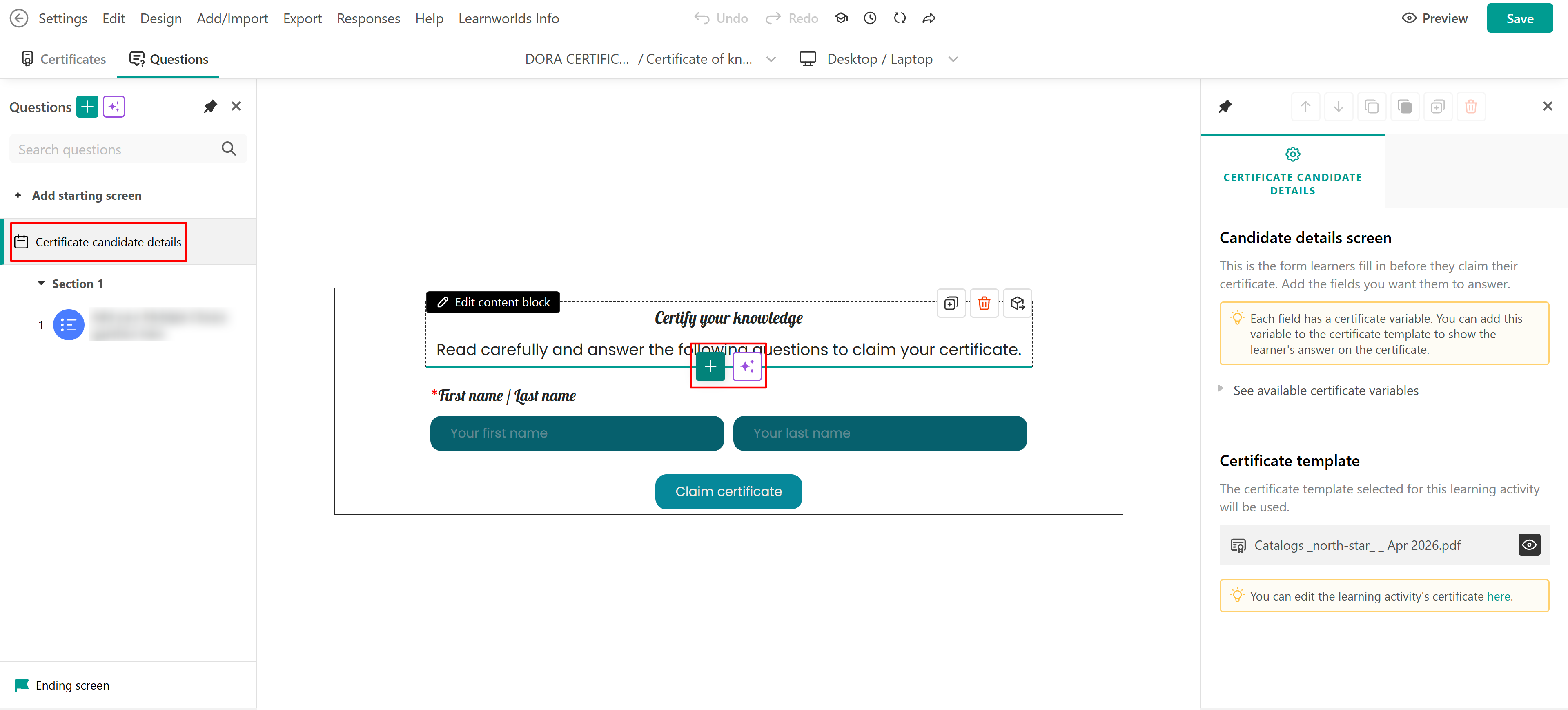
- Choose the type of field you want to add.
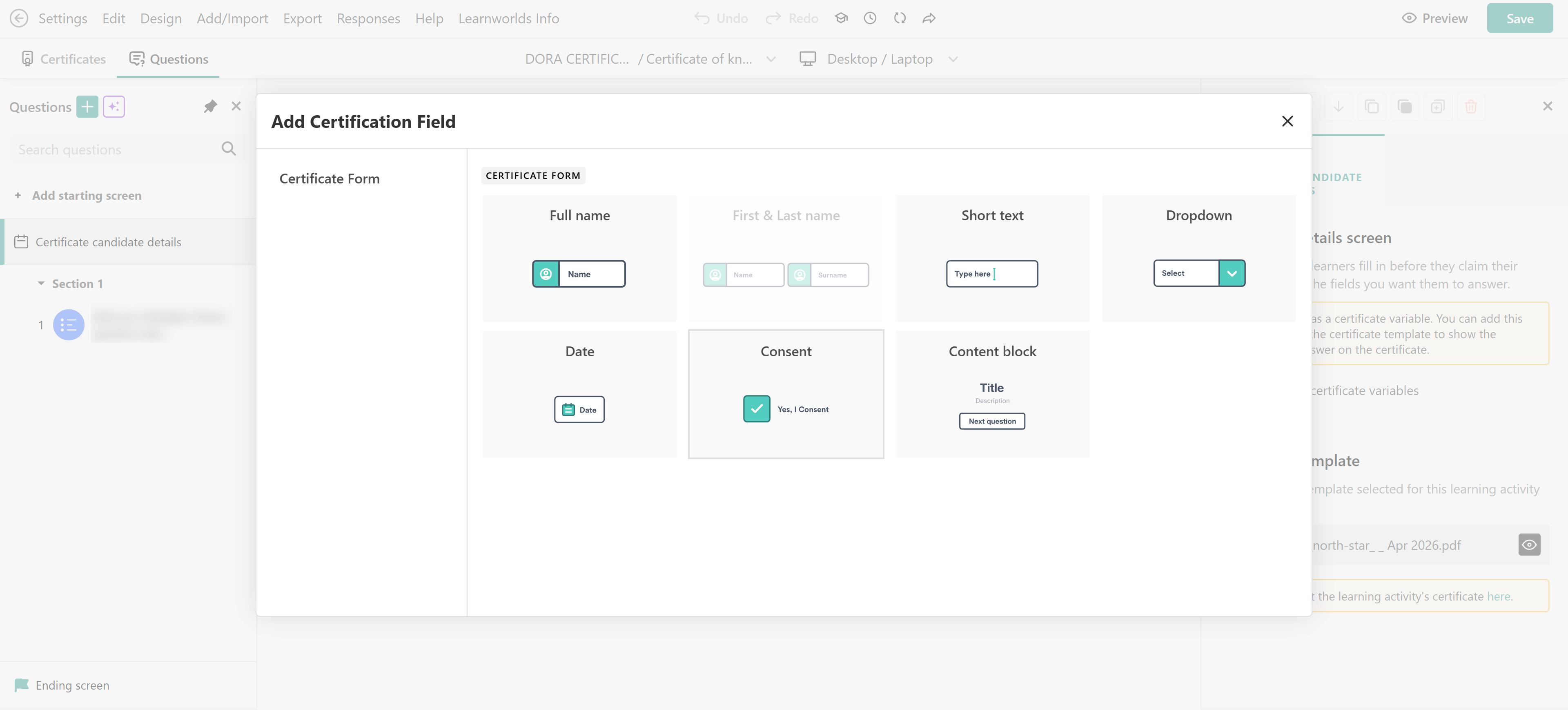
- Customize the question.
- Review or configure its Certificate PDF key.
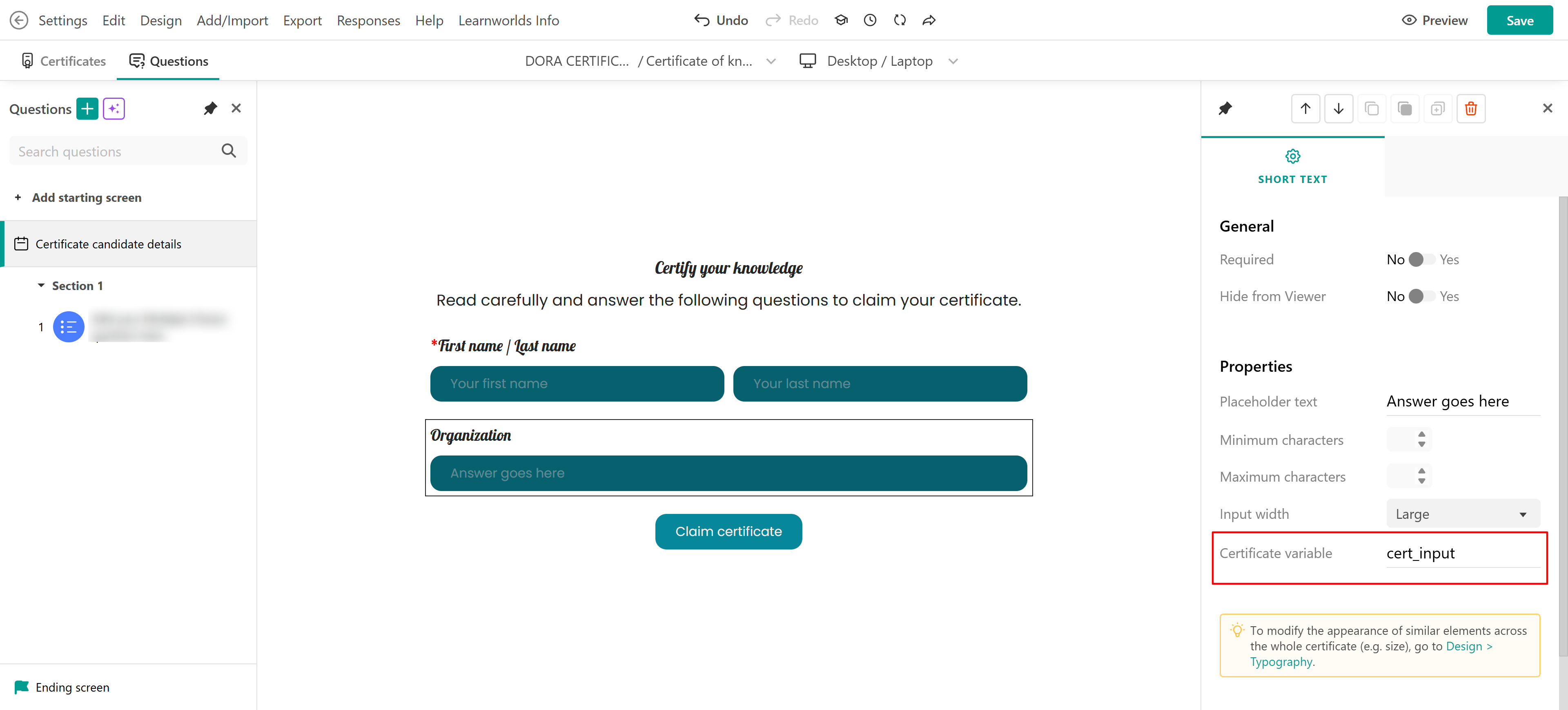
If you want the learner's response to appear on a custom certificate, the corresponding PDF key must also exist as a field in your PDF template
Understanding custom certificate templates
Custom certificate templates are PDF files created using an external PDF editor. A custom certificate can contain PDF fields, which act as placeholders for information that LearnWorlds adds when the certificate is generated. For example, you can display the learner's name, course title, award date, score, Certificate ID, or information collected from the learner before they claim the certificate.
There are two types of fields you can use:
- Default PDF keys: Default PDF keys correspond to information LearnWorlds already has, such as the course title, award date, Certificate ID, or assessment score.
For example, adding a PDF text field named Class to your custom template allows LearnWorlds to automatically add the course name when the certificate is generated. - Custom PDF fields: You can also collect additional information from learners through the Certificate candidate details form.
For example, if you add a field asking learners for additional information, that field has a corresponding PDF key. Add a PDF field with the same key to your custom template to display the learner's response on the awarded certificate.
Custom PDF fields must be configured while creating or editing the certificate learning activity.You can use this tool https://www.pdffiller.com/ to review existing form fields and verify that their names align correctly with the specifications mentioned above.
Below you can find a video tutorial on creating PDF fields and uploading the template in your Certificate activity. For this article, we are using Sejda, one of the available PDF editors, to demonstrate the process of creating a custom template but next, you'll find instructions for utilizing other tools, such as Adobe Acrobat Pro and Docfly.
List of available default PDF keys
| Name | Variable | Description |
|---|---|---|
| Course title | Class | Displays the course title |
| Course description | Class_description | Displays the course description |
| Learning program title | Program | Displays the learning program title |
| Learning program description | Program_description | Displays the learning program description |
| Instructor name | Instructor_name | Displays the instructor's name |
| Author name | Author_name | Displays the author's name |
| Credits | Credits | Displays the course credits (this can be set up in the course's General Tab, under Add a label) |
| Issue date | Date_formatted | Displays the certificate issue date based on the school's date formatting |
| Expiration date | Expiration_date | Displays the certificate expiration date |
| Status | Status | Displays the certificate's current status |
| Certificate ID | Id | A unique identifier (text and numbers) that can be used to identify/track valid certificates |
| Certificate link | Link | This link downloads the original certificate locally to the users' systems. |
| Score | Score | The score that the learner achieved in the final test, in percentage points (not available on the Certificate of Completion) |
| Average score | averageScore | Displays the learner's average score |
| Points earned | Points_earned | The points earned by the learner (not available on the Certificate of Completion) |
| Points total | Points_total | Displays the total available points |
| First and last name | FullName | The name of the learner (all characters are supported) - needs to be filled out by the user to claim the certificate |
| Full name | userName | Displays the learner's username. Needs to be filled out by the learner to claim the certificate |
| Custom user field | cf_[fieldname] | Displays the value of a custom user field, for example, cf_location or cf_department |
-Field names are case-sensitive.-You can add keys based on your user fields to populate data on certificates. If you include the Data Key of a custom sign-up field directly as a PDF Key on the certificate, the information will be automatically displayed, even if no certificate fields are configured in the certificate activity.
However, please note that checkbox-type custom sign-up fields will not be visible on the certificate.
Create the PDF fields
Let's see how to create your fields in Sejda. To create your fields, you need to:
1. Visit Sejda's official website: https://www.sejda.com/pdf-forms.
2. Click on Upload PDF file or start with a blank document.
3. Click on the Text field option on the top of your screen and place the box where it is required.
4. Click on the field properties option and add the PDF key you would like to use. For example, if you added a date field in your certificate activity, as described above, and the certificate PDF key is FullName, you also need to paste this under the field properties.
5. As soon as you are ready, click on Apply Changes.
6. Download the PDF file by clicking on the Download option.
Upload the custom certificate template
Once your PDF is ready, you can use it as either your school-wide default or for an individual certificate activity as described above.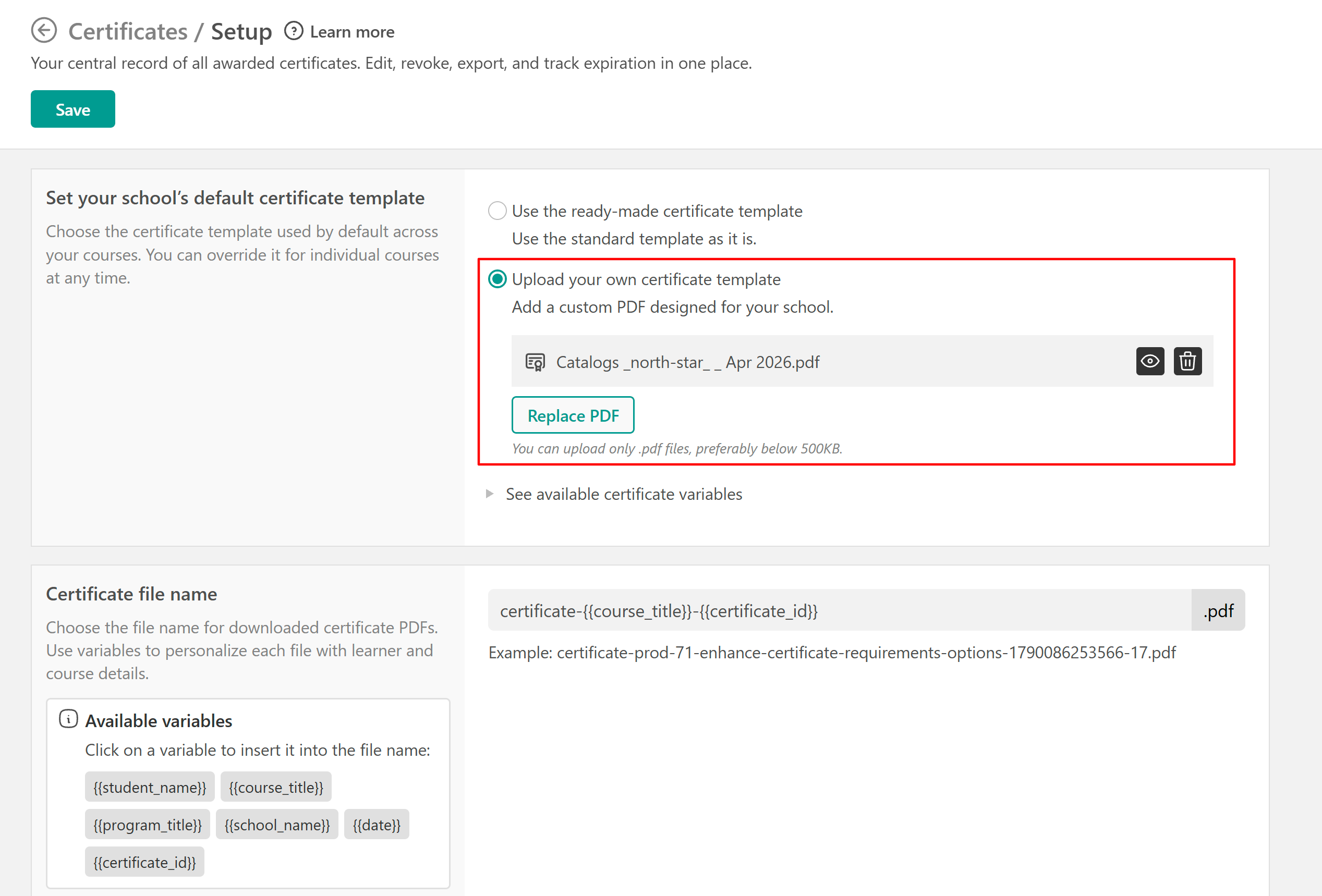
PDF editors options
You can customize the PDF template in an external PDF fillable Editor. Use any PDF fillable editor you wish, upload your PDF template to edit it, and insert the appropriate Text Form Fields with the following values. Ensure that the file size is below 1MB, preferably below 500KB.
Since the following PDF editors are 3rd-party tools, they may change anytime without notice. We do not have control over the changes that may occur. |
Adobe Acrobat Pro
If you want to use Adobe Acrobat Pro, you can follow the steps mentioned here to create Text Form Fields. If you also wish to have the same Font Type, you need to select "Locked" in the Text Field Properties.
 When creating or editing form fields in Adobe Acrobat Pro, do not select the property setting "Visible but don't print". This setting will prevent the field from being populated with certificate data after uploading to LearnWorlds, even though the field appears correctly in the editor. To ensure proper functionality, make sure the visibility setting for each form field is simply "Visible". This detail emerged from a support case and may not be easily testable due to Adobe’s trial limitations (requires credit card), but it’s crucial for ensuring your certificate fields work as expected.
Docfly
You can also use a free tool such as Docfly as a PDF fillable editor in order to create Text Form Fields. You can find the steps here.

On the Docfly free plan, you can export 3 PDFs per month. Result
Here's an example showcasing how the custom certificate will appear.
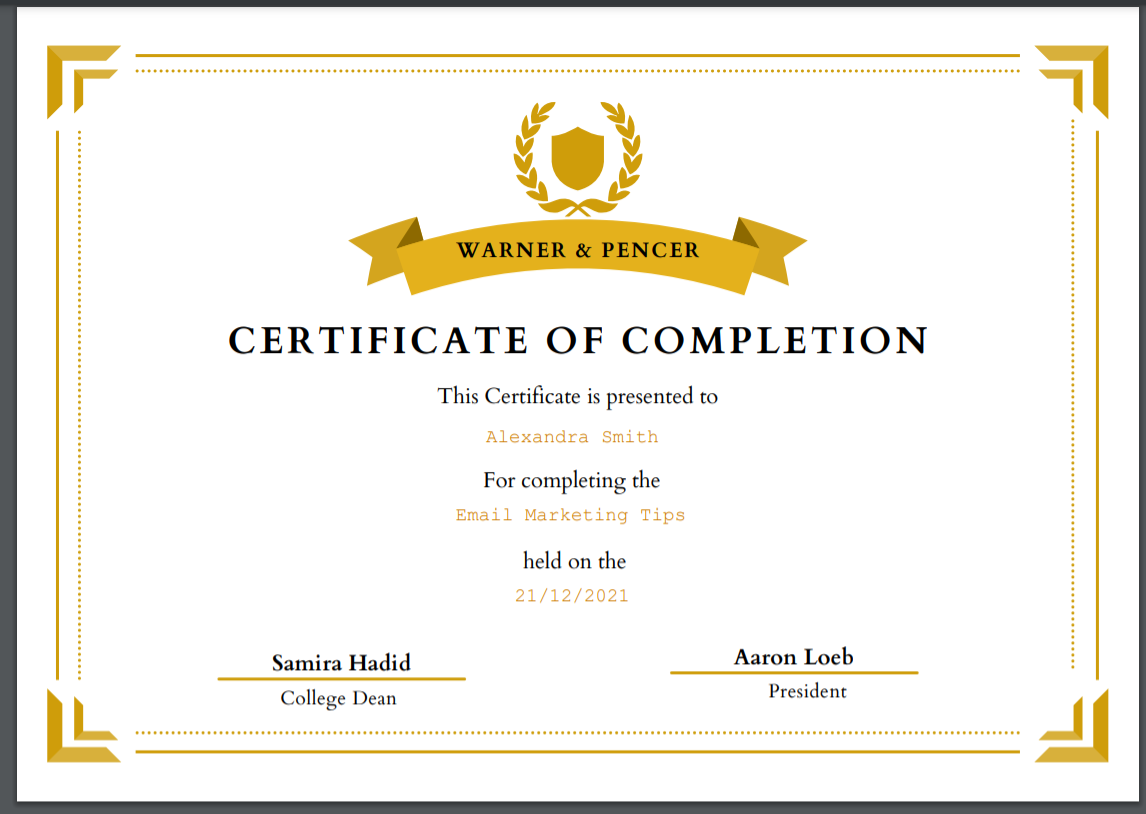
- You can find more information and a variety of ready-made Certificate templates here.
- Make sure that the uploaded PDF file is not password-protected in order to avoid any issues.