
AI-powered eBook experiences help you turn eBook content into interactive learning experiences. Add conversational questions with AI-generated responses, create activities from ready-made templates, or describe a custom experience and let AI build it for you.
In this article, you'll learn how to use AI Question, AI Activity, and AI Canvas in your eBooks.
What are AI-powered eBook experiences?
LearnWorlds offers three AI-powered options for creating personalized and interactive eBook experiences:
| Capability | Use it to |
|---|---|
| AI Question | Add a conversational question where AI responds to the learner’s answer |
| AI Activity | Create an interactive learning experience by choosing from a library of predefined activity types and using AI to generate its content and behavior |
| AI Canvas | Describe a custom interactive experience and have AI create it |

- AI Question, AI Activity, and AI Canvas are added as new eBook sections.
Which option should I use?
- Use AI Question when you want learners to respond to a question and continue the interaction through an AI-powered dialogue.
- Use AI Activity when you know what type of interactive activity you need and want to start from a ready-made template.
- Use AI Canvas when you have a custom idea, such as a simulation, scenario, challenge, or experiment, and want AI to build the experience.
AI Question, AI Activity, and AI Canvas consume AI credits.Access AI-powered eBook experiences
Users with permission to edit eBooks can create and configure these experiences. To open an eBook for editing:
1. Go to Courses and select your course
2. Select Course Outline
3. Select the eBook learning activity
4. Click Edit eBook
To add AI Question, AI Activity, or AI Canvas, click + Add section and select the AI option you want to use.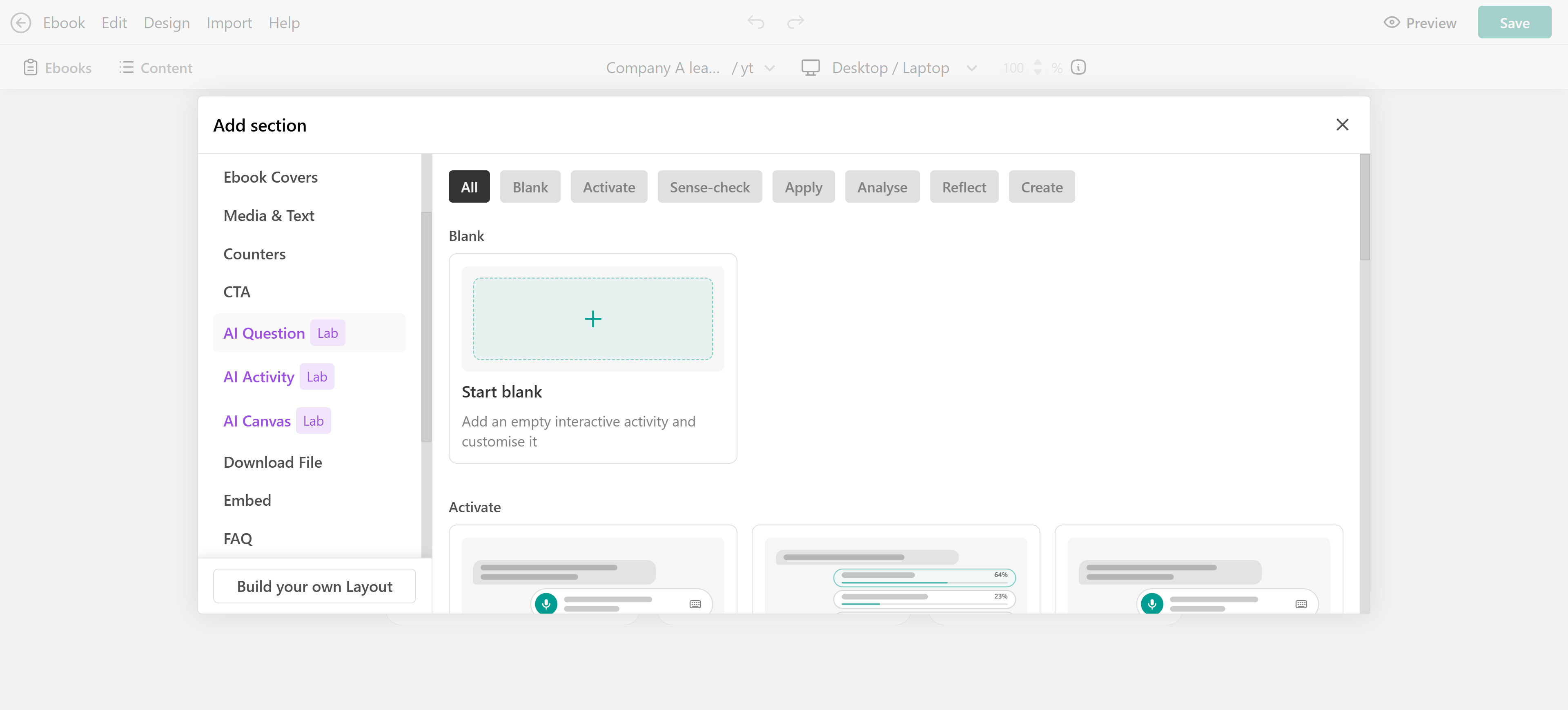
- Learners can also experience AI-powered eBook content through the LearnWorlds mobile app.
- AI-powered eBook experiences and their configurations are carried over when an eBook is copied, synced, or shared across academies.
How to add an AI Question
AI Question adds a conversational question directly to the eBook. Learners respond by typing or speaking. AI responds based on their answer, and the exchange can continue as a dialogue within the eBook.
You can use AI Questions to activate previous knowledge, ask learners to make predictions, check understanding, apply knowledge, or reflect on a topic.
1. Open your eBook in the editor
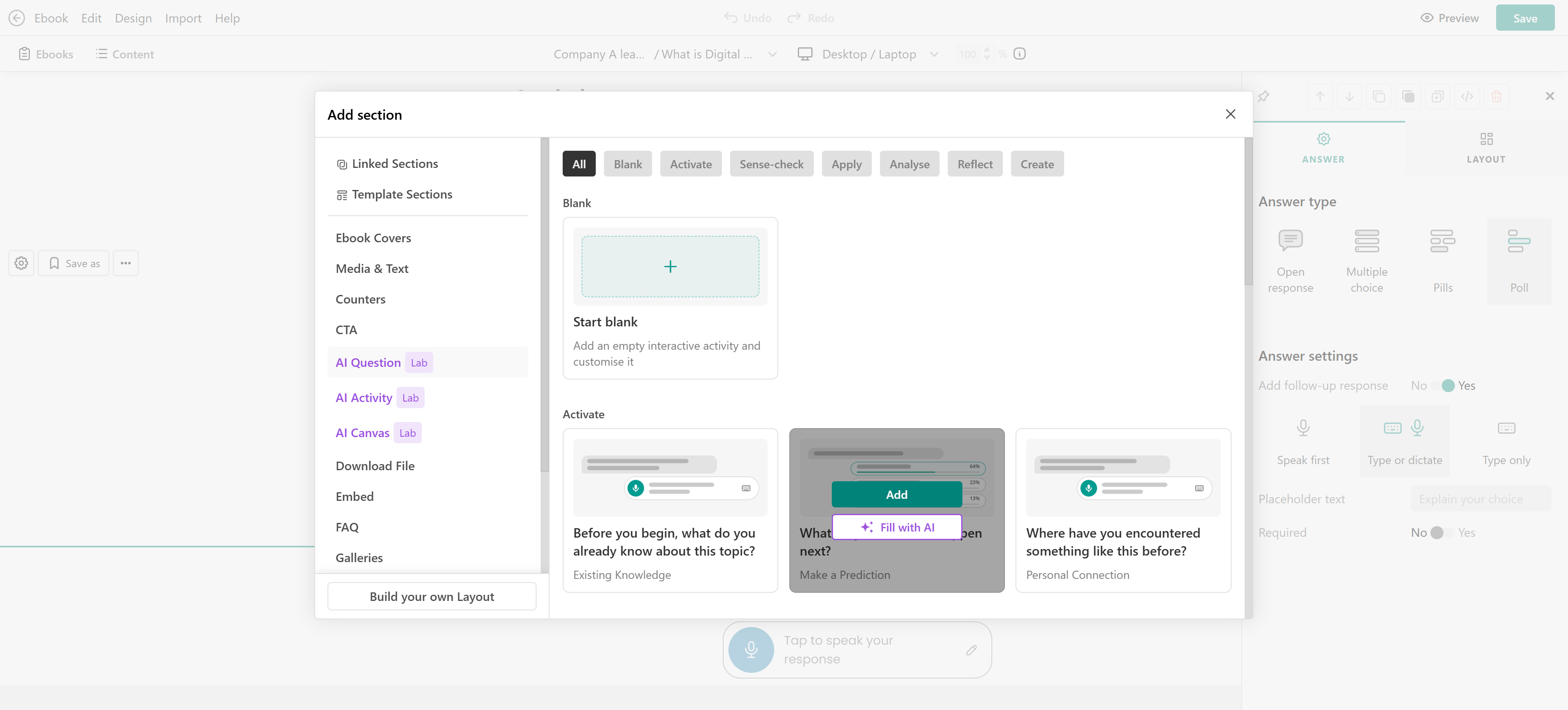
2. Click + Add section and select AI Question
3. Choose Start blank or select an instructional template
4. If you select a template, choose:
- Add to insert it and configure it yourself
- Fill with AI to have AI generate the question from the selected template
5. Configure the question and learner response
6. Save your changes
Configure an AI Question
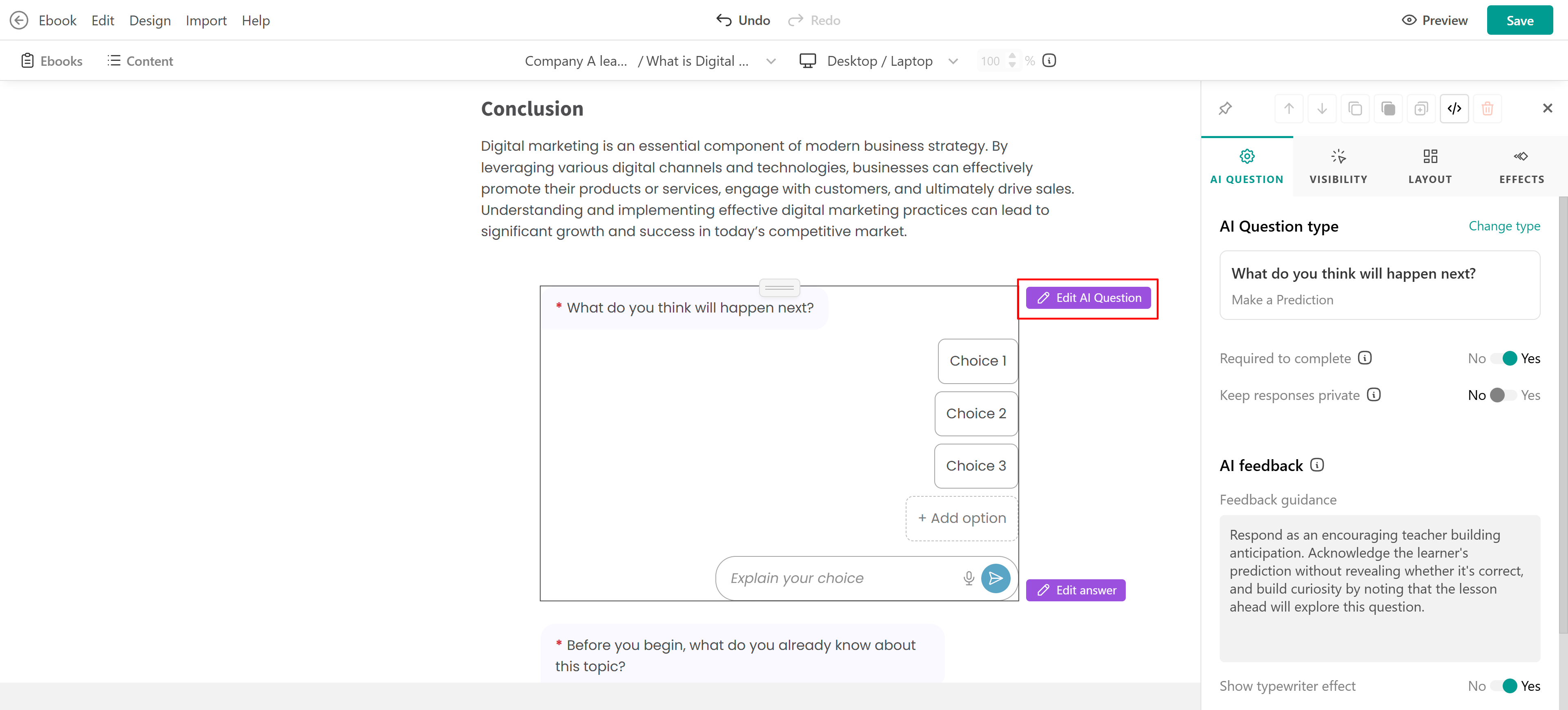
After adding an AI Question, select Edit AI Question to configure how the question works and how AI responds to the learner. You can configure:
- AI Question type: View the selected instructional question type or select Change type to use a different one
- Required to complete: Require learners to complete the AI Question
- Keep responses private: Control whether learner responses remain private
- Feedback guidance: Give AI instructions for how to respond to the learner
- Show typewriter effect: Choose whether AI feedback appears with a typewriter effect
Configure the learner response
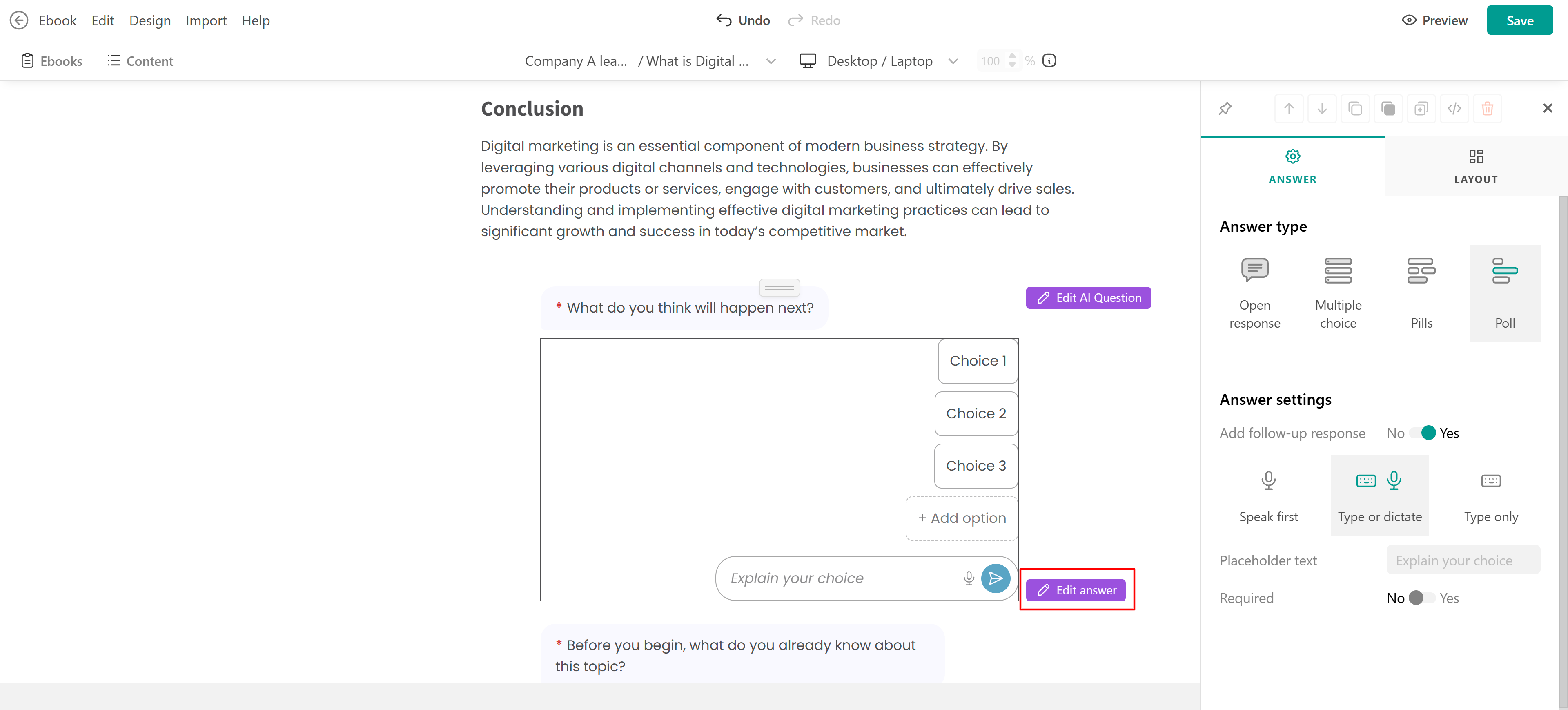
Select Edit answer to define how learners can respond to the question. Choose an answer type:
- Open response: Learners provide their own response
- Multiple choice: Learners select from predefined choices
- Pills: Learners select from options displayed as pills
- Poll: Learners select from the available poll options
Depending on the selected answer type, you can also configure the available answer settings, including:
- Add follow-up response: Ask learners to provide an additional response after making their initial selection
- Response method: Choose whether learners speak first, type or dictate, or type only
- Placeholder text: Customize the text shown in the response field
- Required: Require learners to provide a response
Enable Learner memory if you want AI Question responses to use relevant information AI has learned about the learner over time. To enable Learner memory go to Settings → Integrations → AI.Preview the learner experience
Preview the AI Question before publishing to test both the learner response and AI feedback. Depending on the settings you selected, learners can choose an answer, type a response, or use dictation.
When Add follow-up response is enabled, they can also provide an additional response after their initial selection. AI then responds according to the Feedback guidance configured for the question. The exchange can continue within the eBook, creating a conversational learning experience.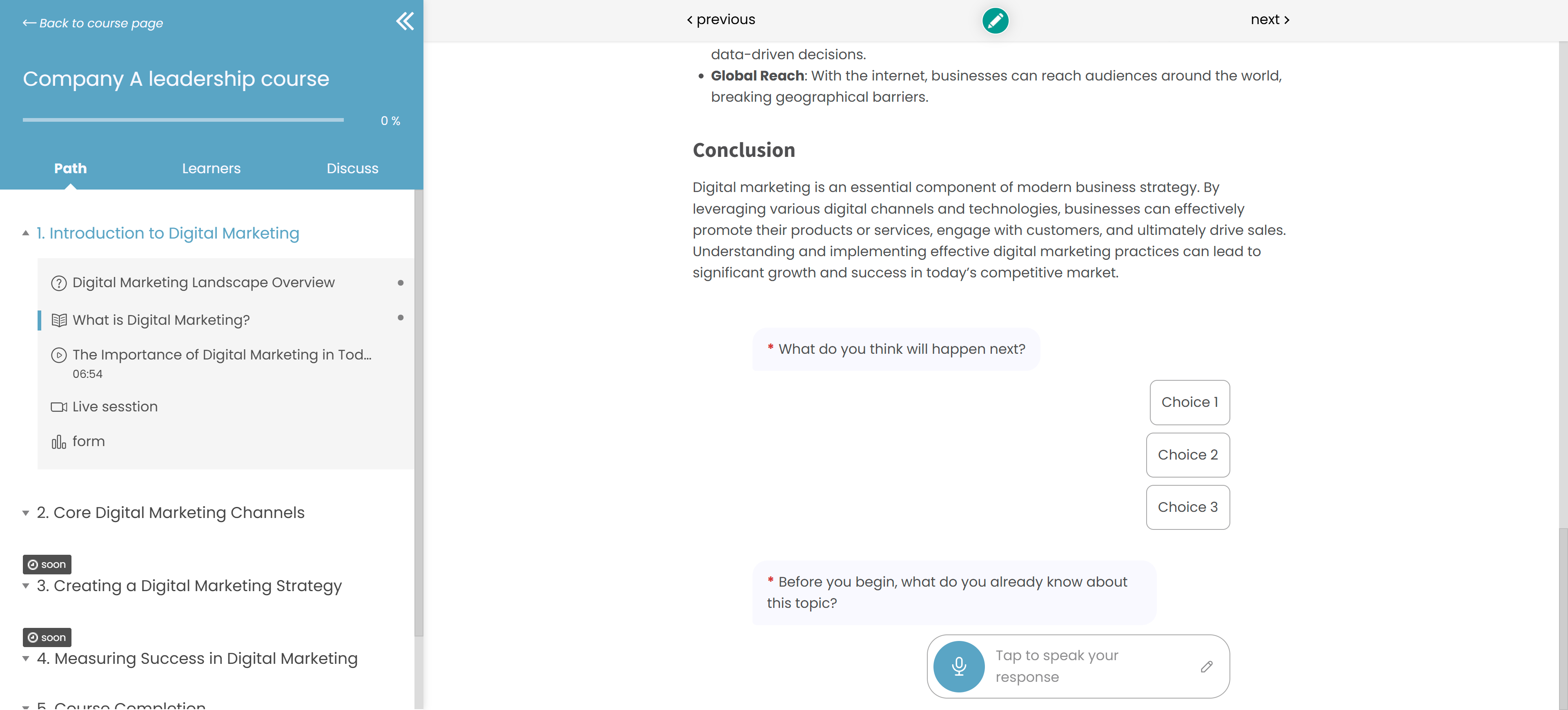
How to add an AI Activity
AI Activity lets you create interactive learning experiences from ready-made activity types. Choose the type of interaction you want, then use AI to generate the activity based on your instructions and eBook content.
AI Activity is useful when you want structured practice without designing the interaction from scratch. To add an AI Activity:
1. Open your eBook in the editor
2. Click + Add section
3. Select AI Activity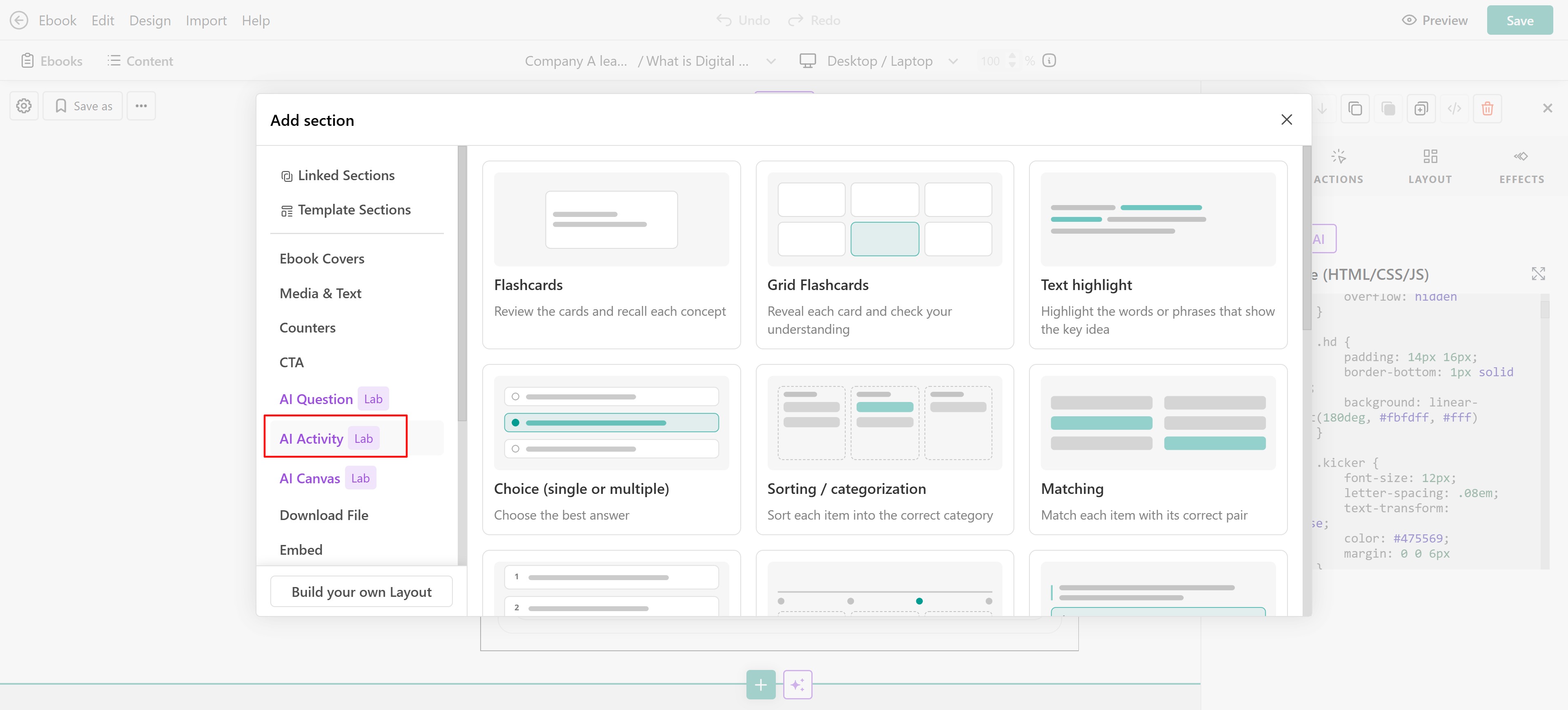 4. Browse the available activity templates
5. Select an activity
6. Let AI generate the experience
7. Preview it in AI Studio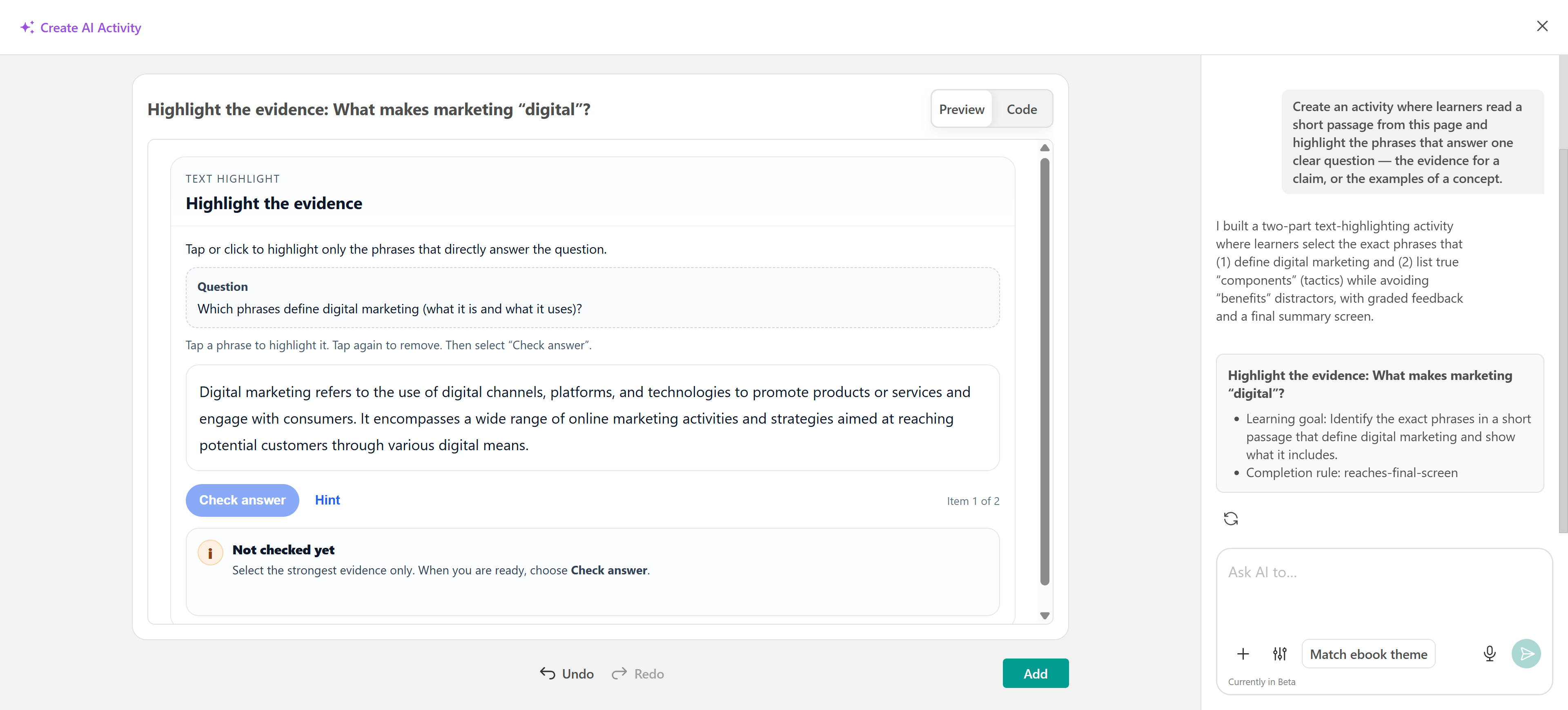
8. Ask AI to make changes as needed
9. Click Add to add it to your eBook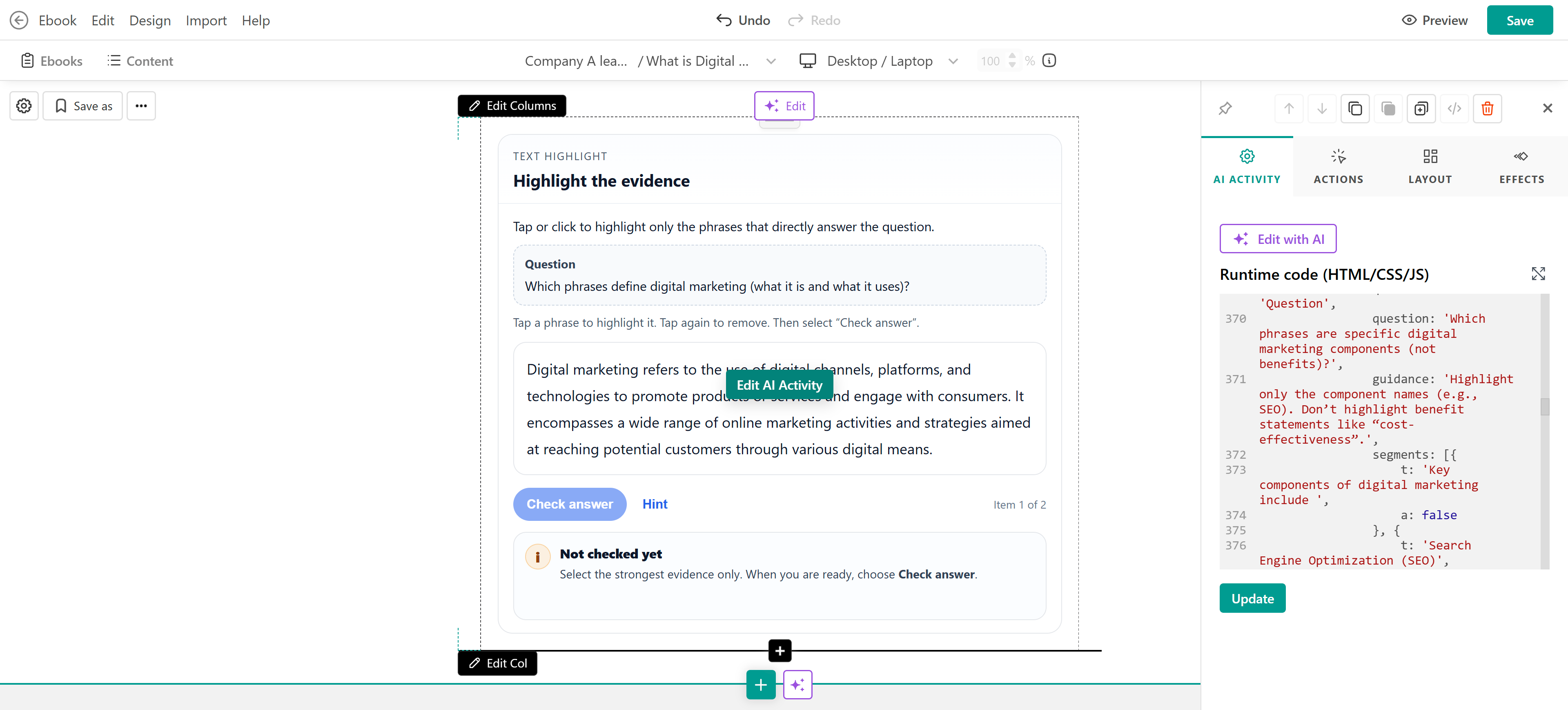
| Activity type | Use it to |
|---|---|
| Flashcards | Review cards and recall concepts |
| Grid Flashcards | Reveal multiple cards and check understanding |
| Text highlight | Identify important words or phrases in a text |
| Choice (single or multiple) | Choose one or more answers |
| Sorting / categorization | Sort items into the correct categories |
| Matching | Match items with their corresponding pairs |
| Sequencing / reordering | Put steps or items in the correct order |
| Timeline | Place events in the correct order |
| Scenario decision | Choose the best response to a situation |
| Branching scenario | Make decisions and explore where they lead |
| System model | Adjust variables and observe what changes |
| Slider | Respond by adjusting a value on a scale |
| Step-by-step simulation | Complete steps in the correct order |
| Spatial simulation | Move elements to the correct position |
| Short response / fill-in | Complete a statement with a missing word or phrase |
| Free Text | Respond or explain thinking in the learner's own words |
Edit an AI Activity
After adding an AI Activity to your eBook, select it and click Edit with AI to reopen the AI editing experience and request changes.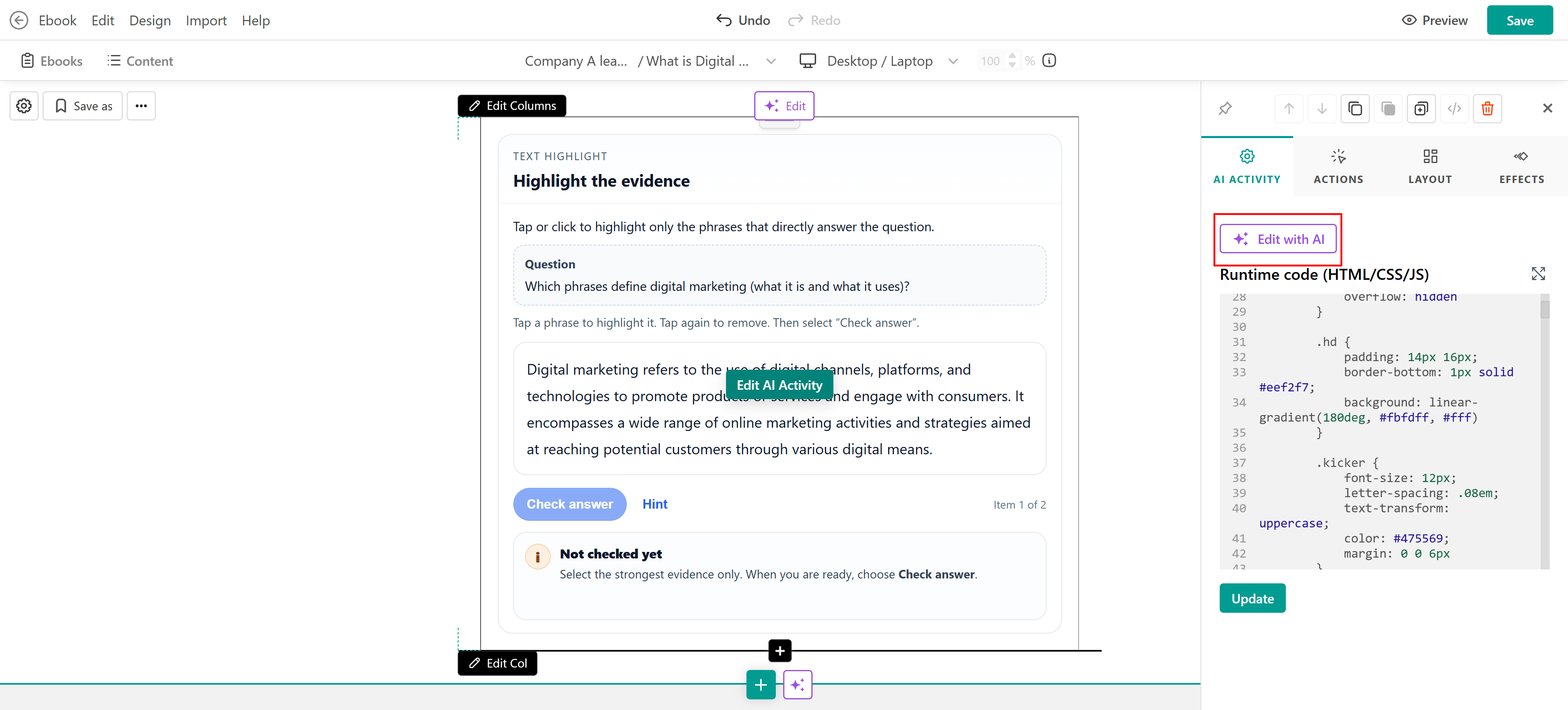
For advanced editing, the activity's runtime code (HTML/CSS/JS) is also available from the AI Activity settings. After making changes to the code, click Update to apply them.
How to create a custom experience with AI Canvas
AI Canvas lets you create a custom interactive learning experience from your own idea. Unlike AI Activity, you do not start by selecting a predefined activity type. Instead, describe what you want learners to explore, interact with, or build, and AI generates the experience for you.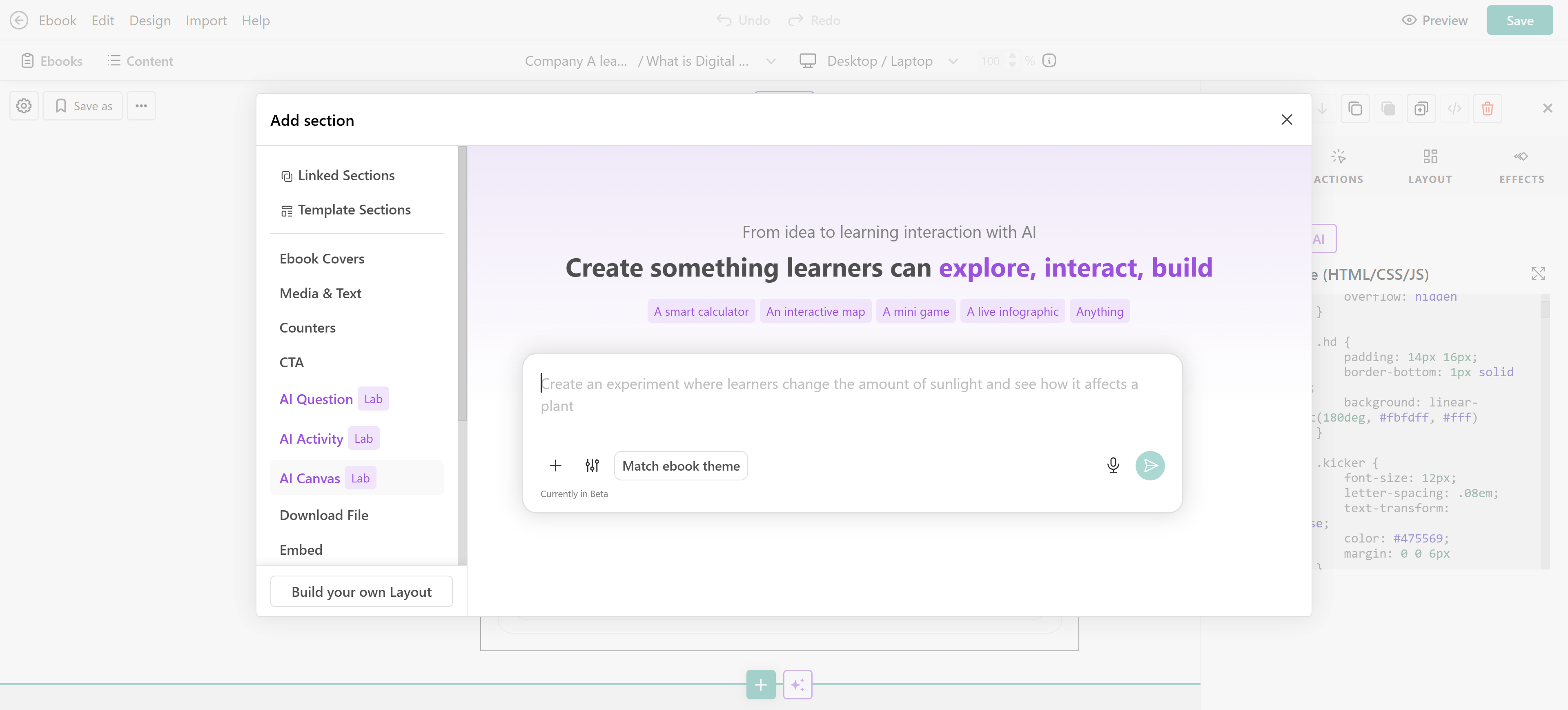
For example, you can ask AI to create a calculator, interactive map, mini game, live infographic, simulation, experiment, or another custom interaction.
1. Open your eBook in the editor
2. Click + Add section and select AI Canvas
3. Describe the learning experience you want to create
4. Submit your prompt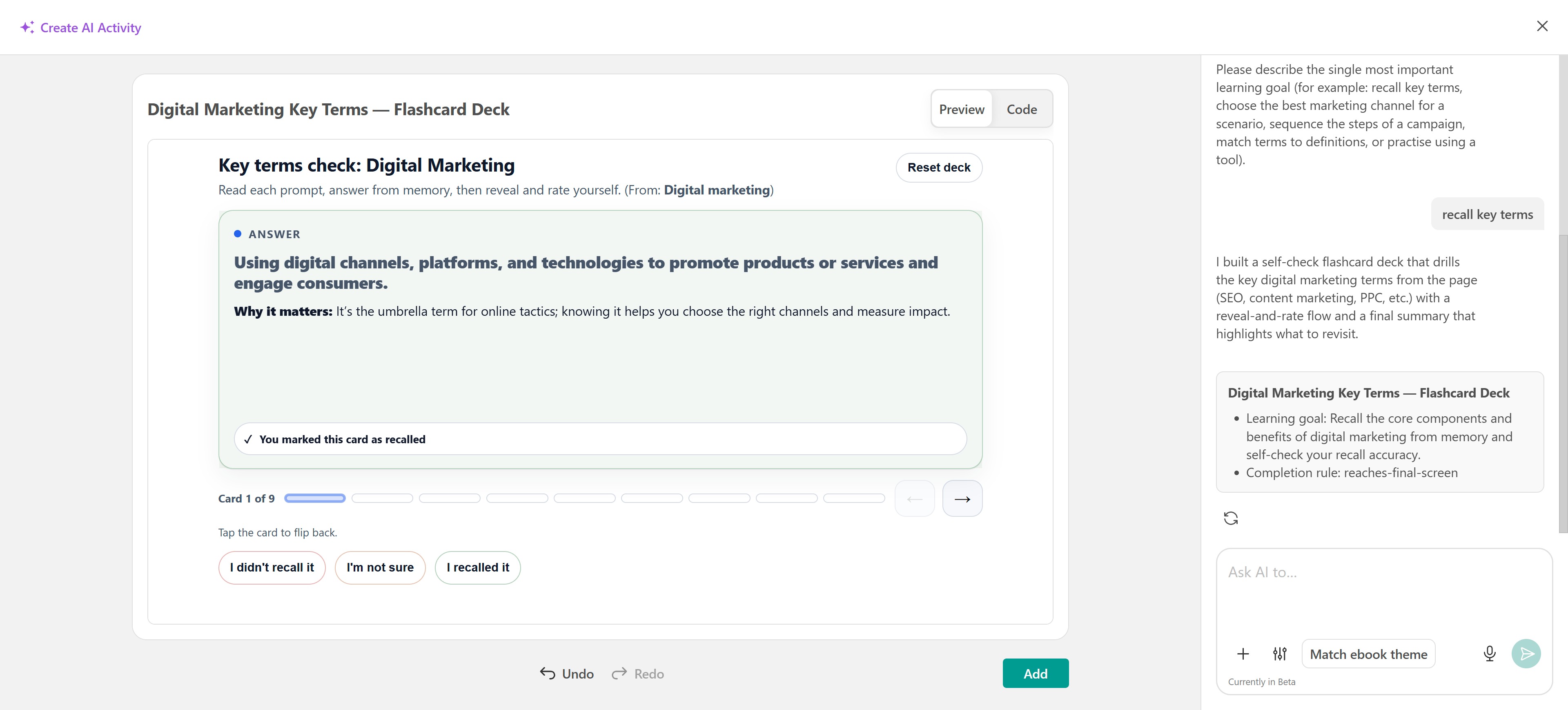 5. Preview the generated experience in AI Studio
6. Ask AI to refine or change it as needed
7. Add the experience to your eBook when it is ready
Edit an AI Canvas experience
After adding an AI Canvas experience to your eBook, select it and click Edit with AI to make changes using AI.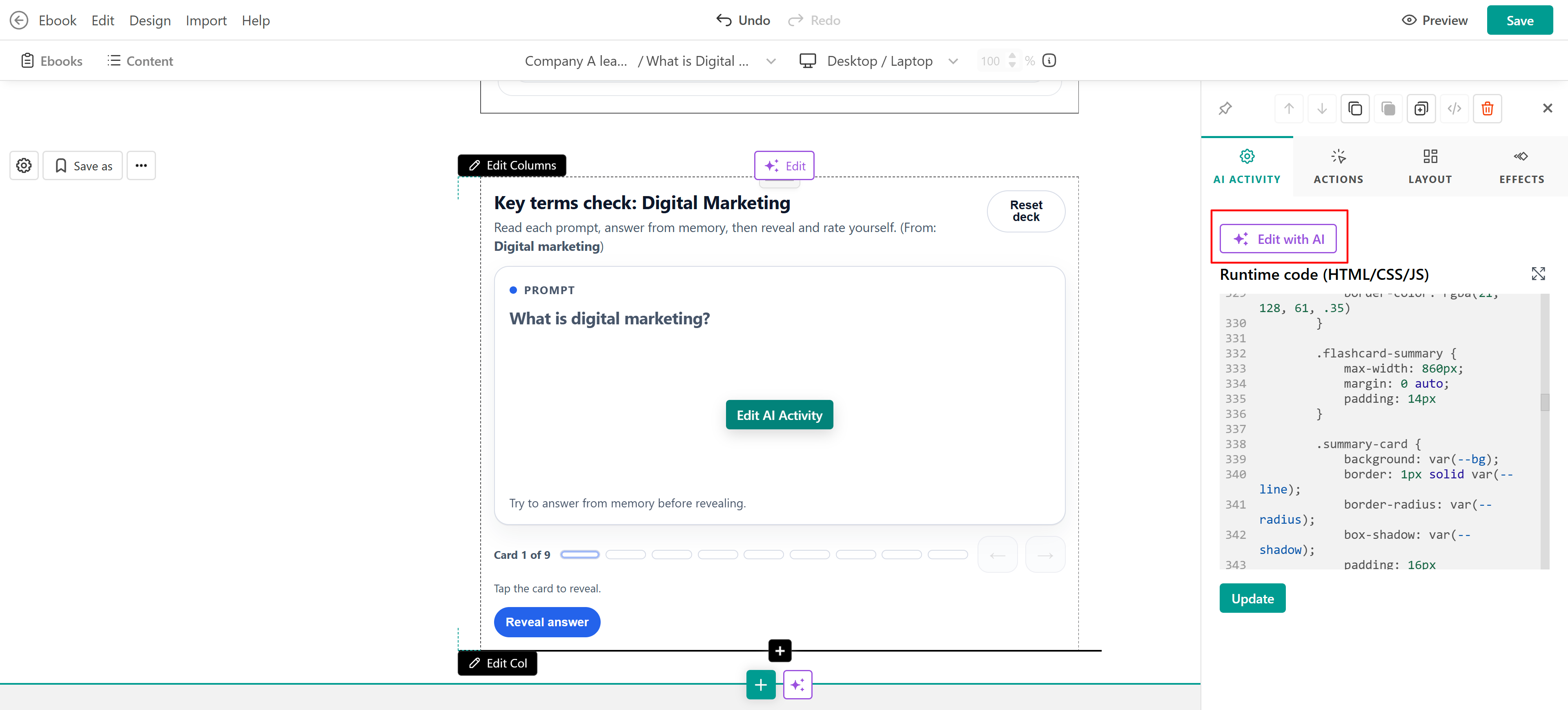
Describe what you want to change, then review and test the updated experience before applying your changes.
AI Activity vs. AI Canvas
Both options create interactive experiences that you can preview, test, and refine in AI Studio. The main difference is the starting point.
| AI Activity | AI Canvas | |
|---|---|---|
| Starting point | Predefined activity type | Your own prompt |
| Best for | Structured learning interactions | Custom, open-ended interactive experiences |
| Examples | Flashcards, matching, sorting, branching scenarios, simulations | Calculators, maps, games, infographics, experiments, or other custom experiences |
| Customization | Generate and refine the selected activity type with AI | Describe and refine the experience you want AI to build |
| Design | Can match your eBook theme | Can match your eBook theme |
| After adding | Edit with AI or edit the runtime code | Edit with AI or edit the runtime code, if available |
- Choose AI Activity when one of the available activity types fits your learning objective.
- Choose AI Canvas when you want to create an experience that is not limited to a predefined activity type.
Tips for creating AI-powered eBook experiences
Choose the AI capability that best matches your learning objective:
- Use AI Question for focused questions, reflection, knowledge checks, or conversational practice.
- Use AI Activity when you want to create a structured interaction from one of the available activity types.
- Use AI Canvas when you want to build a custom interactive experience from your own idea.
- For AI Activity and AI Canvas, give AI clear instructions about what learners should do, the relevant context, and the intended learning outcome.
- Preview and test the generated experience before publishing, and continue refining it with AI as needed.
- Always review AI-generated content for accuracy, relevance, and suitability for your learners.
FAQs
- Does AI Question require Learner memory?
No. You can use AI Question without Learner memory. When Learner memory is enabled, AI can use relevant information it has learned about the learner to personalize its responses.
- What is the difference between AI Question and AI Activity?
AI Question creates a conversational interaction around a question, with AI responding to the learner's input. AI Activity creates a structured interactive experience using a predefined activity type, such as flashcards, matching, sorting, or a simulation.
- What answer types can I use with AI Question?
AI Question supports Open response, Multiple choice, Pills, and Poll answer types. Additional answer settings depend on the selected type.
- Can learners speak their answers to an AI Question?
Yes. You can configure the learner response as Speak first, Type or dictate, or Type only.
- Can I control how AI responds to an AI Question?
Yes. Use Feedback guidance in the AI Question settings to provide instructions for how AI should respond to the learner.
- What is the difference between AI Activity and AI Canvas?
- AI Activity starts with a predefined activity type, such as flashcards, matching, sorting, or a simulation.
- AI Canvas starts with your own prompt and is better suited to custom experiences such as calculators, interactive maps, games, infographics, or experiments.
Both can be previewed, tested, and refined with AI before they are added to the eBook.
- Can I edit an AI Activity or AI Canvas experience after adding it?
Yes. Select the experience and use Edit with AI to request changes. For AI Activity—and AI Canvas if the same runtime-code option is available—you can also edit the runtime code (HTML/CSS/JS) directly.
- Can learners use AI-powered eBook experiences on mobile?
Yes. Learners can access AI-powered eBook experiences through the LearnWorlds mobile app.
- Do AI-powered eBook experiences use AI credits?
Yes. AI Question, AI Activity, and AI Canvas consume AI credits.