Creating new pages in your LearnWorlds school allows you to introduce fresh content to your website beyond the default pages provided in our Website builder. This presents an excellent opportunity for you to customize your site and provide your users with more details, be it about yourself, your courses, or your business.
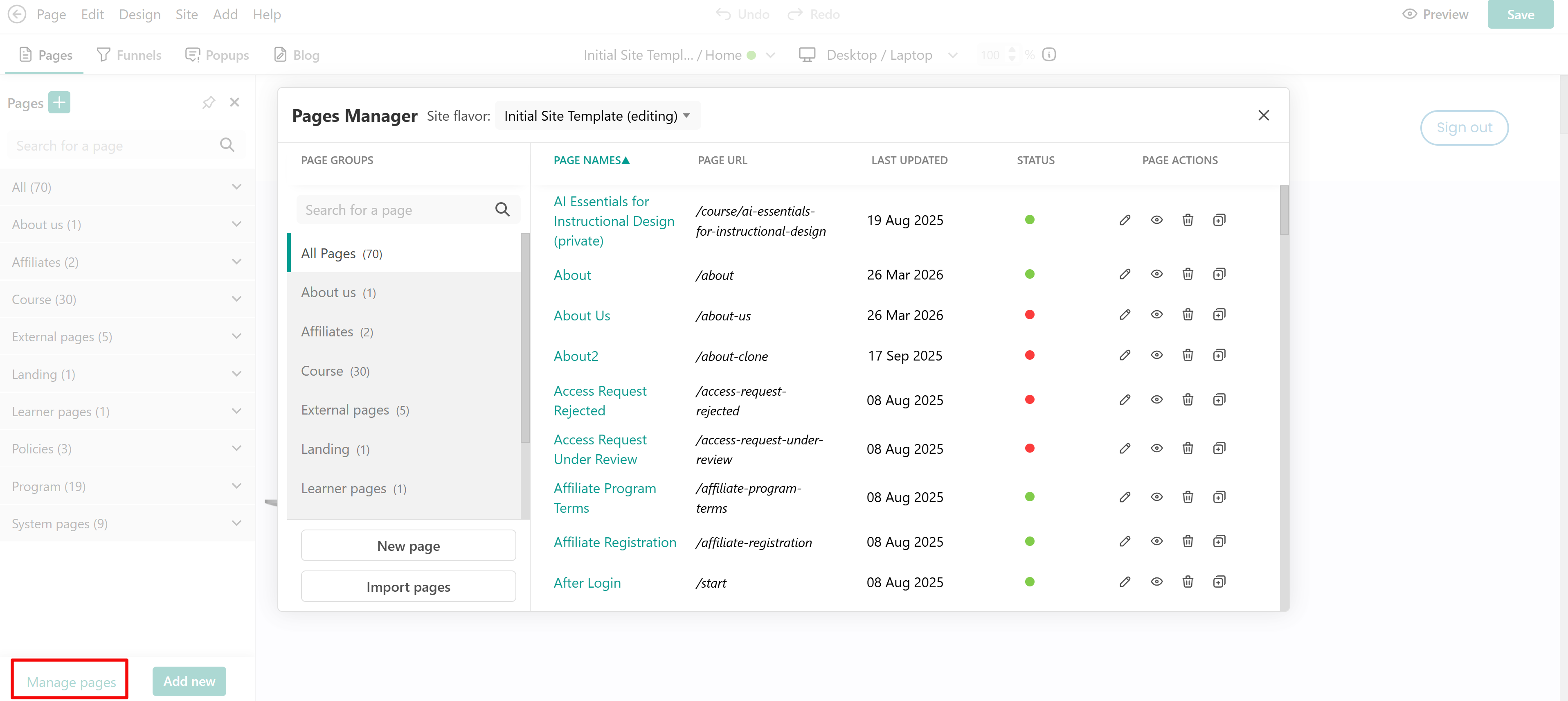
In this article, we will go through the process of creating new pages in your LearnWorlds school. To create a new page, navigate to Website → Design → Edit Website.
1. Click Pages and click on the + icon.
2. Click Pages and select Add new.
3. Click Pages → Manage pages. In the Pages Manager window, select New Page.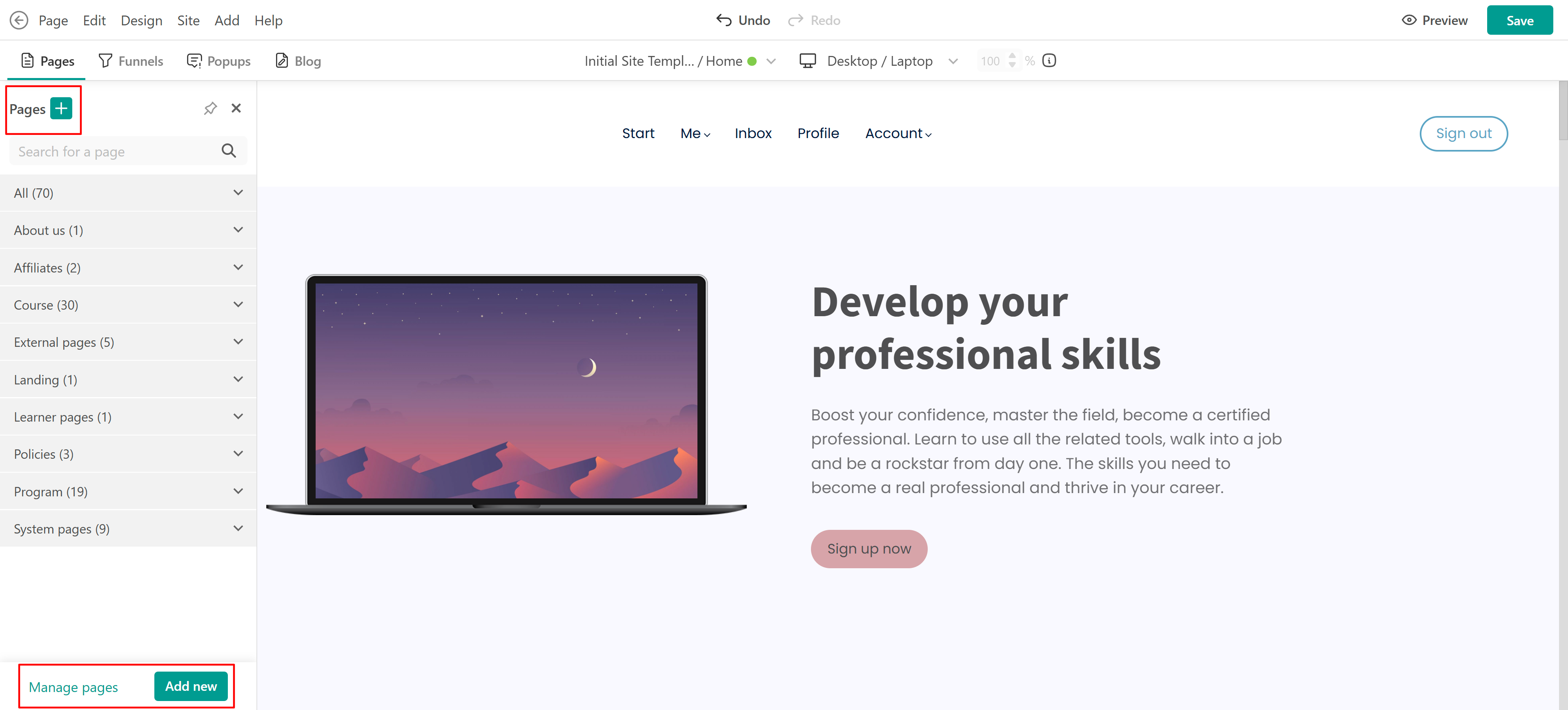
In all scenarios, a new screen will appear, prompting you to choose whether to create the page manually, use AI, or import a page from another site template.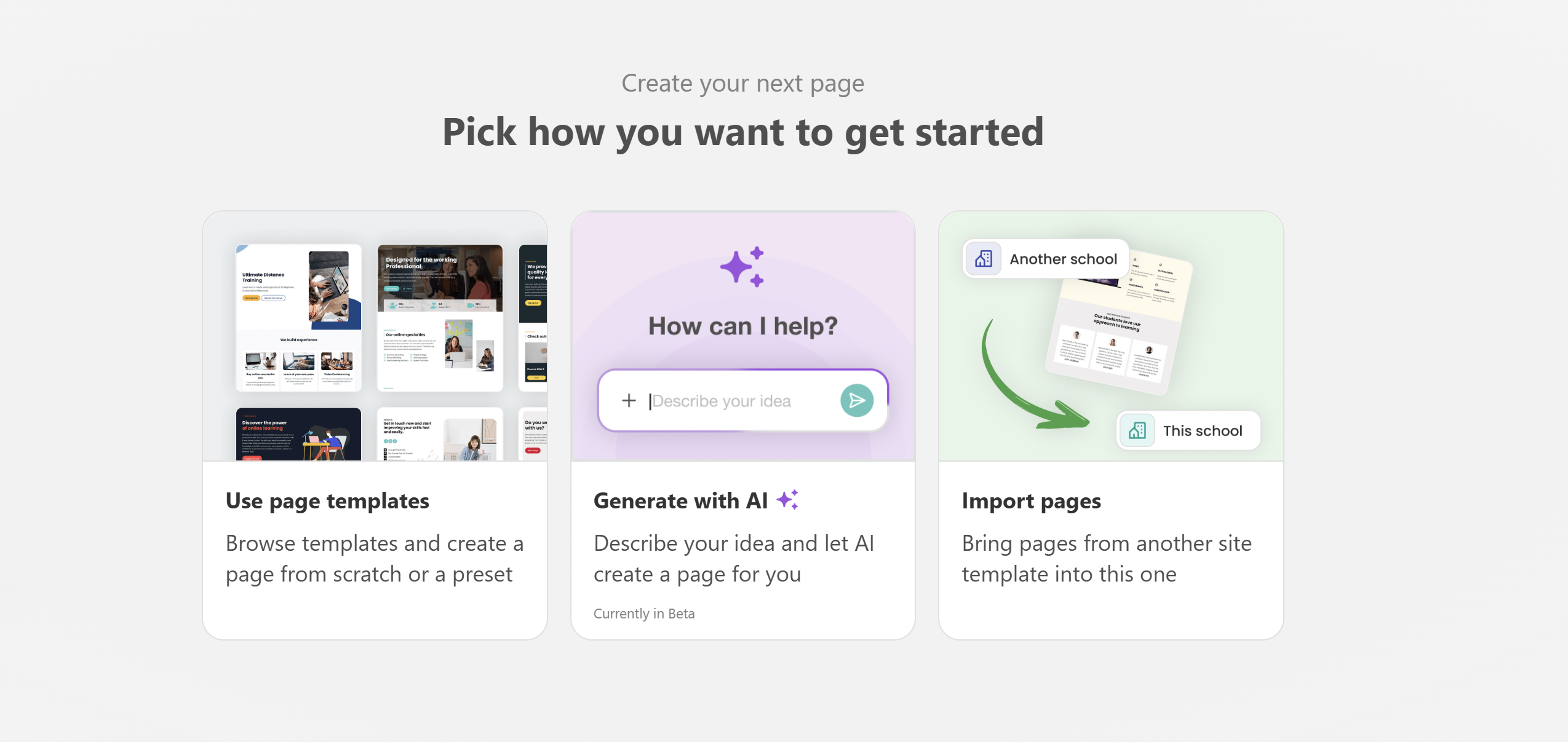
Let’s follow the use page templates flow. If you want to check how to generate a page with AI check this guide.
You will be given the option to choose either a blank page or one of the different ready-made page templates, with a variety of options, including:
- Landing pages
- 1 Click Sales Funnels
- Courses
- About Us
- Contact Us
- Pricing
- Blog
- Error
- Thank You
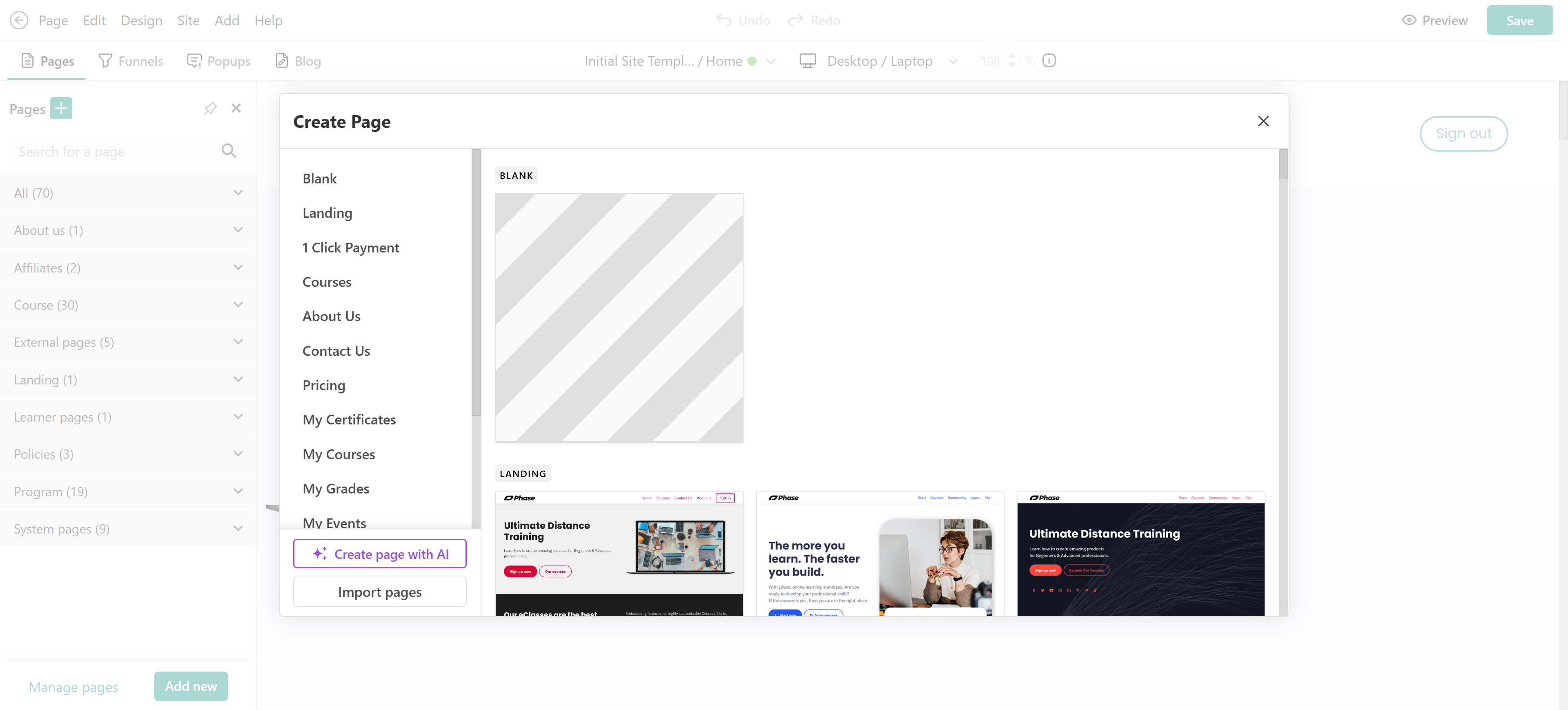
 You can also import a page (and import & sync) from the same school or from a different LearnWorlds school under the same organization in the Learning Center plans or higher and in the Pro trainer plan with an additional add-on. You can find out more in this article.
When you select a ready-made template, you can either add it directly or fill it with AI.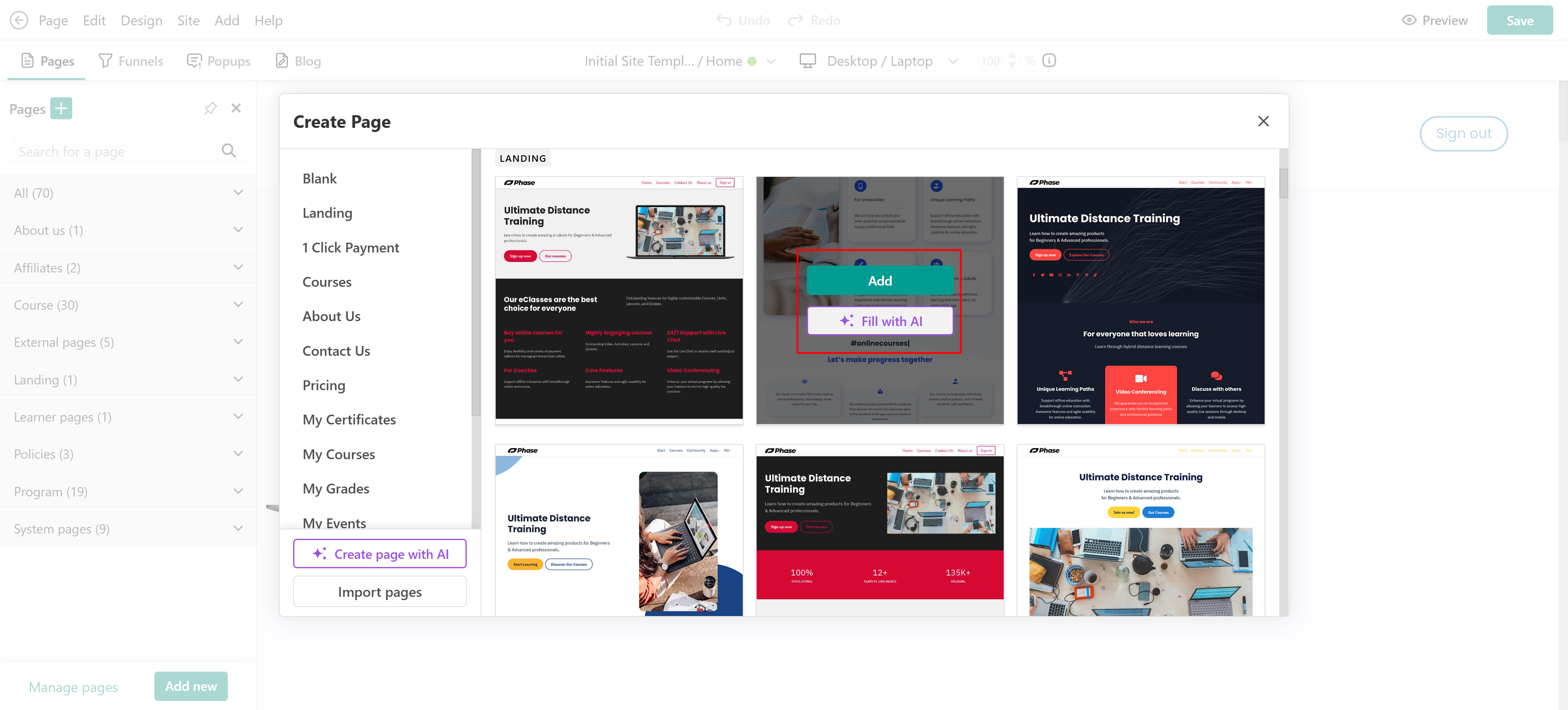
If you choose Fill with AI, an AI chatbox will appear where you can describe what you want to create based on that layout.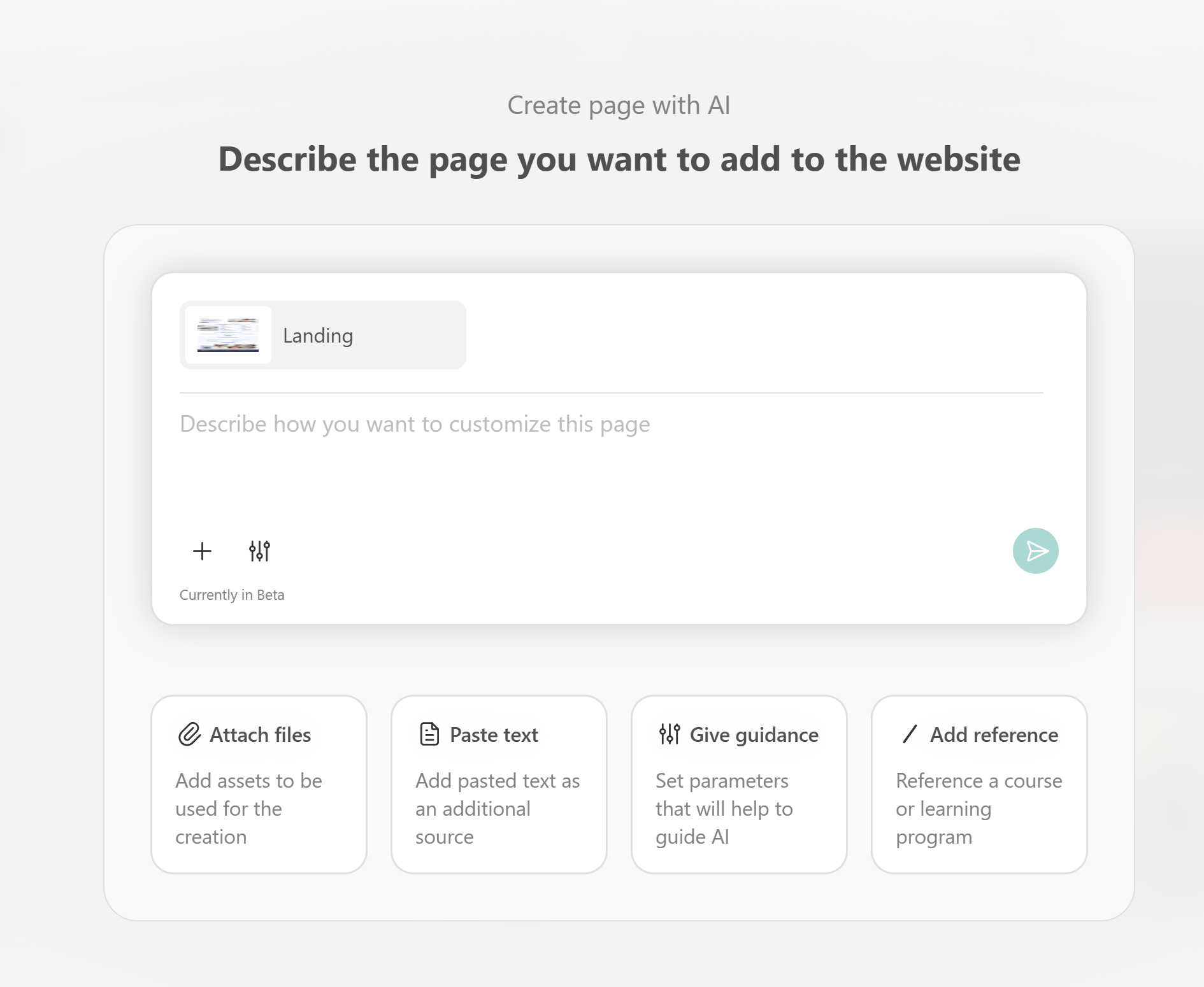
In both cases, the page will automatically use your branding, including colors and fonts from your Theme Explorer. You can then edit the page by updating text and images or adding new sections and widgets.
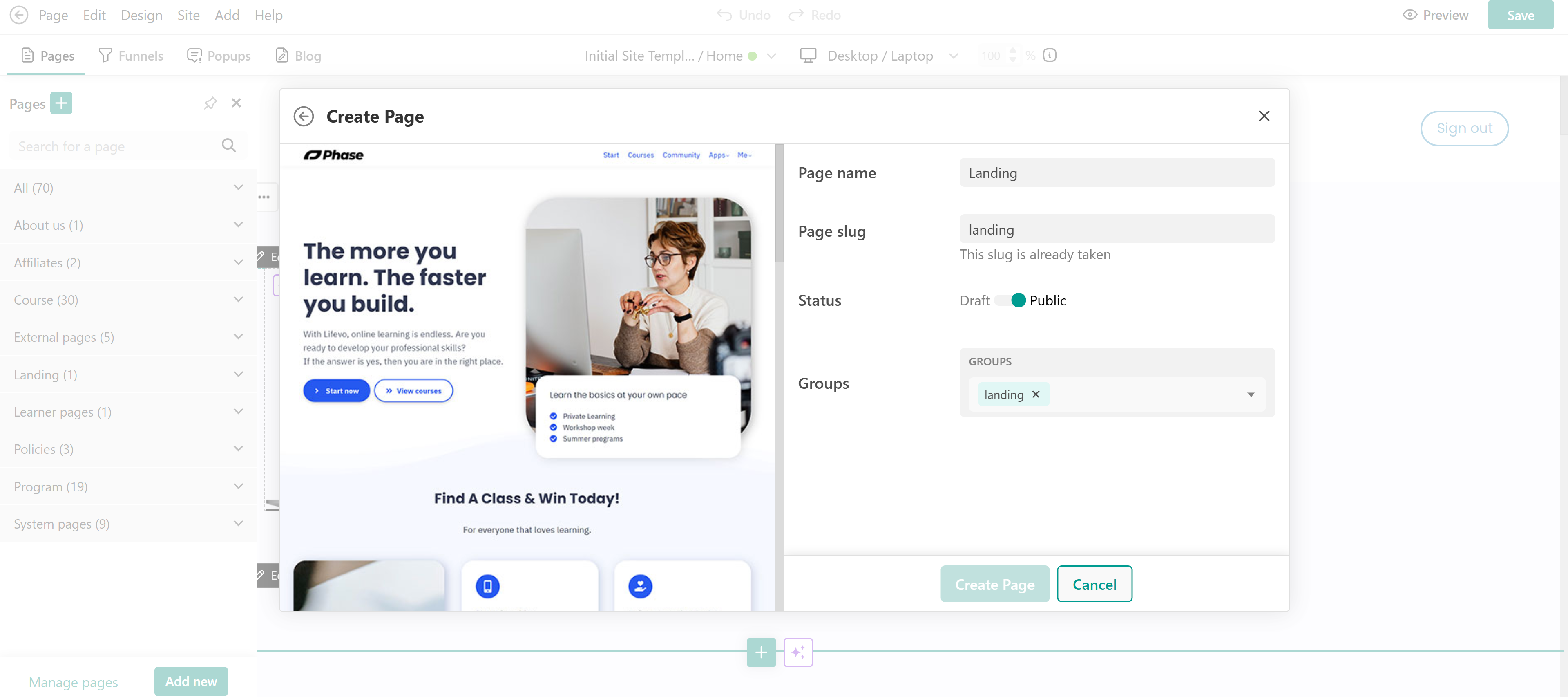
On the window that appears, add the following details about the new page you are creating:
- Page name
- Page slug
- Page's status (Draft/ Public)
- Group assignment
You can now find your newly created page in the Pages Manager under All Pages and the Page Group to which it belongs.