
The Certificates page gives you a central place to manage certificates awarded across your school. You can configure school-wide certificate settings, review current and historical certificate records, check certificate status and expiration, manually issue or edit certificates, revoke or delete certificates, and export certificate data
LearnWorlds supports Certificates of Completion and Certificates of Knowledge, depending on whether you want to recognize course completion or successful completion of a graded assessment. In this guide, you'll learn where to configure your certificate settings and how to manage certificates after they have been awarded.
Configure your school's certificate settings
Before configuring certificates for individual courses, you can define the general certificate settings used across your school. Navigate to Courses & programs → Certificates → Setup.
From here:
- Set your school's default certificate template.
- Customize the file name of downloaded certificate PDFs.
- Enable certificate verification.
For detailed instructions about certificate templates, PDF keys, dynamic certificate values, and certificate file names, see this guide.
Set up certificates for a course
Certificates are configured at the course level, where you can define what learners need to achieve to earn a certificate and how the certificate is issued.
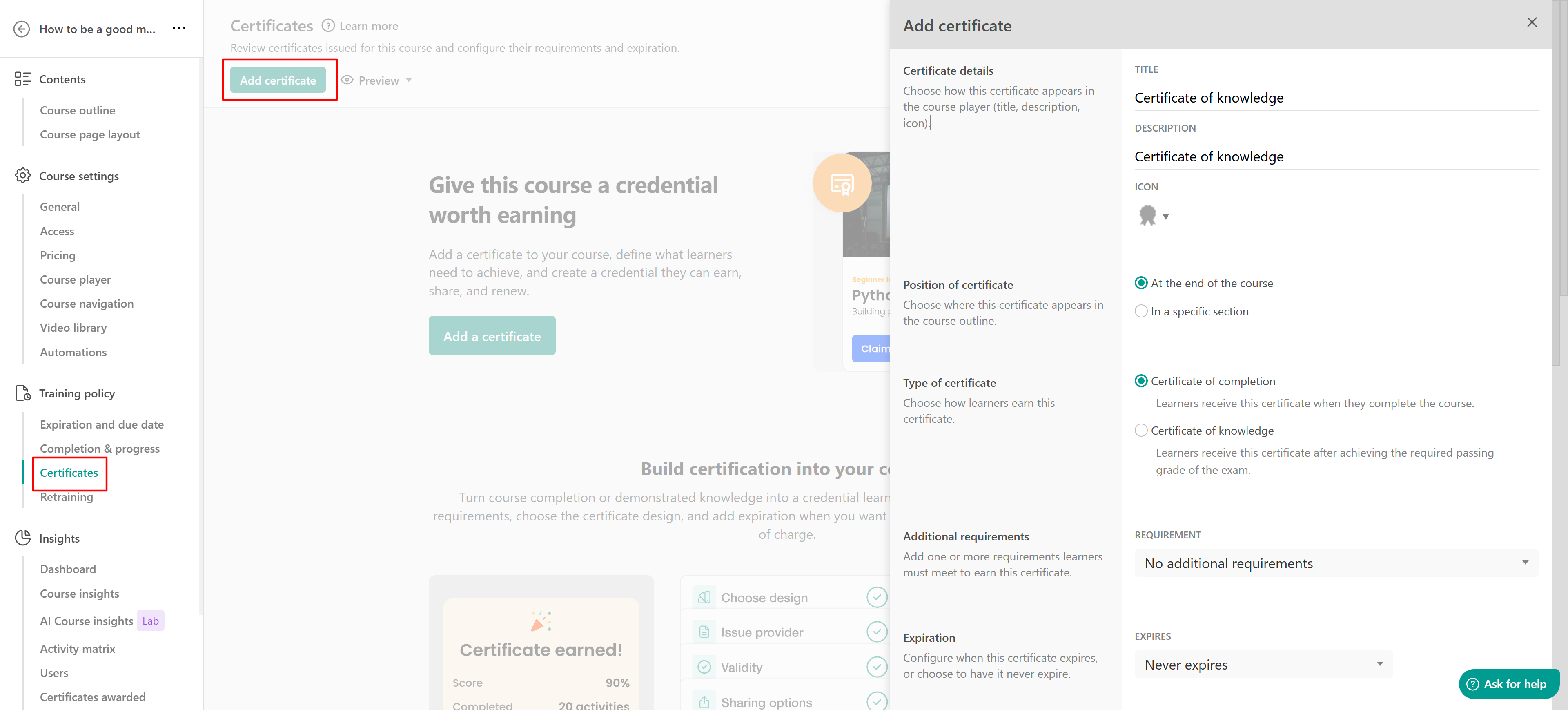
Open a course and either add a certificate activity from the Course Outline, or navigate to Training policy → Certificates.
From the Certificates page, select Add certificate and configure:
- Certificate details: Set the title, description, and icon displayed in the Course Player.
- Position: Choose whether the certificate appears at the end of the course or in a specific section.
- Certificate type: Choose between a Certificate of Completion or Certificate of Knowledge.
- Requirements: Define any additional requirements learners must meet to earn the certificate.
- Expiration: Choose whether and when the certificate expires.
- Certification provider: Choose whether the certificate is issued by your school or a supported third-party provider.
- Social sharing: Choose where learners can share their certificate.
- Certificate template: Use your school's default certificate template or select another available template.
After a certificate has been created, its settings can also be edited from here.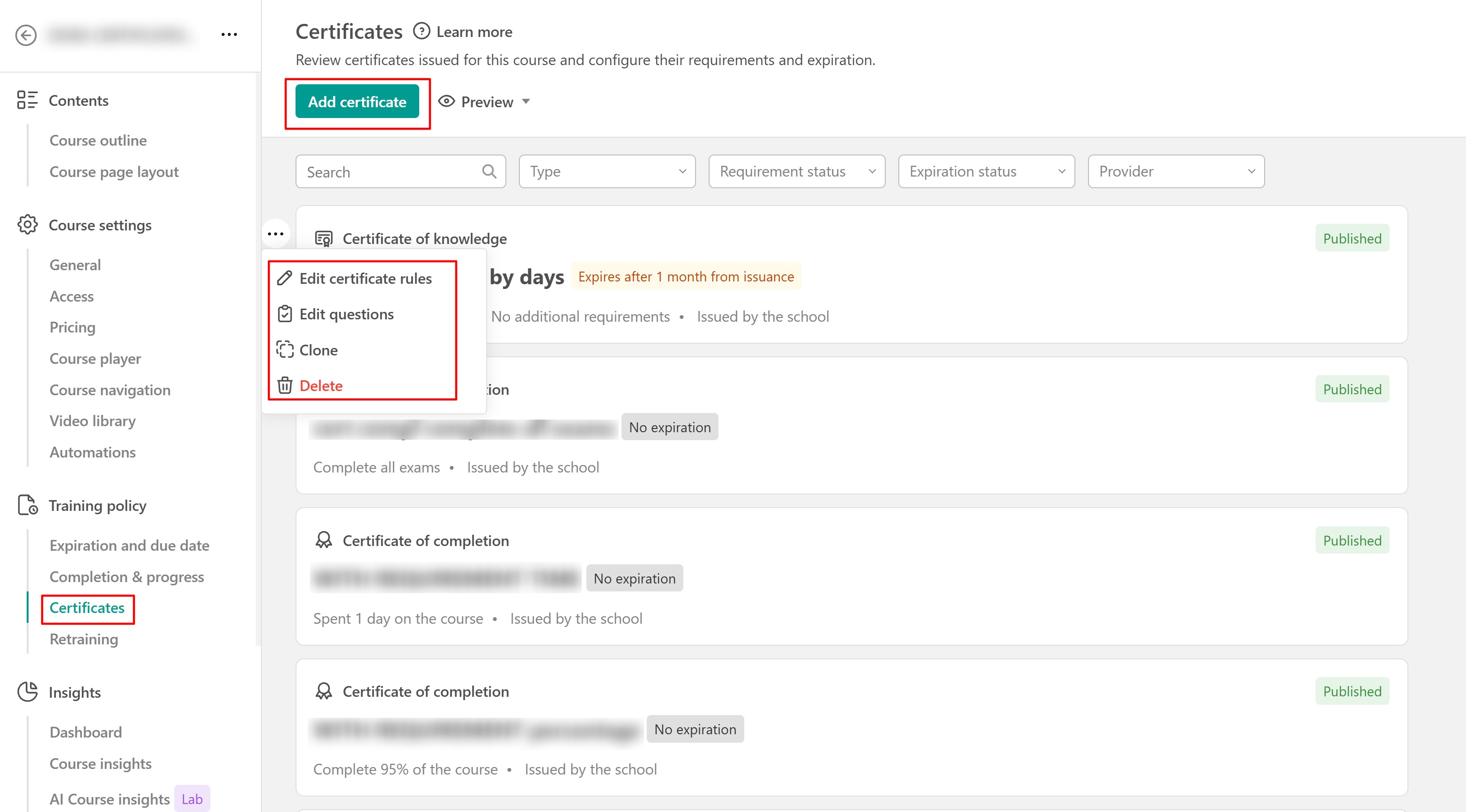
View and manage awarded certificates
Once learners start earning certificates, you can review and manage the awarded certificate records from the school-wide Certificates page. Navigate to Courses & programs → Certificates.
This page provides a central record of certificates awarded across your school. For each certificate, you can view:
- Learner name
- Course title
- The date the certificate was issued.
- Type of certificate: Certificate of Knowledge or Certificate of Completion.
- Attempts
- Score: The learner's score, where applicable.
- Expiration date: The date the certificate expires, where applicable.
- Status: The certificate's current status (Valid/ Expired).
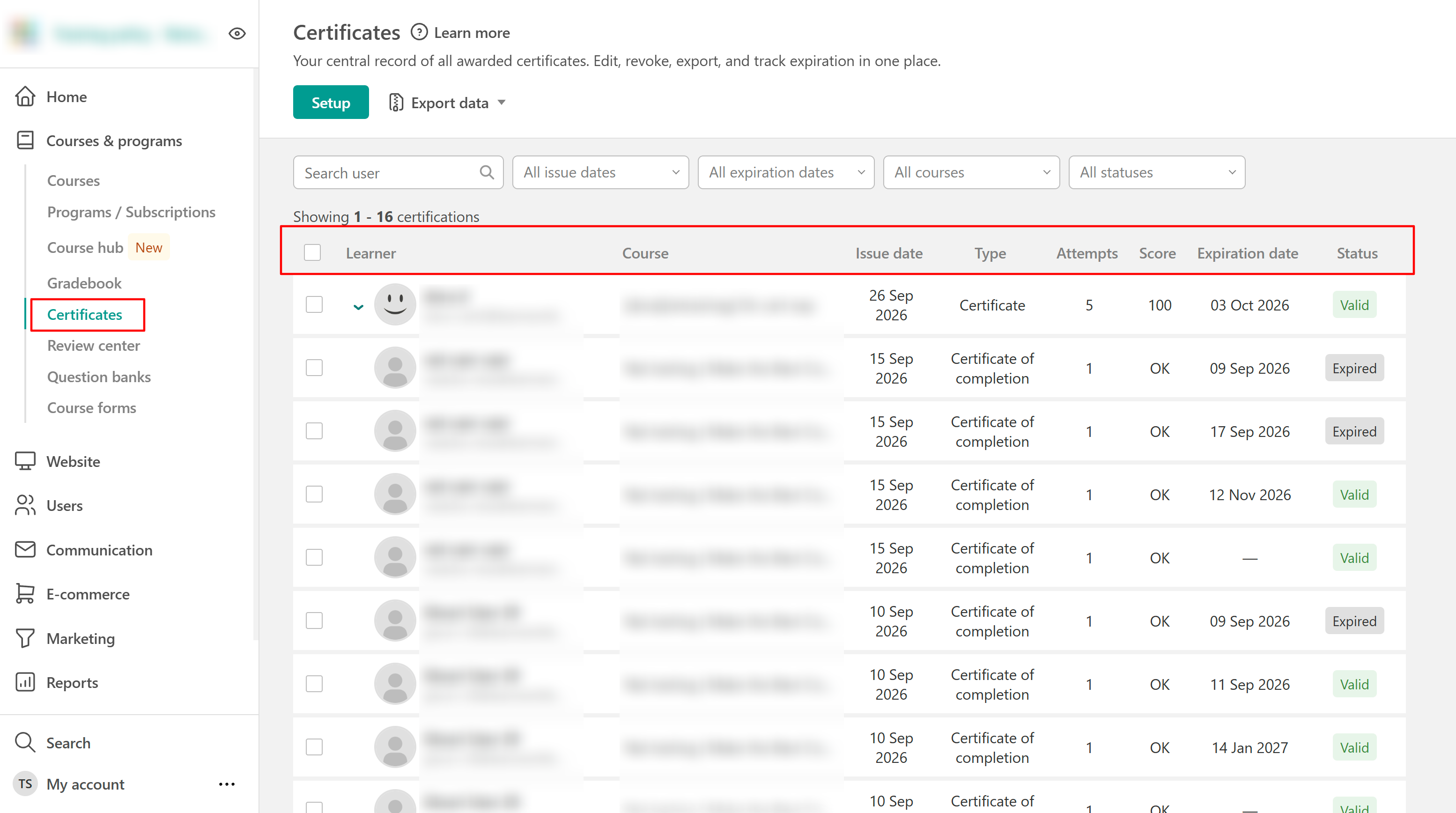
This page includes both current and historical certificate records, helping you track certificates throughout their lifecycle.
You can use the search and filters at the top of the page to find specific records by learner, issue date, expiration date, course, or status. Filters can also be combined to narrow the results further. Because expired and revoked certificates remain available as historical records, you can also search for a learner to review their certificate history over time.
View awarded certificates for a specific course
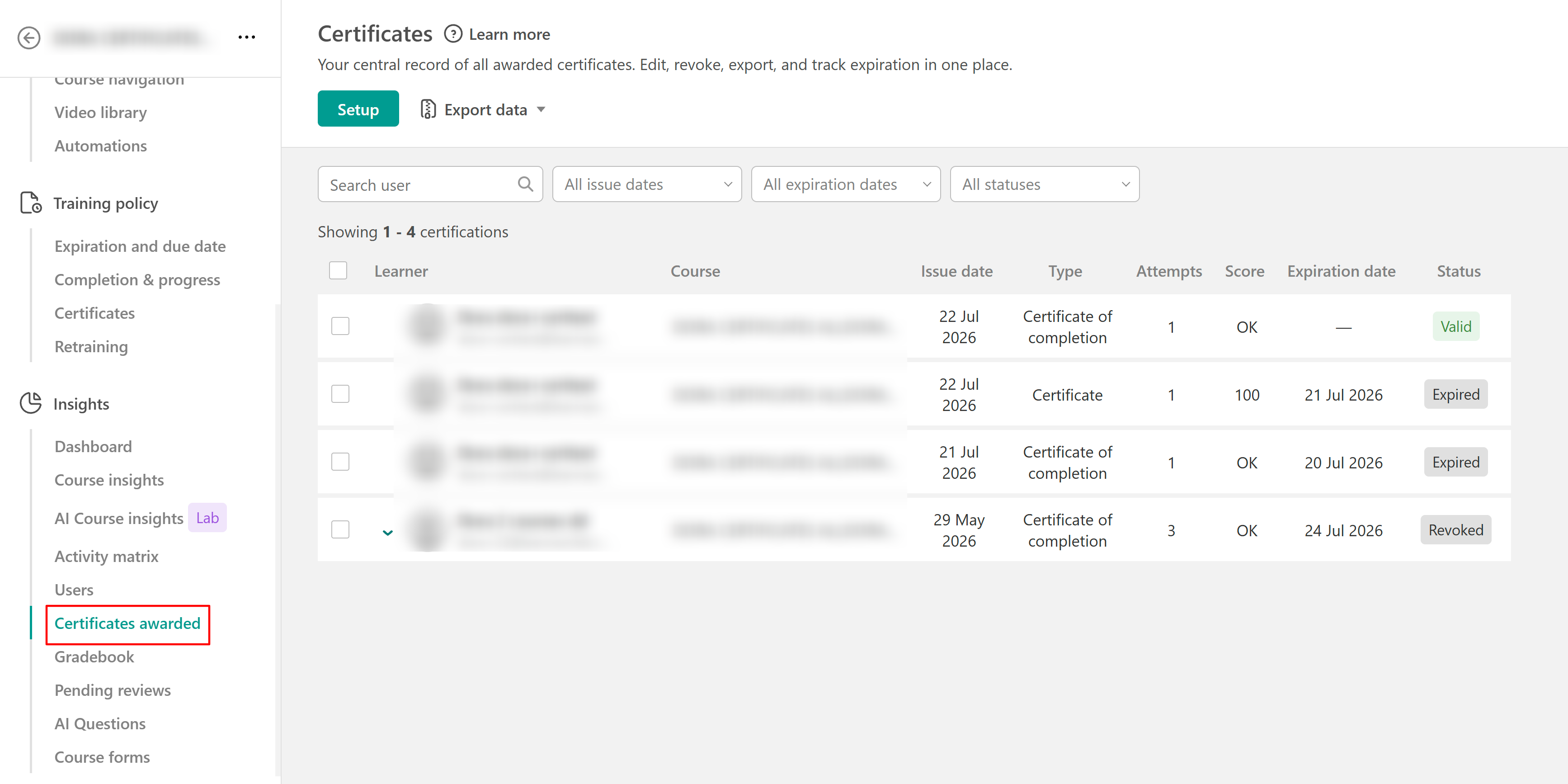
If you want to review certificates for a particular course rather than across your entire school, open the course and navigate to Insights → Certificates awarded.
Here, you can review the certificates awarded for that course, including the learner, issue date, certificate type, attempts, score, expiration date, and current status.
Understand certificate status and expiration
A certificate's Status shows whether it is currently valid. Certificates can have the following statuses:
| Status | What it means |
|---|---|
| Valid | The certificate is currently valid. |
| Expired | The certificate has passed its expiration date and is no longer valid. |
| Revoked | The certificate has been manually revoked by an admin and is no longer valid. |
 -Certificates can have an expiration date that determines how long they remain valid. When the expiration date passes, the certificate's status changes to Expired.
-Expired and revoked certificates remain available as historical records. This is different from deleting a certificate, which permanently removes its record
Manage awarded certificates
Under the certificates page you can manage individual certificate records after they have been awarded. Depending on what you need to change, you can manually issue a certificate, edit its details, revoke or delete it, reset the associated activity progress, or access the certificate itself.
Issue a certificate manually
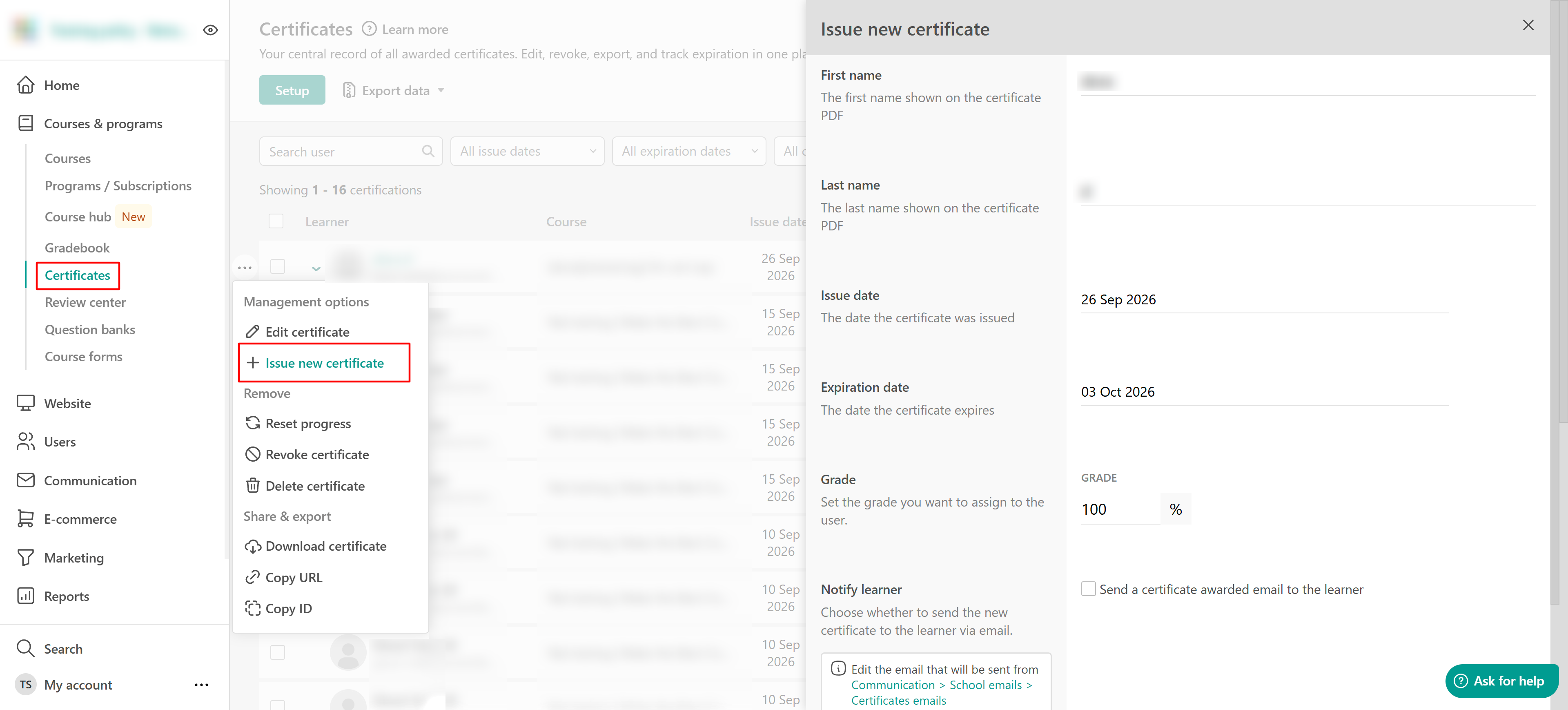
To manually issue a new certificate to a learner from the school-wide Certificates page:
- Navigate to Courses & programs → Certificates.
- Locate the learner and open the available management options.
- Select Issue new certificate.
- Configure the certificate details.
- Confirm the action.
The newly issued certificate is added to the learner's certificate records and becomes part of their certificate history. 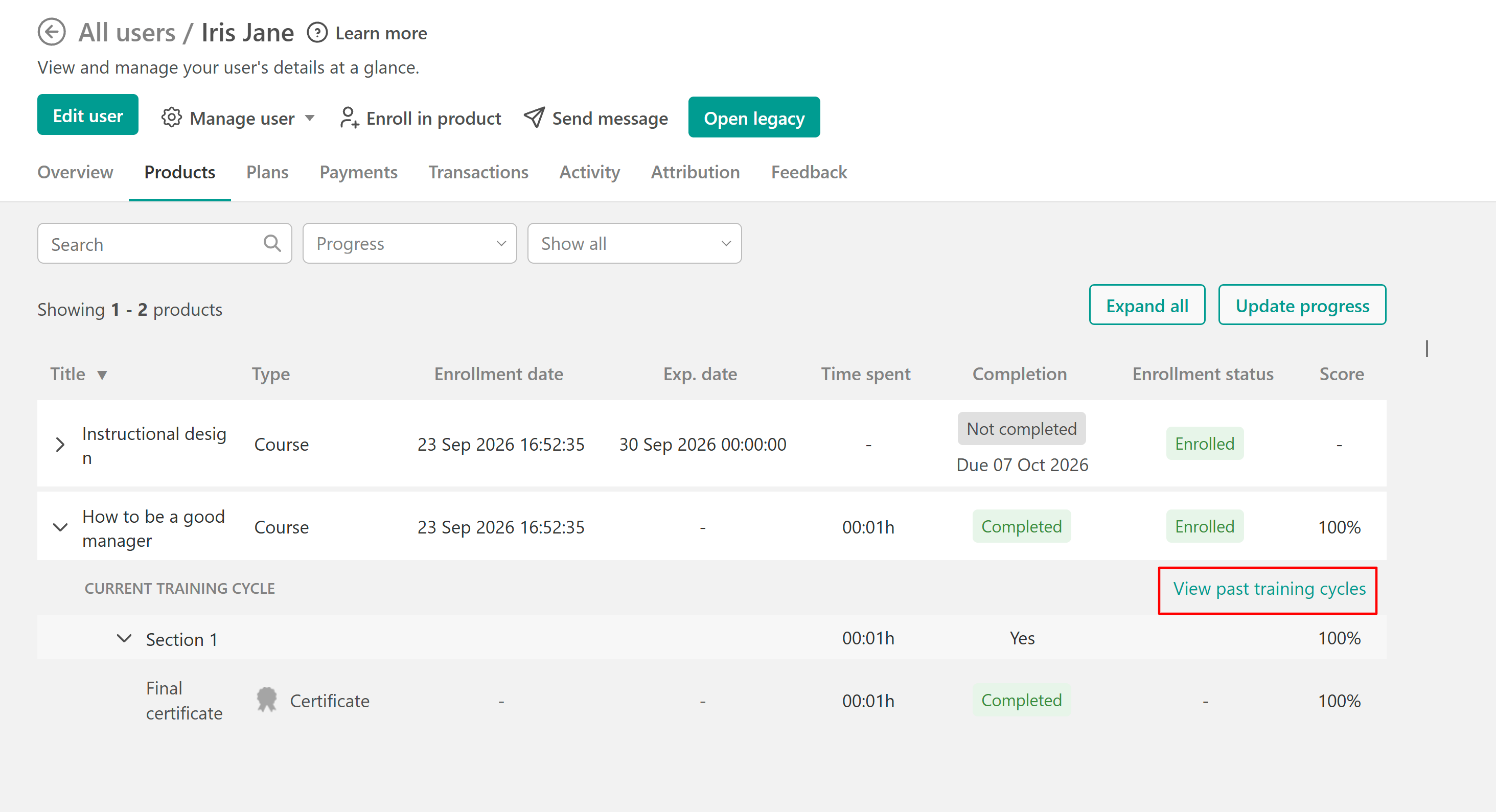
Edit an awarded certificate
To update certain certificate details after a certificate has been awarded:
1. Navigate to Courses & programs → Certificates.
2. Locate the certificate and open its management options.
3. Select Edit certificate.
4. Update the available details:
- First name
- Last name
- Issue date
- Expiration date
- Grade
5. Select Save.
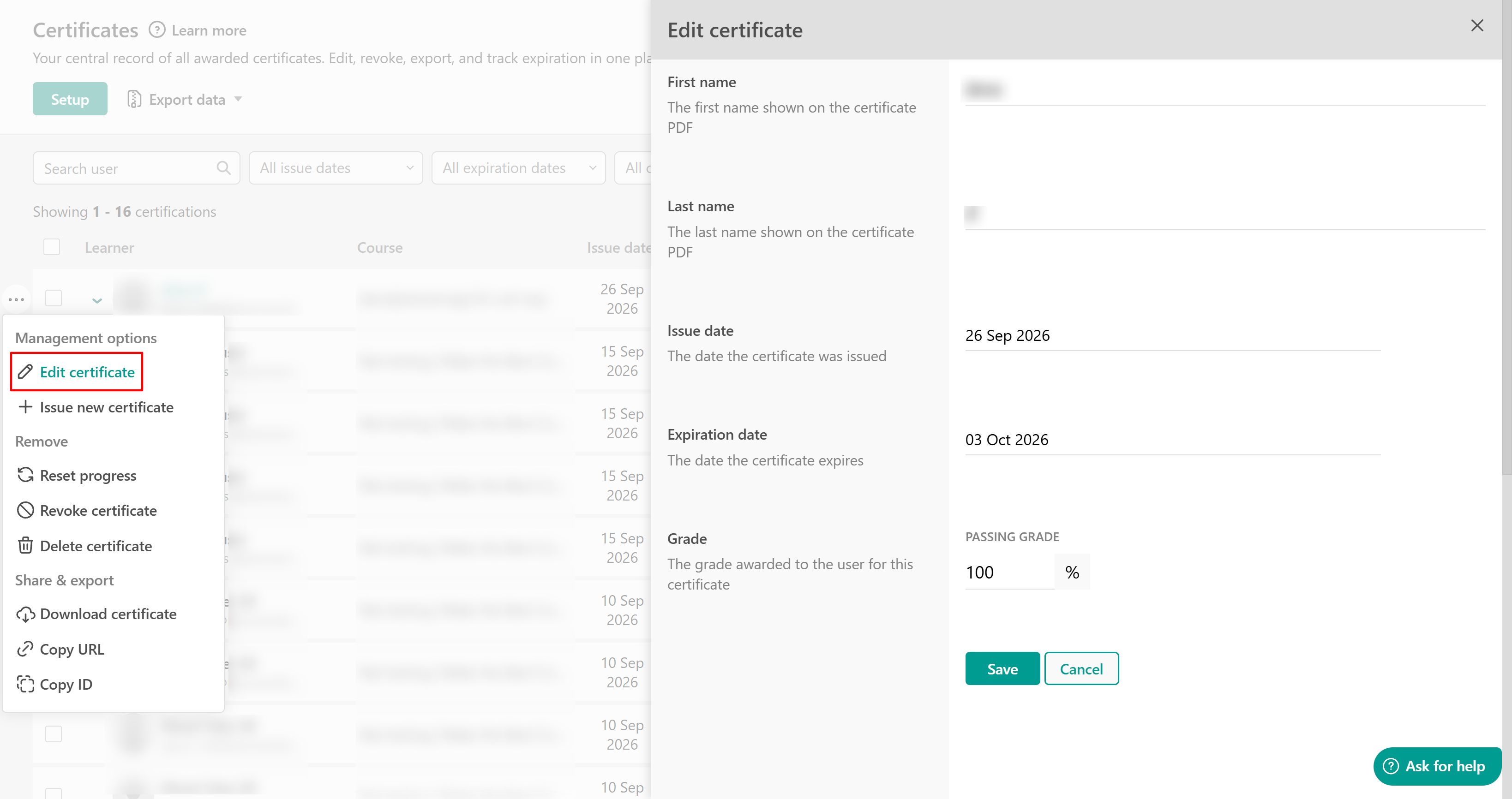
The updated information is reflected when the certificate is downloaded again.
Updating the first or last name changes the name displayed on this awarded certificate. It does not change the learner's profile information.Revoke or delete an awarded certificate
You can revoke or delete a certificate when it should no longer be available as a valid certificate. These actions have different effects on the certificate record.
- Revoke a certificate when you want to invalidate it while keeping its historical record
- Delete a certificate when you want to permanently remove its certificate record:
1. Navigate to Courses & programs → Certificates.
2. Locate the certificate and open its management options.
3. Select Revoke or Delete certificate.
4. Review the confirmation message and Confirm.
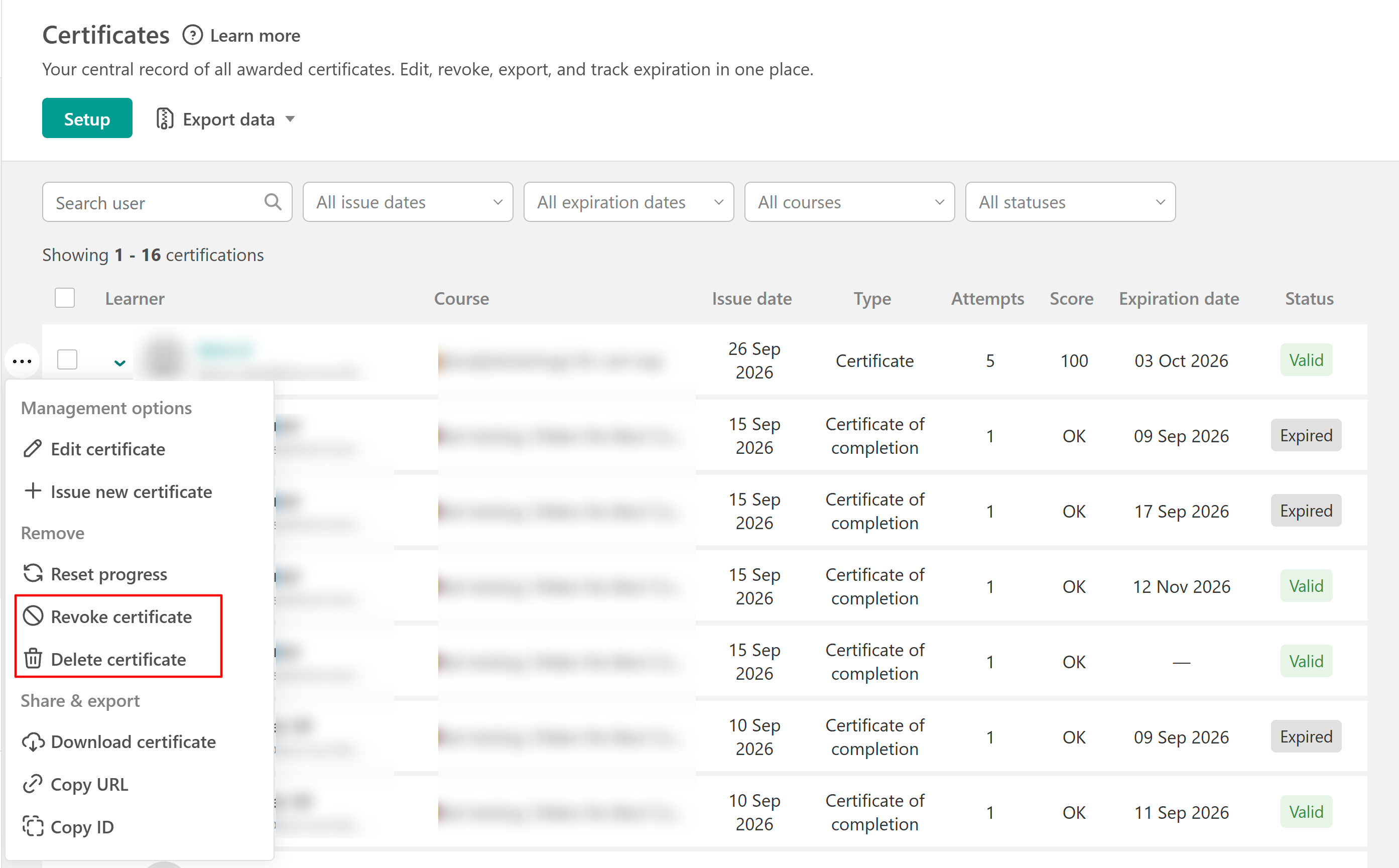
- The certificate's status changes to Revoked, indicating that it is no longer valid. Revoking a certificate cannot be reversed.
- Once deleted, the certificate is no longer available for the learner to download.
Reset certificate activity progress
You can reset the learner's progress for the learning activity associated with an awarded certificate.
1. Navigate to Courses & programs → Certificates.
2. Locate the certificate and open its management options.
3. Select Reset progress.
4. Review the affected activity and learner.
5. Choose whether to enable Delete issued certificates.
6. Select I understand that this action can't be reversed and hit Confirm.
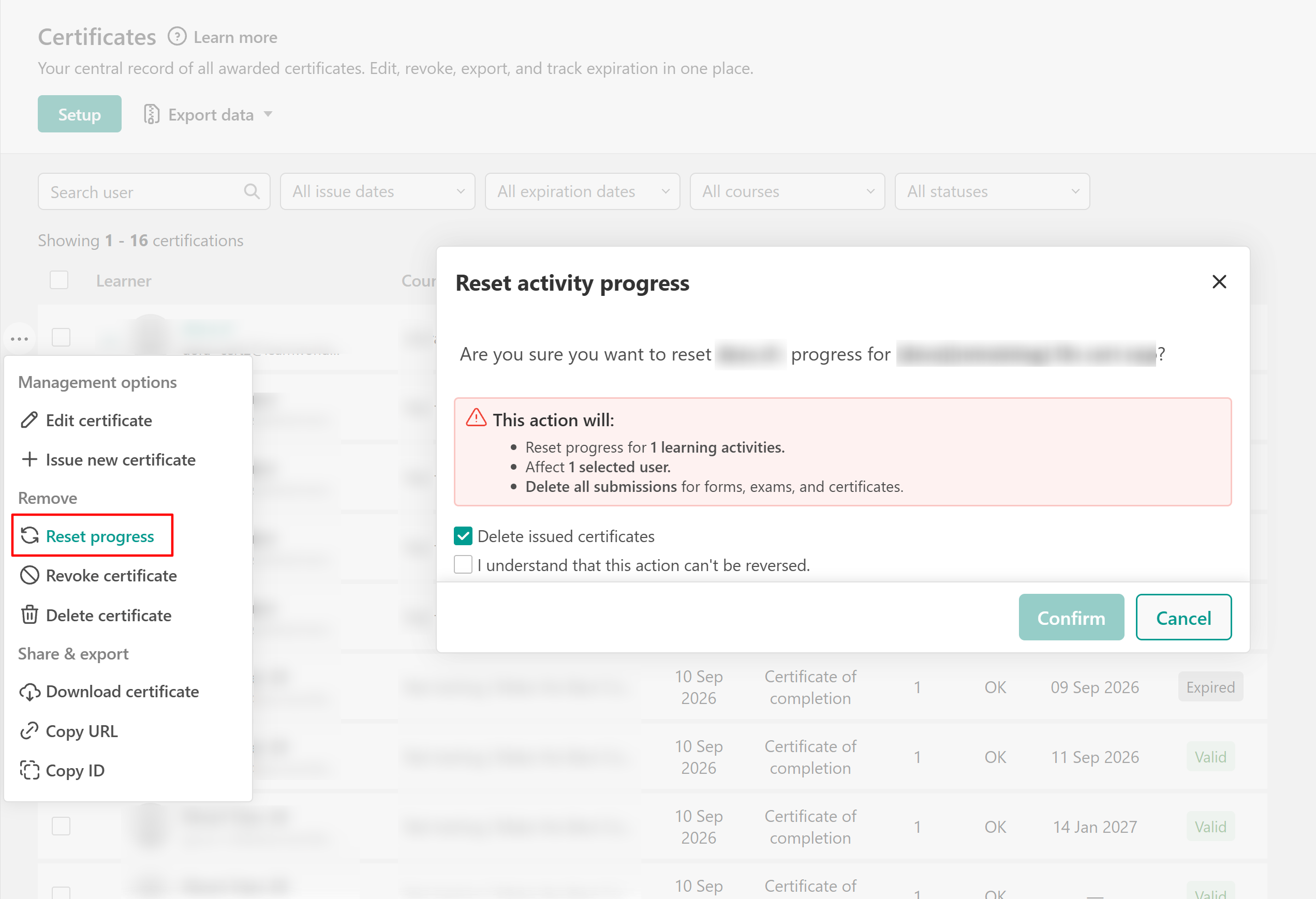
Resetting progress resets progress for the affected learning activity and deletes its associated submissions for forms, exams, and certificates. If Delete issued certificates is selected, the associated issued certificate is also deleted.
Download a certificate or copy its URL or ID
Access an awarded certificate directly from Courses & programs → Certificates. Locate the certificate, open its management options, and select:
- Download certificate to download its PDF.
- Copy URL to copy the certificate's URL.
- Copy ID to copy its unique Certificate ID.
The Certificate ID can also be used to verify a certificate when certificate verification is enabled for your school.
Manage certificates in bulk
Select multiple awarded certificates and apply the same action to them at once. To manage certificates in bulk:
- Navigate to Courses & programs → Certificates.
- Select the checkboxes next to the certificates you want to manage.
- From the bulk actions bar, choose one of the available actions:
- Edit issue date: Change the issue date for the selected certificates.
- Edit expiration: Change the expiration date for the selected certificates.
- Reset: Reset the associated activity progress for the selected certificates.
- Revoke: Revoke the selected certificates so they are no longer valid.
- Delete: Permanently delete the selected certificate records.
Review and confirm the action where required.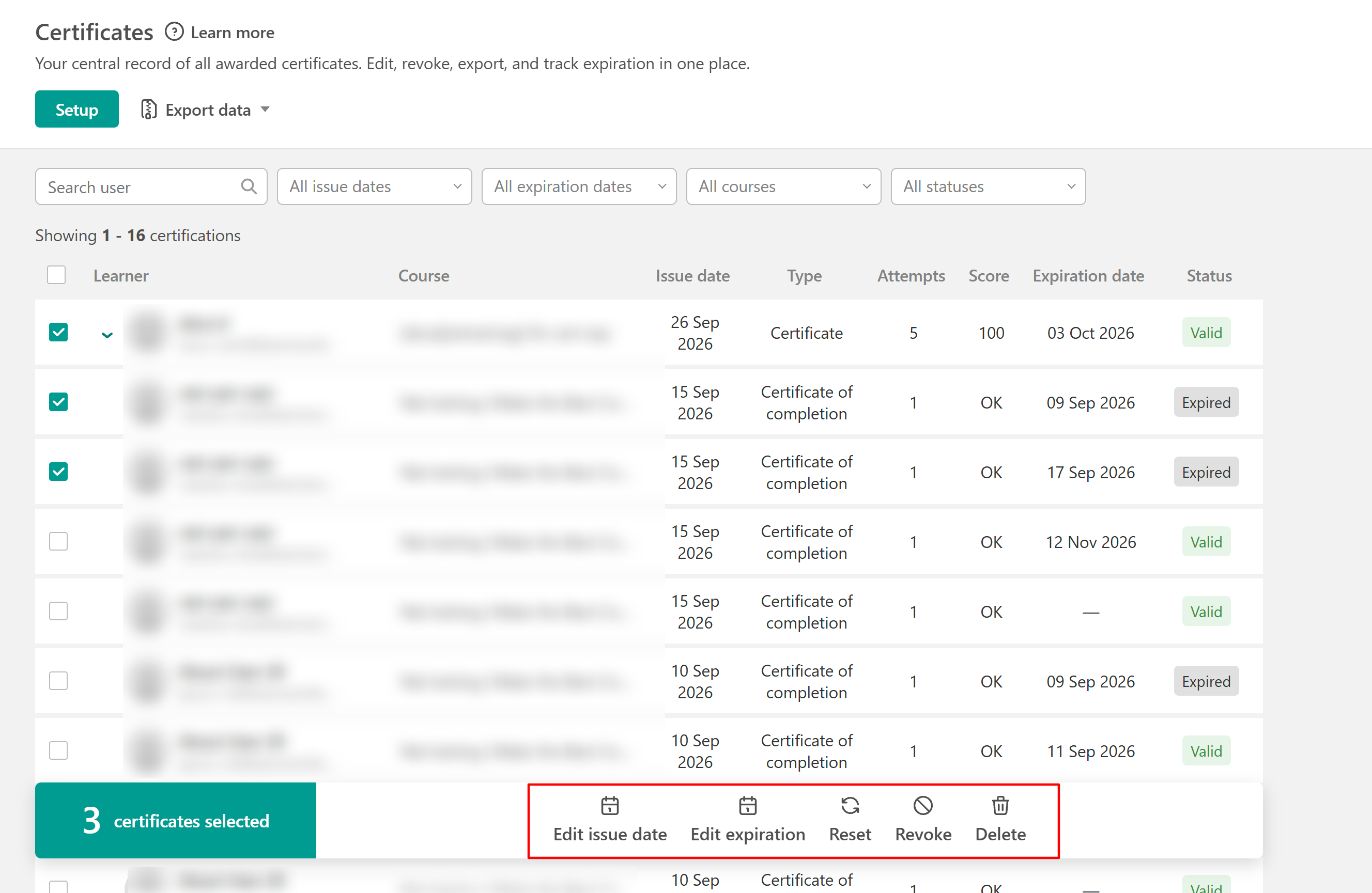
Export certificate records
Select Export data from Courses & programs → Certificates to export certificate information. You can:
- Export certificate data in CSV or XLS format, or export a ZIP file containing certificate PDFs.
- Export all certificate records or use the available search and filters first to export a specific set of certificates.
Certificates issued by external providers are excluded from the certificate file export. If there are more than 300 certificate records, the generated report is available from the Reports log page.Notify learners when a certificate is awarded
Notify learners when they receive a certificate by enabling the When awarded a certificate notification in your school's Inbox settings.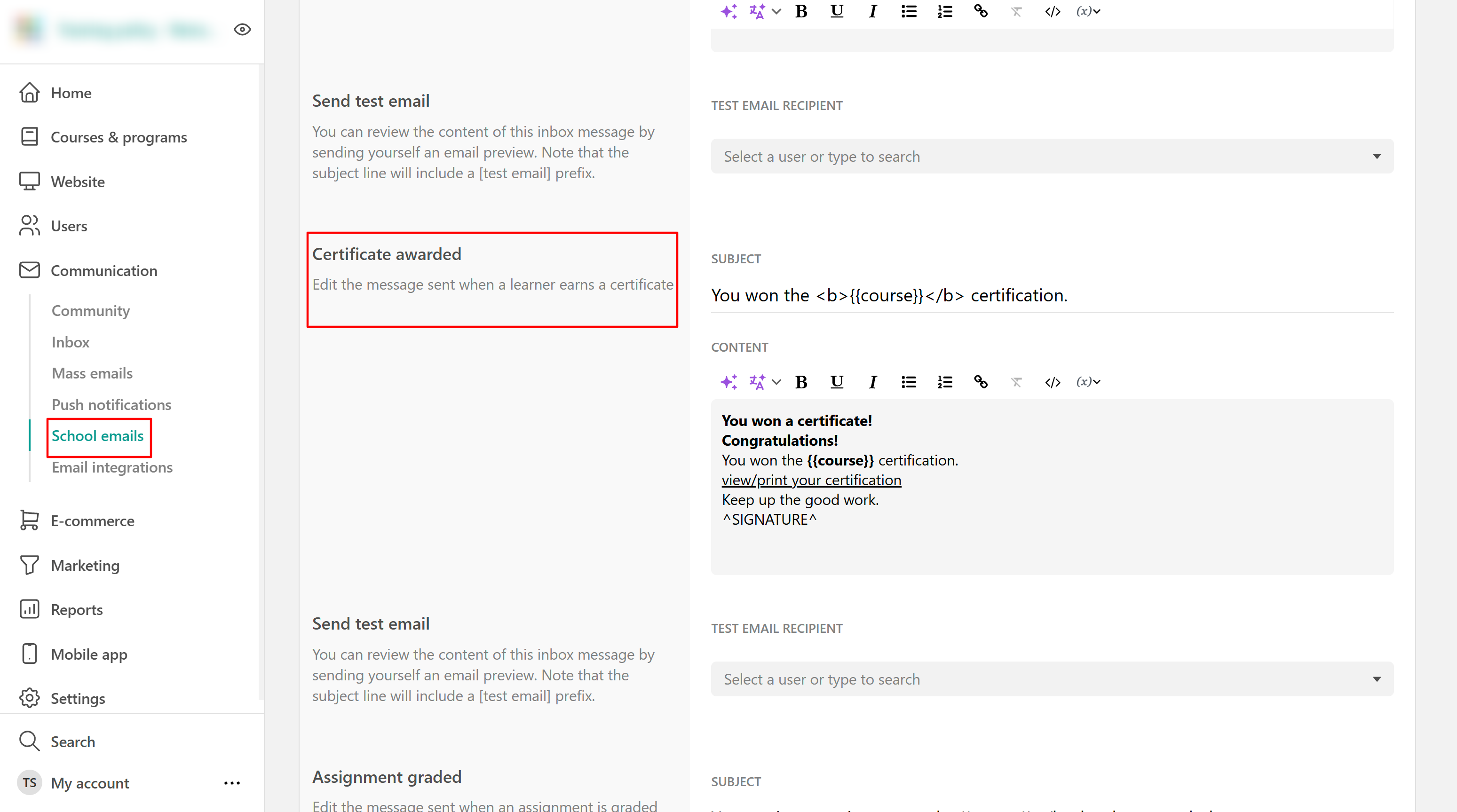
The users will receive their Notification in their inbox, where they can also download the certificate as a PDF.
This notification also reflects changes e.g., if the name on the certificate changes, the updated name will be downloaded; if deleted, the certificate won't be downloadable anymore.