
Certificate verification allows learners to share course certificates that can be verified publicly without requiring the person viewing them to sign in to your school.
Each awarded certificate has a unique Certificate ID and a public verification URL. When certificate verification is enabled, employers, clients, auditors, or other third parties can use this information to confirm that a certificate was issued by your school and check its current status.
In this article, we'll see how to enable and customize certificate verification, make the Verification page accessible from your school, share certificate verification information, and verify an awarded certificate.
How certificate verification works
Certificate verification provides a public Verification page where an awarded course certificate can be checked using its unique Certificate ID or verification URL.
Depending on the certificate and its current status, the Verification page can display:
- Learner name
- Course
- Issue date
- Certificate ID
- Certificate status
- Certificate preview
A certificate can have a Valid, Expired, or Revoked status:
- Valid: The certificate is currently valid.
- Expired: The certificate has passed its expiration date and is no longer valid.
- Revoked: The certificate has been revoked and is no longer valid.
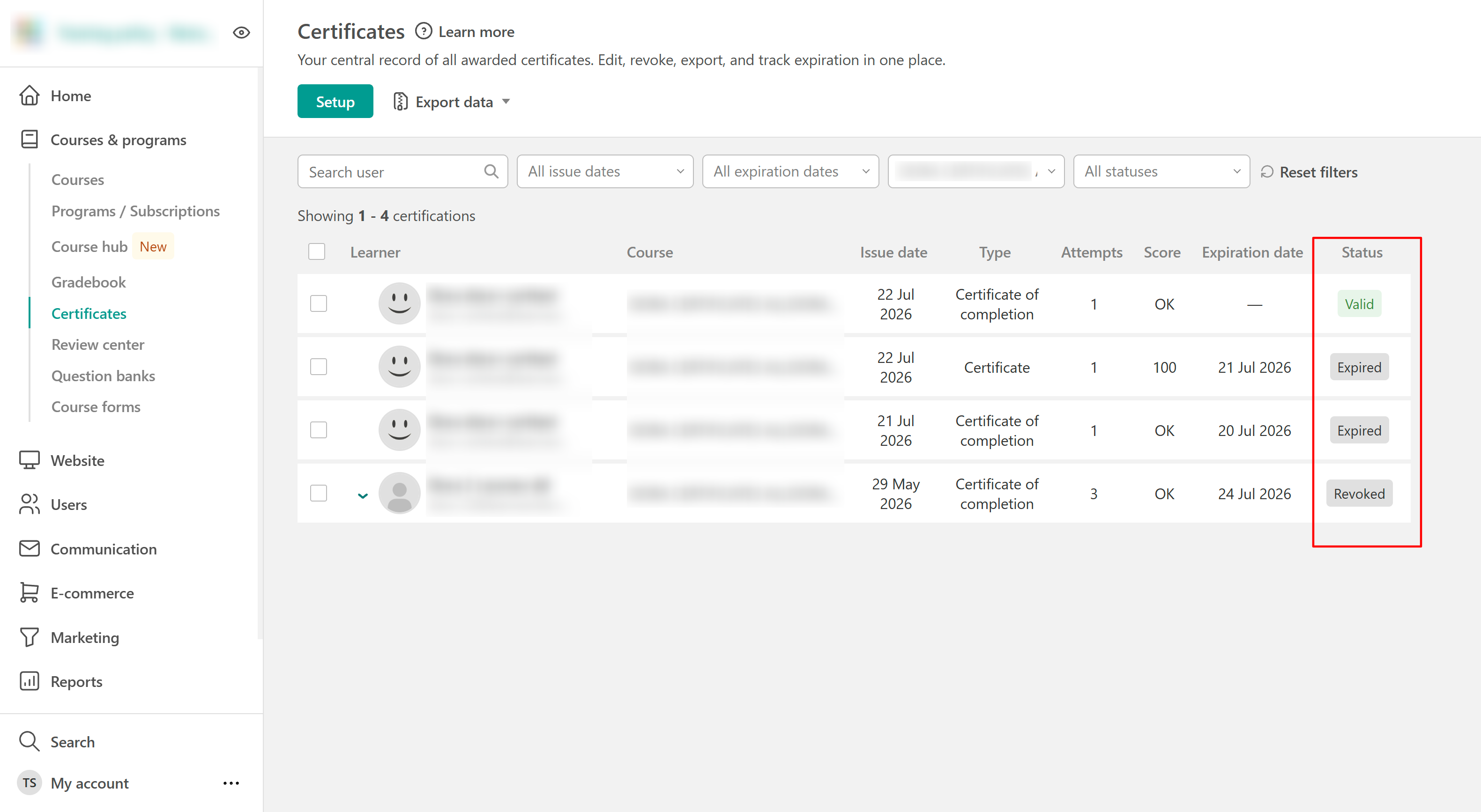
Expired and revoked certificates remain available for verification, allowing visitors to see the certificate information and its current status.
For more information about certificate statuses, expiration, revocation, deletion, and certificate history, see this guide.
When to use certificate verification
Certificate verification is useful when you want to:
- Allow employers or clients to confirm a learner's certificate.
- Give auditors or other third parties access to certificate information without requiring a school account.
- Let learners share a verifiable credential instead of relying only on a downloaded certificate.
- Provide a public place where visitors can verify certificates issued by your school.
- Enable certificate verification
To enable certificate verification for your school:
- Navigate to Courses & programs → Certificates.
- Select Setup.
- Locate Enable certificate verification.
- Turn the setting On.
- Select Save.
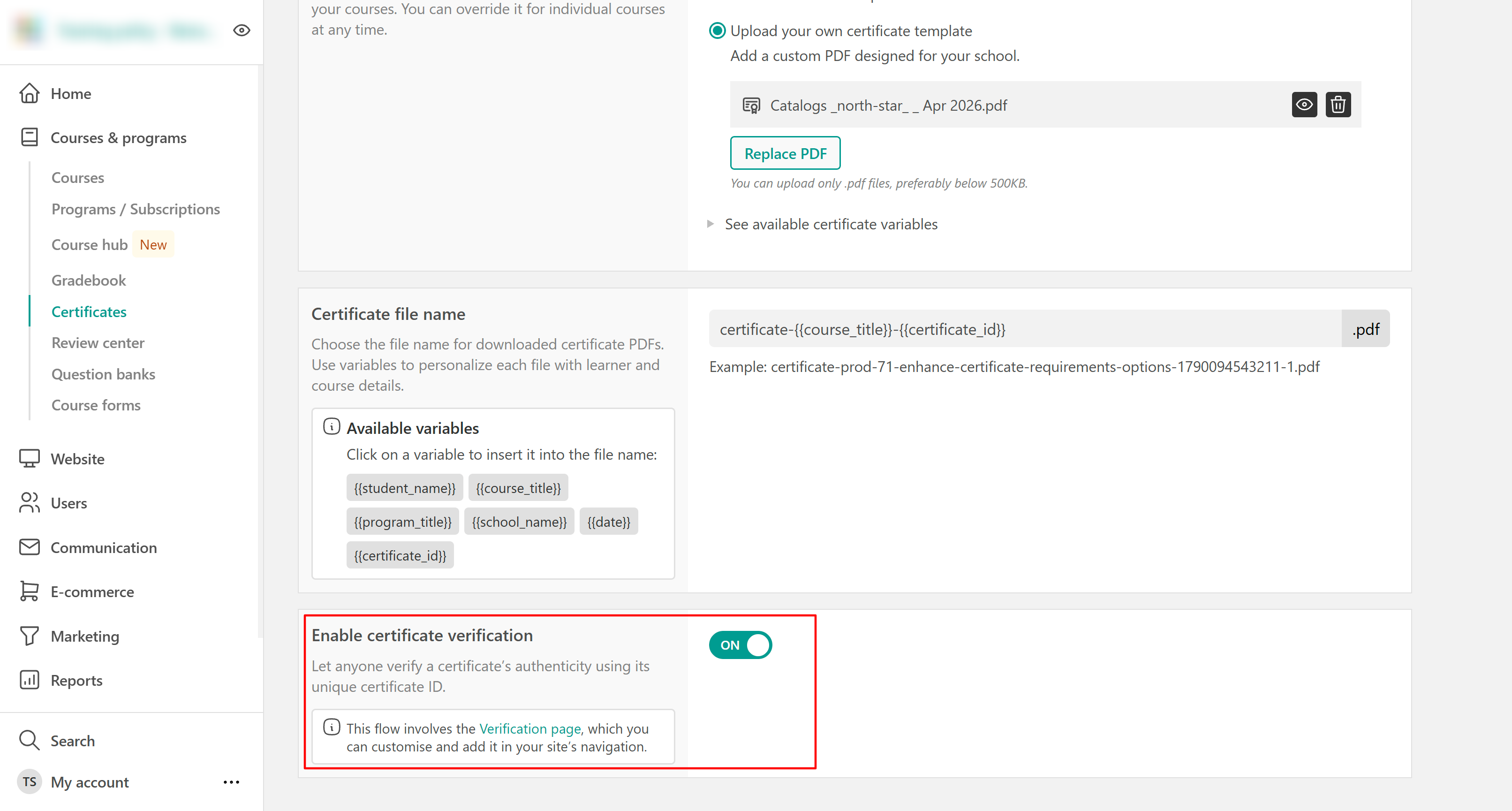
Once enabled, awarded course certificates can be verified through their public verification URLs or by entering their Certificate IDs on your school's Verification page.
Customize the Verification page
The Verification page is part of your school website and can be customized to match your school's design. Open the Verification page in your website editor to customize its appearance and content as needed.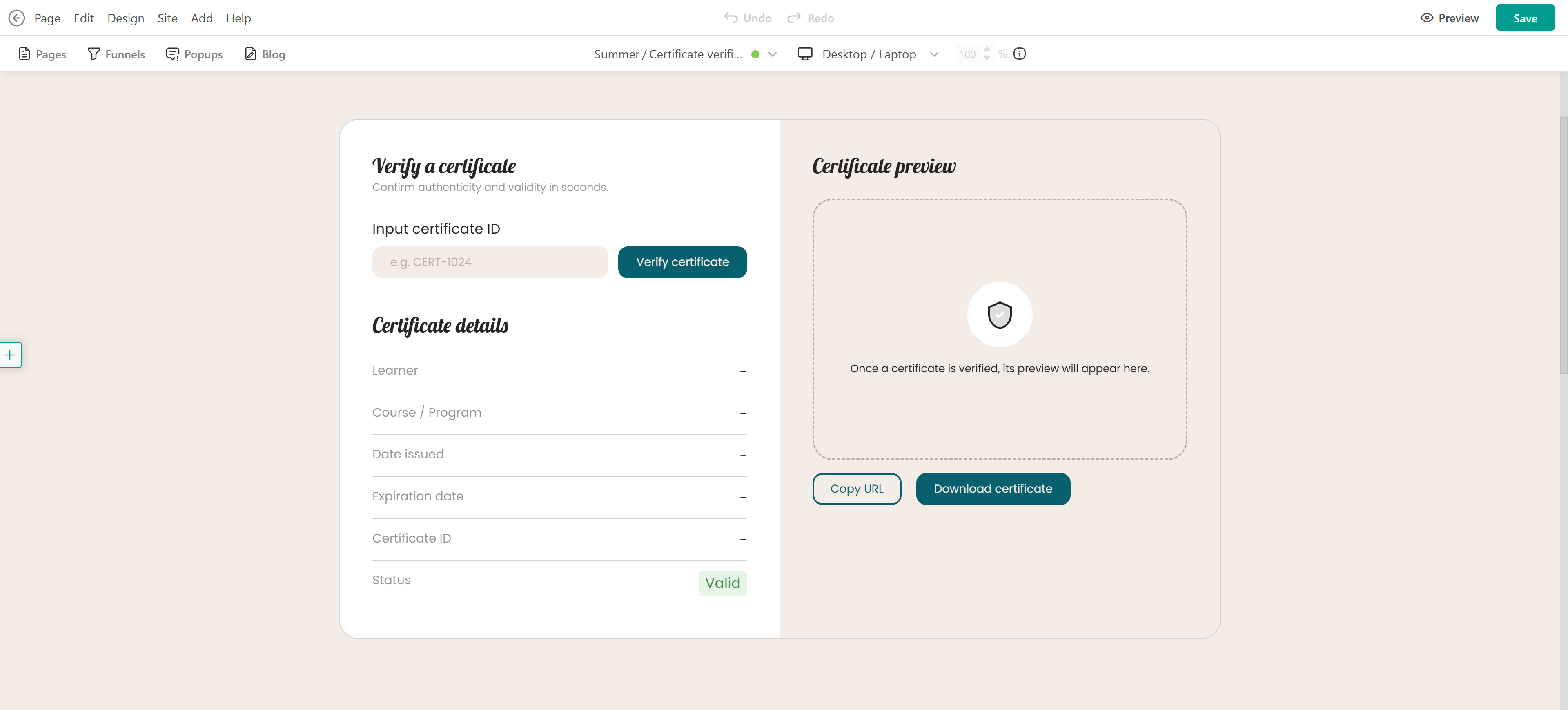
The page allows visitors to enter a Certificate ID and check the details and current status of an awarded certificate.
 Customizing the page is optional. Certificate verification can still be used if you keep the default Verification page.
Make the Verification page accessible from your school
After enabling certificate verification, decide how visitors access your school's Verification page.
Add the Verification page as a link to your school's topbar navigation to make it easily accessible from your website. You can also link to it from other relevant pages or areas of your school, depending on where you want visitors to find certificate verification.
This gives employers, clients, auditors, or other third parties a direct place to enter a Certificate ID and verify a certificate issued by your school.
Share a certificate verification URL or Certificate ID as an admin
Admins can copy the URL or Certificate ID of an awarded certificate directly from Courses & programs → Certificates and share it with anyone who needs to verify the certificate. To copy this information:
- Navigate to Courses & programs → Certificates.
- Locate the awarded certificate.
- Open its management options.
- Select:
- Copy URL to copy the certificate's URL.
- Copy ID to copy its unique Certificate ID.
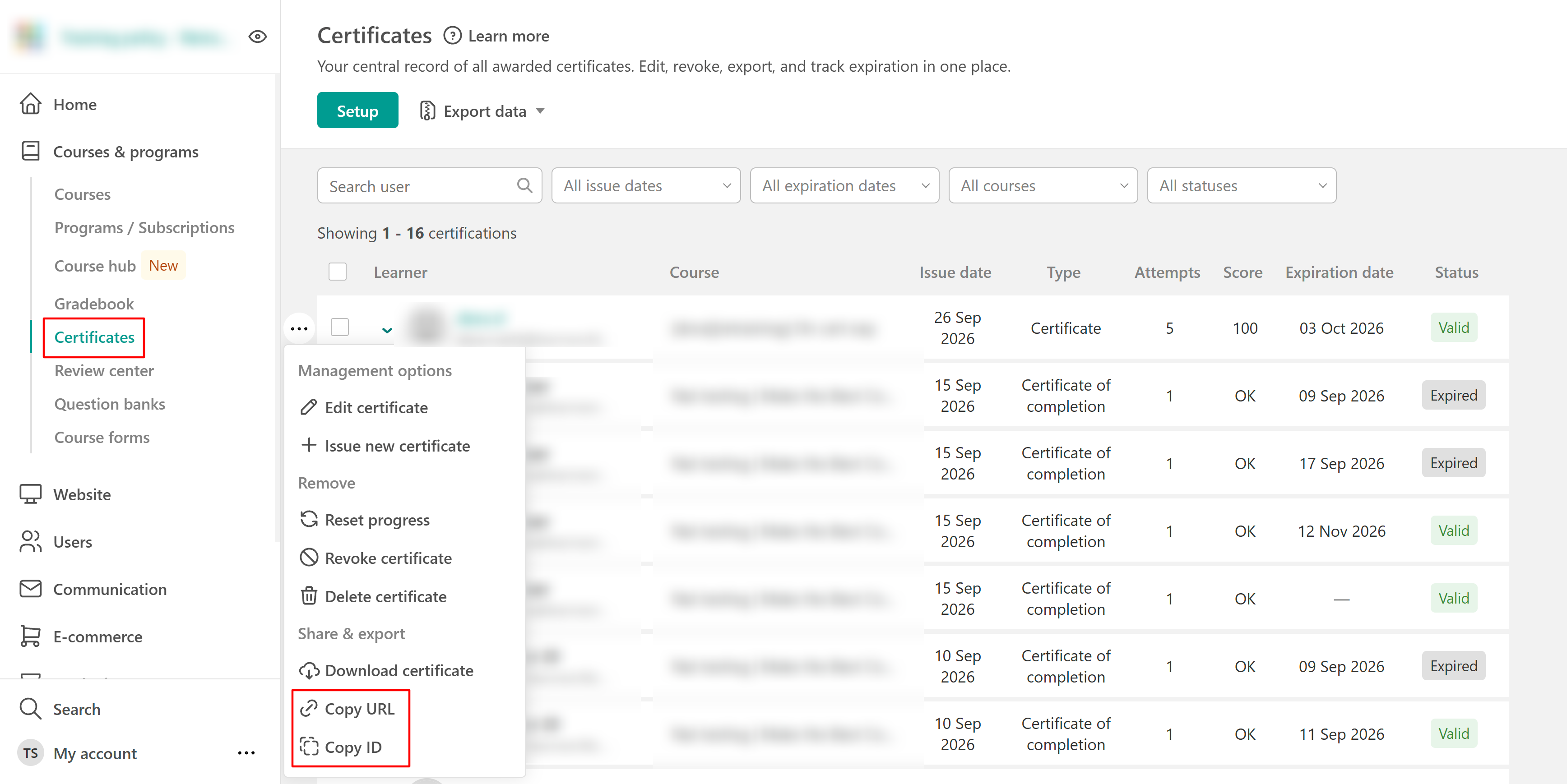
Share the certificate URL to give someone direct access to its verification information. Alternatively, share the Certificate ID so the recipient can enter it on your school's Verification page.
Allow learners to share their certificate verification information
Learners can also access and share their certificate URL and Certificate ID after earning a certificate when these actions are enabled for the certificate activity. To configure these options:
- Open the certificate activity.
- Select Settings.
- Select Certificate Sharing.
- Under Certificate actions (in ending screen), enable the actions you want to make available:
- View certificate
- Copy certificate URL
- Copy certificate ID
- Select Save or Save & Close.
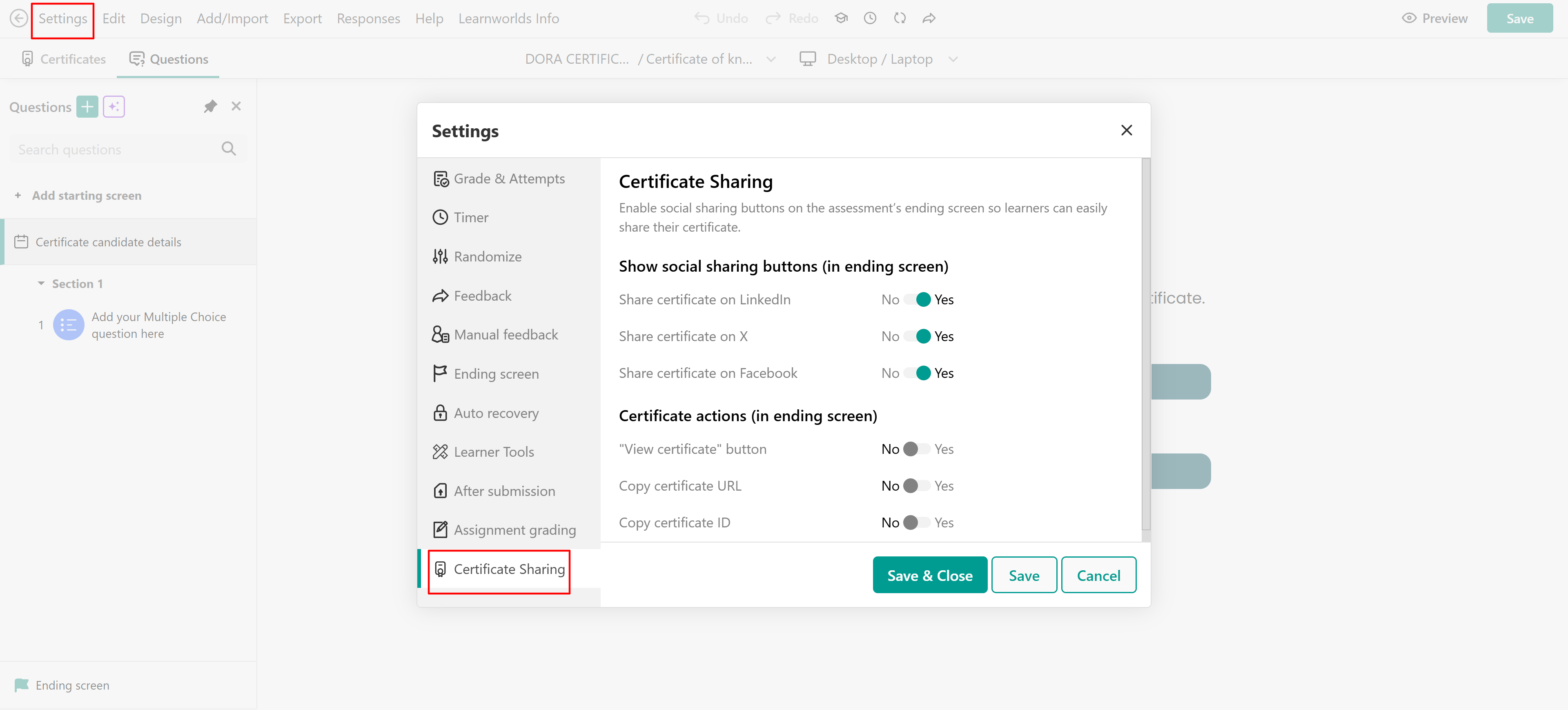
After earning the certificate, learners can use the enabled actions on the ending screen to view their certificate or copy its URL or Certificate ID.
Learners can share the URL directly with an employer, client, auditor, or another third party. They can also share their Certificate ID so the recipient can verify it through the school's Verification page.
For information about sharing certificates on LinkedIn, X, and Facebook, see this guide.
Verify a certificate using its URL
Anyone with a certificate's public verification URL can verify the certificate without signing in to the school. Open the shared URL to access the certificate's verification information and check its current status.
Depending on the available options, visitors can also preview or download the certificate and copy the verification page URL.
Verify a certificate using its Certificate ID
Anyone with a certificate's unique Certificate ID can verify it through the school's public Verification page without signing in. To verify a certificate:
- Open the school's Verification page.
- Enter the Certificate ID.
- Select Verify certificate.
- Review the certificate details and current status.
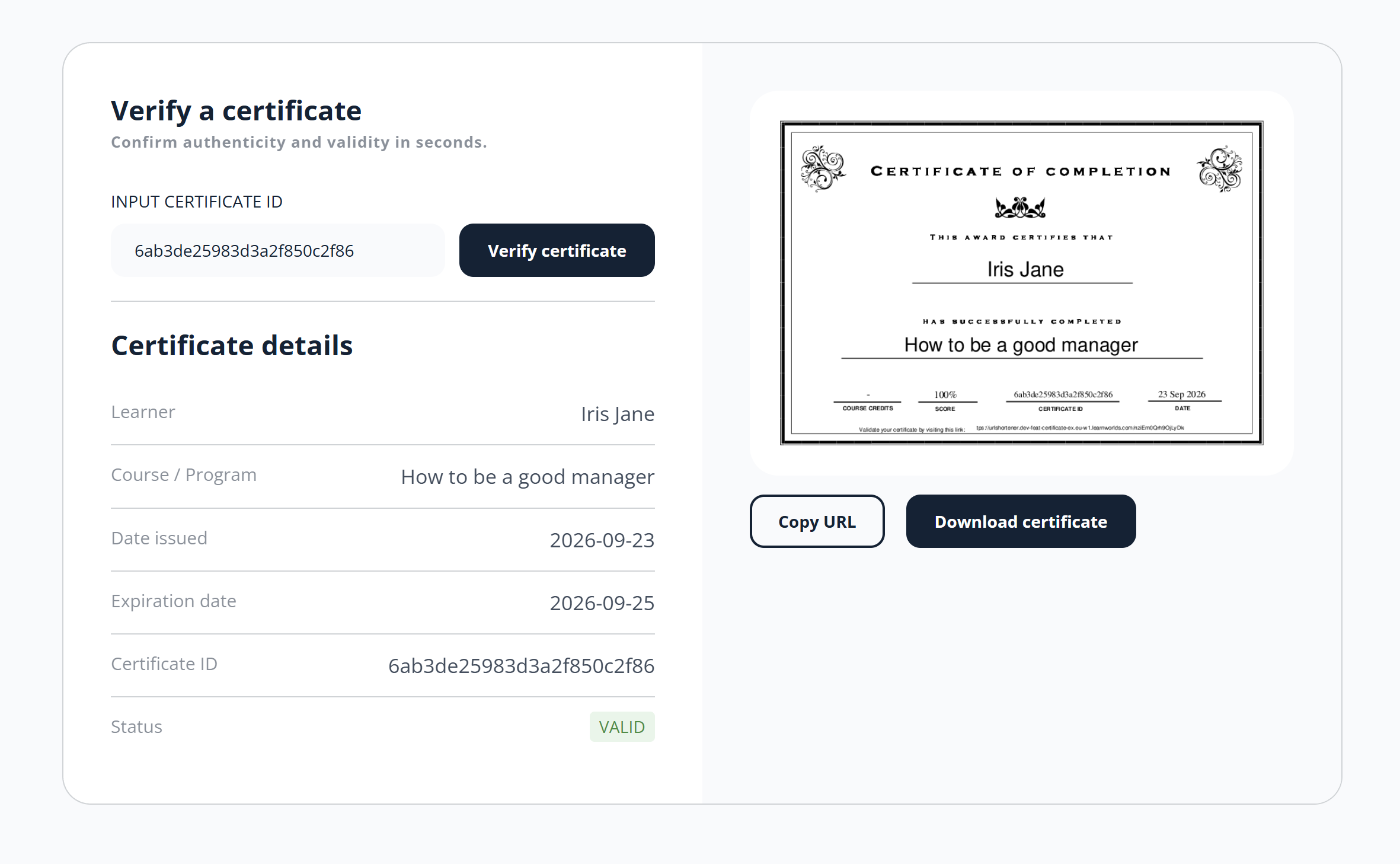
When verification succeeds, the page displays the available certificate information, its current status, and a certificate preview.
Expired and revoked certificates remain available for verification. When someone opens the certificate's verification URL or verifies its Certificate ID, the Verification page displays the certificate information together with its current Expired or Revoked status. A permanently deleted certificate behaves differently. Once its certificate record is deleted, the certificate can no longer be verified.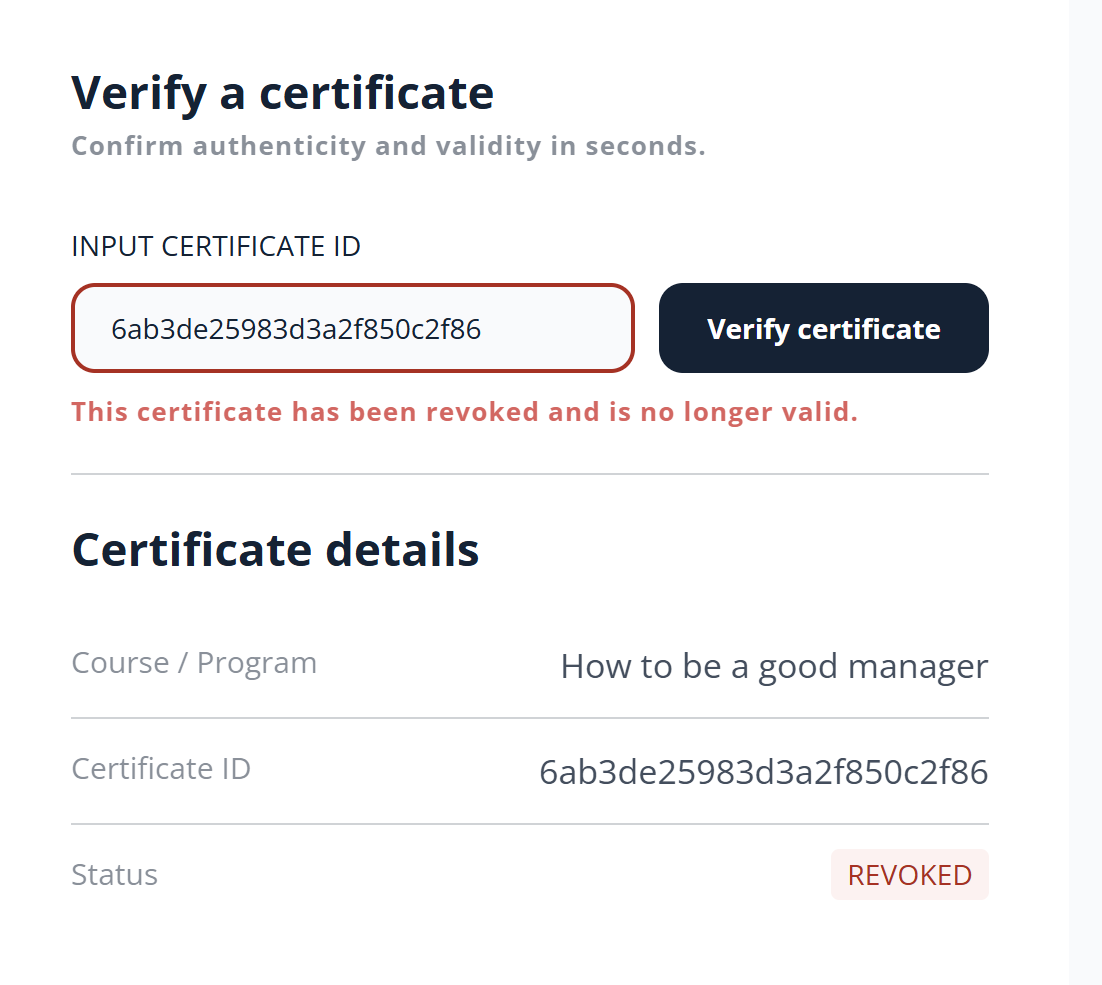
Disable certificate verification
To disable certificate verification, navigate to Courses & programs → Certificates → Setup.
Turn Enable certificate verification off and select Save.
When certificate verification is disabled, existing certificate verification URLs are no longer available and return a 404 page.Before disabling certificate verification, consider whether learners have already shared certificate URLs or Certificate IDs with employers, clients, auditors, or other third parties.
FAQs
- Does someone need a LearnWorlds account to verify a certificate?
No. The Verification page is public, so visitors can verify a certificate without signing in or creating a LearnWorlds account.
- How can someone verify a certificate?
A visitor can open the certificate's public verification URL or enter its unique Certificate ID on the school's Verification page.
- Where can an admin find a certificate's URL or Certificate ID?
Navigate to Courses & programs → Certificates, locate the awarded certificate, and open its management options. Select Copy URL or Copy ID.
- Can learners share their own certificate URL or Certificate ID?
Yes. When Copy certificate URL and Copy certificate ID are enabled under Settings → Certificate Sharing in the certificate activity, learners can use these options after earning their certificate.
- Can an expired certificate still be verified?
Yes. Expired certificates remain available for verification and display an Expired status.
- Can a revoked certificate still be verified?
Yes. Revoked certificates remain available for verification and display a Revoked status.
- What happens if a certificate is permanently deleted?
The certificate record is removed and can no longer be verified.
- What happens to verification links if certificate verification is disabled?
Existing certificate verification URLs stop working and return a 404 page.
- Do I need to add the Verification page to my school's navigation?
No. Adding the Verification page to your topbar or another area of your website is optional. However, doing so provides visitors with a direct place to enter a Certificate ID and verify certificates issued by your school.
- Is certificate verification available for Learning Programs?
No. Certificate verification is available for course certificates and is not supported for Learning Program certificates.