
The AI Context settings in LearnWorlds allow you to define how AI generates content across your school based on your school's goals, audience, and brand. You can also add custom instructions for specific AI tools and enable learner memory to provide more personalized learning experiences.
In this guide, you'll learn how to configure your AI Context settings, customize AI-generated content, and manage custom instructions.
Access your AI Context settings
To access your AI Context settings:
- Navigate to Settings → AI.
- Open the Context tab.
- Review and update the available settings.
- Click Save to apply your changes.
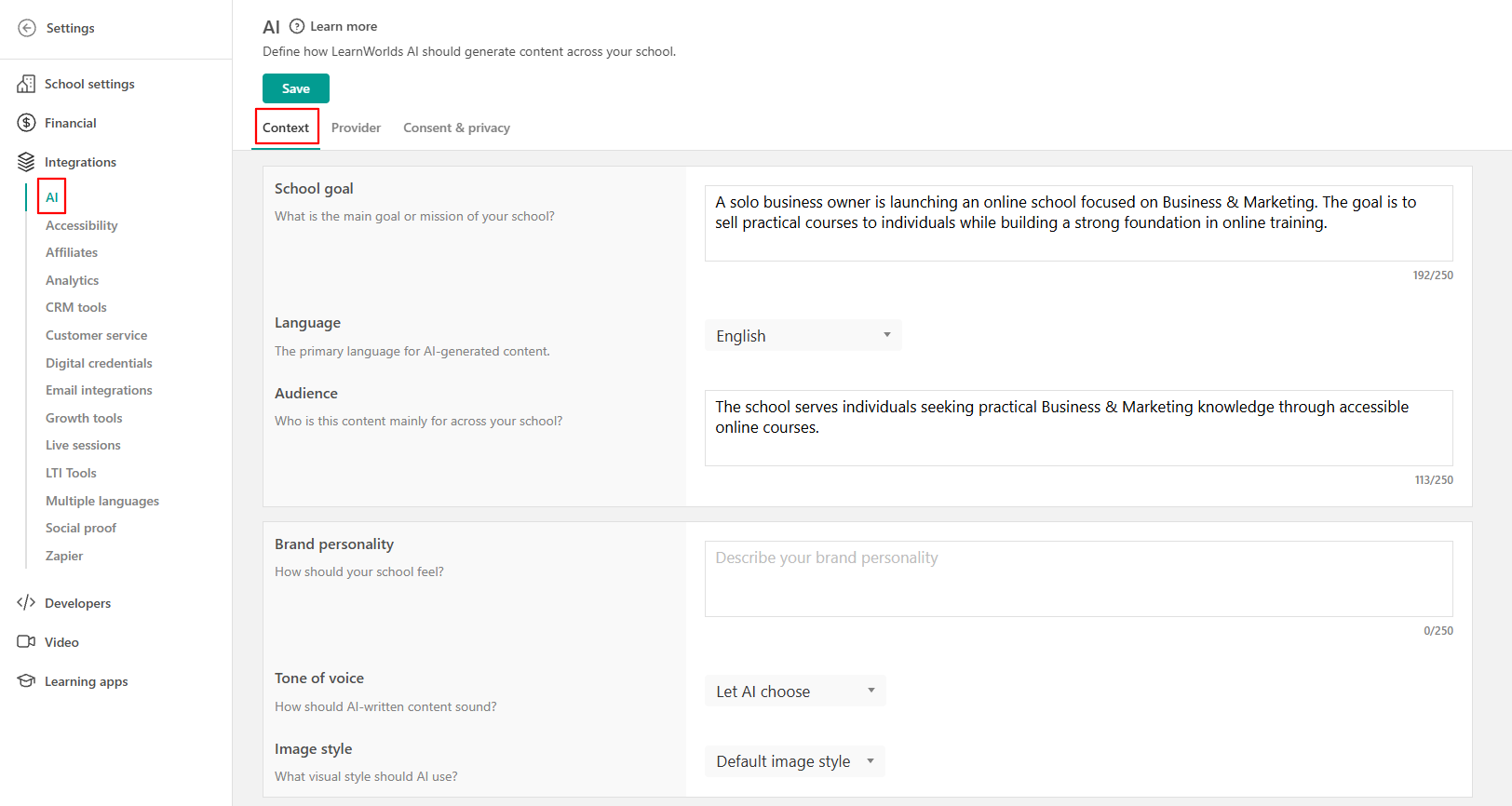
Define your school's AI Context
When you first create your LearnWorlds school, some AI Context fields are automatically populated based on the information you provide during the initial setup.
- School goal: Describe the main purpose or mission of your school, such as providing employee training or selling online courses.
- Language: Select the primary language you want AI to use when generating content.
- Audience: Describe who your learning content is intended for, such as employees, customers, or individual learners.
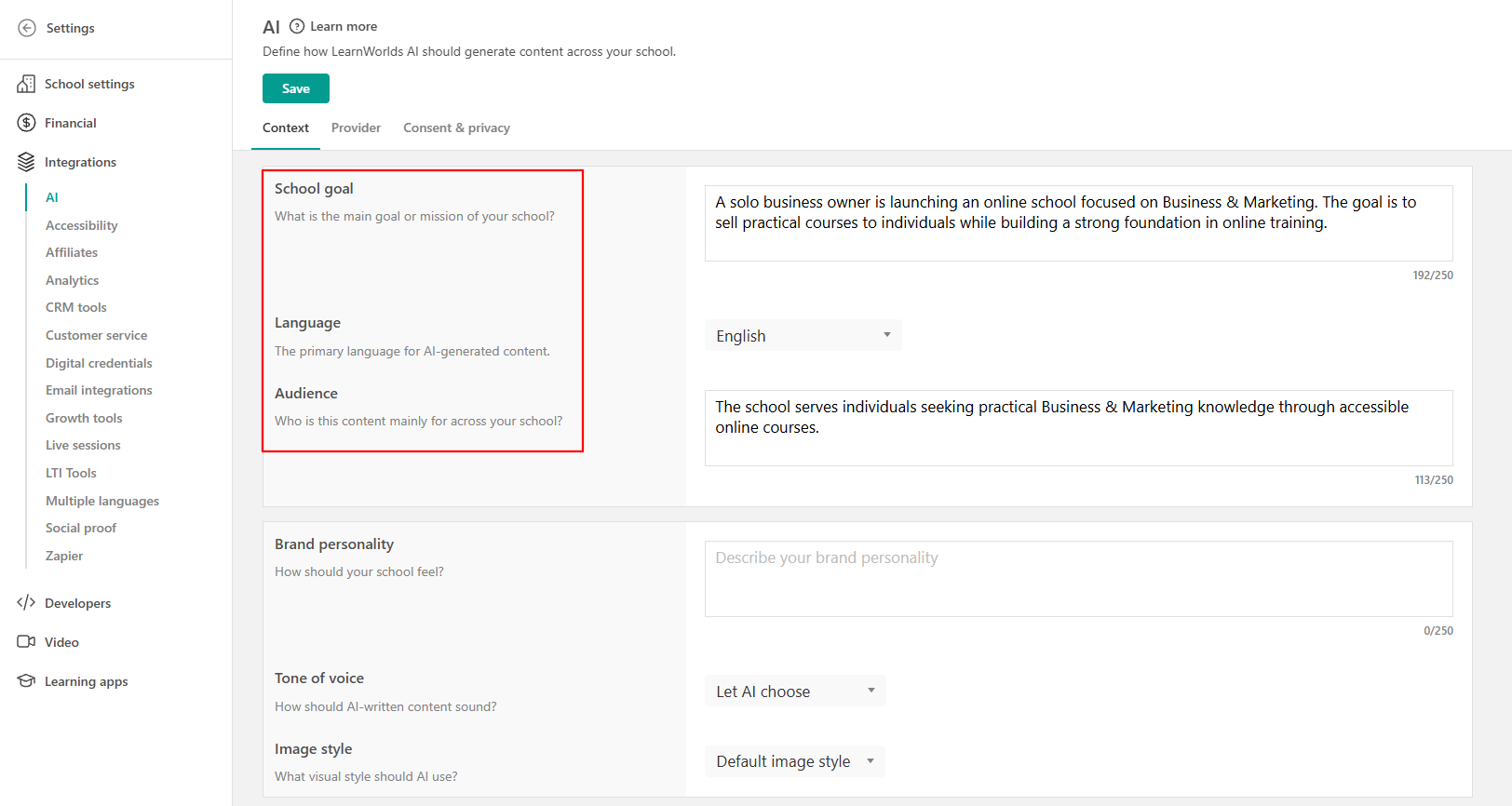
Review and update these fields at any time to reflect changes in your school's goals or audience.
Customize your brand personality and content style
You can further customize how AI generates content by configuring the following settings:
- Brand personality: Describe how your school should feel (e.g., professional, friendly, innovative). This helps shape the tone and style of AI-generated content.
- Tone of voice: Select how the AI should sound when writing content (e.g., motivational, formal, conversational).
- Image style: Choose the visual style the AI should follow when generating images (e.g., photographic, illustrative).
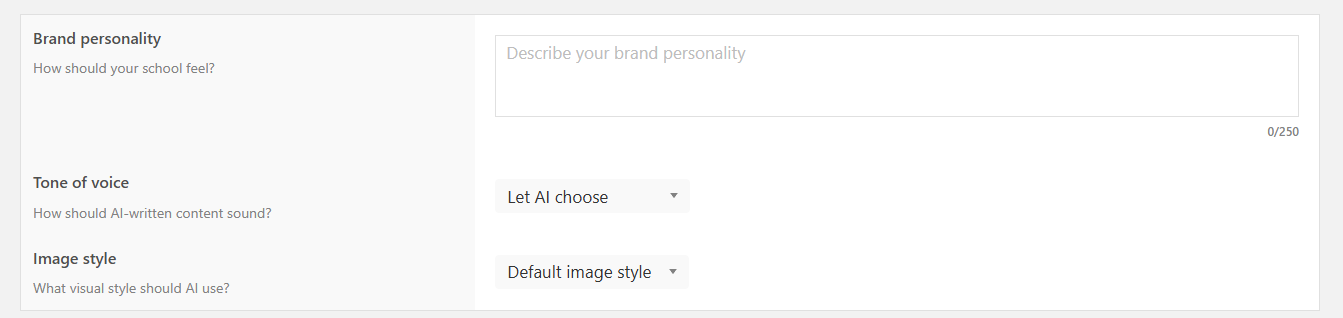
These settings help AI generate written and visual content that reflects your school's brand and communication preferences.
Add custom AI instructions
Under Custom instructions, define additional rules that AI should follow when generating content for your school. For example, use custom instructions to:
- Specify terminology or phrases AI should use or avoid.
- Apply your school's writing and branding guidelines.
- Define formatting preferences or naming conventions.
For example, you could instruct AI to use the term learner instead of student throughout your generated content.
Create a custom instruction
To add a custom instruction, click Add custom instruction.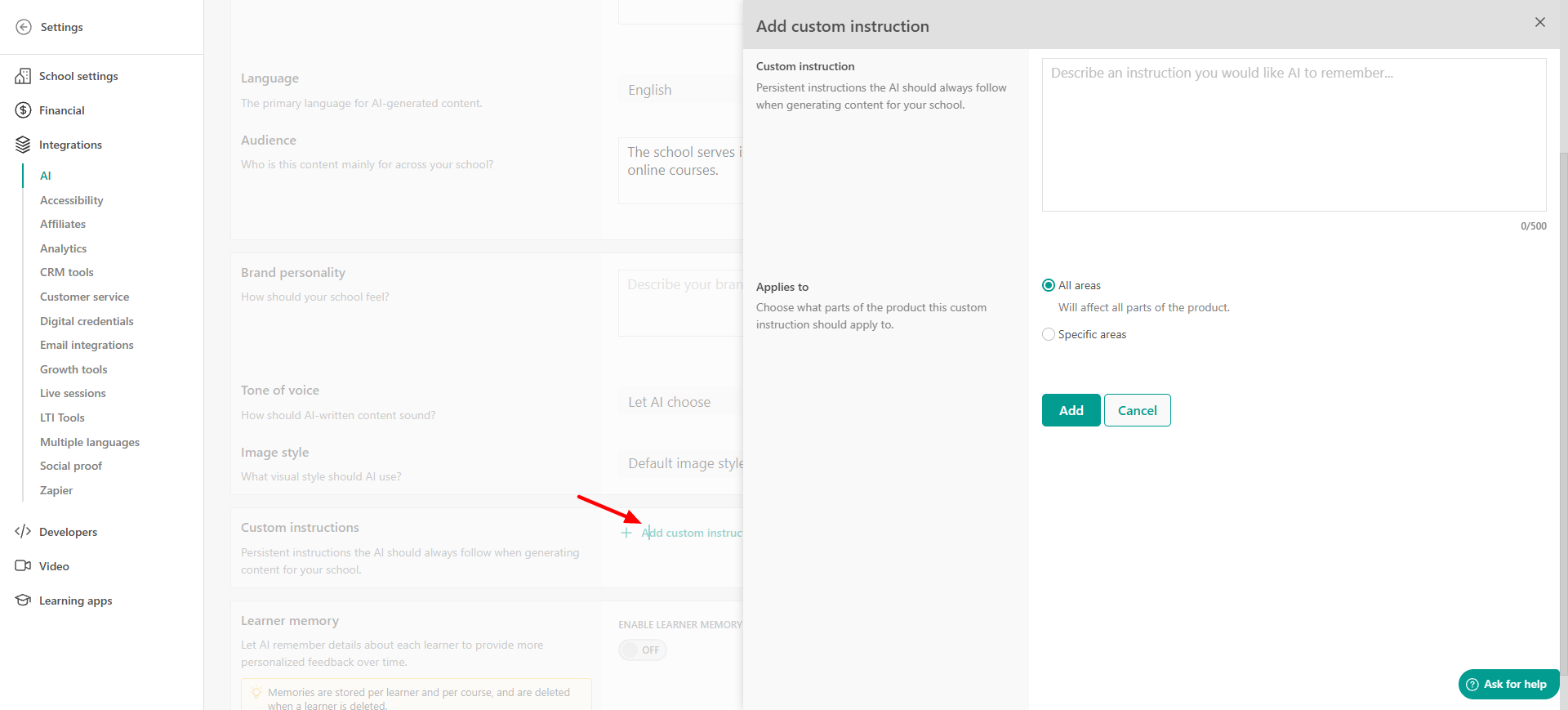
Enter the instruction you want AI to follow and choose where the instruction should apply.
- All areas: Apply the instruction across the supported AI tools in your school.
- Specific areas: Limit the instruction to selected tools, such as Site Builder, Ebook Builder, Exam Builder, Form Builder, Course Outline, or Image Creation.
You can create multiple custom instructions to define different rules for your AI-generated content, edit or delete them.

Enable learner memory
Under Learner memory, enable AI to remember information about individual learners and use it to provide more personalized feedback over time.
When enabled, AI can remember learner-specific information to help personalize future interactions.
 Learner memories are stored separately for each learner and course. They are deleted when the learner is deleted.
After configuring your AI Context settings, LearnWorlds AI can use the information and instructions you've provided when generating content in the supported areas of your school.