
The Accordion widget allows you to organize and display information in expandable sections, helping users quickly navigate to the content that interests them most while keeping your pages clean and structured.
In this article, you will learn how to add and customize the Accordion widget on your LearnWorlds site.
Add accordion
1. Navigate to Website → Design → Edit Website.
2. Choose any page to edit from the Page Manager.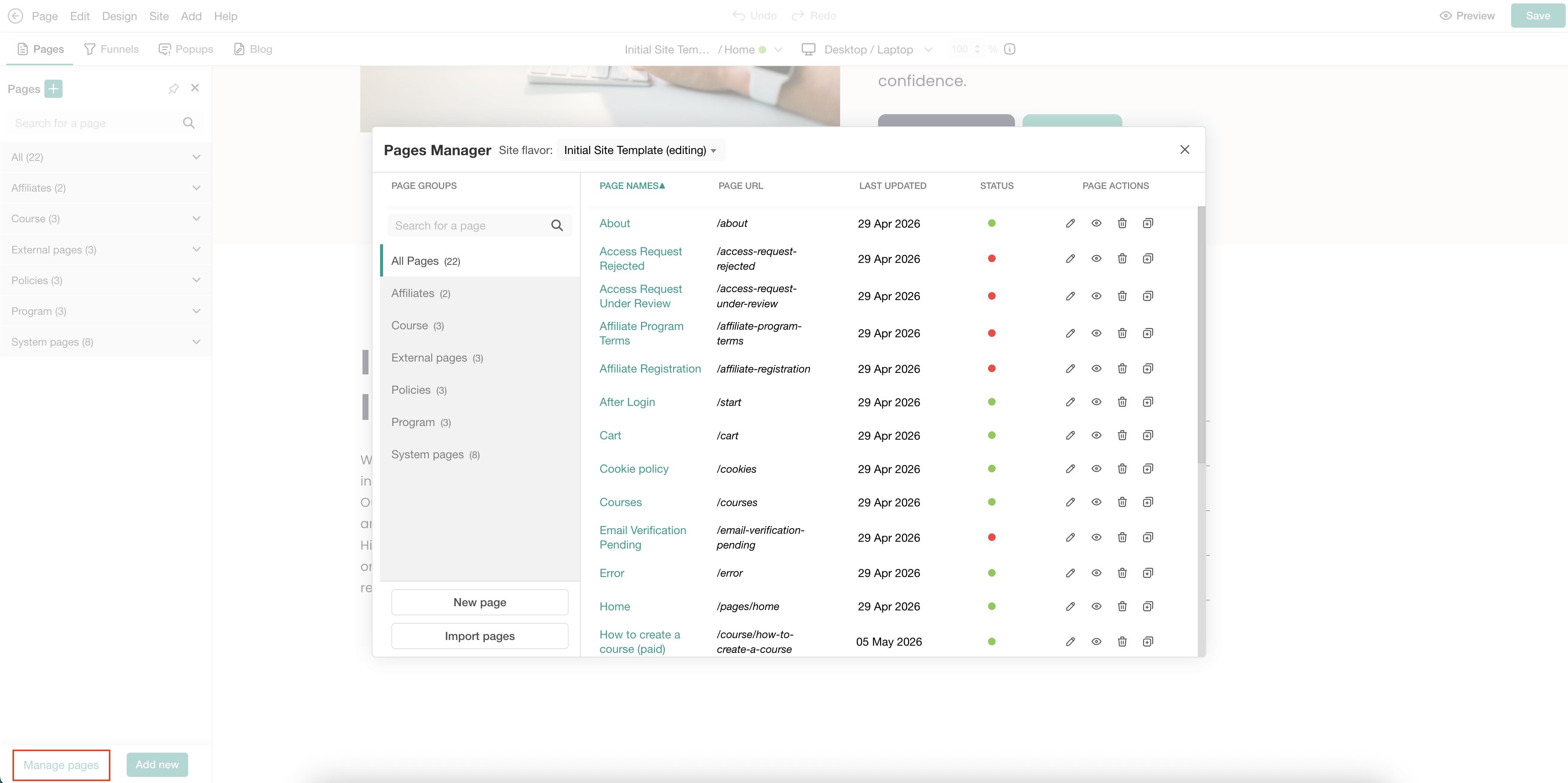
3. Hover over the element under which you want to add the widget and click the (+) icon to add it directly below that specific element. 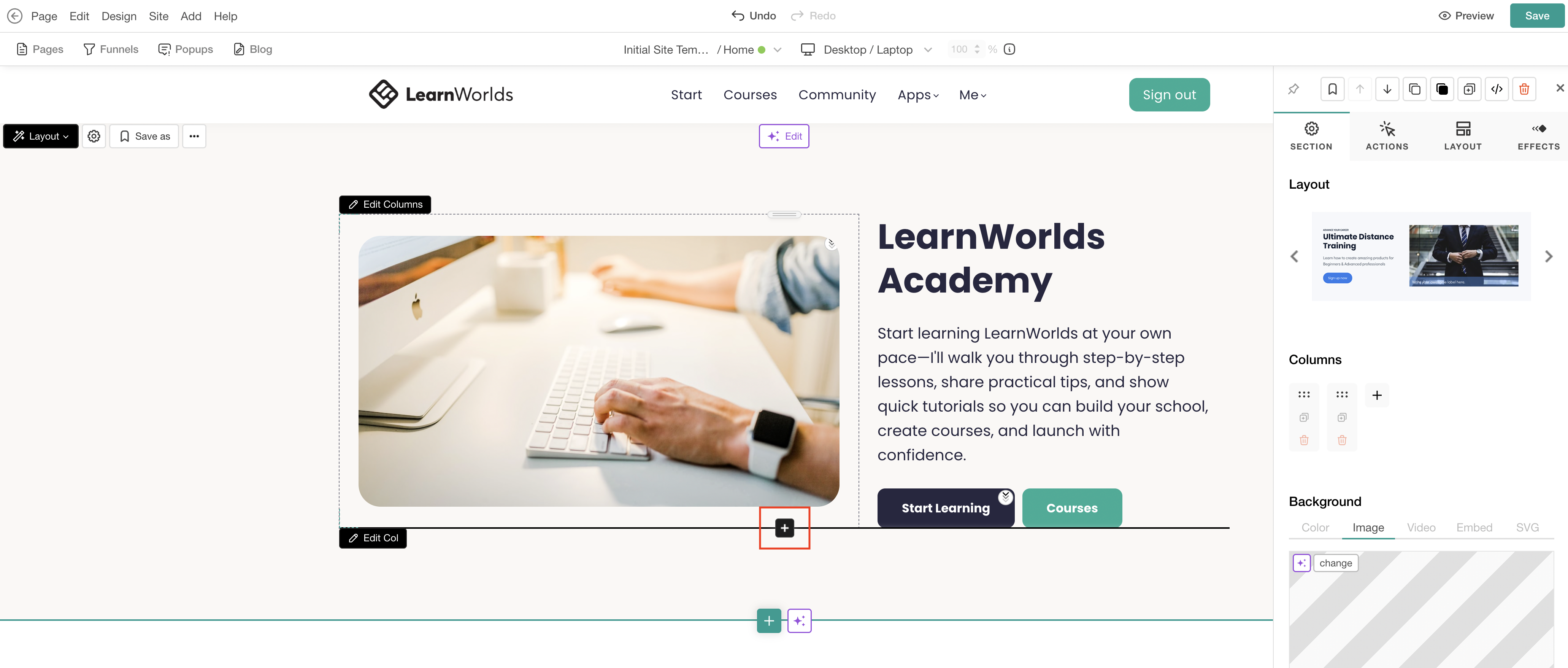
4. Select the Accordion category. Insert the preferred widget.
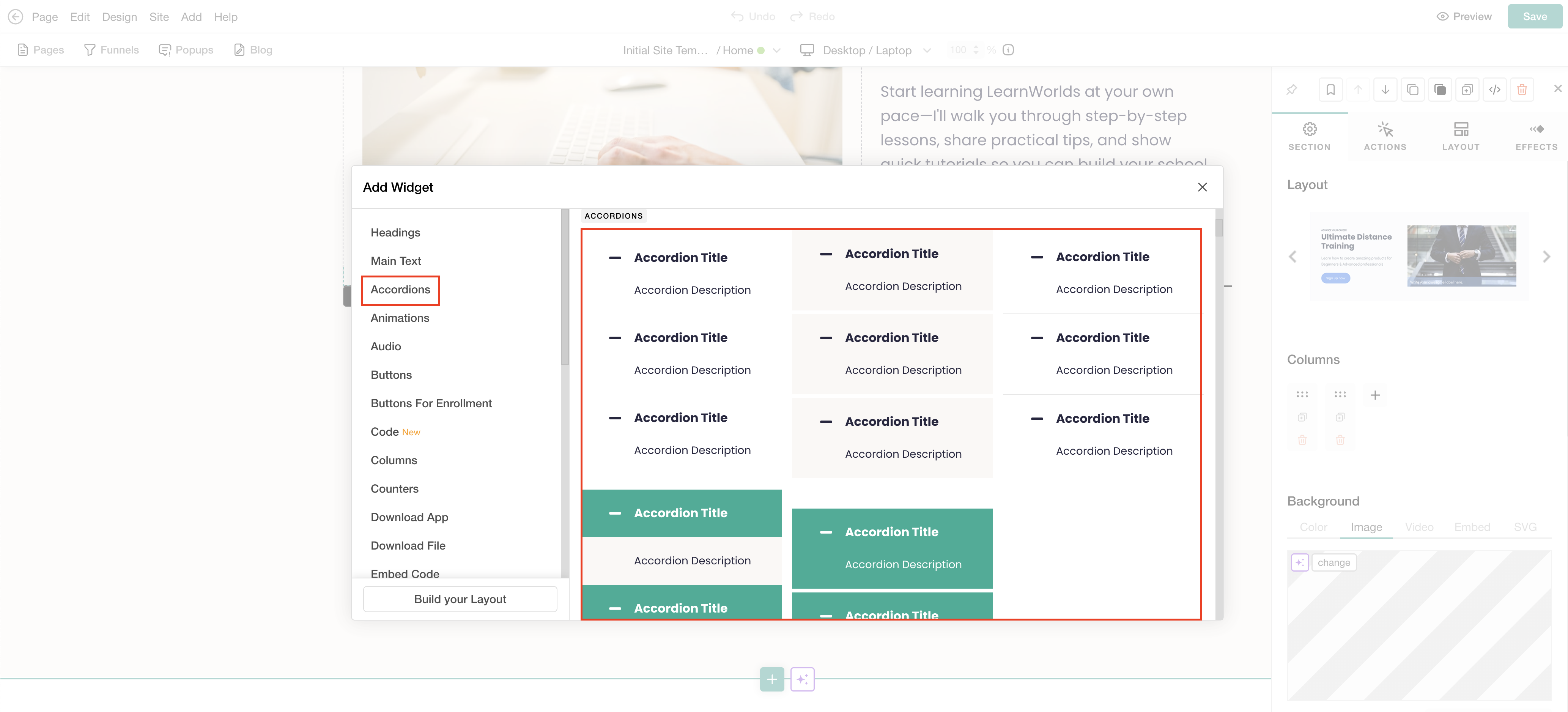
5. Click Save to save changes on the page.
Customize accordion
1. Click on Edit Accordion for the sideform to appear. Configure the widget settings to match your needs by reordering or deleting questions and enabling the expanded or collapsed function.
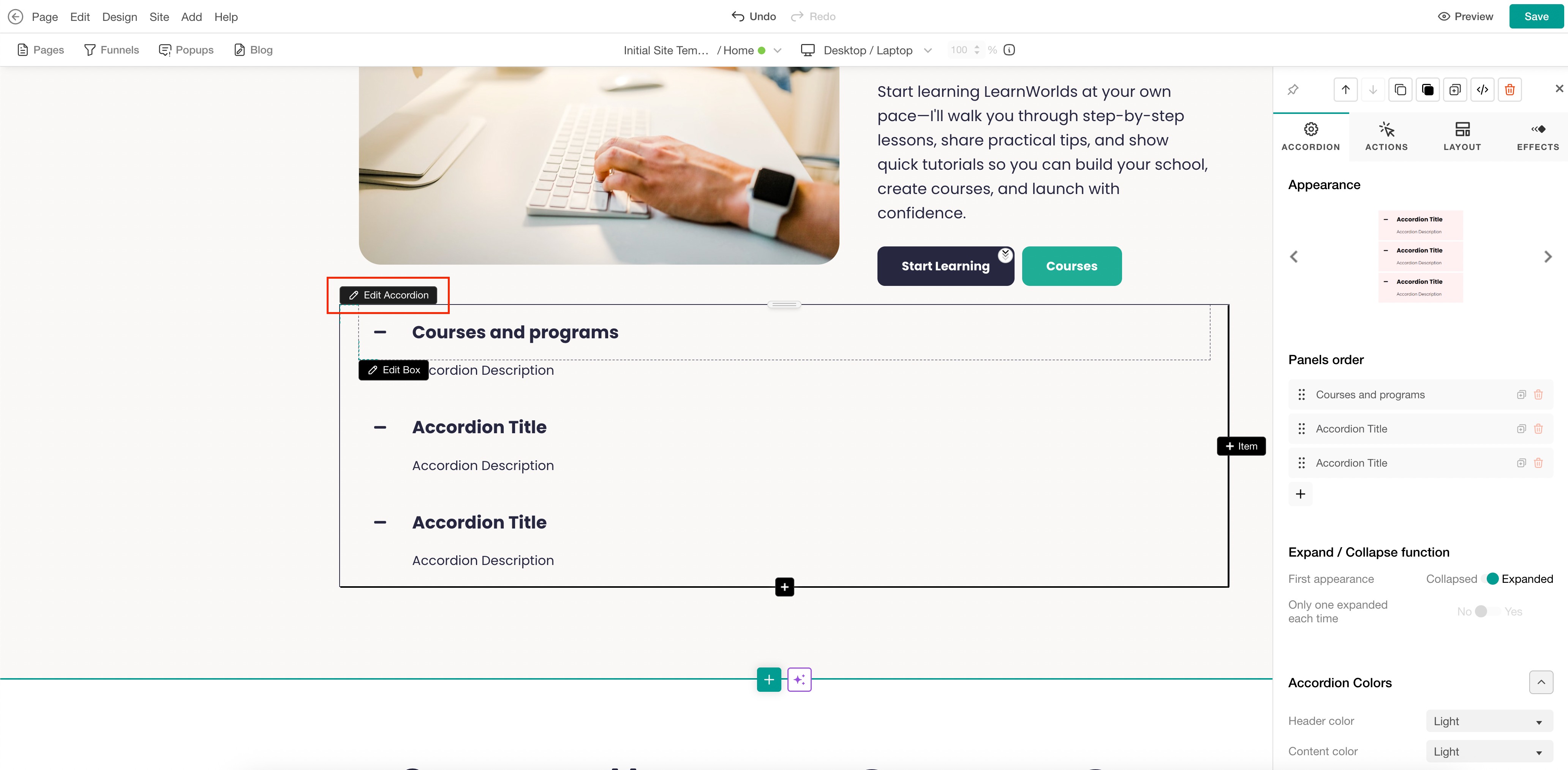
2. Click on each text element to add your text and use the sideform to configure the text's appearance.
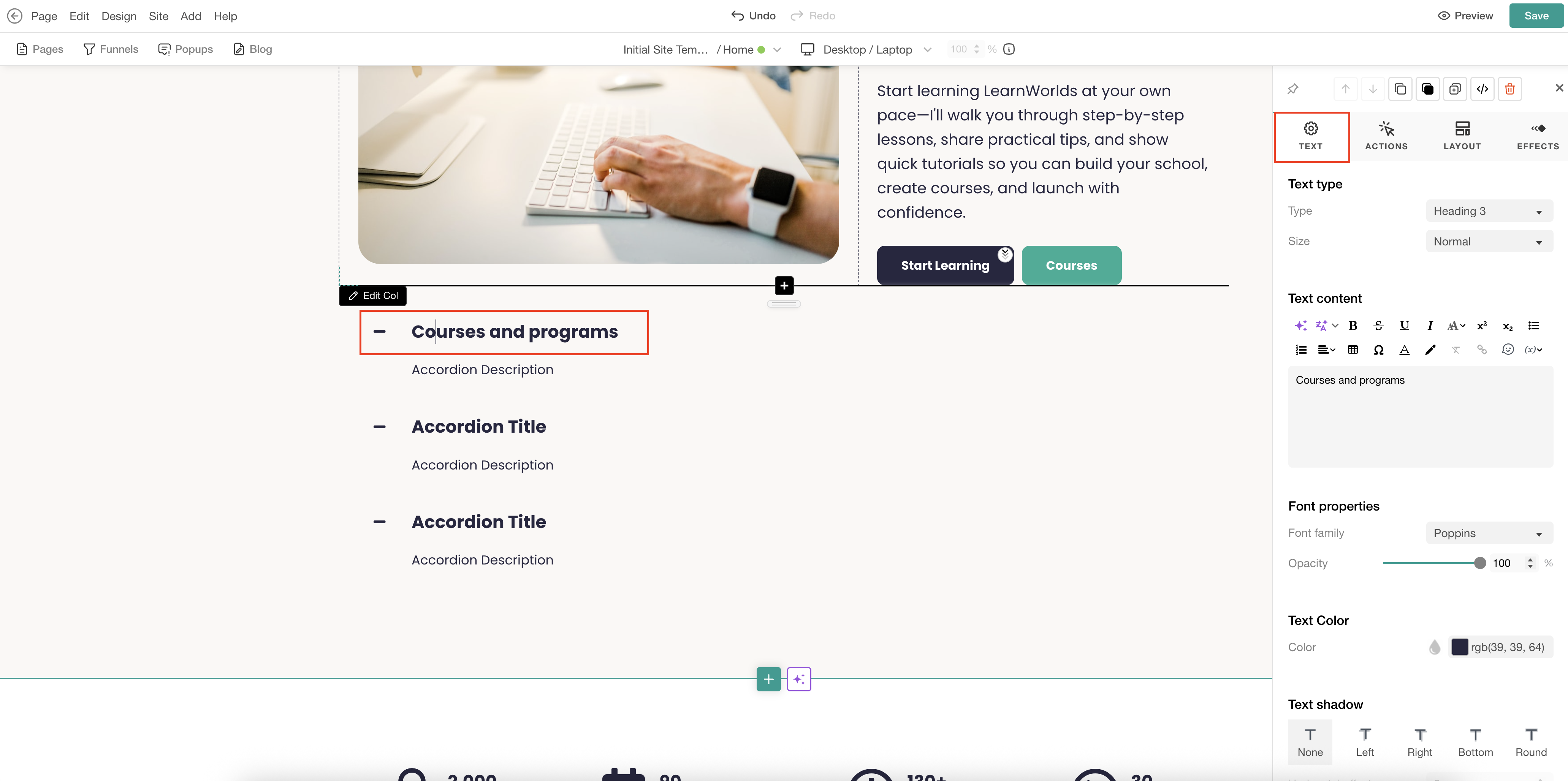
 Avoid editing texts directly inside the widget and use the sideform instead. When copying and pasting text from another source, make sure to paste it without formatting to preserve your school’s formatting and style settings. Use Ctrl + Shift + V on Windows or Cmd + Shift + V on macOS to paste plain text.
3. Click Save to save changes on the page.
For more information on how to further customize sections using the sideform, click here.