
This manual is offered by LearnWorlds to assist you in aiding your learners with the process of purchasing and accessing their purchased products. Feel free to edit and brand this guide before you add it to a FAQ page on your school or any email template.
Purchase a product
To register for a LearnWorlds product, you must navigate to the relevant page or section where you can view the product details and decide whether you want to make a purchase. Typically, this involves visiting the school's Home page, Course Catalog page, or Sales page. You will find all the details about the product's pricing there.
Click on the enrollment button to be directed to either the payment page or the shopping cart, depending on your school’s settings.
 Τhis process might differ based on the school's configuration. You can check how to edit your course cards here.

Pricing options
When purchasing a product and if there are multiple pricing options, you have the choice to select from:
Pricing option | Description |
Free | Enroll in a course or learning program at no cost. |
One-off | Pay once to access the product for a specified duration or without a set expiration date. |
Payment plan | Split the total price into scheduled installments. |
Subscription | Pay a recurring fee, such as monthly or annually. |
| Tiered subscription | Choose a subscription tier with its own price and included courses. Available for learning programs only. |
A course or learning program may also offer multiple options of the same type, such as monthly and annual subscriptions.
Keep in mind:
- When purchasing a single product, learners can change their selected pricing option on the Payment page before completing your purchase.
- Some options may be available only to specific learners, during certain dates, or for retraining and renewals.
- If you fail to pay upcoming renewals for subscription or installment plans, you will be removed from the product.
- To access the content of free courses, you must first register an account.
Payment process
When you click the Enroll button, you'll be directed to the Payment page or shopping cart, depending on your school's settings.
If you're directed to the shopping cart, you can add more products, review your selections, and proceed to checkout when you're ready.
On the Payment page, you can review your order and, if you're purchasing a single product, change your selected pricing option if other options are available to you.

To complete your purchase:
1. Sign up and create an account. If you already have an account, you can click on the Login button, or you can skip this step if you are already logged in.
2. Enter your billing details (name, address, postal code, country).
3. Enter a Business Tax ID, if applicable.
4. Choose one of the available payment methods and enter your Card Number, Expiration Date, and CVC. All major credit cards are accepted.
5. If you have been provided with a discount coupon, you can redeem it in the relevant field.
Once the checkout process has been completed, the course contents will be unlocked.
If you’re using PayPal to purchase a product, then you will be redirected to PayPal to complete your purchase.Discount coupons
If you have a coupon code, enter it in the coupon field to automatically apply the discount to your final price.

Keep in mind that:
- Coupons are case-sensitive.
- Due to the school's settings, a coupon may, by default, be applied to the payment section or the shopping cart.
Download invoices
Find comprehensive invoices for all your purchases on your Account page, accessible via your school's top bar, or attached to the email notifications in your inbox.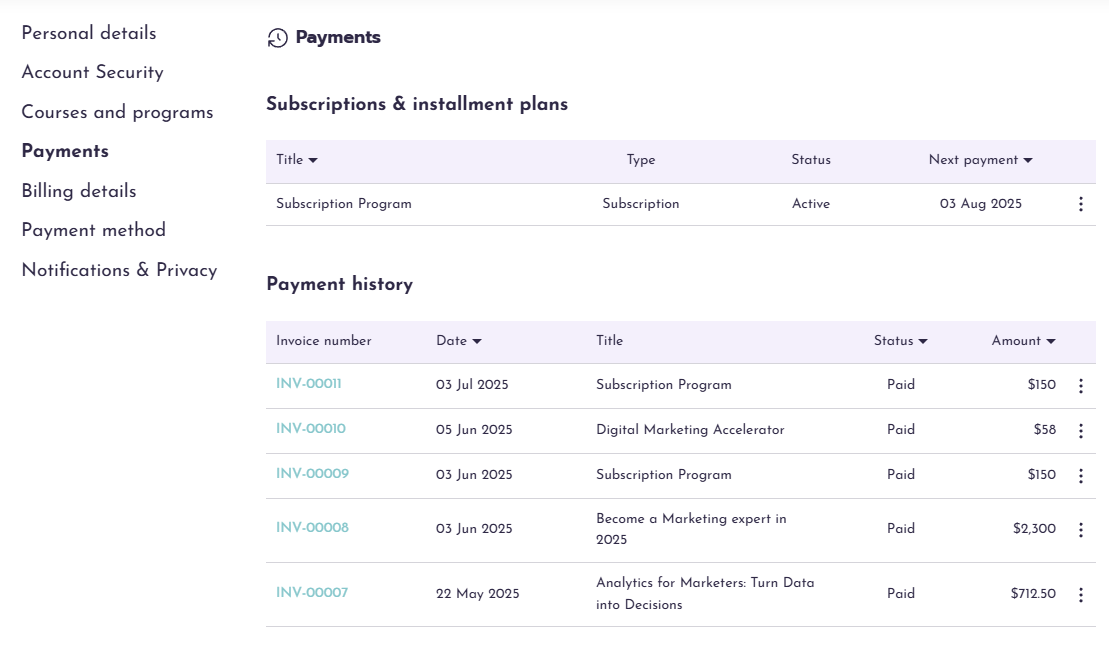
Cancel installment plan & Subscription renewal
If your school allows it, you can cancel an installment plan from your Account page by selecting Cancel plan.
You can also cancel your subscription from the same page by selecting Cancel subscription.
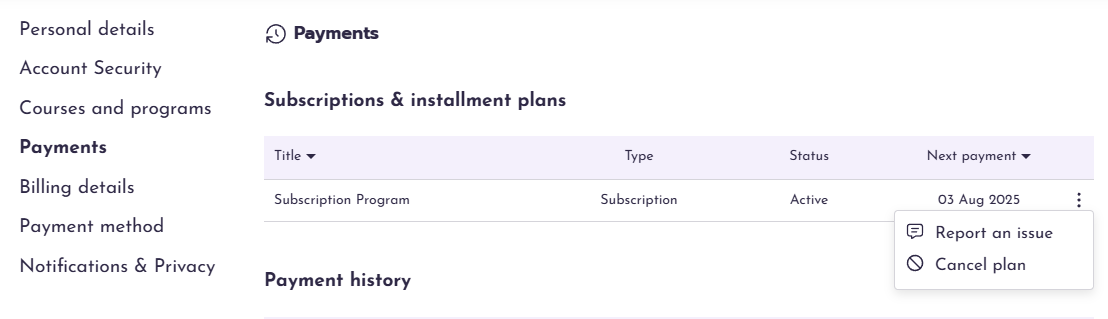
If you proceed, the page will display a button for the optional reactivation of the same subscription plan.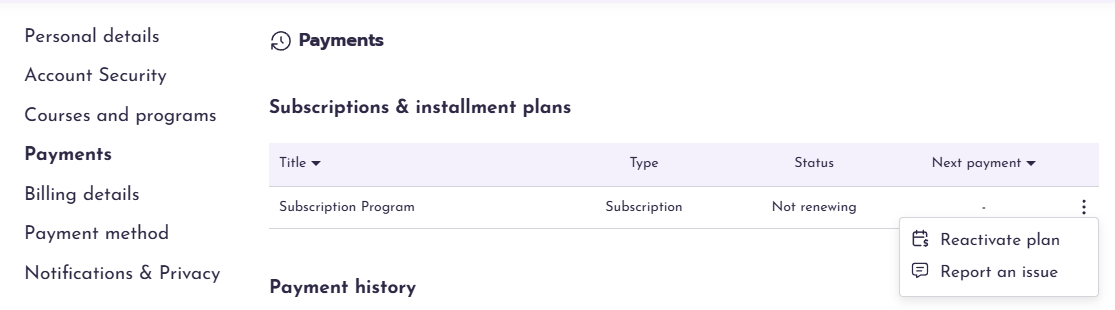
Expiring courses
In most cases, once you have enrolled in a course, you will have access for a lifetime unless the course itself is set up with an expiration date. You can check before purchasing a product if it has a specific duration of access time on the Product Image while being on the payment page.

Course dashboard
After purchasing a product, you can access it from the After Login page through the course cards, from your Profile page or while using the direct link.

As soon as you click on the Continue button, you will be redirected to the Product page. Browse through the sections and access the learning activity you would like to study. You can always come back and revisit any learning activity you wish. Any learning activities that you have visited/completed are marked with a checkmark.