
OXXO is a cash payment method available in Mexico. With OXXO through Stripe, learners can purchase courses and other products without a credit card or bank account. They receive a payment voucher at checkout, pay in cash at an OXXO store, and get access to their purchase once Stripe confirms the payment.
In this article, we'll explain how to activate OXXO in your LearnWorlds school and how learners can complete their purchases.
 OXXO is available for one-off purchases in Mexican pesos (MXN)through Stripe accounts based in Mexico. Subscriptions and payment plans aren't supported.
OXXO at a glance
| Setting | Details |
|---|---|
| Currency | Mexican pesos (MXN) only |
| Order amount | 10 MXN to 10,000 MXN, including tax and after discounts |
| Purchase types | One-off purchases only |
| Voucher validity | Five days, expiring at 23:59 Mexico City time on the fifth day |
| Payment confirmation | By the next business day after payment at the store |
| Refunds | Not supported through Stripe or LearnWorlds |
| Disputes | Chargebacks aren't supported |
Before you start
To accept OXXO payments in your LearnWorlds school, make sure that:
- You have connected Stripe as your payment gateway.
- Your Stripe account is based in Mexico and is eligible to accept OXXO payments.
- Your school's currency is set to Mexican pesos (MXN).
OXXO availability depends on Stripe's eligibility requirements. If you can't find OXXO in your Stripe Dashboard, check Stripe's OXXO documentation or contact Stripe Support.Set your school's currency to MXN
OXXO supports payments in Mexican pesos (MXN). To make it available at checkout:
- Navigate to Settings → Financial → Currency.
- Select Mexican peso (MXN).
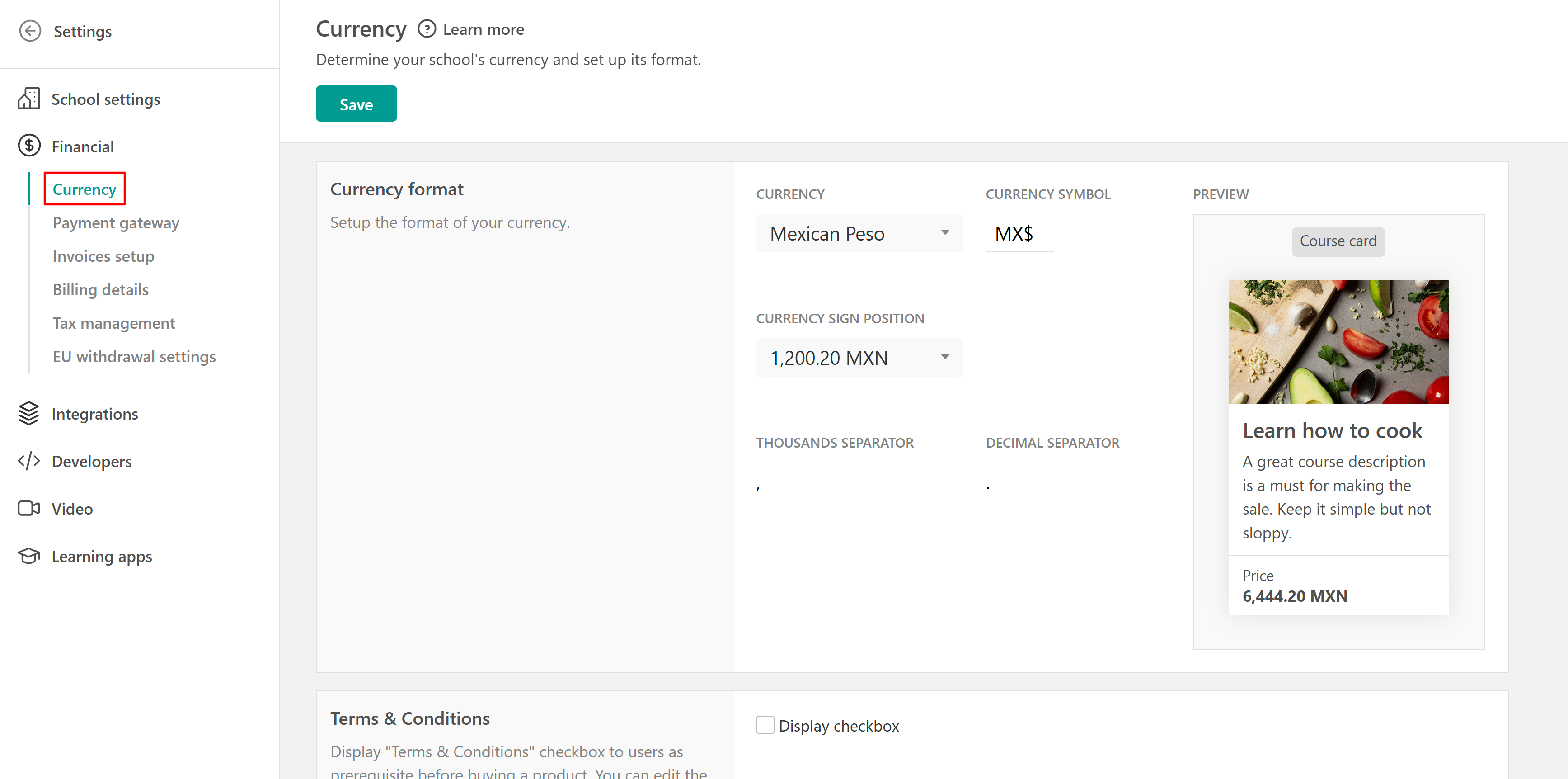
- Save your changes.
Your LearnWorlds school uses one currency for all products. Changing your school's currency to MXN affects all product prices, so review them after making this change.Activate OXXO in Stripe
Before activating OXXO in LearnWorlds, you need to turn it on in your connected Stripe account.
- Log in to your Stripe Dashboard.
- Navigate to Settings → Payment methods.
- Find OXXO in the list of available payment methods.
- Activate OXXO.
If OXXO isn't listed, check your Stripe account's country and eligibility. Some business categories may be restricted.
Activate OXXO in LearnWorlds
Once you've activated OXXO in Stripe and set your school's currency to MXN, you can make it available at checkout.
- Navigate to Settings → Financial → Payment gateway.
- Select Stripe and make sure it's activated.
- Scroll down to More payment options.
- Under Vouchers, locate OXXO.
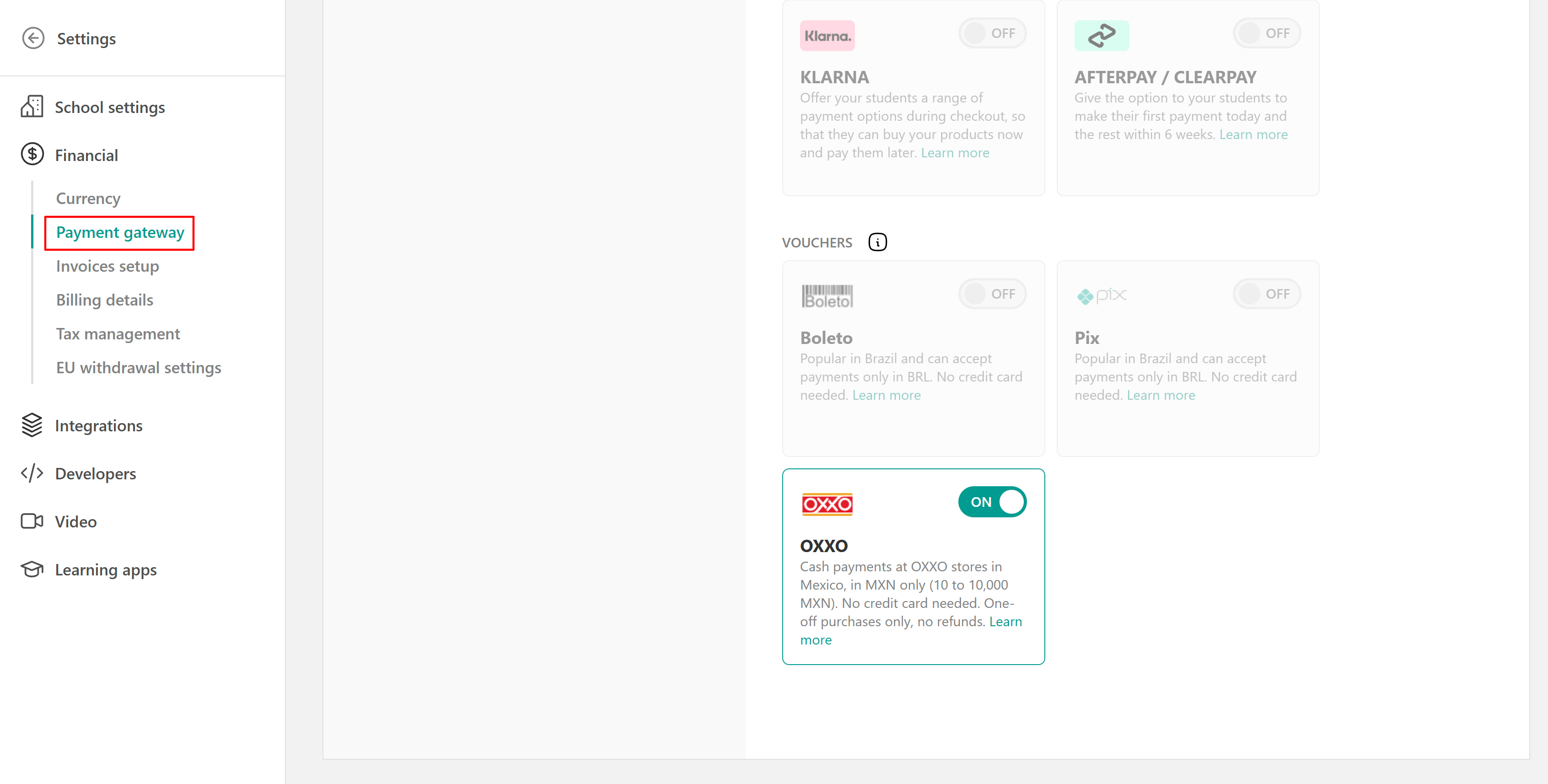
- Turn on the OXXO toggle.
- Save your changes, if prompted.
Once activated, OXXO will appear as an available payment method at checkout for eligible one-off purchases in MXN.
OXXO vouchers display your business name and support email from Stripe. Check that these details are correct under Public detailsin your Stripe Dashboard.How learners pay with OXXO
When OXXO is available at checkout, learners can generate a payment voucher and complete their purchase at an OXXO store.
1. Generate the OXXO voucher
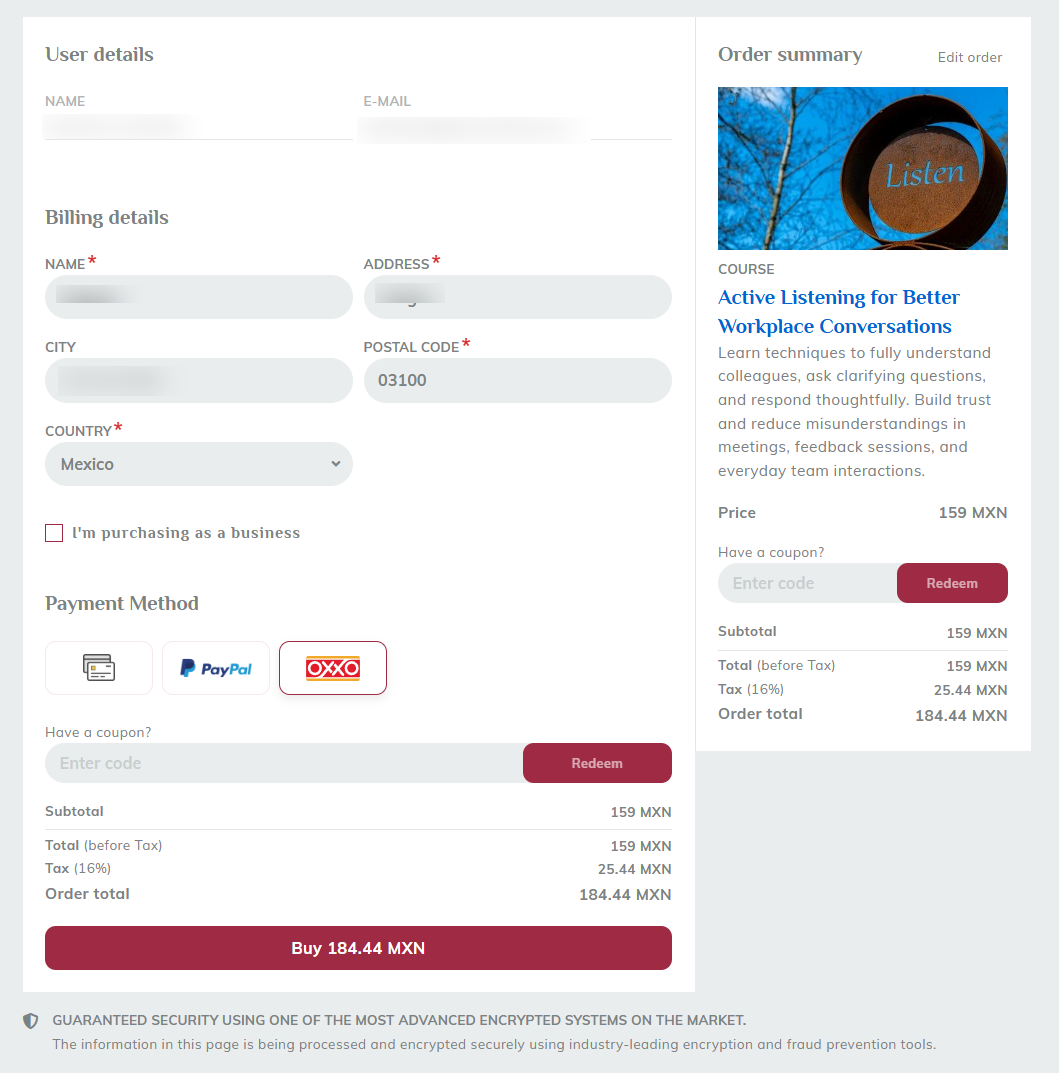
- The learner enters their details at checkout.
- They select OXXO as their payment method.
- They click Buy.
- An OXXO payment voucher appears in a window over the checkout page.
The voucher includes the payment amount, expiration date, barcode, payment reference, and instructions.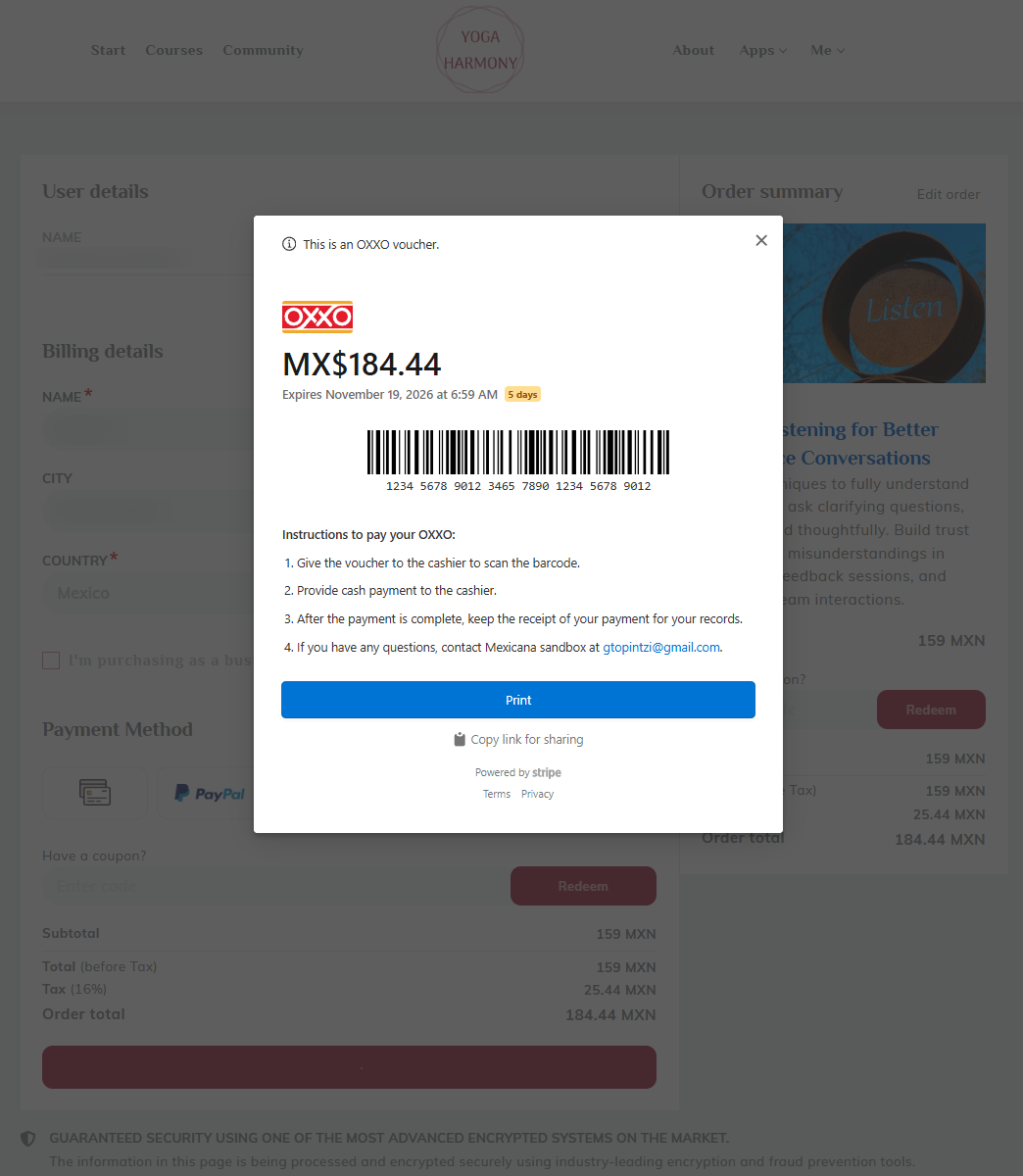
Learners can select Print to print the voucher or Copy link for sharing to save or share it with someone who will pay on their behalf.
2. Pay at an OXXO store
- Before the voucher expires, the learner visits an OXXO store in Mexico.
- They present the voucher to the cashier for scanning.
- They pay the amount in cash.
- They keep the store receipt as proof of payment.
3. Receive access to the purchased product
After the learner pays at the store, Stripe processes and confirms the payment. Once the payment is confirmed:
- The order is marked as paid in LearnWorlds.
- The learner is enrolled in the purchased product.
- The invoice becomes available in the learner's payment history.
OXXO payments aren't confirmed immediately. Confirmation can take until the next business day. Learners won't receive access to their purchase until Stripe confirms the payment.Where learners can find their OXXO voucher
Learners can access their unpaid OXXO vouchers from their account page.
- Open their profile page.
- Navigate to Payments → Pending payments.
- Find the relevant order.
- Click the three-dot menu next to the order.
- Select View voucher.
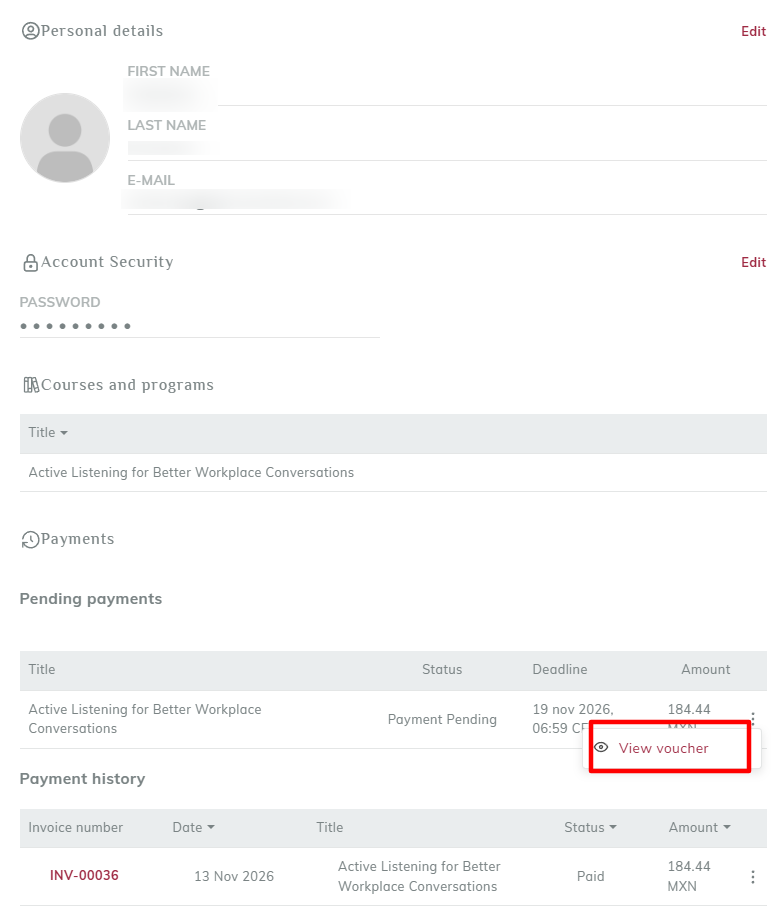
The Pending payments section displays unpaid vouchers, including their status, payment deadline, and amount.
The deadline is displayed in the learner's local time.
Once Stripe confirms the payment, the order moves to Payment history, where the learner can access the invoice.
What happens when an OXXO voucher expires?
OXXO vouchers are valid for five days. If the learner doesn't complete the payment before the deadline, the voucher expires and can no longer be used. When a voucher expires:
- The payment remains incomplete.
- The learner isn't enrolled in the purchased product.
- No payment is due for the expired voucher.
To purchase the product, the learner must place a new order and generate a new voucher.
Important information about OXXO payments
Purchase limitations
- Each order must be between 10 MXN and 10,000 MXN, including taxes and after any discounts or coupons have been applied.
Refunds
- OXXO payments can't be refunded through LearnWorlds or Stripe. If you agree to return a learner's payment, you must arrange the refund outside Stripe, for example, through a bank transfer.
Disputes
- OXXO doesn't support chargebacks. Learners can't dispute an OXXO payment through the usual card payment dispute process.
Duplicate payments
- If a learner generates multiple vouchers for the same product and pays more than one, each payment may be processed separately. To avoid duplicate payments, advise learners to use their existing unpaid voucher instead of placing another order.
Stripe payouts
- OXXO payments follow Stripe's settlement and payout process. For details about when funds become available, refer to your Stripe Dashboard and Stripe's OXXO documentation.
FAQ and troubleshooting
- Why doesn't OXXO appear at checkout?
Make sure that:
- Your school's currency is set to MXN.
- OXXO is activated in both Stripe and LearnWorlds.
- Your Stripe account is based in Mexico and eligible for OXXO payments.
- The learner is purchasing a product with a one-off pricing option.
- The order total is between 10 MXN and 10,000 MXN.
- A learner paid at the store but hasn't received access. What should I do?
OXXO payments may take until the next business day to be confirmed by Stripe.
If the learner still doesn't have access after one business day:
- Open your Stripe Dashboard.
- Navigate to Payments.
- Find the OXXO payment and check its status.
- If Stripe shows the payment as successful but the learner isn't enrolled, contact LearnWorlds Support and provide the payment details and the learner's store receipt.
- What should a learner do if their OXXO voucher has expired?
An expired voucher can't be reactivated or used to complete the purchase.
The learner needs to return to your school's checkout page, place a new order, and generate a new OXXO voucher.
- Can learners use OXXO to pay for subscriptions?
No. OXXO supports one-off purchases only. For subscriptions or payment plans, learners must select another supported payment method.