
Completion rules define when a course or individual learning activity is considered completed. You can use them to control course completion, track learner progress, and define the requirements learners need to meet as they move through your course.
If retraining is configured for the course, you can also define what learners need to complete during each retraining cycle and how their existing progress is handled.
In this article, you’ll learn how to configure course completion, review and customize learning activity completion rules, and manage completion and progress for retraining.
| Custom learning activity completion rules are available on Learning Center plans or higher. On Starter and Pro Trainer plans, only the default learning activity completion rules are available. |
Access the completion and progress settings
To access the completion settings:
1. Go to Courses & Programs → Courses
2. Select the course you want to configure
3. Go to Training policy → Completion & progress
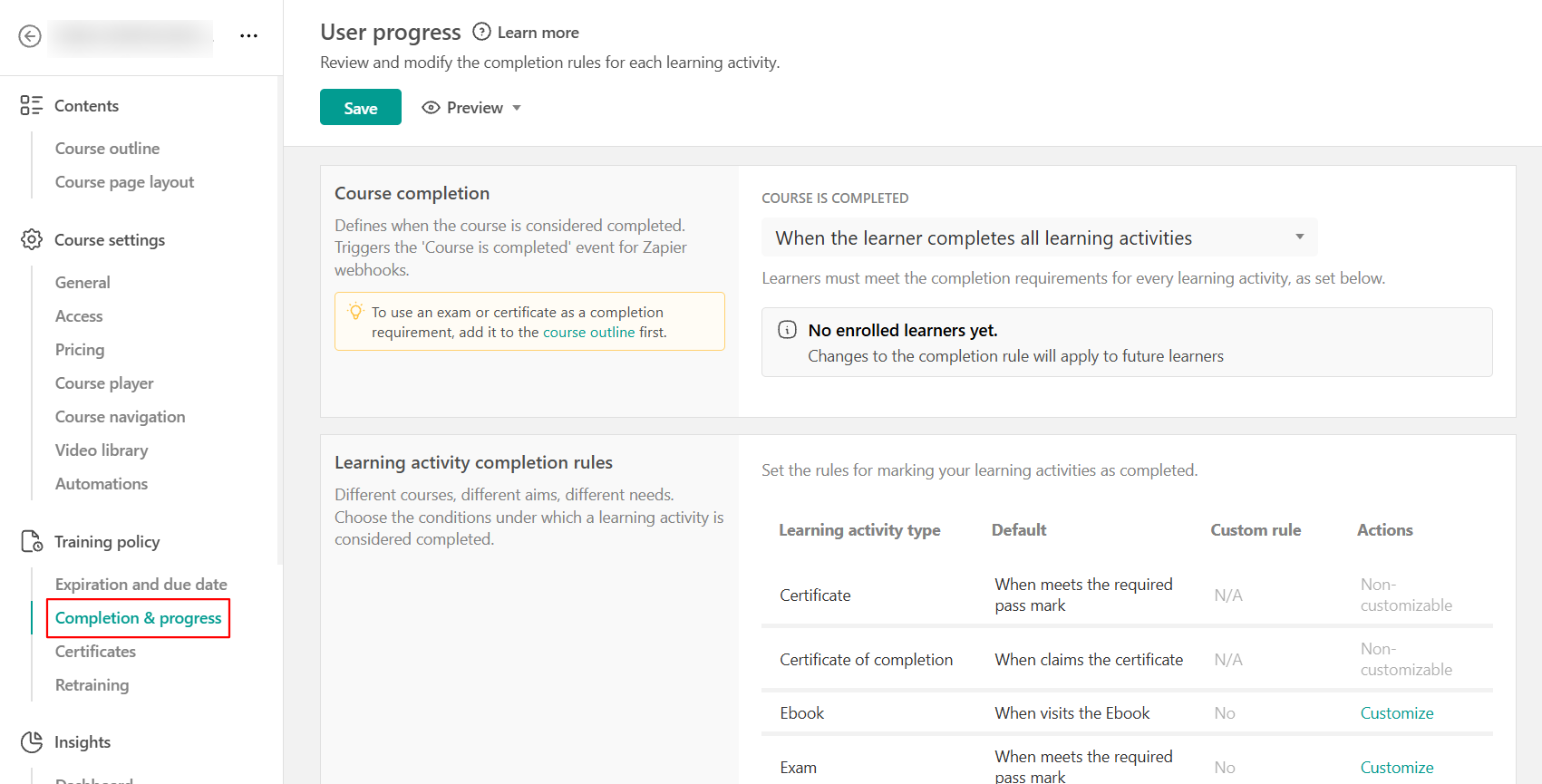 From this page, you can configure:
- The course completion rule
- Learning activity completion rules
- Retraining completion and progress
Course completion rule
The course completion rule defines when the course is marked as completed. When a learner meets the selected rule, LearnWorlds marks the course as completed and triggers the Course is completed event for automations, Zapier and webhooks.
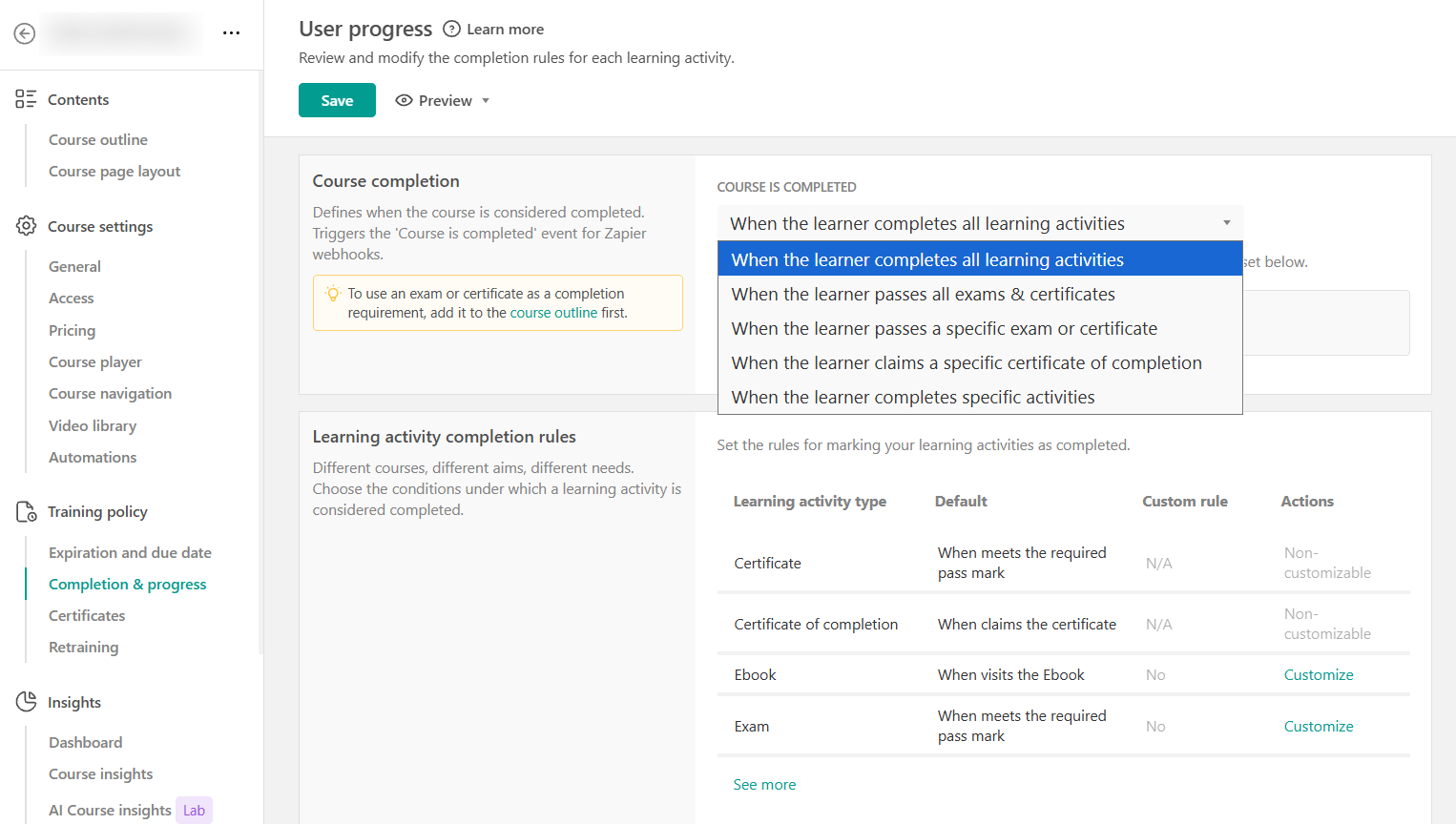
Under Course completion rule, choose one of the available options. The course is completed:
- When the learner completes all learning activities
- When the learner passes all exams and certificates
- When the learner passes a specific exam or certificate
- When the learner claims a specific certificate of completion
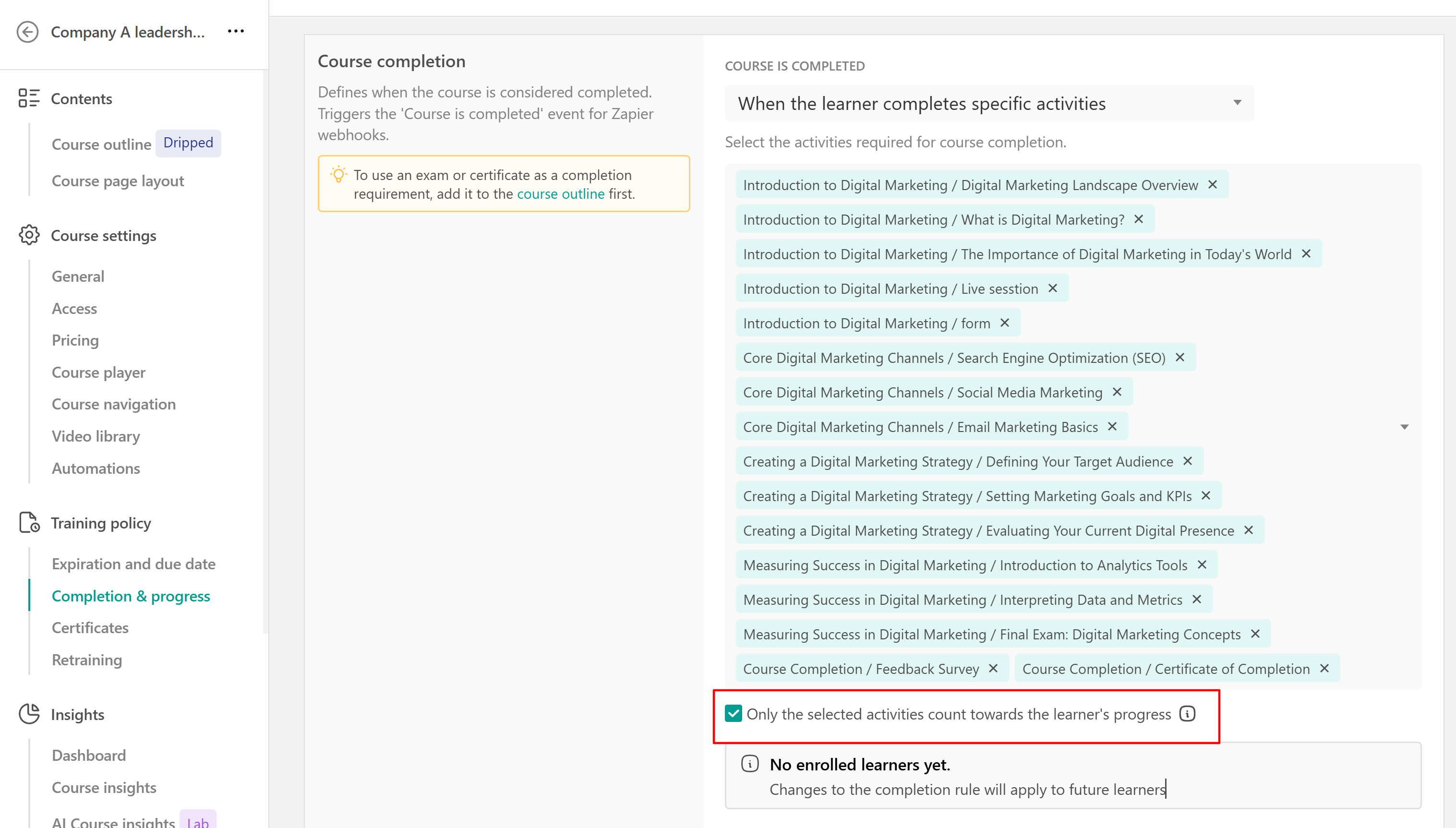
- When the learner completes specific activities

- If you select Course is completed when the learner passes all exams and certificates for a course with no exams or certificates, the course will not be marked as completed in the User Card or User Progress reports. Learners may still see their progress bar reach 100%. For a course without exams or certificates, select Course is completed when the learner completes all learning activities.
- If you choose any of the available course completion rules (e.g., learner passes all exams, learner claims a certificate), the "Course is completed" webhook is triggered and the course is marked as completed. However, the progress bar visible to the learner may still appear as "incomplete" if there are additional learning activities. This is because the progress bar reflects the proportion of all learning tasks completed, not just those required to trigger the course completion event.
- If you enable When the learner completes specific activities, you can select which course activities learners must complete. You can also enable Only the selected activities count towards the learner's progress to limit progress calculation to those activities.
Learning activity completion rules
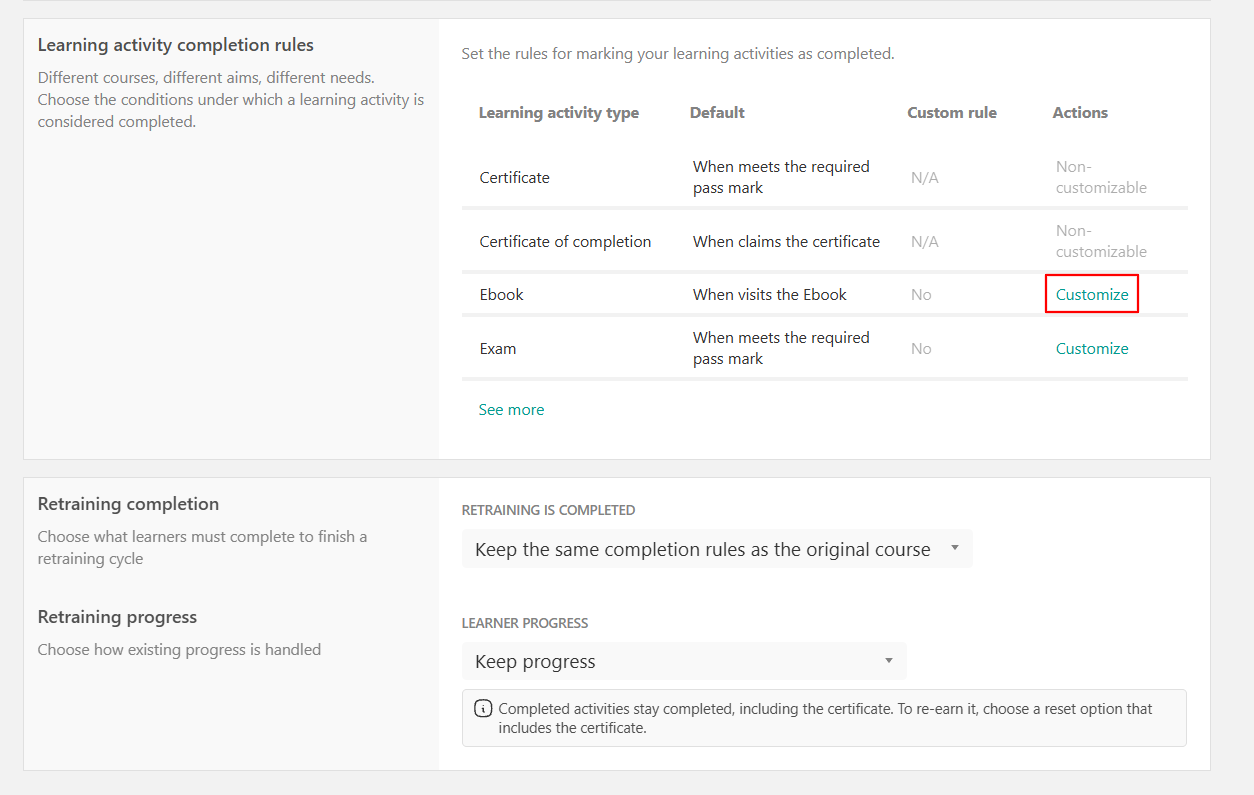
Learning activity completion rules define when each type of learning activity is marked as completed. Under Learning activity completion rules, you can review the default completion rule for each activity types used in your course.
If your course does not contain any learning activities yet, the page displays the most commonly used activity types first. Select See more to see the other available types.
- Some activity types, including certificates and certificates of completion, have fixed completion rules and cannot be customized.
- Custom completion rules for videos apply only when the LearnWorlds interactive video player is selected on your player appearance page.
Customize learning activity completion rules
For supported learning activity types, you can change the completion rule that applies to all activities of that type within the course. To customize a completion rule:
- Find the learning activity type you want to configure
- Under Actions, select Customize
- Choose the completion rule you want to use
- Configure any additional settings required by the selected rule
- Save your changes
The available rules depend on the learning activity type.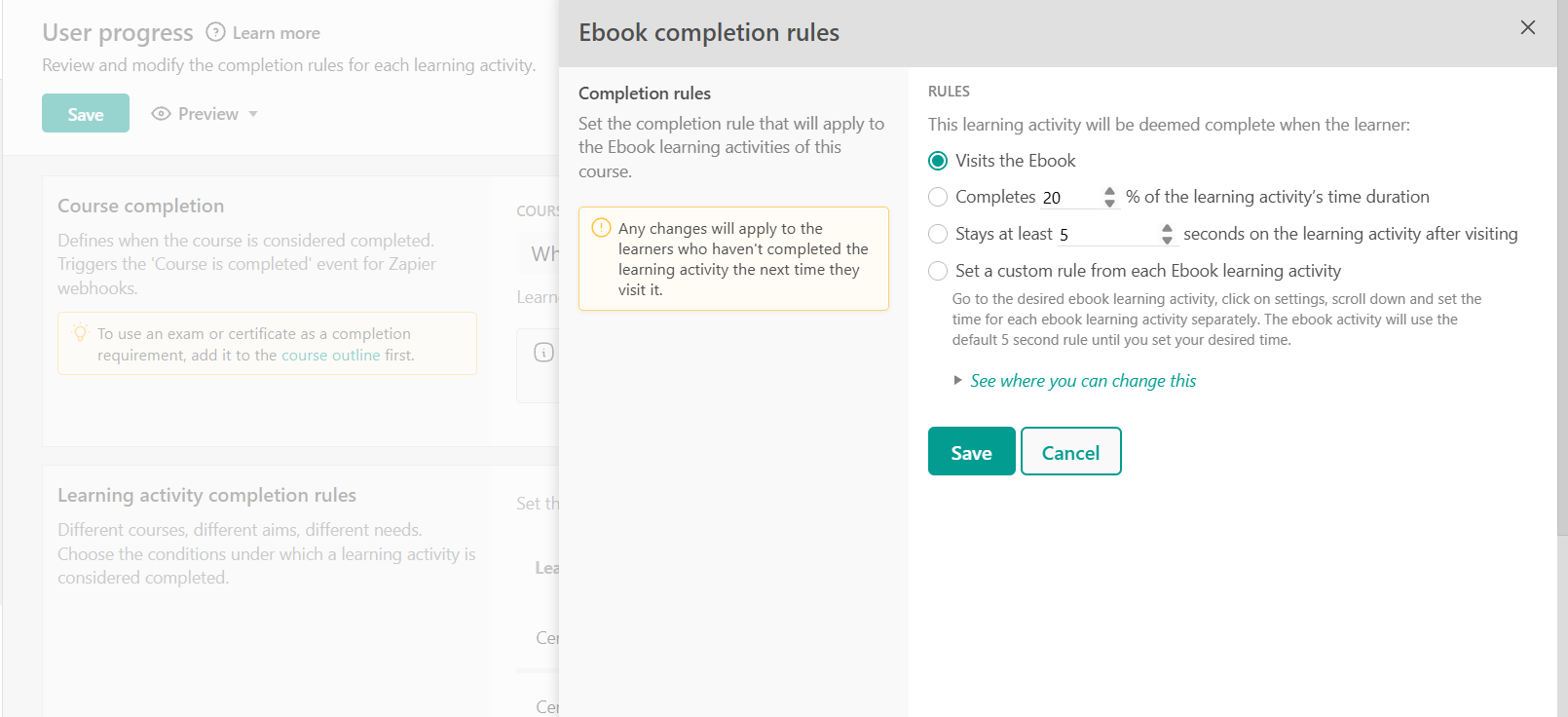
The rule you select here applies to all activities of that type within the course. For example, if you select a completion rule for eBooks, it applies to all eBooks in that course.
Set a different completion rule for an individual activity
If you want a specific activity to use a different completion rule, you can configure it from the activity itself.
- Go to your Course outline and locate the activity.
- Open the activity Settings.
- Select Set custom rule.
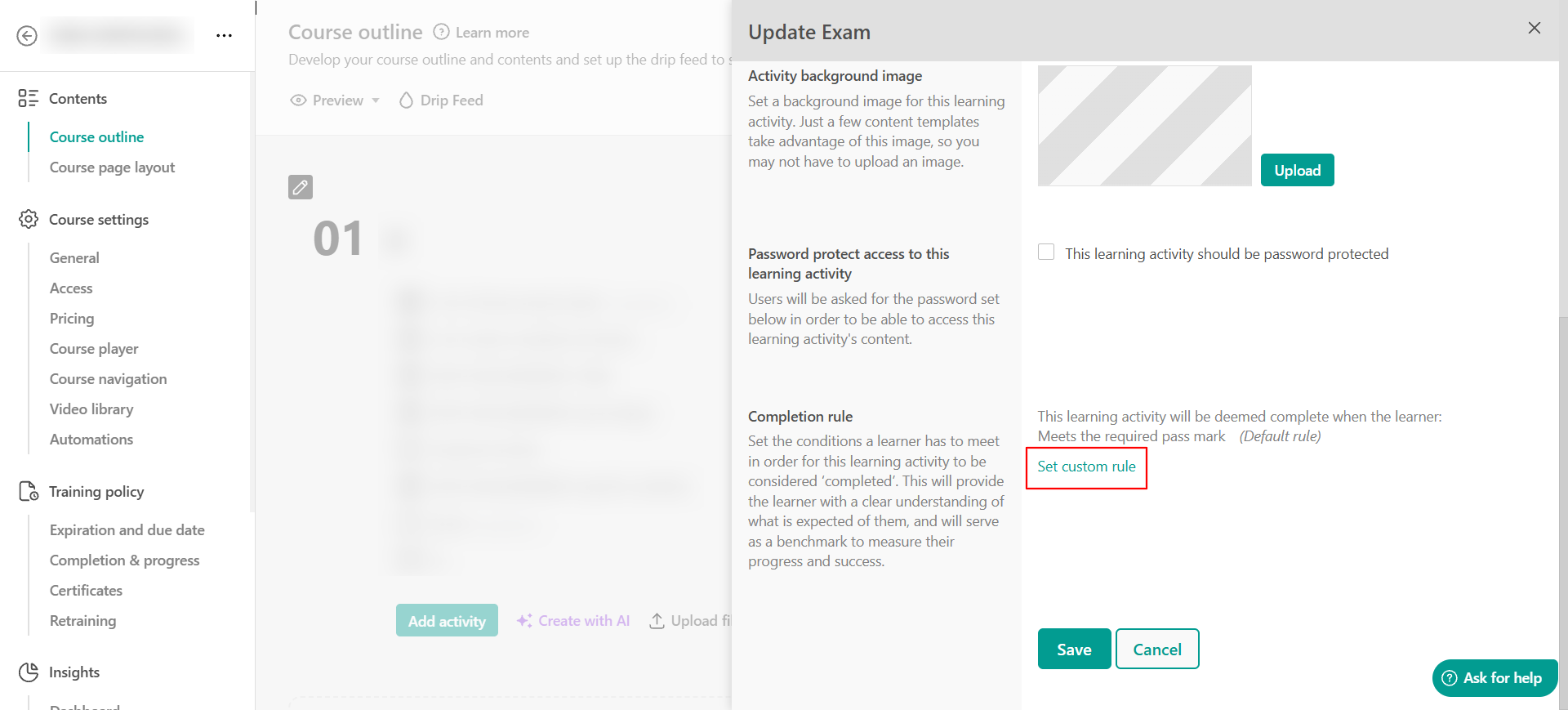
You will be taken to Training policy → Completion & progress → Learning activity completion rules. Find the corresponding activity type and, under Actions, select Customize.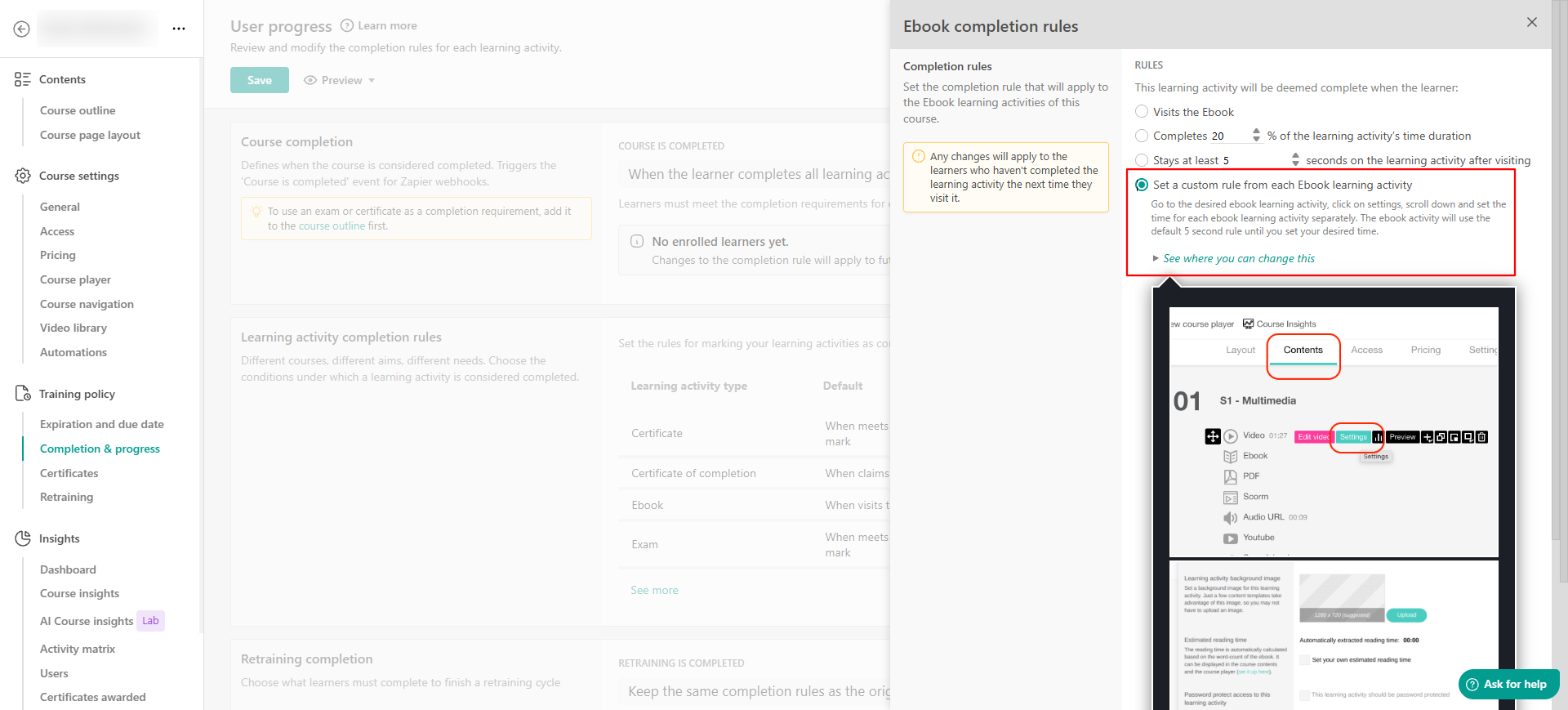
For example, for eBooks, the available completion rules are:
- When visited: The default rule for eBooks. The activity is marked as completed when the learner opens it.
- Percentage of the auto-calculated reading time: The activity is marked as completed when the learner spends the selected percentage of its estimated reading time on the eBook. Reading time is calculated at 180 words per minute.
- Stays at least X seconds: The activity is marked as completed when the learner remains on it for the specified number of seconds after opening it.
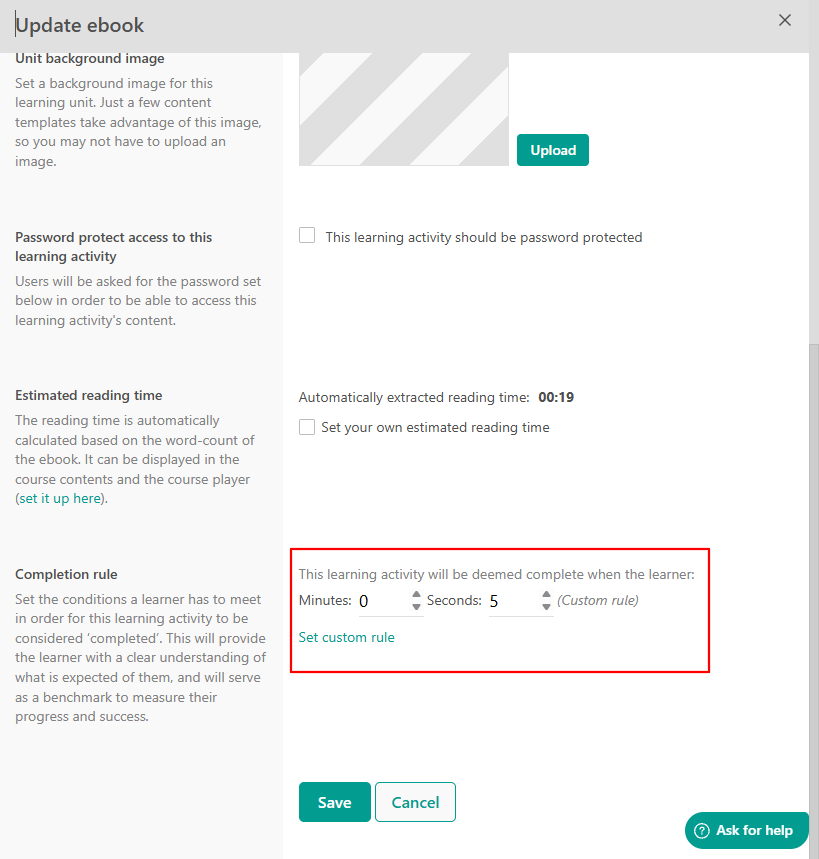
- Custom: Allows individual eBooks to use their own completion rules instead of the rule applied to all eBooks in the course. By default, the custom rule marks an eBook as completed five seconds after it loads, unless you change this in the individual activity's settings.
Select Custom and return to the individual eBook's Settings. A completion rule field is now available, where you can define the rule for that specific eBook.
For video activities, consider using a percentage-basedcompletion threshold close to 100%, such as 90–95%, when you want completion to reflect how much of the video the learner watched.What happens when you add activities to a completed course
If you add new learning activities after a learner has completed the course:
- In admin analytics, the course remains marked as completed, while the newly added activity appears as incomplete.
- In the learner experience, the new activity affects the learner's overall progress. Their progress drops below 100%, and the course may appear incomplete.
To return the course to 100% progress, the learner must complete the new activity. On Learning Center plans and above, an admin can also manually update the learner's progress.
Retraining completion and progress
If retraining is configured for the course, you can define what learners need to complete during each retraining cycle and what happens to progress from their previous completion.
These settings are managed separately through Retraining completion and Retraining progress.
Retraining completion
Use Retraining completion to define what learners need to complete to finish a retraining cycle. Choose from:
- Keep the same completion rules as the original course
- Require full course completion again
- Require selected activities only
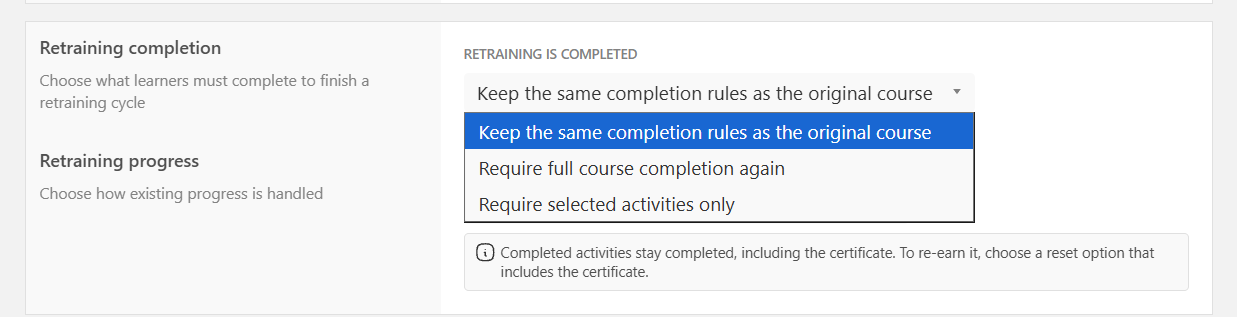
If you select Require selected activities only, choose the activities learners need to complete during retraining.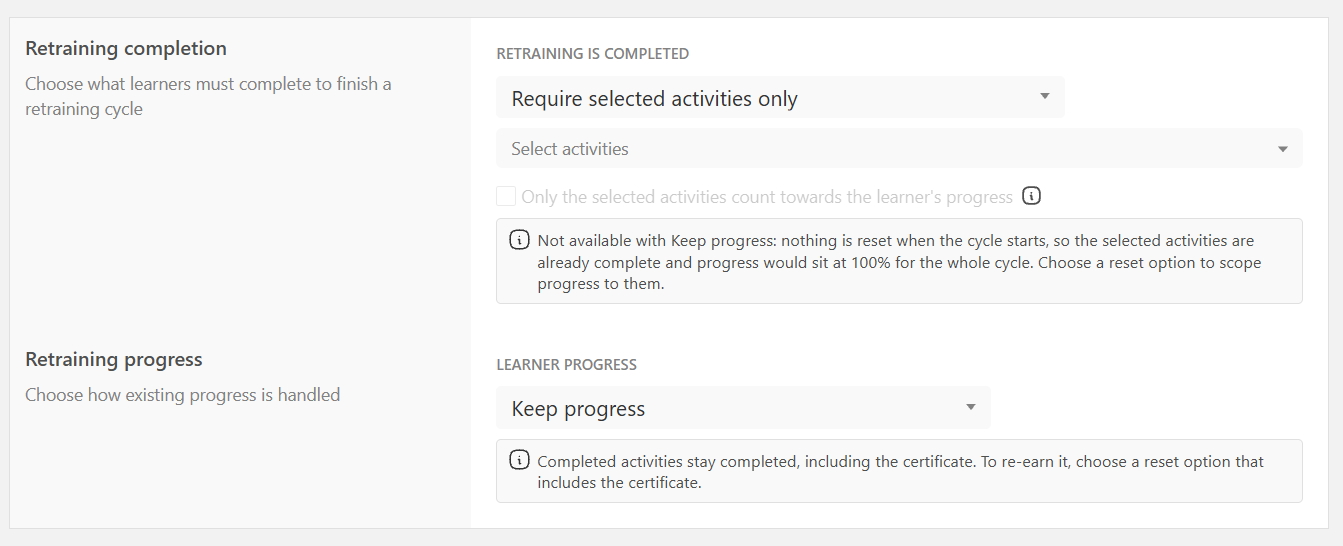
Retraining progress
Use Retraining progress to define how existing progress is handled when learners begin retraining. Choose from:
- Keep progress
- Reset all course progress
- Reset only selected activities
- Reset only the activities required for retraining
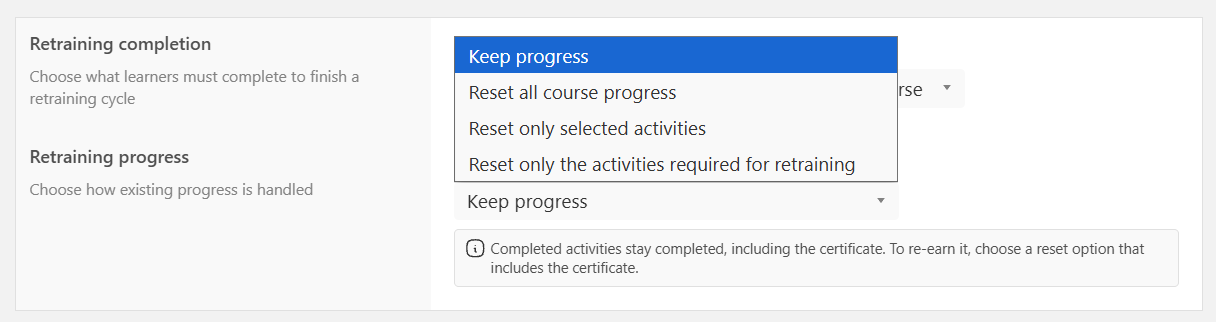
When progress is kept, completed activities remain completed, including the certificate. If learners need to earn the certificate again, choose a reset option that includes the certificate.