
The Daily News section allows you to showcase updates from your school’s automated daily newspaper directly on your pages, giving users quick access to curated news and content. The newspaper is populated through RSS feeds selected by the instructor or administrator, helping keep your learners informed and engaged with relevant updates.
In this article, you will learn how to add and customize the Daily News section on your LearnWorlds site.
Add daily news
1. Navigate to Website → Design → Edit Website.
2. Choose any page to edit from the Page Manager.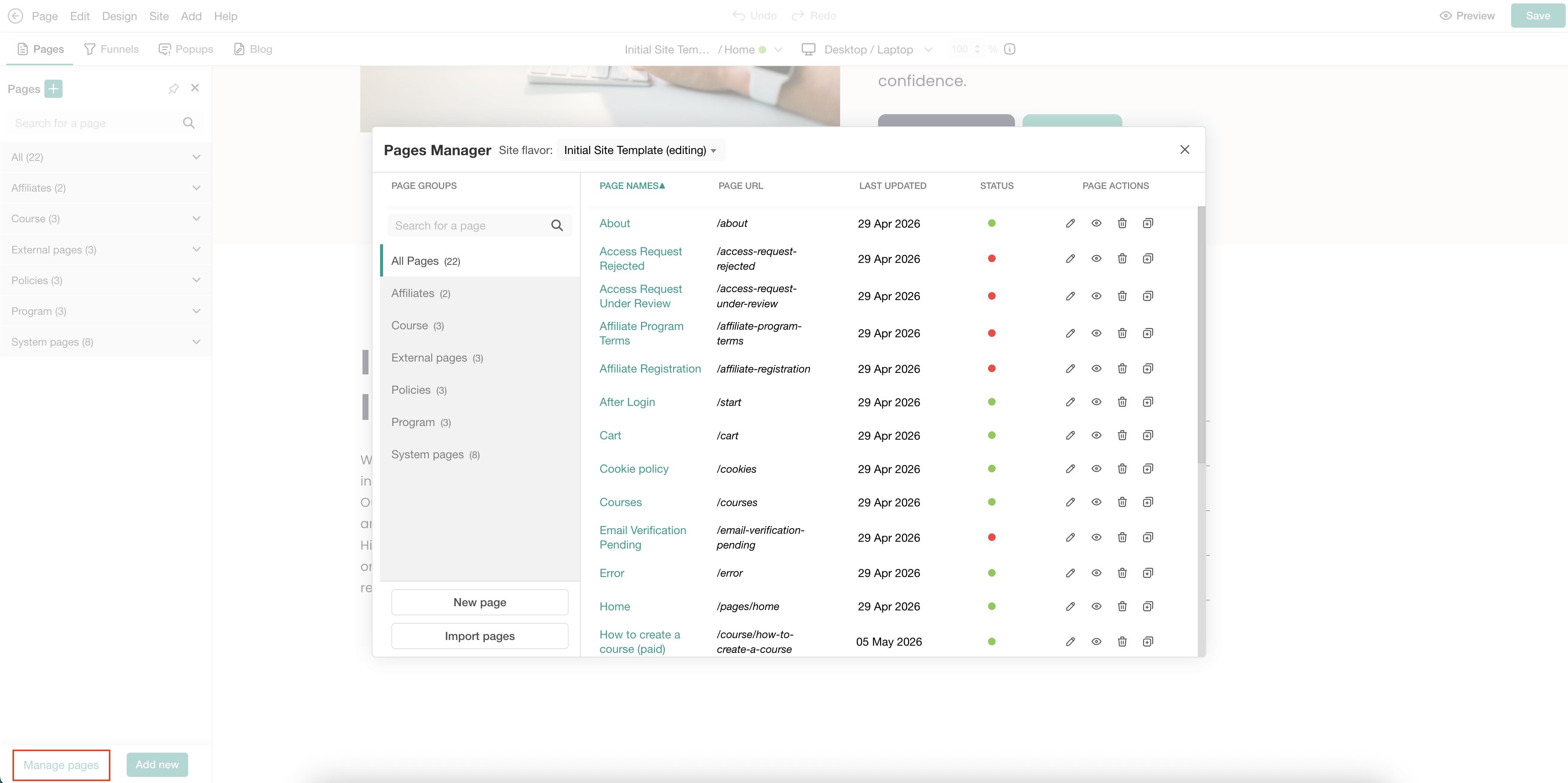
3. Hover over the page and click on the (+) icon to add a section.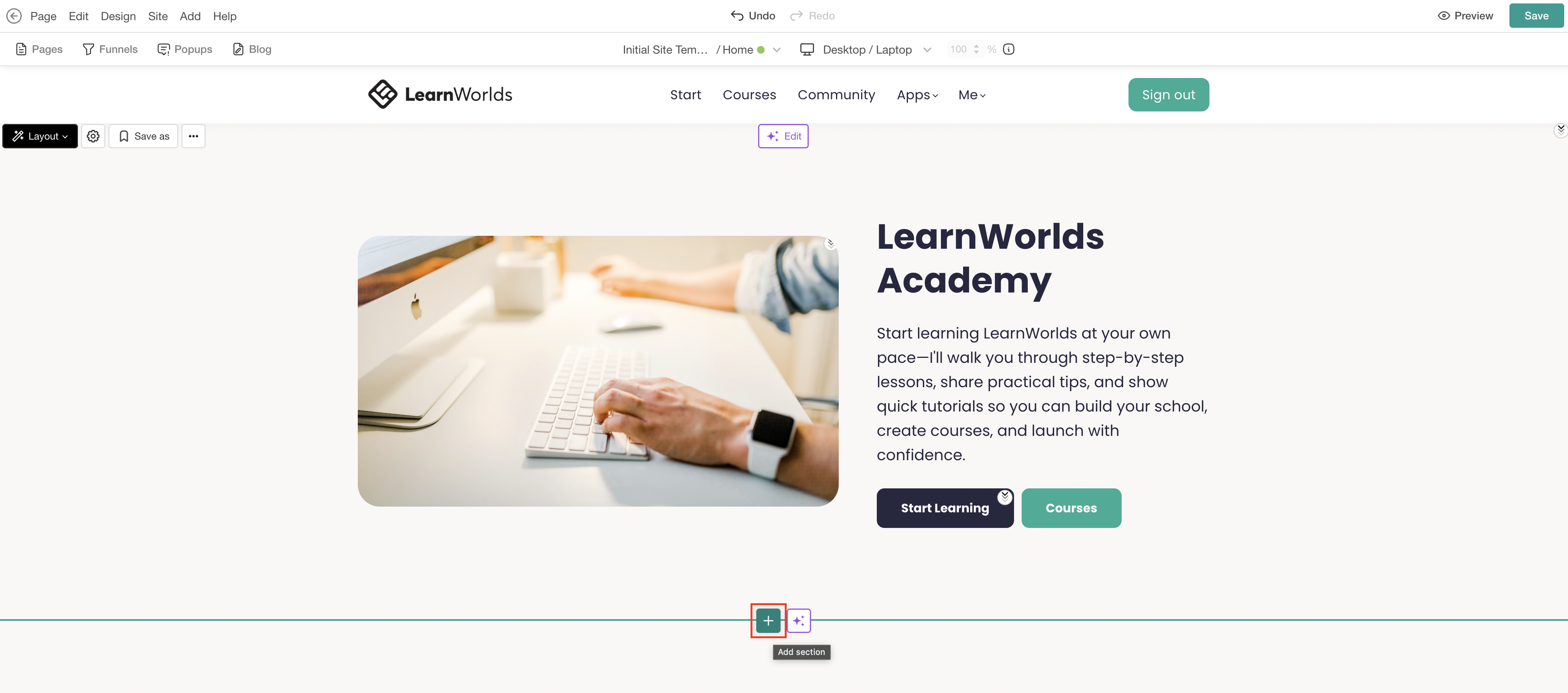
4. Select Daily news under the Learning Apps category. Select Add to insert the preferred section, or choose Fill with AI. When using Fill with AI, a dialog box will appear, allowing you to provide instructions to further customize the selected section.
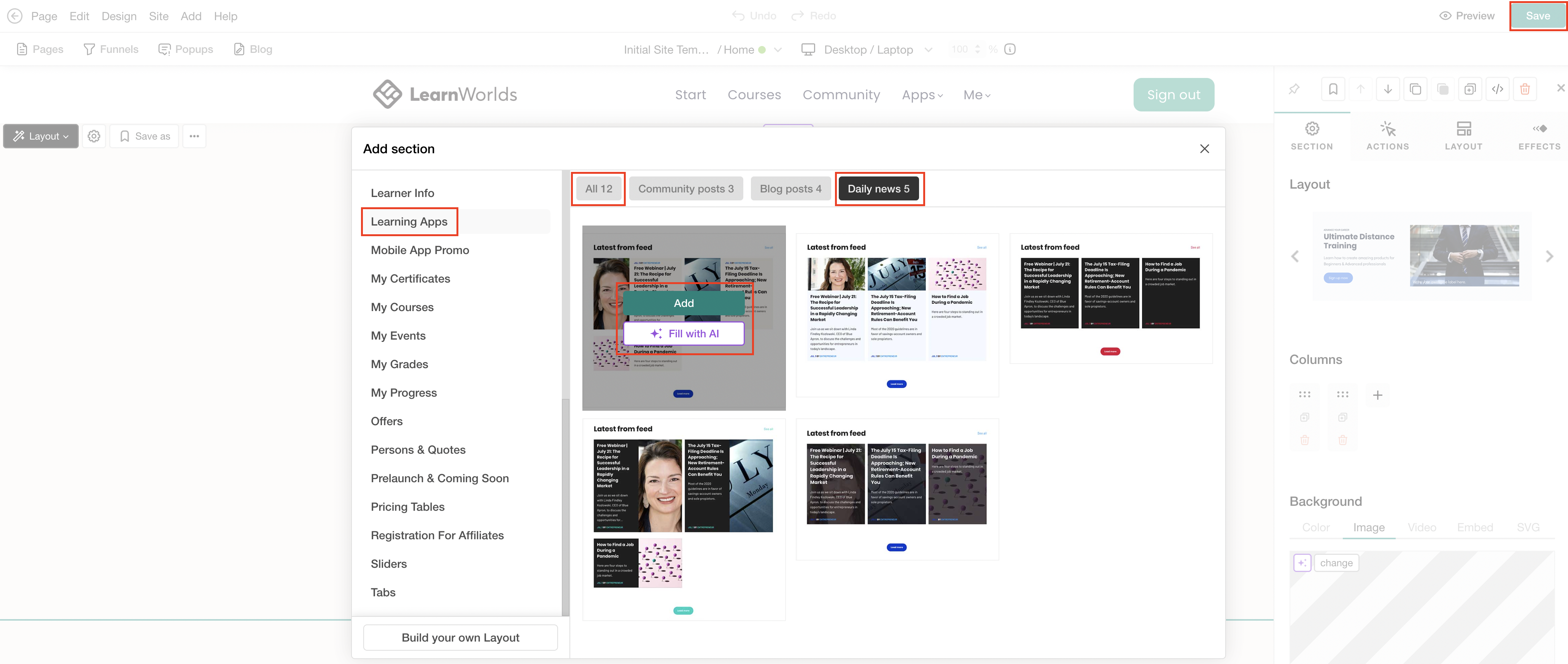
5. Click Save to save changes on the page.
Customize daily news
1. Hover over the section and click on Edit daily news cards to use the default settings. If the AI Edit option is used, the dialogue box appears. 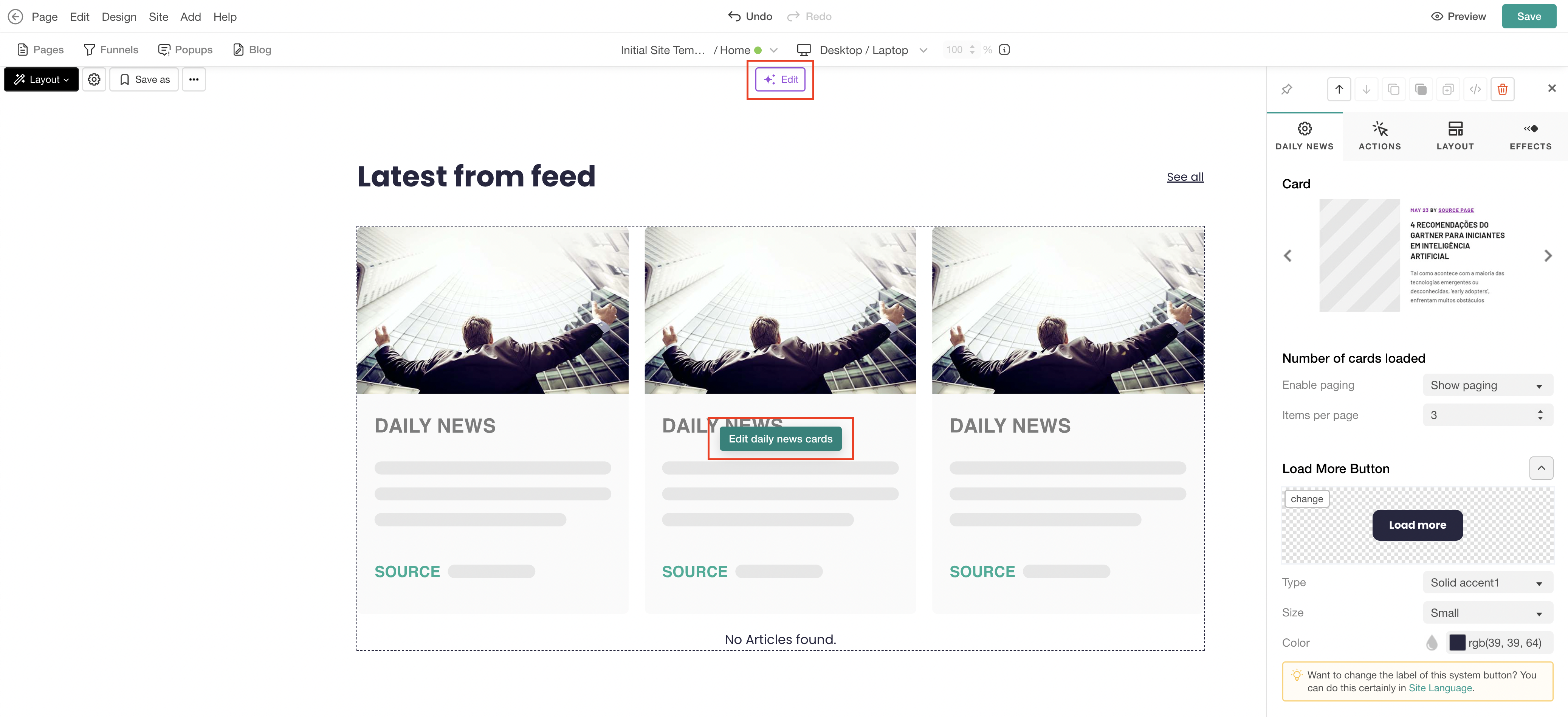 2. When using Edit daily news cards, the edit sideform appears. Configure the section settings to match your needs, including the card look, number of cards loaded, and the appearance of the Load More button.
3. Click Save to save changes on the page.
 For more information on how to further customize sections using the sideform, click here.