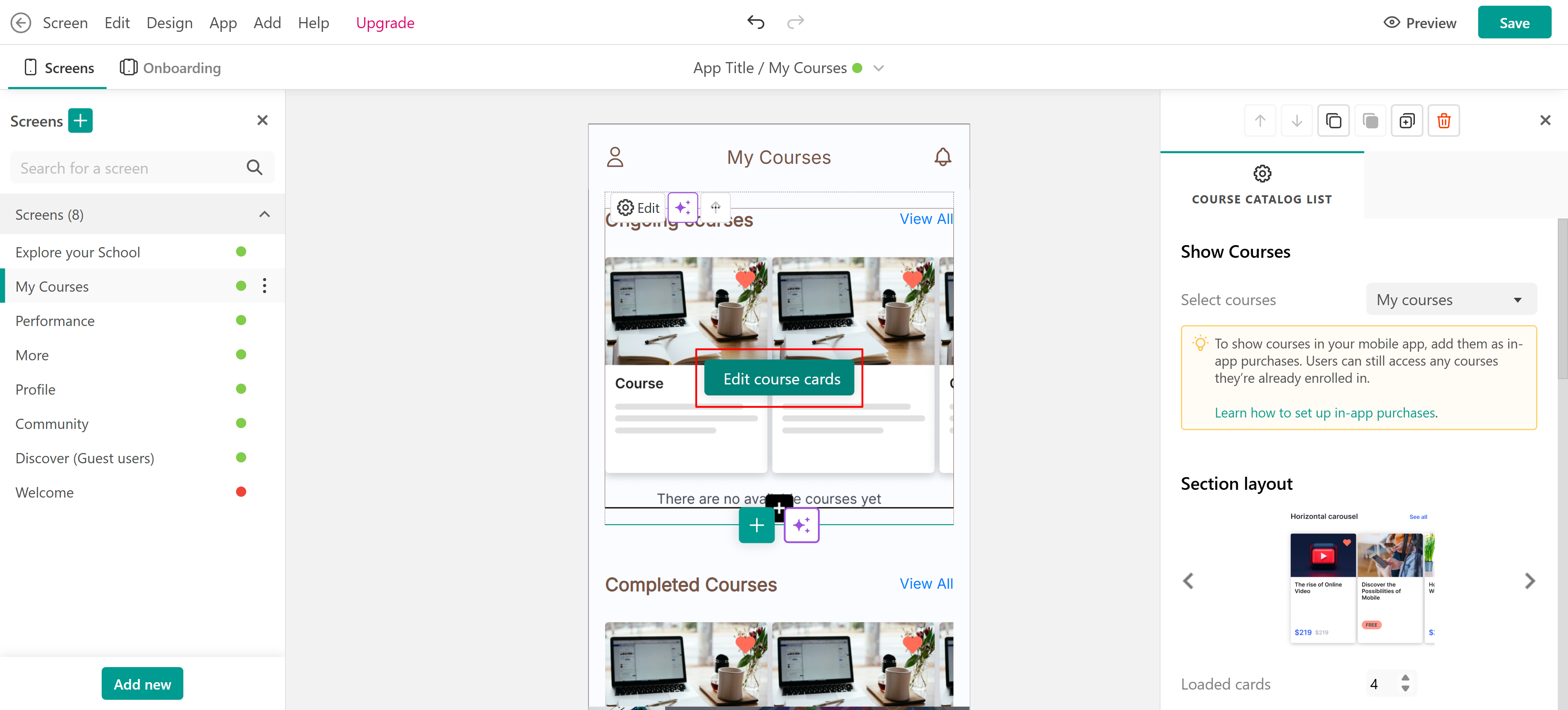
LearnWorlds provides AI-powered tools to help you create, edit, and customize your school's website pages. Generate complete pages from scratch, add new sections, improve existing content, and use the AI Assistant to make individual changes or bulk updates through natural-language instructions.
In this guide, you'll learn how to create pages with AI, generate and edit sections, improve text, and use the AI Assistant to customize your pages directly within Site Builder.
Create a new page with AI
When creating a new page, you can either build it manually or use AI to assist you.
1. To get started, navigate to the Site Builder and click the + (plus) icon or the Add New button. 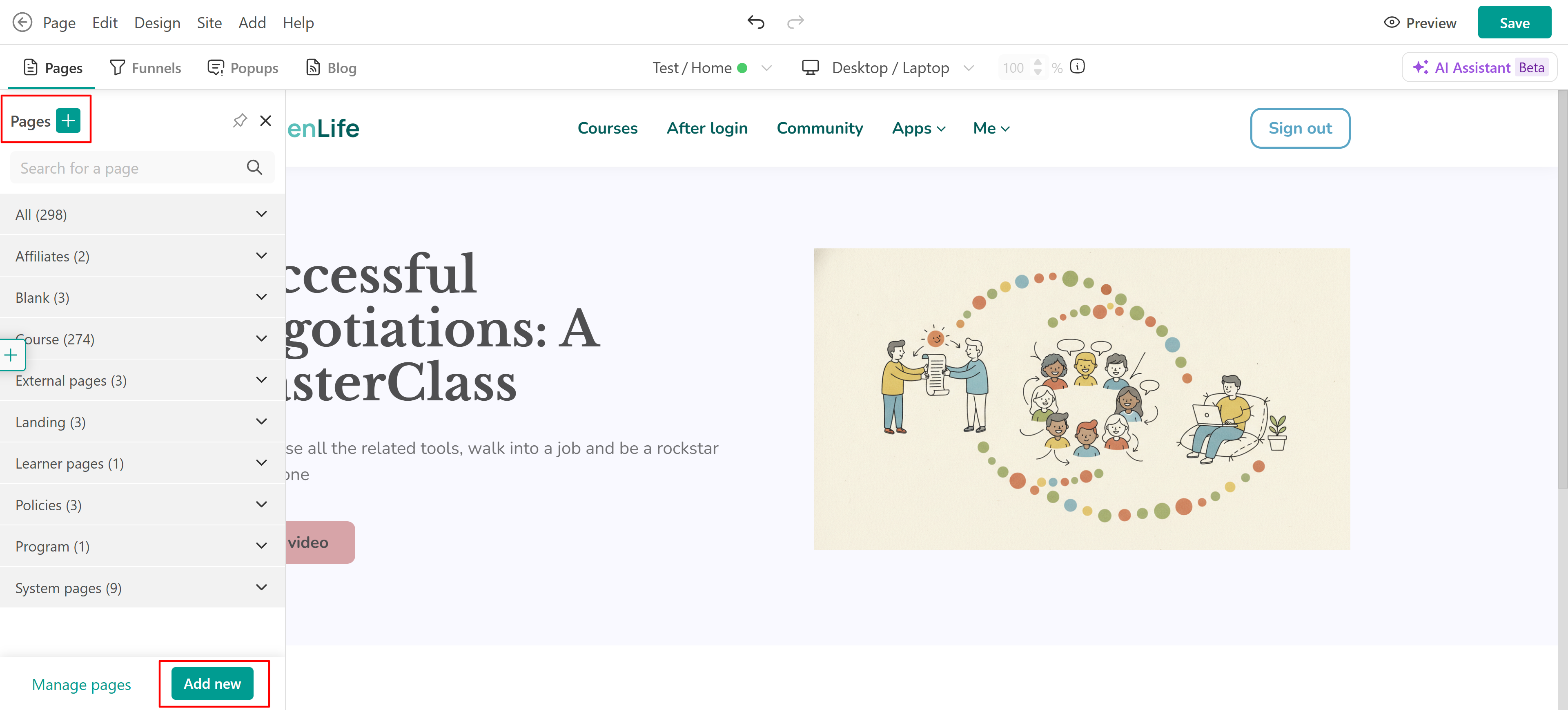 2. Then select Generate with AI.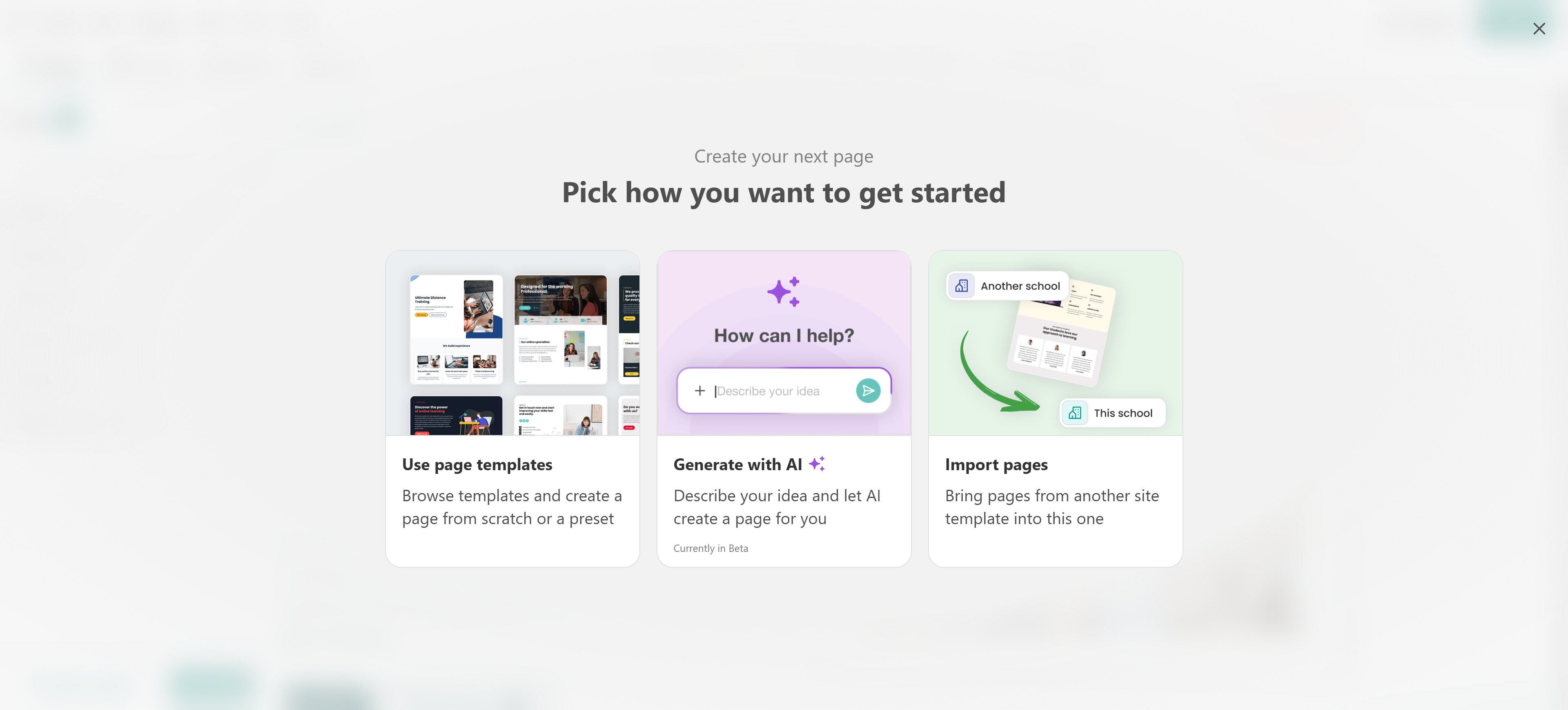
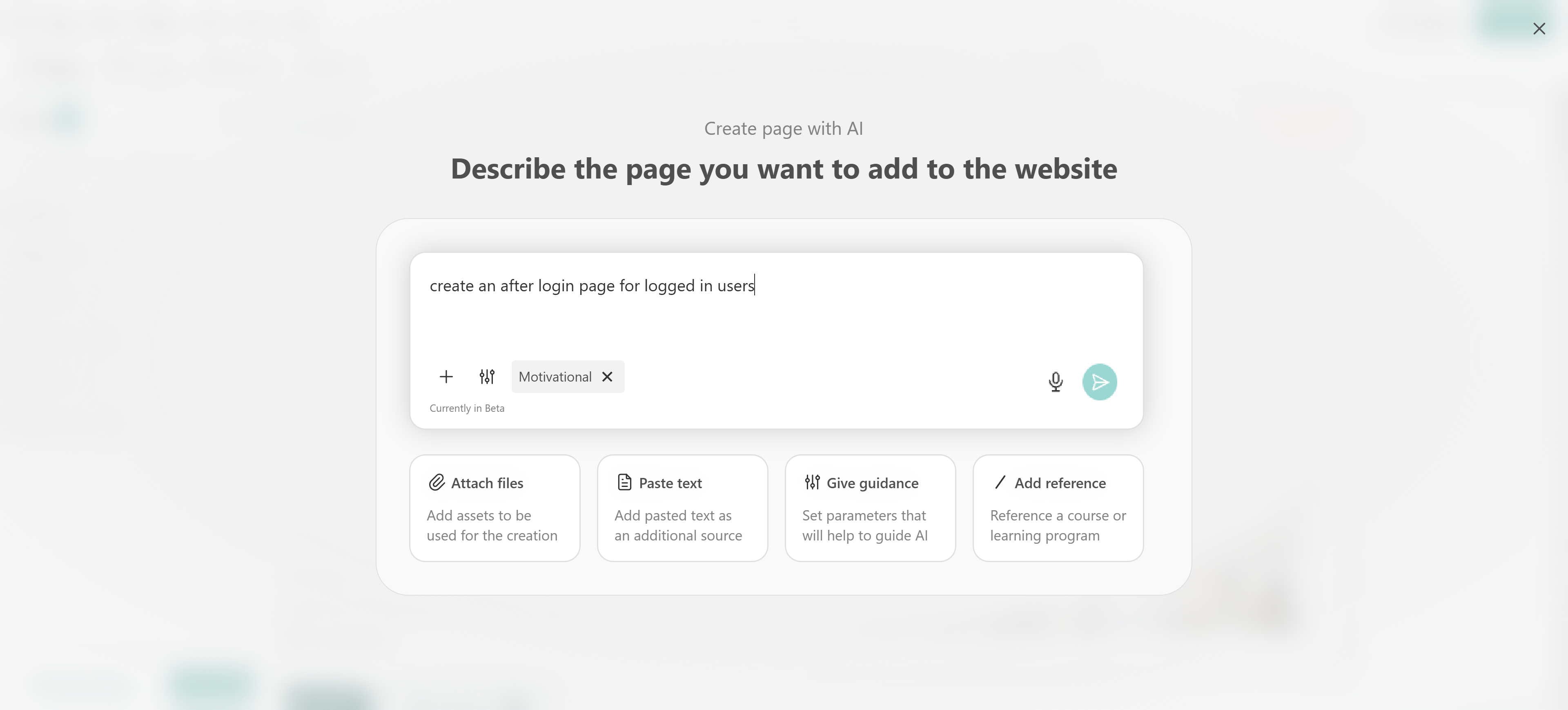
3. In the AI chat, describe the page you want to create. Include details such as:
- The purpose of the page (e.g., landing page, course promotion, thank-you page).
- The sections you want to include (e.g., hero section, benefits, testimonials, FAQ).
- The number or type of sections.
- Your target audience and preferred tone of voice.
You can also provide additional context using the available options:
- Attach files: Upload reference materials for AI to use.
- Paste text: Provide existing content to include or adapt.
- Give guidance: Define parameters to guide AI generation.
- Add reference: Reference existing content.
Review and customize the generated page
After submitting your prompt, AI generates a page outline based on your instructions. Review the suggested structure before proceeding. At this stage, you can:
- Rearrange or remove sections.
- Change section types, such as replacing a Benefits section with an FAQ.
- Edit the generated text.
- Modify section layouts.
- Continue chatting with AI to refine the result.
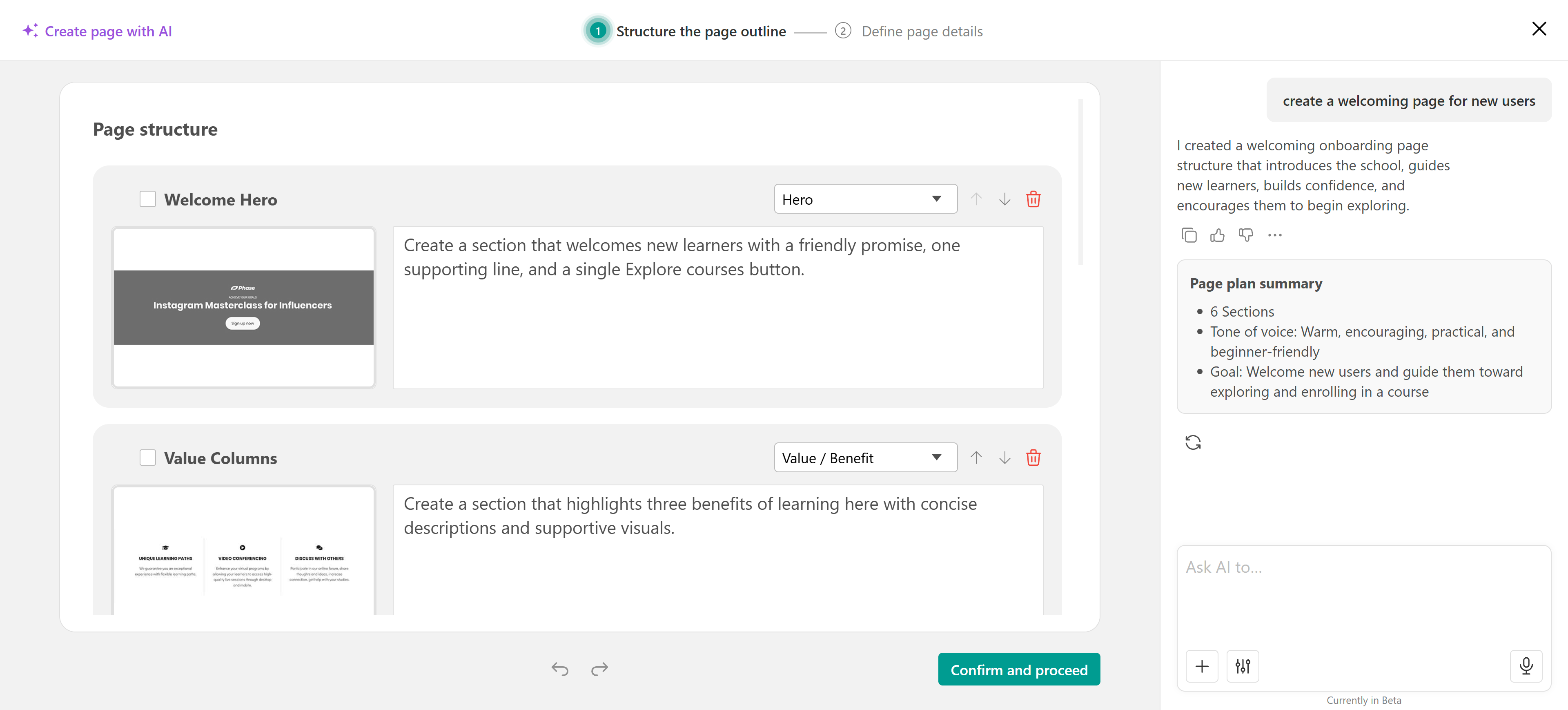
Once you're satisfied with the page structure and content, click Confirm to proceed.
Configure your page settings
Before completing the creation process, review the page settings, including:
- Page name
- URL
- Status
- SEO details, such as title, description, and keywords.
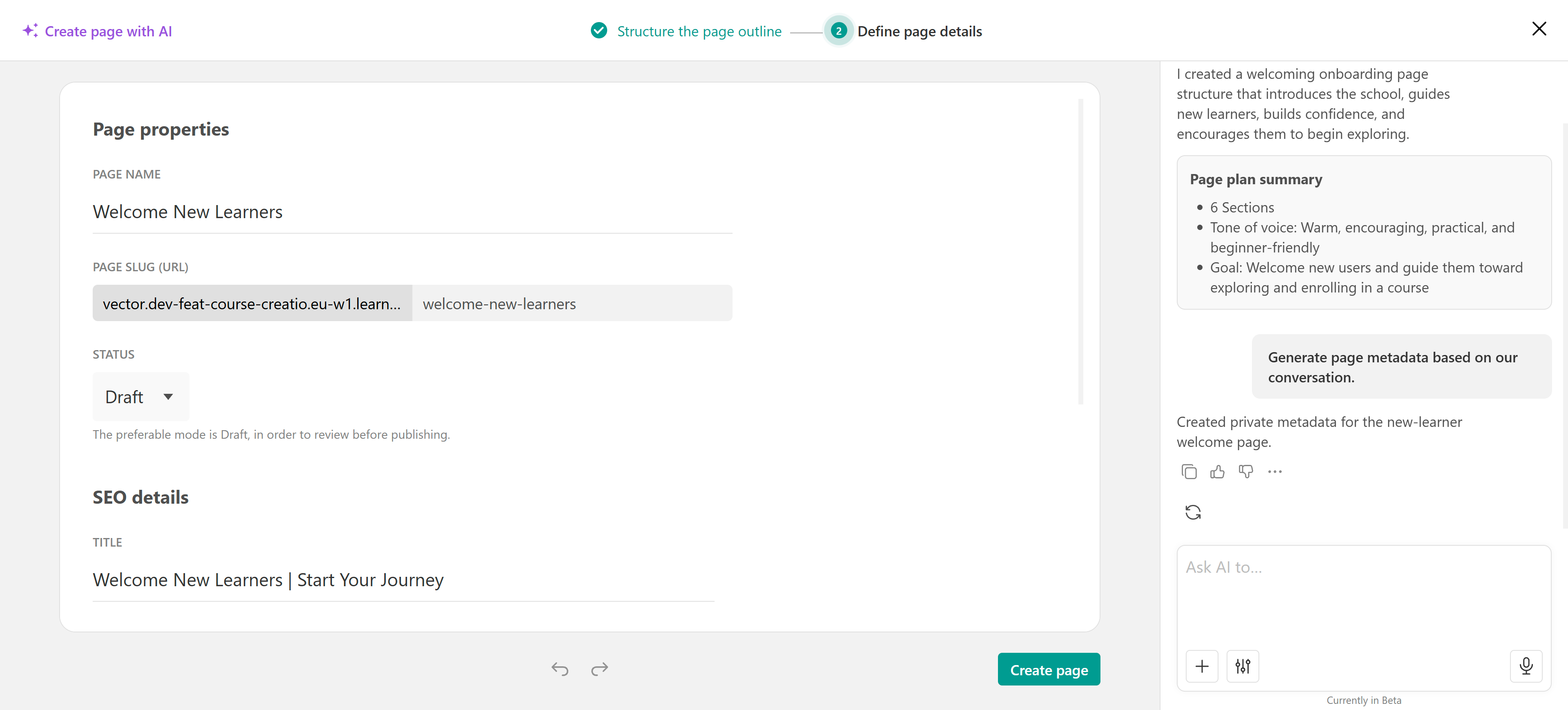
AI also generates an image based on your page description. To customize it, hover over the image and select Choose image to upload a different image, or Edit image to generate a new one with AI.
Generated images are saved in your Image Library for future use.
Once everything is ready, click Create Page to complete the process.
Edit your pages with the AI Assistant
The AI Assistant in Site Builder helps you edit and customize existing website pages.
Instead of making each change manually, describe what you want to update and let AI assist with the editing process. The assistant supports both individual edits and bulk updates, making it easier to apply multiple changes across your page.
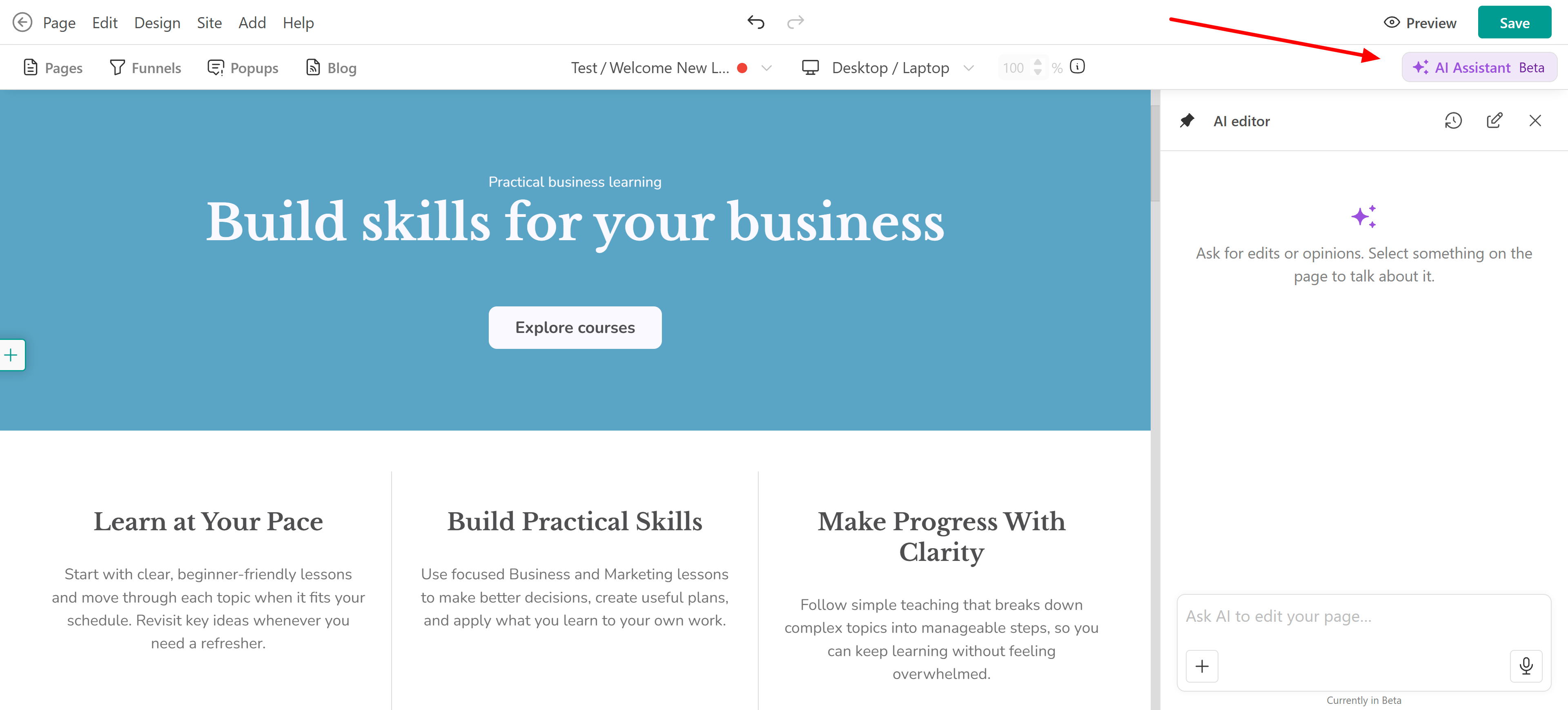
- Click AI Assistant in the upper-right corner of the editor.
- The AI editor panel opens on the right side of your screen.
- Enter a prompt describing the changes you want to make.
For example, ask AI to rewrite headings, improve descriptions, adjust the tone of your content, or make your call-to-action text more engaging.
Edit specific page elements
For more targeted changes, select an element or section directly on your page before entering your prompt.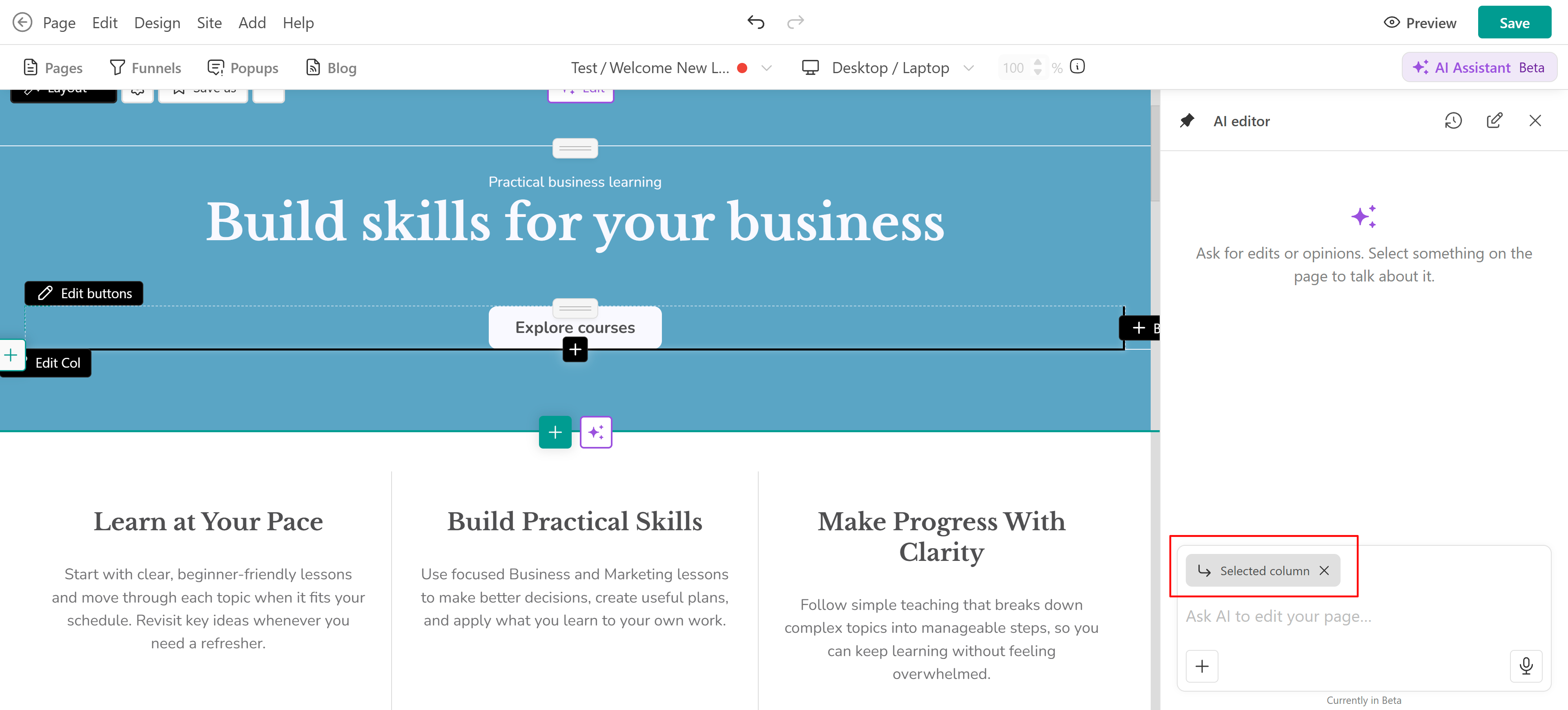
The selected content is included as context in the AI conversation, helping the assistant understand which part of the page you want to update.
For example, select a heading and ask AI to shorten it, or select a section and request improvements to its content
Make bulk updates with AI
The AI Assistant also supports bulk editing, allowing you to request multiple changes through a single prompt instead of updating each element individually.
For example, you could ask:
Rewrite the headings and descriptions on this page using a more professional tone, shorten lengthy paragraphs, and make the call-to-action buttons more engaging.
You can also request changes to multiple elements or ask AI to improve consistency across your page. Review the changes and continue the conversation to refine the results as needed.
Edit existing sections with AI
Besides using the AI Assistant, you can make targeted changes to individual sections using the existing AI editing options in Site Builder. To edit a section:
- Open the page in Site Builder.
- Locate the section you want to update.
- Click Edit (AI) to open the AI chat.
- Describe the changes you want to make.
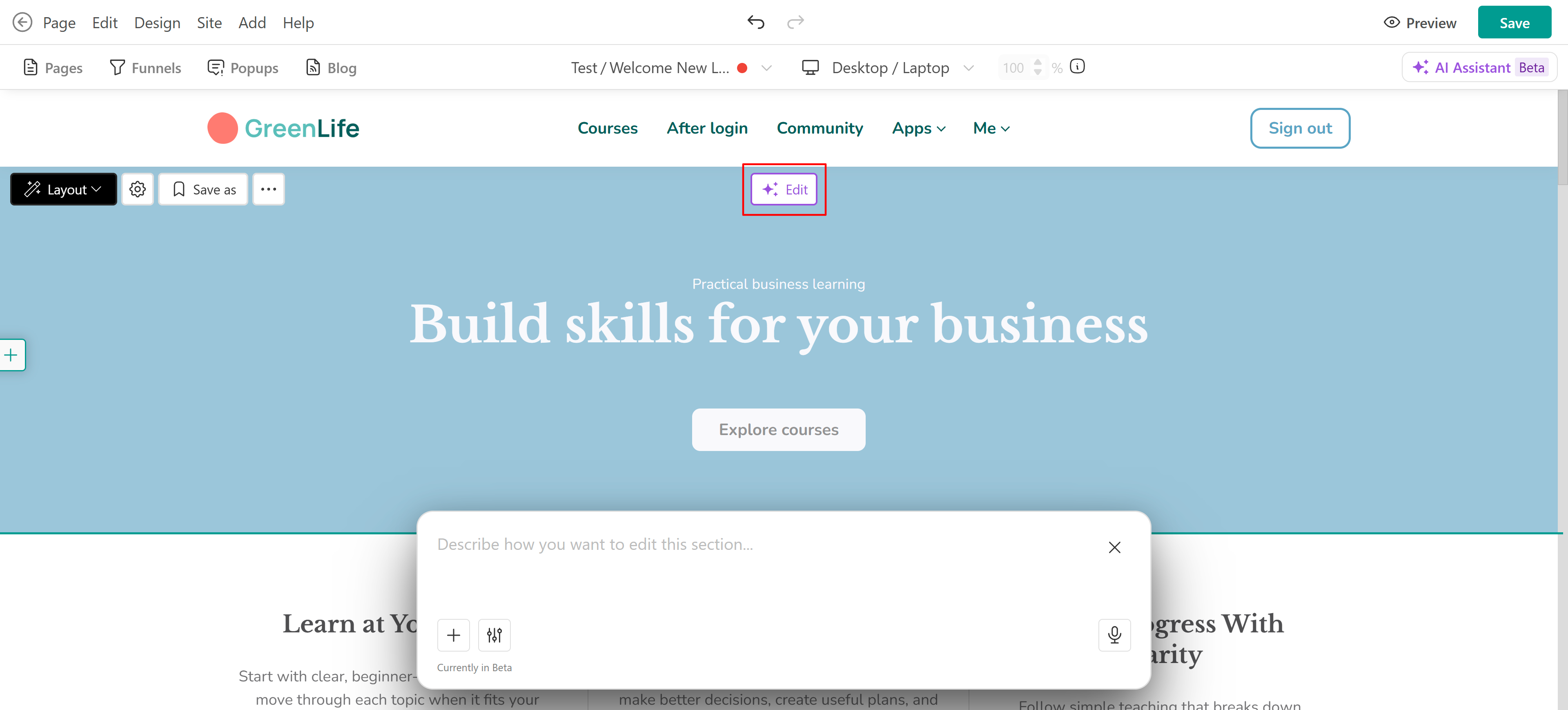
For example, ask AI to rewrite a section's content, change its tone, improve its messaging, or adjust the information it presents.
Review the generated changes and refine them with additional prompts if needed.
Add new sections with AI
In some cases, you may want to add individual sections to your pages using AI. When adding a new section, click the + (plus) icon, and you’ll see the AI button next to it.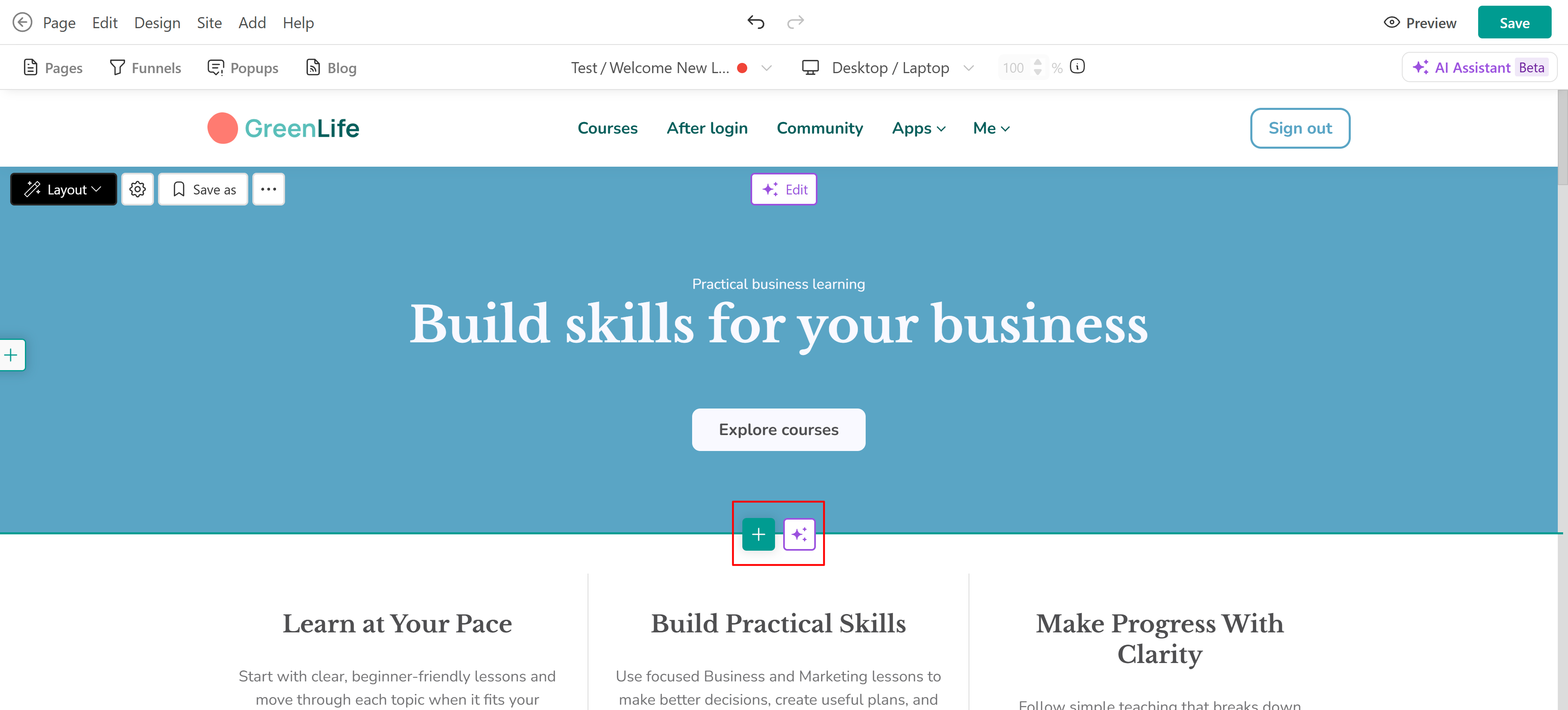
Once you click it, a chat box will appear where you can describe the section you want to create. Include details such as its purpose, content, layout preferences, or tone of voice.
For example: Create a testimonials section featuring three customer reviews, with a heading and a short introduction.
AI generates the section based on your instructions. Review the result and make any necessary adjustments.
Fill an existing section with AI
Alternatively, select a section layout first and let AI generate its content.
- Click the + (plus) icon to add a new section.
- Browse the available section types and select the one you want.
- Click Fill with AI.
- Describe the content you want to include.
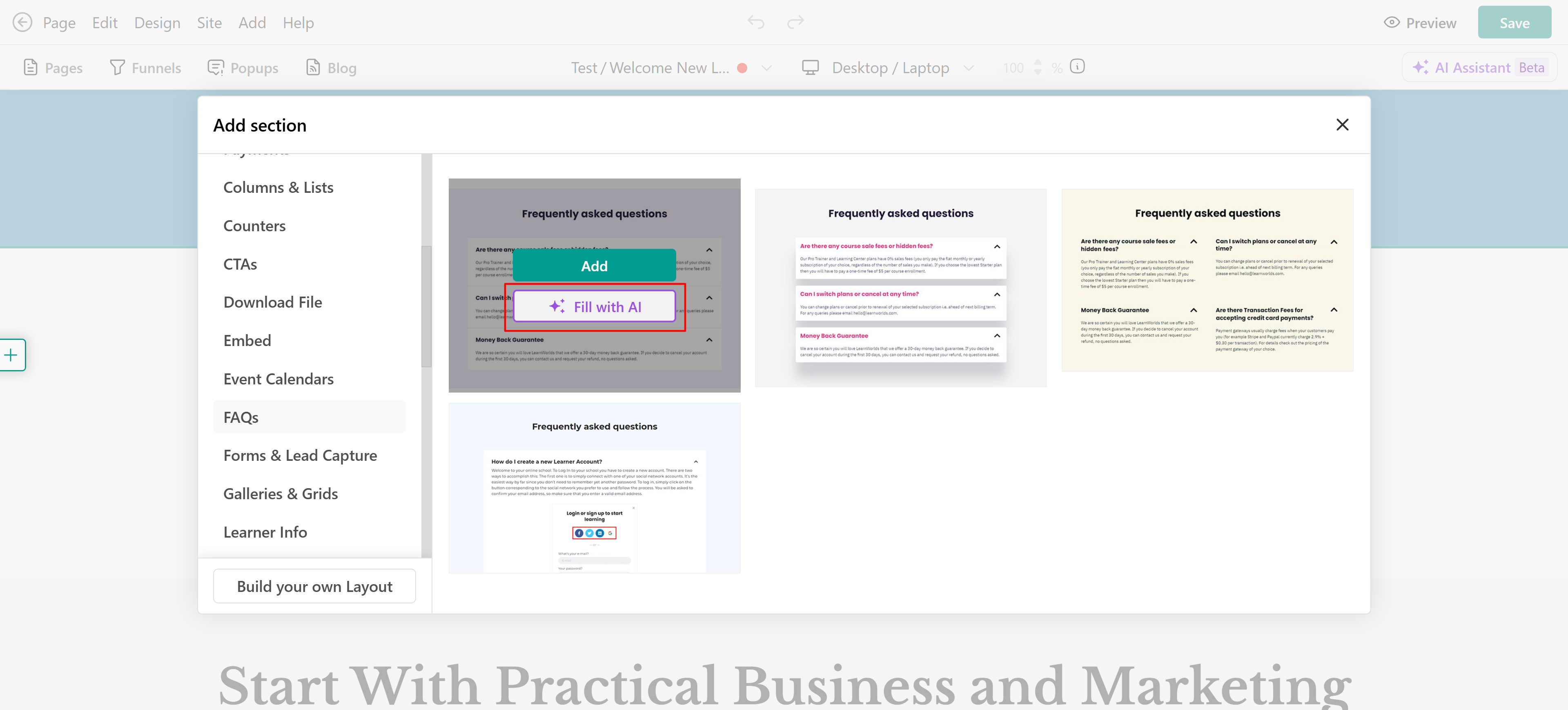
The AI chat opens with the selected section type already defined, so you can focus on describing its content.
For example, after selecting an FAQ section, ask AI to generate frequently asked questions about your courses, enrollment process, or payment options.
Improve page text with AI
AI can also help you refine individual pieces of text on your page. Select the text you want to update and use the available AI editing option to request changes. For example, you can ask AI to:
- Rewrite or polish existing text.
- Shorten or expand paragraphs.
- Adjust the tone or writing style.
- Make headings or descriptions more engaging.
- Translate content into another language.
- Summarize or simplify information.
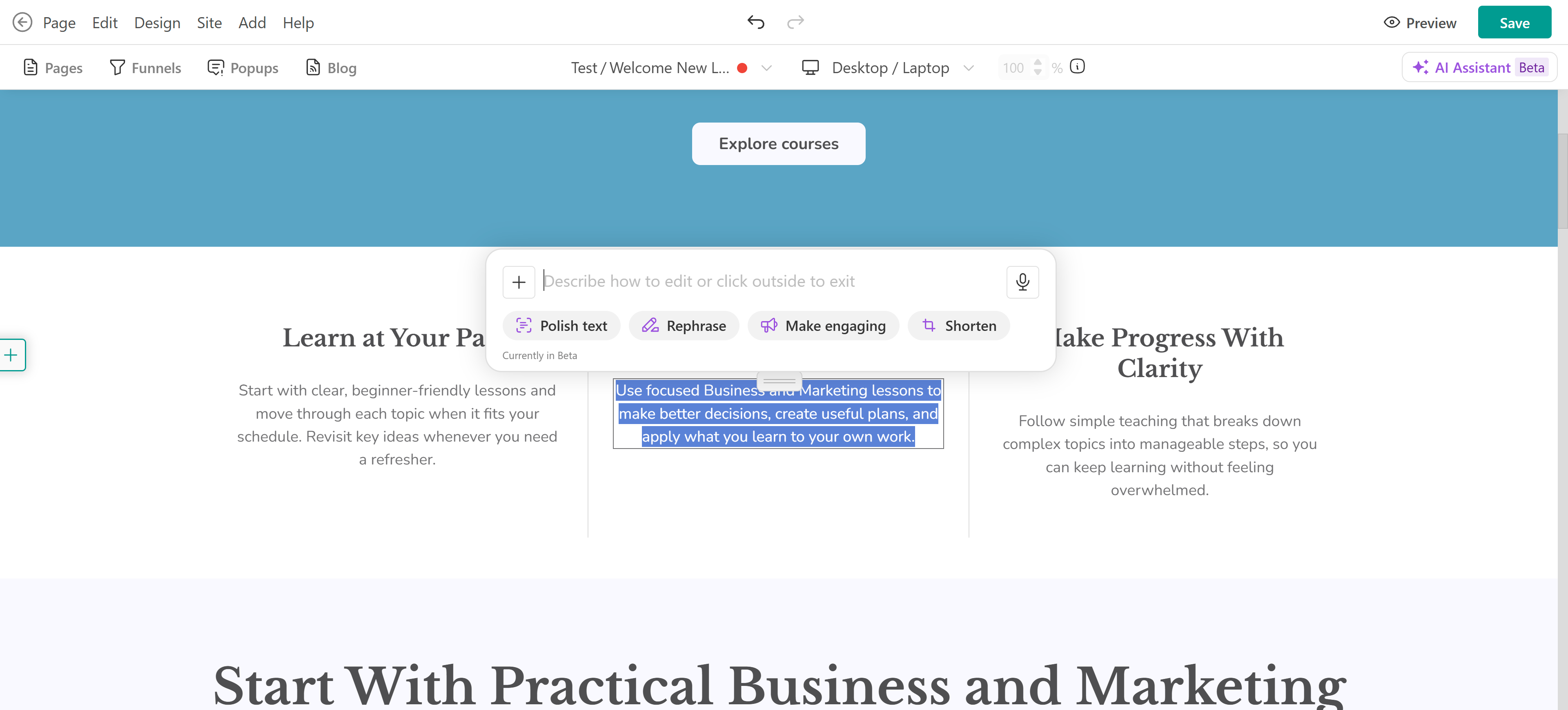
Review the generated text and make any necessary adjustments before saving your page.
Mobile app builder
Besides creating pages in the Website Builder, you can also use AI to build screens for your mobile app. The process is similar: you can create new screens from scratch, refine text and images, generate sections, or edit existing content with AI. Learn how to build and customize your mobile app screens here.