
LearnWorlds allows you to upload, create, and manage videos in your school's Video Library. You can upload existing video files, generate videos with AI, or connect an external video hosting service such as Vimeo Pro or Wistia.
Once your videos are ready, you can add them to courses, Ebooks, and website pages. You can also customize their playback settings or make them interactive.
In this guide, you'll learn how to add videos to your Video Library, bulk upload videos, manage your files, and customize the video viewing experience.
Set up your video storage preferences
Before uploading videos, you need to configure your video storage preferences. This is a one-time setup.
1. Navigate to Settings → Video → Provider.
2. Choose your preferred video storage provider:
- LearnWorlds
- Vimeo: Select Vimeo and click to Connect your account. Give access to your Vimeo account as a repository by clicking on Allow. The recommended Vimeo settings (e.g., Privacy settings), can be found here.
- Wistia: Select Wistia and click on Connect your account. Give access to your Wistia account as a repository, by clicking on Authorize.
3. Complete the provider setup.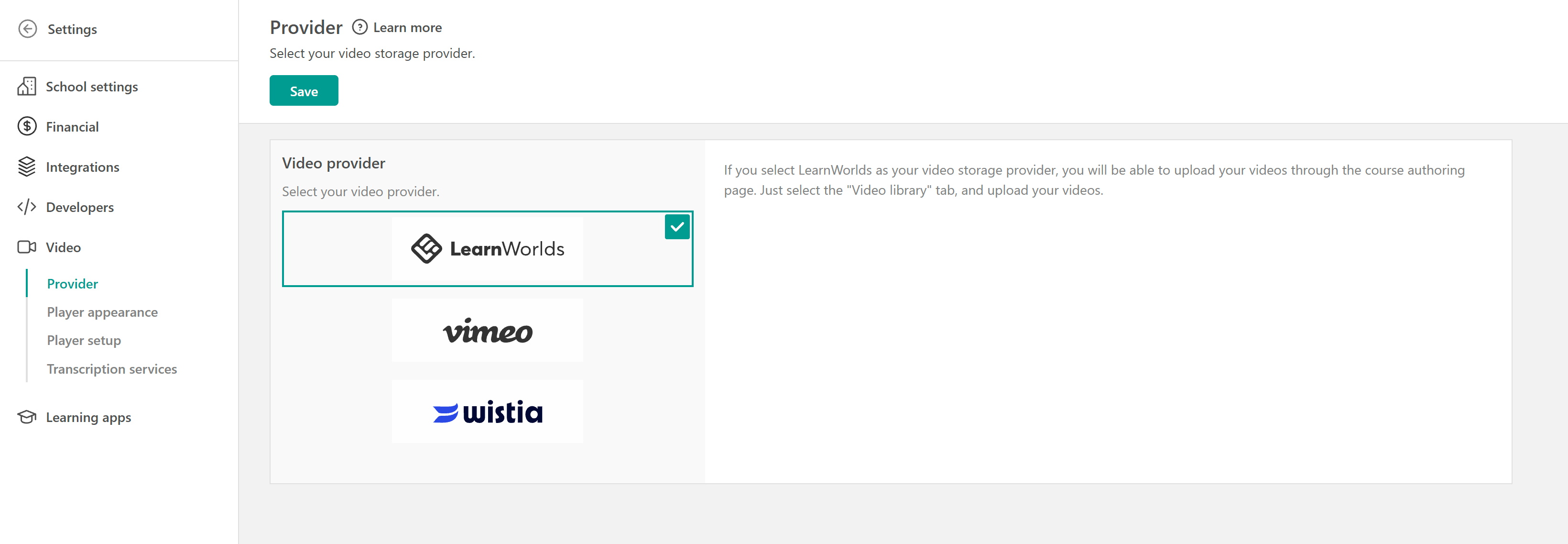
Add videos to your Video Library
Each course has its own Video Library, where you can upload videos, create new videos with AI, and manage them for use in your courses and website pages.
To access your Video Library:
1. Navigate to Courses & Programs and open a course.
2. Go to the Video Library tab.
3. Click Add video to choose how you want to add your video.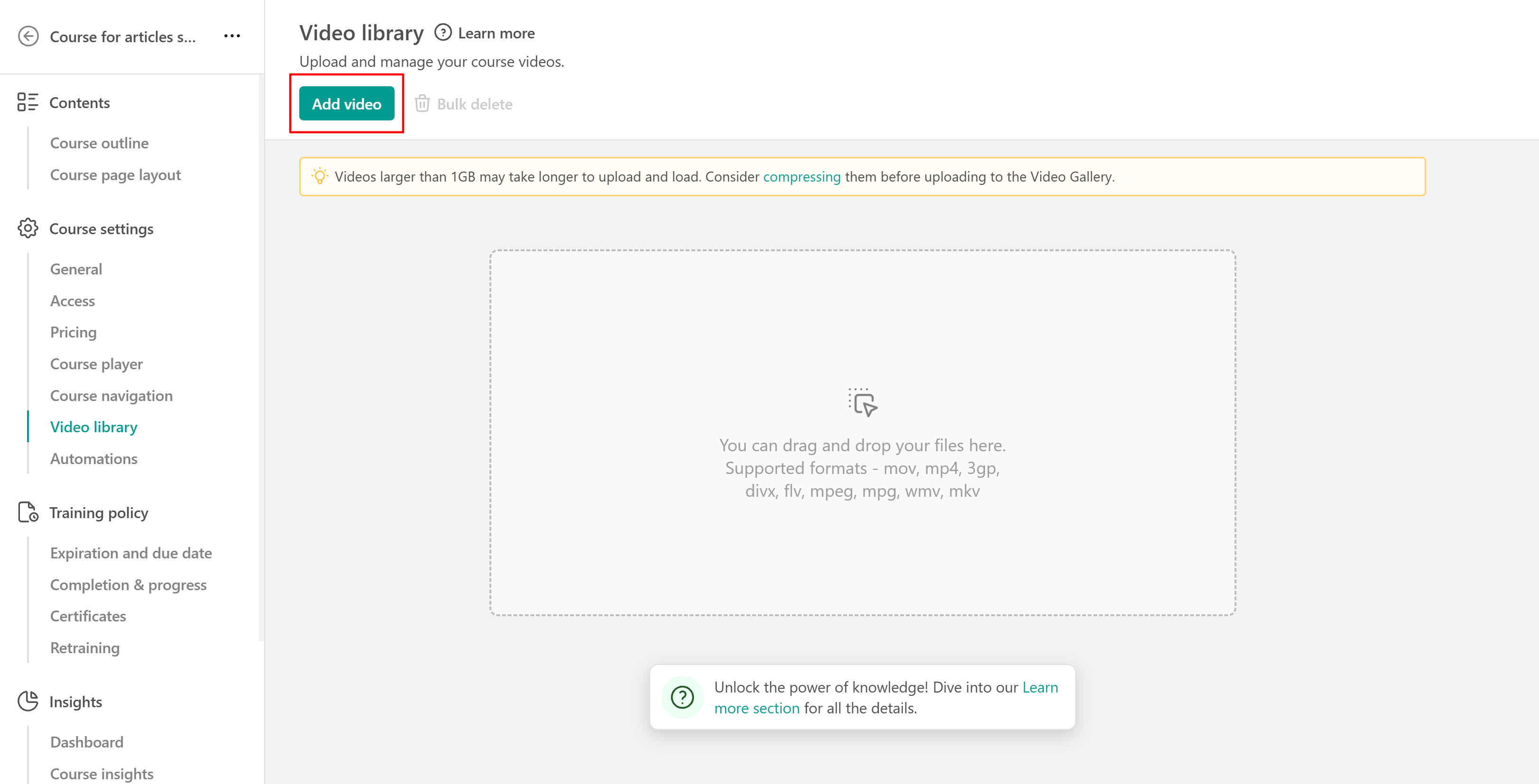
Find more about the supported video formats in this article.
Upload an existing video
To upload a video from your device:
- Click Add video → Upload your video. You can also drag and drop video files into the upload area.
- Select the video file you want to upload and click Open.
- Wait for the upload and encoding process to complete.
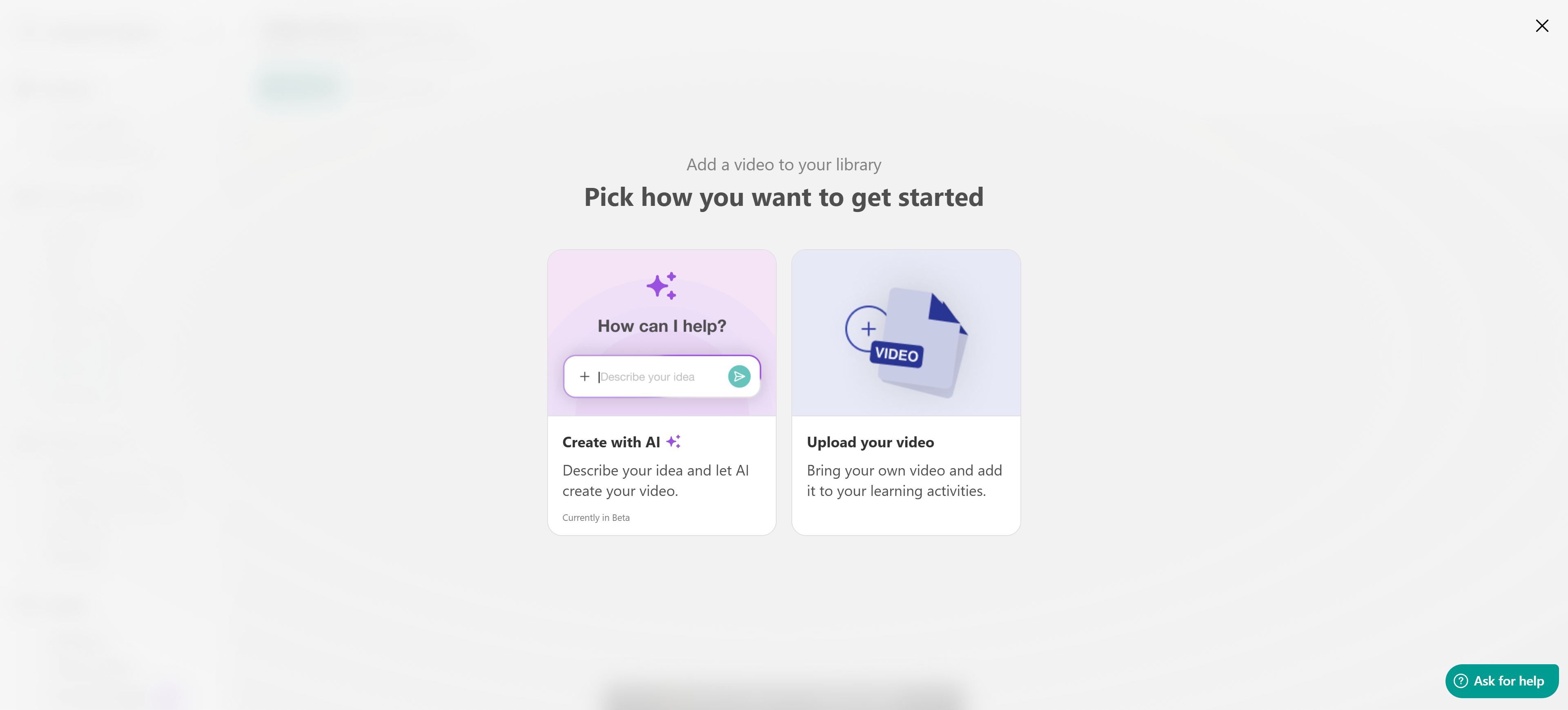
Wait for the upload and encoding process to finish. Once complete, the video will appear in your Video Library, ready to use in your courses or website pages.

- Use Latin characters in video file names and avoid special characters that may cause upload issues.
- You can upload up to 15 videos at a time.
Create a video with AI
You can also generate videos using LearnWorlds' built-in AI tools. From your Video Library, click Add video → Create with AI to start the video creation process. Follow the AI instructions to prepare your content and generate your video.
Videos can also be generated as part of the AI course creation process when you choose to generate course or section content.
For detailed instructions, refer to How to create videos with AI in LearnWorlds
Before creating videos with AI, you must connect at least one supported AI video provider to your LearnWorlds school.Bulk upload videos to your course
If you want to add multiple videos to a course, you can use the bulk upload option to upload your files and automatically create the corresponding video learning activities. To bulk upload videos:
- Navigate to Courses & Programs and open the course you want to update.
- Select Upload Your Files if the course is empty, or Upload Activity if the course already contains activities.
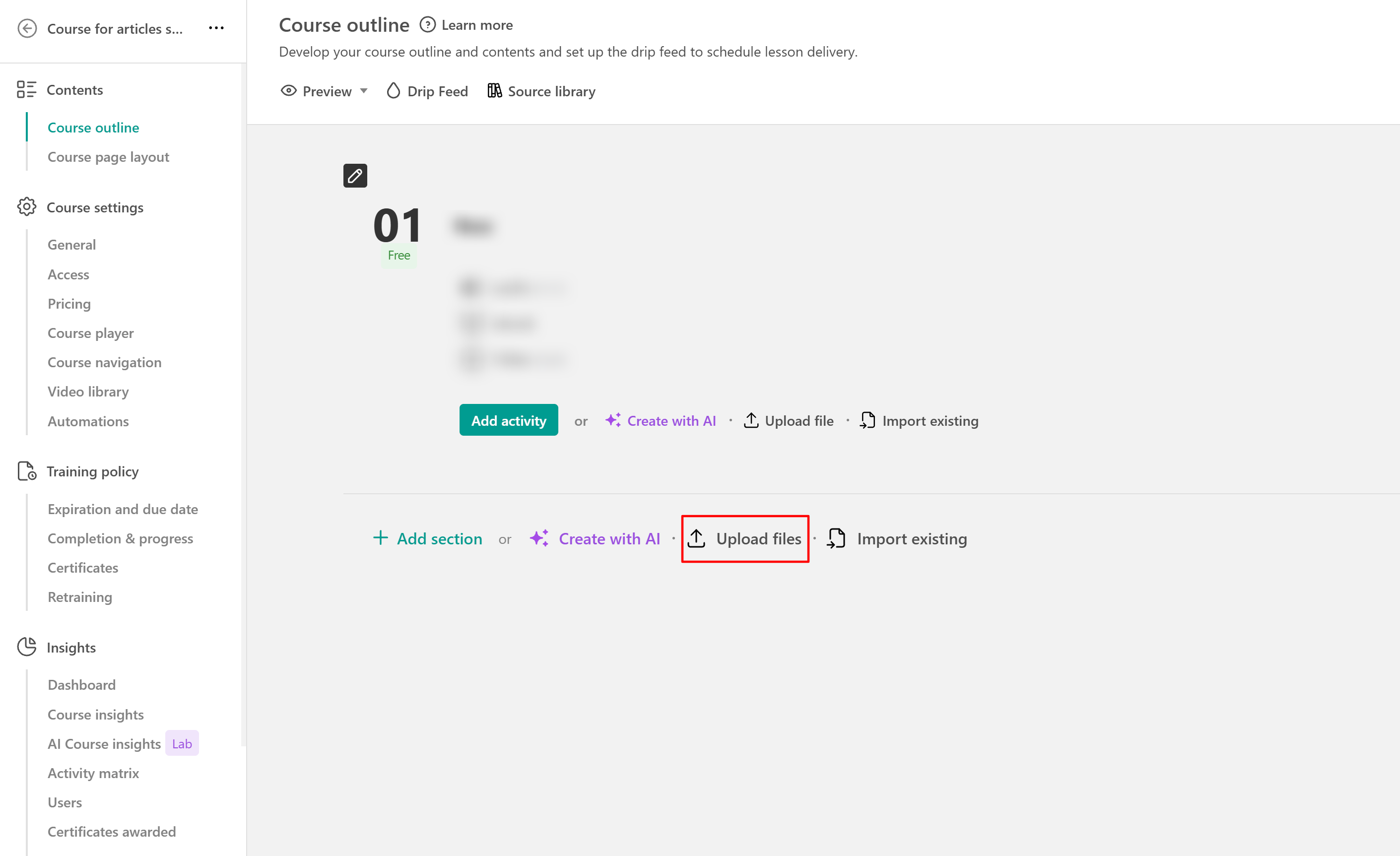
- Choose the video files you want to upload.
- Click Upload.
LearnWorlds uploads the files, automatically creates the corresponding video learning activities, and stores the videos in your course's Video Library.
For the videos to upload properly and for activities to be created automatically, ensure that LearnWorlds is selected as your video provider.For more information, refer to the Bulk upload actions guide.
Manage videos in your Video Library
From your course's Video Library, you can review and manage the videos you've uploaded or created.
To delete a video, locate it in the Video Library and click the Delete icon.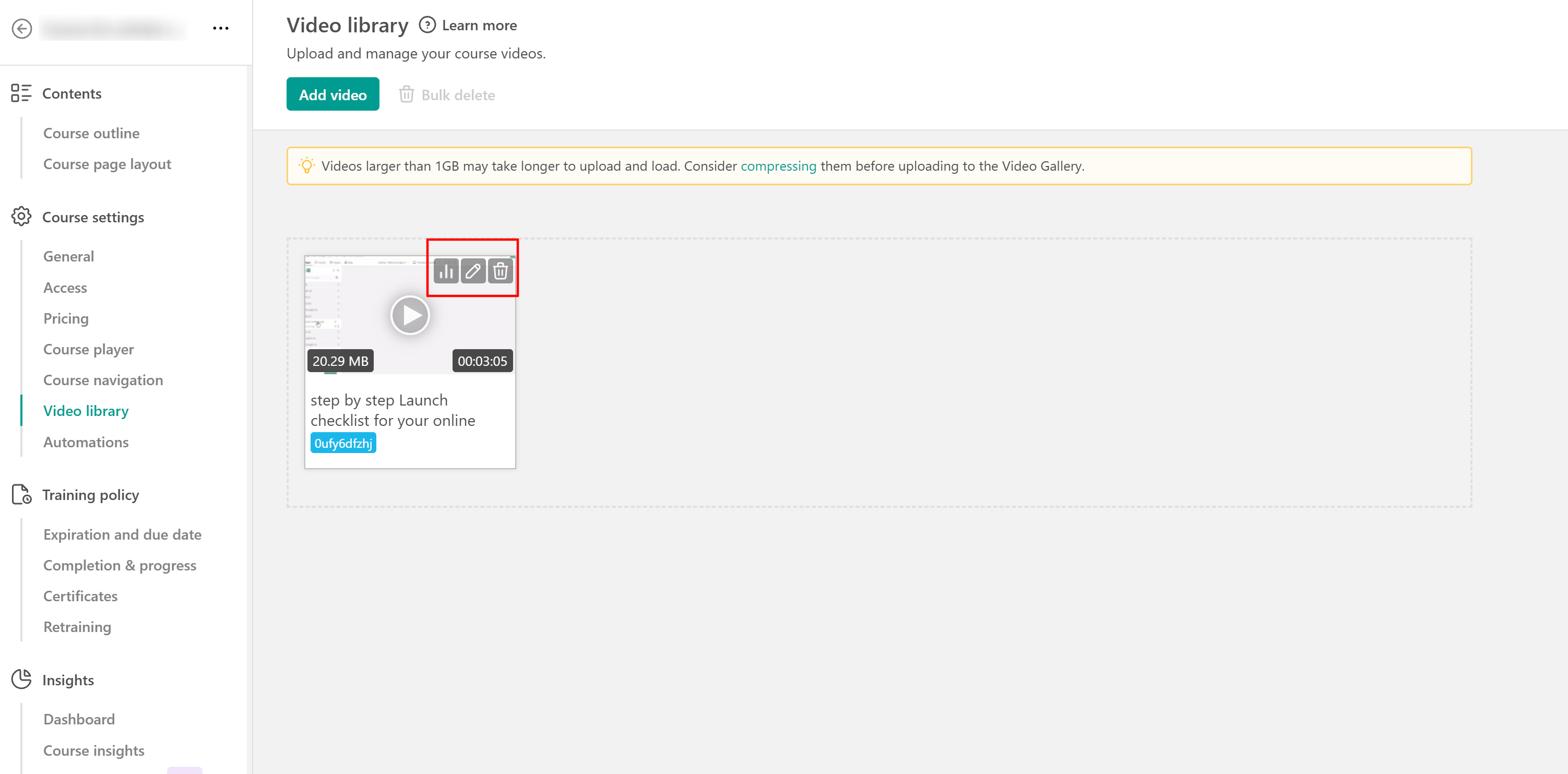
If you need to remove multiple videos, select them and use the bulk delete action.
Before deleting a video, check whether you're still using it in any learning activities or website pages.Customize your video player settings
After uploading your video, you can personalize how the video player behaves for your viewers.
1. Go to Settings from your admin panel.
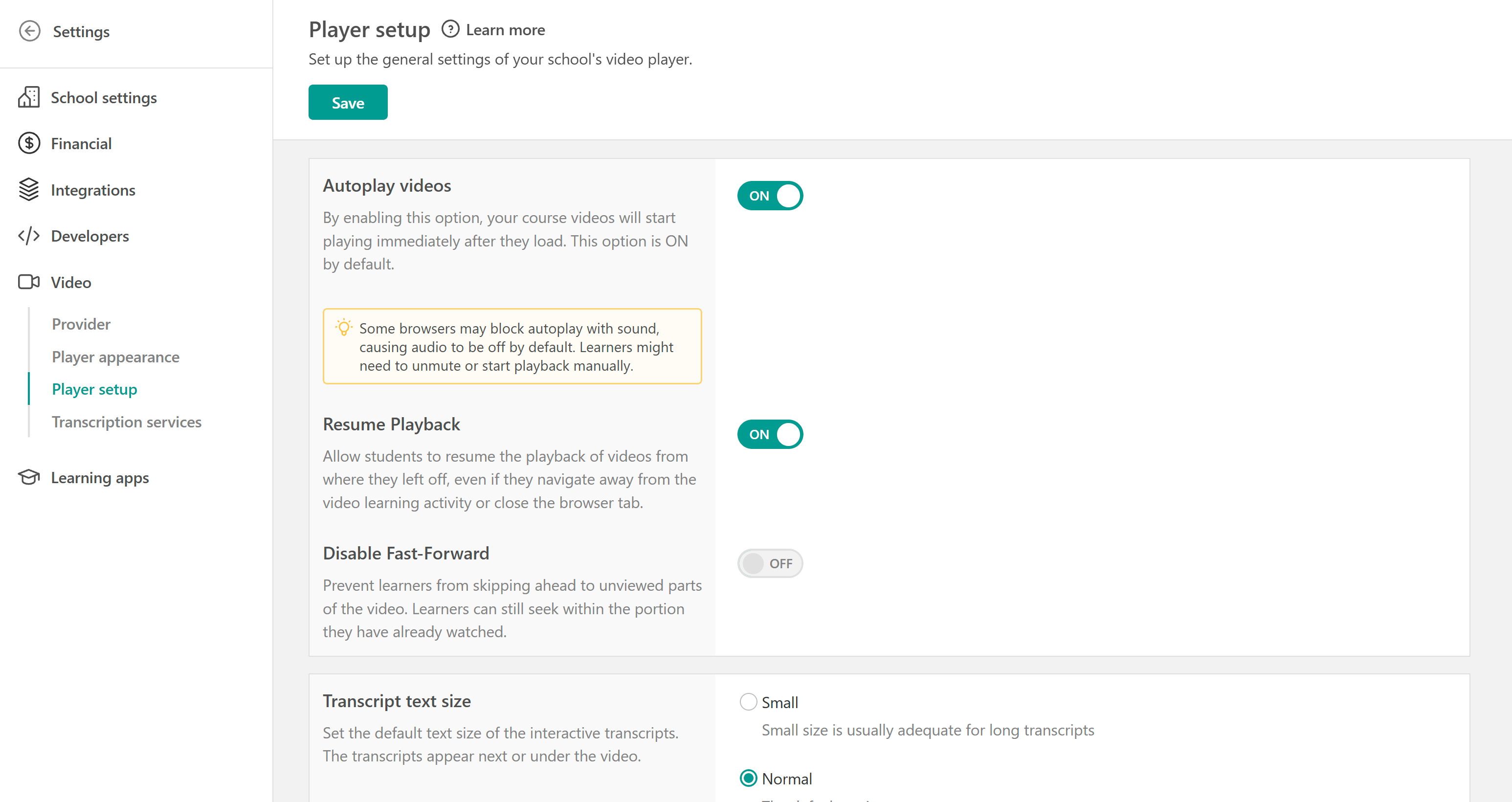
2. Navigate to Video → Player setup.
- Video playback: Enable autoplay, allow learners to resume watching where they left off, or prevent skipping ahead to unwatched parts of a video.
- Transcripts: Adjust transcript text size, scrolling behavior, default display, text colors, and download permissions.
- Video progress bar: Control when the progress bar disappears and adjust its opacity.
- Interactive video display: Enable fullscreen playback for interactive videos on iOS devices and access video watermark settings.
- Comments and reactions: Allow learners to leave comments and emoji reactions on interactive videos and choose where these options appear.
Add videos to courses, Ebooks, and website pages
Once your videos are available in your Video Library, you can use them throughout your school.
Add a video to a course
Create a video learning activity in your course and select the video you want to use from your library.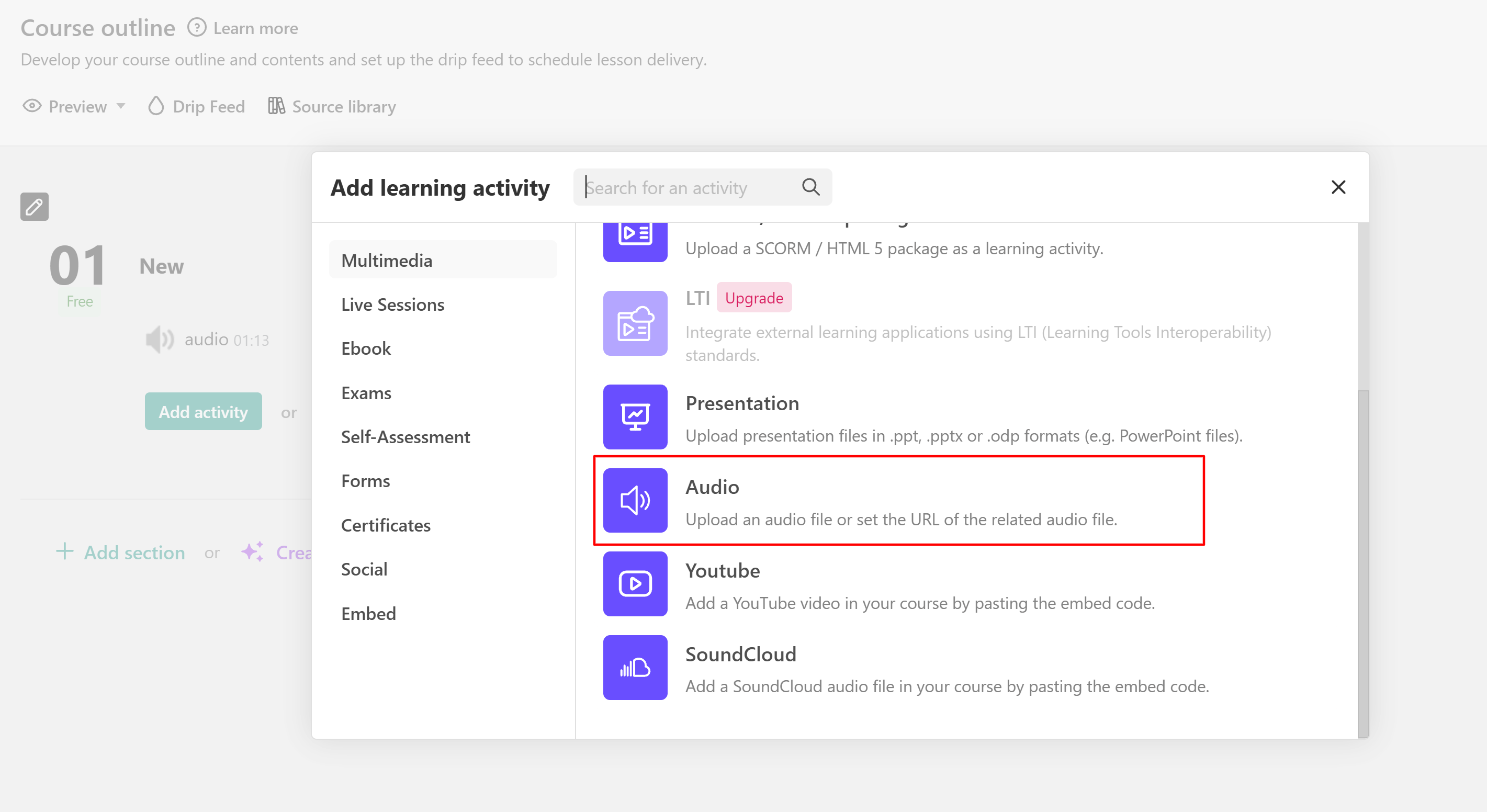
Add a video to a website page
Open your page in Site Builder and add a video content block (Screens: Video, Images) to display the video on your school's website.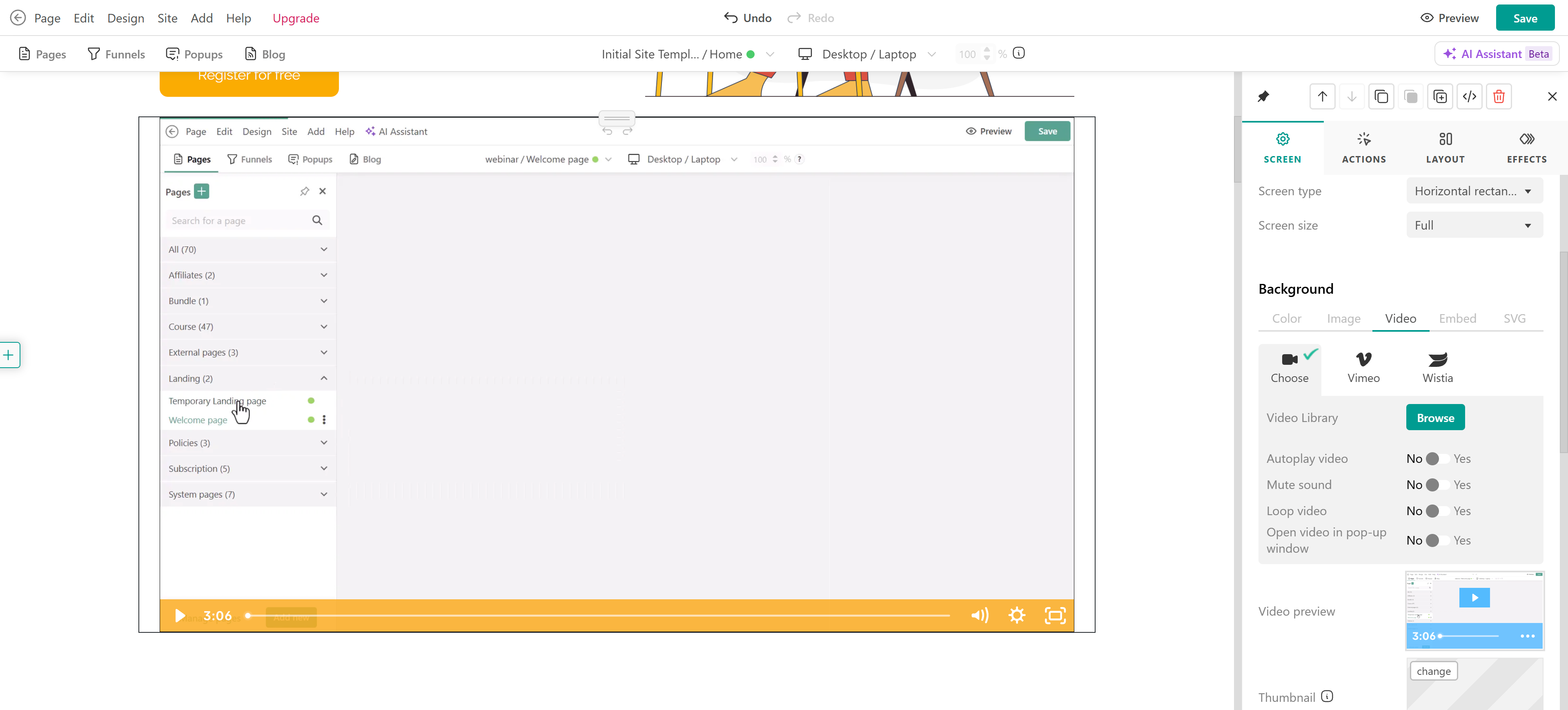
Add a video to an Ebook
You can also include videos in your Ebook learning activities to combine written content with video-based explanations.
Open your Ebook in the editor, add a Video element, and select the video you want to include.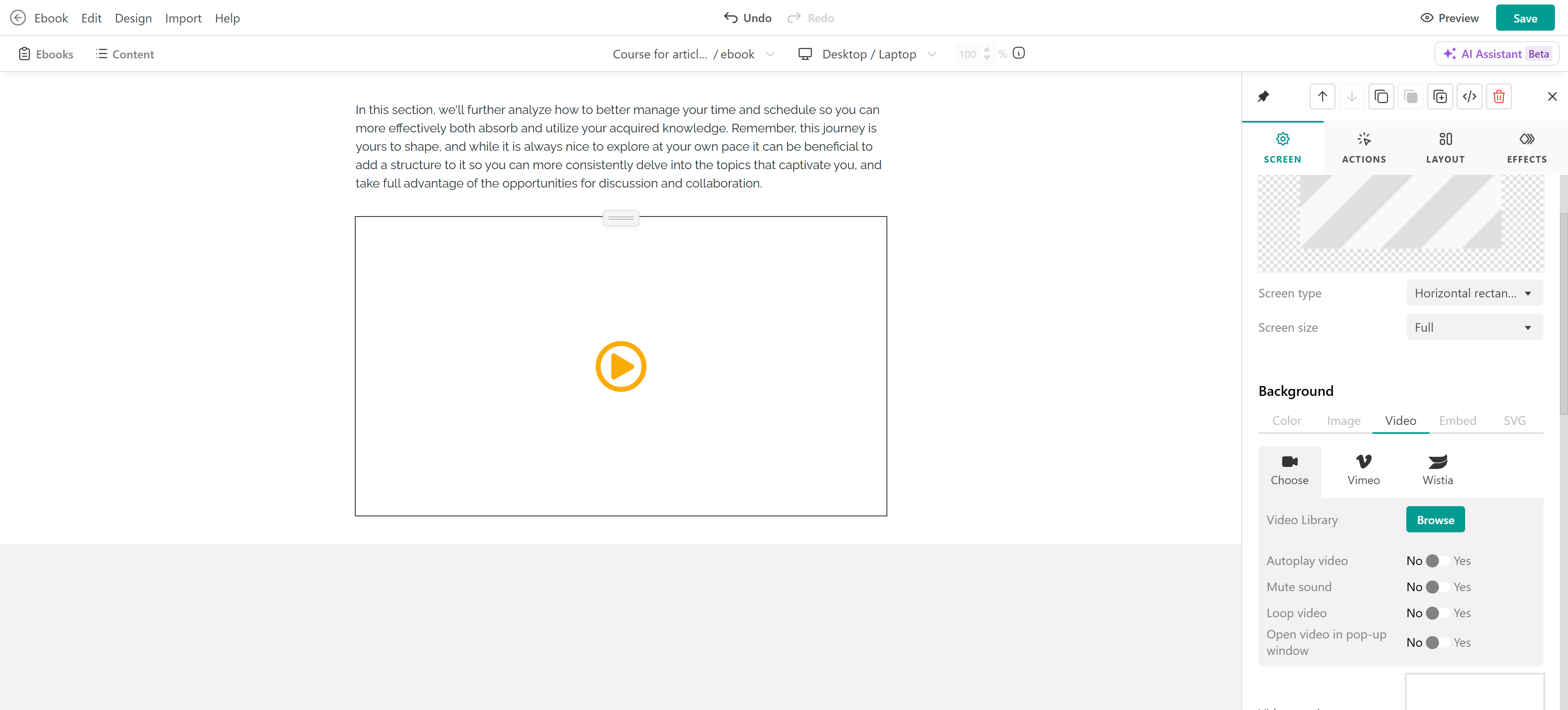
This allows learners to watch videos directly within the Ebook while going through its content.
Make your videos interactive
If you use LearnWorlds Video Storage, you get access to the Interactive Video Editor—a powerful tool that lets you enhance videos with interactive elements. To access the interactive video editor:
1. Hover over the video activity in your course.
2. Click Edit video to open the editor.
The editor supports:
- Text and images
- Interactive buttons and links
- A table of contents
- Subtitles and transcripts
- Social interactions and more
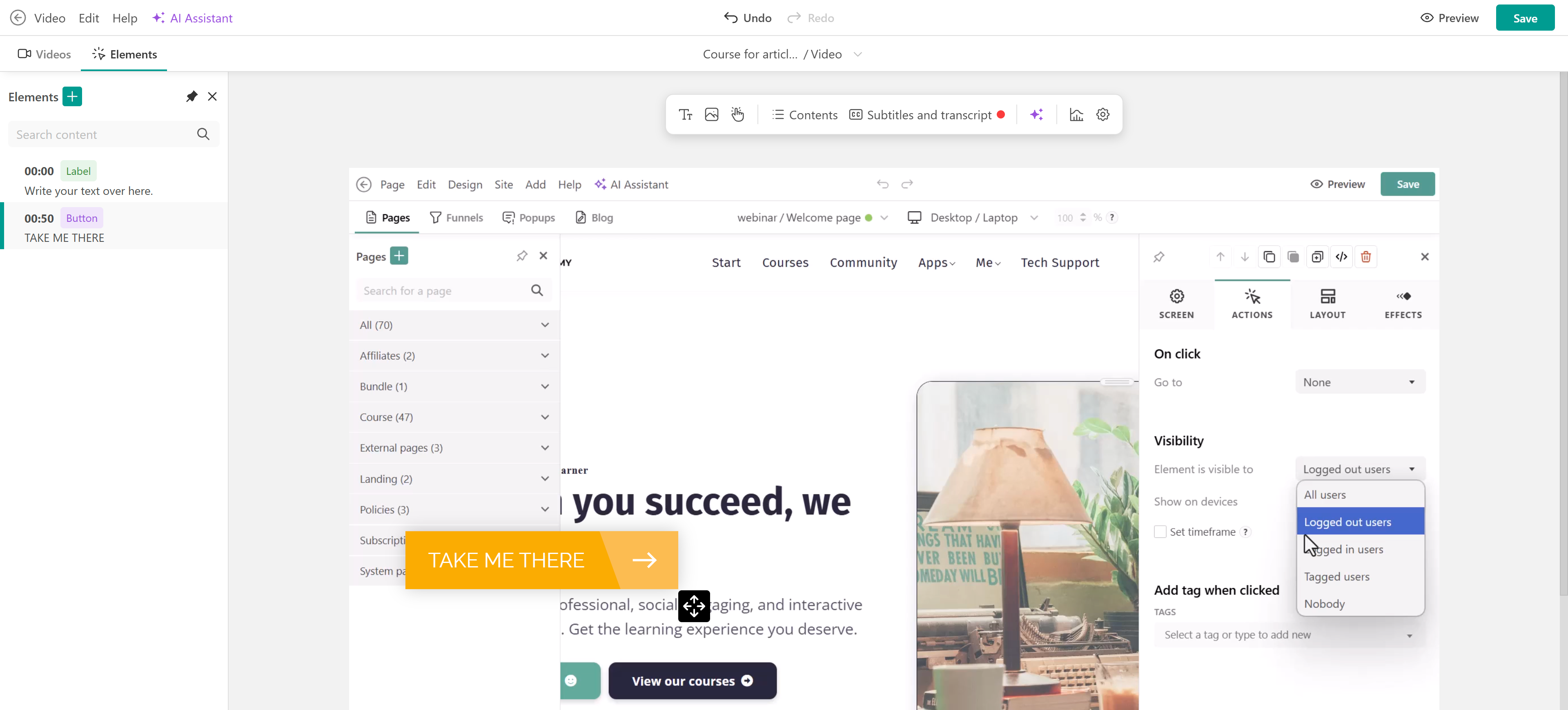
The editor comes with intuitive templates, making it easy to create engaging and immersive learning experiences.
Want to learn more? Check out our Interactive Video Editor Guide for more details