
In this article, we’ll walk you through how to resend an activation email to a user who was manually added to your school but has not yet logged in.
Resend an activation email in bulk
1. Go to Users → All users and filter the users you want to resend the activation email to.
2. Click on Re-send activation.
3. In the pop-up window, click Resend.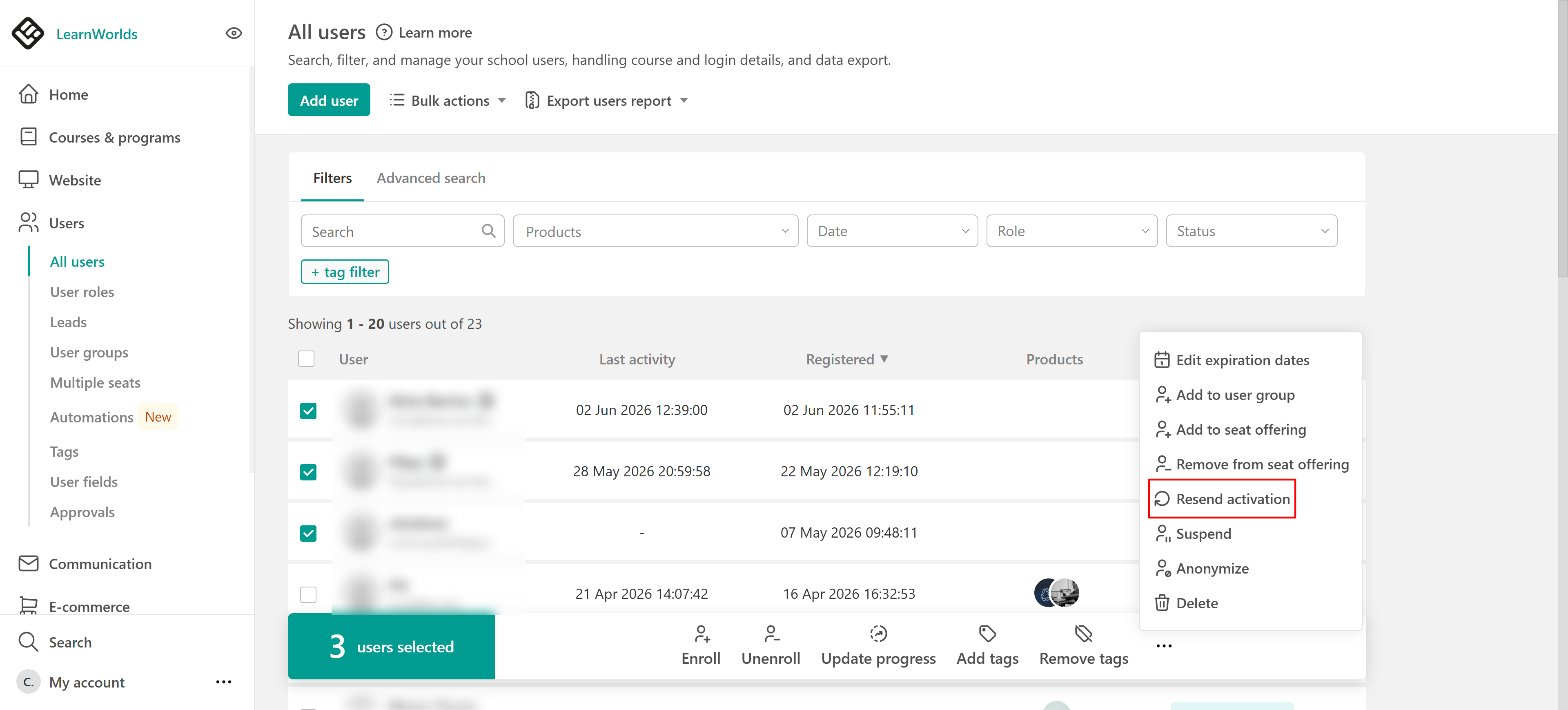
If the process is successful, a confirmation message will appear.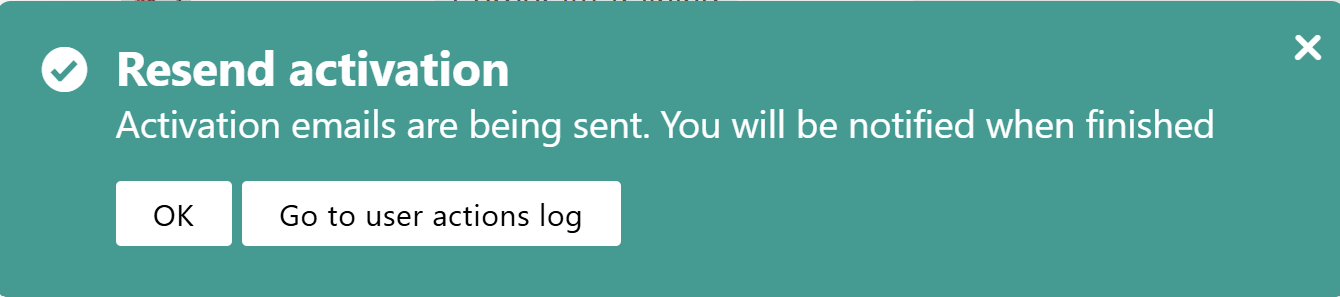
The user will then receive an activation email where they can set their password and access your LearnWorlds school.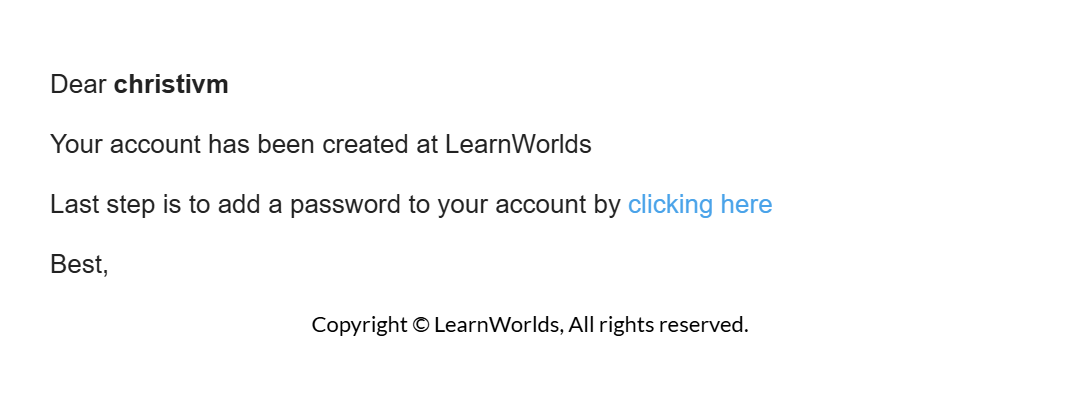
They can add a password and visit their account at your LearnWorlds school.
Resend an activation email to a specific user
To resend an activation email to a single user:
1. Go to Users → All users.
2. Hover over Manage next to the specific user.
3. Click Resend activation.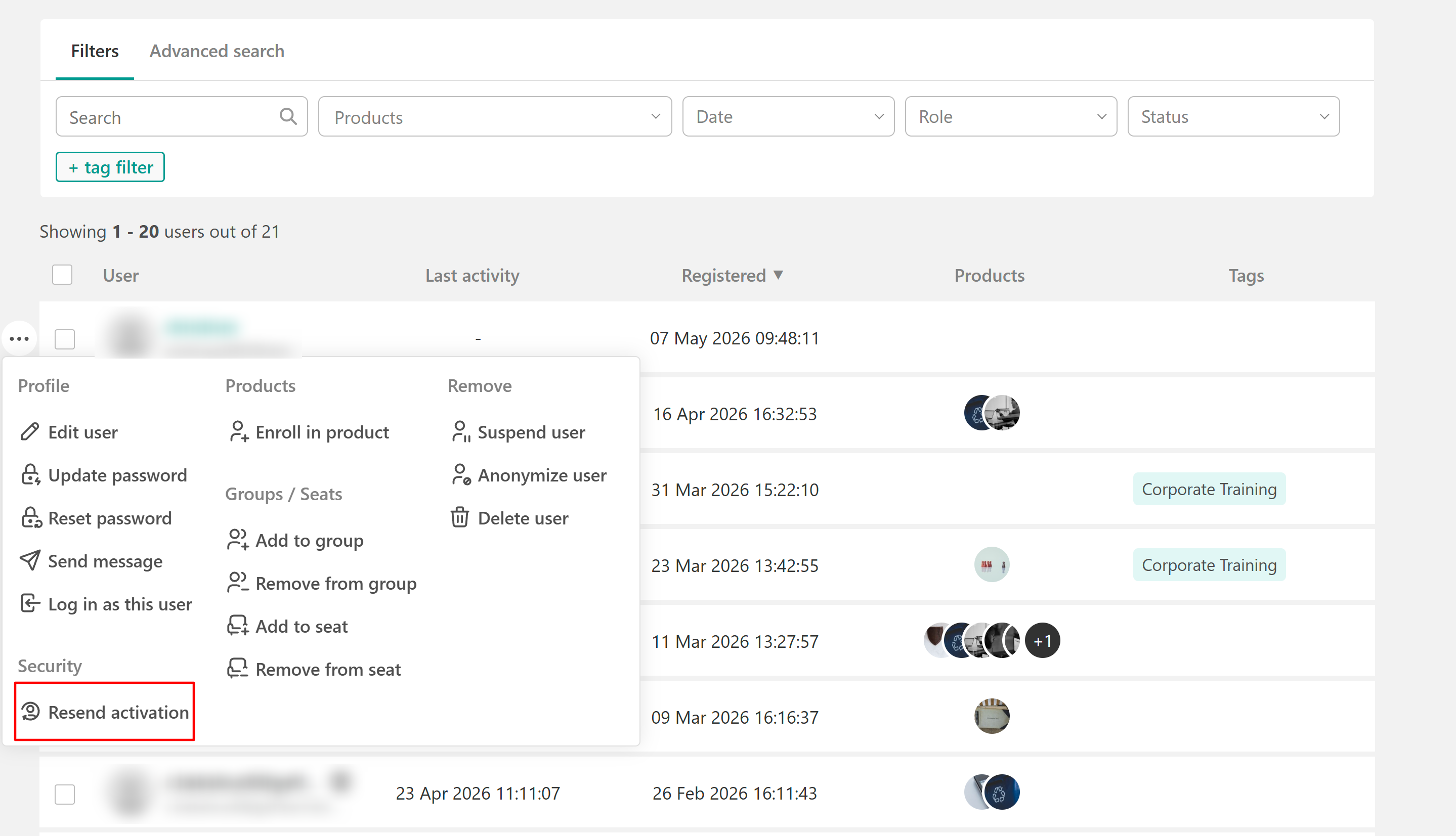
Customize the activation email
To edit the activation email notification:
1. Navigate to Communication → School emails → Signup.
2. Locate the notification:
- When a learner is added/imported by a school admin or a seat manager/user group manager.
3. Edit the email as needed.
You can learn more about email notifications and customization options here.

- After the "reactivation" is sent by the admin, it expires in 30 days.
- If the user clicks on the forgot password link, the included link in the email expires in 1 day.
- Activation emails are only sent to users who were manually added to the school and have not yet activated their accounts, the system automatically recognizes activated accounts, and no activation email will be sent to those users.