
The LearnWorlds AI Assistant helps you create professional forms quickly and efficiently. Instead of building everything manually, you can generate full forms, add questions, edit content, and even translate questions using AI. This allows you to save time while maintaining quality and consistency across your forms.
In this article, we’ll explore how to use the AI assistant to create effective forms that serve a variety of purposes across your learning platform or marketing initiatives.
Types of forms you can create
You can create two types of forms:
- Course forms: Used inside courses to collect feedback, evaluations, or student insights.
- Marketing forms: Used on your website to capture leads, requests, or general feedback.
Create a form with AI
To get started:
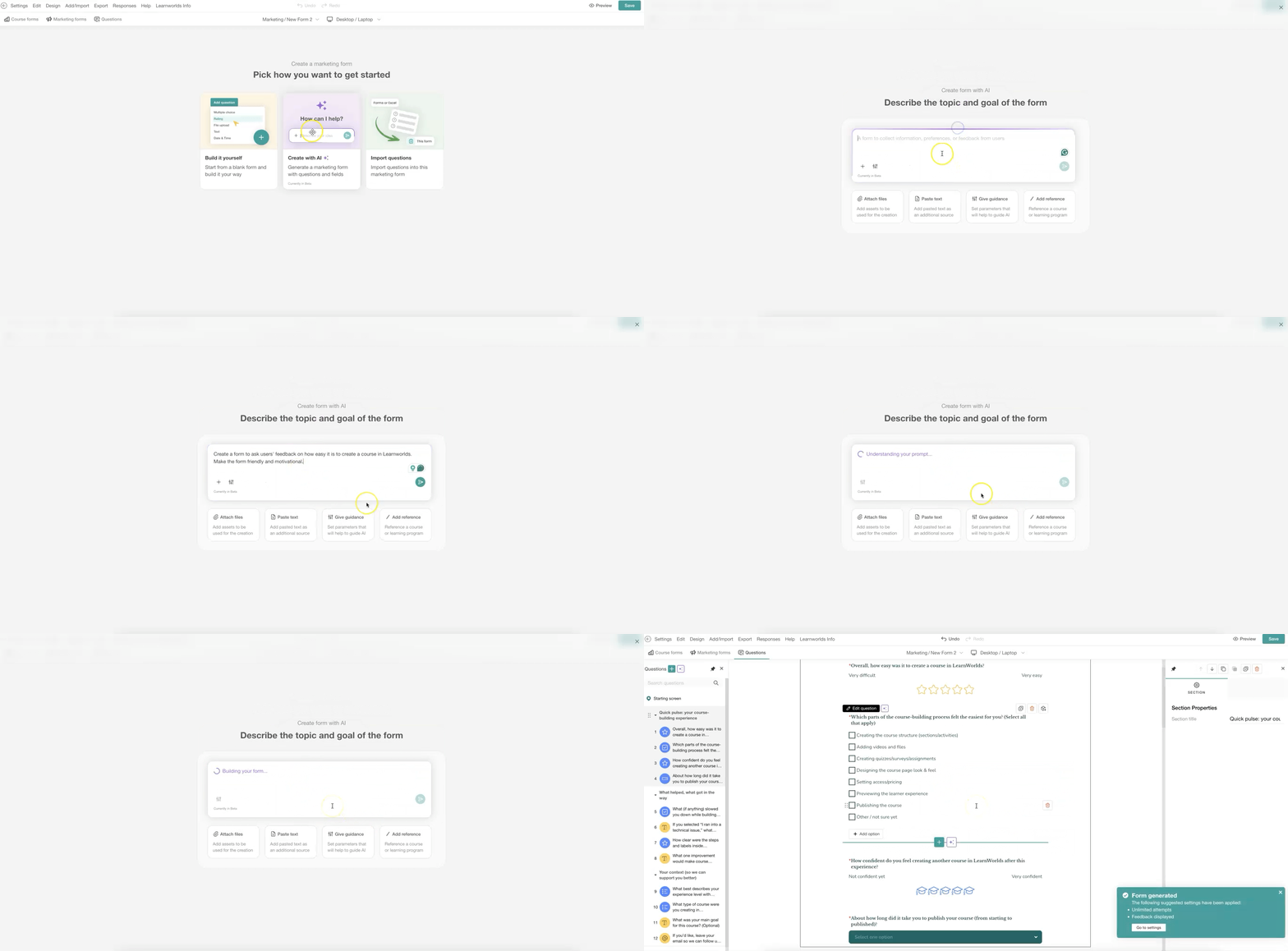
1. Begin creating a course form or marketing form
2. Select Create with AI.
In the prompt box, describe what you want the form to do.
What to include in your prompt
For better results, provide:
- The goal of the form
- The target audience
- The type of questions
- Tone of voice (e.g. formal, friendly)
- Any key topics or keywords
For example, Create a course feedback form for an online marketing course. Include questions about content quality, instructor performance, and overall satisfaction. Keep it short and professional.
3. Press Enter and the AI will generate your form.
4. Review and edit as needed.
Add form questions with AI
You can generate new questions at any time.
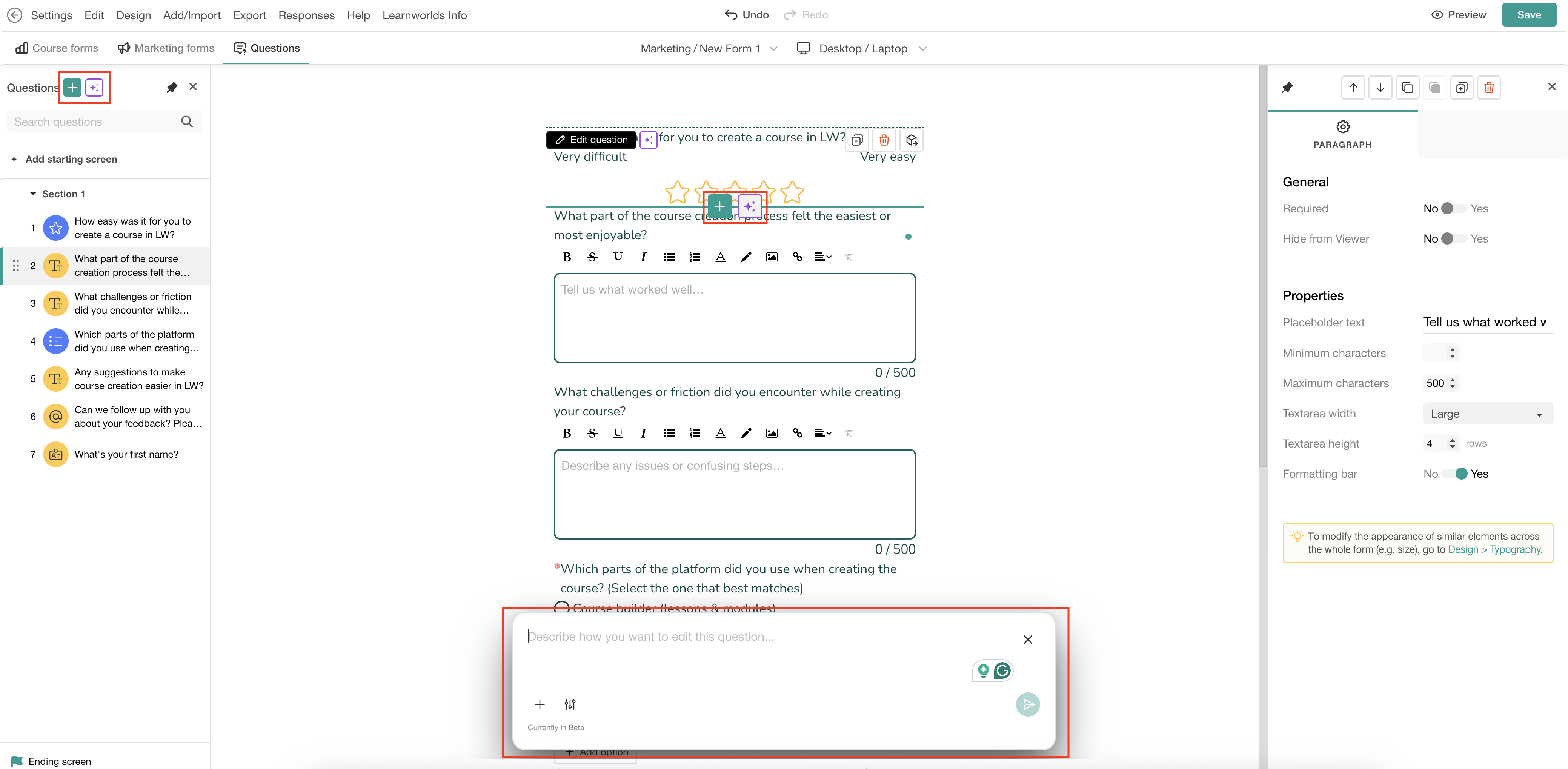
1. Click the AI Assistant icon underneath the existing question or at the top left. Alternatively, click the (+) icon and select the AI Create Questions option.
2. Use the dialogue box to configure the questions and describe what you need, e.g. Add 3 multiple-choice questions to understand the user’s experience level in digital marketing.
Edit form questions with AI
AI can also improve or modify existing questions.
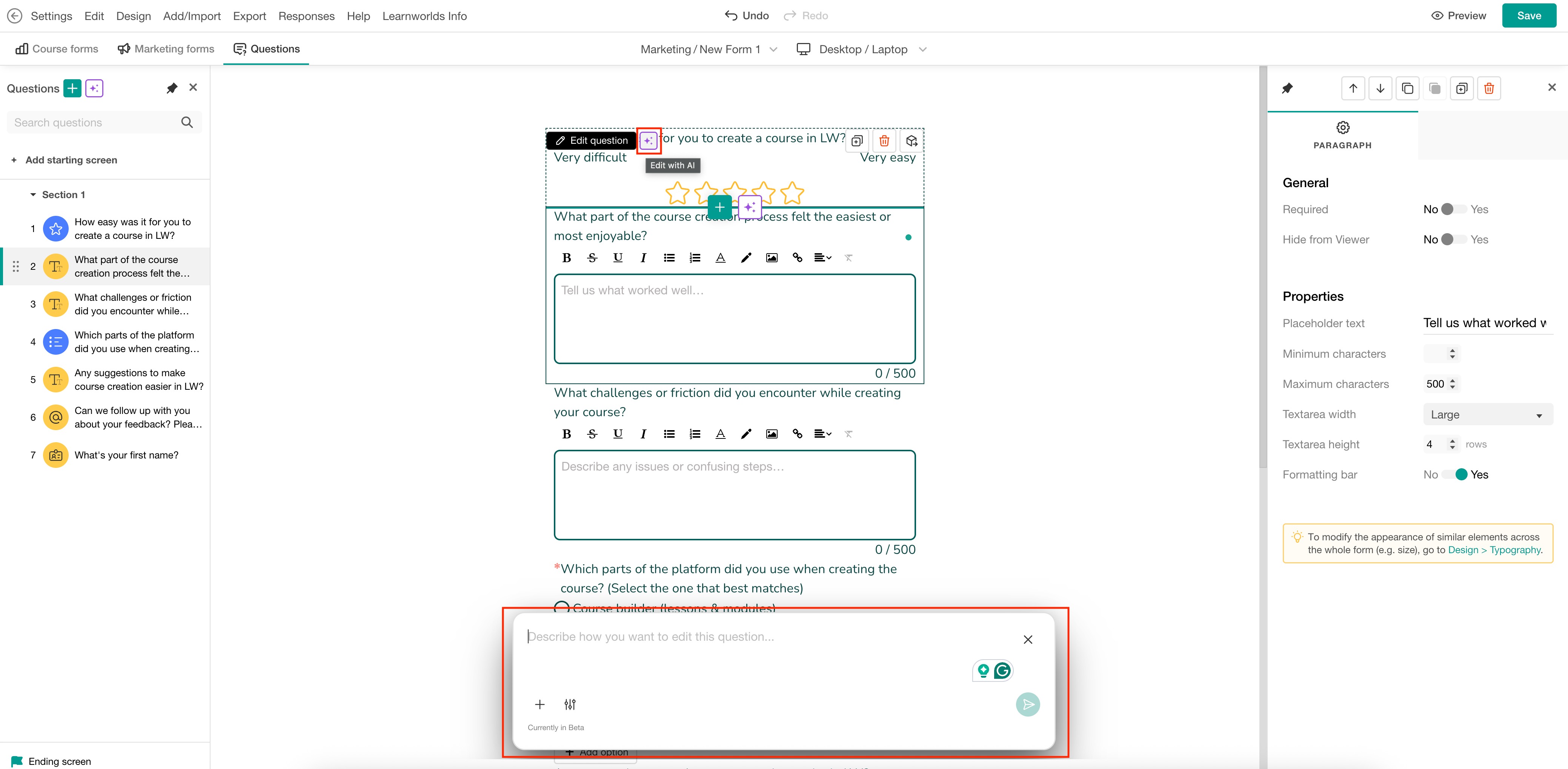
- Open the question you want to edit.
- Click the AI Assistant icon (either inside the editor or next to the question).
- Describe what you want to change in the prompt box.
 Example prompts:
"Make this question more engaging"
"Simplify the wording for beginners"
"Change the tone to be more professional"
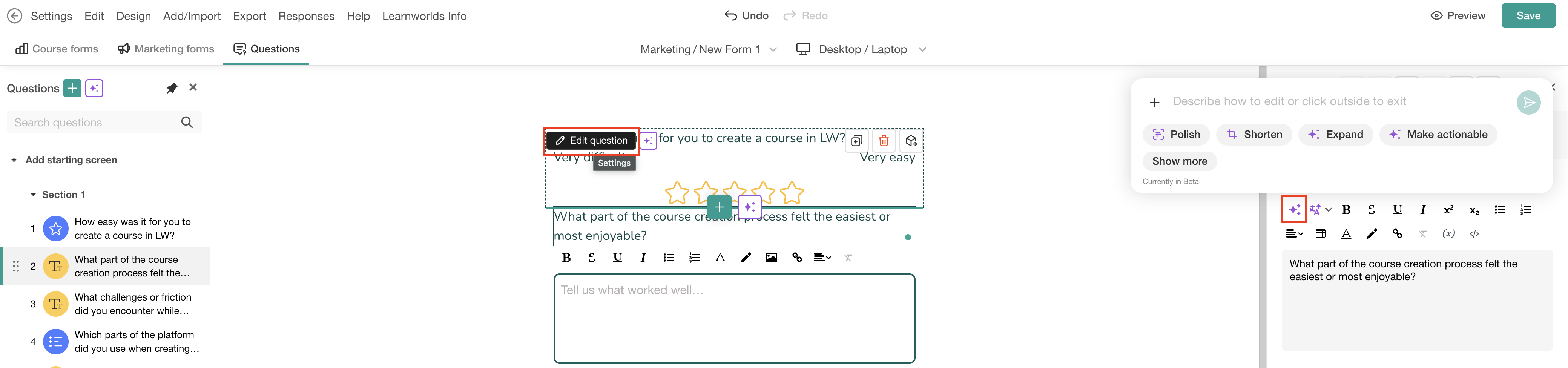
You can also use built-in shortcuts to:
- Rephrase questions
- Simplify wording
- Adjust tone
This gives you flexibility to refine your questions without rewriting them from scratch.
Translate form questions with AI
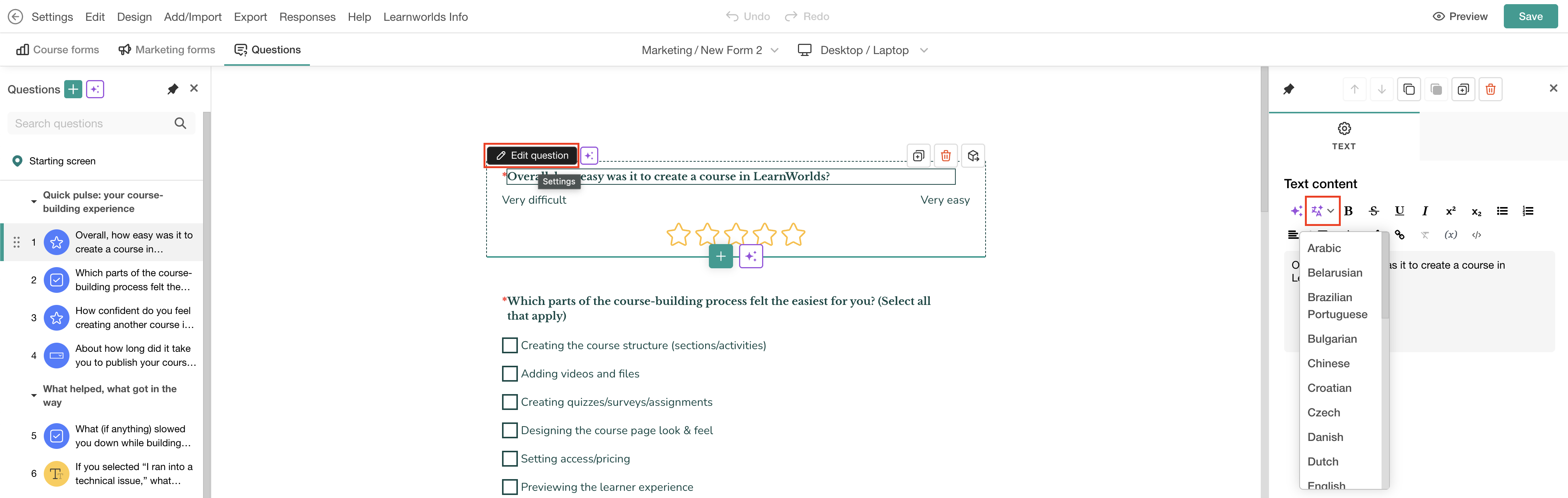
To translate a question:
1. Click on Edit Question and then the AI Translate icon.
2. Use the dropdown to select the preferred language.
Each request counts as one credit, except for AI Insights, which uses 4 prompts per request for the Basic model and 20 for the Advanced model. In case you need extra AI credits, check this guide.Best practices
To make the most of AI while maintaining trust and quality, consider the following best practices:
- Navigate ethical considerations: Always double-check AI-generated questions and content before publishing.
- Verify accuracy: Cross-reference AI suggestions with reliable sources or organizational standards.
- Protect privacy and security: Don’t input personal or sensitive information when generating forms.
- Collaborate with AI: Combine your insights and creativity with AI's efficiency for the best results. AI is a support tool, not a replacement for human oversight. Use your judgment when finalizing content.
For more info on managing AI credit usage, please refer to this article. To ensure you're fully informed about your GDPR obligations and how Learner Consent is managed, make sure to read our article on this topic.