
With our Site Builder, you can create a fully customized dashboard on the After Login page for your users. This allows you to design a personalized post-login experience that reflects your brand identity and improves user engagement.
In this article, you will learn how to customize your users’ After Login page to create a seamless and engaging learning experience.
Customize After Login
1. Navigate to Website → Design → Edit Website.
2. Search for the After Login page to edit in the Page Manager.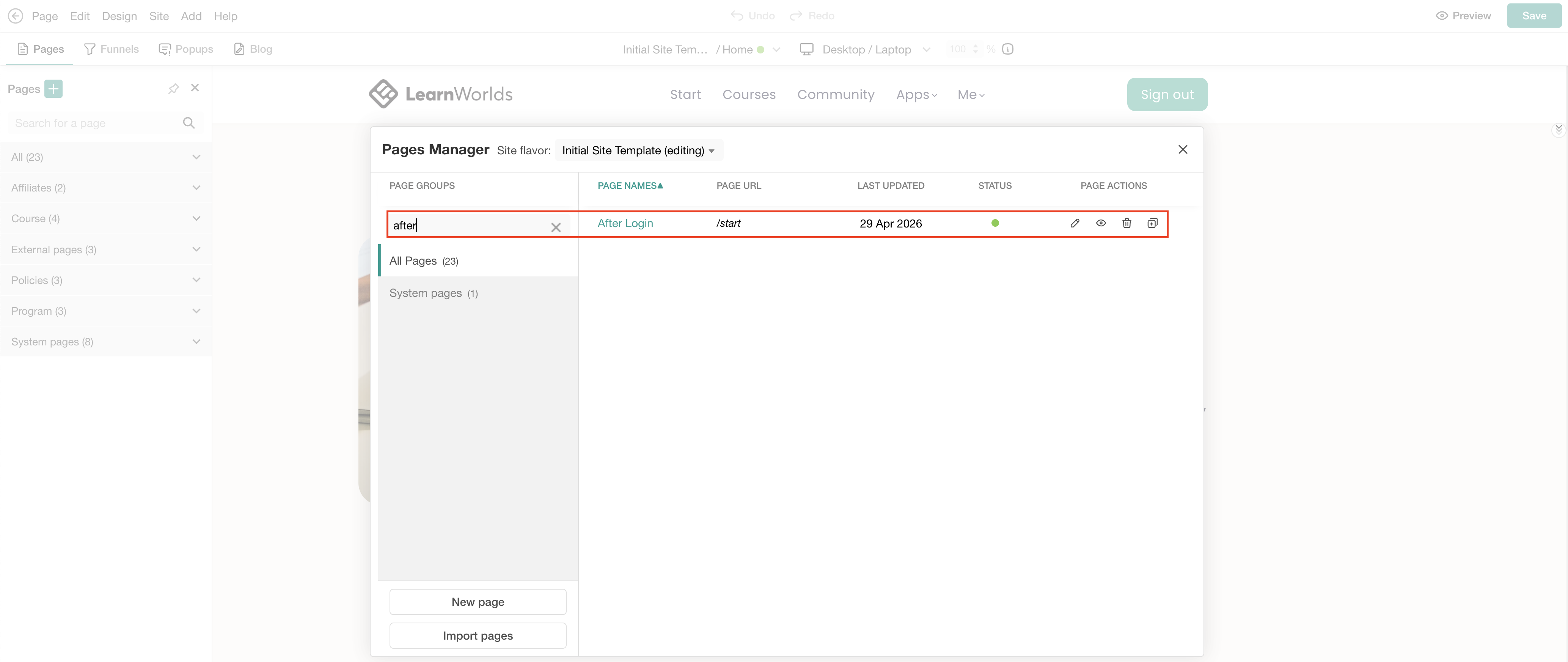
3. Hover over the page and click on the (+) icon to add a section or use the Generate with AI section button. When using Generate with AI section, a dialog box will appear, allowing you to provide instructions to further configure and customize the new section.
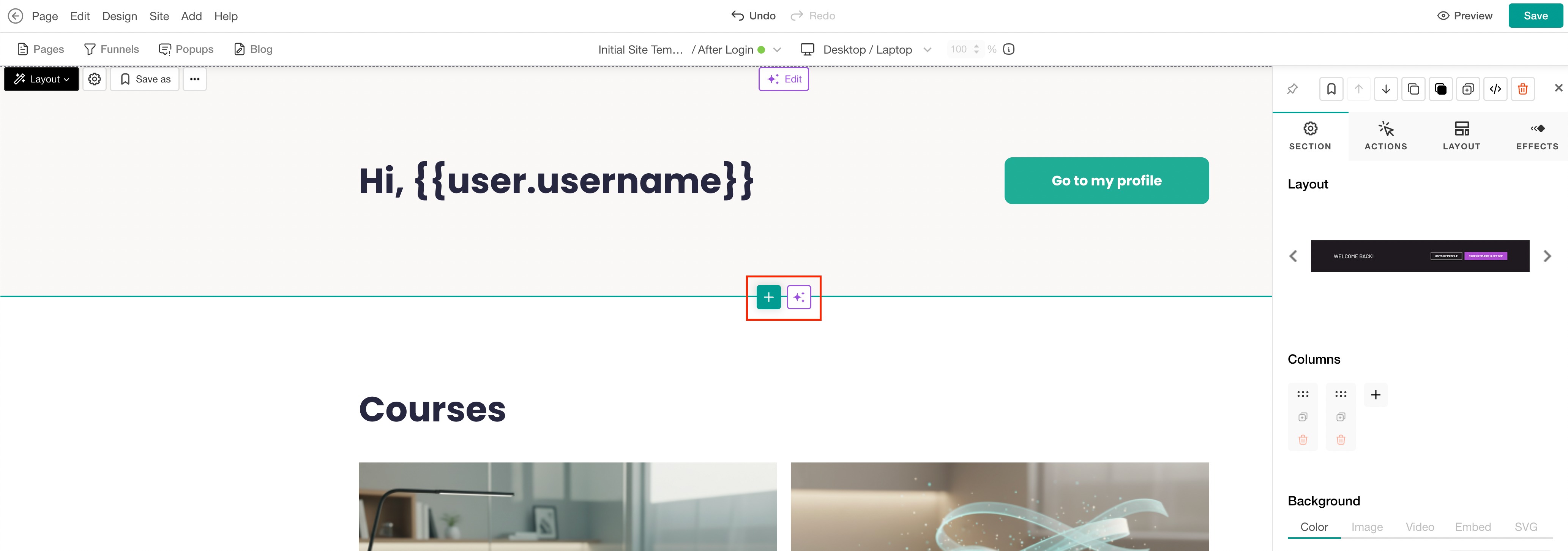
 We recommend you use prebuilt sections designed specifically for centralized dashboard experiences, such as Learner Info, Event Calendars, My Courses, Community Posts, Daily News, and more.
What is the learner info section
The Learner Info section provides a centralized and interactive dashboard where learners can view their enrolled courses, certificates, community posts, messages, and total learning hours spent in courses.
Add learner info
1. Click on Website → Design → Edit Website.
2. Search for the After Login page to edit in the Page Manager.
3. Hover over the page and click on the (+) icon to add a section.
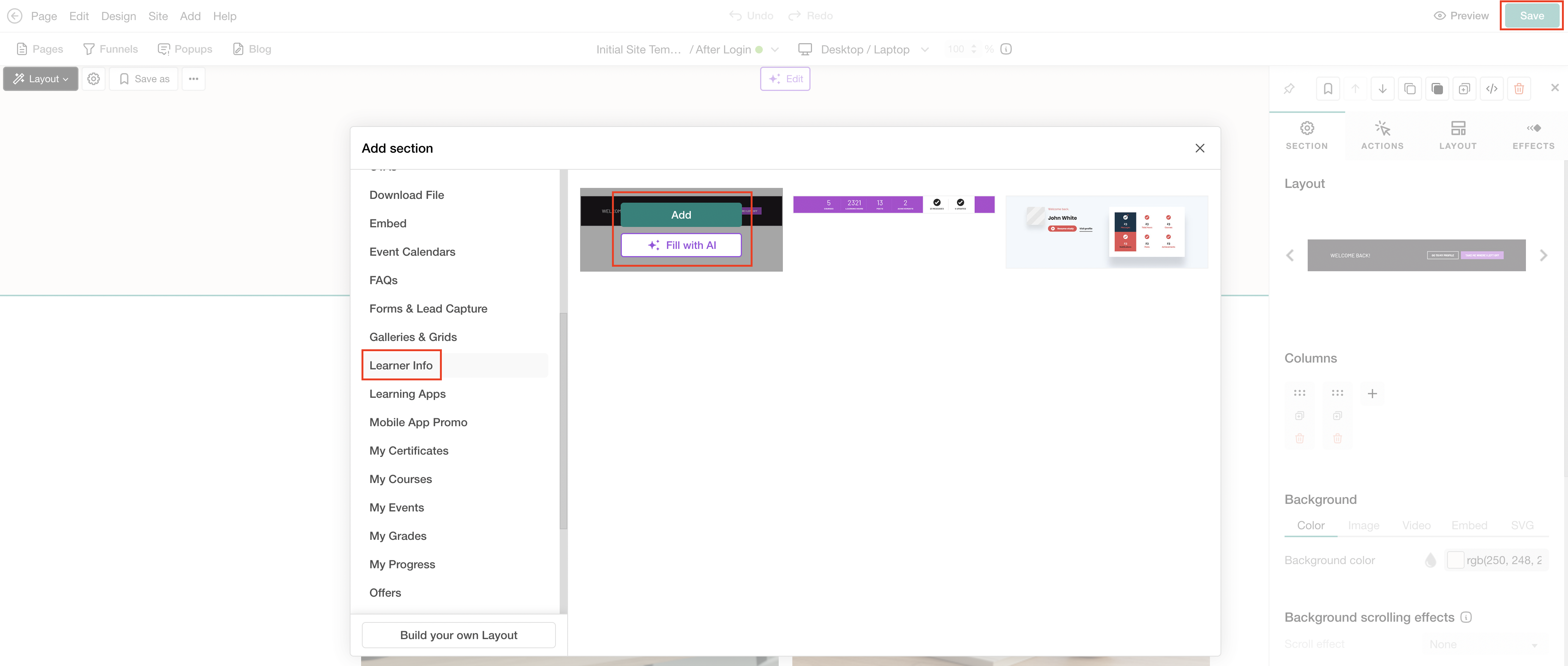
4. Select the Learner Info category. Select Add to insert the preferred section, or choose Fill with AI. When using Fill with AI, a dialog box will appear, allowing you to provide instructions to further customize the selected section.
Customize learner info
1. Click the selected element to open the sideform. If the AI Edit option is used, the dialogue box appears. Configure the section settings to match your needs by showing or hiding specific stats. You can also add or edit additional widgets, such as custom buttons, to create the desired user experience.
The {{user.username}} variable is automatically updated when a user logs in and displays the username of the currently logged-in user.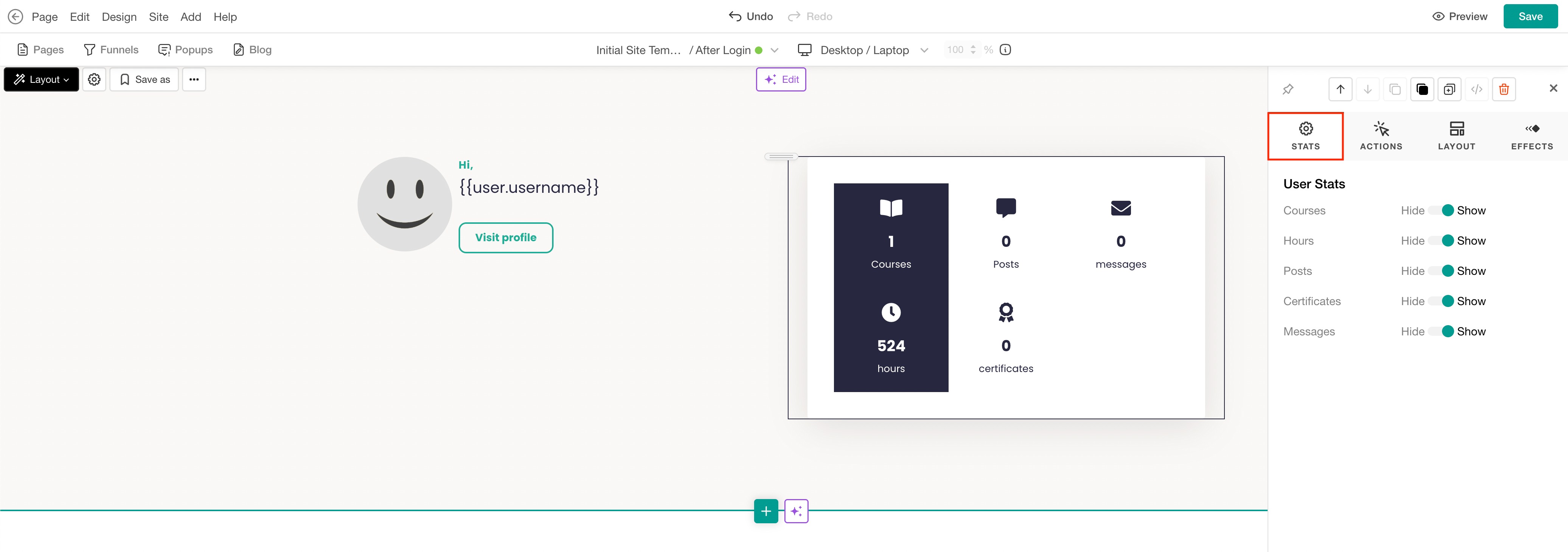
6. Click Save to save changes on the page.
You can create multiple After-Login pages for your users based on user tags. Select the desired tags and define which page users with those tags will be redirected to after logging in. Click here for the detailed steps.