Once your learning program is created, you can define how learners purchase or access it and how the program is presented in your school.
From the program settings, you can manage your pricing options, choose how they appear through the enroll button, and review the offers and recommendations connected to the program. You can manage these settings from the Pricing and Visibility pages.
This guide explains how to configure both areas and manage your learning program's pricing and presentation.
Access your program pricing and visibility settings
To manage these settings:
1. Go to Courses & Programs → Learning Programs.
2. Select the learning program you want to manage.
3. Go to Program settings → Pricing.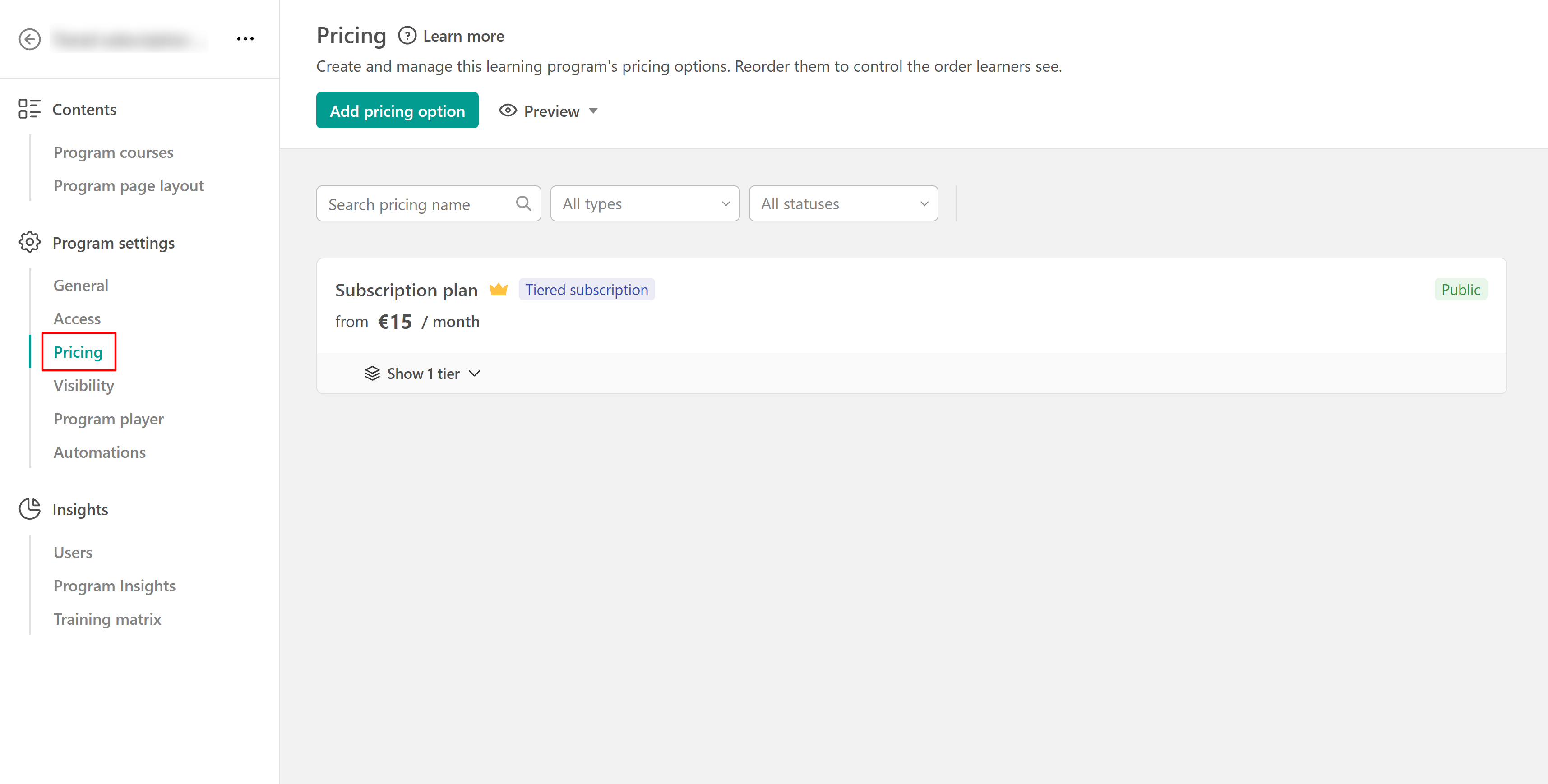
Manage your learning program pricing
Under Pricing you can view and manage the pricing options available for the learning program. The pricing you select when initially setting up the program creates its first pricing option. You can edit this option later or add more pricing options to give learners different ways to purchase or access the same program.
For example, you can offer a learning program as a one-time purchase and also provide a monthly subscription option.
Add a pricing option
Select Add pricing option to add another way for learners to purchase or access the program. Learning programs support the following pricing types:
- One-off
- Payment plan
- Subscription
- Tiered subscription
- Free
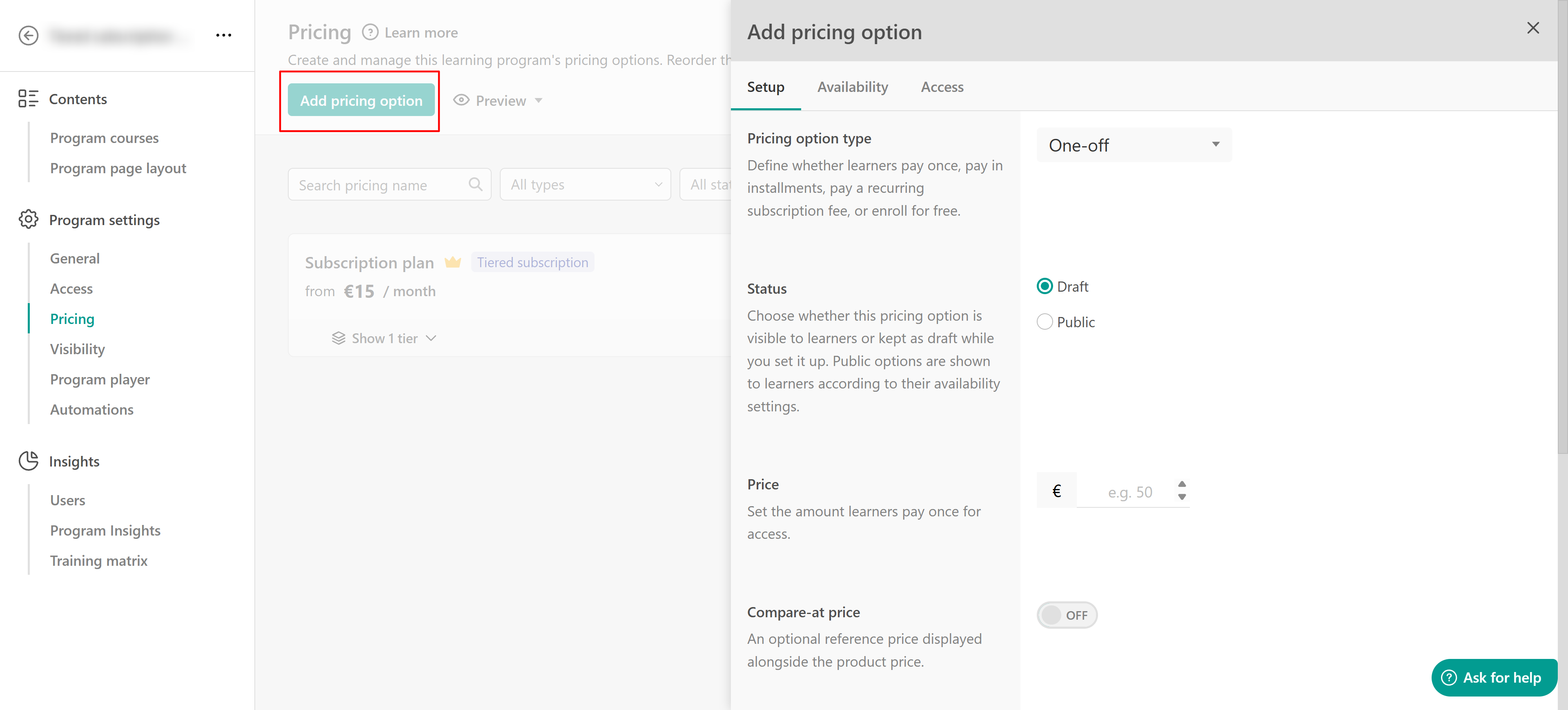
Each pricing option has its own configuration. Depending on the pricing type, you can define its price and billing terms, availability, audience, and access settings. For detailed instructions, see this guide.

- A Stripe account must be connected to your LearnWorlds school to accept subscription and payment plan payments.
- After you create a pricing option, you can't change its pricing type. If you need a different pricing type, create a new pricing option.
Review and organize your pricing options
The Pricing page displays the pricing options created for the learning program. You can search for an option by its pricing name or filter the list by type, status, or audience.
Drag pricing options to change the order in which they are presented to learners.
Manage an existing pricing option
Open the actions menu next to a pricing option to access the actions available for it. Depending on the option and its current status, you can:
- Edit the pricing option
- Set as primary
- Archive or delete the option when available
- Add tier (for tiered subscriptions)
- Copy Price ID
- Copy checkout URL
- Copy add-to-cart URL, when available
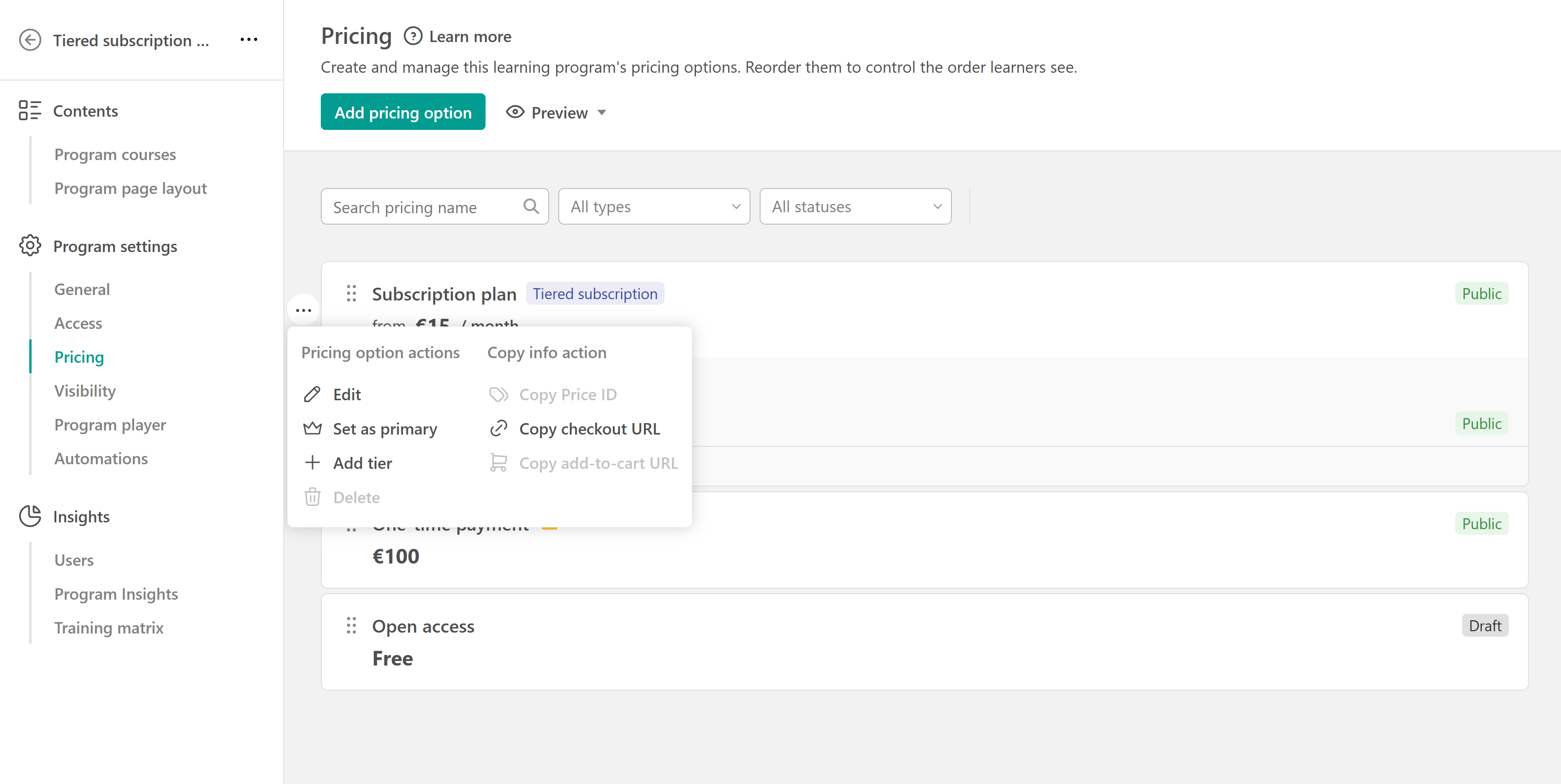
The crown icon identifies the learning program's primary pricing option.
- The primary pricing option acts as the default when a supported action requires a pricing option and none has been selected.
- Only one option can be primary at a time.
Manage your learning program visibility
Open Program settings → Visibility to control how the program's pricing options are presented to learners and review other sales settings connected to the program.
From this page, you can manage the Enroll button, Related offers, and Related recommendations.
Configure the enroll button
When your learning program has multiple pricing options, you can let learners view their available choices directly from the program's enroll button.
Under Enroll button, enable Enable multi-pricing options button.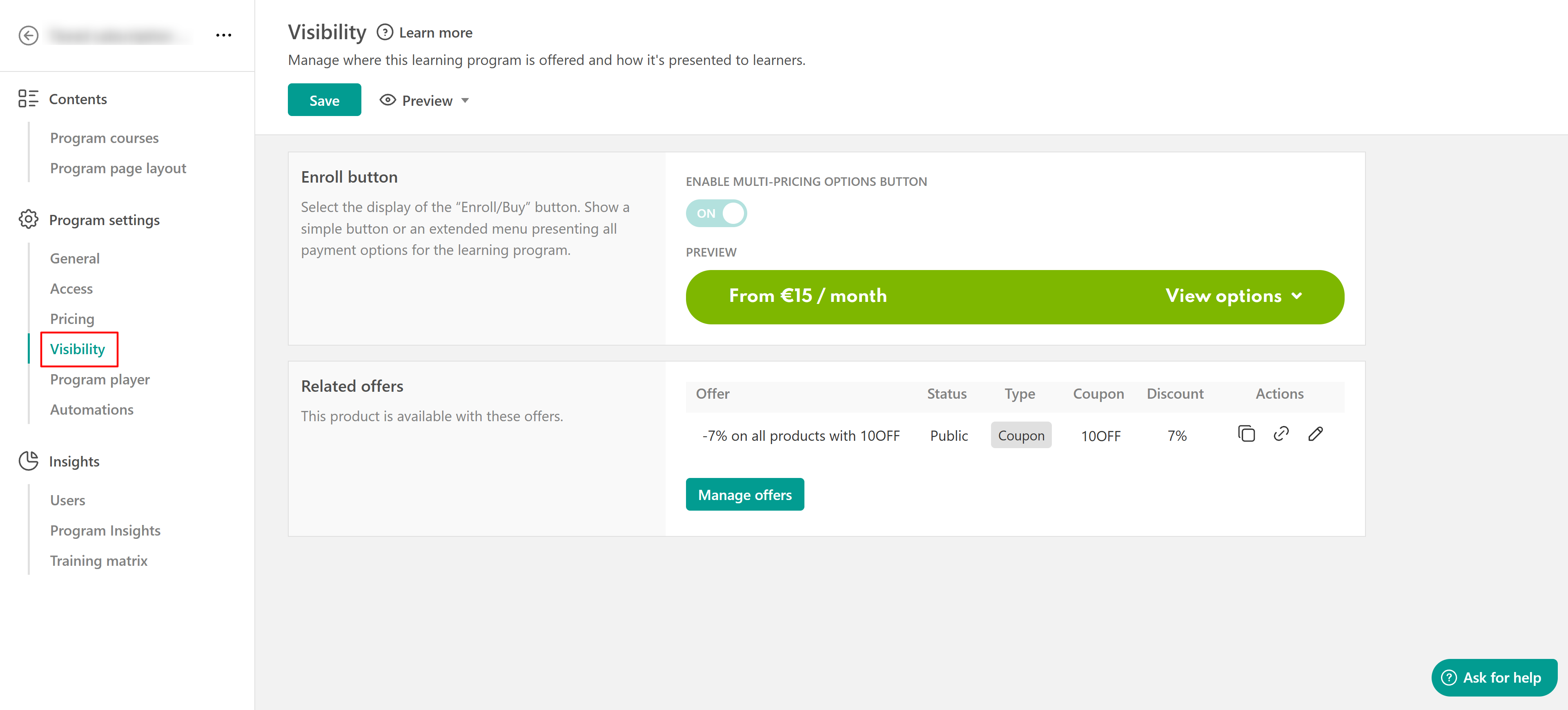
When enabled, the enroll button displays an extended menu where learners can view the pricing options available to them and choose how they want to purchase the program.
- Learners only see pricing options they are eligible to use based on the availability and audience conditions configured for each option.
Review related offers
Another important setting is the creation of offers. In this tab, you can find all related offers.
To create a new offer, click on Manage offers, and you'll be redirected to the dedicated offers page. You can find more information on how to set up offers here.
Review related recommendations
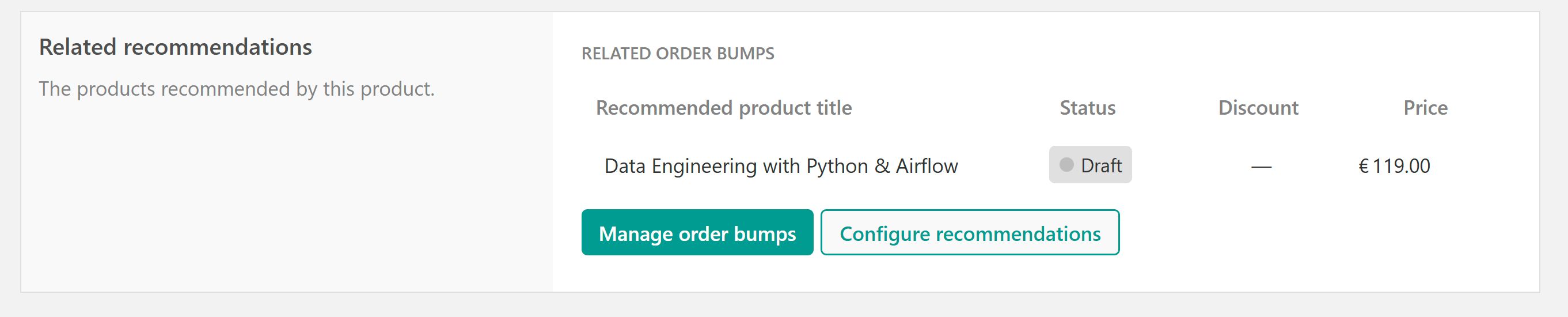
The Related recommendations section shows the products recommended by this learning program. Click Manage order bumps or Configure recommendations to open the Recommendations tab, where you can create new order bumps, edit existing ones, or manage how product recommendations work across your school.