
Connect a compatible AI assistant, such as ChatGPT or Claude, to your LearnWorlds school using Model Context Protocol (MCP). Once connected, your assistant can access supported school information and perform administrative tasks based on your school's permissions and safety settings.
In this article, you'll learn how to connect an AI assistant, review authorized applications, manage access, and configure MCP safety settings.
Understand LearnWorlds MCP
Model Context Protocol (MCP) lets compatible AI assistants connect to external services. With LearnWorlds MCP, an authorized assistant can use supported LearnWorlds tools to retrieve school information and perform permitted actions.
The actions available depend on the supported tools, the permissions granted to the connection, and your school's safety settings.
Use an AI assistant for school administration
You can use a compatible AI assistant to:
- Work with courses: Find course details and request supported course content or structure changes
- Manage learners: Find learner records, check enrollments, and request supported enrollment actions
- Review learning progress: Ask about available learner progress and course completion data
- Handle school administration: Request other supported administrative actions
For practical examples, see this guide.
Before you start:
- Only administrators with full administrative rights can authorize an AI assistant connection
- Each LearnWorlds school must be connected and authorized separately
Connect an AI assistant to your school
To connect an AI assistant, you'll need your school's MCP connector URL. This URL allows a compatible AI assistant to connect to LearnWorlds after you authorize access.
1. Sign in to your LearnWorlds school as a full administrator.
2. Navigate to Settings → Developers → MCP → Connected apps.
3. Select Connect an AI assistant.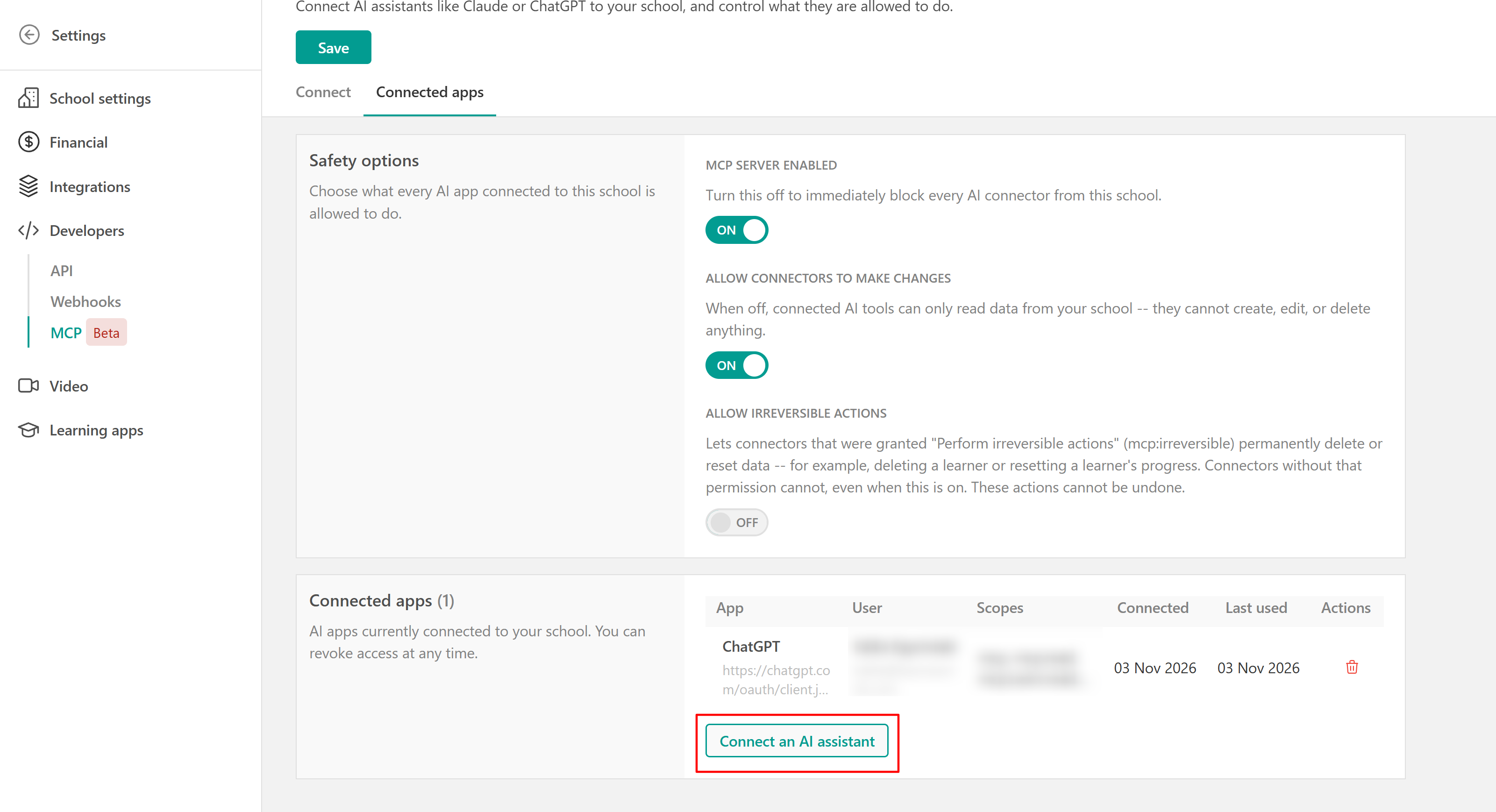
4. On the Connect your MCP page, locate the MCP connector URL section.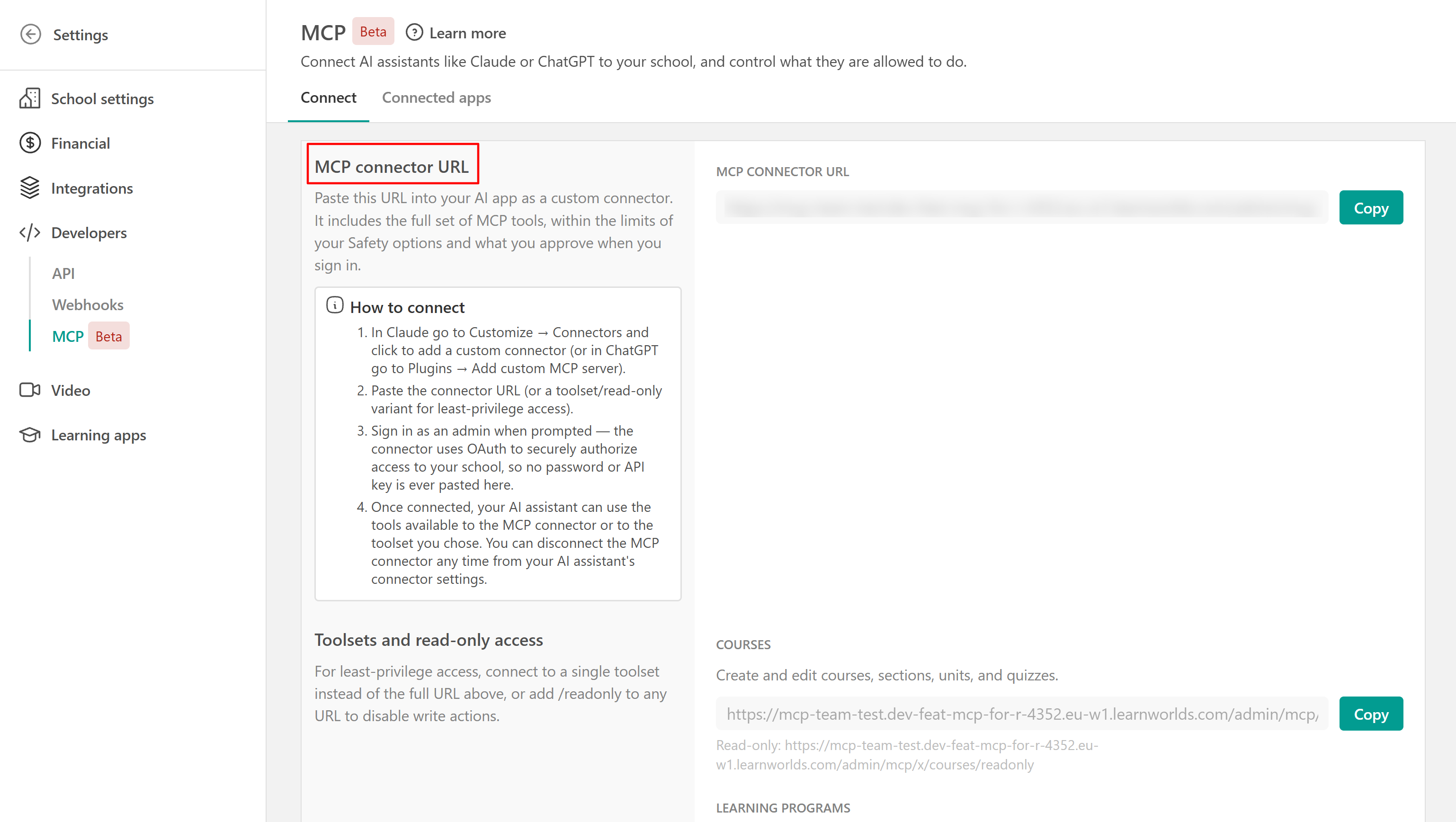
5. Click Copy next to the Standard connector URL. If you want to limit what your AI assistant can access, use Toolsets to select specific areas, such as courses, learning programs, users, analytics, or automations. You can also configure read-only access for each toolset to prevent the assistant from making changes.
6. Open your AI assistant and navigate to its connector settings.
7. Select to add a remote MCP connector and paste the URL you copied from LearnWorlds.
8. Follow the sign-in instructions to authorize the assistant to access your LearnWorlds school.
9. Once connected, return to your AI assistant and start using the available LearnWorlds tools.

- The steps for adding a remote MCP connector may differ depending on the AI assistant you're using. Follow the instructions provided by your AI application.
- To connect an AI assistant, you must be an administrator with full administrative rights. You'll also need access to a compatible AI assistant that supports remote MCP connections.
Limit what an AI assistant can access
When connecting an AI assistant, you can choose which areas of your school it can access and whether it can make changes.
Under Toolsets and read-only access, choose an address based on the access you want to grant:
- Toolset address: Limits the assistant to tools for a specific area of your school. Copy the address for the relevant toolset.
- Read-only address: Allows the assistant to retrieve information without making changes. Copy the read-only address for a toolset, or add
/readonlyto the end of an available connector address.
The following toolsets are available:
| Toolset | What it covers |
|---|---|
| Courses | Create and edit courses, sections, units, and quizzes |
| Learning programs | Build and price learning programs, manage subscription tiers, and enroll learners in pricing options |
| Users | Manage learners and enrollments |
| Commerce | Manage offers and view payments |
| Site | Change school settings and page SEO |
| Automations | View and create automations |
| Analytics | Read payments, revenue, business performance, school health, and course engagement reports |
| Learning | Read gradebooks, learner progress, and certificates |
| Engagement | View mass emails and manage community spaces, members, and posts |
| Ops | Manage outgoing webhooks and track bulk jobs |
| Assessments | Review and grade learner submissions and inspect question banks |
| Core | Access a smaller selection of everyday tools across courses, learners, grading, commerce, and analytics |
- Toolset addresses limit the available tools, while read-only addresses prevent changes. School-wide safety settings and the permissions granted during authorization also apply.
- To change the access of an already connected assistant, go to Connected apps, revoke its existing connection, and connect it again using the new address.
How previews and approvals work
Some actions that change your school show a preview before execution. The preview summarizes the proposed changes so they can be checked before the action runs.
However, a preview does not require your approval. Depending on your AI assistant's permissions, it may proceed with the action without asking for confirmation.
Other actions may run immediately without a preview. For example, enrolling a learner or assigning an initial grade may trigger notifications or certificate issuance.
To review changes before they happen, check the tool approval settings in your AI assistant and configure them to request confirmation before making changes.
Approval settings are managed in your AI assistant, separately from LearnWorlds MCP safety settings. Available options may vary depending on your assistant and account.Connect multiple LearnWorlds schools
If you manage multiple LearnWorlds schools, repeat the connection and authorization process for each one.
Each school requires a separate connection. Connecting an AI assistant to one school does not automatically grant access to your other schools.
Manage access and safety settings
Go to Settings → Developers → MCP → Connected apps. Under Safety options, choose what connected AI assistants are allowed to do.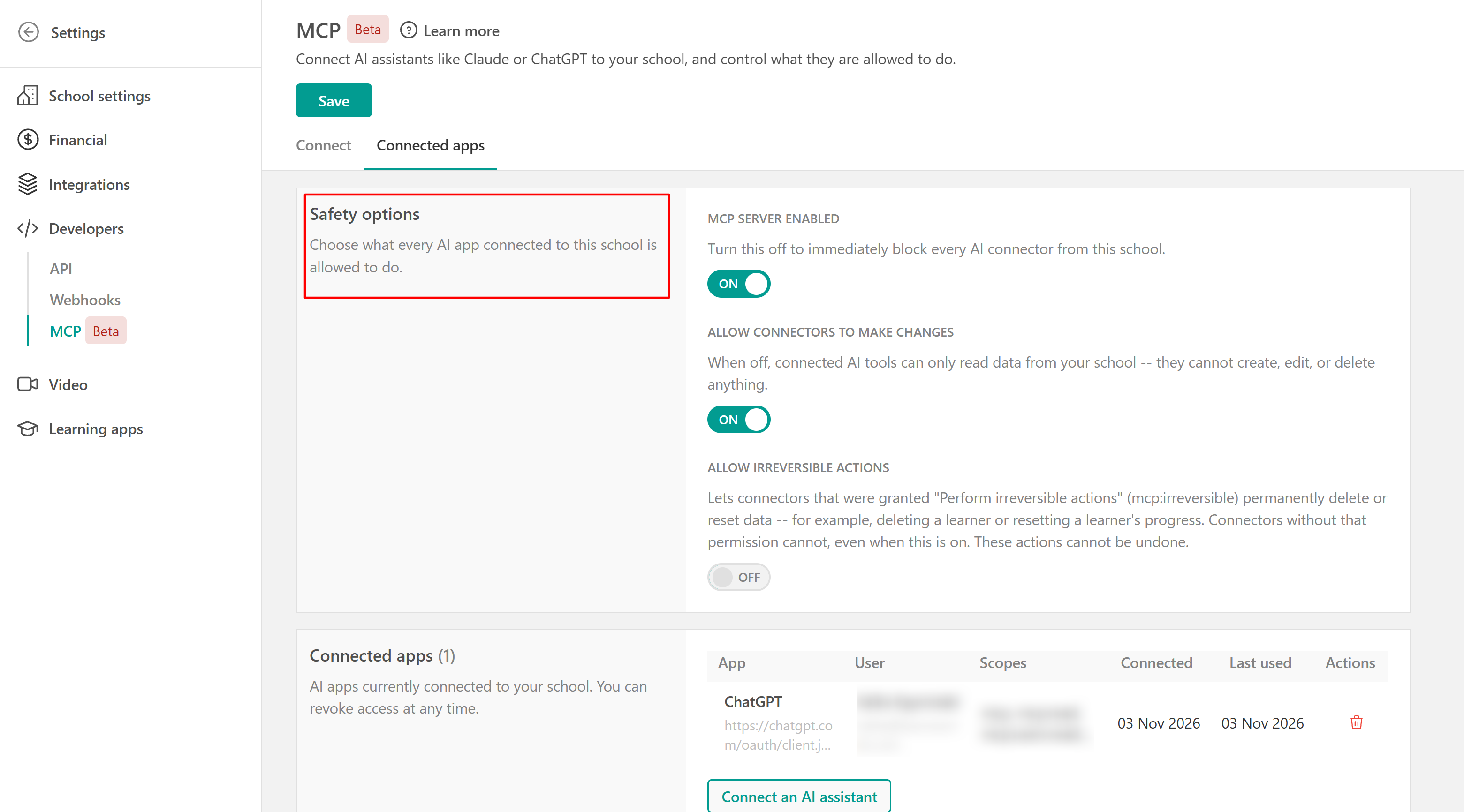
1. MCP server enabled
Controls whether AI assistants can connect to your school.
- On: Authorized connectors can access the supported LearnWorlds tools, subject to their permissions and the other safety settings.
- Off: Immediately blocks every AI connector from accessing the school.
2. Allow connectors to make changes
Controls whether connected assistants can modify school data.
- On: Connectors with the required permissions can perform supported create, edit, or delete actions.
- Off: Connected assistants can only read school data and cannot create, edit, or delete anything.
Keep Allow Connectors to Make Changes Off if you only want to use your AI assistant to retrieve information or answer questions about your school.3. Allow irreversible actions
Controls whether connectors can perform actions that permanently delete or reset data, such as deleting a learner or resetting a learner's progress.
- On: Connectors granted the Perform irreversible actions (mcp) permission can perform supported irreversible actions.
- Off: Irreversible actions are blocked.
This option is off by default. Turning it on does not grant the permission to connectors that do not already have it. Irreversible actions cannot be undone.After changing any safety option, select Save to apply your settings.
Understand the available safety options
| Setting | Default | What it controls |
| MCP Server Enabled | On | Allows or blocks all MCP connections to your school. If turned off, all connected AI assistants are immediately blocked from accessing your school through MCP. To restore access, turn the setting On and save your changes. |
| Allow Connectors to Make Changes | On | Allows connected assistants to create, edit, or delete data using supported tools. If turned off, connected assistants can still retrieve available school information but cannot modify it. |
| Allow Irreversible Actions | Off | Controls access to supported actions that permanently delete or reset data. Examples may include permanently deleting a learner or resetting learner progress, where these actions are supported through MCP. |
These settings apply to all authorized AI connectors in your school.
Only allow irreversible actions when necessary. Consequential actions require a preview before execution. Review the proposed action carefully before approving it.Important information and limitations
Keep the following in mind when using LearnWorlds MCP:
Each LearnWorlds school requires a separate connection
- Safety options apply to all authorized connectors
- Custom permissions for individual applications are not available in the initial beta
- MCP supports a defined set of LearnWorlds tools, so some platform actions may not be available through your AI assistant
For a list of supported tasks and examples, see What you can do with your AI assistant in LearnWorlds.
Review and revoke connected apps
Under Connected apps, you can review the assistants connected to your school.
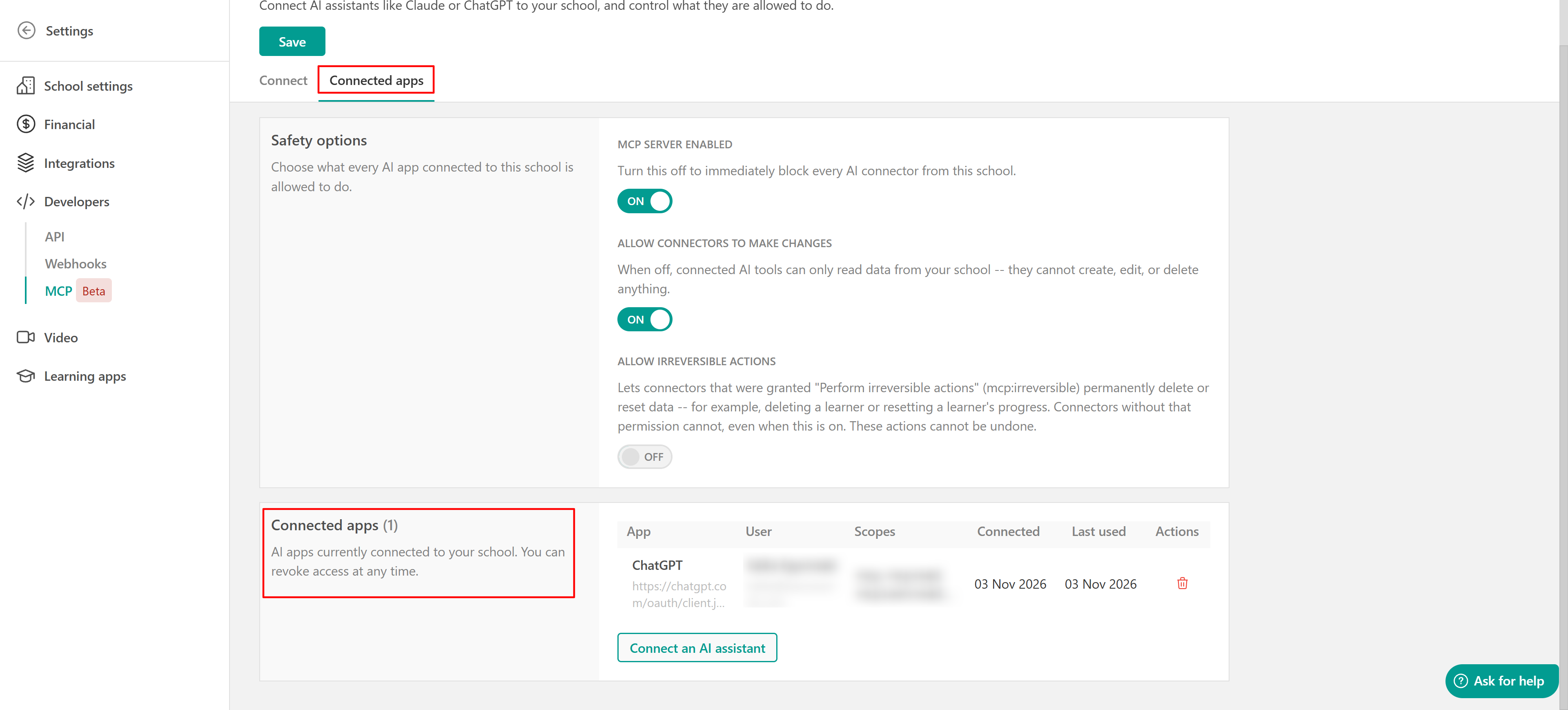
The table displays the following information:
| Field | Description |
| App | Name of the connected AI application |
| User | Administrator associated with the connection |
| Scopes | Permissions associated with the connection |
| Connected | Date the application was connected |
| Last used | Date the connection was last used |
| Actions | Option to revoke the application's access |
To remove an assistant's access, find its entry in the table and select the delete icon under Actions to revoke the connection.
See what your assistant did
LearnWorlds does not currently provide a dedicated history of actions performed through connected AI assistants.
To check what your assistant has done, you can:
- Review your AI assistant's conversation: Check your requests and the actions reported by the assistant. The information available depends on the AI app.
- Check the connection's last activity: Go to Settings → Developers → MCP → Connected apps and review the Last used column. This shows when the connection was last used, not which actions were performed.
- Check your school: Open the relevant course, learner profile, or school setting in your LearnWorlds dashboard to verify the changes.
Troubleshooting AI assistant connections
- The assistant cannot connect to your school. Check that:
- You have full administrative rights in your LearnWorlds school
- Your school is on the Learning Center plan or higher
- MCP server enabled is turned on under Settings → Developers → MCP → Connected apps
- You copied the complete connector address into your AI assistant
- The assistant cannot perform an expected action. Check the following settings:
- Toolset access: If you used a toolset address, confirm that it includes the tools needed for the action
- Read-only access: If you used a read-only address, the assistant cannot make changes
- Allow connectors to make changes: Confirm that this option is turned on if the assistant needs to create, edit, or delete data
- Irreversible actions: Confirm that Allow irreversible actions is turned on and that the connector has the Perform irreversible actions (mcp:irreversible) permission
The requested action must also be supported by the connected LearnWorlds tools.
- The assistant made an unexpected change
- Go to Settings → Developers → MCP → Connected apps.
- Turn off Allow connectors to make changes and select Save to prevent further changes through connected assistants. Alternatively, revoke the affected app's connection.
- Open the relevant area of your LearnWorlds dashboard to review what changed.
- If you need assistance, contact LearnWorlds Support and share the relevant conversation or action details from your AI assistant.
FAQs
- Can I set different permissions for each AI assistant?
No. During the initial beta, you cannot customize permissions for individual applications. Use the school-wide safety options to control what connected assistants can do.
- Can I connect multiple schools?
Each LearnWorlds school requires its own connection and authorization, even if you manage multiple schools with the same AI assistant.
- Can I prevent changes to school data?
You can disable changes for all connected AI assistants from your school's MCP settings.
- What happens if I revoke an AI assistant's access?
The selected application immediately loses access to your LearnWorlds school. Other authorized connections remain active.
- What is the difference between revoking a connection and disabling MCP?
- Revoking a connection removes access for a specific application.
- Disabling MCP blocks all connected applications from accessing your school through MCP.
- Can AI assistants access school information when changes are disabled?
Yes. When Allow Connectors to Make Changes is Off, connected assistants can still retrieve information through supported tools, but they cannot create, edit, or delete school data.