
BLIK is a mobile payment method widely used in Poland. It lets learners pay for courses and other products using a 6-digit code generated in their banking app, without entering credit or debit card details.
By connecting BLIK through Stripe, you can offer it as an additional payment method at checkout in your LearnWorlds school.
In this article, we'll explain how to set up BLIK payments and how learners can use them to complete their purchases.
Before you start
To accept BLIK payments in your LearnWorlds school, make sure that:
- You have connected an eligible Stripe account to your school.
- Your school's currency is set to Polish złoty (PLN).
- BLIK is activated as a payment method in your Stripe account.
- Your school isn't configured to sell subscriptions only.
 BLIK availability depends on Stripe's supported countries and account eligibility. If you can't find BLIK in your Stripe Dashboard, check Stripe's BLIK documentation or contact Stripe Support.
Set your school's currency to PLN
To make BLIK available at checkout, you must set PLN as your school's currency.
- Navigate to Settings → Financial → Currency.
- Select PLN (Polish złoty) from the currency drop-down menu.
- Save your changes.
Your LearnWorlds school uses a single currency for all products. Changing your school's currency to PLN affects all product prices, so make sure to review them after making this change. Activate BLIK in Stripe
Before activating BLIK in LearnWorlds, you need to turn it on in your connected Stripe account.
- Log in to your Stripe Dashboard.
- Navigate to Settings → Payment methods.
- Find BLIK in the list of available payment methods and activate it.
Activating BLIK in LearnWorlds doesn't automatically activate it in Stripe. You need to turn it on in both platforms.Activate BLIK in LearnWorlds
Once you've activated BLIK in Stripe and set your school's currency to PLN, you can make it available at checkout.
- Navigate to Settings → Financial → Payment gateway.
- Select Stripe and make sure Activate Stripe is turned on.
- Scroll down to More payment options.
- Under Bank redirects, locate BLIK.
- Turn on the BLIK toggle.
- Click Save at the top of the page.
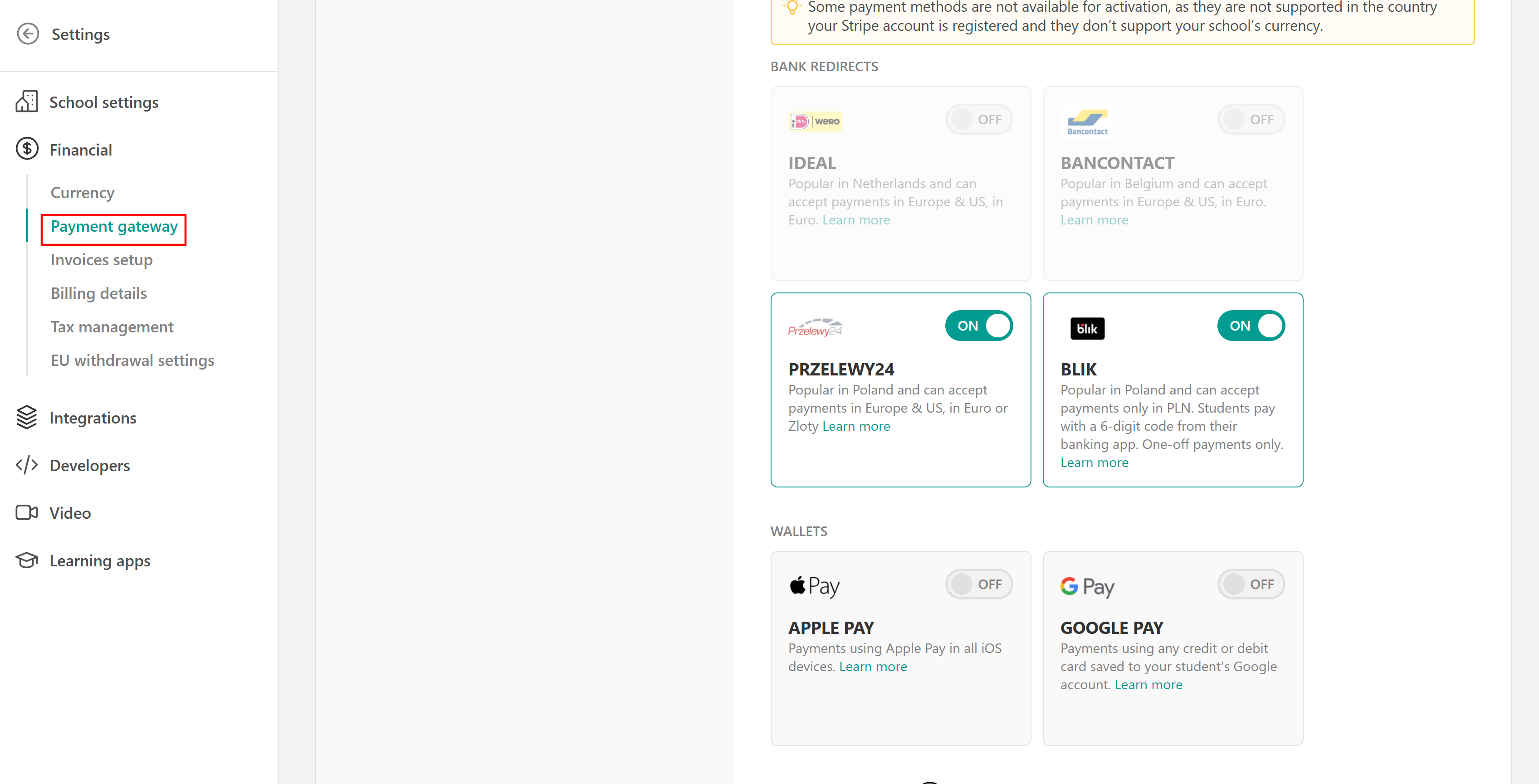
Once activated, BLIK will appear as an available payment method at checkout for eligible one-off purchases in PLN.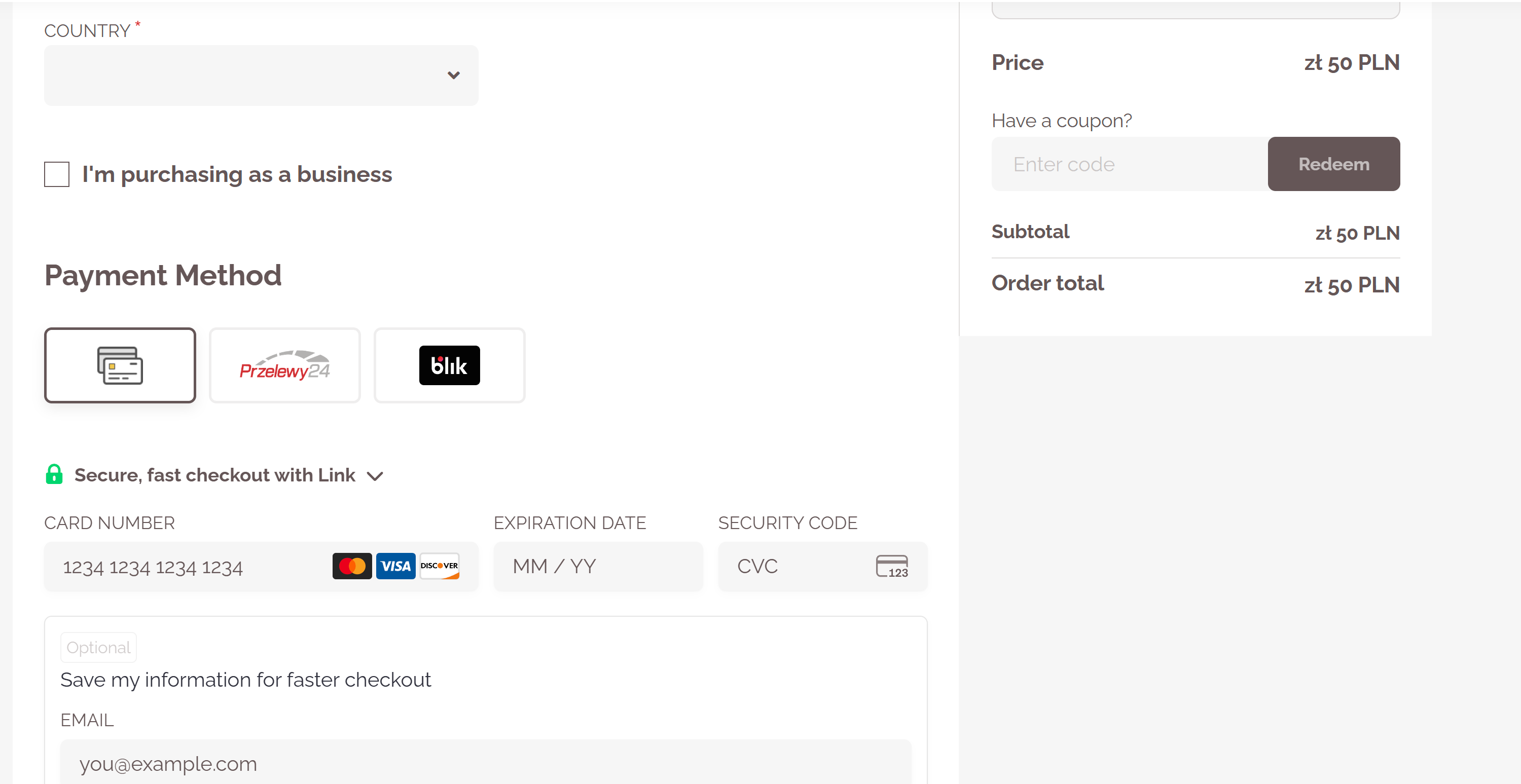
If the BLIK option is greyed out, check that your school currency is set to PLN and that your Stripe account is eligible to accept BLIK payments.How learners pay with BLIK
When BLIK is available at checkout, learners can select it as their preferred payment method and complete their purchase using their banking app.
Enter the BLIK code
- The learner selects BLIK from the available payment methods at checkout.
- They open their banking app and generate a 6-digit BLIK code.
- They enter the code in the BLIK payment field.
- They click Buy to continue.
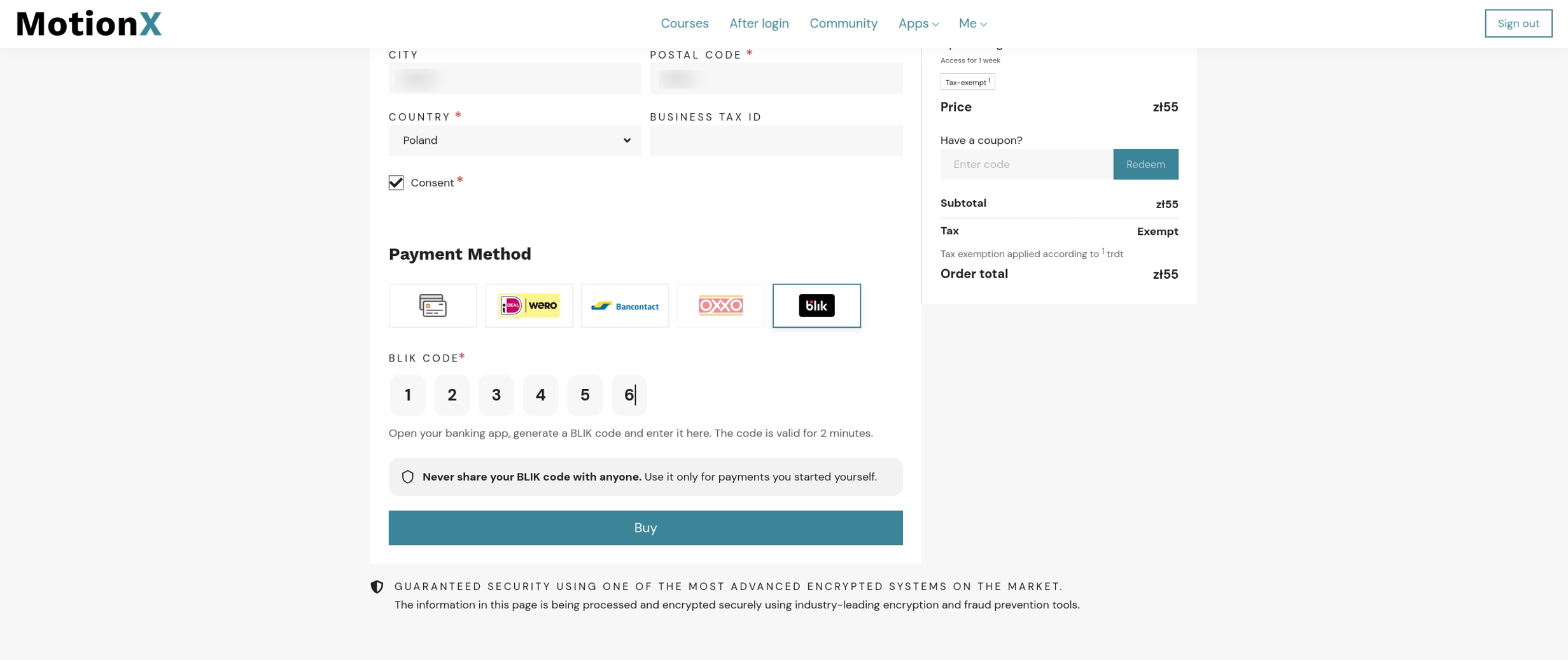
BLIK codes are valid for 2 minutes and can only be used once.Approve the payment
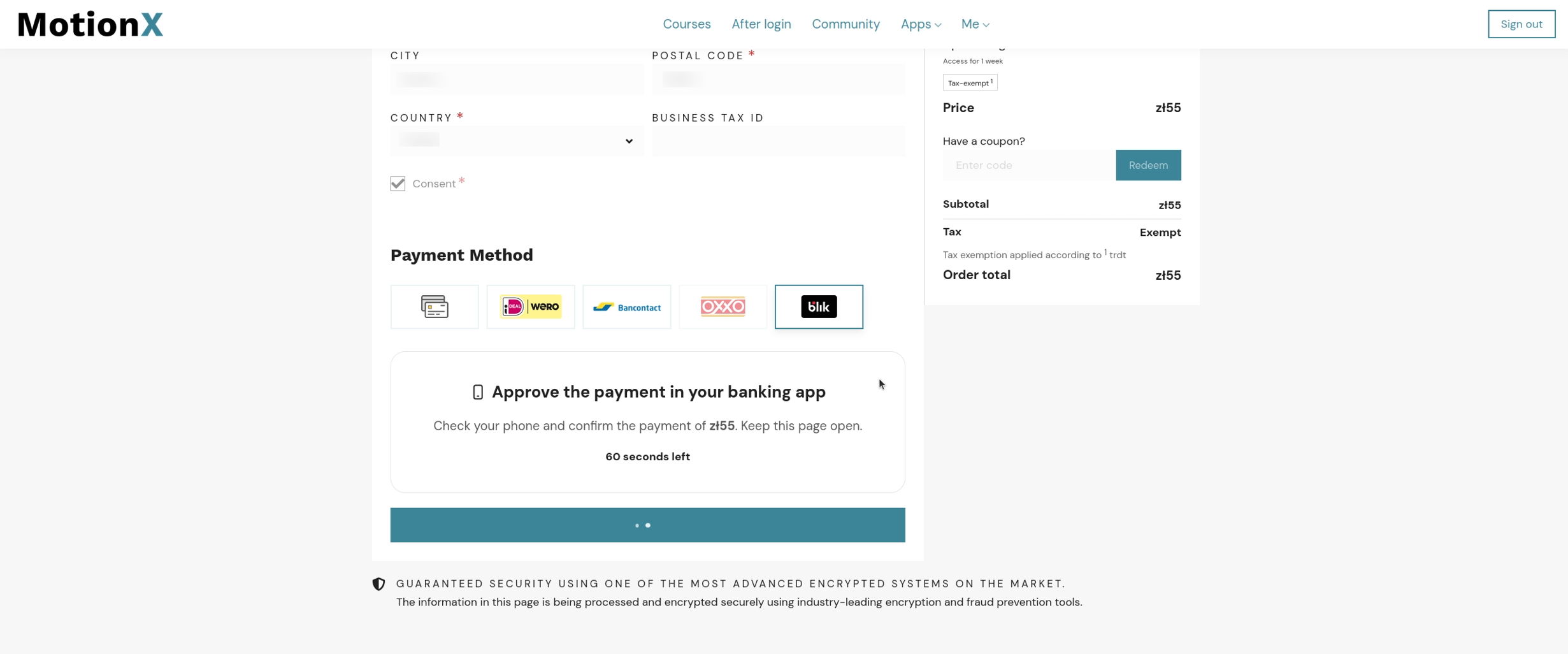
- A waiting screen appears, asking the learner to approve the payment in their banking app.
- The learner receives a payment confirmation request in their banking app.
- They approve the payment within the 60-second countdown.
Complete the purchase
Once the payment is approved:
- The learner is redirected to the thank-you page
- The purchase is completed, and the learner receives access to the product
- The learner can download their invoice from the thank-you page
On mobile devices, learners need to return to their browser after approving the payment in their banking app to view the purchase confirmation.Important information about BLIK payments
Before offering BLIK in your school, keep the following in mind:
- One-off purchases only: BLIK is available for one-off payments. It doesn't support subscriptions or payment plans
- Minimum payment amount: Stripe requires a minimum BLIK payment of 2.00 PLN
- Subscription-only schools: If your school is configured to sell subscriptions only, additional Stripe payment methods, including BLIK, are automatically deactivated
- Banking app required: Learners need access to a bank that supports BLIK payments
- Expired or unsuccessful payments: If a BLIK payment fails or expires, learners must generate a new code to try again
- Checkout page closed: Closing the checkout page doesn't automatically cancel a payment that the learner subsequently approves in their banking app
- Sales reports: Only successfully completed BLIK payments appear in your LearnWorlds sales reports
Refund BLIK payments
BLIK supports both full and partial refunds, which you can process through LearnWorlds or directly from your Stripe Dashboard.
To refund a BLIK payment through LearnWorlds, follow the steps in this guide.
When you issue a full refund through LearnWorlds:
- The order is marked as refunded
- A credit note is created
- The learner loses access to the purchased product
Additional information:
- Refund period: Stripe supports BLIK refunds for up to 730 days after the original payment
- Processing time: Refunds are returned to the learner's bank account and may take up to 120 minutes, depending on the bank
- Refund cancellation: Once a BLIK refund is submitted, it can't be canceled
BLIK payments may also be disputed by learners. If a dispute occurs, Stripe notifies you through your Dashboard and by email. You can review the dispute and submit supporting evidence through Stripe. For more information, see Stripe's BLIK documentation.
FAQs
- Why is the BLIK option greyed out in my payment settings?
BLIK may be unavailable if your school's currency isn't set to PLN or your Stripe account isn't eligible to accept BLIK payments.
Check your currency settings under Settings → Financial → Currency and confirm your Stripe account's eligibility.
- Why don't learners see BLIK at checkout?
Make sure that:
- BLIK is activated in both Stripe and LearnWorlds
- Your school's currency is PLN
- The learner is purchasing a product with a one-off pricing option
- Your school isn't configured to sell subscriptions only
- The purchase meets Stripe's minimum payment amount
- What happens if a BLIK payment fails?
If a payment is declined, expires, or isn't approved in time, the learner will see an error message at checkout.
| Message at checkout | What it means | What to do |
|---|---|---|
| Enter the 6-digit BLIK code from your banking app | The code is incomplete | Enter the full 6-digit code |
| This code is invalid or has expired. Generate a new code in your banking app | The code is incorrect, expired, or already used | Generate a new code and try again |
| The payment was declined in your banking app | The learner declined the payment | Generate a new code and try again |
| The payment wasn't approved in time | The learner didn't approve the payment within 60 seconds | Generate a new code and approve the payment within the available time |
If the payment is unsuccessful, the purchase isn't completed, and the learner doesn't receive access to the product.
- How can I test BLIK payments before going live?
You can use Stripe's test mode to check how BLIK payments work before accepting real payments.
In the described test flow, you can enter any 6-digit BLIK code, such as 123456. Different test learner email addresses are used to simulate payment outcomes.
| Test learner email | Expected result |
|---|---|
| Regular email address | Payment approved |
test_invalid_code@example.com | Invalid code |
test_expired_code@example.com | Expired code |
test_customer_declined@example.com | Payment declined |
test_customer_timeout@example.com | Payment times out |
Use a separate test learner account for each scenario.