
Once an external learning tool has been connected to your school using LTI 1.3, you can add its content directly to your courses as LTI activities.
This guide shows you how to use an existing LTI integration in your courses. You’ll learn how to add non-graded and graded LTI activities, track learner progress and results, using Gradebook and reports.
Before you begin, make sure an LTI integration has already been created and activated in your school.
LTI activity use cases
You can use LTI activities to:
- Embed interactive or multimedia content inside a course
- Deliver graded assessments using external tools
- Track learner progress, time spent, and scores
- Centralize reporting inside LearnWorlds
Add an LTI activity to a course (Non-graded)
Once you’ve created and activated an LTI integration, you can add external tool content directly to your courses as LTI activities. Learn how to create an LTI integration here.
The first option is to use a simple LTI activity when you want learners to access external content without scoring. The steps you should follow are:
1. Open a course and go to the course outline.
2. Click Add Activity.
3. Select Multimedia → LTI and name your activity.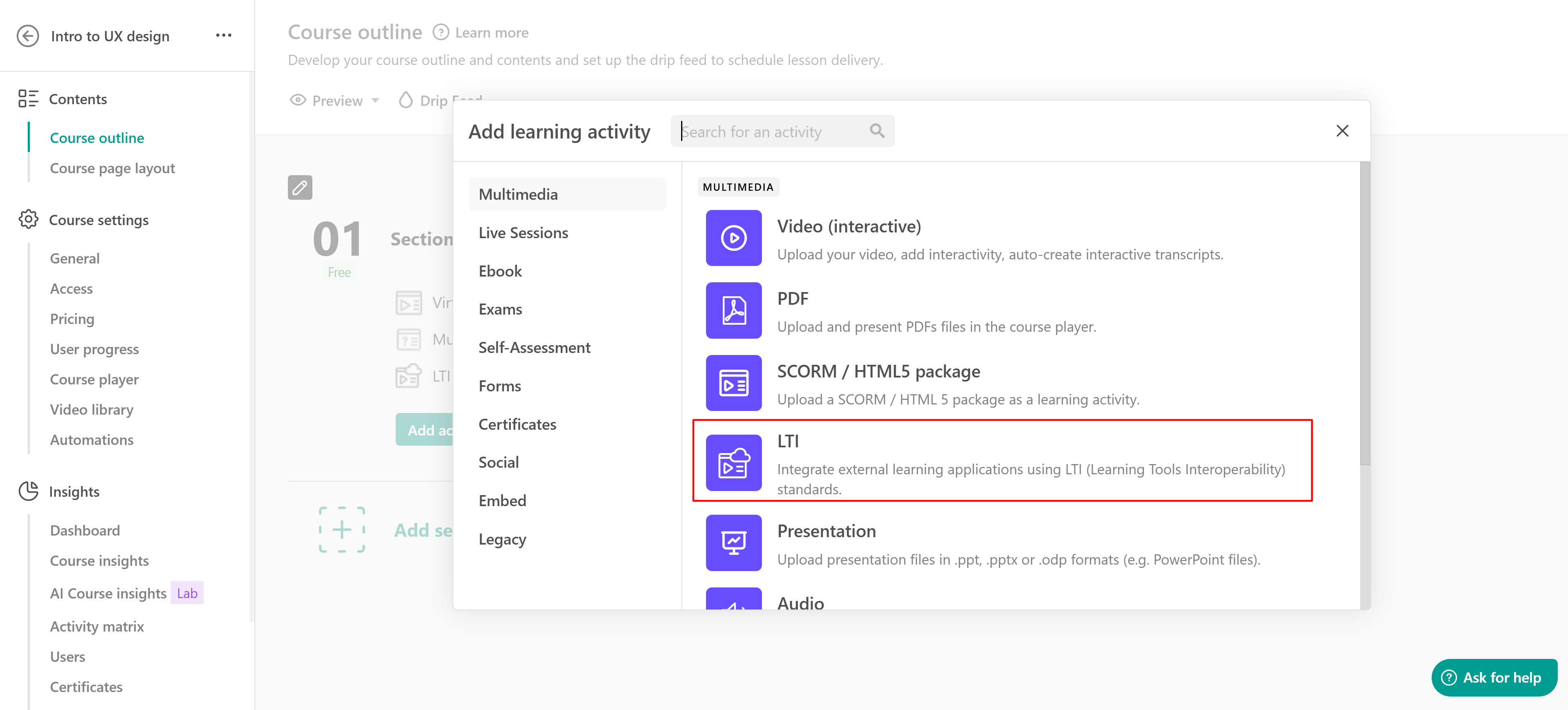
4. Open settings and select an LTI integration from the list of available integrations.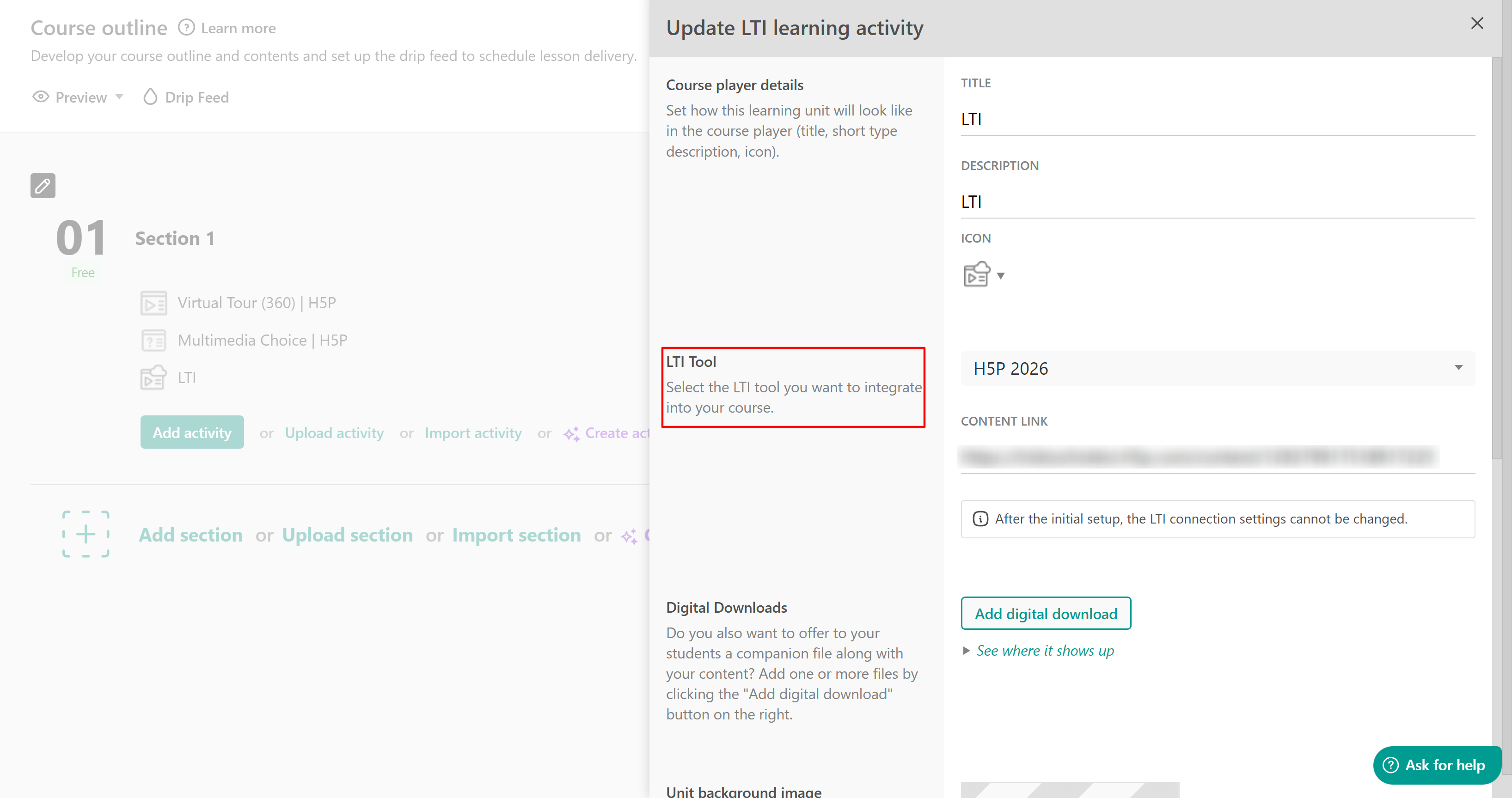
5. Enter the Content link (URL provided by the external tool).
6. Customize additional settings like adding a digital download, an activity image, or a completion rule.
7. Once ready, hit save.
The LTI activity is now added to your course and ready for learners to access. Make sure to preview your activity to make sure everything works as expected. 
 After the initial setup, the LTI connection settings cannot be changed. In case you need to make changes, you should delete this activity and create a new one.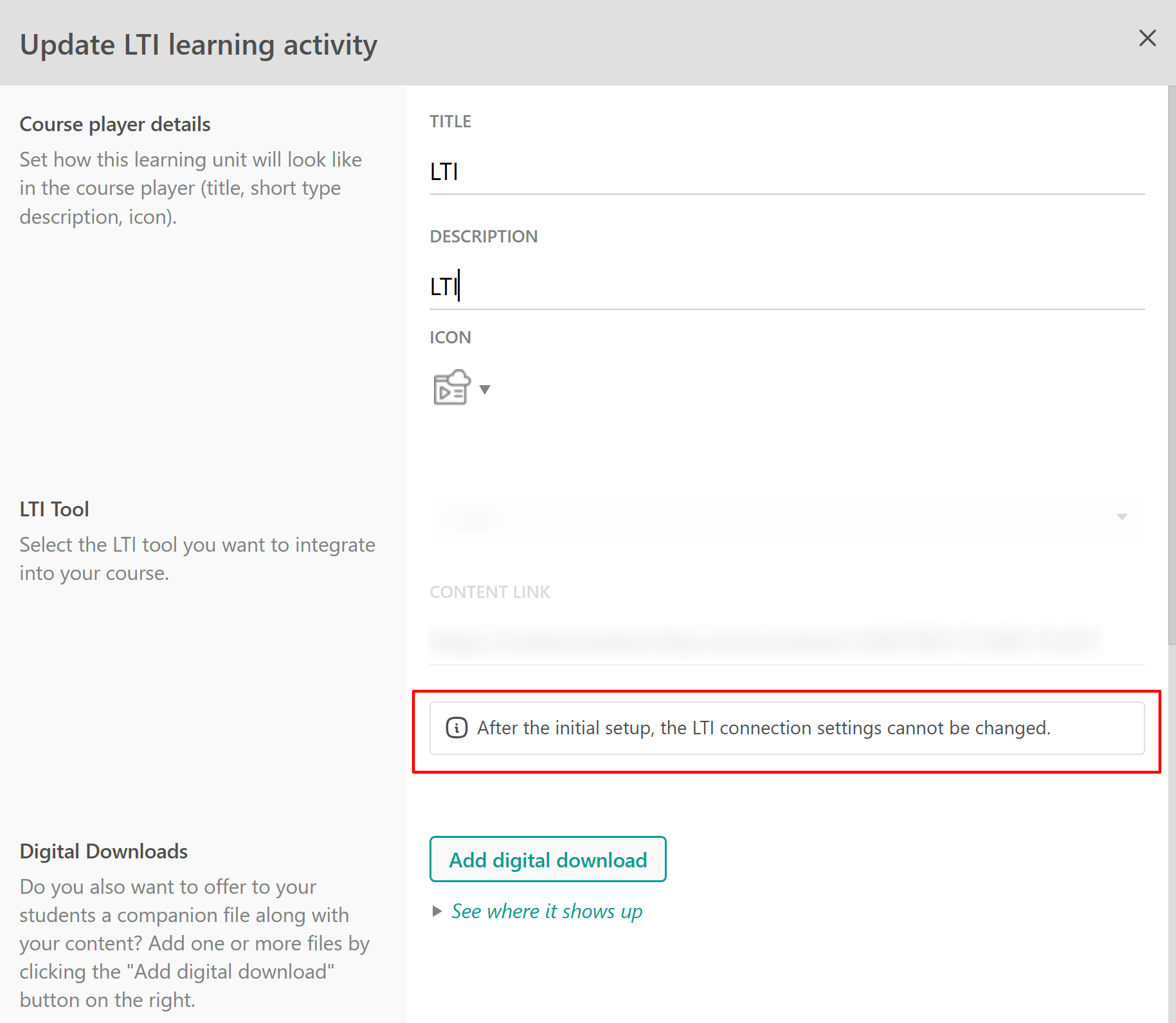
Add an activity using deep linking
If the LTI integration you are using supports Deep Linking, you can select content directly from the external tool while setting up the activity. For more information about Deep Linking, see this guide. During the activity setup process, click Insert Content.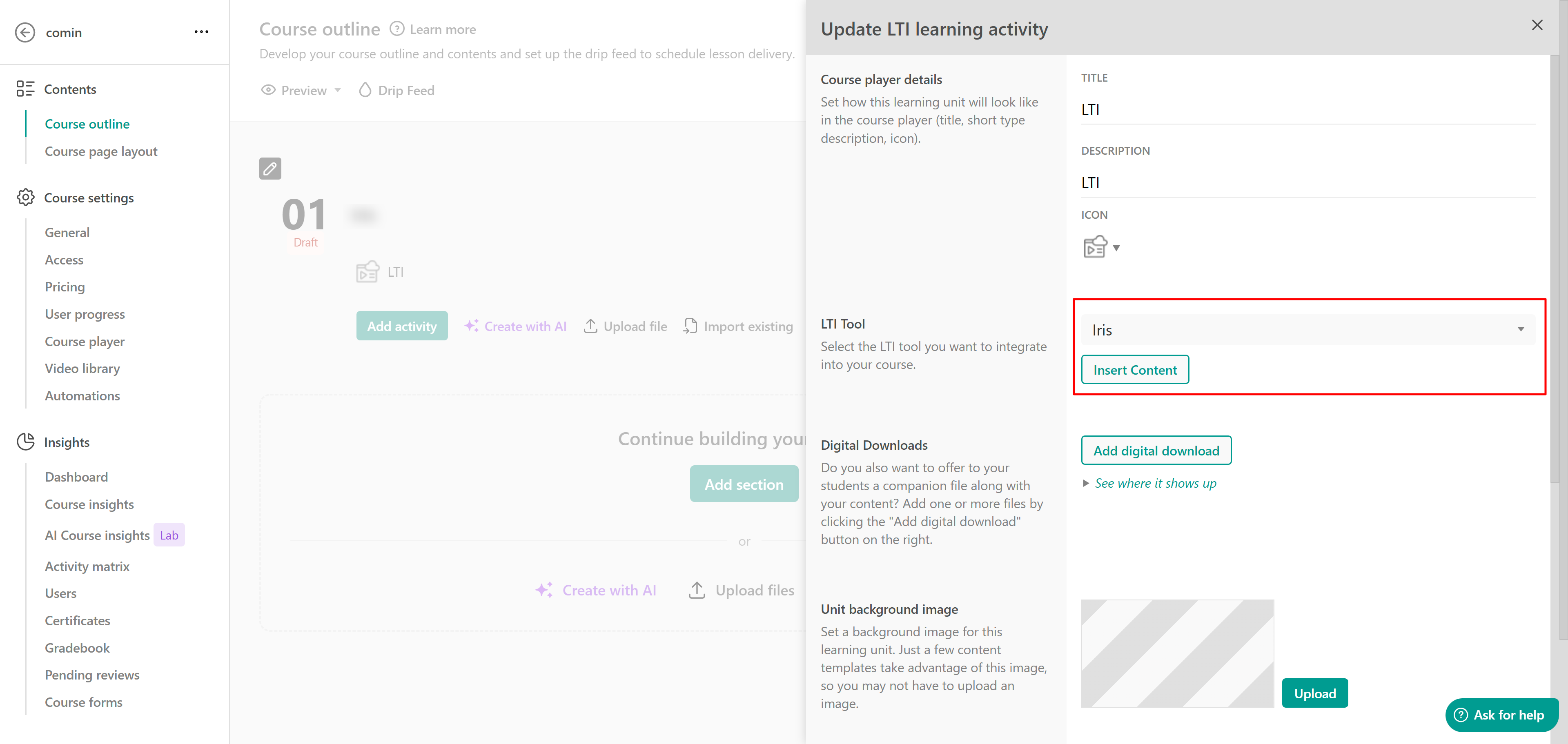
This opens a modal window displaying the external tool’s interface within LearnWorlds. From there, you can browse the available content, select the activity or resource you want to use, and automatically import it into your course without manually entering a content link.
Add a graded LTI activity
Use a graded LTI activity when the external tool sends scores or pass/fail results back to LearnWorlds.
To set this up,
1. Open a course and go to the Course Outline.
2. Click Add Activity.
3. Select Exams → Graded LTI.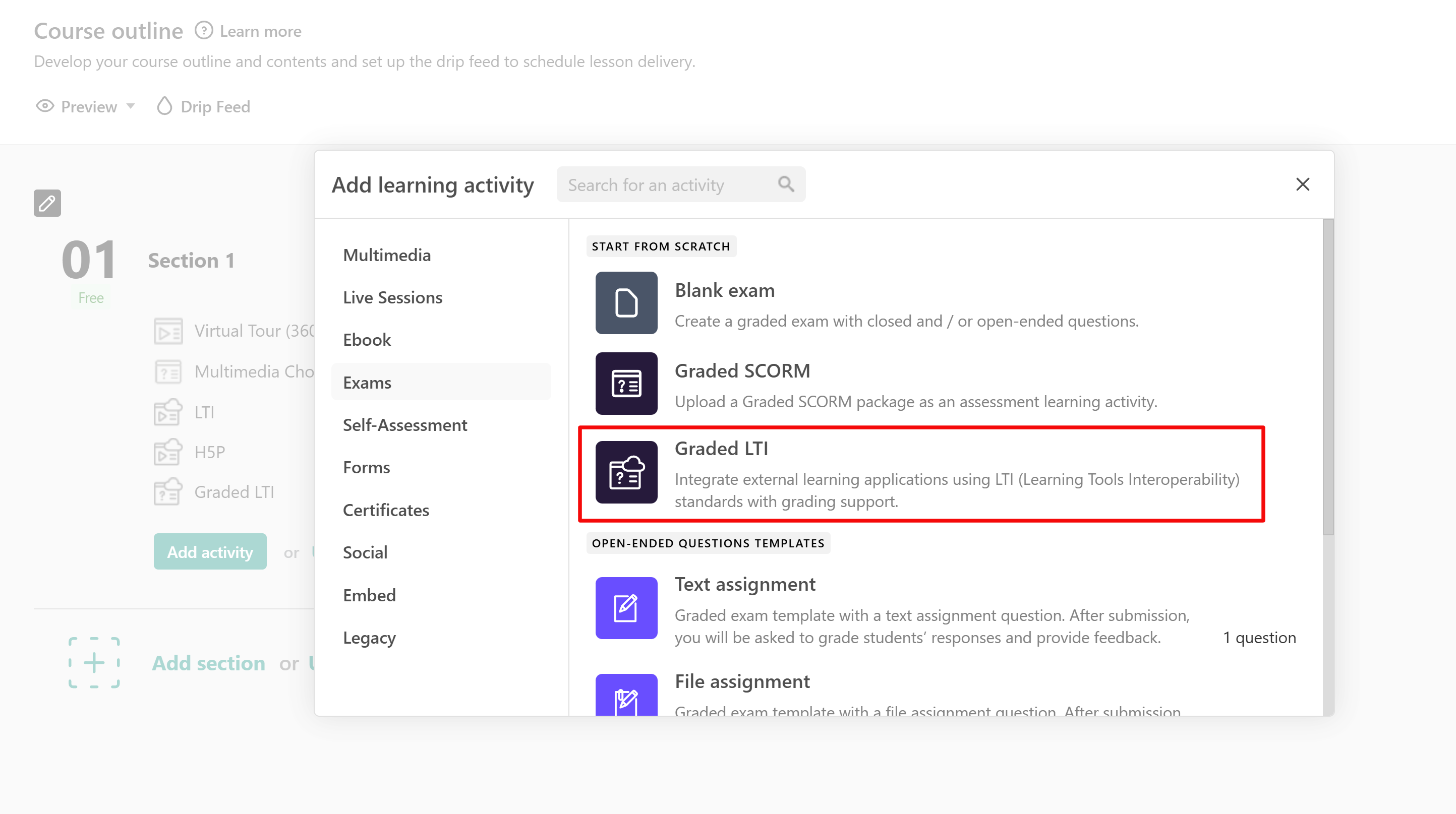
4. Rename the activity.
5. Open the activity settings, select an LTI integration, and either enter the content link manually or choose content from the external tool if deep linking is supported.
6. Set a Passing grade (%).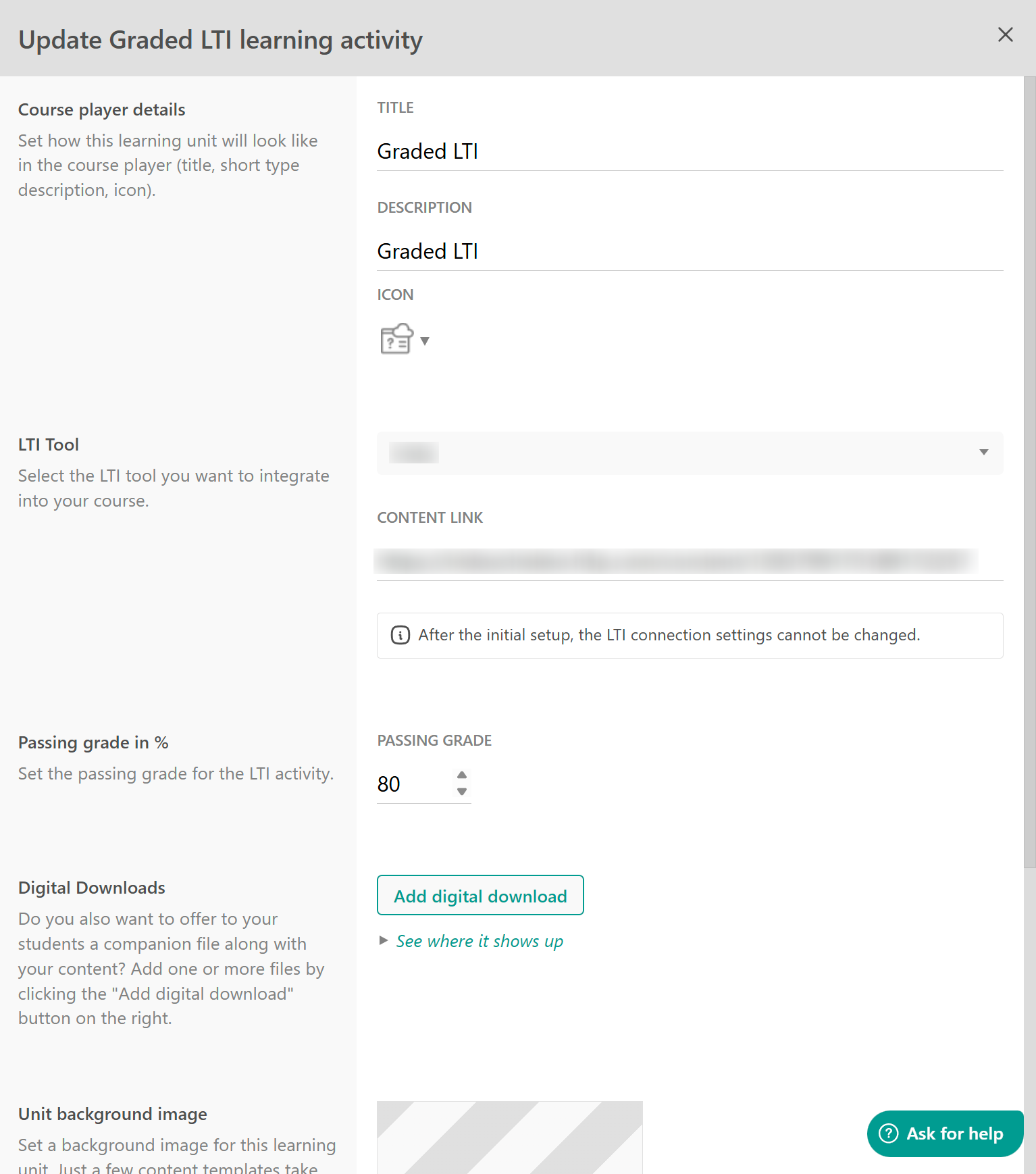
7. Customize additional settings like adding a digital download, an activity image, and click Save.
Graded LTI activities automatically appear in the Gradebook.Manage learner results
Gradebook
When you use a graded LTI activity, learner results are displayed in the Gradebook, just like any other graded activity in LearnWorlds. Each graded LTI activity appears as a separate column, and scores along with pass/fail status are automatically synced from the external tool.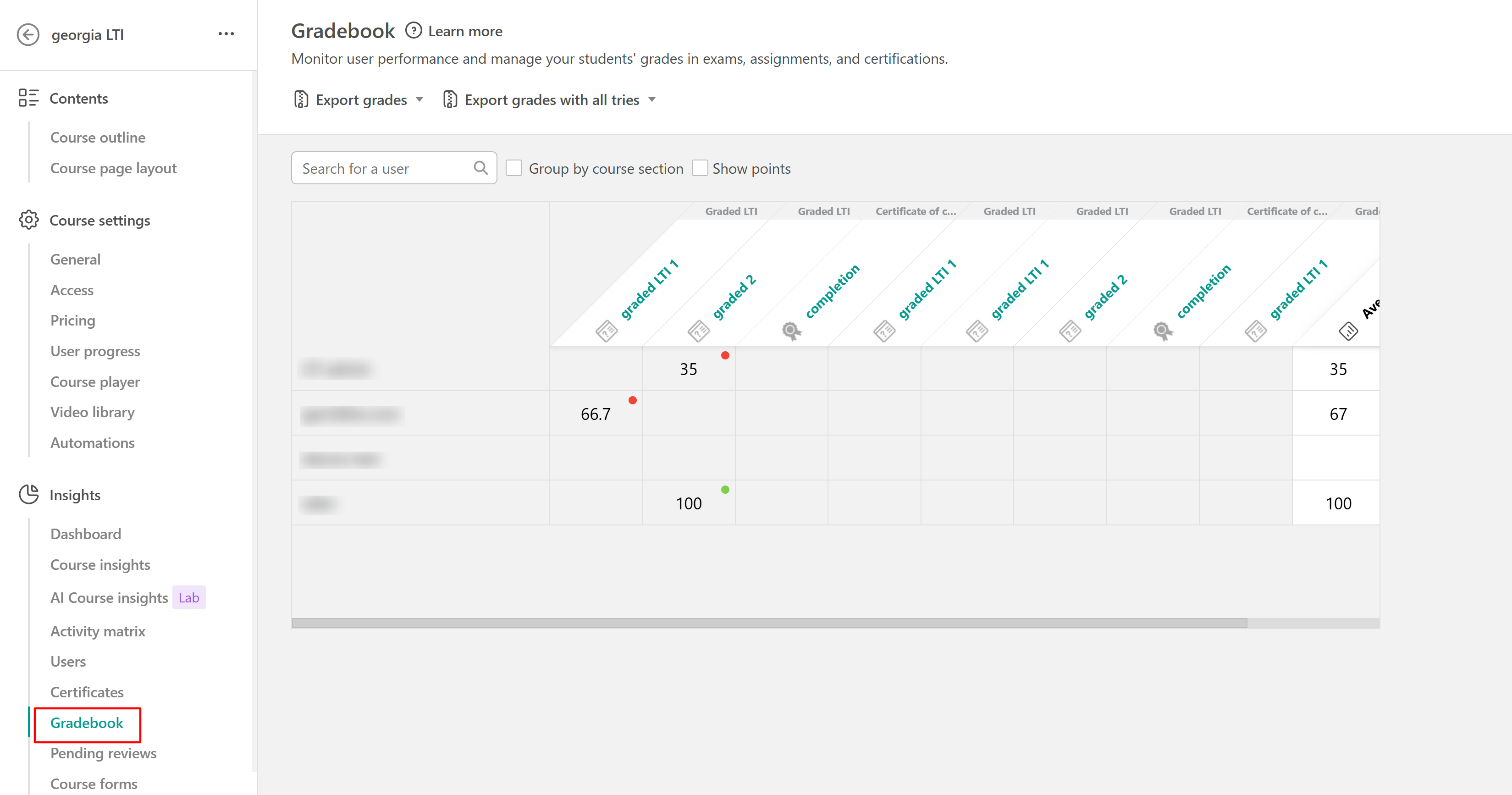
You can edit existing attempts if needed. However, you cannot manually add new attempts for graded LTI activities, as all results must be sent by the external tool.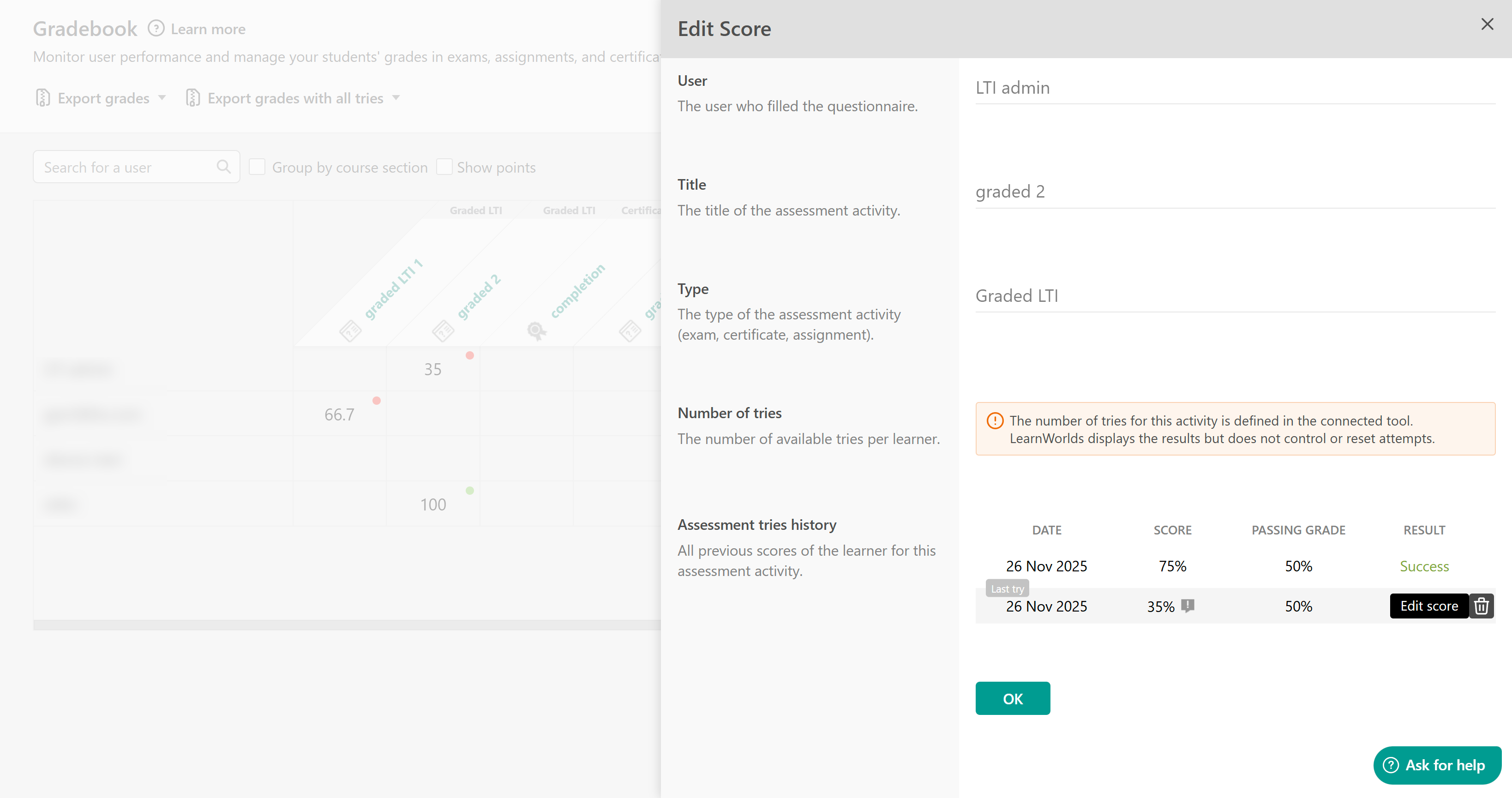
Activity matrix & reports
LTI engagement data (such as time spent, progress, and score) is available in:
- Activity Matrix
- Course Insights
- Product Insights
- User cards
- Reports and exports
- API
This allows you to monitor learner performance across both LearnWorlds and external tools.
FAQs
-Can learners access LTI activities on mobile devices?
Yes. Learners can launch and use LTI activities on both desktop and mobile devices.
- Why isn’t my LTI activity working?
Creating the LTI integration in LearnWorlds is only the first step. You must also configure and activate LearnWorlds in the external tool using the generated credentials.
- What happens if I change scoring settings in the external tool?
Changes made to scoring or grading rules in the external tool do not update existing scores in LearnWorlds. Scores already sent to LearnWorlds keep their original values
Only new attempts or new results sent after the change follow the updated rules