
LTI 1.3 (Learning Tools Interoperability) allows you to connect external learning tools, such as simulations, labs, interactive activities, or assessments, directly to your LearnWorlds courses.
This guide focuses on the integration setup. You’ll learn how to register an external LTI 1.3–compatible tool in LearnWorlds, exchange the required configuration details, and activate the connection so both platforms can communicate securely.
Once the integration is complete, you’ll be able to use the connected tool inside your courses as LTI activities. If you want to find more information about how to create LTI activities, check this guide.
Examples of what you can do with LTI 1.3
Here are some ways you can use LTI 1.3 in your school:
- Embed interactive tools like H5P, simulations, or ebooks directly into a course.
- Combine LearnWorlds videos or ebooks with third-party content in one learning path.
- Provide hands-on virtual labs and track completion data.
- Monitor grades and time spent on external tools through LearnWorlds reports.
Overview of the LTI integration flow
The LTI setup follows a two-way configuration process:
1. Create the LTI integration in LearnWorlds using information provided by the external tool.
2. Copy the credentials generated by LearnWorlds and paste them into the external tool to complete the connection.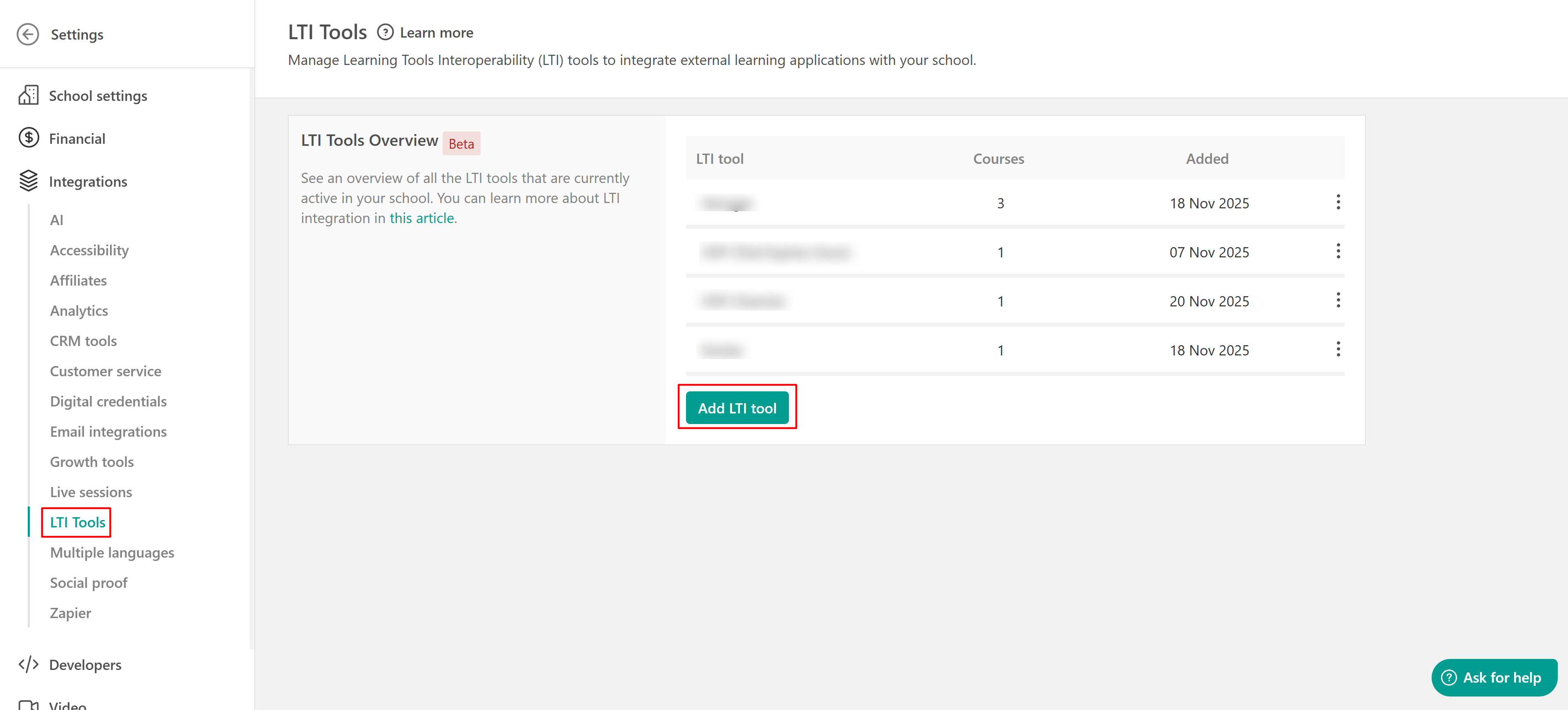
Create an LTI integration in LearnWorlds
Before adding LTI content to your courses, you must first create and manage LTI integration.
1. Go to Settings → Integrations → LTI Tools. Only admins can create and manage LTI tools.
2. Click Add LTI Tool.
3. Enter the required details provided by the external tool:
- Name
- Description (optional)
- Authorization (Login) URL
- Launch URL
- JWKS (Keyset) URL
- Deep linking URL
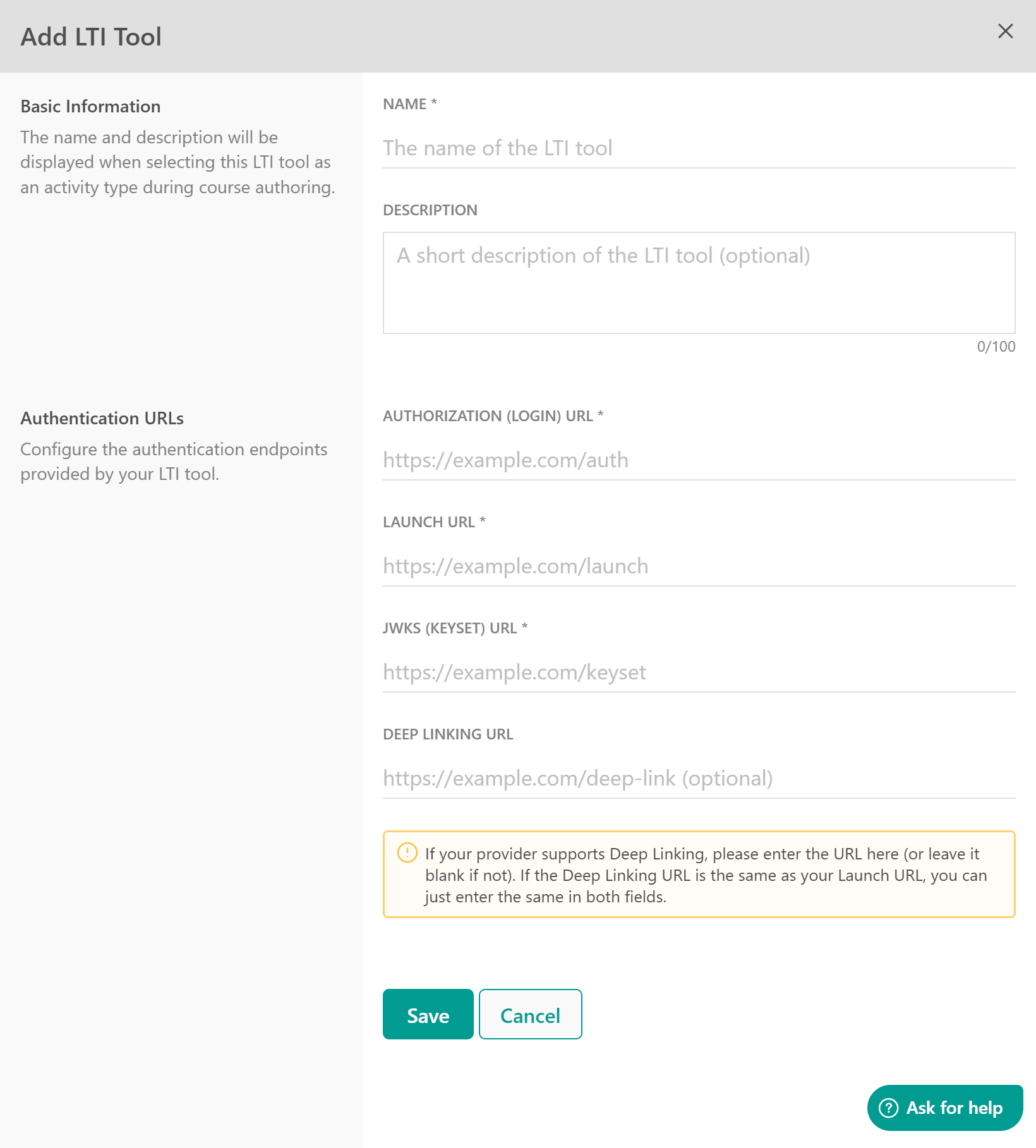
 Deep Linking is an LTI feature that allows you to browse and select content directly from the external tool instead of manually copying and pasting content URLs. If your provider supports Deep Linking, they will typically provide a dedicated Deep Linking URL. If not, leave this field blank. If the Deep Linking URL is the same as the Launch URL, you can use the same URL for both fields.
4. Click Save
Copy LearnWorlds credentials
After saving the integration, LearnWorlds generates some values. You must copy these values and complete the setup inside the external tool.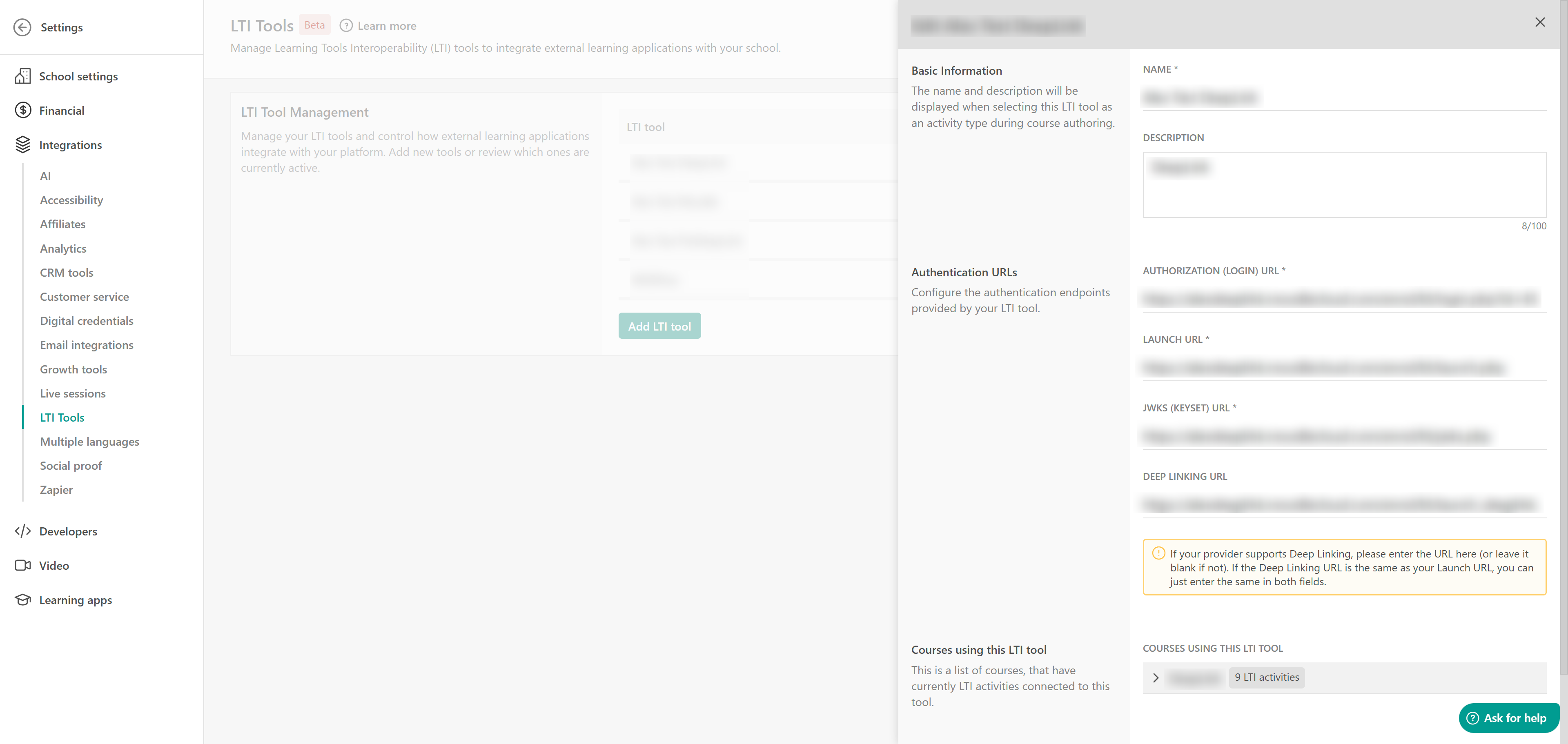
The integration will not function until it is also activated in the external tool using these credentials.Managing LTI integrations in LearnWorlds
- You can edit an integration’s details at any time.
- Changes apply immediately to all LTI activities using that integration.
- An integration can only be deleted if it is not used in any course.
- If the integration is already in use, LearnWorlds will display an error and link to the activities where it is applied.
- Integrations cannot be temporarily disabled. They remain active until deleted.
- There is no limit to the number of LTI integrations you can create in your school. You can connect as many external tools as needed.
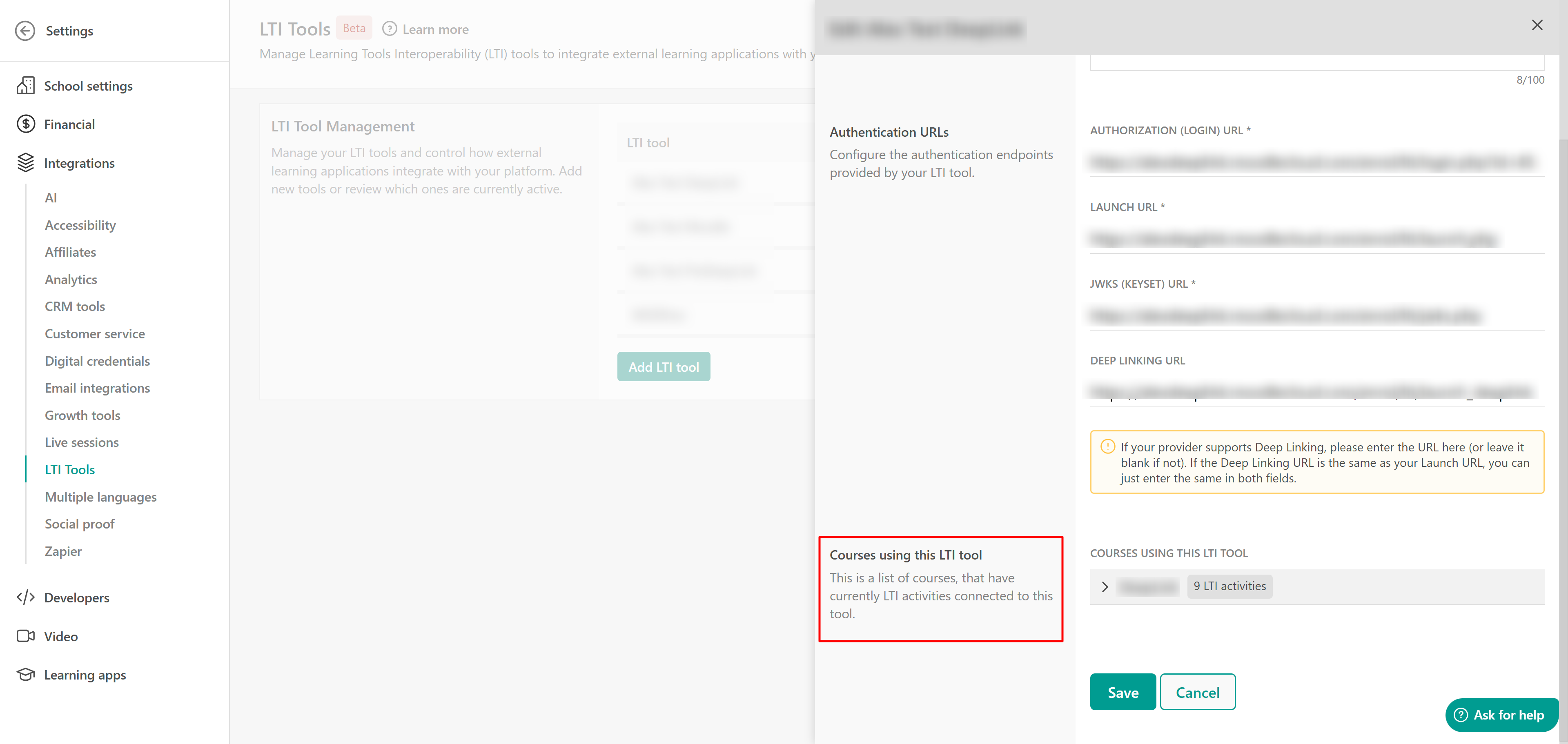
- To see which activities use a specific integration, click the Edit button for that integration. From there, you can identify the courses where this LTI tool is applied.
Example: Connect H5P with LearnWorlds using LTI 1.3
To better understand how LTI 1.3 works, let’s walk through a practical example using H5P as the external tool.
First, you should create an account at H5P.com, if you don’t already have one. Inside H5P, create the interactive content you want to use in your LearnWorlds course.
In your LearnWorlds admin dashboard, go to Settings → Integrations → LTI Tools → Add LTI Tool.
1. Enter a Name and optional Description.
2. In a new browser tab, log in to H5P.
3. Go to Manage Organization → Connect LMS.
4. Select your LMS (Other), add a connection name and the LTI version (LTI v1.3)
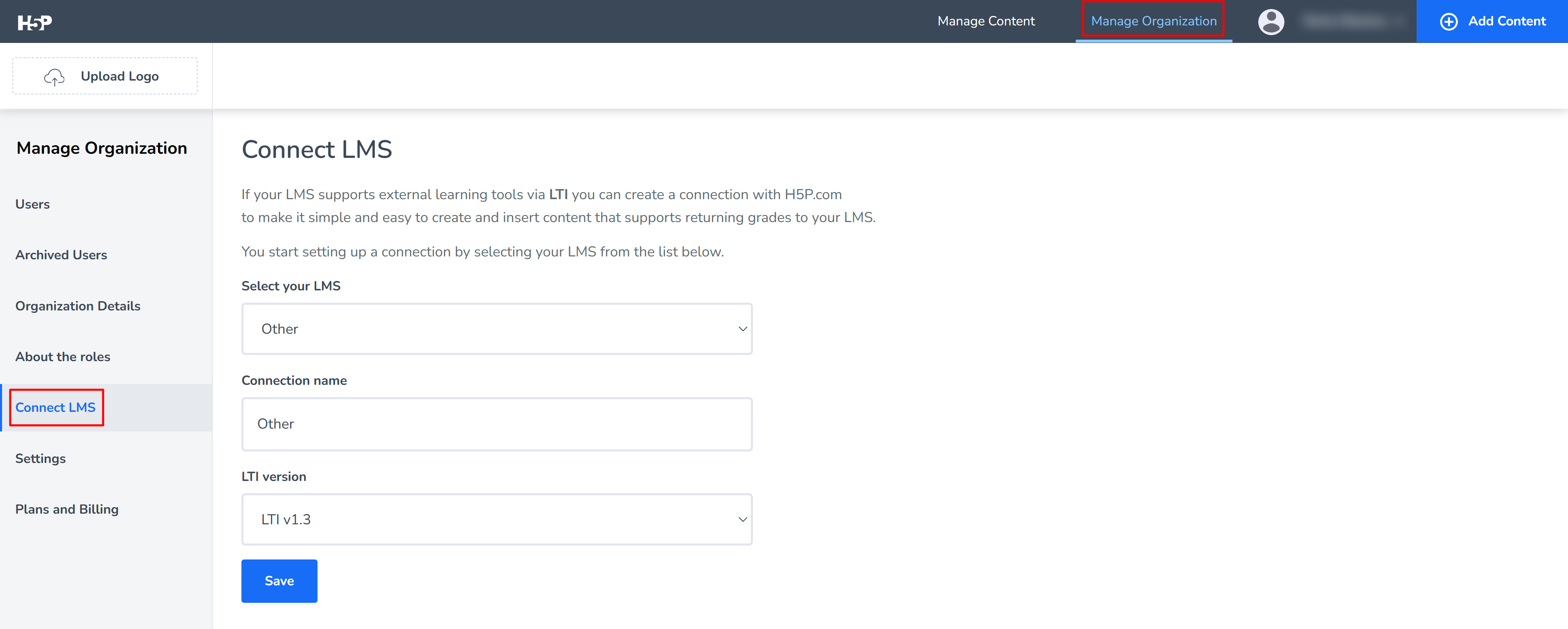
5. Click save to continue.
Now you need to copy the following values:
- Authorization (Login) URL
- Launch URL
- JWKS (Keyset) URL
- Deep Linking URL
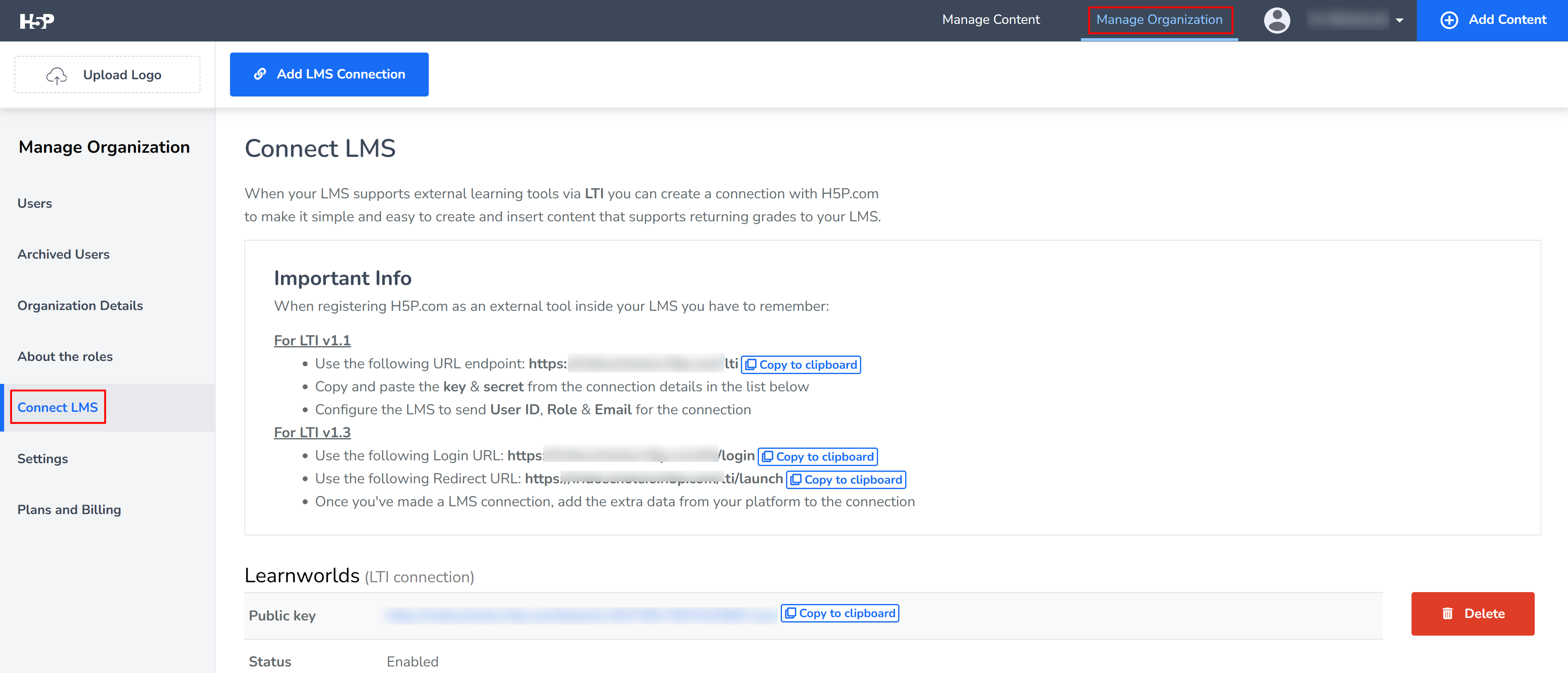
4. Return to LearnWorlds and paste the copied values into the corresponding fields. Once added, click Save.
5. LearnWorlds will now generate the credentials required by H5P.
6. Hover over the H5P tool you just added and click Copy URLs to get the info you need.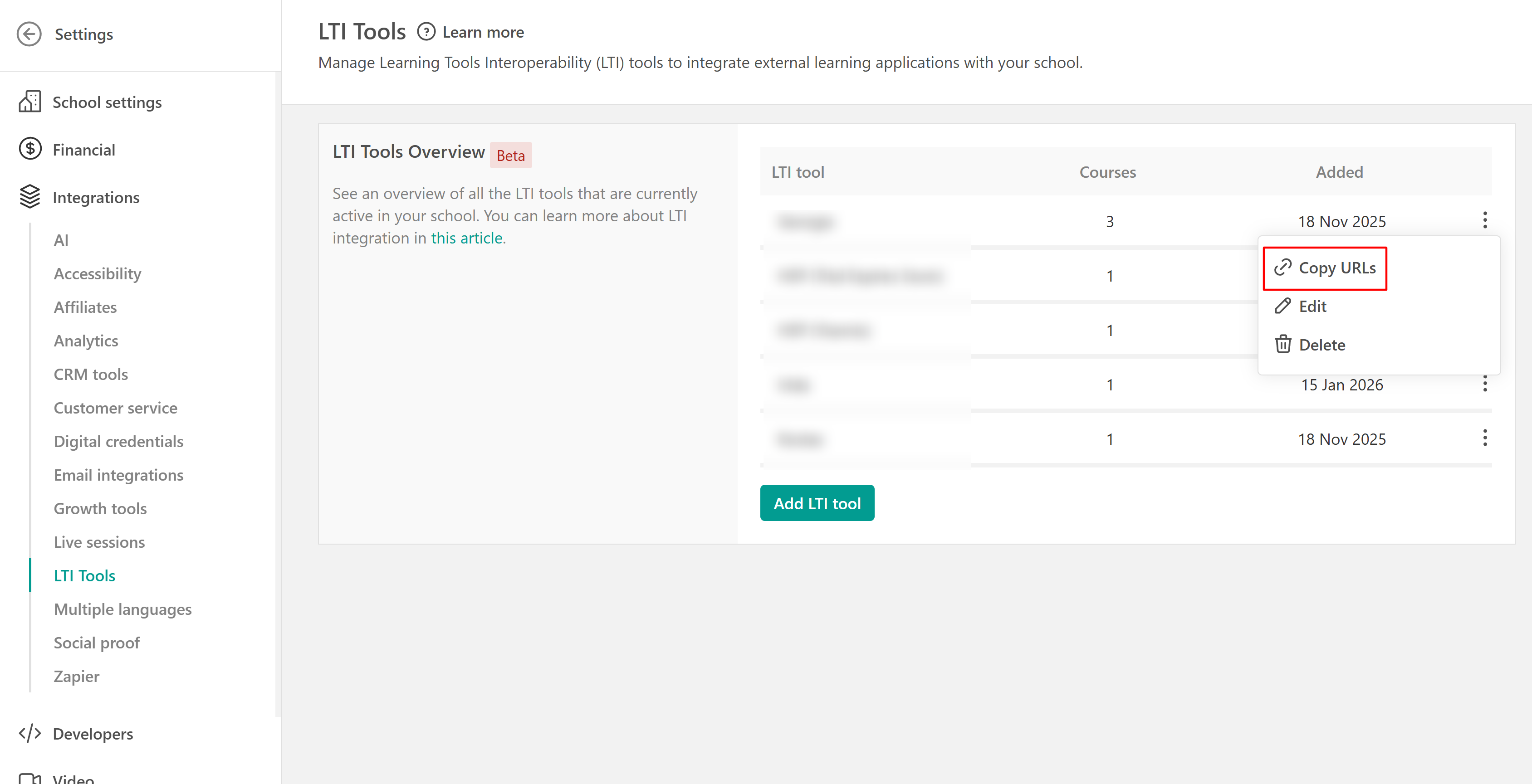
7. Go back to H5P → Connection Settings and paste here the values copied from LearnWorlds (Client ID and Platform URLs).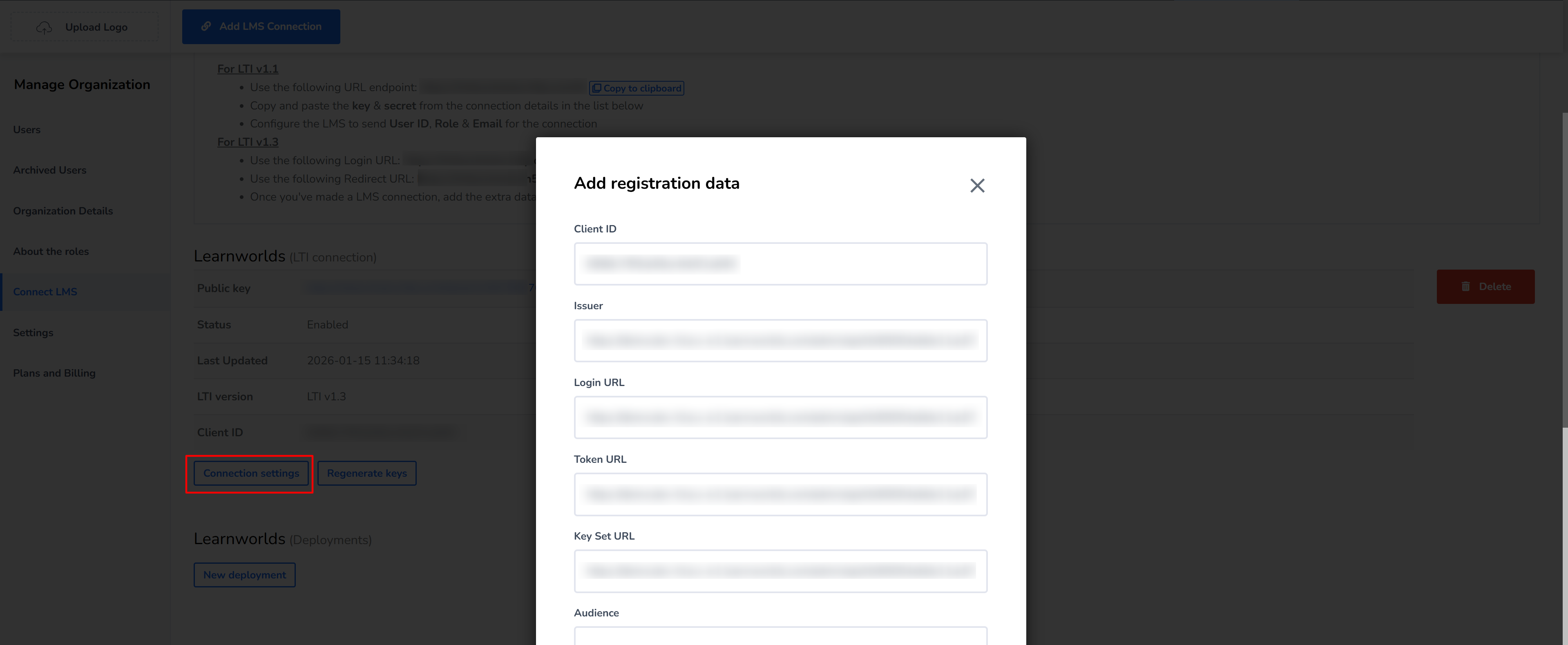
8. Click Save.
9. The final step is to click New Deployment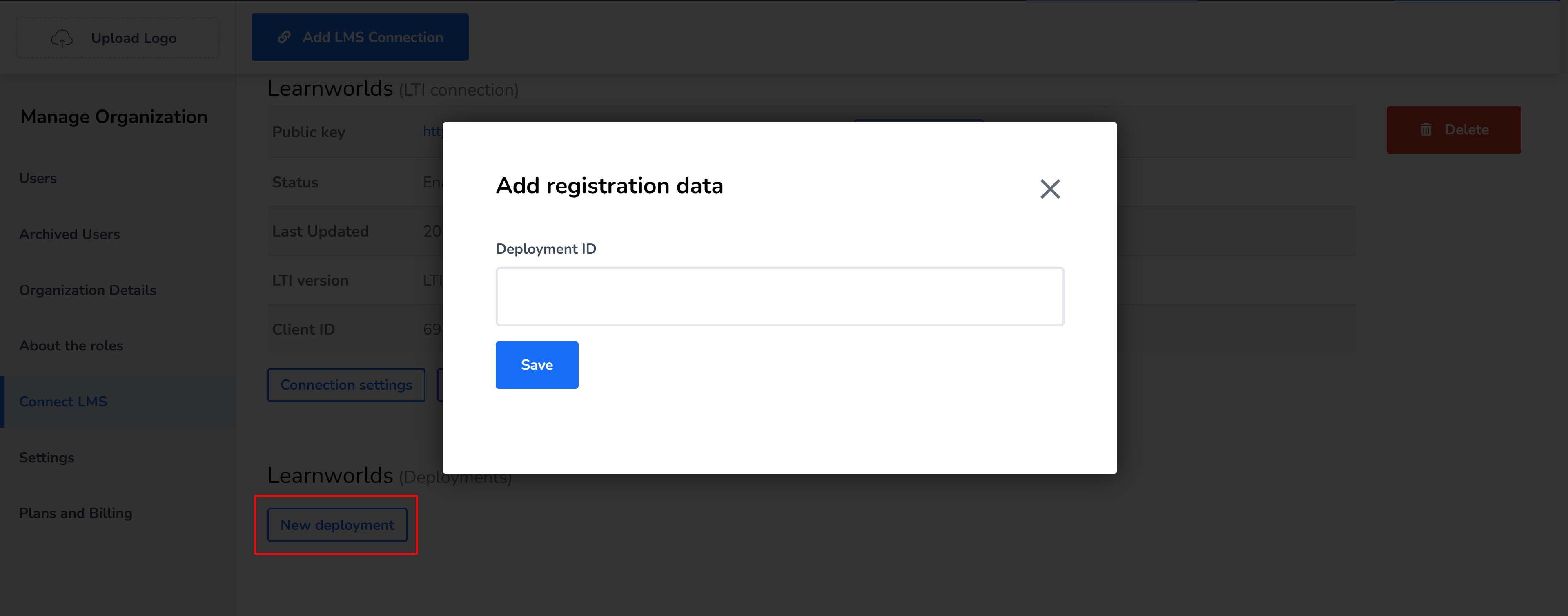 and paste the Deployment ID you will find in your school.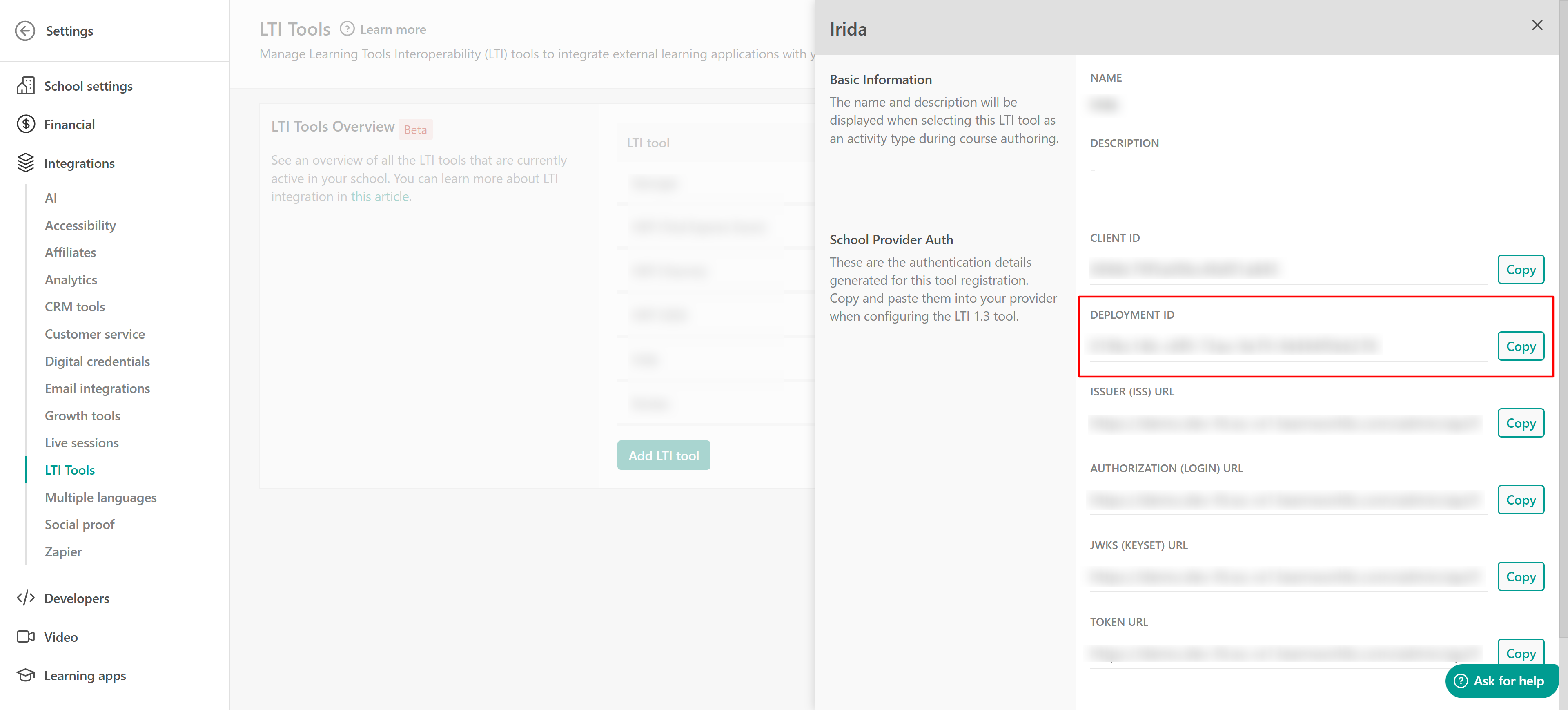
10. Hit Save, and your H5P integration is now complete. You can add H5P content as LTI activities inside your LearnWorlds courses.
LTI requirements & limitations
- Only LTI 1.3 is supported.
- LearnWorlds acts as an LTI Consumer only.
- Supported service package: Assignment & Grade Services (AGS) and deep linking.
- Integrations and activities are single-school only.
- Always use clear, vendor-specific names for your integrations.
- Confirm that the external tool supports LTI 1.3 before starting.
- Complete the setup on both LearnWorlds and the external tool before testing with learners.
FAQs
- Can I change the tool or content link after creating an LTI activity?
No. Once an LTI activity is set up and saved (after selecting an integration and adding a content link), its configuration is locked.
-Can I export content from LearnWorlds to other tools?
No. LearnWorlds does not support exporting its own course content to external tools using LTI.
- Why isn’t my LTI integration working after I created it?
Creating the integration in LearnWorlds is only the first step. You must also configure and activate LearnWorlds inside the external tool’s LTI settings using the generated credentials.
If you need to use a different tool or content link, you must create a new LTI activity and configure it with the new settings.
-Can I reuse an LTI integration across schools?
No. Each integration is scoped to a single school.
-Can I temporarily disable an LTI integration?
No. LTI integrations are active immediately after creation and can only be removed by deleting them.