
User Automations allow you to automate actions based on user behavior in your school. Below are some common use cases to help you get started and understand how automations can support your workflows.
 For more generic information on how to create your automations check this guide.
Basic use cases
These examples cover common automation patterns to help you get started quickly.
Enroll users after signup
You can automatically guide new users by giving them immediate access to relevant content. In this case you need:
- Trigger: User signs up
- Action: Enroll in course(s)
You can also use the premade template Enroll users in courses upon signup. This template includes an additional step:
- A delay (e.g. wait 1 hour)
- A welcome email sent to the user
Make sure to choose the product you want your users will be enrolled in and decide whether to create a payment record and issue an invoice.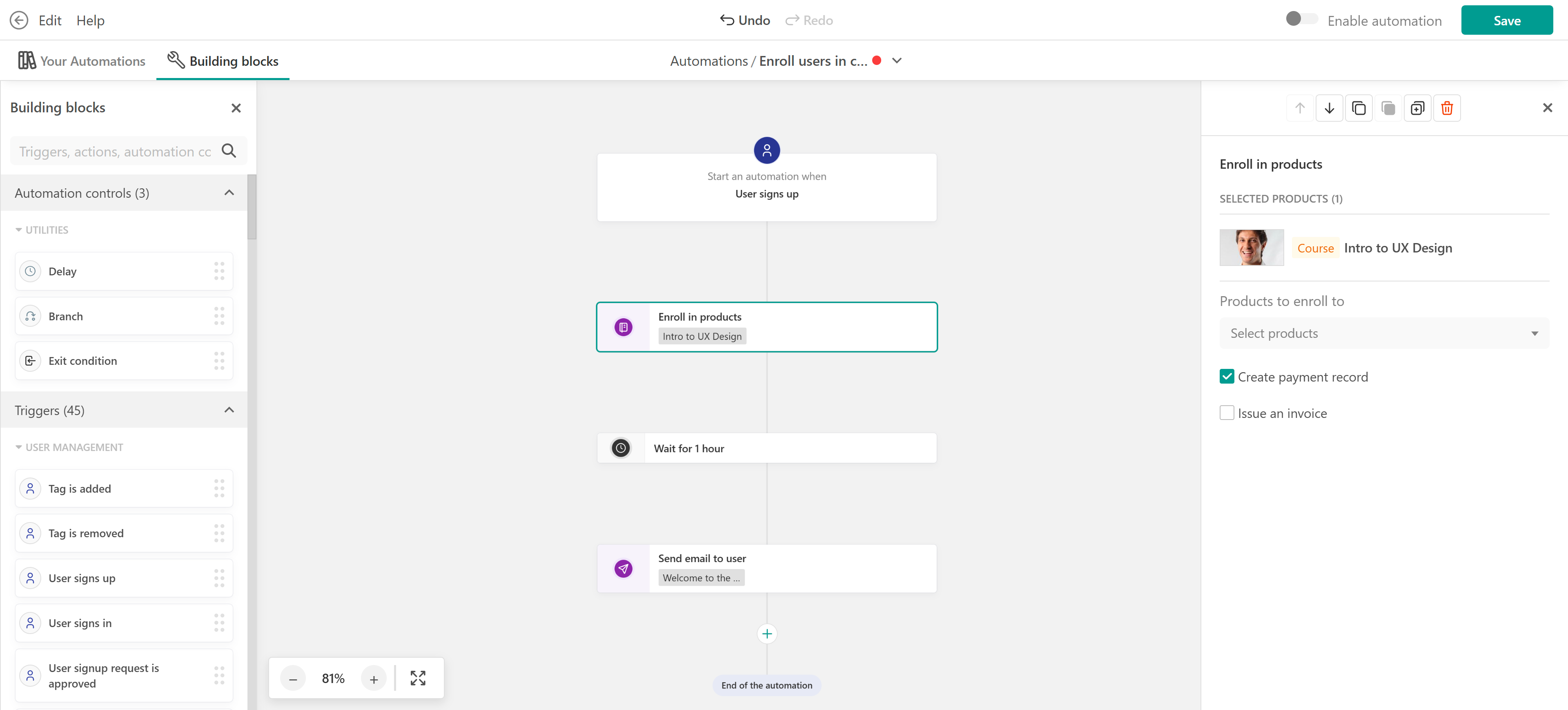
Tag users on signup
Use this automation to segment users based on how or when they registered.
- Trigger: User signs up
- Action: Add tag
- Condition (optional): Registration date or source
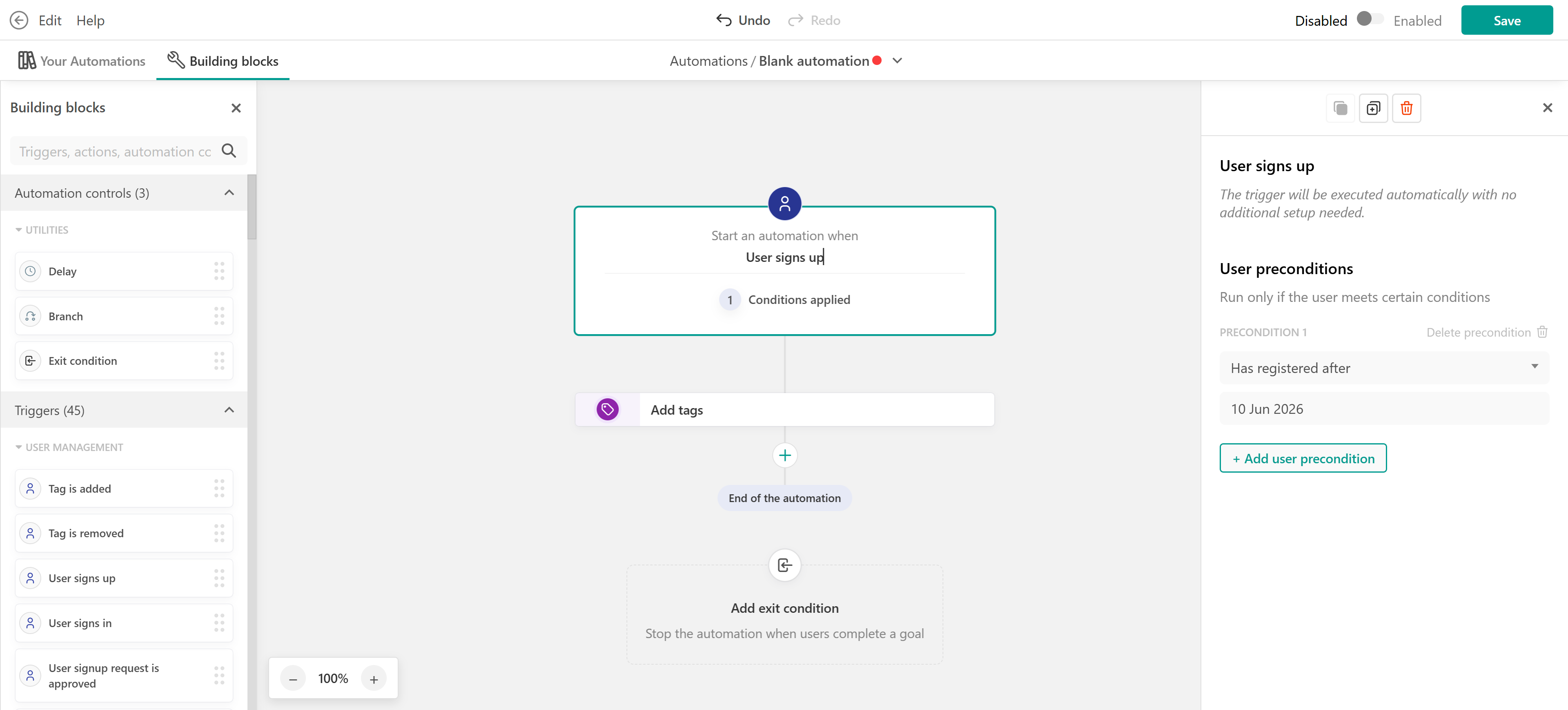
You can use the premade template “Tag users on signup” or customize it further based on your segmentation needs.
Offer a bonus course
In this scenario you can reward learners with additional content after enrollment.
- Trigger: User is enrolled in a course
- Delay: Wait for X days
- Action: Enroll in another course
Adding a delay allows you to introduce the bonus content at the right time, instead of overwhelming users immediately.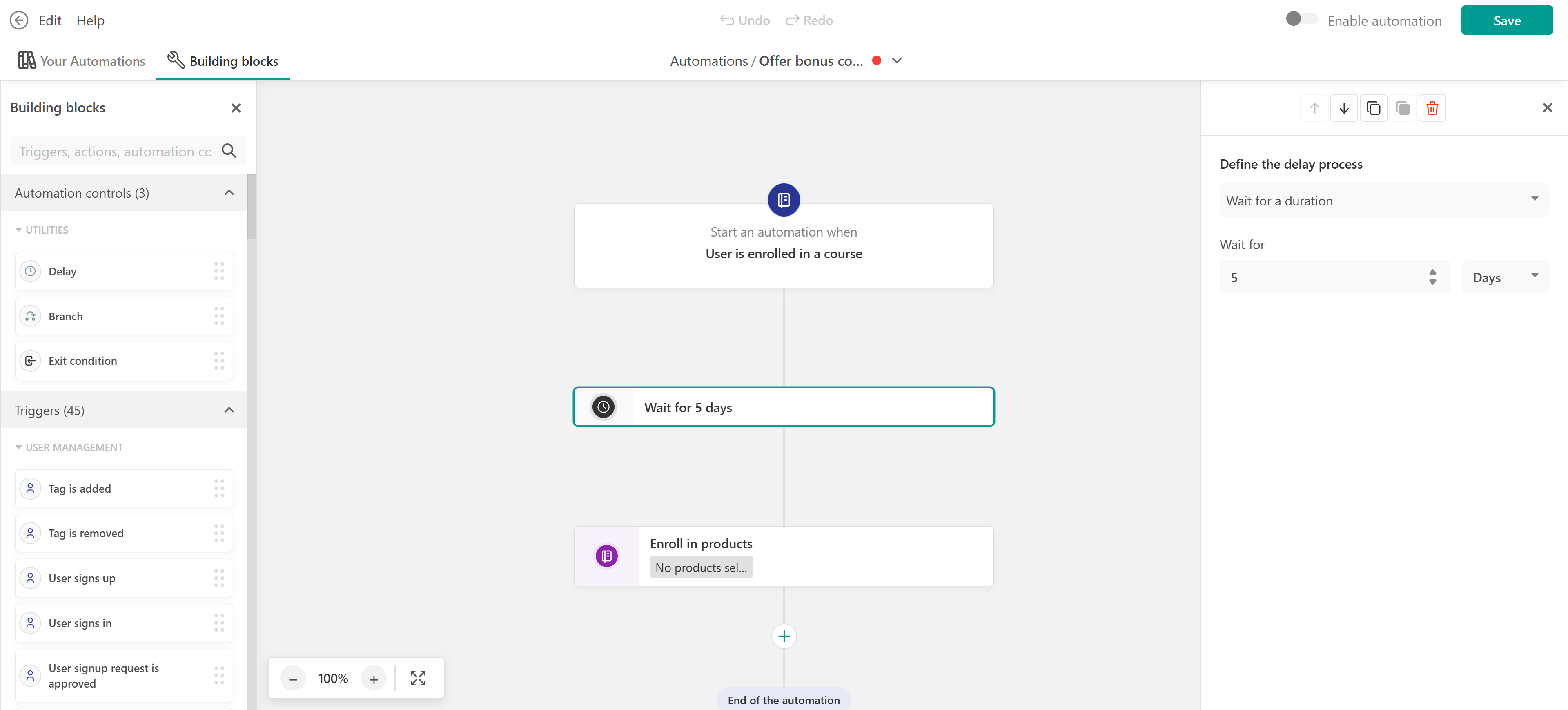
Re-engage inactive users
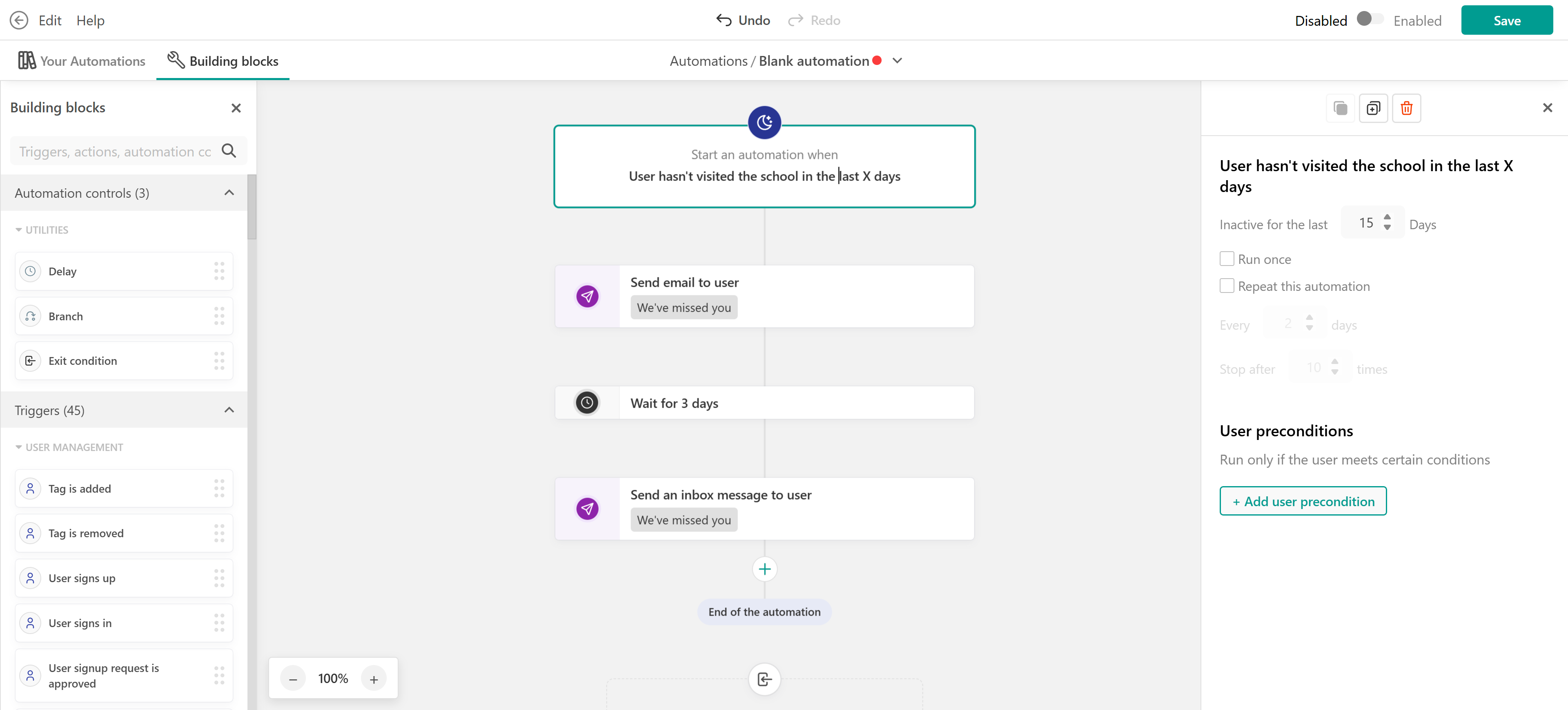
With this one you can bring learners back when they engaging with your school or products.
- Trigger: User hasn’t visited school or course in X days
- Action: Send email or notification
In this case you can also create a follow-up sequence using delays. Delays can be used for this case and the automation will look like this.
- Send a reminder email
- Wait a few days
- Send a second reminder
Add users to a private space
When a user is enrolled in a course, you can automatically add them to a private space in your community. This is a great way to give learners access to discussions, updates, or peer interaction related to that course. The automation could be:
- Trigger: User is enrolled in a course
- Action: Add to space
This helps you keep community access aligned with course enrollment without any manual work.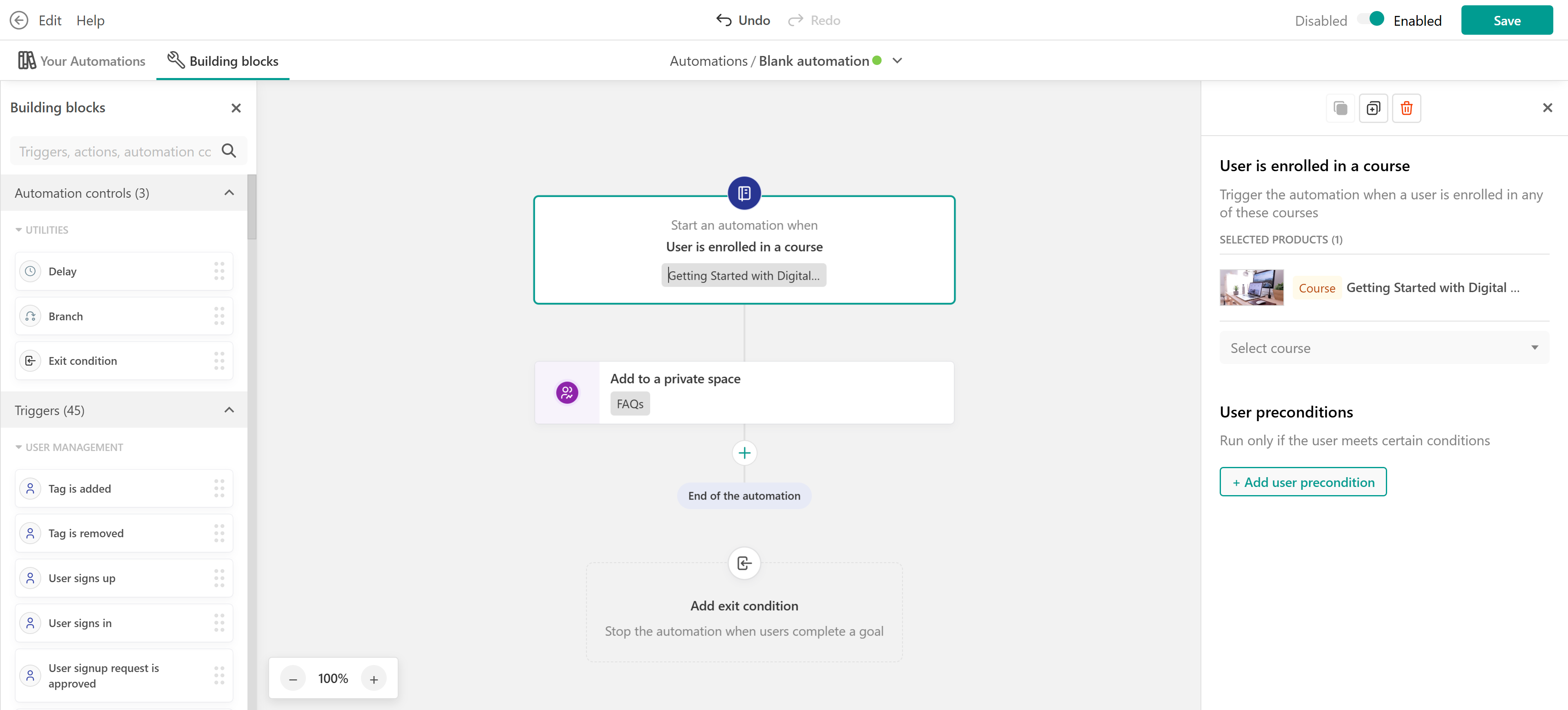
Advanced use cases
These examples combine lifecycle events, delays, branches, and exit conditions to create more targeted workflows.
Remind learners about an upcoming certificate expiration
Use Automations to notify learners before a certificate expires and give them time to take the required action.
- Trigger: Relevant certificate expiration trigger
- Action: Send renewal reminder
- Delay: Wait for a defined period
- Branch: Has the learner completed the required training?
- Yes → End the reminder sequence
- No → Send a follow-up reminder
- Exit condition: Stop when the learner completes the required training or earns the new certificate
If the learner needs to repeat the course to renew their certification, configure Retraining for the course using Certificate expiry. Retraining manages the new training cycle, while Automations can support the process with reminders and other follow-up actions.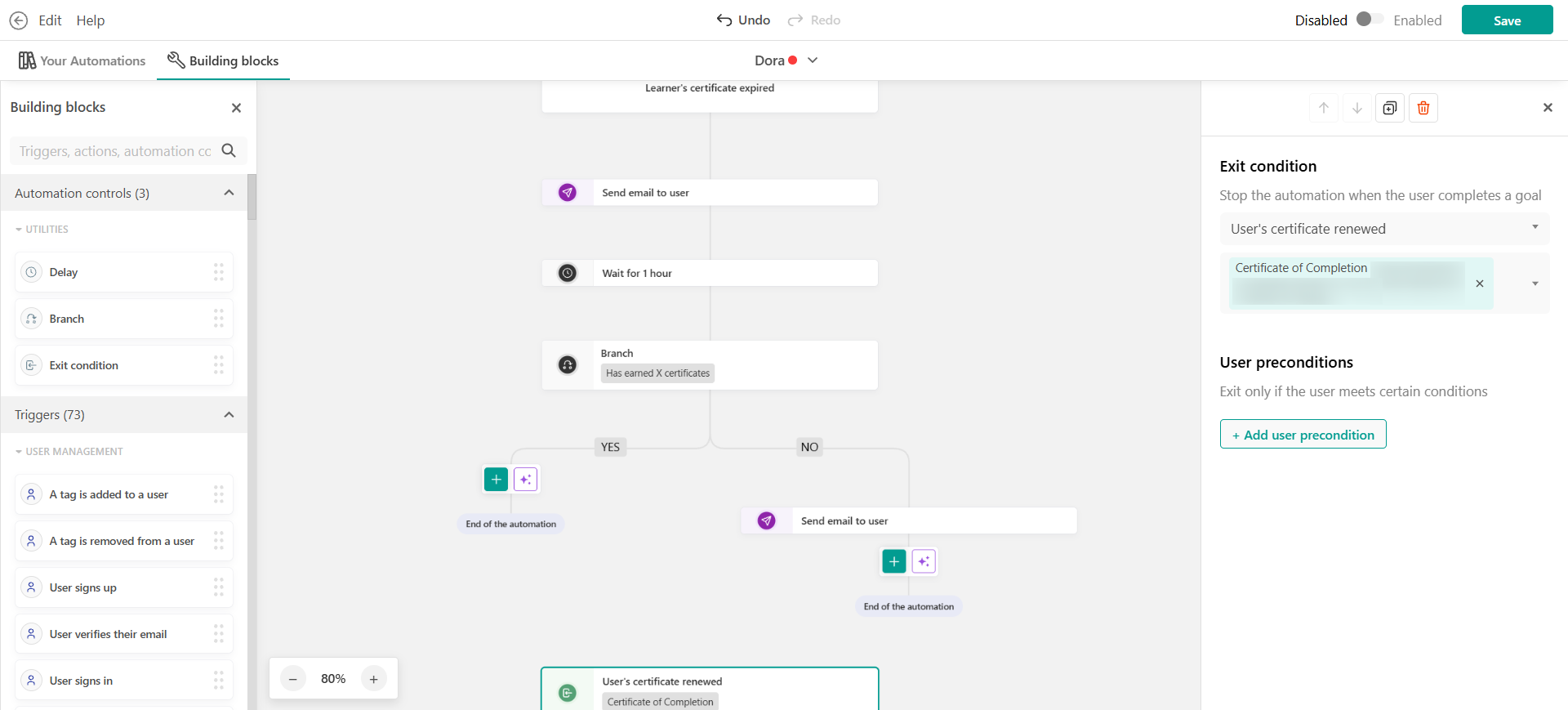
Onboarding drip sequence
Guide new learners through their first days with a structured onboarding flow instead of a single email.
- Trigger: User is enrolled in a course
- Action: Send welcome email
- Delay: Wait 2 days
- Action: Send reminder email
- Delay: Wait 4 days
- Branch: Has the user completed at least one unit?
- Yes → Send encouragement email
- No → Send helpful tips
- Exit condition: Stop the automation if the user completes the course
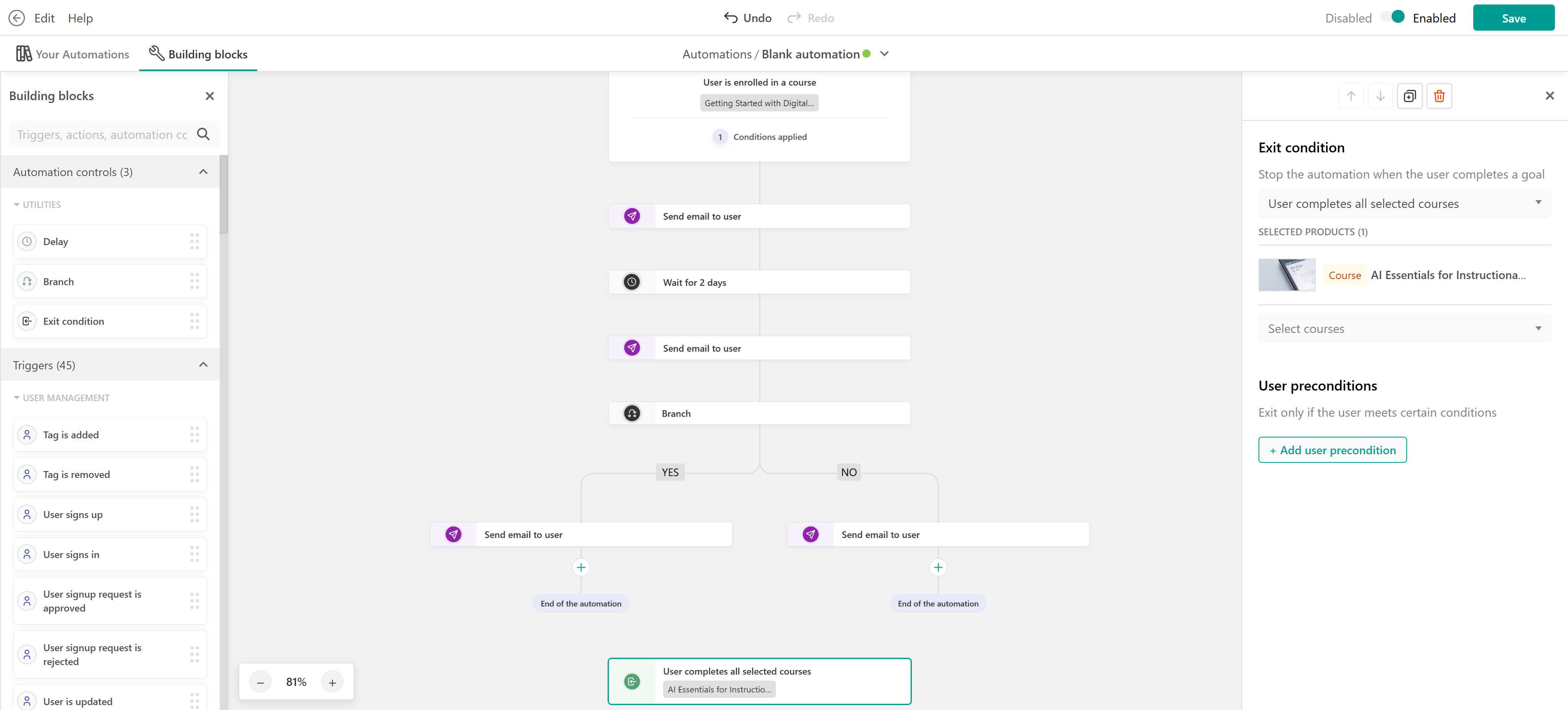
This helps you improve early engagement without overwhelming users.
Certification renewal with Retraining and Automations
For certifications that require learners to repeat training, use Retraining to manage the recertification cycle and Automations for additional communication.
In the course's Retraining settings, you can:
- Select Certificate expiry as the retraining trigger.
- Allow learners to start retraining before their certificate expires.
- Configure when the new training cycle starts automatically.
- Define what learners need to complete again.
- Choose which progress is retained or reset.
- Require another purchase, if needed.
You can then use Automations to send reminders before or during the renewal process and stop follow-up messages once the learner completes the required training. For example:
- Trigger: Relevant certificate or training-cycle trigger
- Action: Send renewal reminder
- Delay: Wait for a defined period
- Branch: Has the learner completed the current training cycle?
- Yes → End the automation
- No → Send a follow-up reminder
- Exit condition: Stop when the learner completes the required training
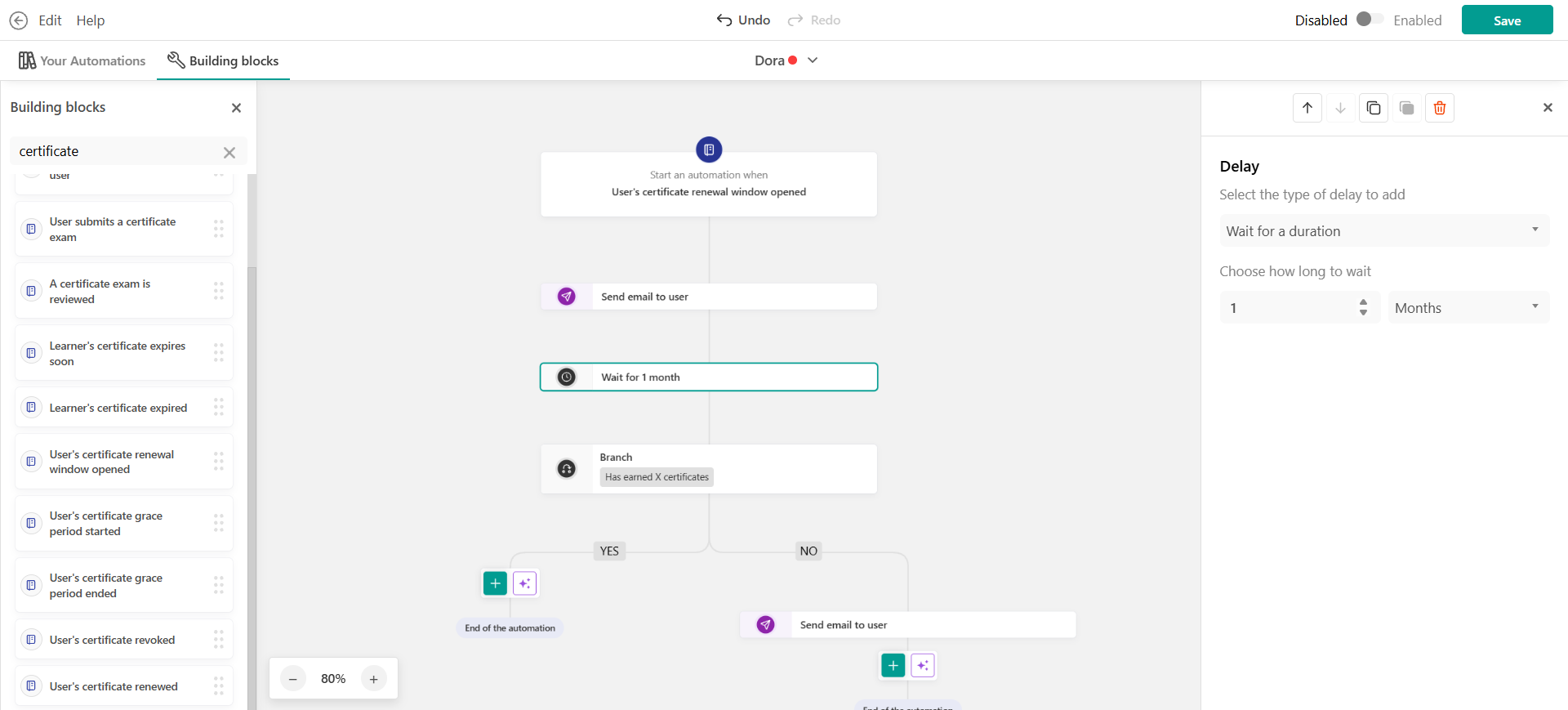
This keeps the responsibilities clear: Retraining manages the training cycle, while Automations support the learner with communication and additional workflow actions.
Inactivity re-engagement sequence
Win back inactive learners with a gradual series of reminders.
- Trigger: User hasn’t visited school or course in X days
- Action: Send reminder email
- Delay: Wait 7 days
- Branch: Has the user returned?
- Yes → Send welcome back message
- No → Send stronger reminder
- Delay: Wait 7 more days
- Action: Send final email with incentive
- Exit condition: Stop the automation if the user completes the course or signs-in
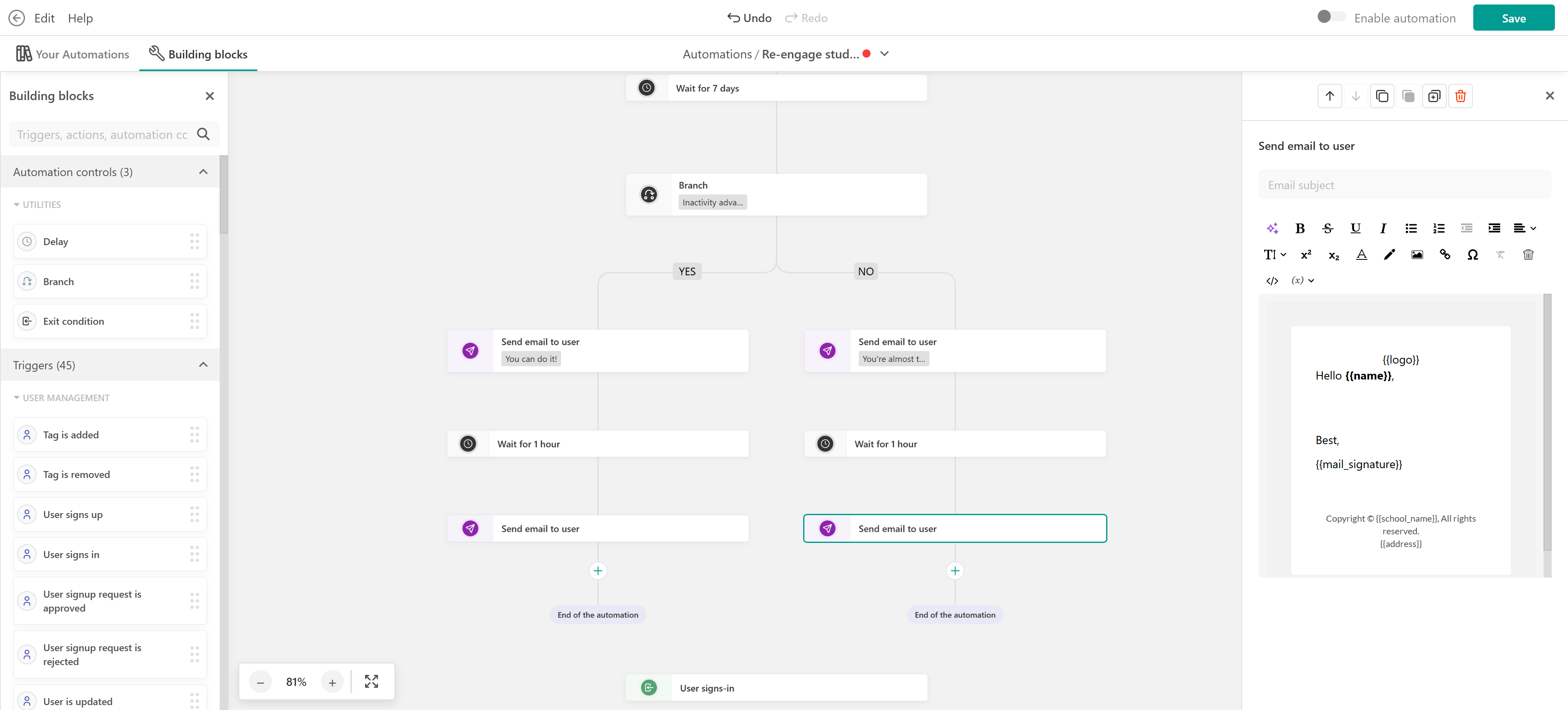
In this case, you keep the communication relevant without over-messaging.
Post-completion upsell
Promote advanced courses after completion—only when relevant.
- Trigger: User hasn’t visited school or course in X days
- Action: Send reminder email
- Delay: Wait 7 days
- Branch: Has the user returned?
- Yes → Send welcome back message
- No → Send stronger reminder
- Delay: Wait 7 more days
- Action: Send final email with incentive
- Exit condition: Stop the automation if the user completes the course
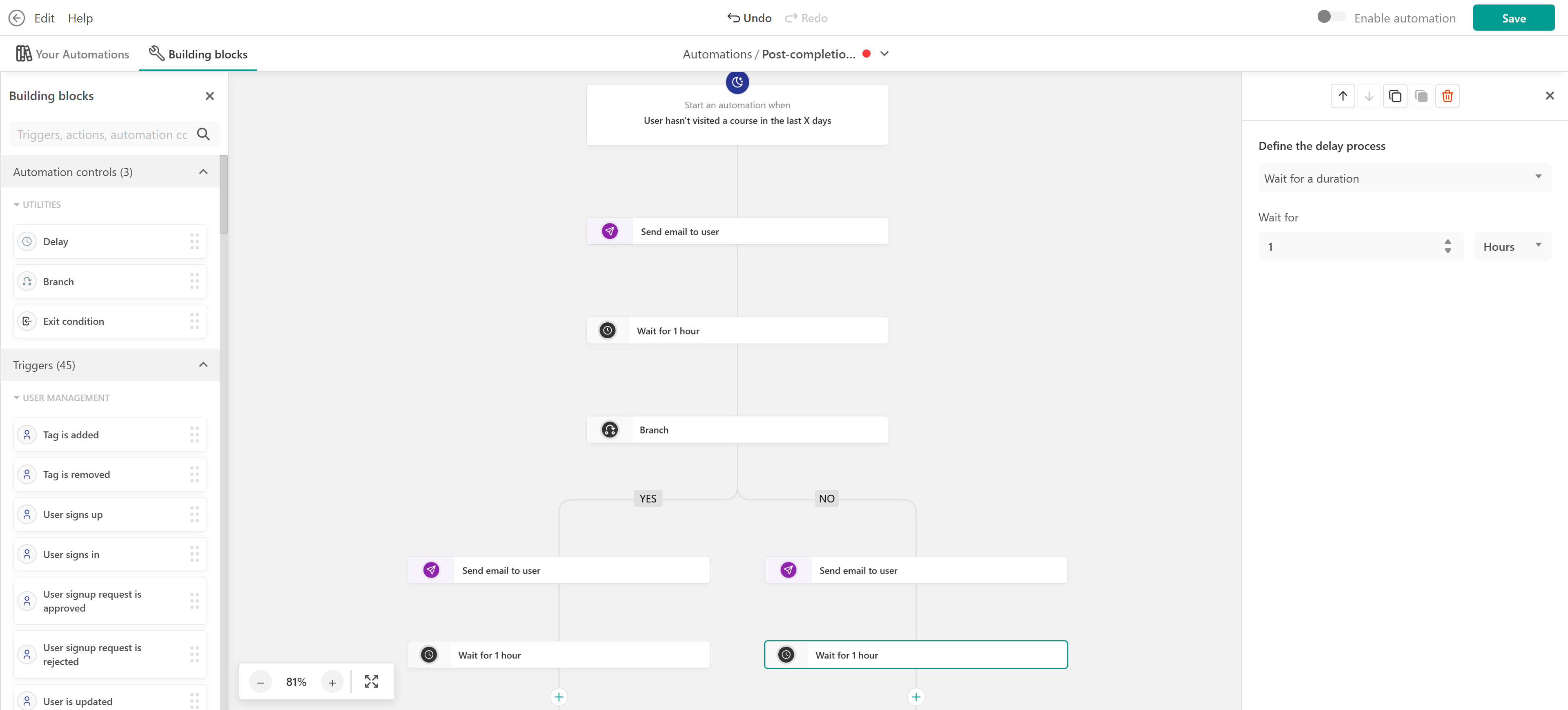
With this automation you can increase conversions while avoiding irrelevant offers.