
In this article, we explore the capabilities of AI (Artificial Intelligence) assistant in the realm of feedback provision. Discover how to harness the full potential of AI technology to deliver impactful and effective feedback in assessments.
When do assessment responses go to the Review Center for grading or feedback
1. When creating a graded exam, you can insert questions that can be automatically graded and a score to be provided on the spot.
If Text Assignment, File Assignment, or Record Video/Audio types of questions are added to an Exam Learning activity, the Assessments will be moved to the Review Center for grading. Users will see the Pending status ending screen until the Assessment has been graded.
2. When creating a non-graded exam (self-assessment), you can insert:
- Exam question types such as Text Assignment, File Assignment, or Record Video/Audio.
- Form question types such as File Upload or Record Video/Audio questions and Manual Feedback is enabled under Settings.
These assessments can be located in the Review Center for admins or instructors to provide feedback manually.
Providing feedback with AI Assistant in the Review Center
1. Navigate to Courses & programs → Review Center, or visit your desired course and click on Unreviewed/ Ungraded.
2. Choose the specific assessment you wish to review and click on Review Assessment.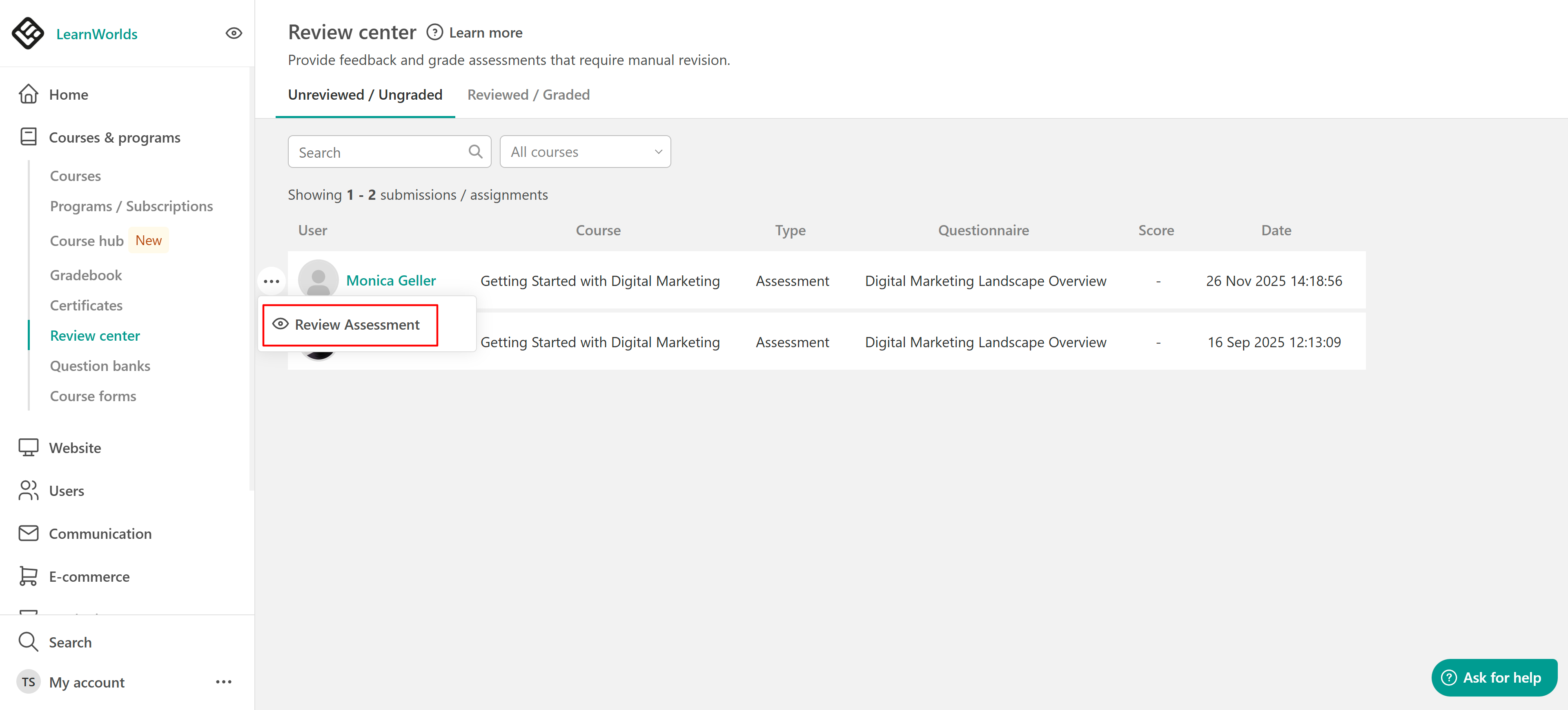
3. Under learners's answers you can find all questions and its answers.
4. Under Give Feedback, click the create feedback option to help you write your feedback. You can also use Dictation to enter your prompt. Select the microphone icon in the AI prompt area and speak instead of typing.
You can either enter a prompt in the chat box or use it to refine text you’ve already written. AI can help you improve clarity, adjust length, and more. Simply describe what you’d like to do and press Enter.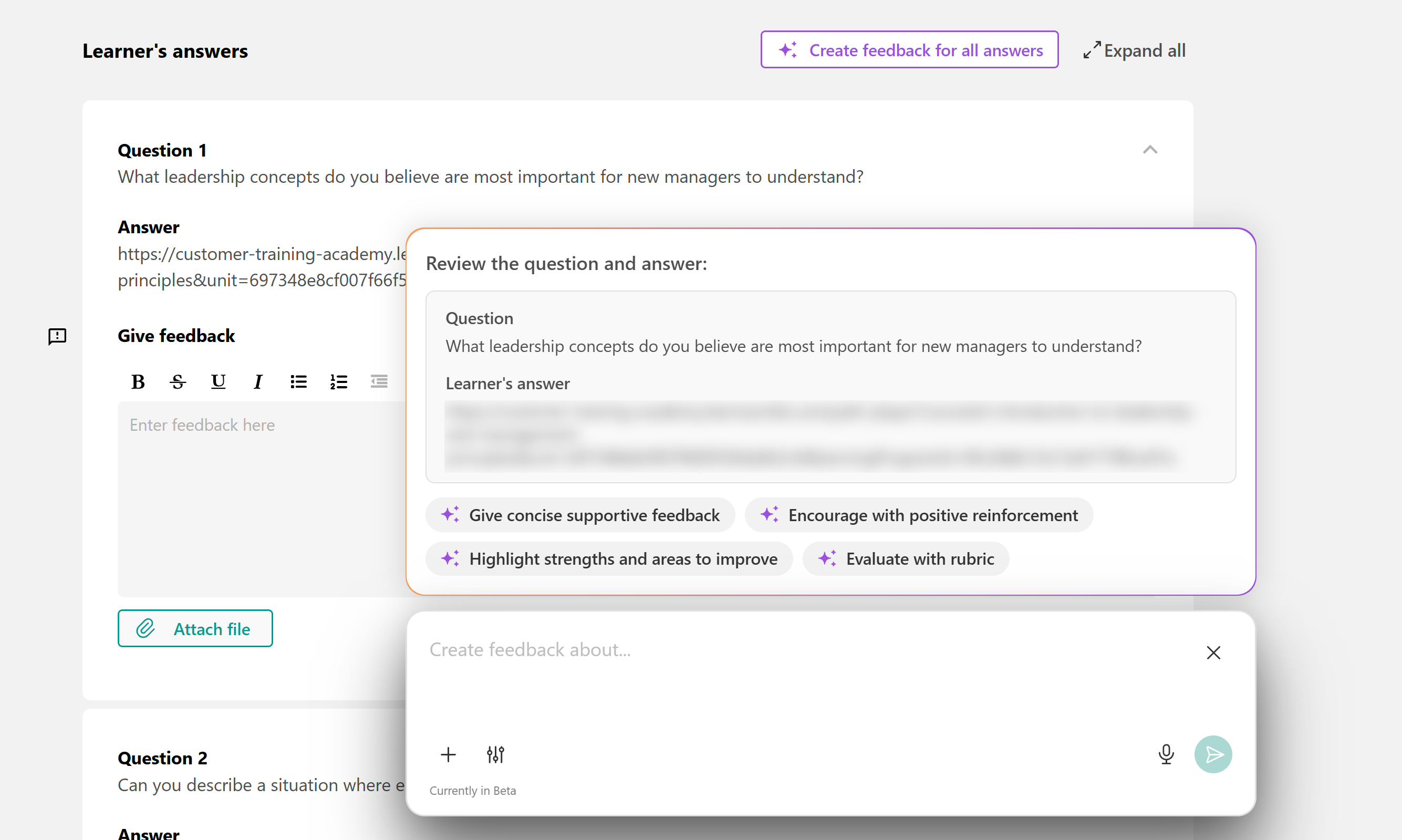
If you are using a non-graded assessment with the manual feedback option enabled, it will also appear in the Review Center. Click on Review Self-Assessment to provide your feedback.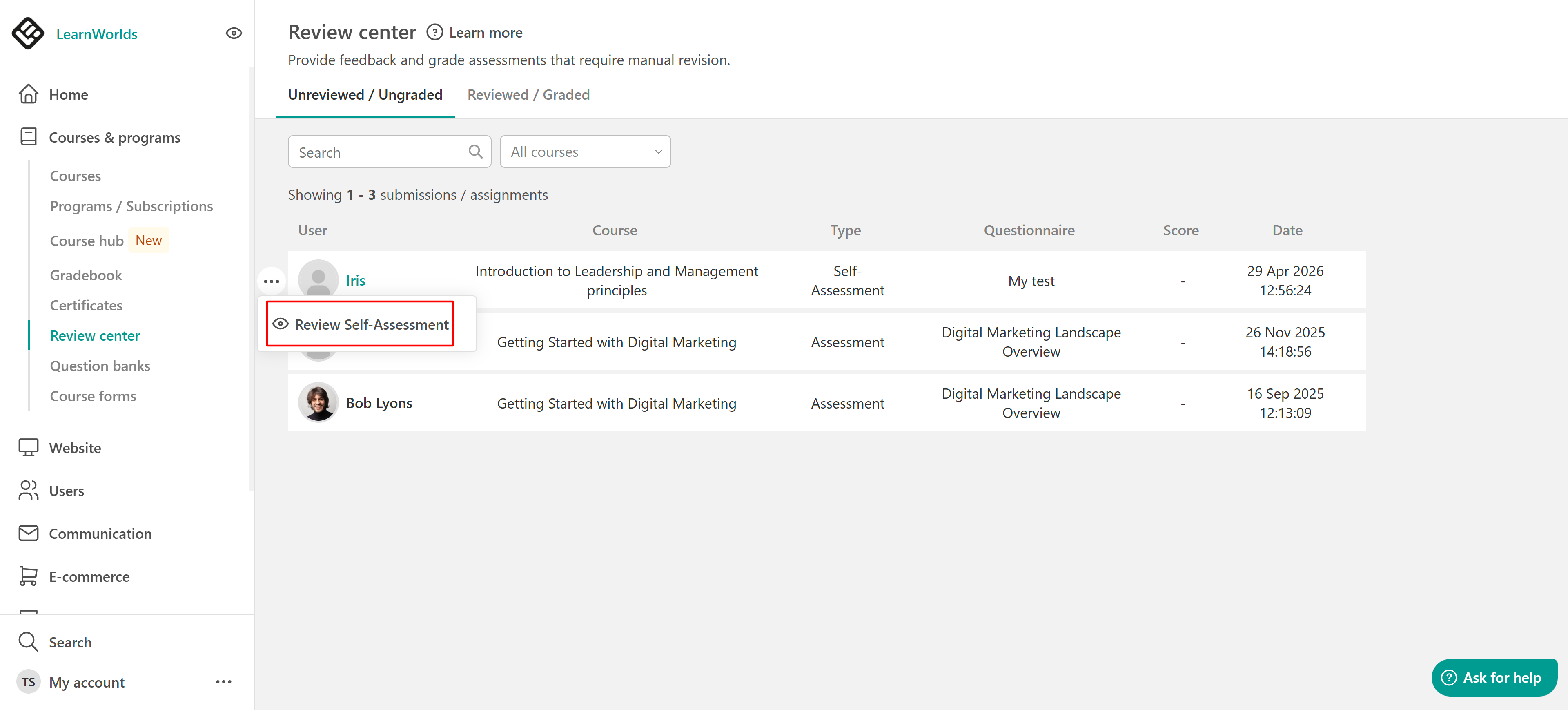 Here as well, you can use the create feedback button to help you write your feedback.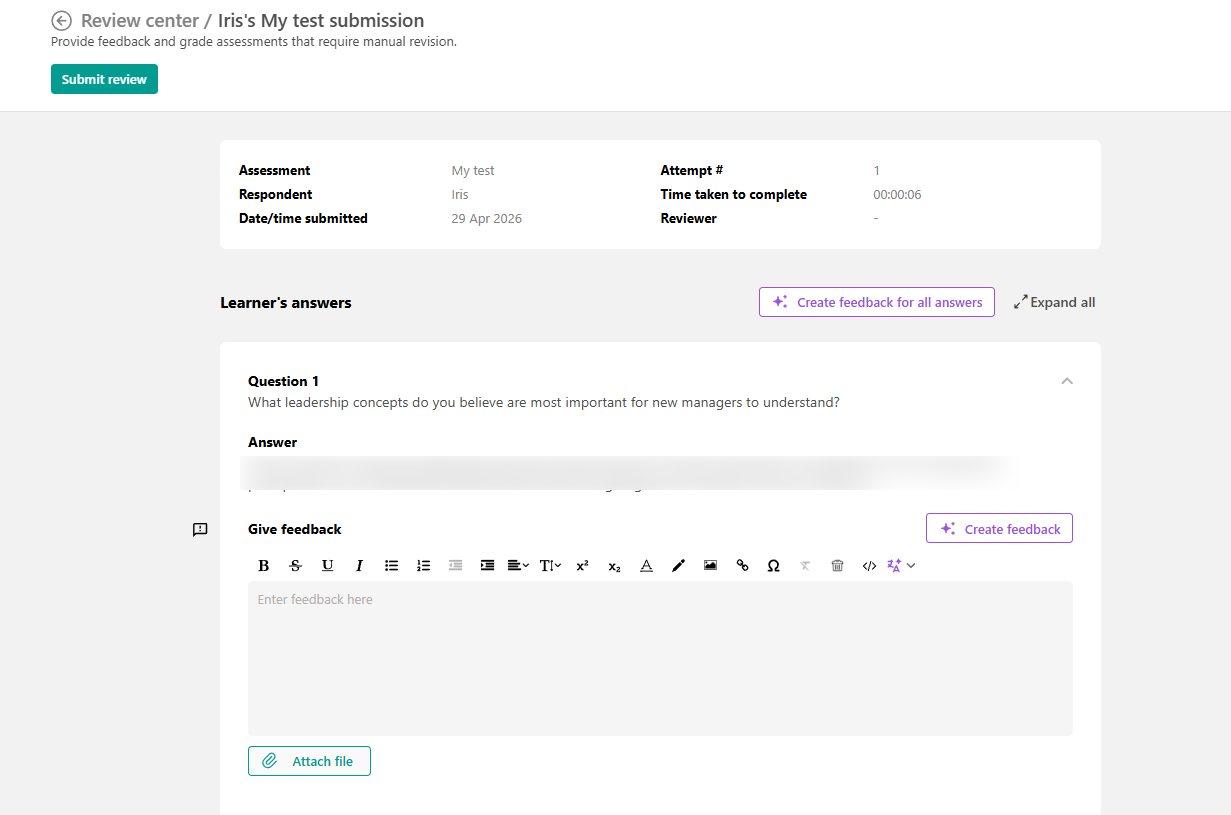
In both cases, you can use the Create feedback for all answers option. The system will review the entire exam and generate feedback for all included questions, rather than providing feedback for just a single question.
Automatic feedback
When creating non-graded or graded exams activities and utilizing the AI assistant, the feedback option is automatically activated, and you can manually edit it. However, you can deactivate it if desired. Enabling this feedback option ensures users receive instant feedback upon submitting their answers in the course player.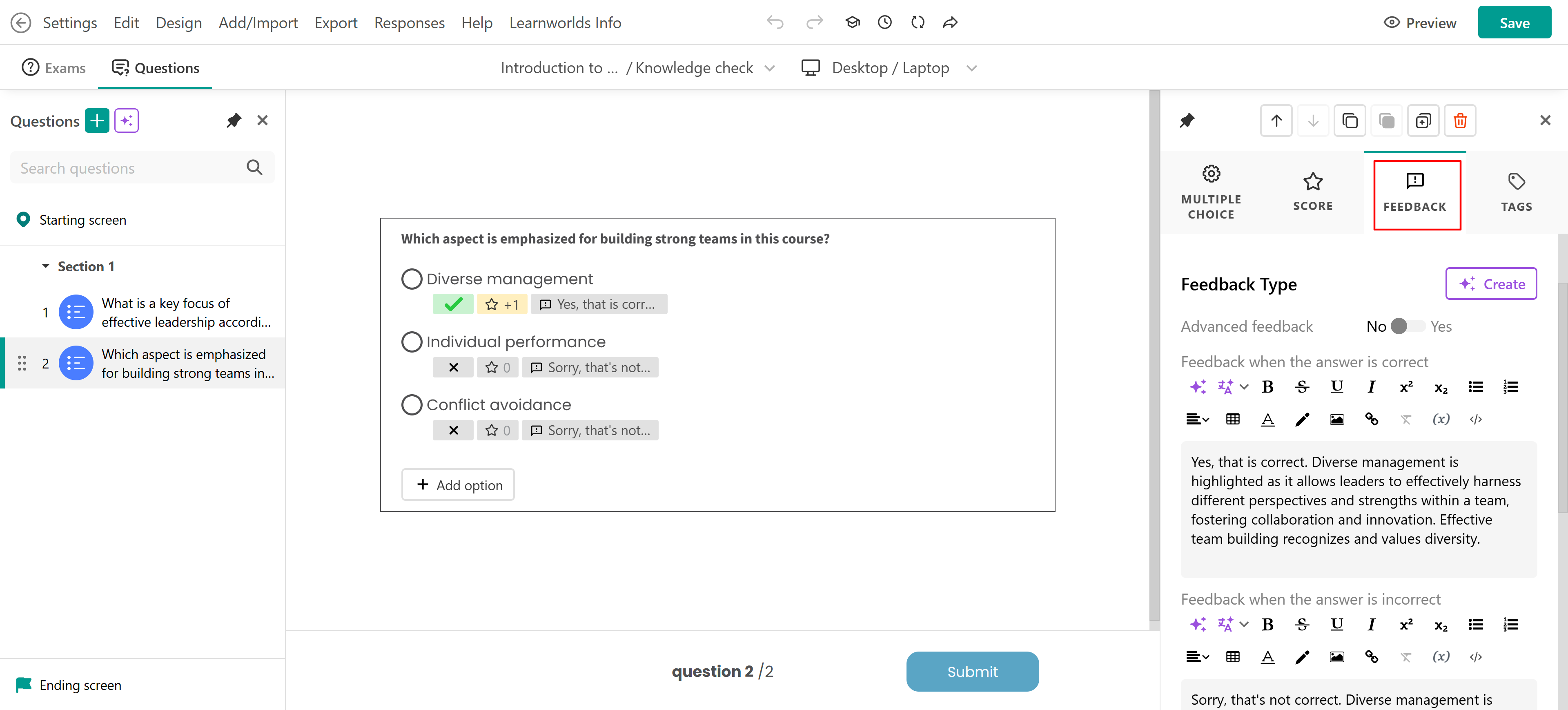
Another option is to use the AI-Enhanced questions. With this approach, users submit their responses, which are then automatically graded by AI according to the guidelines you provide.
Responsible use of AI
To make the most of this advanced technology, it's important to keep ethical considerations and limitations in mind.
Navigate Ethical Considerations: When using AI to assist with any topic, consider the ethical aspects involved. Always verify suggestions before implementing them.
Double-check Accuracy and Reliability: Cross-reference with trustworthy sources to ensure the information provided is accurate and relevant to your topic.
Put Privacy and Security First: Be conscious of the data you share while interacting with AI.
Be Aware of AI-based Assistance Limitations: Recognize that AI might not have all the answers for every topic, so use it just as a supportive companion.
The Perfect Balance: Foster a productive partnership between AI and your own knowledge when exploring any subject. Let AI spark new ideas and possibilities while trusting your creativity and intuition for your final decisions.