
User Groups are an all-around tool that can help you optimize internal training initiatives, finely segment your audience to provide tailored user experiences, and unlock a world of possibilities! Adding users to groups is a breeze, and you can even automate this process using predefined rules to save you time and effort.
Upon setup, all users meeting the specific requirements will be added to the created group. You can:
- Group users and enroll them in specific courses.
- Create a User Group Manager with extended management permissions and assign a user group to them. They can manage the product they are assigned to, which consists of a group of students and, optionally, courses.
- Personalize the user experience by providing a custom after-login page for each group.
Your customers will be able to manage the users they add to the user groups using the User group Manager Role. In this article, we will learn more about how to create user group managers.
User group management role permissions
The available permissions that can be assigned to the User Group Management roles are:
- Edit course layout
- Create and manage course content
- View user details
- View user tag
- Manage users: create a user, user bulk actions, perform basic and advanced user actions, update user progress, delete a user, assign & remove tags on users, create tags while tagging users.
- View user groups & multiple seat offerings
- View user groups and group members
- Retain enrollments when removing group & seat members
- View user analytics
- Manage user segments
- Export user analytics
- View Activity Matrix
- Manage scheduled reports
- View activity history
- View and manage the gradebook
- View and manage certifications
- View and manage the review center
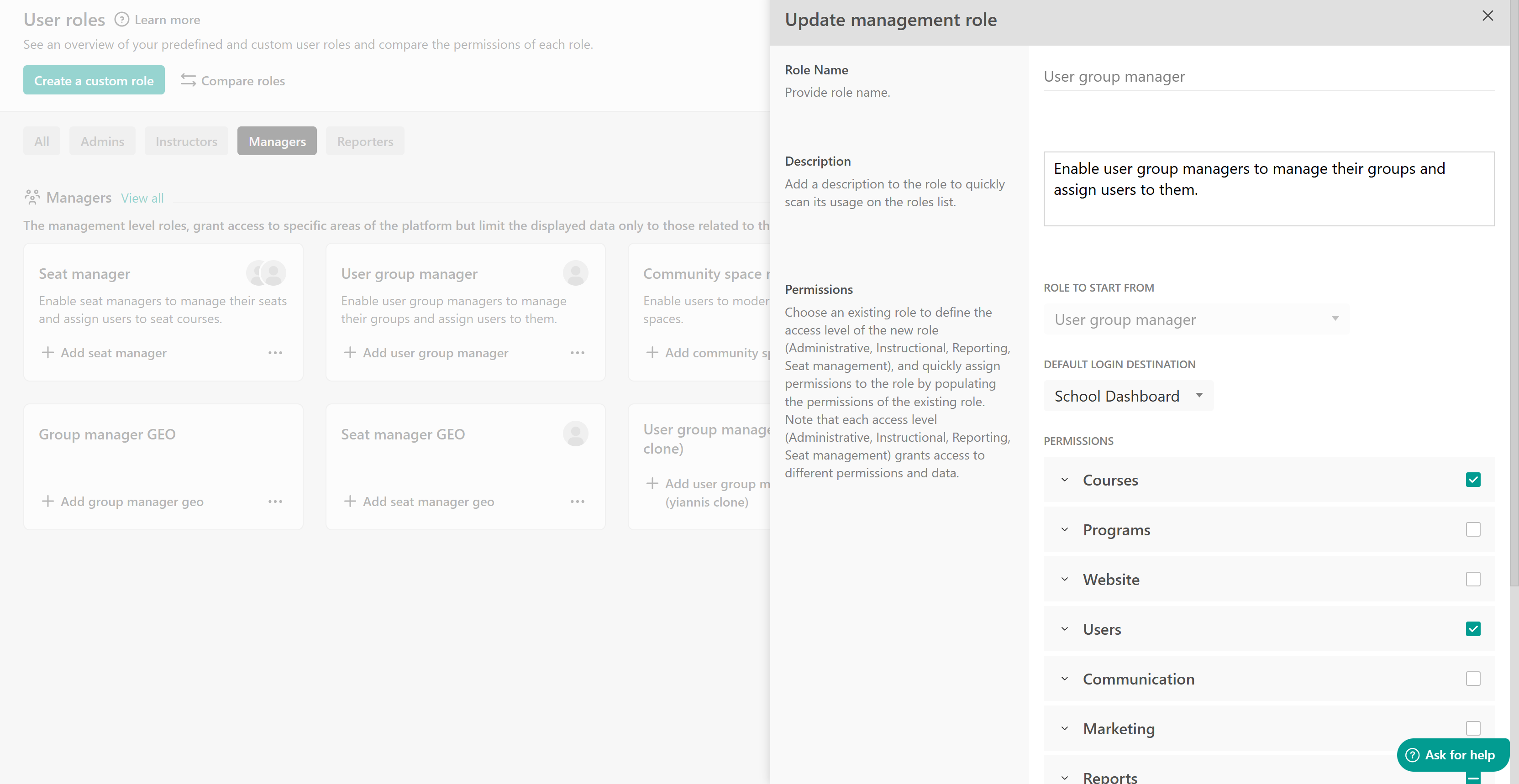
We provide one predefined user group manager role; however, it is also feasible to create custom roles with the aforementioned permissions.
Admins can also define the Default login destination for users, choosing whether they are redirected to the Dashboard or to the after-login page upon sign-in. If an After Login rule is configured using tags and a manager has a matching tag, they will follow the defined After Login flow.
Create a user group management role
There are different ways to create a new User group Management role:
Navigate to Users → User Roles:
a. Create a custom role and choose the role to start from.
b. Hover over the User group Manager (predefined role), and click on create one based on the specific role.

Assign a user group manager role
There are multiple ways to assign the User Group Manager role to a user.
Navigate to Users → User Roles and click on Managers and +Add user group/t manager to fill in the following:
- Username
- Role (choose a User Group management role)
- User groups (Choose the user groups you wish to assign)
- User tags
- Sign-up validation rules
a. Click on +Add user and assign the User Group Manager Role in the User role field.
b. Hover under the three dots next to an existing user, choose Edit User, and assign a User group Manager role in the User role field of the Update user panel.

Simulate the user group manager role
You can check the aspects of the platform that the specific reporting role can view without having access to the actual data, by hovering over the role on the User Roles page and clicking on the Simulate option.
