
User fields are pieces of information stored in a learner's profile. This feature brings value by helping you collect and organize learner data, personalize their experience, and use this data across sign-up forms, emails, reports, and automations.
There are two types of user fields:
- System Fields: These are built-in fields such as Email, Password, and Name. Some are always required, while others may become required depending on your school settings.
- Custom User Fields: These are fields you create to gather extra information, like Department, Location, or Job Title.
Use cases
- Collect a learner's job title or department during registration.
- Personalize emails with fields like {{user.Location}}.
- Capture location data to offer region-specific content
- Trigger automations based on user field values.
In this article, we will learn how to find and manage user fields, use them in sign-up forms, set permissions, apply them across your school, and follow best practices.
Where to find user fields
You can create and manage user fields in two places:
a. Users → User Fields. Here you can view, edit, archive, or delete any field.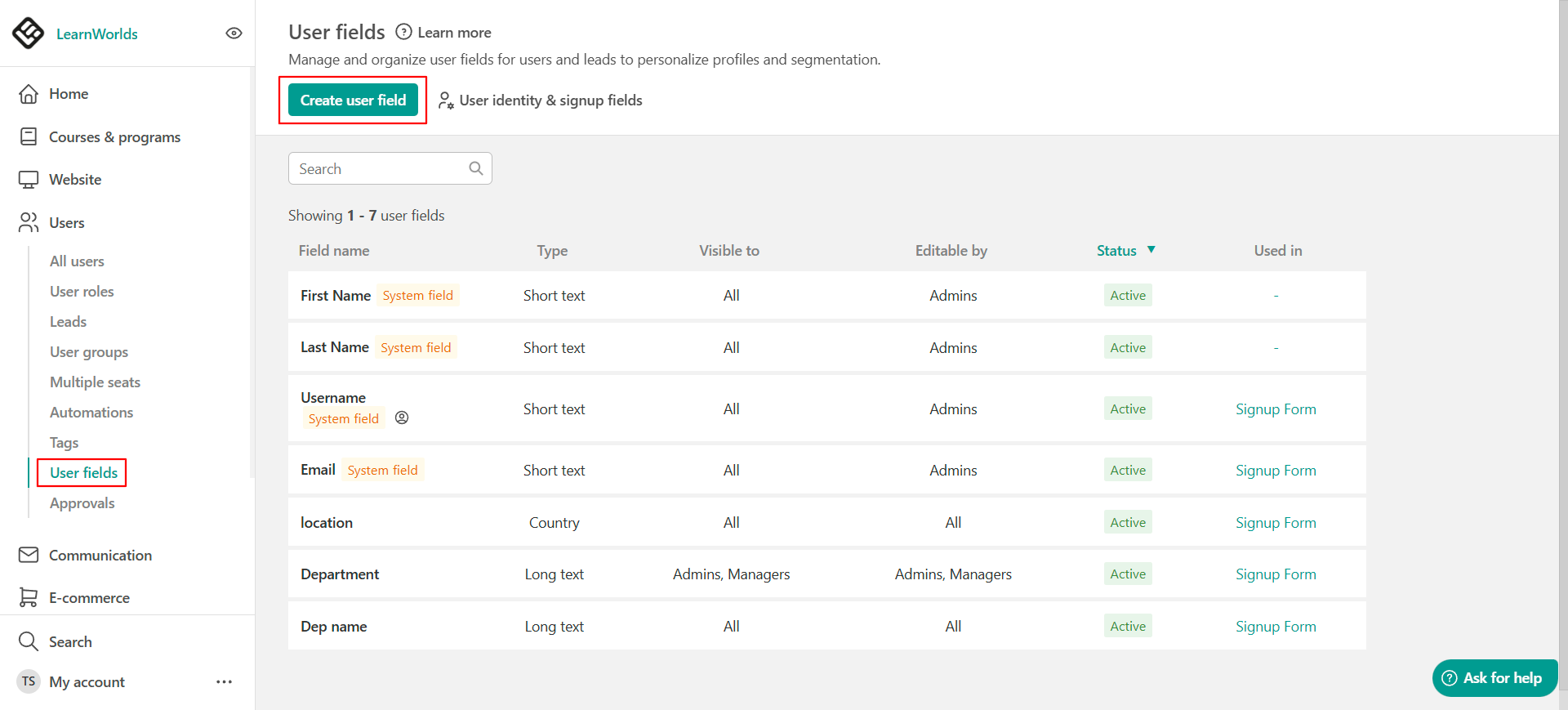
b. Website → Website Settings → Authentication → LearnWorlds. Here, you control which fields appear on your registration form.
Manage fields in the "User Fields" tab
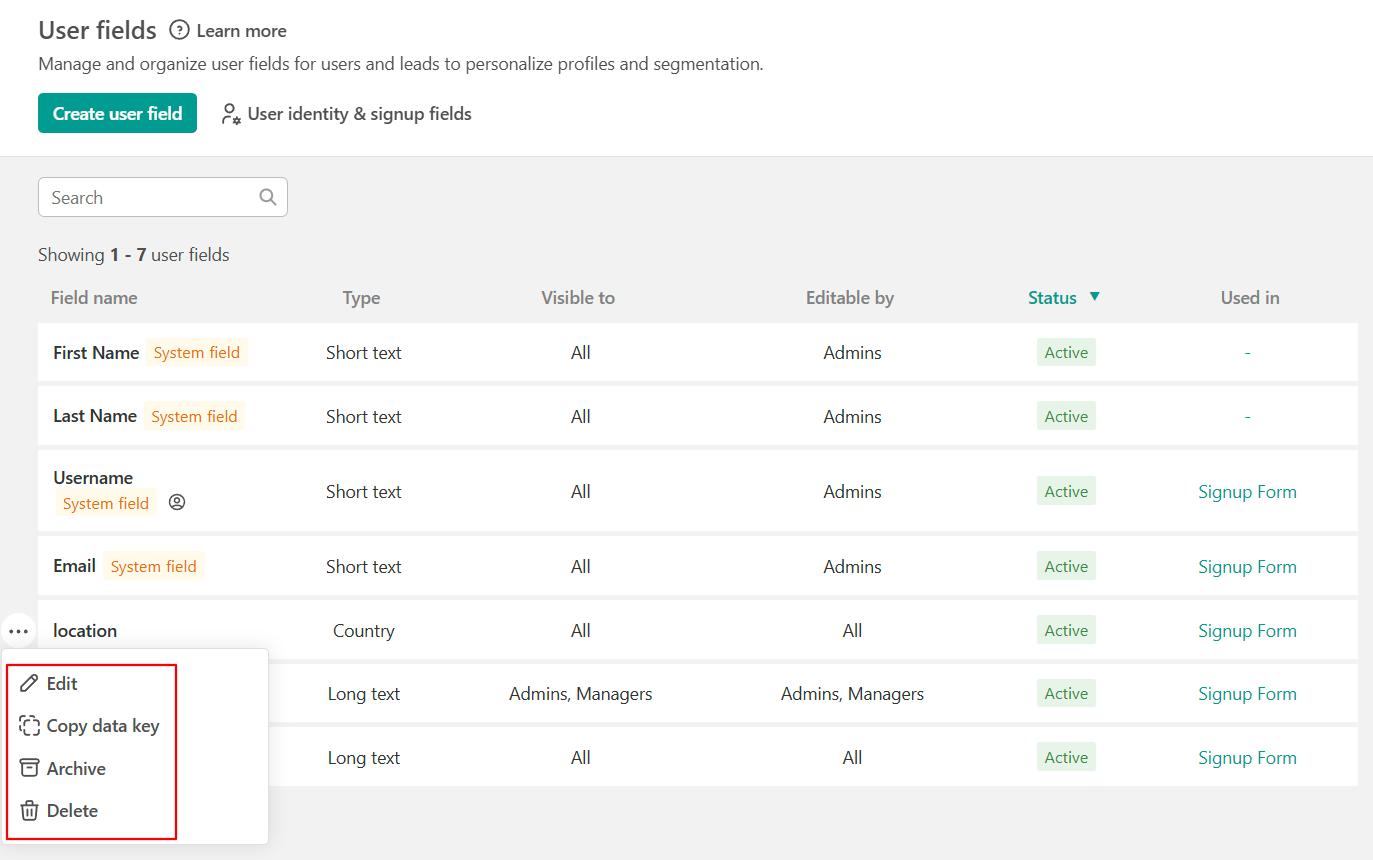
In the Users → User Fields section, you’ll find a list displaying all the user fields that have already been created. For each field, you can:
- Edit – Update the field’s settings
- Copy data key – Copy the field’s data key to use in emails, automations, or integrations
- Archive – Hide the field without deleting its data (You can restore it later if needed)
- Delete – Permanently remove the field and all related data (This action cannot be undone)
 Fields with an ID icon are used as the unique identifier for learners in your school. Check more information about the user reference here.
Add user fields to your sign-up form
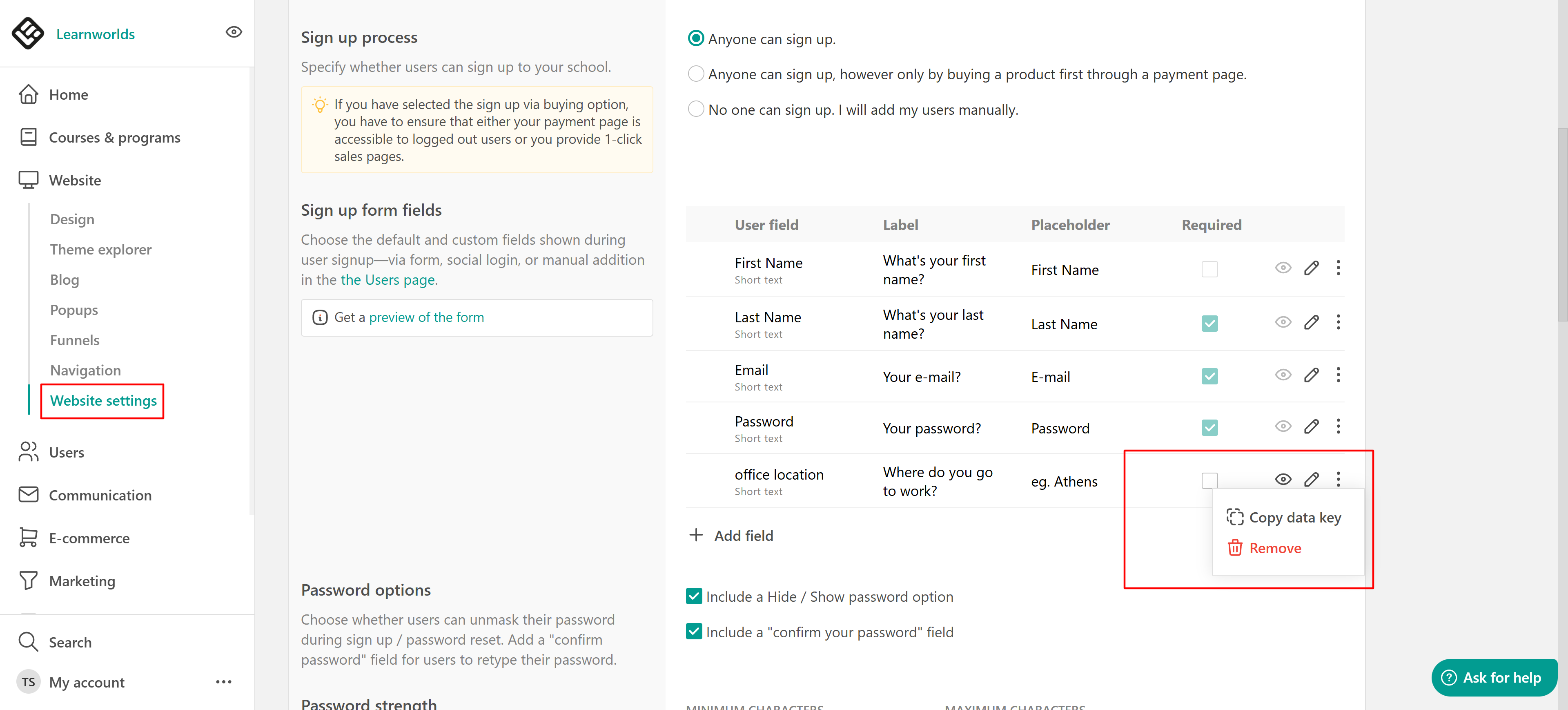
User Fields can be added to your registration form so you can collect information during sign-up. Navigate to Website → Website Settings → Authentication → LearnWorlds.
In this section, you’ll find all the fields that appear on your sign-up form. This includes the default fields, such as Email and Password, which are always required and included in the sign-up form, as well as either the First and Last Name fields or the Username option, depending on your school’s settings. 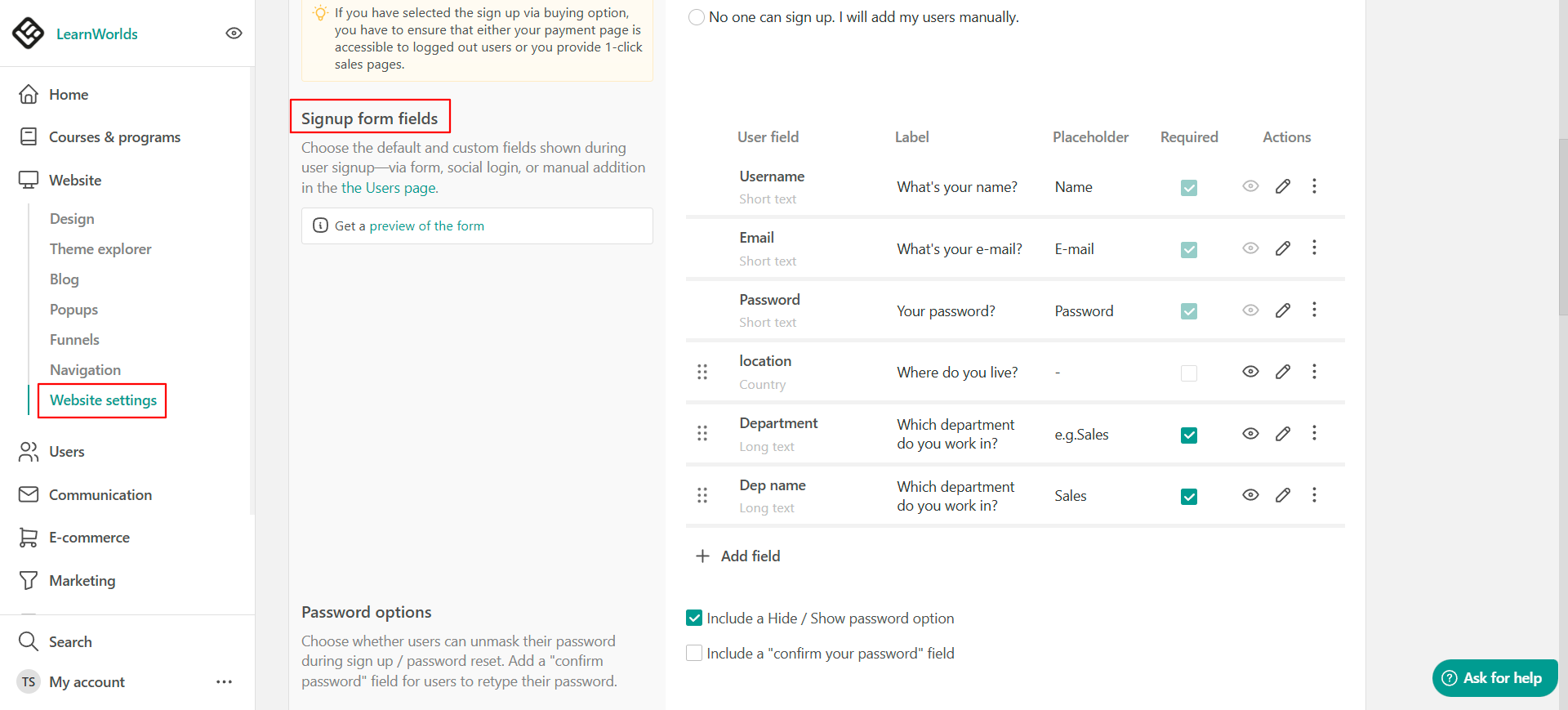
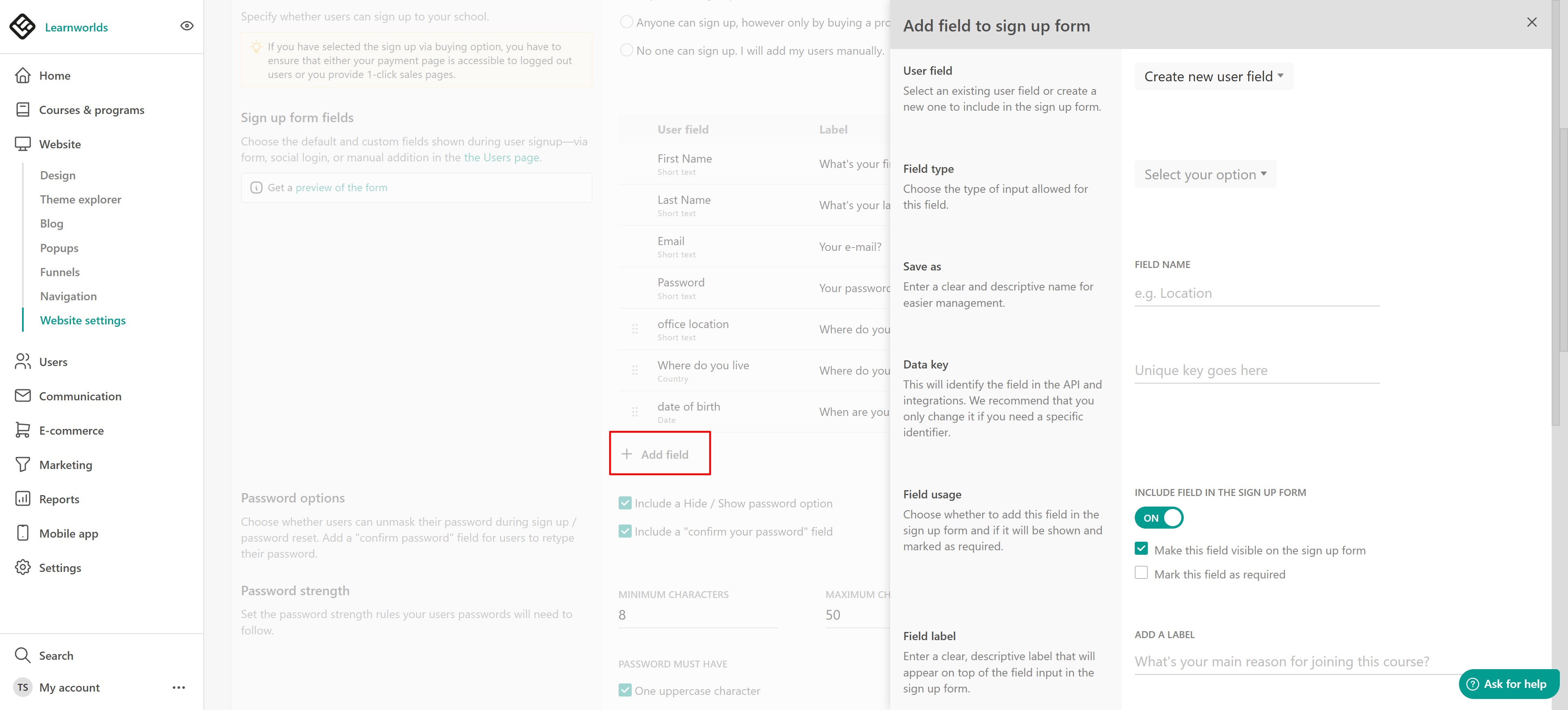
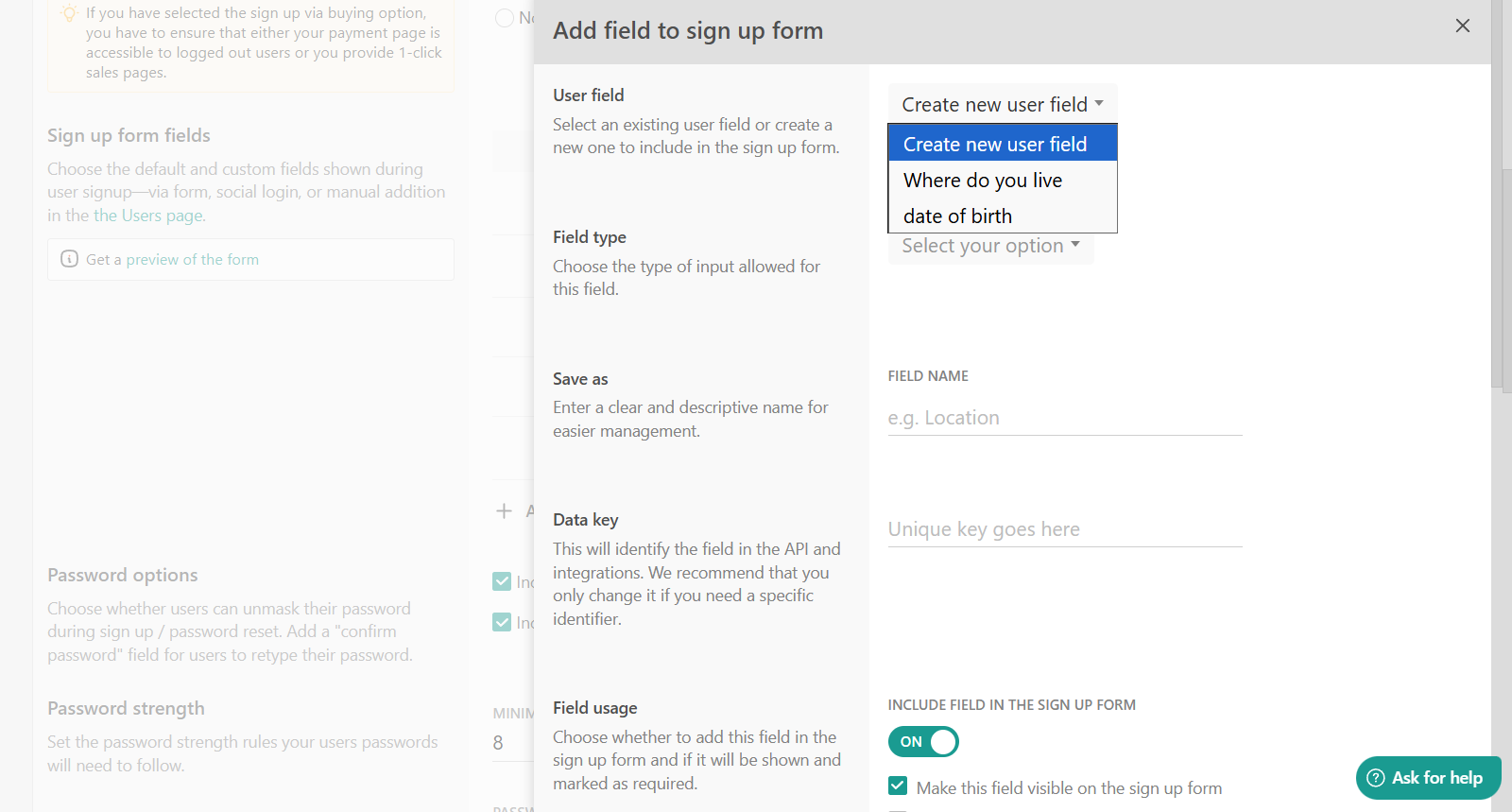
You can also add new fields using the Add field button. When you click it,
- Select an existing user field from the dropdown list or create a new user field.
- Fill in the needed details.
- Click Save.
Manage sign-up form fields
While setting up your sign-up form, you can manage the fields shown:
- Mark as Required – Check the box to make the field mandatory
- Show or Hide – Click the eye icon to toggle visibility
- Edit – Click the pencil icon to change field settings
- Copy Data Key – Click the copy icon to use in automations or emails
- Delete – Permanently remove the field and all its data. Deleting a field is permanent and cannot be undone.
Set view and edit permissions
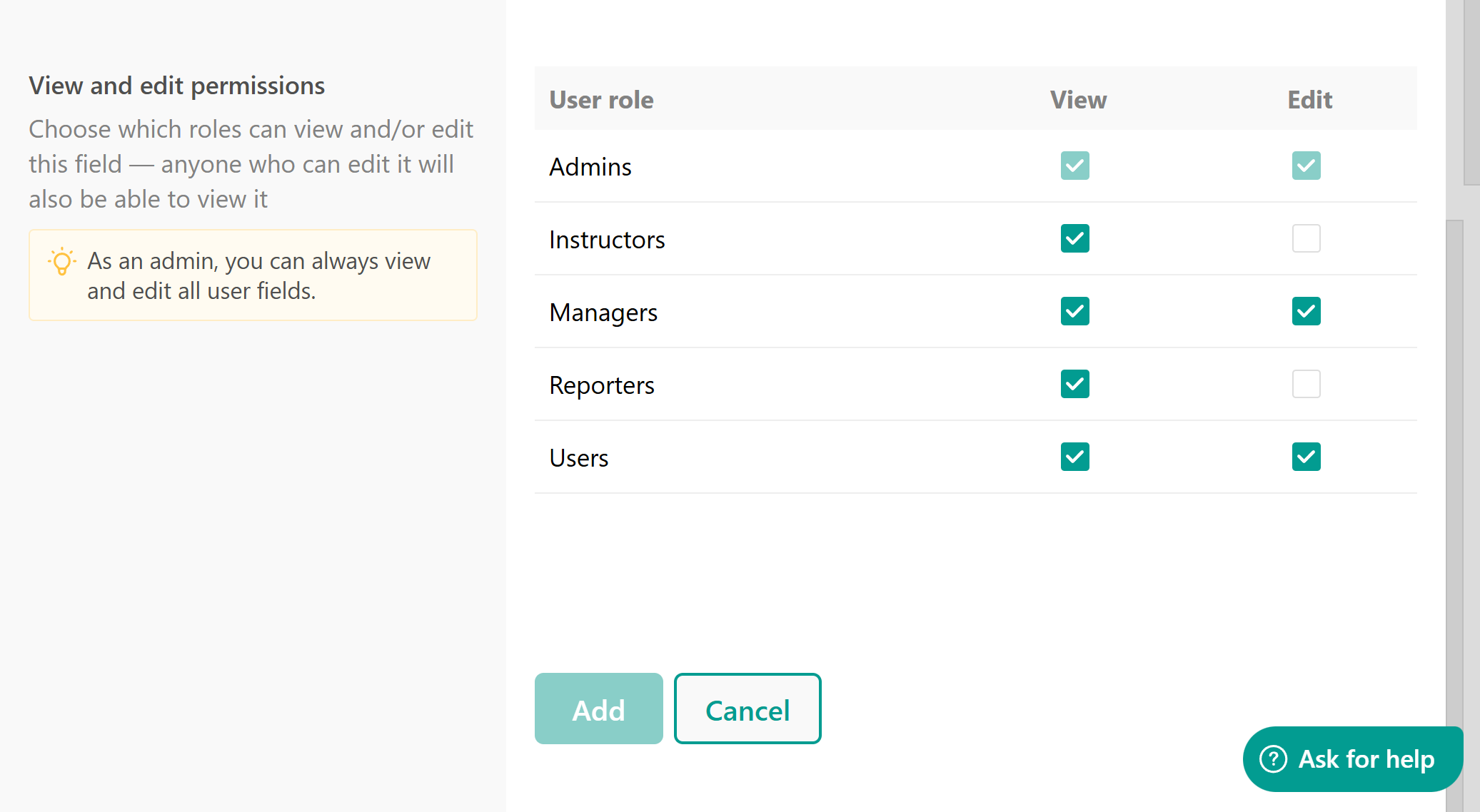
When creating or editing a field, you can define who can view or edit it:
| Role | Permissions |
|---|---|
| Admins | Full access |
| Instructors | View only |
| Reporters | View only |
| Managers & Users | Permissions can be customized |
Where you can use user fields
You can apply User Fields in the following areas:
- User profiles (admin view)
- Sign-up forms (optional)
- Email personalization using smart tags like: Hello {{user.Location}}, welcome to the team!
- Automations (as triggers or filters)
- Segmentation and reports for user insights
- Deleting a user field will also delete its data from user profiles.
- We suggest not overwhelming the users by requesting tοο much information during the sign-up process, rather than the essential information. You can always request more information later through Marketing Forms.
- The User Fields are not available in the Mobile Apps.
Deleting a user field will permanently remove all associated data.
- User fields will appear in the user’s account page if the user has permission to view and edit them.