
This setting controls how users are identified across your LearnWorlds school. You can display either a username or the user's first and last name.
Choose the format that matches how people interact in your school. Usernames can be useful when you prefer not to display full names, while first and last names can make it easier for learners and admins to recognize each other.
In this article, we will learn how to choose how users are displayed across your school.
 First & last name will be the default user display mode for LearnWorlds schools created after June 2, 2025. Existing schools will retain their current setting and can change it at any time.
Choose between username Vs First & Last Name
LearnWorlds offers two distinct modes for displaying user information across your school, allowing you to tailor the learning environment to best fit your needs and values.
1. Show Username
This mode is ideal for schools prioritising privacy or streamlined user management. When enabled, learners are identified solely by their unique usernames throughout all areas of the school platform. This approach supports confidentiality and is especially suited for internal training portals, organisations operating in regulated industries, or educational settings where anonymity is valued.
2. Show First & Last Name
This option provides a more personal and connected experience by displaying learners’ full names. Names appear in course discussions, rosters, community pages, and the admin panel. This setting fosters a sense of community and is recommended for coaching programs, university or professional development courses, and collaborative learning environments where peer interaction is encouraged.
Change your school’s user display settings
From your Admin Dashboard, go to Users → User fields → User identity & signup fields.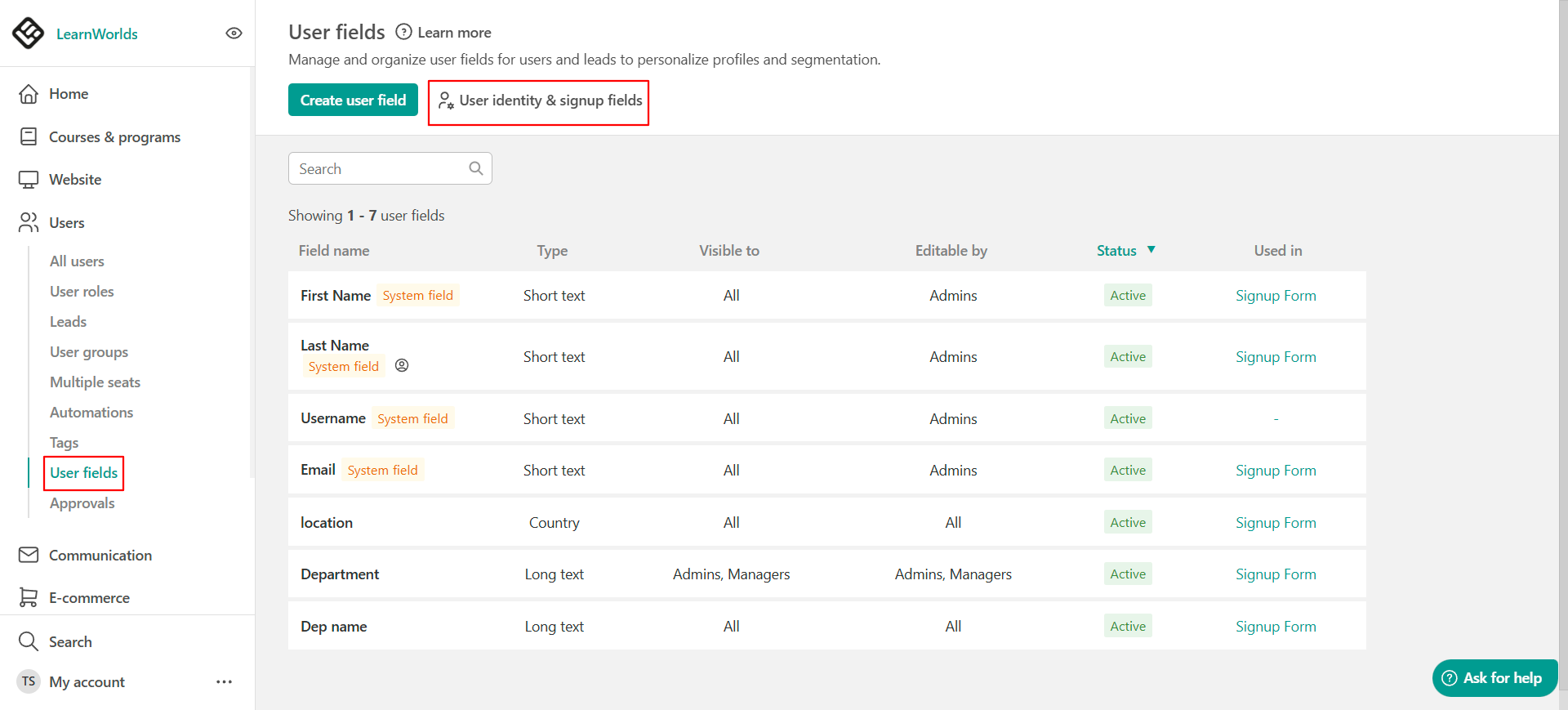 Here you can select to use:
- First & last name
- Username

Click the Save button to apply your changes.
What happens when you change the display setting
When you choose the First & Last Name option, you must also decide which field(s) will be required. At least one of the fields, either First Name or Last Name, must be marked as required, though you can choose to make both mandatory.
Once you make this selection, an icon will appear next to the chosen option on the User Fields tab.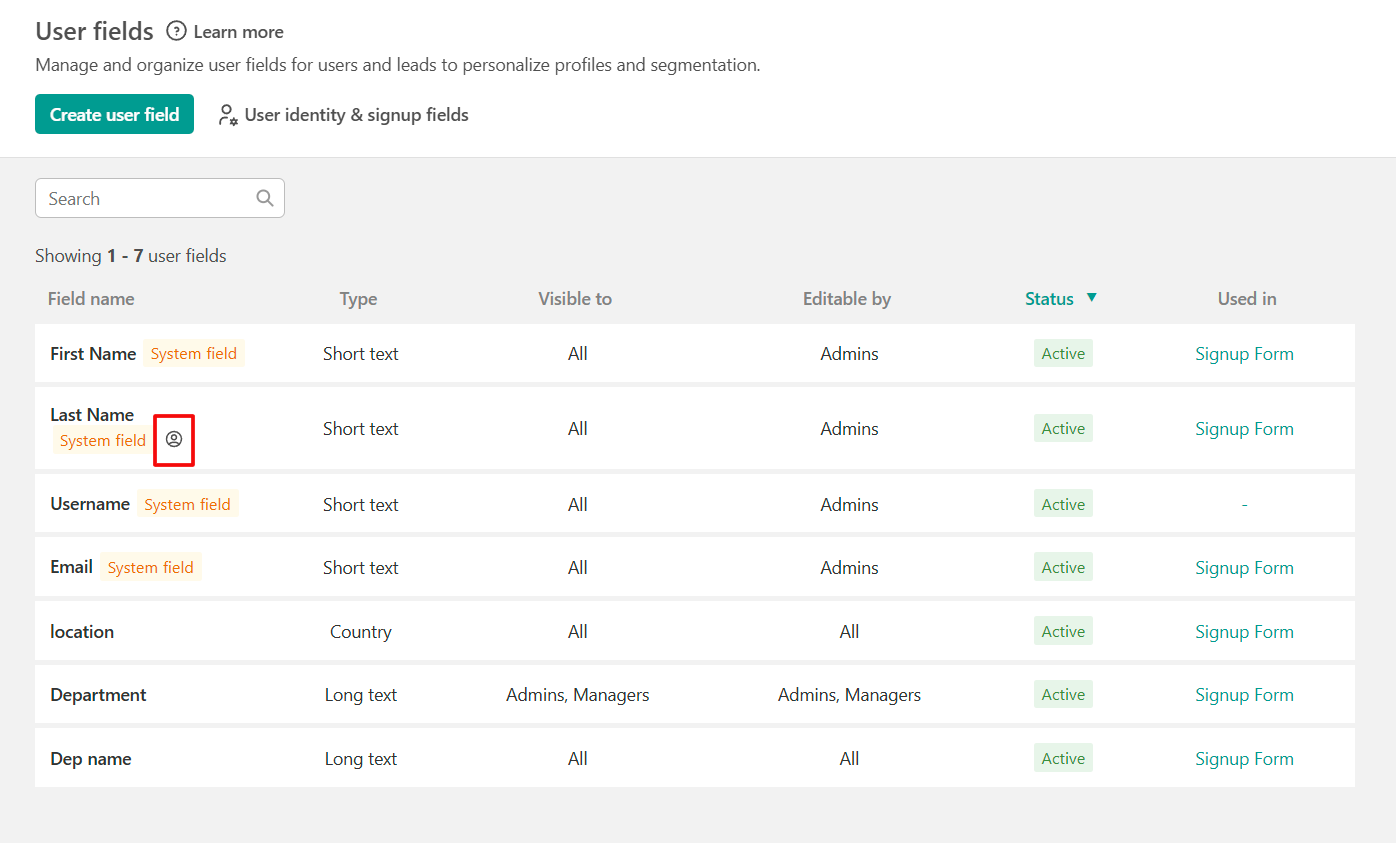 This indicates that when a user creates an account, the selected field(s) must be completed. The information provided will then be used to uniquely identify the user and distinguish them from other users.
- You can switch between the two options at any time, just remember to click Save to confirm any updates.
- When switching from username to first/last name (or vice versa), existing email templates, automations, and school pages will remain unchanged. For example:
-Any custom references to {{username}} in templates won't be replaced automatically.
Where display settings apply
The following parts of your school will reflect the change based on your setting:
- Sign-up/login forms
- User profile and account screens
- Admin panels (user lists, user details)
- API, Zapier, SAML/SSO, and social login flows