
Keeping your payment method up to date in LearnWorlds helps ensure uninterrupted access to your subscription and services. To maintain an active subscription, a valid payment method must be connected to your billing details.
In this article, you will learn how to update your payment information.
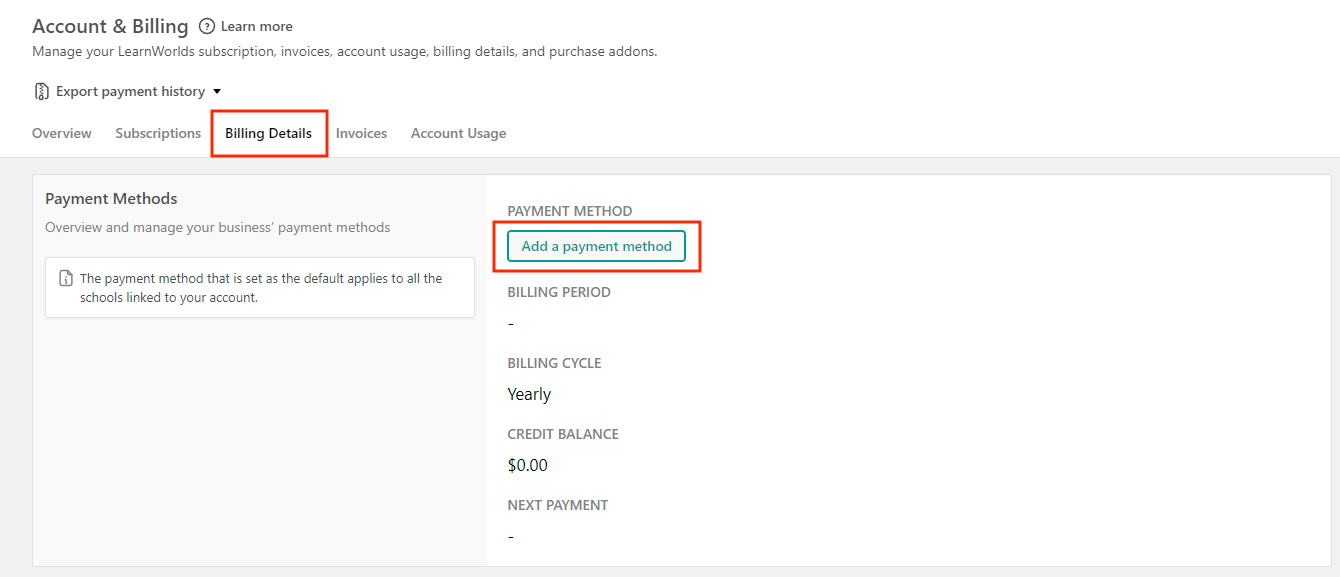
1. Navigate to My account → Account & Billing → Billing Details. If the Plans page opens first, click the back arrow and then select Billing Details.
2. In Billing Details, click on Add a payment method.
3. Select one of the secure payment options: Credit card or PayPal.
- For credit card, insert your card's information and click Save.
 We support Visa and Mastercard worldwide. American Express cards are supported only for customers located in the EU. Customers outside the EU can use American Express through PayPal. Some Discover cards may not be supported.
- For PayPal, click the PayPal button to connect an existing PayPal account or create a new one.
When clicking on PayPal, a pop-up window appears prompting you to connect your PayPal account to LearnWorlds. Since this process uses a pop-up window, make sure pop-ups are enabled in your browser.
- For customers located in the EU, Direct Debit (SEPA) payments are also supported. If you would like to pay through a connected bank account using SEPA, please contact our support team.
- If you manage multiple schools under the same LearnWorlds account, updating the payment method for one school automatically applies it to all your schools.
- If multiple payment methods are connected to your school, make sure to set as Primary the payment method you want to be charged for your subscription.
- You can upgrade, downgrade, update your billing details, or download your invoices anytime via your dashboard.