
LearnWorlds lets you choose providers for AI content creation, image generation, and video generation. You can also configure a label that identifies AI-generated videos to learners.
In this guide, you'll learn where to find these settings and how to configure each provider.
Access your AI provider settings
To connect your AI provider:
1. Navigate to Settings → Integrations → AI → Provider.
2. Under AI provider review the available provider sections and select LearnWorlds or OpenAI.
- LearnWorlds: Uses LearnWorlds AI credits according to your subscription. The page displays your available free AI credits and usage information.
- OpenAI: Select this option to connect your OpenAI account. Follow the connection instructions shown on the page, including the required account credentials.
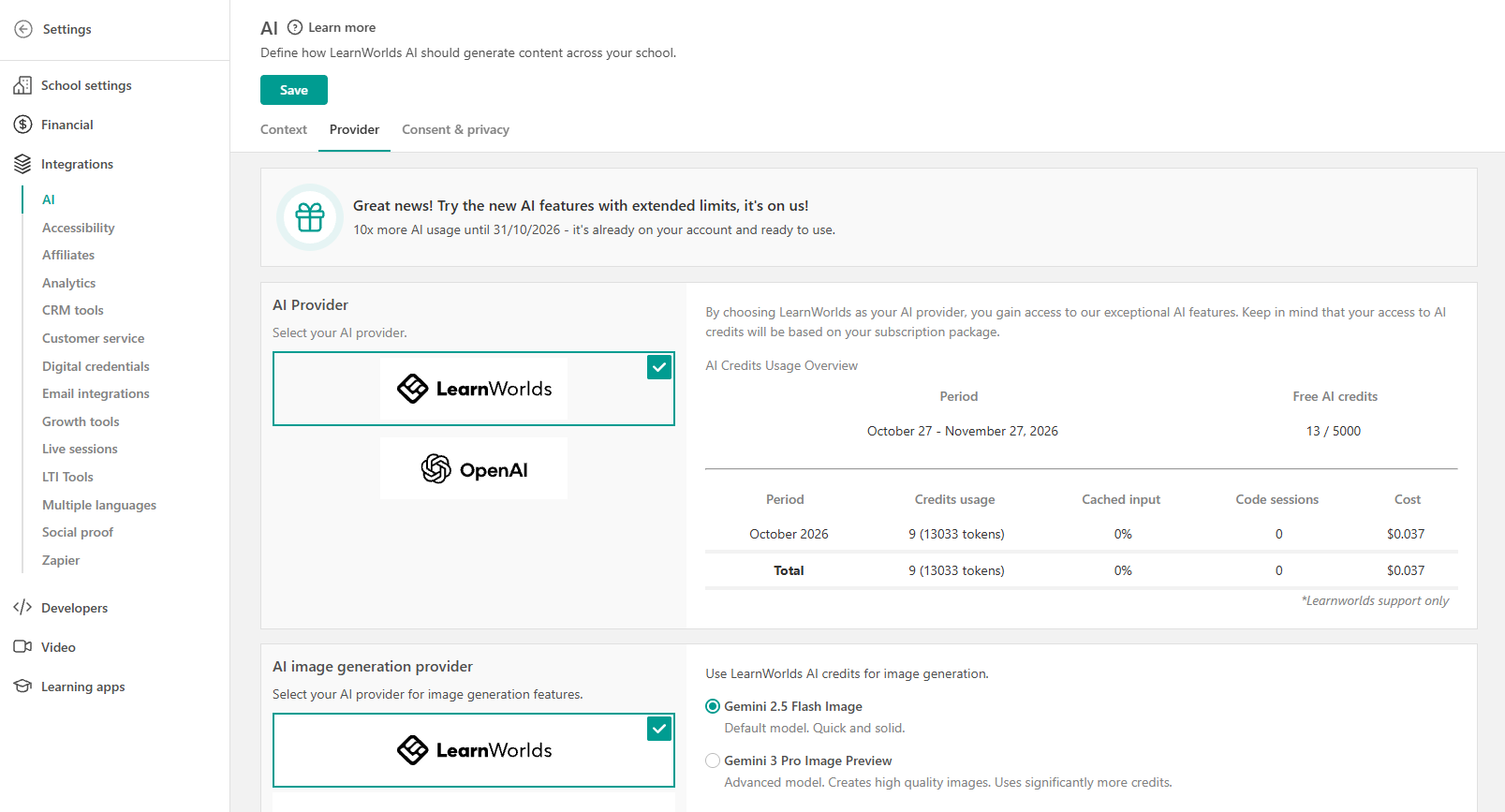
If you connect OpenAI, check your API account and billing information at platform.openai.com.
Choose your AI image generation provider
Under AI image generation provider, select LearnWorlds or Gemini to generate images using AI.
If you select LearnWorlds, you can choose between two AI image generation models:
- Gemini 2.5 Flash Image: The default model for generating images.
- Gemini 3 Pro Image Preview: An advanced model for generating higher-quality images that uses more AI credits.
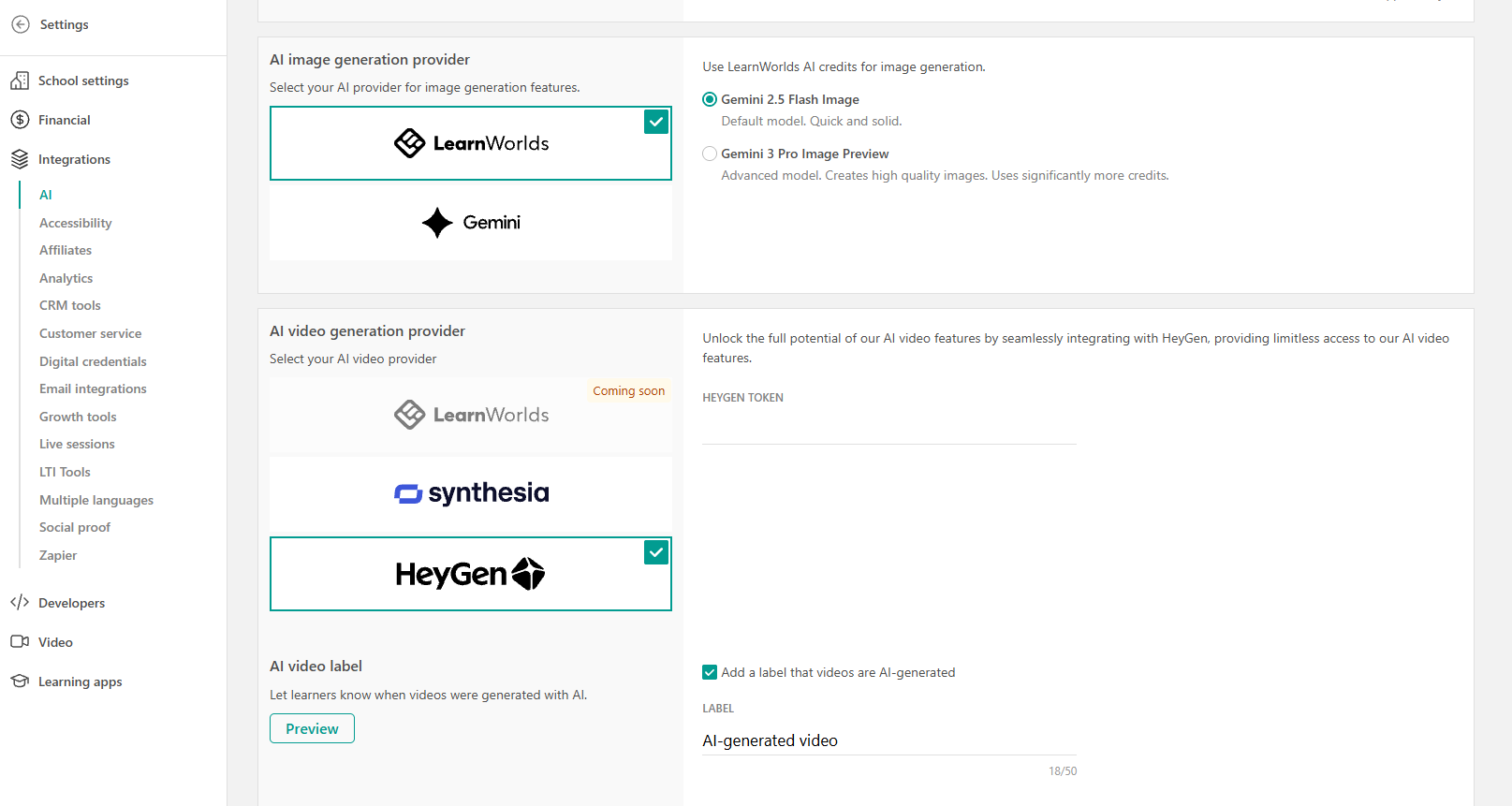
Select your preferred provider and model, then click Save to apply your changes.
Make sure to select your preferred option and connect your account. From then on, all images will be generated based on this setting.
 Connecting your own Gemini account only affects billing and which account is used for generating AI reports. It does not change the AI models used by the AI Assistant for content creation (such as assessments or eBooks), which always rely on the platform’s built-in models.
Configure your AI video generation provider
Before creating videos with AI, you must connect a supported AI video generation provider to your LearnWorlds school. To configure your provider under AI video generation provider, select Synthesia or HeyGen.
Follow the connection instructions to link your provider account and click Save.
Customize the AI-generated video label
You can add a label to AI-generated videos to inform learners that the content was created using AI.
To configure the label:
1. Under AI video label, enable Add a label that videos are AI-generated.
2. Enter the text you want to display, such as AI-generated video.
3. Under AI video label settings, customize the following:
- Position: Choose where the label appears on the video.
- Size: Adjust the size of the label.
- Transparency: Set how transparent the label appears.
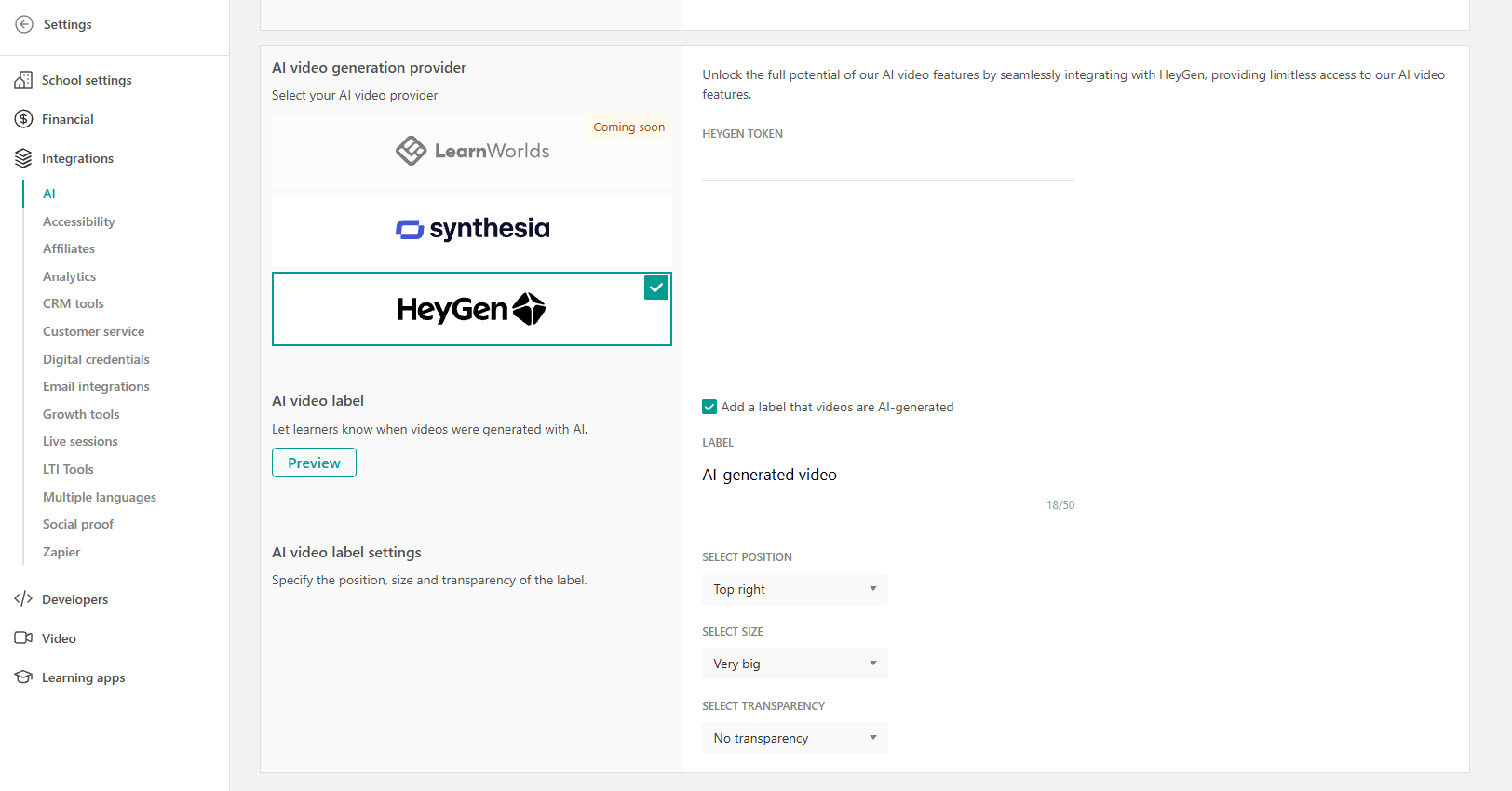
4. Click Save to apply your changes.
AI Insights model
Only for your AI insights (located under Reports → AI Insights), you can select the model that best balances your needs for accuracy and prompt usage. You can choose between:
- Advanced AI model: Each AI question-and-answer pair in the reports will count as 20 prompts for the Advanced model.
- Basic AI model: Each AI question-and-answer pair in the reports will count as 4 prompts for the Basic model.