While modifying a section or widget, you can use Layout in the sideform to adjust its positioning and appearance. In addition to changing the alignment and size of an element, you can also customize the Box Model and configure shadow and appearance settings for supported sections and widgets.
In this article, you will learn how to adjust and customize the box model, shadow, and appearance settings of sections and widgets.
 The options available in the Layout tab change depending on the selected element, providing dedicated customization tools for each widget or section. For example, when editing a section, positioning and spacing options are available (such as alignment, height and width), while editing an image provides additional settings such as shadows, blur, and appearance effects. Select the desired element to view and configure the available layout tools for that specific case.
Box Model
The Box Model is a functionality available across all sections and widgets that allows you to edit the border, padding, and margin of an element.
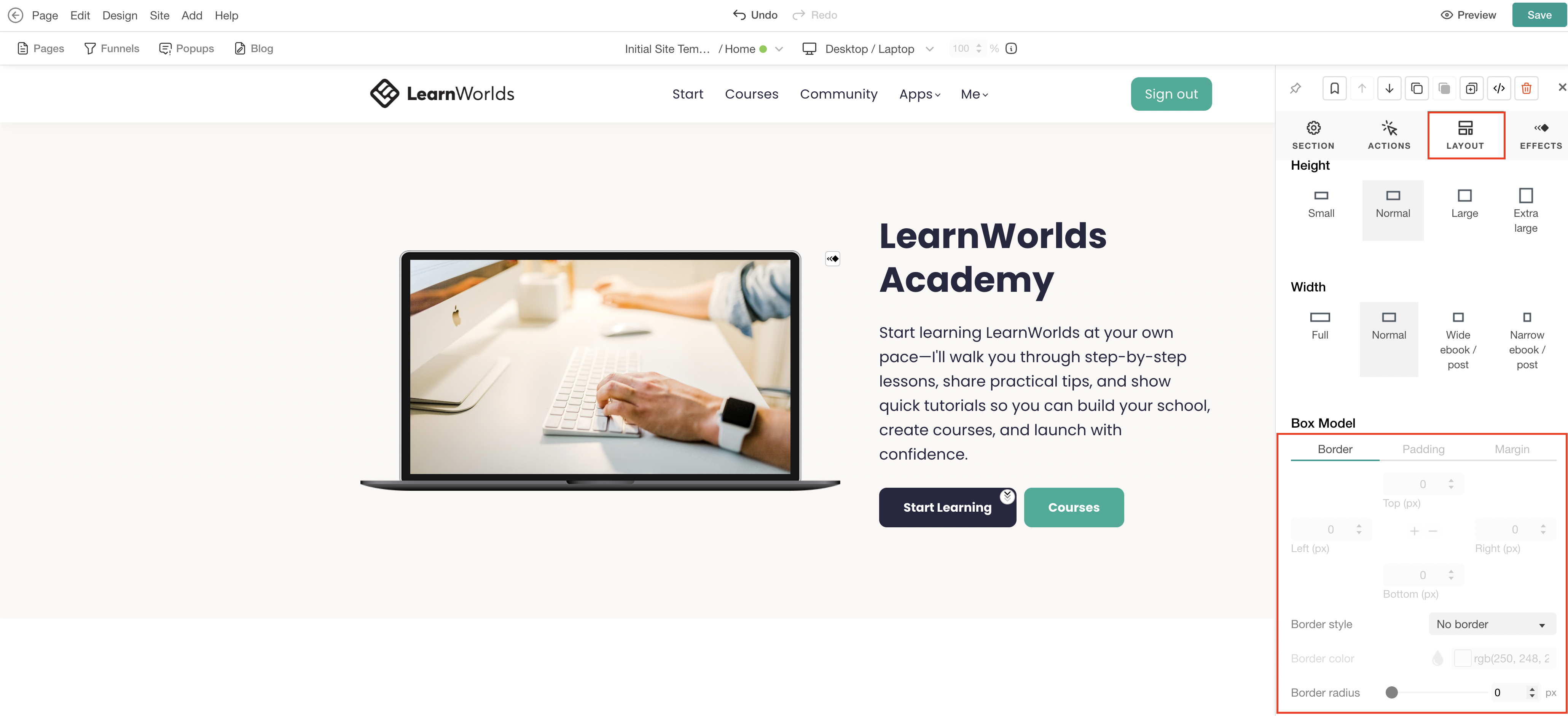
Border
Use Border to highlight specific content or visually separate a section from the rest of the page. Select a Border style (Solid, Dashed, or Dotted) to enable the available customization options. You can also configure the Border color and adjust the Border radius to create rounded corners on the section’s outer edges.
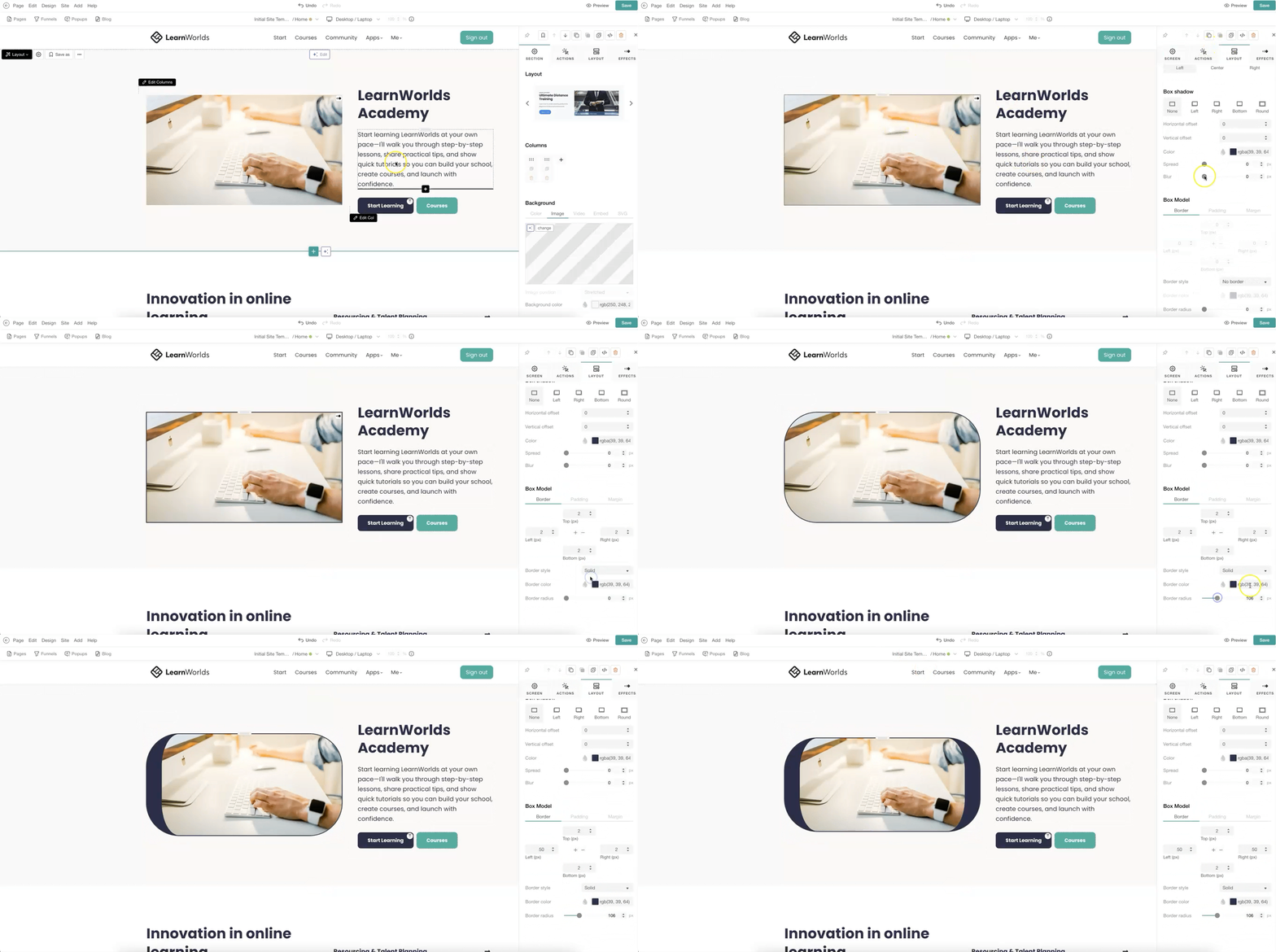
To apply a default border radius to your School's buttons, check how here.Padding
Use Padding to control the space between an element’s content and its border. Adjust the padding for each side individually to create more spacing around the content and improve the overall layout and readability.

Margin
Use Margin to control the space between an element and the surrounding elements in your design. Adjust the margin for each side individually to increase or decrease the spacing around the element and improve the overall layout.

Avoid using negative margins, as they may not scale properly on smaller devices. Instead, consider making those elements visible only on desktop screens. Box Shadow
When editing specific widgets within a section (such as icons, images & SVG images, columns, and labels), Box Shadow becomes available. Use it to add shadow effects to the selected element (Left, Right, Bottom, or Round). You can also adjust the horizontal and vertical offset, select a shadow color, and configure the spread and blur values to achieve the desired effect.

Box Appearance
When editing specific widgets within a section (such as texts, animations, or lists), Box Appearance becomes available. Use it to apply a different background color to supported widgets and visually distinguish them from the rest of the section content.