
LearnWorlds allows you to create site flavors with AI, making it easier to build customized website experiences without designing everything from scratch. By describing your website or providing an existing website as a reference, AI helps generate a site flavor with coordinated branding, colors, typography, layouts, and content.
This is particularly useful when creating branded academies for different clients, organizations, or training audiences while maintaining a consistent visual identity.
In this guide, you'll learn how to create a site flavor with AI, customize its branding and design, and make further changes using Site Builder.
Create a site flavor with AI
A site flavor defines the design and appearance of your school's website. It can be the main website experience for your school or one of several versions created for different audiences, brands, or purposes. To create a new site flavor using AI:
1. Navigate to Website → Design.
2. In the site flavors area, click Create with AI.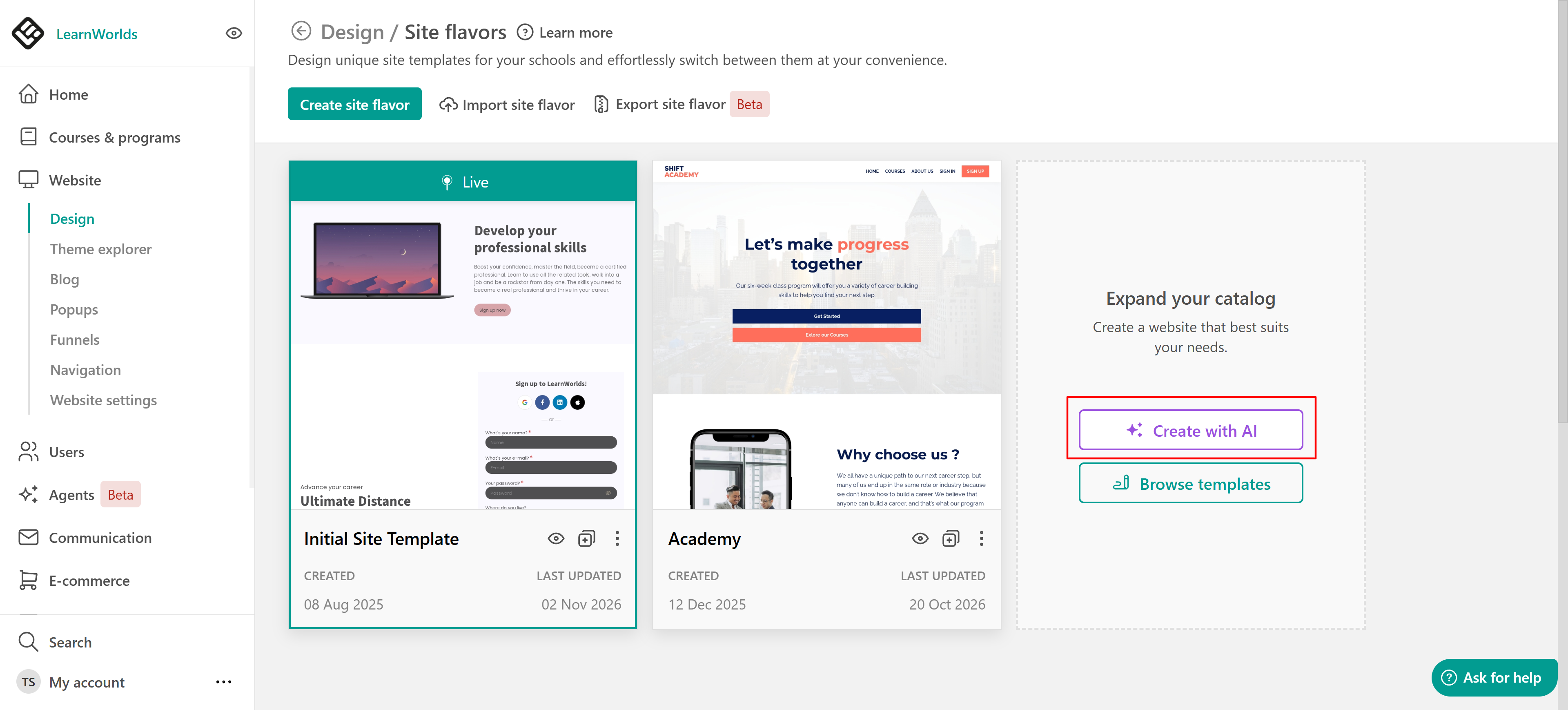
3, In the AI chat, describe the website you want to create. Include its purpose, target audience, and the type of experience you want to offer.
You can also provide an existing website URL as a reference. AI analyzes its branding, including its logo, colors, typography, content and overall visual style, to help create a similar experience.
For example, you could provide a company's website and ask AI to create a customer academy that helps new customers learn how to use its products.
4. Submit your prompt to begin the creation process.
AI will guide you through the available branding and design options before generating your site flavor.
Define your site's purpose
Based on your initial instructions, AI asks you to select the main purpose of your academy. The available options may include:
- Customer onboarding / product adoption
- Advanced customer education
- Certification
- Partner enablement
- Selling learning programs
- Something else
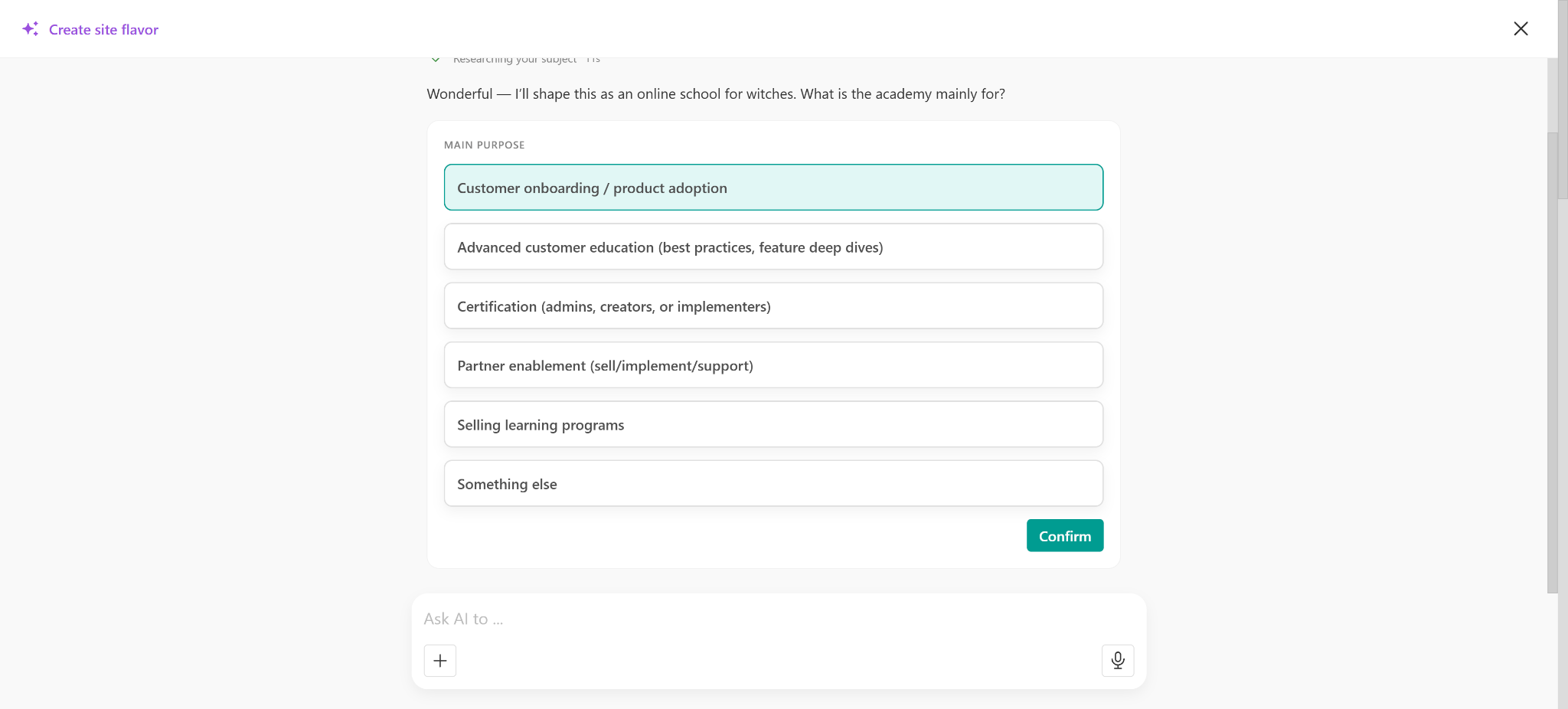
Select the option that best describes your academy and click Confirm.
This helps AI adapt the website's content, messaging, and overall experience to your intended audience.
Choose your logo
Next, select the logo you want to use for your site flavor. Depending on your initial prompt and reference materials, AI may identify a logo from the website you provided. You can also choose to:
- Create with AI: Generate a logo based on your school's description and branding.
- Upload your own: Use an existing logo.
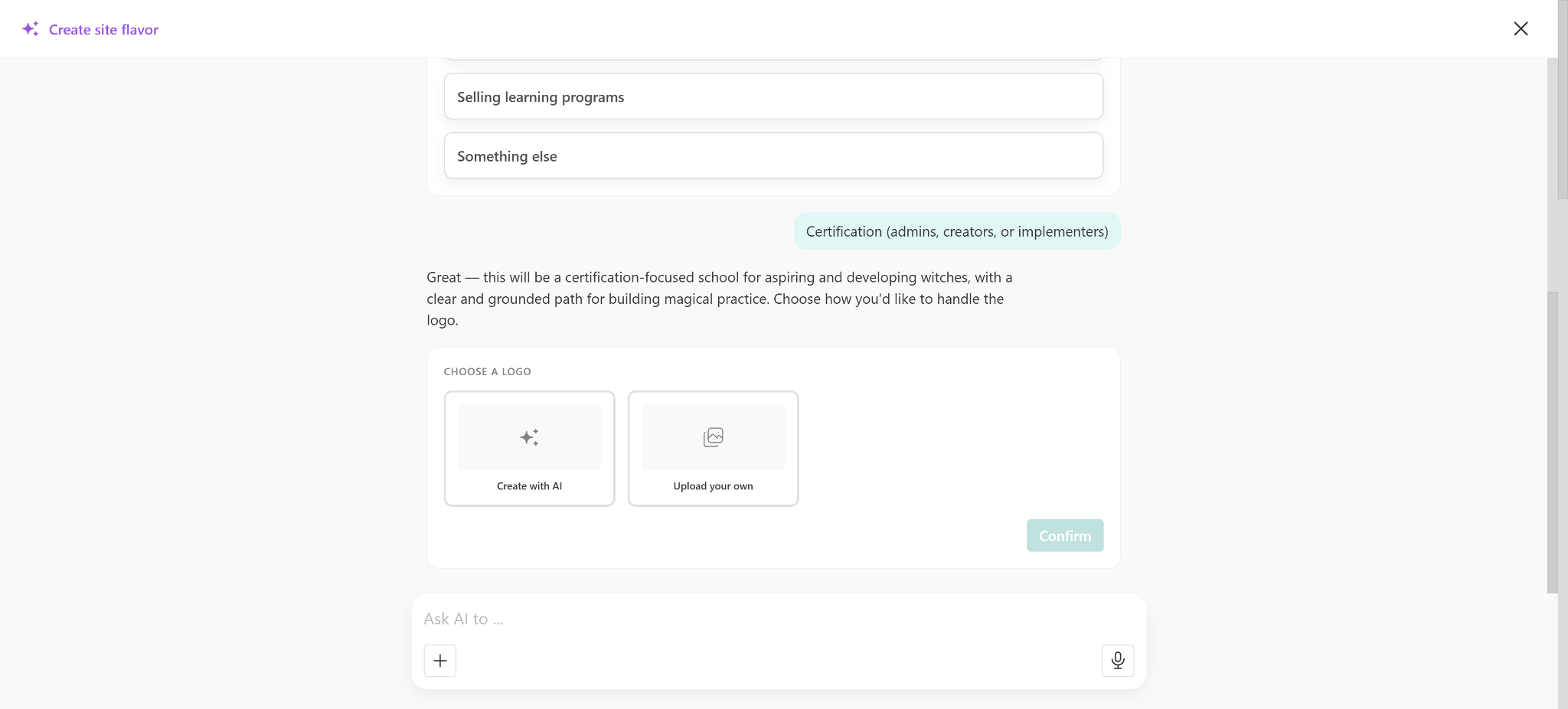
If you select Create with AI, describe the logo you want to generate. Review the result and use the AI conversation to request adjustments if needed.
Once you're satisfied, click Insert to use the generated logo.
Select your preferred logo and click Confirm to continue.
Select your color palette
AI suggests color palettes based on your school's description or the website you provided as a reference.
Review the available options and select the combination that best represents your brand or ask AI to provide more options.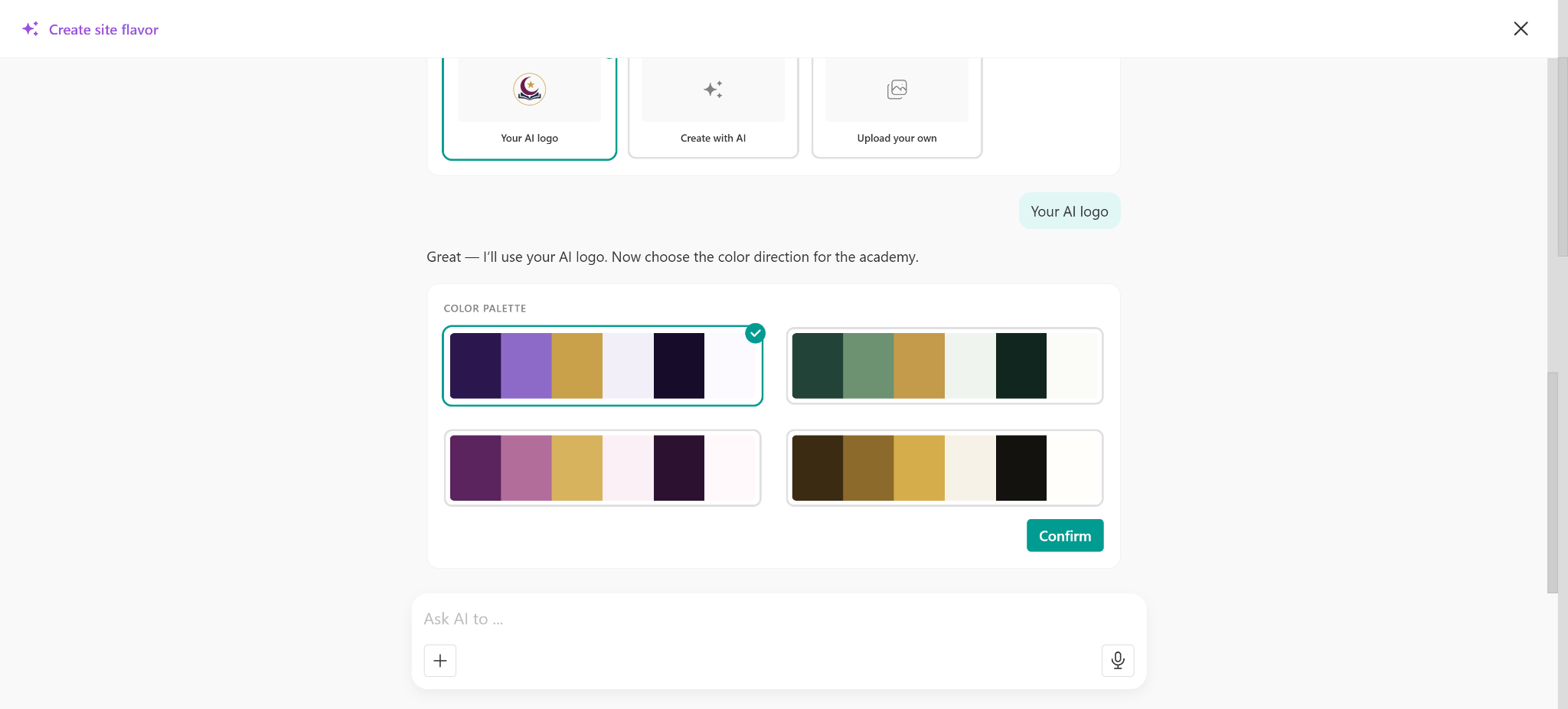
When using an existing website as a reference, AI can suggest a palette based on its original colors. The suggested colors are mapped to the corresponding settings in LearnWorlds Theme Explorer.
Select your preferred color palette and click Confirm.
Choose your typography
Next, AI suggests font pairings for your website's headings and body text.
Each option includes a preview of the fonts and a short description of the visual style.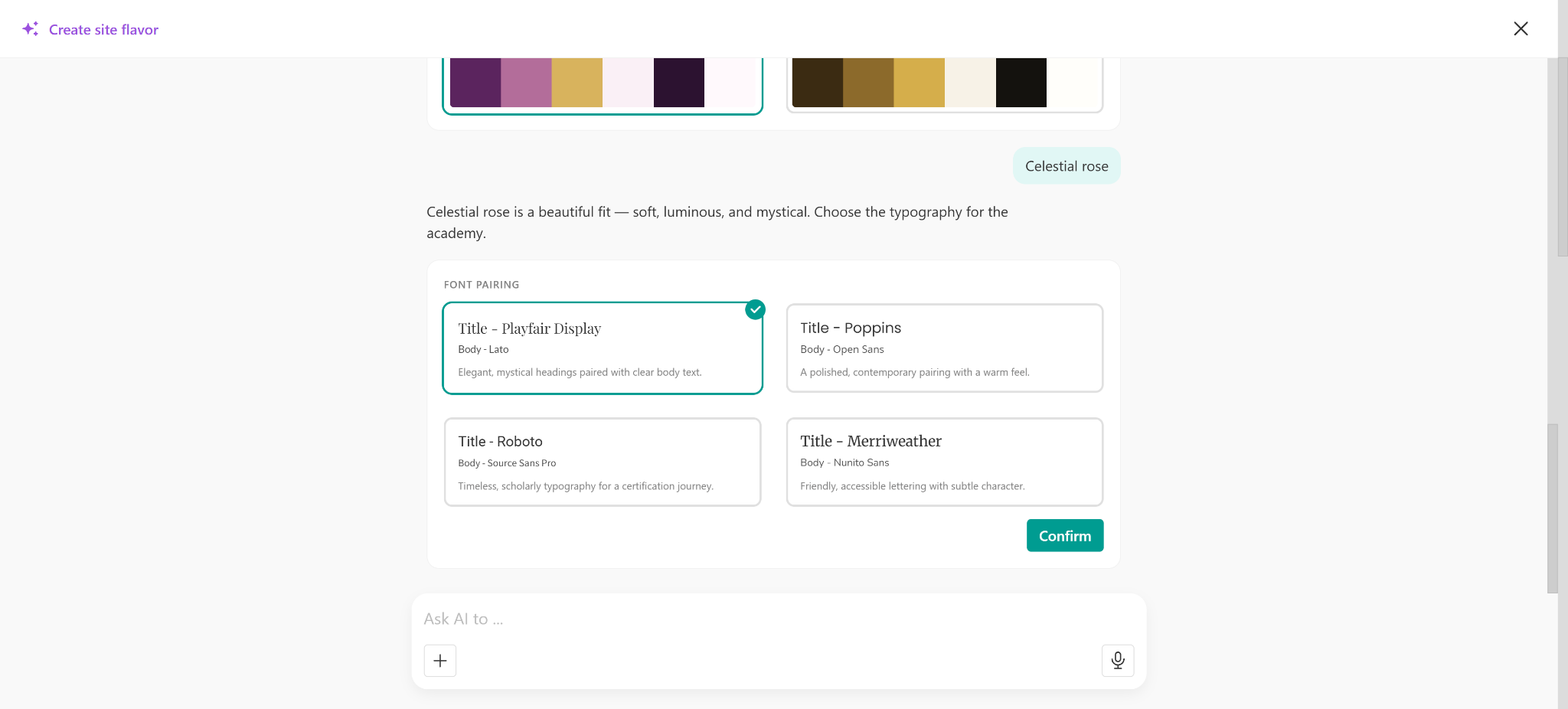
If you provided an existing website as a reference, AI uses its typography when suggesting suitable font combinations. When the original fonts are unavailable, AI suggests alternatives with a similar appearance.
Select the font pairing that best suits your website and click Confirm.
Select your website design
Once you've defined your branding, AI presents suggested website templates.
These templates offer different layouts and design approaches based on your selected logo, colors, typography, and academy purpose.
Review the available previews and select the design that best represents the experience you want to create.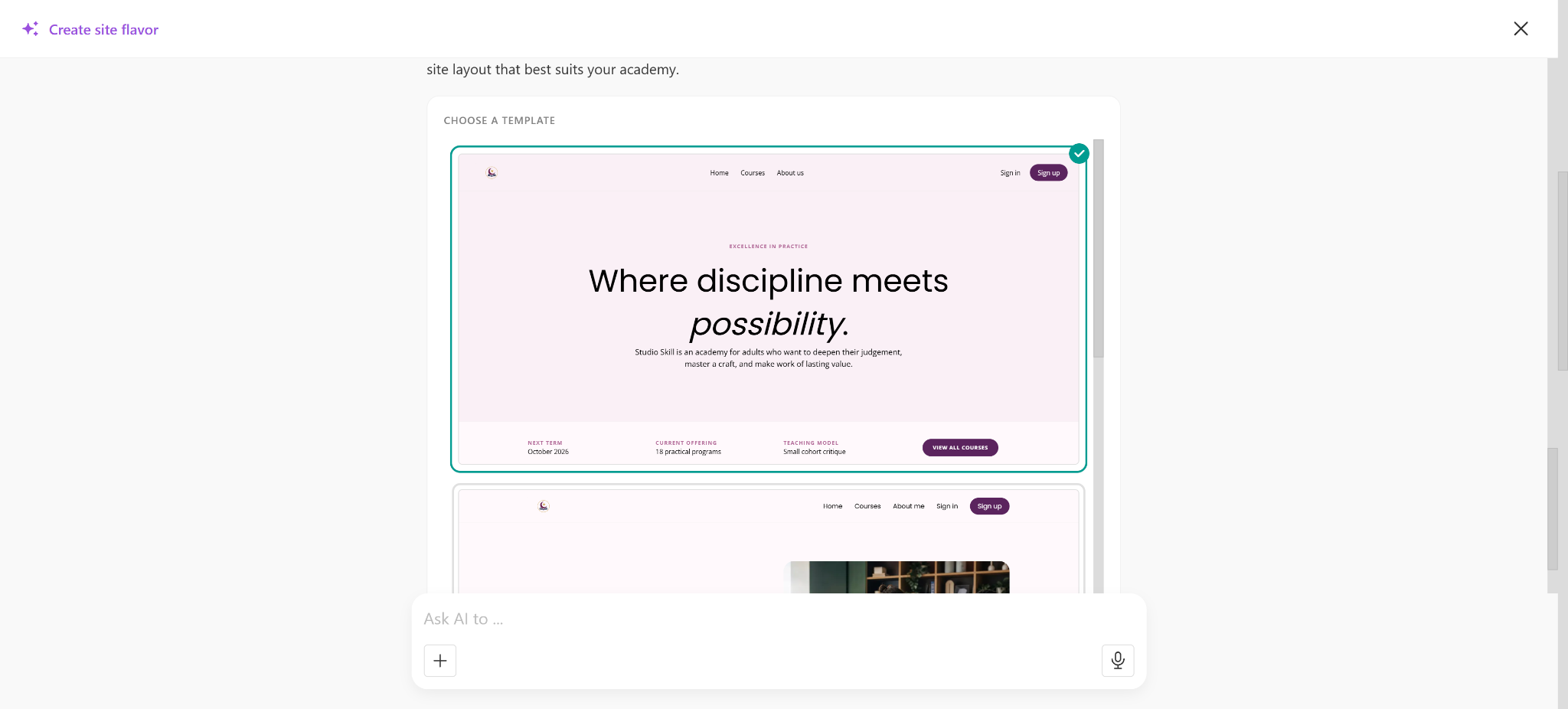
The selected template provides the foundation for your new site flavor.
Review and customize your site flavor
After completing the creation process, AI generates a new site flavor based on your instructions and design selections.
The generated website includes your chosen branding and content adapted to your academy's purpose.
For example, when creating a customer academy, AI can adapt the website's messaging to focus on onboarding, product education, and customer success rather than simply reproducing the content of the reference website.
Once your site flavor is created, open it in Site Builder to review and customize its pages.
You can make additional changes manually or use the AI Assistant to:
- Edit headings, descriptions, and other page content.
- Adjust individual sections and elements.
- Refine the website's messaging and tone.
- Make multiple changes through a single prompt using bulk editing.
For detailed instructions on page creation, check this guide.