
The Event Calendars widget allows you to showcase upcoming events directly on your school pages, helping users stay informed and engaged with your school’s activities. It can also display personalized event dates relevant to each learner for a more tailored user experience.
In this article, you will learn how to add and customize the Event Calendar on your LearnWorlds pages.
Supported events
The Events Calendars support different learning activity types depending on whether users are logged in or logged out.
For visitors (logged-out users) who have not yet signed up for your school, the following event types can be displayed on landing pages:
- Zoom or Webex live meetings or webinars.
- Upcoming Drip Feed course sections that are scheduled to unlock in the future.
For users who have registered and created a student account (logged-in users), the Events Calendar can additionally display personalized events and learning activities, including:
- 1:1 Sessions & Group Sessions created through the Calendly integration.
- Zoom or Webex live meetings or webinars.
- Upcoming Drip Feed course sections that are scheduled to unlock in the future.
- Subscription Trial Expiration dates for users with an active subscription trial.
Add the event calendars widget
1. Navigate to Website → Design → Edit Website.
2. Choose any page to edit from the Page Manager.
3. Hover over the element under which you want to add the event calendar and click the (+) icon to add it as a widget. To display it as a full section instead, use the (+) icon between sections on the page. 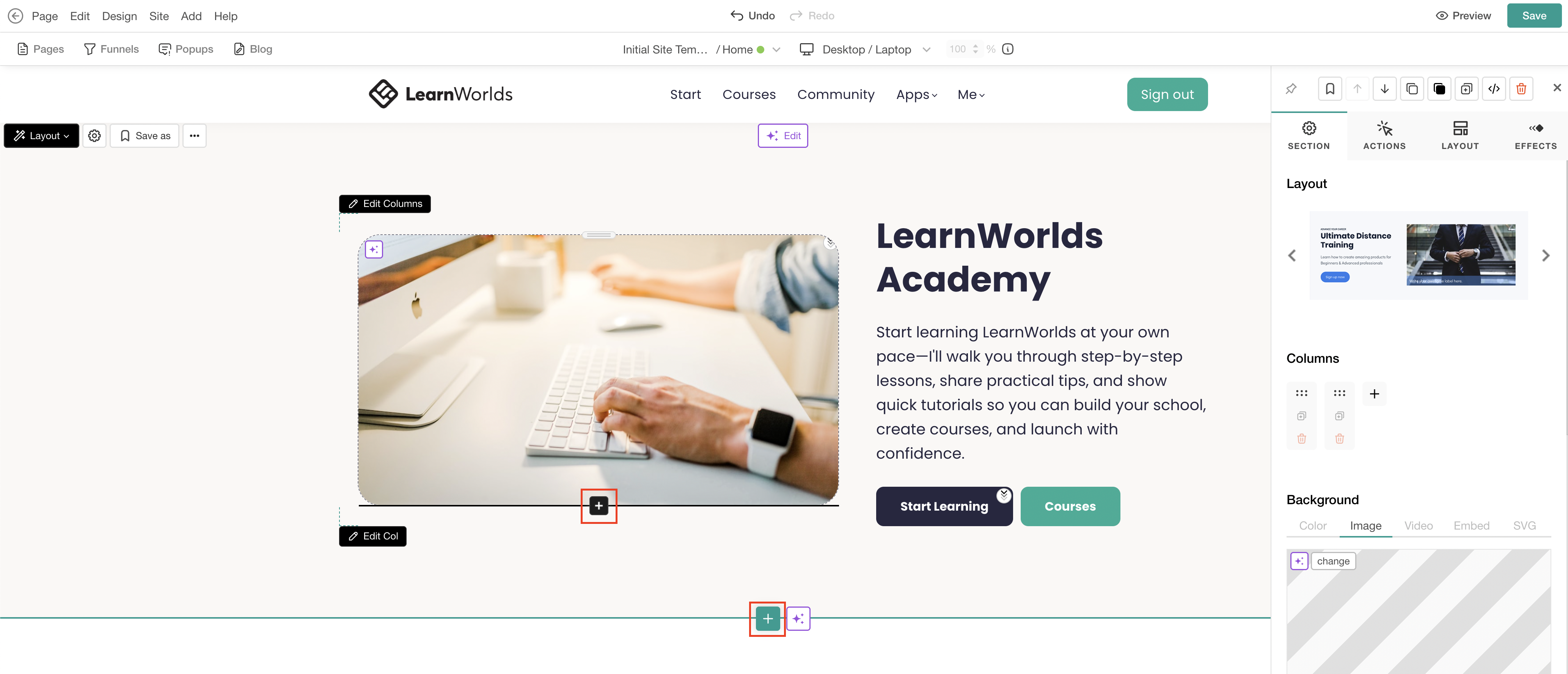
4. Choose the Event Calendars category and click Add to insert the preferred section, or choose Fill with AI. When using Fill with AI, a dialogue box will appear, allowing you to provide instructions to further customize the selected section.
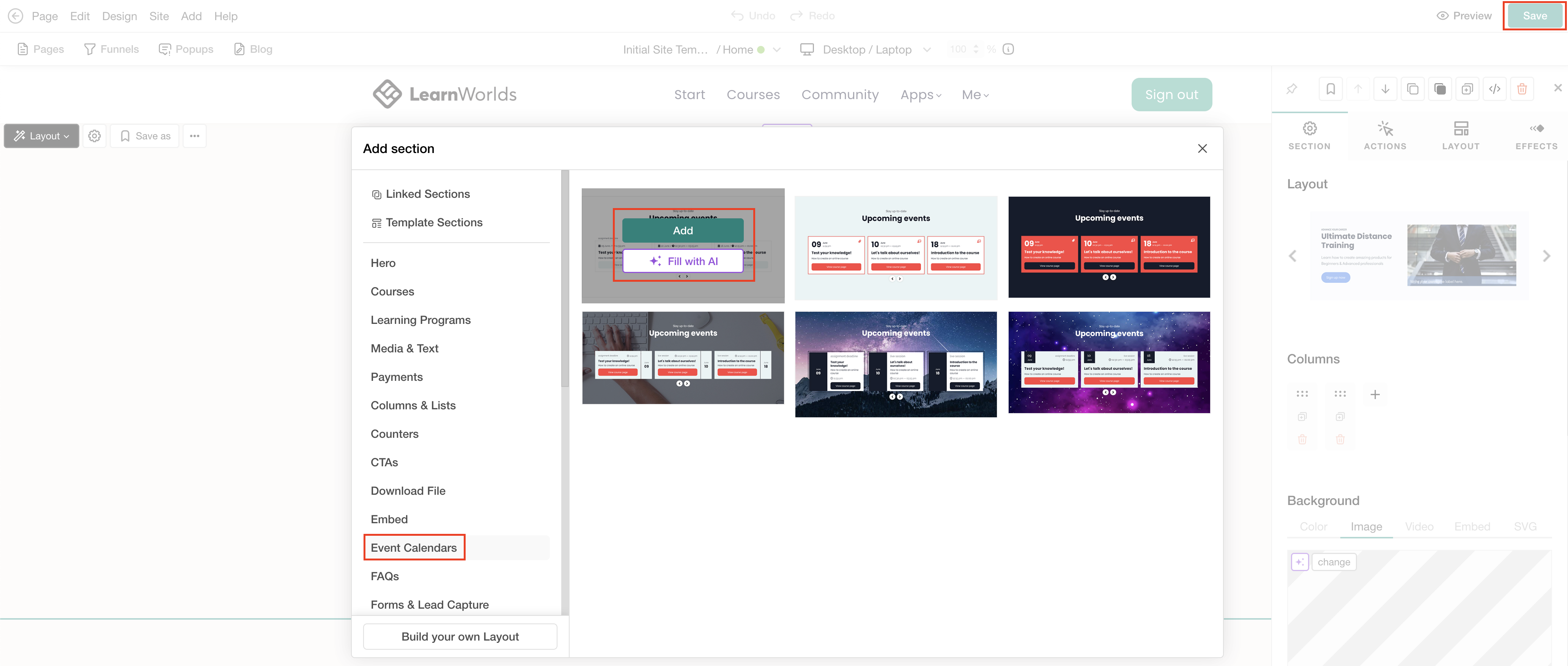
5. Click Save to save changes on the page.
Customize the event calendar widget
1. Click on the event calendar to use the default settings in the sideform. If the AI Edit option is used, the dialogue box appears.
2. Configure the available settings based on your needs.
- Display options: Choose how events will appear on the page (slider, per event, show all events).
- Add to calendar option: Enable the Add to calendar option to allow enrolled users to save events to their personal calendars.
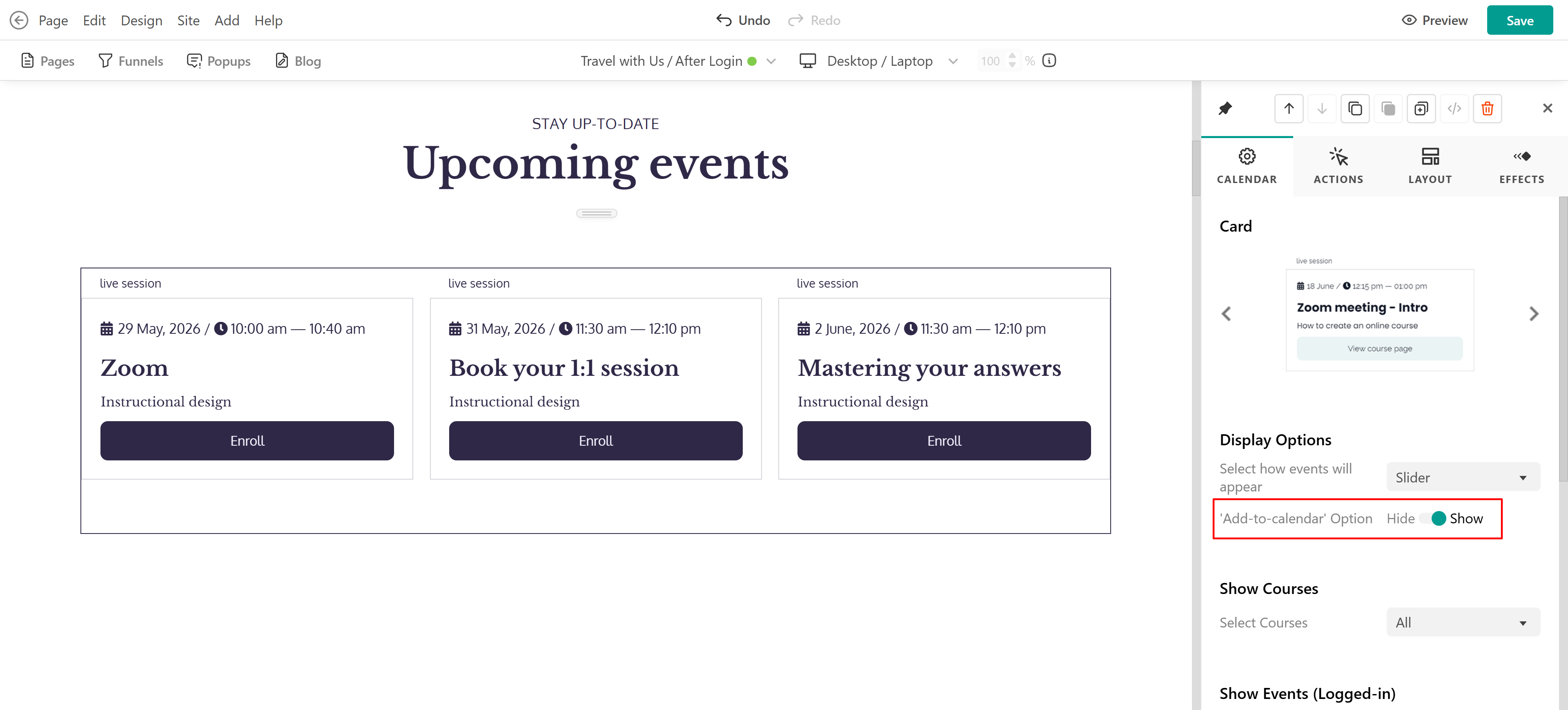 When enabled, logged-in users enrolled in the respective course will see the Add to calendar button.
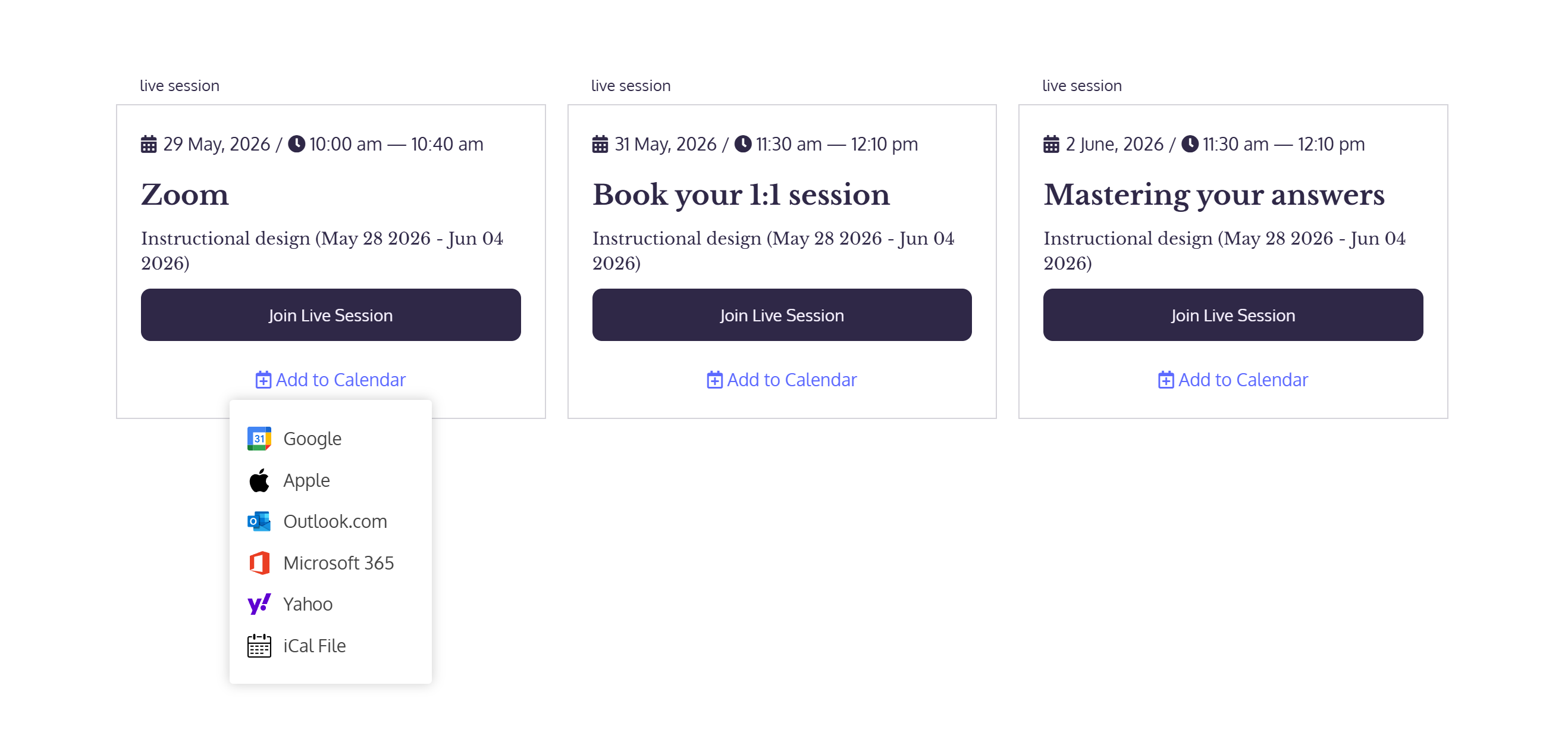
Supported calendar services include:
- Google Calendar
- Apple Calendar
- Outlook.com
- Microsoft 365
- Yahoo Calendar
- iCalendar
Once a calendar option is selected, users are redirected to the selected calendar service to save the event.
 - The event time shown inside the widget is based on the school's timezone.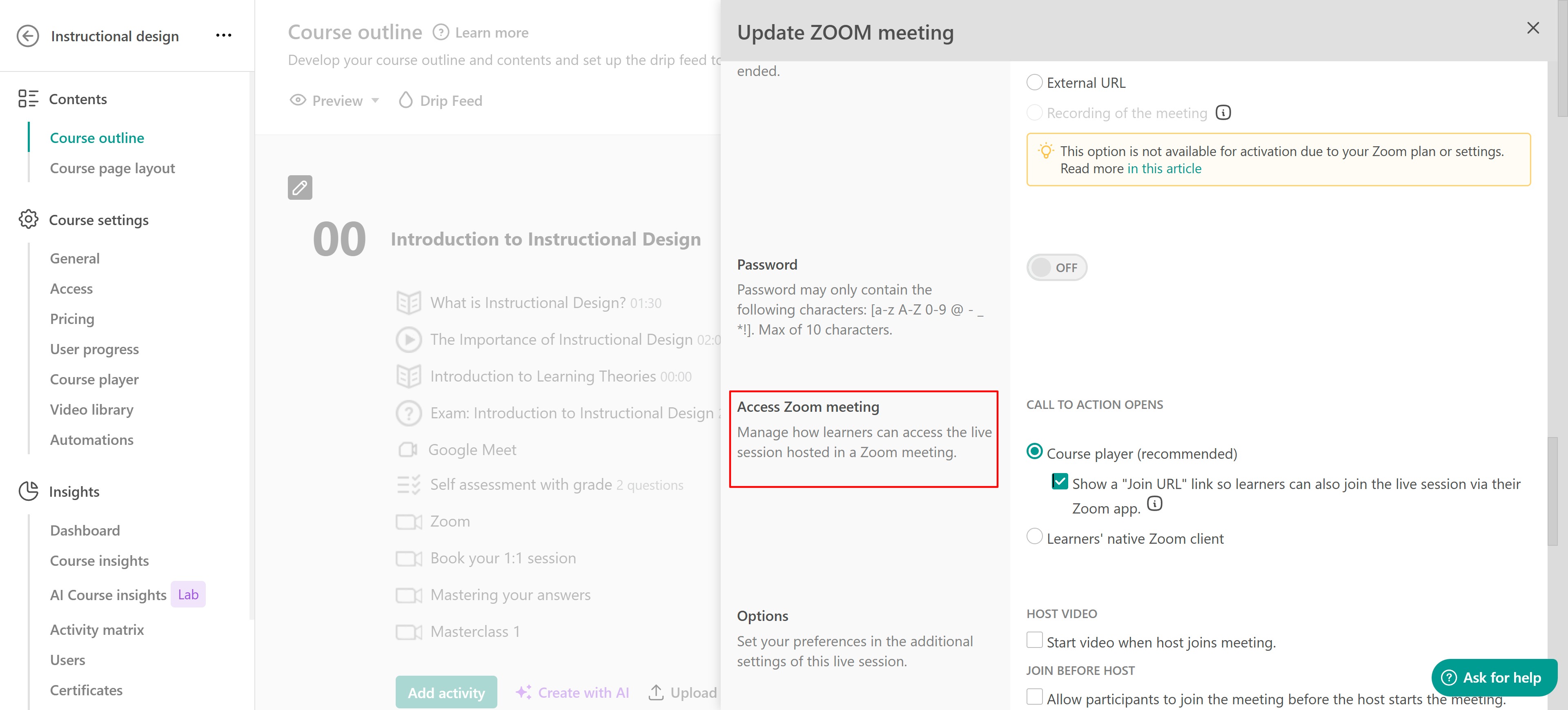
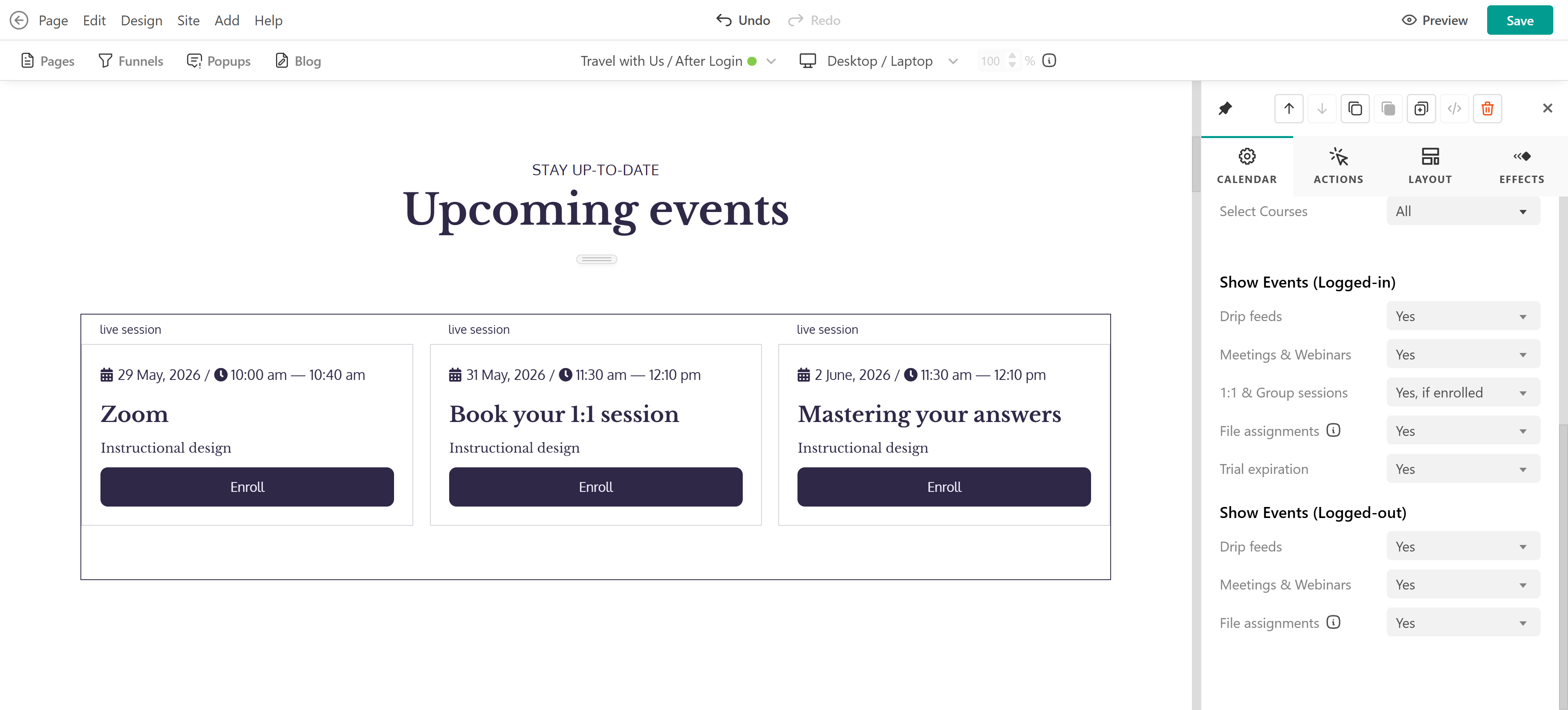
- Show courses: Choose whether to display events from all courses or create a custom course list.
- Show events (Logged-in): You can choose to display:
- Drip Feed content
- Meetings and webinars
- 1:1 and Group Sessions
- File assignments with deadlines
- Subscription trial expiration dates
- Show events (Logged-out): You can display
- Drip Feed content
- Meetings and webinars
- File assignments with deadlines
- If Enrollment Closed or Coming Soon courses are selected, they will be visible only to users who are already enrolled in them.
- If Drip by Days is enabled, events will be displayed only to enrolled users, as the release dates depend on each student’s enrollment date.
- The event calendars offer a user-based experience, meaning that as an admin, what you see depends on your account and course access. To test the final user experience, create a test user account.
- The Fill with AI and Edit with AI options are available only when the element is added as a section and not as a widget.
- If you want to hide the enrollment buttons, add the following CSS snippet under Custom Code → <style> Dynamic (CSS): .swiper-container .lw-event-card .learnworlds-button { display: none; }
Click here for more information about how to add Custom Code to your school.