
Drip-feed allows you to release course content gradually and notify learners of the new content instead of making all learning material available at once. You can control when each course section becomes accessible, either on specific dates or based on each learner’s enrollment date.
In this article, you will learn how to configure and manage drip-feed settings for your courses, including learner access and notification options.
Drip-feed types
Drip by date: Unlocks course sections on specific calendar dates, regardless of when learners enrolled. All enrolled users gain access to the content at the same time.
Drip by days: Unlocks course sections based on each learner’s enrollment date (for example, after 7 or 14 days). Each learner accesses the content according to their own individual schedule.
Enable drip-feed
1. Navigate to Courses & Programs → Courses and select the course you want to update.
2. Go to Course Outline.
3. Click on Drip Feed at the top of the Course Outline.
4. Enable Drip Feed and select the option that best fits your course flow (Drip by Date or Drip by Days).
5. Click on Save.
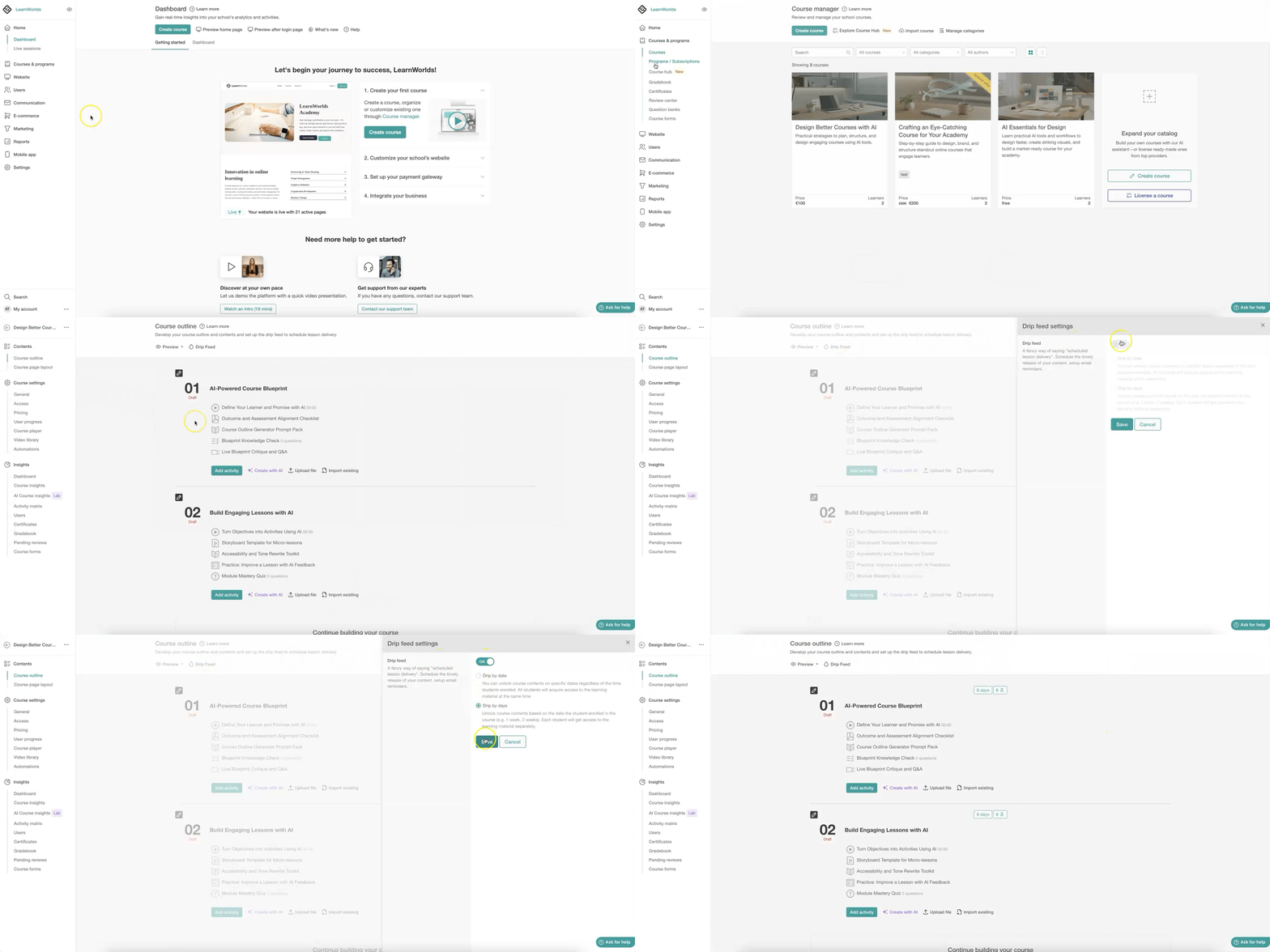
- Course sections should be configured as Free or Paid to become available through drip-feed. Learners will not have access to the sections until they are unlocked according to the configured drip-feed schedule. Sections set as Draft or Coming Soon are not unlocked automatically, and no drip-feed email notifications are sent for them.
- Drip-feed does not apply to free sections within Paid or Private courses, as free sections are accessible immediately. However, for sections within Free courses, drip-feed works normally for the course sections.
Drip by date
When Drip by Date is enabled, the No date specified option appears in the Course outline.
1. Click on No date specified.
2. Select the date when the section should be unlocked.
3. Optionally, enable the email notification to inform enrolled users about the new content.
4. Click on Save.
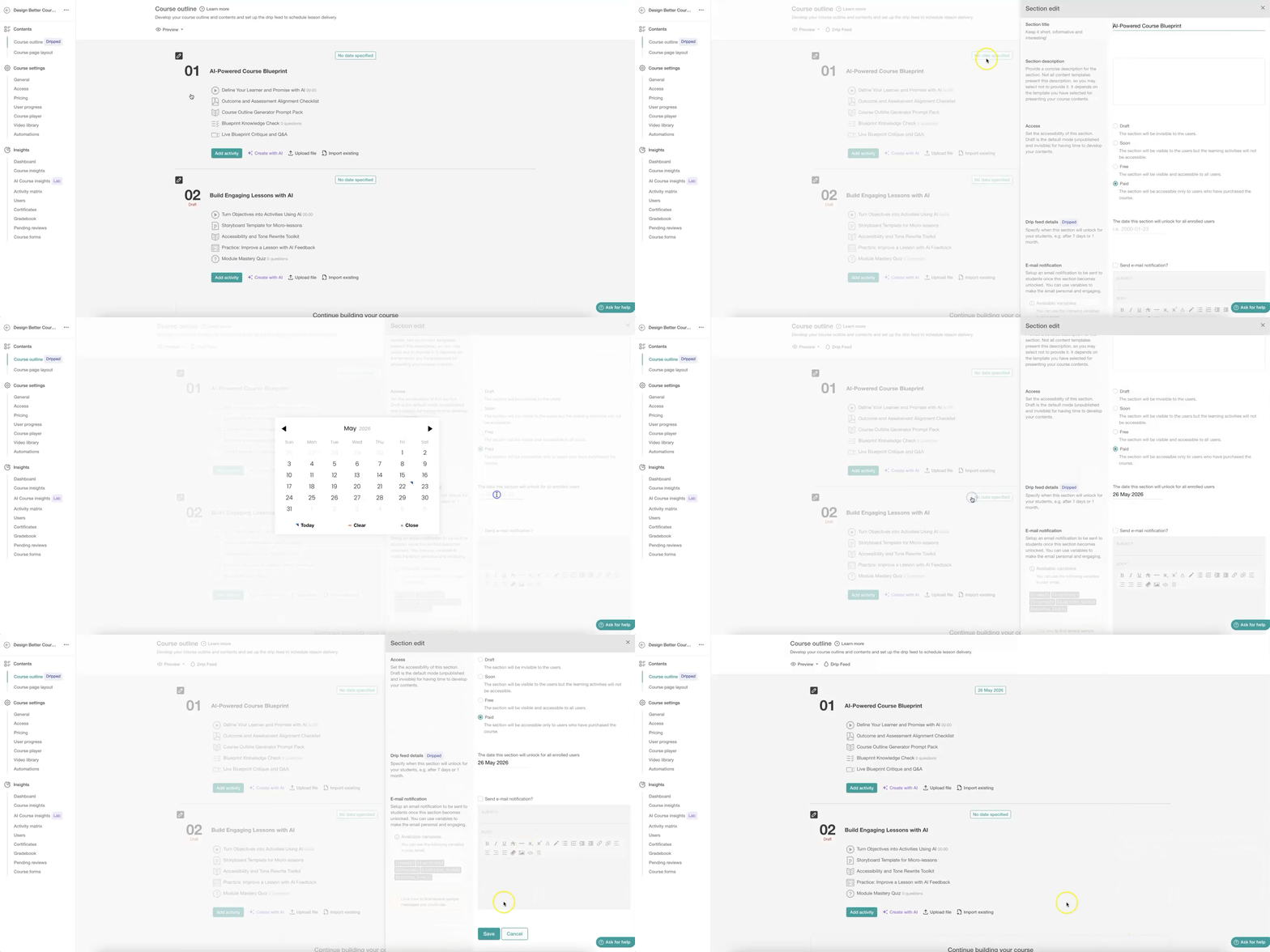
 When the date is not specified, the section is directly available to users. To ensure it remains locked, be sure to select a future date.
Drip by days
When Drip by Days is enabled, the Days and Users options appear in the Course outline.
1. Click on the 0 days button.
2. Select after how many days or weeks the section should be unlocked.
3. Optionally, enable the email notification to inform enrolled users about the new content.
4. Click on Save.
Once a drip-feed date is configured, the corresponding number of days until unlock is displayed automatically, and the Users button updates to show how many learners currently have access to that section based on their enrollment date.
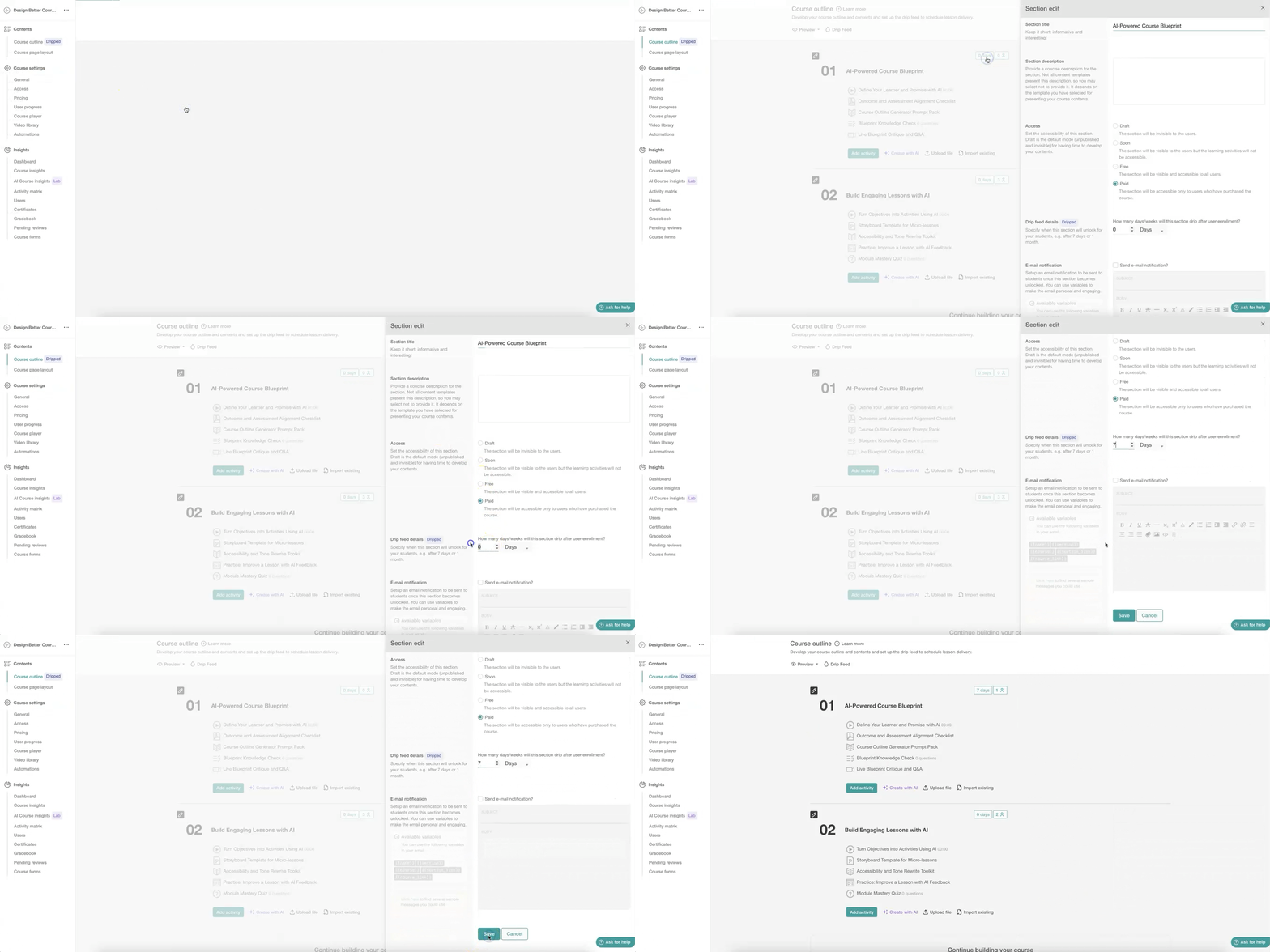
The value of 0 days means the section becomes available immediately after enrollment. It is recommended always to have at least one section (for example, the first section) set to 0 days or to the course start date. This helps track each learner’s current drip-feed progress correctly.Notify learners
If the email notification option is enabled, enrolled users will receive the email automatically when the section is unlocked. Drip-feed sections unlock at 00:00 based on your school’s time zone. You can edit your school time zone from Settings → School Info. Further information is available here.
1. Click the Date or Days button, depending on the selected drip-feed option.
2. Enable the Send email notification? option.
3. Add the email title and content. Alternatively, select Click here to use one of the available sample templates and customize it to your needs. You can also use variables to personalize the email.
4. Click on Save.
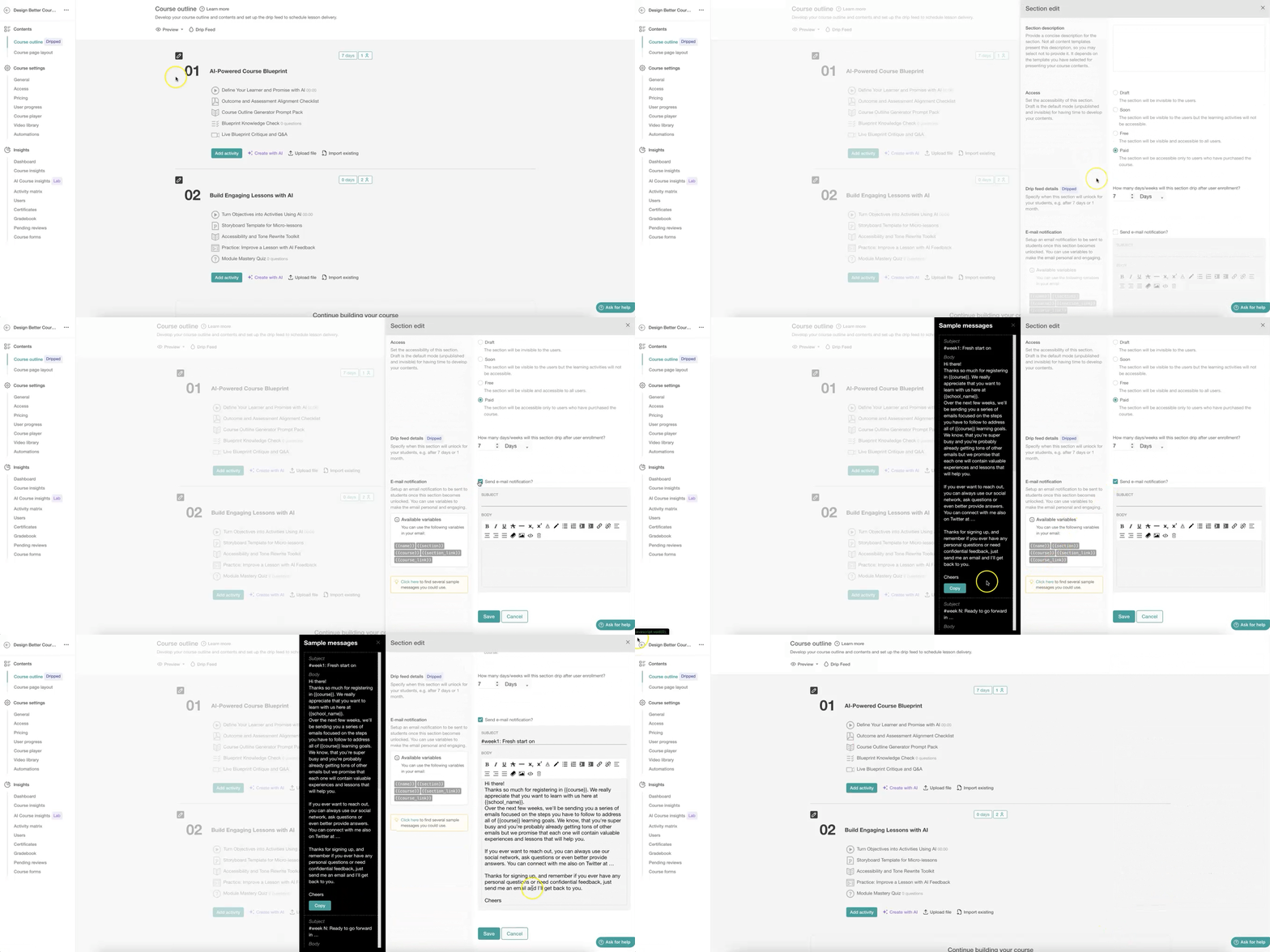
- Email notifications for Drip by Date courses are sent at the exact moment a section is unlocked. For example, if a course is configured to unlock after 2 days, the notification will be sent exactly 48 hours after the user’s enrollment time, not simply on the second calendar day. Email notifications for Drip by Date sections are sent at 00:00 based on your school’s time zone. You can edit your school time zone from Settings → School Info. Further information is available here.
- The notification email must contain both a subject and email body content. Otherwise, the notification email will not be delivered to users when the course section is unlocked through drip-feed.
- If two or more sections within the same course are scheduled to unlock on the same day or date, only the email notification configured for the last section will be sent. In this case, you only need to enable the Send email notification option for the last scheduled section.
- Drip-feed email notifications cannot be sent retrospectively. Notifications are triggered only at the moment a section is unlocked through the drip-feed schedule. If the notification option is enabled after the section has already been released, previously enrolled users will not receive the email notification automatically.
Unlock before the drip feed day
If course sections are configured with Drip by Days, you can manually unlock them earlier than the scheduled release date for specific learners. This is useful for special cases, such as granting early access to selected users or learners migrated from another platform. When Drip by Days is enabled, the Days and Users buttons appear in the Course Outline.
1. Click on the Users' button next to the specified (e.g. 4 days) drip feed date.
2. Click the pencil icon next to the user’s drip days, calculate which day each course section should unlock, and manually move the user to the appropriate drip-feed day (for example, day 9 or day 10 after enrollment).
3. Click on Save.
Once a drip-feed date is configured, the learner should appear only in the newest accessible course, not in multiple courses.

- In subscription plans, drip-feed progress is not automatically updated when a user changes subscriptions. By default, the user is unenrolled and re-enrolled in the same course, causing the drip-feed progress to restart.
- If a learner enrolls in a course through a Learning Program that uses Drip by Days, the Learning Program drip-feed rules override the course’s individual drip-feed settings for the earlier Unlock functionality. As a result, you cannot unlock sections earlier, and the edit (pencil) icon will not appear. For more information on how to use Drid Feed in Learning Programs, click here.