
Subscription plans offer cost predictability and convenience for consumers, providing access to desired services or products regularly at a fixed, manageable price. Additionally, they often come with added benefits such as exclusive content, discounts, or upgrades, enhancing overall value and customer satisfaction.
In this article, you will find further guidance on creating and showcasing subscription plans for your courses, ultimately boosting your revenue opportunities for the long term.
Subscription requirements
To use subscriptions in your LearnWorlds school, make sure you have:
- A Pro Trainer plan or higher.
- Integrated Stripe as your payment gateway.
Create subscription plans
To offer a subscription-based product in LearnWorlds, you first need to create a Learning Program.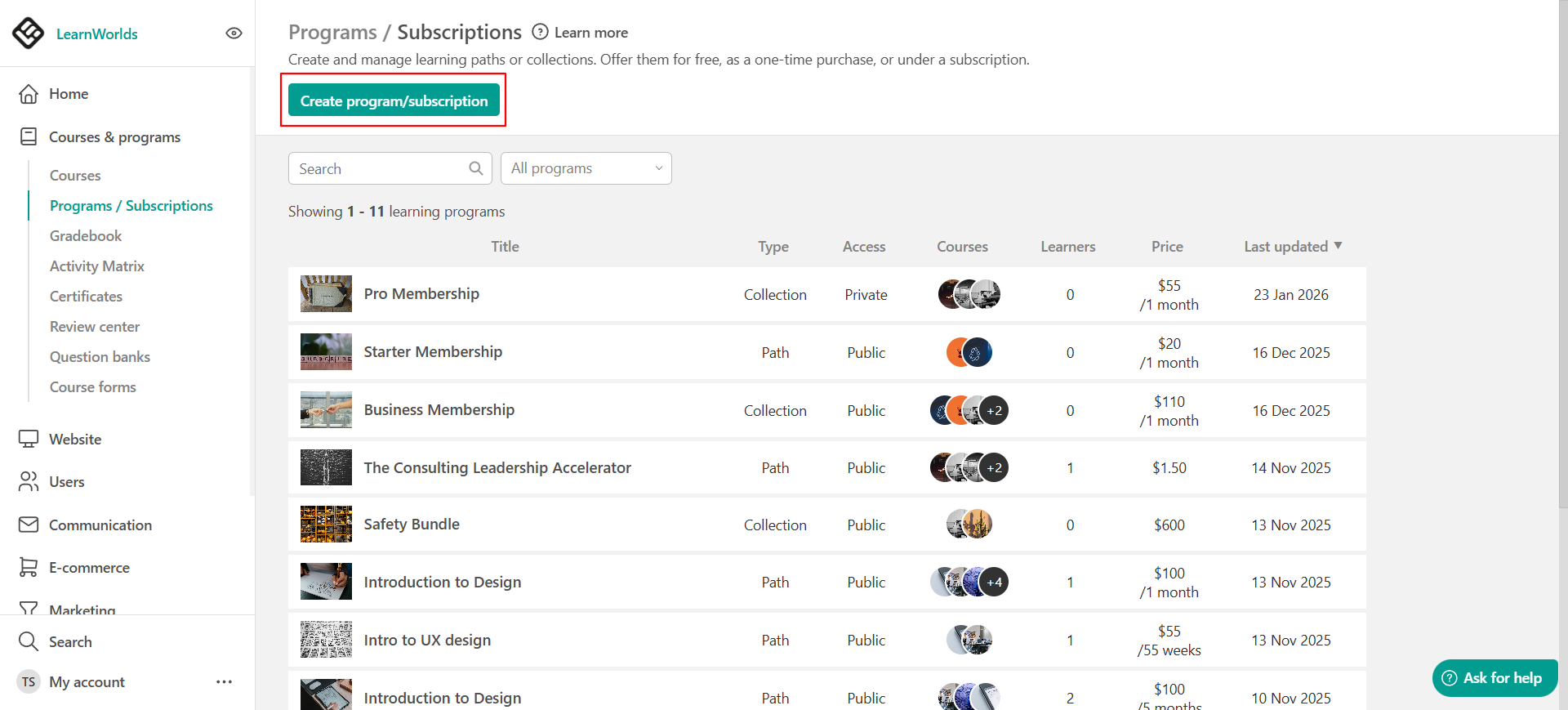
During the setup process, you’ll be prompted to choose whether the program is free, a one-off purchase, or subscription-based.
To get started:
1. Go to the Courses & Programs tab and click Programs/ Subscriptions.
2. Click the Create program/subscription button to open the setup wizard.
The wizard will guide you through several setup steps:
- Choose between a Learning Path or a Learning Collection; you can change the type later in the General Program settings.
There are two ways to organize your Learning Programs:
Learning Path: A structured sequence of courses that guides learners step by step through a recommended curriculum.
Learning Collection: A flexible library of courses that allows learners to explore content at their own pace. Great if you want to create course libraries and price them with subscriptions.
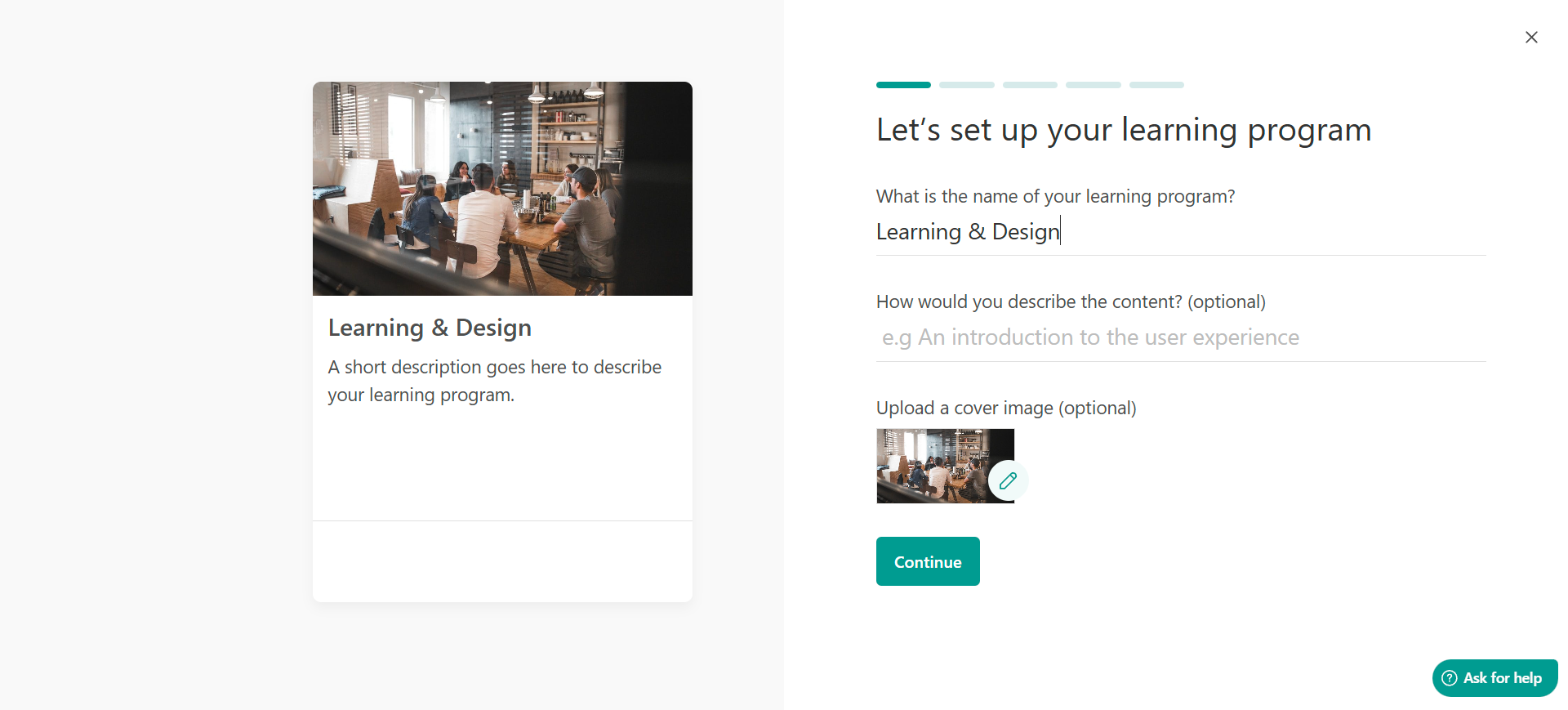
- Name your Learning Program. Optionally, you can add a description and a cover image.
- Set the Program’s URL by adding your preferred course ID at the end of the URL.
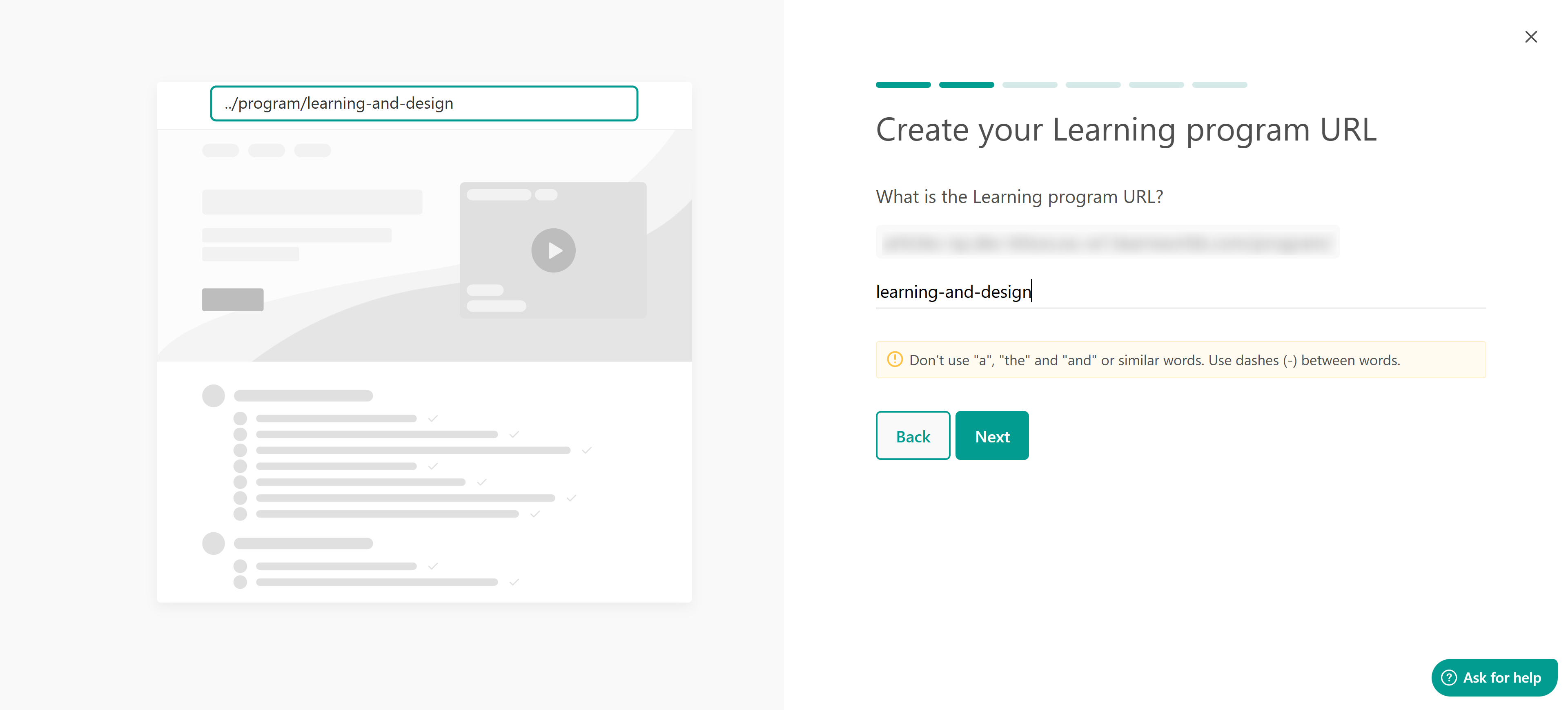
 The original ID of your Learning Program cannot be changed once the product is created. While you can customize the program’s URL on the Access Page, the underlying ID will remain the same. You can find more details here.
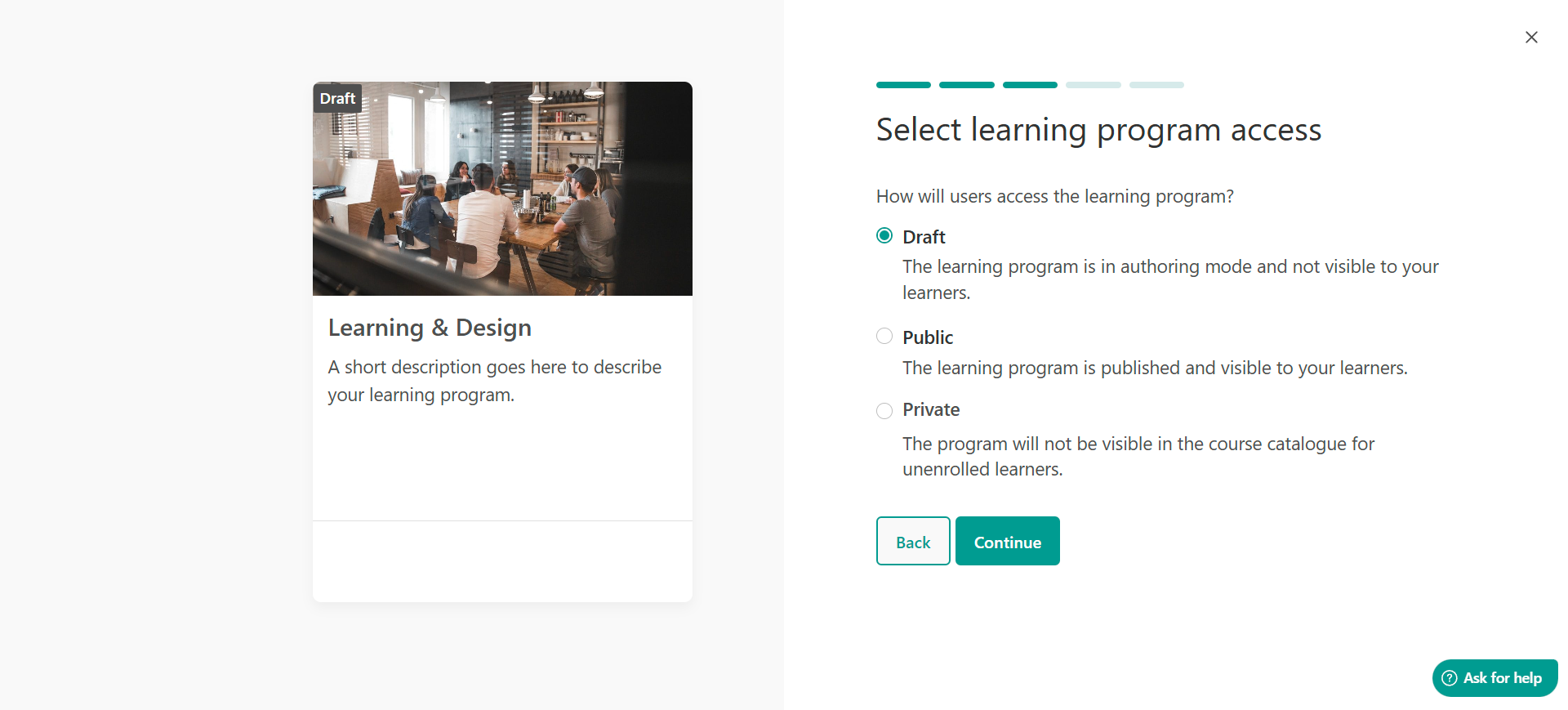
 - Set the Program's access, which can be set as Draft, Public, or Private.
- Select the Subscription payment option. You can switch between Free and One-off payment at any time. If your program is set to Subscription, it cannot be changed to another payment option.
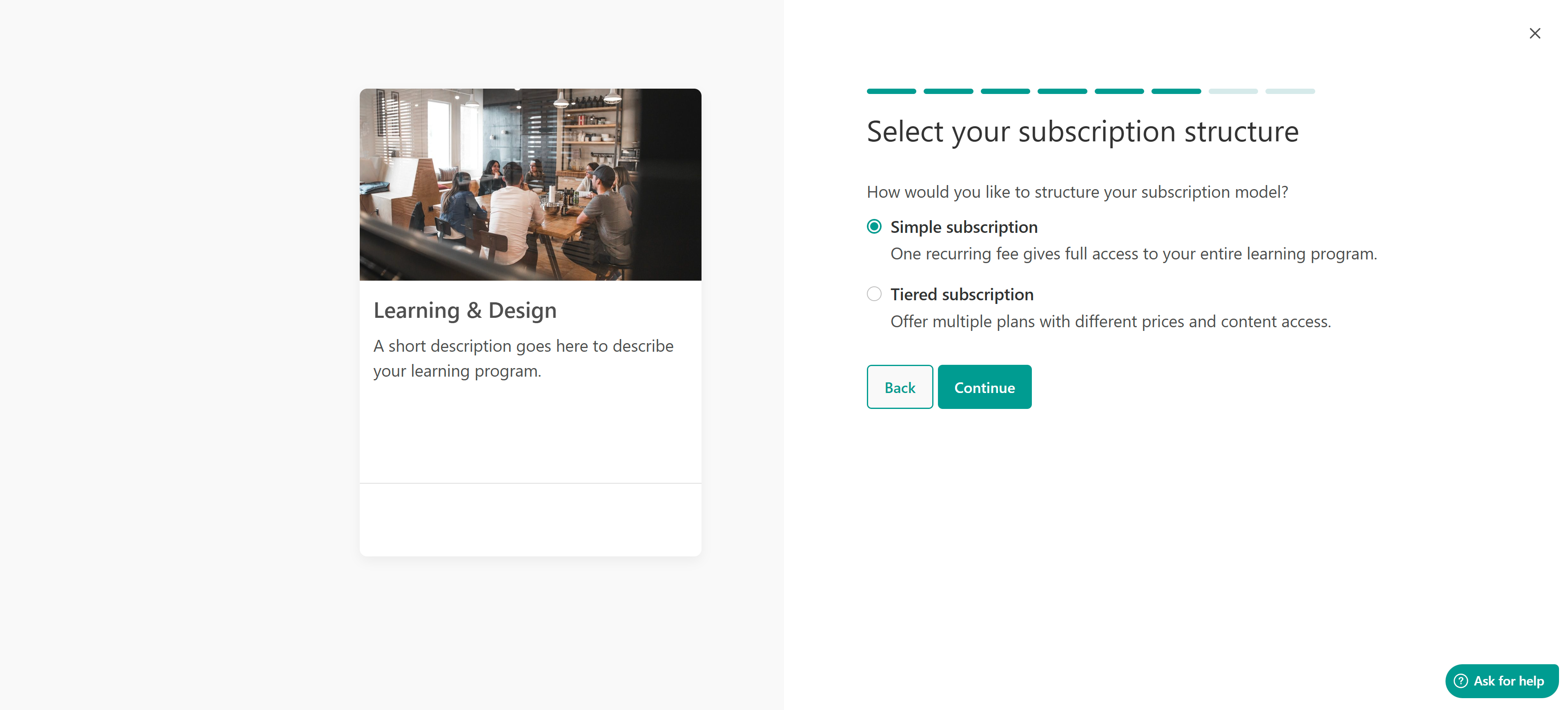
- Select your subscription structure. You can either use a simple subscription plan or a tiered subscription.
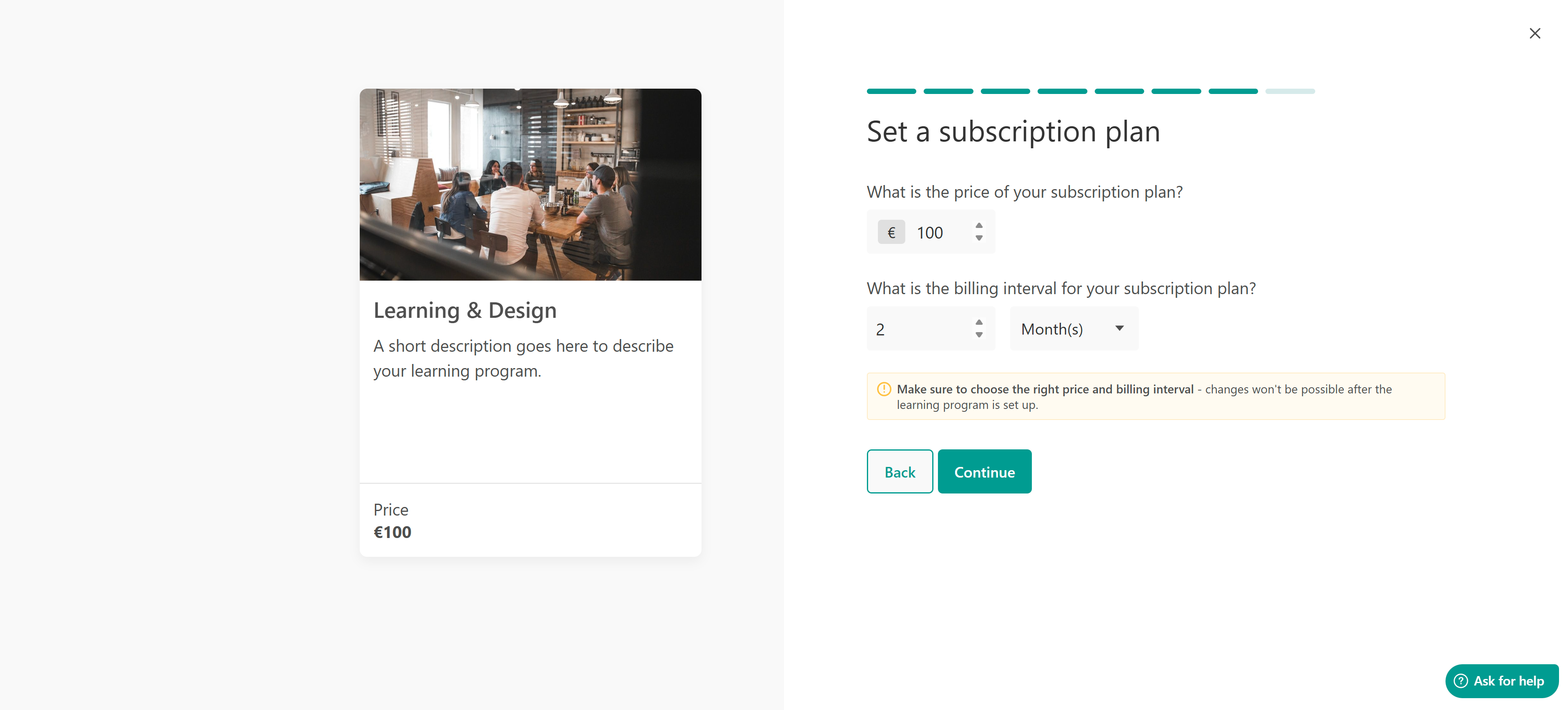
- Add a price and the billing interval of your subscription plan.
- Choose the default theme layout for your learning program page or apply a layout from another program.
- Click Finish, and your program is ready.
After creating your subscription program, you can update it at any time. Go to the Pricing tab to change the price or billing interval, add a trial period, and create offers for the subscription.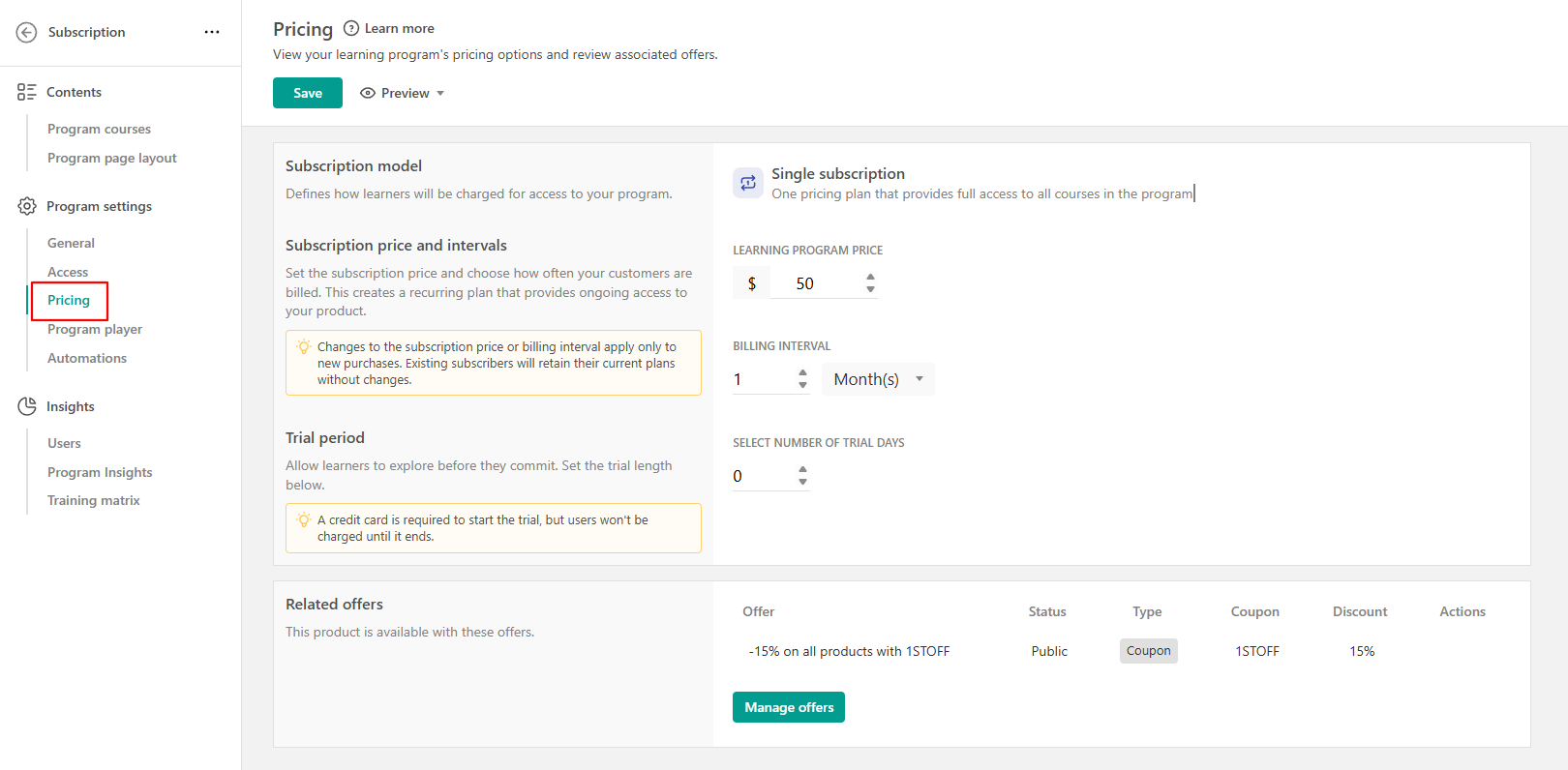
- If you decide to add more courses to the plan while users are subscribed, they will automatically gain access/synced to them.
- If you change the number of trial days, price, and/or interval of a subscription, this will not affect the remaining trial days of the registered users.
- Only Free, Paid, or Private courses can be included in subscriptions.
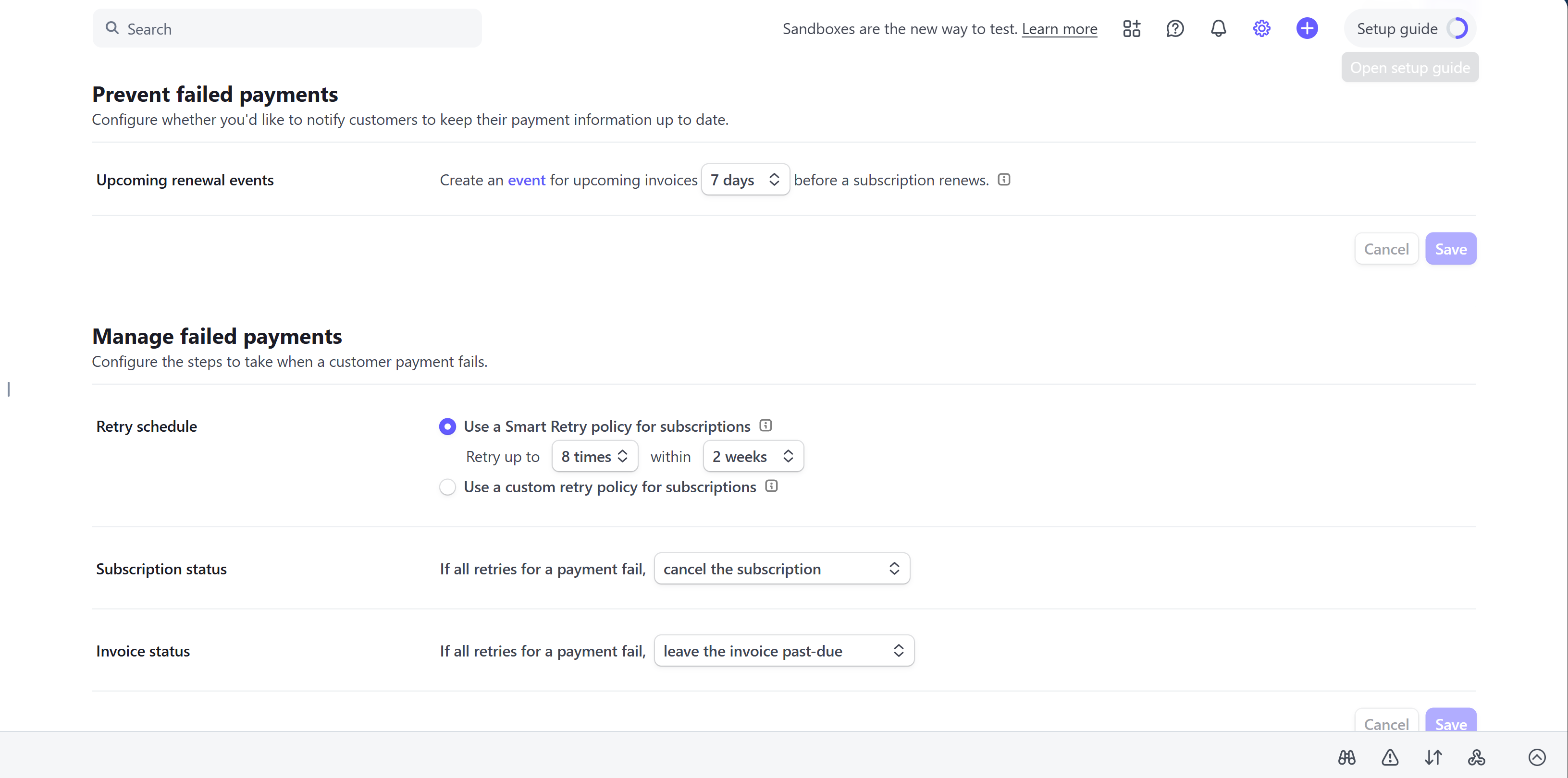
- Your school sends a set of notification emails related to subscriptions, but Stripe offers additional options you may find useful, such as managing free-trial messaging, preventing failed payments, handling failed payments, and managing disputed payments.
- If a subscription includes a free trial and a coupon with a limited duration is applied at checkout, the coupon starts on the purchase date, not when the free trial ends. This means the coupon and the free trial run at the same time. For example, if a subscription includes a 30-day free trial and a 2-month free coupon, the learner receives 2 months free in total, not 3, because the first month of the coupon overlaps with the free trial.
Manage subscription plans
The Plans tab in your admin dashboard gives you a complete overview of all active subscriptions and installment plans across your school. In the plans page, you can monitor, review, and manage user payment plans directly from LearnWorlds; no need to log into Stripe.
Refer to this article for detailed steps on managing your subscription plans.
Users' subscription management
Users can manage their subscriptions via their Account page. They can view information about their active subscription plans and installment plans, including the next billing date. If they wish to stop their subscription, they can do so by clicking the Cancel button.
Make sure to check this guide for key tips and best practices around subscriptions.